
IOS学习之IOS沙盒(sandbox)机制和文件操作
IOS学习之IOS沙盒(sandbox)机制和文件操作(一)
1、IOS沙盒机制
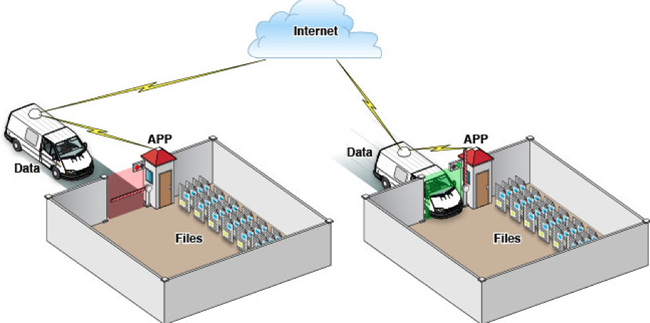
IOS应用程序只能在为该改程序创建的文件系统中读取文件,不可以去其它地方访问,此区域被成为沙盒,所以所有的非代码文件都要保存在此,例如图像,图标,声音,映像,属性列表,文本文件等。
1.1、每个应用程序都有自己的存储空间
1.2、应用程序不能翻过自己的围墙去访问别的存储空间的内容
1.3、应用程序请求的数据都要通过权限检测,假如不符合条件的话,不会被放行。
通过这张图只能从表层上理解sandbox是一种安全体系,应用程序的所有操作都要通过这个体系来执行,其中核心内容是:sandbox对应用程序执行各种操作的权限限制。
2、打开模拟器沙盒目录
下面看看模拟器的沙盒文件夹在mac电脑上的什么位置。
文件都在个人用户名文件夹下的一个隐藏文件夹里,中文叫资源库,他的目录其实是Library。
2.1 方法1、可以设置显示隐藏文件,然后在Finder下直接打开。设置查看隐藏文件的方法如下:打开终端,输入命名
显示Mac隐藏文件的命令:defaults write com.apple.finder AppleShowAllFiles -bool true
隐藏Mac隐藏文件的命令:defaults write com.apple.finder AppleShowAllFiles -bool false
输完单击Enter键,退出终端,
重新启动Finder就可以了重启Finder:鼠标单击窗口左上角的苹果标志-->强制退出-->Finder-->
现在能看到资源库文件夹了。
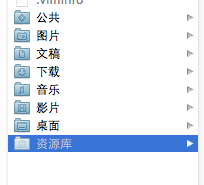
打开资源库后找到/Application Support/iPhone Simulator/文件夹。这里面就是模拟器的各个程序的沙盒目录了。
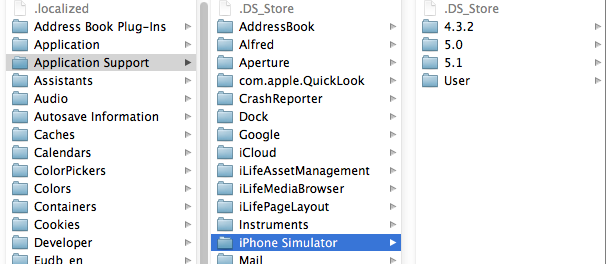
2.2 方法2、这种方法更方便,在Finder上点->前往->前往文件夹,输入/Users/username/Library/Application Support/iPhone Simulator/ 前往。
username这里写你的用户名。
3、目录结构
默认情况下,每个沙盒含有3个文件夹:Documents, Library 和 tmp。因为应用的沙盒机制,应用只能在几个目录下读写文件
Documents:苹果建议将程序中建立的或在程序中浏览到的文件数据保存在该目录下,iTunes备份和恢复的时候会包括此目录
Library:存储程序的默认设置或其它状态信息;
Library/Caches:存放缓存文件,iTunes不会备份此目录,此目录下文件不会在应用退出删除
tmp:提供一个即时创建临时文件的地方。
iTunes在与iPhone同步时,备份所有的Documents和Library文件。
iPhone在重启时,会丢弃所有的tmp文件。
我们创建一个IosSandbox的项目来展开沙盒和文件读写等操作的练习。
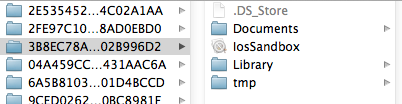
创建后找到模拟器上对应的目录,
这是目录全展开了。
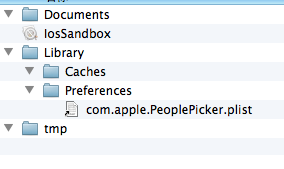
这是上面提到的三个目录 :Documents、Library、 tmp
下篇介绍目录路径获取和文件操作
IOS学习之IOS沙盒(sandbox)机制和文件操作(二)
我们看看如何获取应用程序沙盒目录。包括真机的沙盒的目录。
1、获取程序的Home目录
NSString *homeDirectory = NSHomeDirectory(); |
打印结果:
2012-06-17 14:00:06.098 IosSandbox[3536:f803] /Users/rongfzh/Library/Application Support/iPhone Simulator/5.1/ |
那在真机上的目录有是怎么样的呢?我们看看
2012-06-17 14:25:47.059 IosSandbox[4281:f803] /var/mobile/Applications/3B8EC78A-5EEE-4C2F-B0CB-4C3F02B996D2
可见,真机上的目录是/var/mobile/Applications/这个目录下的,和模拟器不一样。这个是Home目录,其他的子目录和模拟器一样。
2、获取document目录
NSArray *paths = NSSearchPathForDirectoriesInDomains(NSDocumentDirectory, NSUserDomainMask, YES); |
打印结果
2012-06-17 14:00:06.099 IosSandbox[3536:f803] path:/Users/rongfzh/Library/Application Support/iPhone Simulator/5.1 |
3、获取Cache目录
NSArray *paths = NSSearchPathForDirectoriesInDomains(NSCachesDirectory, NSUserDomainMask, YES); |
打印结果:
2012-06-17 14:03:50.431 IosSandbox[3628:f803] /Users/rongfzh/Library/Application Support/iPhone Simulator/5.1 |
4、获取Library目录
NSArray *paths = NSSearchPathForDirectoriesInDomains(NSLibraryDirectory, NSUserDomainMask, YES); |
打印结果:
2012-06-17 14:07:17.544 IosSandbox[3733:f803] /Users/rongfzh/Library/Application Support/iPhone Simulator/5.1 |
5、获取Tmp目录
NSString *tmpDir = NSTemporaryDirectory(); |
打印结果:
2012-06-17 14:08:07.824 IosSandbox[3782:f803] /var/folders/g7/246bh79130zblw0yjjtc55cw0000gn/T/ |
6、写入文件
NSArray *paths = NSSearchPathForDirectoriesInDomains(NSDocumentDirectory, NSUserDomainMask, YES); |
注:我们在真机上也运行一下,把文件写入,下一步从真机上把内容读取出来。
写入输入 array ,里面是两个字符串,一会我们读出来打印。
写入我们在程序沙盒目录下看到文件 testFile.txt

打开文件看到的内容是这样的,是个xml格式的plist文件,数据格式保存了内容。
<?xml version="1.0" encoding="UTF-8"?> |
7、读取文件
NSArray *paths = NSSearchPathForDirectoriesInDomains(NSDocumentDirectory, NSUserDomainMask, YES); |
打印结果:
把上面的文件解析后,把内容打印出来了。
2012-06-17 14:14:46.249 IosSandbox[3918:f803] ( |
真机上读取并打印文件路径:
2012-06-17 14:25:47.059 IosSandbox[4281:f803] /var/mobile/Applications/3B8EC78A-5EEE-4C2F-B0CB-4C3F02B996D2/Documents/testFile.txt
(
"\U5185\U5bb9",
content
)
真机上也能写入和打印。
IOS学习之IOS沙盒(sandbox)机制和文件操作之NSFileManager(三)
我们看看NSFileManager如何使用。包括创建文件,目录,删除,遍历目录等。
1、在Documents里创建目录
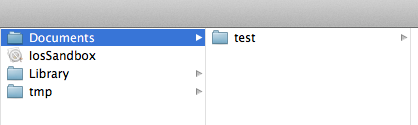
创建一个叫test的目录,先找到Documents的目录,
NSArray *paths = NSSearchPathForDirectoriesInDomains(NSDocumentDirectory, NSUserDomainMask, YES); |
启动程序,这时候目录就创建了:
2、在test目录下创建文件
创建文件怎么办呢?接着上面的代码 testPath 要用stringByAppendingPathComponent拼接上你要生成的文件名,比如test00.txt。这样才能在test下写入文件。
testDirectory是上面代码生成的路径哦,不要忘了。我往test文件夹里写入三个文件,test00.txt ,test22.txt,text.33.txt。内容都是写入内容,write String。
实现代码如下:
NSString *testPath = [testDirectory stringByAppendingPathComponent:@"test00.txt"]; |
看下面的图,三个文件都出来了,内容也对。

在Documents目录下创建就更简单了,不用加test就ok了
3、获取目录列里所有文件名
两种方法获取:subpathsOfDirectoryAtPath 和 subpathsAtPath
NSArray *paths = NSSearchPathForDirectoriesInDomains(NSDocumentDirectory, NSUserDomainMask, YES); |
获取上面刚才test文件夹里的文件名
打印结果
2012-06-17 23:23:19.684 IosSandbox[947:f803] fileList:( |
两个方法都可以,隐藏的文件也打印出来了。
4、fileManager使用操作当前目录
//创建文件管理器 |
这样就创建了testFileNSFileManager.txt并把三个hello world写入文件了
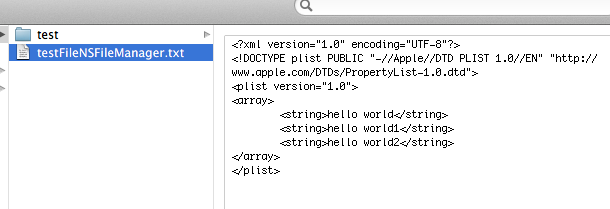
changeCurrentDirectoryPath目录更改到当前操作目录时,做文件读写就很方便了,不用加上全路径
5、删除文件
接上面的代码,remove就ok了。
| [fileManager removeItemAtPath:fileName error:nil]; |
6、混合数据的读写
用NSMutableData创建混合数据,然后写到文件里。并按数据的类型把数据读出来
6.1写入数据:
NSString * fileName = @"testFileNSFileManager.txt"; |
我们看看数据怎么样了:

我们看到后面的是乱码,那是中文被转成了NSData后,还有int float的二进制
6.2读取刚才写入的数据:
//读取数据: |
打印出来的结果:
2012-06-17 23:51:14.723 IosSandbox[1285:f803] stringData:nihao hello! intData:1234332 floatData:3.140000
这里把写入的汉字改成了 hello。因为[temp length]算长度是,把中文算成一位了,出来的结果有误。
IOS学习之IOS沙盒(sandbox)机制和文件操作的更多相关文章
- iOS学习之iOS沙盒(sandbox)机制和文件操作1
iOS学习之iOS沙盒(sandbox)机制和文件操作 接上篇 iOS学习之iOS沙盒(sandbox)机制和文件操作(一) 我们看看如何获取应用程序沙盒目录.包括真机的沙盒的目录. 1.获取程序的H ...
- IOS沙盒(sandbox)机制和文件操作
IOS学习之IOS沙盒(sandbox)机制和文件操作 作者:totogo2010 ,发布于2012-9-21,来源:CSDN 目录: IOS学习之IOS沙盒(sandbox)机制和文件操作( ...
- iOS学习之iOS沙盒(sandbox)机制和文件操作(一)
1.iOS沙盒机制 iOS应用程序仅仅能在为该改程序创建的文件系统中读取文件,不能够去其他地方訪问,此区域被成为沙盒,所以全部的非代码文件都要保存在此,比如图像,图标,声音,映像,属性列表,文本文件等 ...
- iOS学习之iOS沙盒(sandbox)机制和文件操作复习
1.iOS沙盒机制 iOS应用程序只能在为该改程序创建的文件系统中读取文件,不可以去其它地方访问,此区域被成为沙盒,所以所有的非代码文件都要保存在此,例如图像,图标,声音,映像,属性列表,文本文件等. ...
- iOS学习之iOS沙盒(sandbox)机制和文件操作(二)
1.获取程序的Home目录 NSString *homeDirectory = NSHomeDirectory(); NSLog(@"path:%@", homeDirectory ...
- iOS 沙盒(sandbox)机制和文件操作
本文参看了 http://www.uml.org.cn/mobiledev/201209211.asp#1 这篇文章中的介绍,尊重原著. 1.IOS沙盒机制 IOS应用程序只能在本应用程序中创建的文件 ...
- iOS学习之iOS沙盒(sandbox)机制和文件操作之NSFileManager(三)
1.在Documents里创建目录 创建一个叫test的目录,先找到Documents的目录, NSArray *paths = NSSearchPathForDirectoriesInDomains ...
- iOS学习之iOS沙盒(sandbox)机制和文件操作之NSFileManager
我们看看NSFileManager如何使用.包括创建文件,目录,删除,遍历目录等. 1.在Documents里创建目录 创建一个叫test的目录,先找到Documents的目录, [cpp] view ...
- iOS学习7:iOS沙盒(sandBox)机制(一)之获取沙盒路径及目录说明(转)
转:http://my.oschina.net/joanfen/blog/151145 一.iOS沙盒机制 iOS的应用只能访问为该应用创建的区域,不可访问其他区域,应用的其他非代码文件都存在此目录下 ...
随机推荐
- Fitnesse+RestFixture:Web服务回归测试利器
RestFixture是Fitness的一个测试REST服务的插件,用于调用标准的http GET/POST等请求方法,并可以用XPath语法和Javascript语法检验http响应.本文介绍安装运 ...
- redo文件三
switch logfile是一种昂贵的操作,在进行日志切换的时候,是不允许生成新的redo信息 在前台进程生成redo日志信息的时候,此时redo buffer已经分配了空间,并且在当前的redo日 ...
- Motan:目录结构
motan是由maven管理的,在最外层的pom.xml中可以看出这个项目有多个模块组成. <modules> <module>motan-core</module> ...
- Window下开发React-Native Android步骤
1.安装Android开发环境 下载并安装JDK 下载并安装Android SDK, Android NDK 启动SDK下面的SDK Manager.exe,安装相关SDK Platform-tool ...
- struts2+Hibernate4+spring3+EasyUI环境搭建之二:搭建spring
三.搭建spring3 1.引入spring3依赖 <!-- spring3 --> <dependency> <groupId>org.springframewo ...
- Linux上svn服务器的搭建
安装svn服务器 直接用yum安装,命令如下: #yum install -y subversion 验证是否安装成功. #svnserve --version 创建SVN版本库 在home目录下创建 ...
- 咏南CS多层插件式开发框架支持最新的DELPHI XE7
DATASNAP中间件: 中间件已经在好几个实际项目中应用,长时间运行异常稳定,可无人值守: 可编译环境:DELPHI XE5~DELPHI XE7,无需变动代码: 支持传统TCP/IP方式也支持RE ...
- Java日期处理类
1.Date java.util.Date 2.Calendar 日历类,通过getInstance()获取实例对象,可以获取年月日时分秒 3.SimpleDateFormat 日期格式化,forma ...
- hdu 5745 La Vie en rose DP + bitset优化
http://acm.hdu.edu.cn/showproblem.php?pid=5745 这题好劲爆啊.dp容易想,但是要bitset优化,就想不到了. 先放一个tle的dp.复杂度O(n * m ...
- when not exists 用法
USE [ChangHong_612]GO/****** Object: StoredProcedure [dbo].[st_MES_UpdateInspectResult] Script Date: ...