
[转]Node.js tutorial in Visual Studio Code
本文转自:https://code.visualstudio.com/docs/nodejs/nodejs-tutorial
Node.js tutorial in Visual Studio Code
Node.js is a platform for building fast and scalable server applications using JavaScript. Node.js is the runtime and NPM is the Package Manager for Node.js modules.
Visual Studio Code has support for the JavaScript and TypeScript languages out-of-the-box as well as Node.js debugging. However, to run a Node.js application, you will need to install the Node.js runtime on your machine.
To get started in this walkthrough, install Node.js for your platform. The Node Package Manager is included in the Node.js distribution. You'll need to open a new terminal (command prompt) for the nodeand npm command line tools to be on your PATH.
Linux: There are specific Node.js packages available for the various flavors of Linux. See Installing Node.js via package manager to find the Node.js package and installation instructions tailored to your version of Linux.
Tip: To test that you've got Node.js correctly installed on your computer, open a new terminal and type
node --helpand you should see the usage documentation.
Hello World
Let's get started by creating the simplest Node.js application, "Hello World".
Create an empty folder called "hello", navigate into and open VS Code:
mkdir hello

cd hello

code .
Tip: You can open files or folders directly from the command line. The period '.' refers to the current folder, therefore VS Code will start and open the
Hellofolder.
From the File Explorer tool bar, press the New File button:
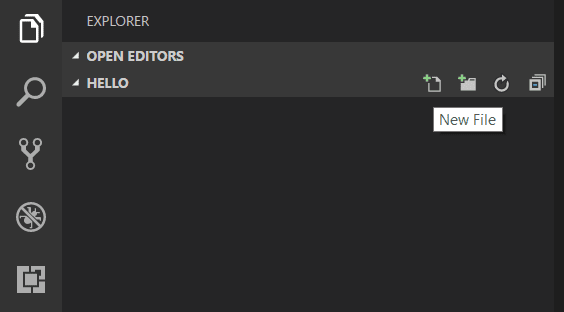
and name the file app.js:
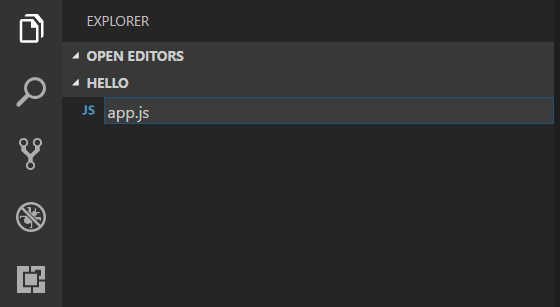
By using the .js file extension, VS Code interprets this file as JavaScript and will evaluate the contents with the JavaScript language service. Refer to the VS Code JavaScript language topic to learn more about JavaScript support.
Create a simple string variable in app.js and send the contents of the string to the console:
var msg = 'Hello World';

console.log(msg);
Note that when you typed console. IntelliSense on the console object was automatically presented to you.
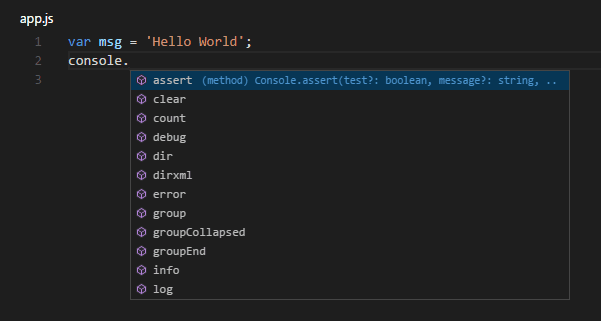
Also notice that VS Code knows that msg is a string based on the initialization to 'Hello World'. If you type msg. you'll see IntelliSense showing all of the string functions available on msg.
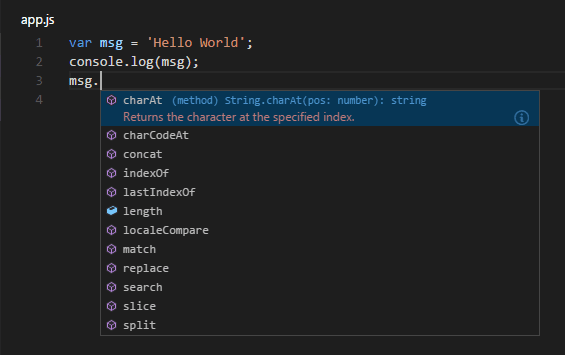
After experimenting with IntelliSense, revert any extra changes from the source code example above and save the file (Ctrl+S).
Running Hello World
It's simple to run app.js with Node.js. From a terminal, just type:
node app.js
You should see "Hello World" output to the terminal and then Node.js returns.
Integrated Terminal
VS Code has an integrated terminal which you can use to run shell commands. You can run Node.js directly from there and avoid switching out of VS Code while running command line tools.
View > Integrated Terminal (Ctrl+` with the backtick character) will open the integrated terminal and you can run node app.js there:
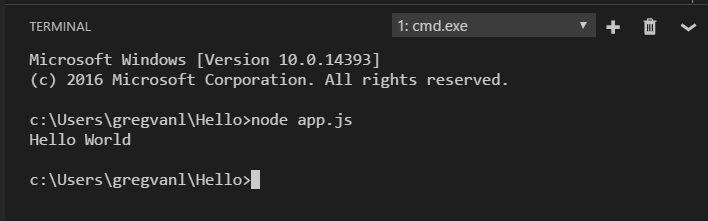
For this walkthrough, you can use either an external terminal or the VS Code integrated terminal for running the command line tools.
Debugging Hello World
As mentioned in the introduction, VS Code ships with a debugger for Node.js applications. Let's try debugging our simple Hello World application.
To set a breakpoint in app.js, put the editor cursor on the first line and press F9 or click in the editor left gutter next to the line numbers. A red circle will appear in the gutter.
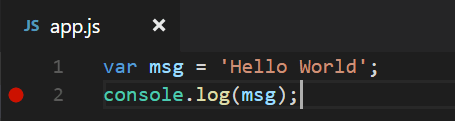
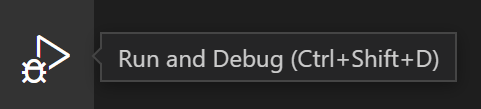
To start debugging, select the Debug View in the Activity Bar:
You can now click Debug tool bar green arrow or press F5 to launch and debug "Hello World". Your breakpoint will be hit and you can view and step through the simple application. Notice that VS Code displays a different colored Status Bar to indicate it is in Debug mode and the DEBUG CONSOLE is displayed.
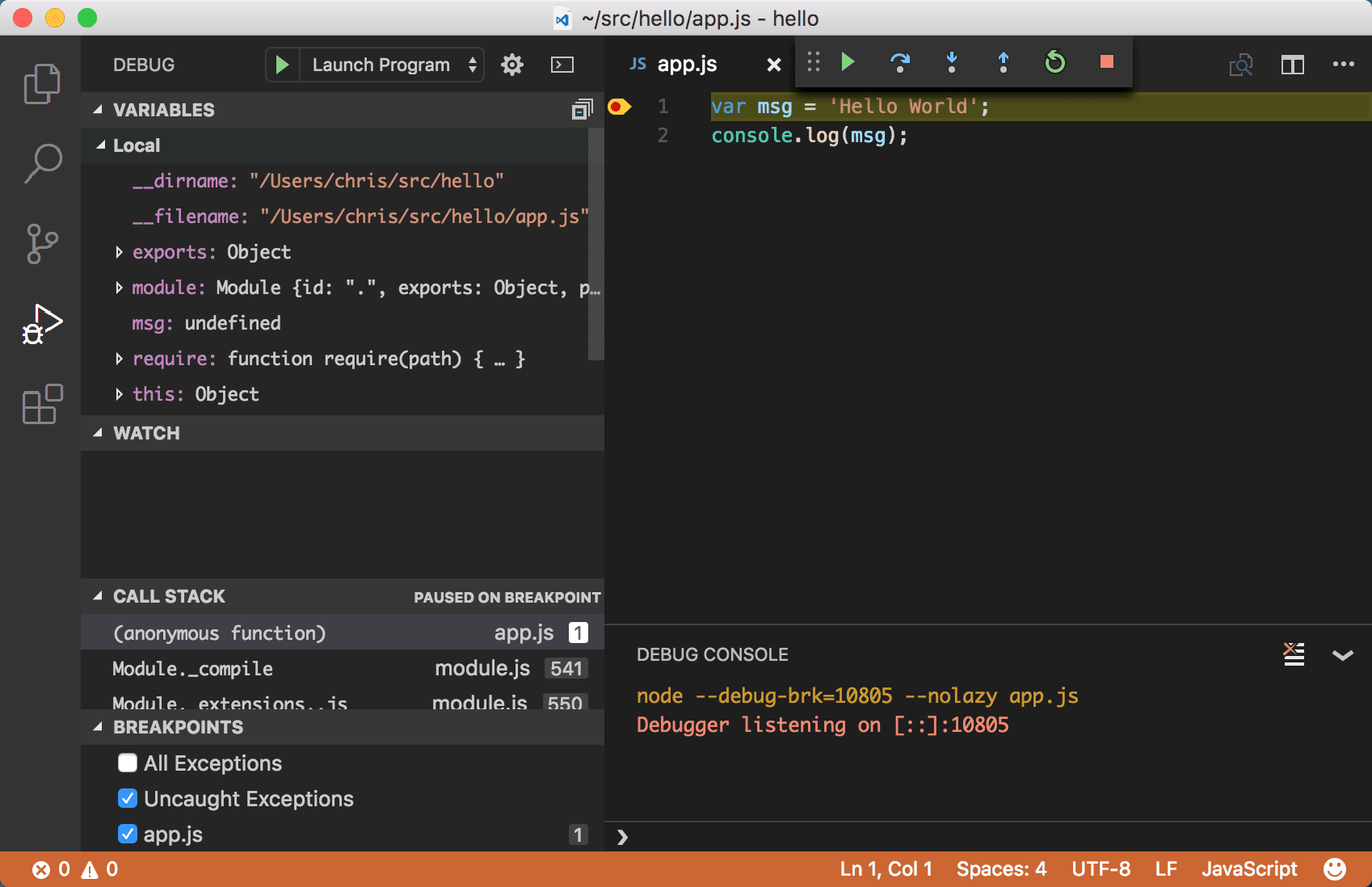
Now that you've seen VS Code in action with "Hello World", the next section shows using VS Code with a full-stack Node.js web app.
Note: We're done with the "Hello World" example so navigate out of that folder before you create an Express app. You can delete the "Hello" folder if you wish as it is not required for the rest of the walkthrough.
An Express application
Express is a very popular application framework for building and running Node.js applications. You can scaffold (create) a new Express application using the Express Generator tool. The Express Generator is shipped as an NPM module and installed by using the NPM command line tool npm.
Tip: To test that you've got
npmcorrectly installed on your computer, typenpm --helpfrom a terminal and you should see the usage documentation.
Install the Express Generator by running the following from a terminal:
npm install -g express-generator
The -g switch installs the Express Generator globally on your machine so you can run it from anywhere.
We can now scaffold a new Express application called myExpressApp by running:
express myExpressApp
This creates a new folder called myExpressApp with the contents of your application. To install all of the application's dependencies (again shipped as NPM modules), go to the new folder and execute npm install:
cd myExpressApp

npm install
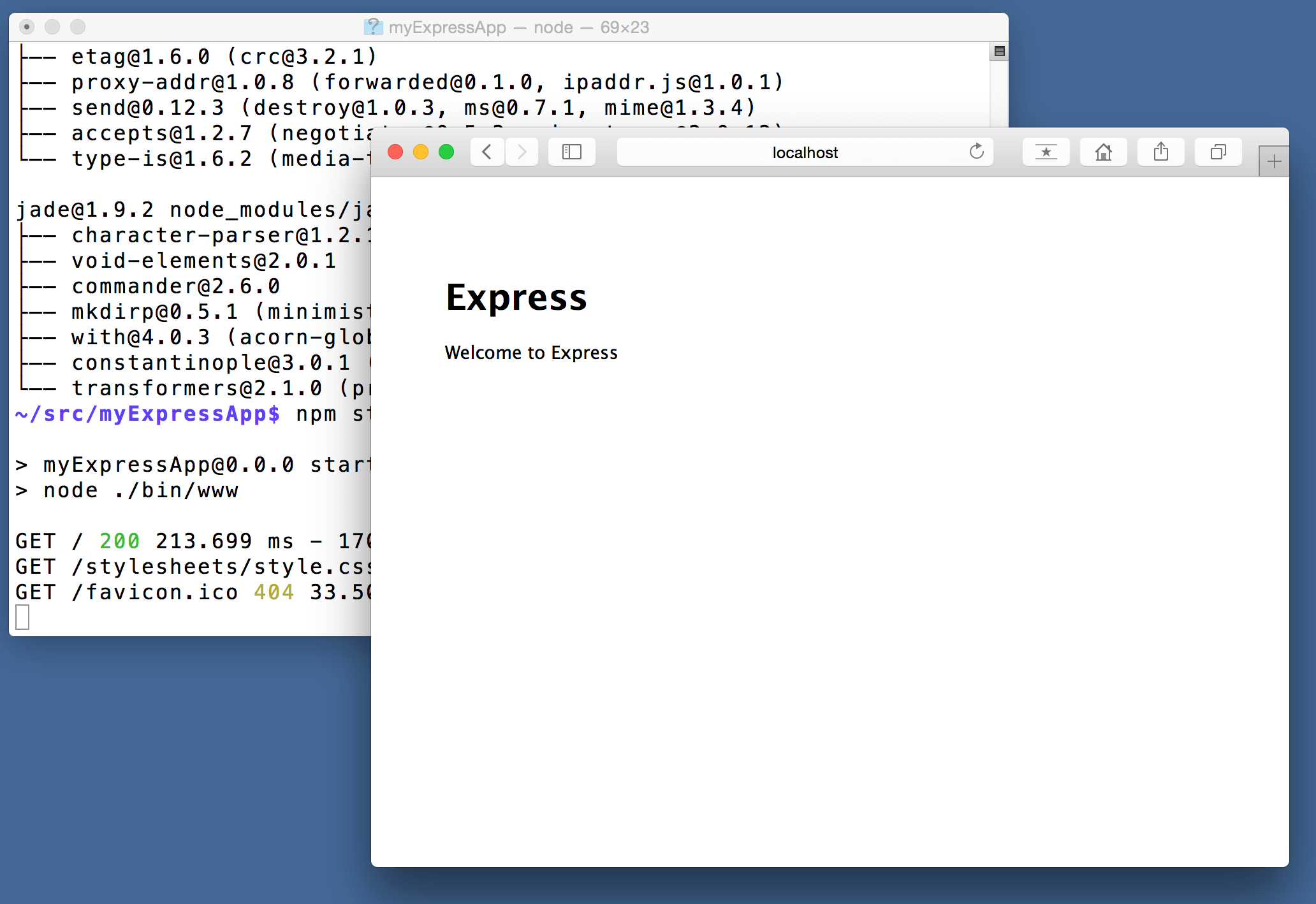
At this point, we should test that our application runs. The generated Express application has a package.json file which includes a start script to run node ./bin/www. This will start the Node.js application running.
From a terminal in the Express application folder, run:
npm start
Tip: You can enable an explorer for the npm scripts in your workspace using the
npm.enableScriptExplorersetting.
The Node.js web server will start and you can browse to http://localhost:3000 to see the running application.
Great code editing
Close the browser and from a terminal in the myExpressApp folder, stop the Node.js server by pressing CTRL+C.
Now launch VS Code:
code .
Note: If you've been using the VS Code integrated terminal to install the Express generator and scaffold the app, you can open the
myExpressAppfolder from your running VS Code instance with the File > Open Folder... command.
The Node.js and Express documentation does a great job explaining how to build rich applications using the platform and framework. Visual Studio Code will make you more productive developing these types of applications by providing great code editing and navigation experiences.
Open the file app.js and hover over the Node.js global object __dirname. Notice how VS Code understands that __dirname is a string. Even more interesting, you can get full IntelliSense against the Node.js framework. For example, you can require http and get full IntelliSense against the http class as you type in Visual Studio Code.
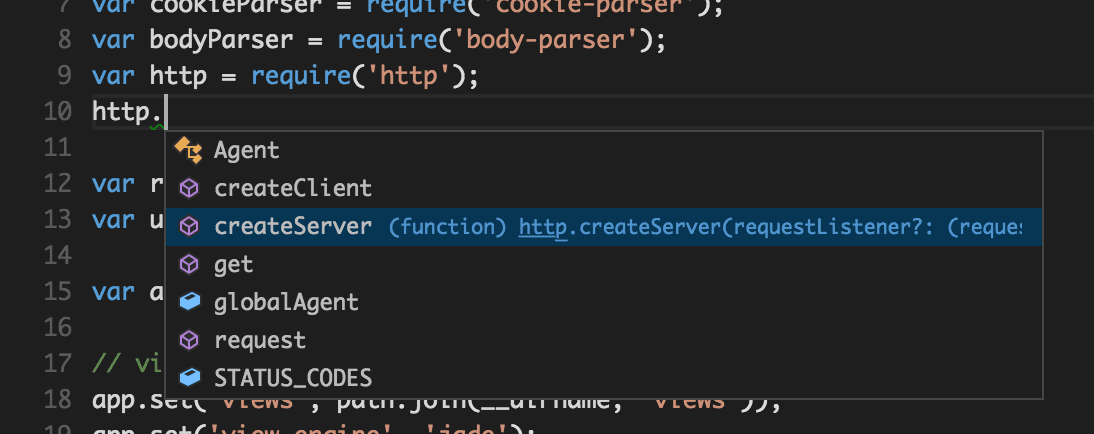
VS Code uses TypeScript type declaration (typings) files (for example node.d.ts) to provide metadata to VS Code about the JavaScript based frameworks you are consuming in your application. Type declaration files are written in TypeScript so they can express the data types of parameters and functions, allowing VS Code to provide a rich IntelliSense experience. Thanks to a feature called Automatic Type Acquisition, you do not have to worry about downloading these type declaration files, VS Code will install them automatically for you.
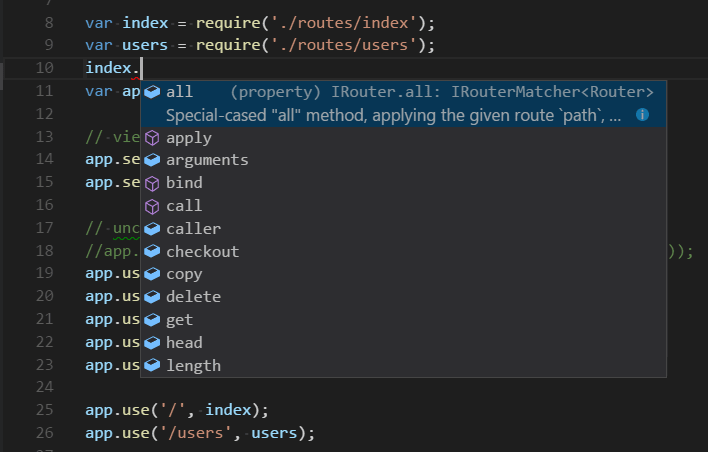
You can also write code that references modules in other files. For example, in app.js we require the ./routes/index module, which exports an Express.Router class. If you bring up IntelliSense on index, you can see the shape of the Router class.
Debug your Express app
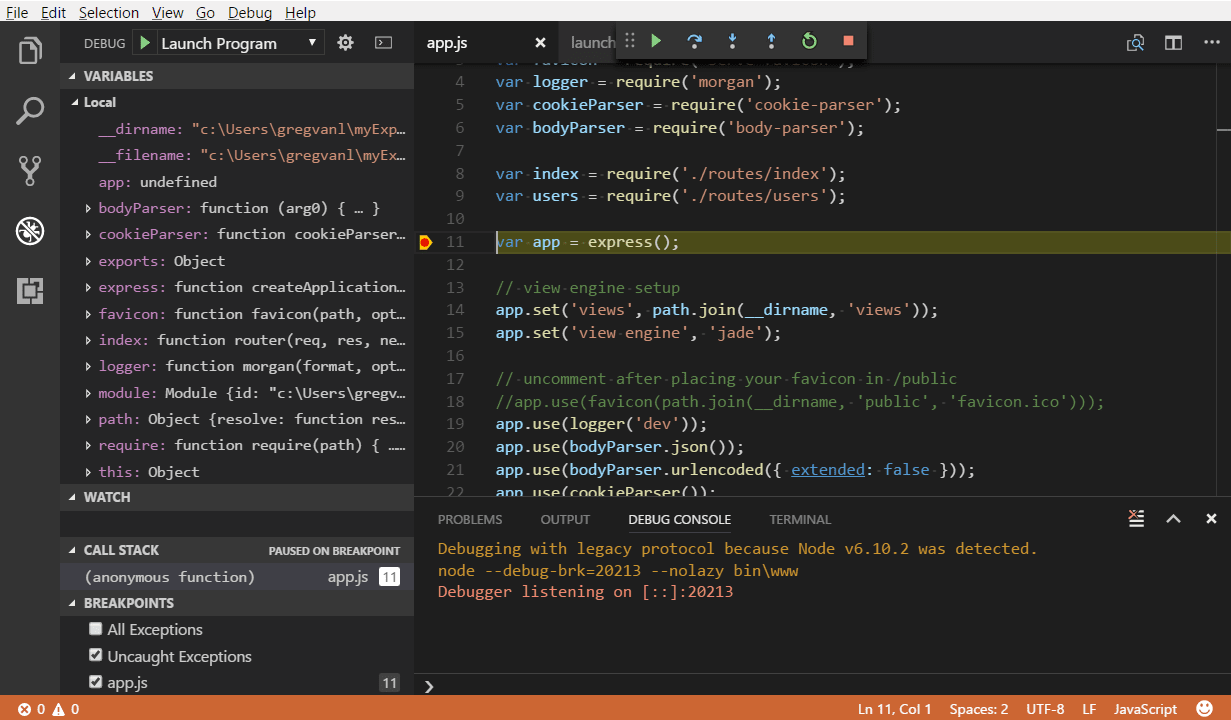
You will need to create a debugger configuration file launch.json for your Express application. Click on the Debug icon in the Activity Bar and then the Configure gear icon at the top of the Debug view to create a default launch.json file. Select the Node.js environment by ensuring that the type property in configurations is set to "node". When the file is first created, VS Code will look in package.json for a start script and will use that value as the program (which in this case is "${workspaceFolder}\\bin\\www) for the Launch Program configuration.
{

    "version": "0.2.0",

    "configurations": [

        {

            "type": "node",

            "request": "launch",

            "name": "Launch Program",

            "program": "${workspaceFolder}\\bin\\www"

        }

    ]

}
Save the new file and make sure Launch Program is selected in the configuration dropdown at the top of the Debug view. Open app.js and set a breakpoint near the top of the file where the Express app object is created by clicking in the gutter to the left of the line number. Press F5 to start debugging the application. VS Code will start the server in a new terminal and hit the breakpoint we set. From there you can inspect variables, create watches, and step through your code.
Deploy your application
If you'd like to learn how to deploy your web application, check out the Deploying Applications to Azuretutorials where we show how to run your website in Azure.
Next Steps
There is much more to explore with Visual Studio Code, please try the following topics:
- Settings - Learn how to customize VS Code for how you like to work.
- Debugging - This is where VS Code really shines.
- Video: Getting started with Node.js debugging - Learn how to attach to a running Node.js process.
- Node.js debugging - Learn more about VS Code's built-in Node.js debugging.
- Debugging recipes - Examples for scenarios like client-side and container debugging.
- Tasks - Running tasks with Gulp, Grunt and Jake. Showing Errors and Warnings.
[转]Node.js tutorial in Visual Studio Code的更多相关文章
- [转]Getting Start With Node.JS Tools For Visual Studio
本文转自:http://www.c-sharpcorner.com/UploadFile/g_arora/getting-started-with-node-js-tools-for-visual-s ...
- node.js Tools for Visual Studio 介绍
node.js Tools for Visual Studio简称NTVS 项目 安装包地址:https://nodejstools.codeplex.com 目前支持2012和2013
- Node.js tools for visual studio 在vs中使用Node.js
简单介绍 PTVS开发团队又开发出一款可以在VS里编写Node.js应用程序的插件——NTVS(Node.js Tools for Visual Studio),开发者可以在VS里轻松开发Node.j ...
- Node.js Tools for Visual Studio
https://www.visualstudio.com/en-us/features/node-js-vs.aspx
- 【Visual Studio Code 】使用Visual Studio Code + Node.js搭建TypeScript开发环境
1.准备工作 Node.js Node.js - Official Site Visual Studio Code Visual Studio Code - Official Site 安装Node. ...
- 使用Visual Studio Code + Node.js搭建TypeScript开发环境
Visual Studio Code搭建Typescript开发环境 —— 相关文章: http://www.cnblogs.com/sunjie9606/p/5945540.html [注意:这里仅 ...
- Visual Studio Code - 调试 Node.js 代码
官方的文档写的太好了!大家还是看参考资料吧. 参考资料: Debugging in Visual Studio Code Debug Node.js Apps using Visual Studio ...
- Nodejs in Visual Studio Code 01.简单介绍Nodejs
1.开始 作者自己:开发人员,Asp.Net , html / js , restful , memcached , oracle ,windows , iis 目标读者:供自己以后回顾 2.我看No ...
- crossplatform---Nodejs in Visual Studio Code 01.简单介绍Nodejs
1.开始 作者自己:开发人员,Asp.Net , html / js , restful , memcached , oracle ,windows , iis 目标读者:供自己以后回顾 2.我看No ...
随机推荐
- foreach退出循环(新人请多多关照~)
今天做一个关于人员信息修改的页面时,我用foreach获取数据库数据时发现,用if else判断输入的内容时,会一个一个的做对比,导致错误提醒时会弹出与数据库内容行数相同条的提醒,最后发现将数据直接命 ...
- 【转】linux 查看进程启动路径
在linux下查看进程大家都会想到用 ps -ef|grep XXX可是看到的不是全路径,怎么看全路径呢?每个进程启动之后在 /proc下面有一个于pid对应的路径例如:ps -ef|grep pyt ...
- linux 查看内网流量
可以使用iftop进行Linux机器的网络流量监控 安装方法 centos系统下 第一步:安装EPEL源 yum install epel-release 第二部:安装iftop yum instal ...
- HNOI 2018 简要题解
寻宝游戏 毒瘤题. 估计考试只会前30pts30pts30pts暴力然后果断走人. 正解是考虑到一个数&1\&1&1和∣0|0∣0都没有变化,&0\&0& ...
- drf4 视图与路由组件
APIView和View的区别 不管是View还是APIView最开始调用的都是as_view() APIView继承了View, 并且执行了View中的as_view()方法,最后把view返回了, ...
- 程序中使用now()函数对性能的影响
这两天从某平台的慢查询日志中发现了一些很简单的,原本执行时间在0.01-0.03s的SQL,慢查询日志中记录的执行时间在2s左右. 排查后发现,表设计及索引建设均没有什么问题.但是SQL语句中使用了n ...
- 剪格子 dfs 蓝桥杯
问题描述 如下图所示,3 x 3 的格子中填写了一些整数. +--*--+--+ |10* 1|52| +--****--+ |20|30* 1| *******--+ | 1| 2| ...
- android资源文件
代码与资源分离原则:便于维护与修改shape:定义图形 selector:按照不同的情况加载不同的color或drawable layer-list:从下往上图形层叠加载 资源文件有:/res/dra ...
- iOS逆向之iOSOpenDev
上篇谈到使用TheOS进行越狱开发,但是流程相对而言较复杂,本篇我们谈一下iOSOpenDev进行越狱开发.通过使用iOSOpenDev,我们可以使用Xcode进行开发.编译.生成并运行到设备上. 1 ...
- 第30节:Java基础-内部类
内部类 // 外部类 class Demo{ private int num = 3; // 定义内部类 class Int{ void show(){ System.out.println(&quo ...