
iOS UIKit:TableView之编辑模式(3)
一般table view有编辑模式和正常模式,当table view进入编辑模式时,会在row的左边显示编辑和重排控件,如图 42所示的编辑模式时的控件布局;左边的editing control有表 61的两种图标。
表 61 table view编辑控件
|
图标 |
描述 |
|
|
Deletion控件 |
|
|
Insertion控件 |


若table view在编辑模式时,用户点击编辑控件,那么table view会发送一系列消息给data source 和delegate对象。可以通过实现这些方法来修改table view的外观和行为,或者执行插入和删除操作。
1 插入与删除row
UITableView中有两个编辑row的方法:插入和删除。在任何时候都可直接调用这两个方法,无需在tableView进入编辑模式才能调用。并且当调用这两方法后,tableView会自动重新加载(reload)。
|
- (void)deleteRowsAtIndexPaths:(NSArray<NSIndexPath *> *)indexPaths withRowAnimation:(UITableViewRowAnimation)animation |
|
- (void)insertRowsAtIndexPaths:(NSArray<NSIndexPath *> *)indexPaths withRowAnimation:(UITableViewRowAnimation)animation |
|
参数语义: indexPaths:希望修改的rows路径,是一个路径对象的数组; animation:为动画类型。 |
注意:
这两个方法的调用需要相应修改tableview中显示的数据模型,即应保持data source的三个方法(section数、row数和cell对象)返回的数据与修改后的数据一致。如调用方法删除某一行,那么该行就不能在tableview中再显示,否则会奔溃出错。
1.1 进入编辑模式
当tableView进入编辑模式时,即在每个row的左边会出现插入或删除控件。其中可以通过UITableView的setEditing:animated:方法来控制其进入和退出编辑模式。
|
- (void)setEditing:(BOOL)editing animated:(BOOL)animate |
|
参数语义: editing:控制进出操作,若为YES为进入编辑模式;若为NO为退出编辑模式。 animate:为设置是否进行动画播放。 |
当调用了setEditing方法之后,tableView会陆续调用data source和delegate的几个方法,具体执行次序如图 61所示。
1) tableView对象首先调用data source对象的tableView:canEditRowAtIndexPath:方法(可选);
2) 然后tableView对象首先调用delegate对象的tableView:editingStyleForRowAtIndexPath:方法(必选),该方法返回row所要显示的控件类型,即删除或插入控件。
3) 接着,在table view中的row左边会显示响应的控件,此时用户可以进行操作;
4)当用户对row的编辑控件进行点击时,会调用data source对象的tableView:commitEditingStyle:forRowAtIndexPath:方法(必选),用户即可实现该方法,从而实现希望完成的操作,如删除或添加某一row。
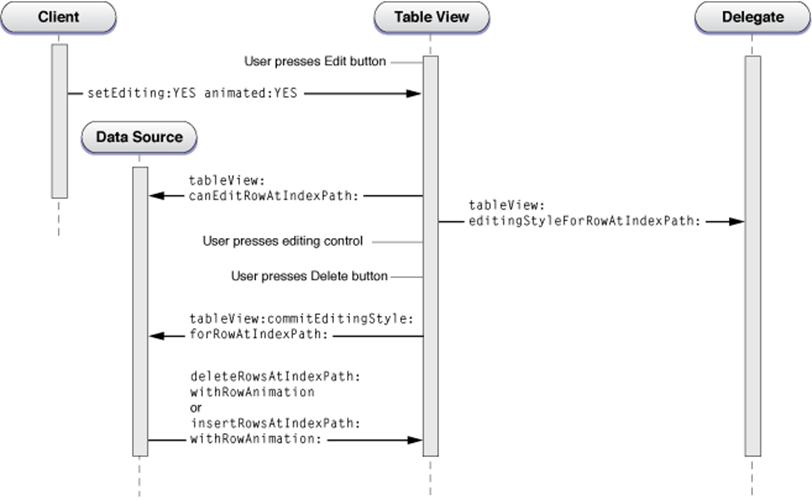
图 61 Calling sequence for inserting or deleting rows in a table view
1.2 操作示例
1)tableView初始化
首先初始化一个数组来显示table view中的cell,并在导航栏右边添加一个进入编辑模式的按钮,该按钮为UITableView对象提供的控制项。
 1 @interface ViewController : UITableViewController

 2 @property NSMutableArray * array;

 3 @end

 4 @implementation ViewController

 5 - (void)viewDidLoad {

 6     [super viewDidLoad];

 7 self.navigationItem.rightBarButtonItem = self.editButtonItem;

 8

 9     _array = [[NSMutableArray alloc] initWithObjects:

10                 [NSMutableArray arrayWithObjects:@"Item1", @"Item2", nil],

11                 [NSMutableArray arrayWithObjects:@"Item1", @"Item2", @"Item3", nil],

12                 [NSMutableArray arrayWithObjects:@"Item1", @"Item2", @"Item3", @"Item4", nil],

13                 [NSMutableArray arrayWithObjects:@"Item1", @"Item2", @"Item3", @"Item4", @"Item5",nil],

14                 nil];

15 }

16 - (NSInteger)numberOfSectionsInTableView:(UITableView *)tableView

17 {

18     return [_array count];

19 }

20 -(NSInteger) tableView:(UITableView *)tableView numberOfRowsInSection:(NSInteger)section

21 {

22     return [_array[section] count];

23 }

24 -(UITableViewCell*)tableView:(UITableView *)tableView cellForRowAtIndexPath:(NSIndexPath *)indexPath

25 {

26     UITableViewCell *cell = [tableView dequeueReusableCellWithIdentifier: @"myCell"];

27     return cell;

28 }
2) 进入编辑模式
当用户点击导航按钮时,将会自动调用如下实现的setEditing方法,在该方法中调用tableView对象的setEditing方法进入编辑模式;然后在第二个方法中将每个section中的奇数row显示插入控件,偶数的row显示为删除控件;
 1 - (void)setEditing:(BOOL)editing animated:(BOOL)animated {

 2     [super setEditing:editing animated:animated];

 3     [self.tableView setEditing:editing animated:YES];

 4 }

 5 - (UITableViewCellEditingStyle)tableView:(UITableView *)tableView editingStyleForRowAtIndexPath:(NSIndexPath *)indexPath {

 6     if (indexPath.row %2 == 1) {

 7         return UITableViewCellEditingStyleInsert;

 8     } else {

 9         return UITableViewCellEditingStyleDelete;

10     }

11 }
3) 响应操作
当用户点击编辑控件时,执行如下方法,从而在该方法中判断是什么类型(插入或删除操作);接着执行对array数组执行不同的操作,最终通过调用tableview的deleteRowsAtIndexPaths方法和insertRowsAtIndexPaths方法来刷新表格的内容。
 1 - (void)tableView:(UITableView *)tableView commitEditingStyle:(UITableViewCellEditingStyle)editingStyle forRowAtIndexPath:(NSIndexPath *)indexPath {

 2

 3    if (editingStyle == UITableViewCellEditingStyleDelete) { //若是删除操作,则删除数组内容,并刷新表格

 4         [_array[indexPath.section] removeObjectAtIndex:indexPath.row];

 5         [tableView deleteRowsAtIndexPaths:[NSArray arrayWithObject:indexPath] withRowAnimation:UITableViewRowAnimationFade];

 6     }

 7     else  //若是插入操作,则添加一个数组元素,并刷新表格

 8     {

 9         [_array[indexPath.section] insertObject: @"hlw" atIndex:indexPath.row];

10         [tableView insertRowsAtIndexPaths:[NSArray arrayWithObject:indexPath] withRowAnimation:UITableViewRowAnimationFade];

11 }

12 }
4) 显示效果
如影 61所示是表格的显示效果,和删除操作视频。
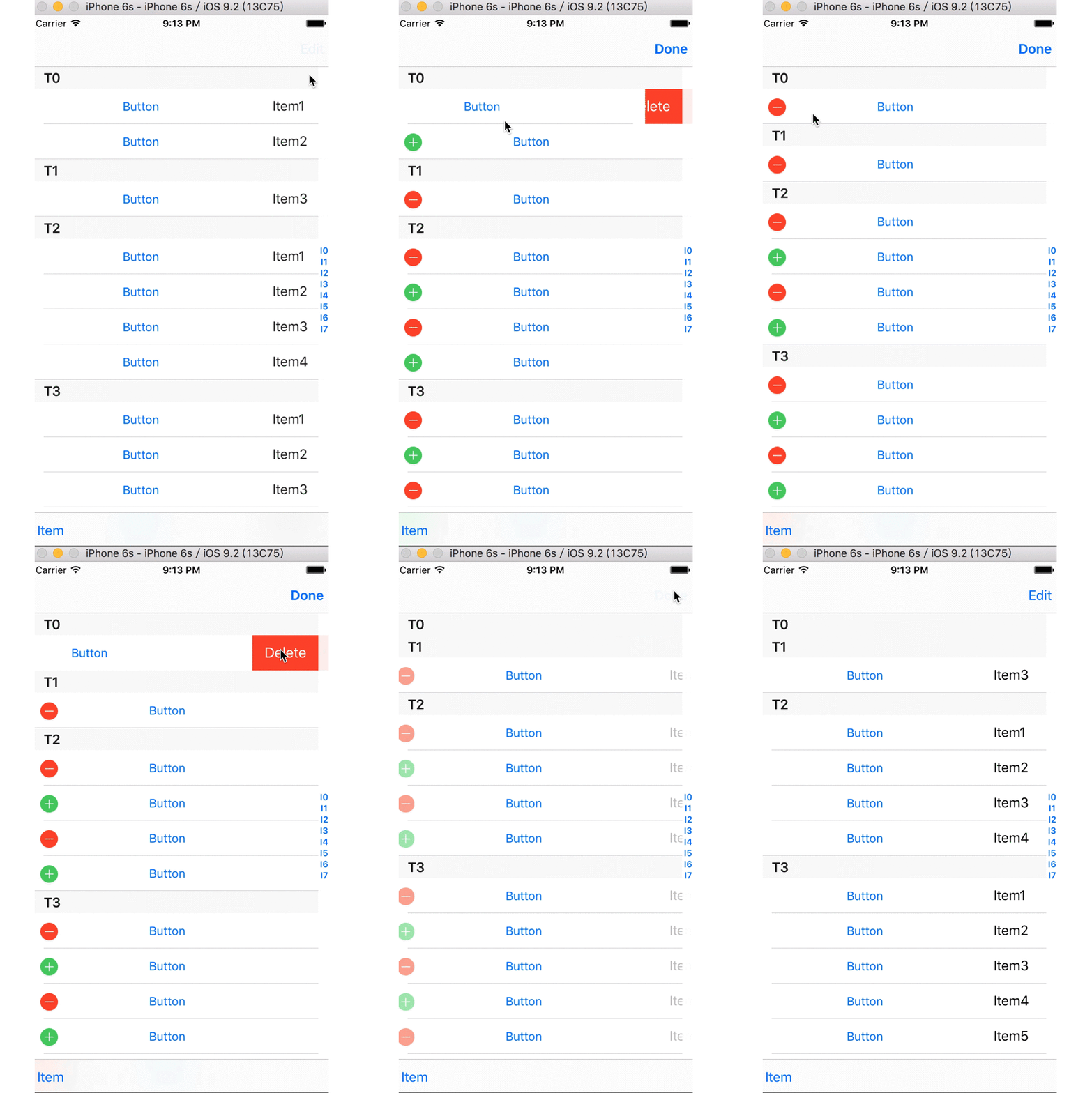
影 61 删除操作效果图(双击)
2 批量操作
除了可以对row进行编辑,UITableView还支持对section进行编辑,并且可以一次性进行插入、删除和重载等多个操作。如下所示是UITableView总共提供了8个方法:
|
- (void)beginUpdates; - (void)endUpdates; |
|
- (void)insertSections:(NSIndexSet *)sections withRowAnimation:(UITableViewRowAnimation)animation; - (void)deleteSections:(NSIndexSet *)sections withRowAnimation:(UITableViewRowAnimation)animation; - (void)reloadSections:(NSIndexSet *)sections withRowAnimation:(UITableViewRowAnimation)animation; |
|
- (void)insertRowsAtIndexPaths:(NSArray *)indexPaths withRowAnimation (UITableViewRowAnimation)animation; - (void)deleteRowsAtIndexPaths:(NSArray *)indexPaths withRowAnimation: (UITableViewRowAnimation)animation; - (void)reloadRowsAtIndexPaths:(NSArray *)indexPaths withRowAnimation:(UITableViewRowAnimation)animation; |
其中对row和section的6个操作方法必须处于beginUpdates和endUpdates两方法之间调用。
如下的示例,当用户点击某行时,就添加和删除几行:
 1 - (void)tableView:(UITableView *)tableView didSelectRowAtIndexPath:(NSIndexPath *)indexPath

 2 {

 3     [_array[2] removeObjectAtIndex:0];

 4     [_array[1] removeObjectAtIndex:0];

 5     [_array[0] insertObject: @"hlw" atIndex:0];

 6     [_array[3] insertObject: @"hlw" atIndex:0];

 7     NSArray *deleteIndexPaths = [NSArray arrayWithObjects:

 8                                  [NSIndexPath indexPathForRow:0 inSection:2],

 9                                  [NSIndexPath indexPathForRow:0 inSection:1],

10                                  nil];

11     NSArray *insertIndexPaths = [NSArray arrayWithObjects:

12                                  [NSIndexPath indexPathForRow:0 inSection:0],

13                                  [NSIndexPath indexPathForRow:0 inSection:3],

14                                  nil];

15

16     UITableView *tv = self.tableView;

17     [tv beginUpdates];

18     [tv deleteRowsAtIndexPaths:deleteIndexPaths withRowAnimation:UITableViewRowAnimationFade];

19     [tv insertRowsAtIndexPaths:insertIndexPaths withRowAnimation:UITableViewRowAnimationRight];

20     [tv endUpdates];

21 }
上述对_array的操作顺序可以与调用tv的顺序不一样,其中动画的展示效果是按tv的调用顺序执行。
3 交换操作
UITableView提供了一个方法能够交互两row或两section的顺序,从而实现重新排序的效果,这两个方法能够在任何情况下使用,并不是必须进入编辑模式才能使用。
|
- (void)moveRowAtIndexPath:(NSIndexPath *)indexPath toIndexPath:(NSIndexPath *)newIndexPath - (void)moveSection:(NSInteger)section toSection:(NSInteger)newSection |
|
注意: moveRowAtIndexPath方法可以交换任意的两row;但moveSection只能交换两个section有相同数量的row。 |
如下所示,当用户点击任何一行时,即与下一行交换:
1 - (void)tableView:(UITableView *)tableView didSelectRowAtIndexPath:(NSIndexPath *)indexPath

2 {

3     NSIndexPath * to = [NSIndexPath indexPathForRow:indexPath.row+1 inSection:indexPath.section];

4     [tableView moveRowAtIndexPath:indexPath toIndexPath:to];

5 }
3.1 进入编辑模式
与删除和插入row类型,当table view进入编辑模式,即调用了setEditing方法之后,tableView会陆续调用data source和delegate的几个方法,具体执行次序如图 62所示。
1) tableView对象首先调用data source对象的tableView:canMoveRowAtIndexPath:方法(必选);如果该方法返回YES,则在cell的右边会显示一个可交换的控件。
2) 当在cell中出现交换控件后,用户即可拖拽交换row。
3) 若当用户拖拽了row后,那么tableView对象会去调用delegate对象的tableView:targetIndexPathForMoveFromRowAtIndexPath方法(可选)。
4) 接着,table view对象会去调用data source对象tableView:moveRowAtIndexPath:toIndexPath:方法(必选),这个方法会自动交换拖拽的两行,不需要调用 UITableView的moveRowAtIndexPath方法即可进行交换。

图 62 Calling sequence for reordering a row in a table view
3.2 操作示例
如在6.1.2小节所示的示例基础之上进行操作,不允许每个section的第0行进行交换,而其它方法是可以交换的,如下是实现的两个方法:
 1 - (BOOL)tableView:(UITableView *)tableView canMoveRowAtIndexPath:(NSIndexPath *)indexPath {

 2     if (indexPath.row == 0) {

 3         return NO;

 4     }

 5     return YES;

 6 }

 7 - (void)tableView:(UITableView *)tableView

 8 moveRowAtIndexPath:(NSIndexPath *)fromIndexPath

 9       toIndexPath:(NSIndexPath *)toIndexPath

10 {

11

12 }
如影 62所示展示的显示效果,其与插入和删除操作不会冲突,都能够显示。
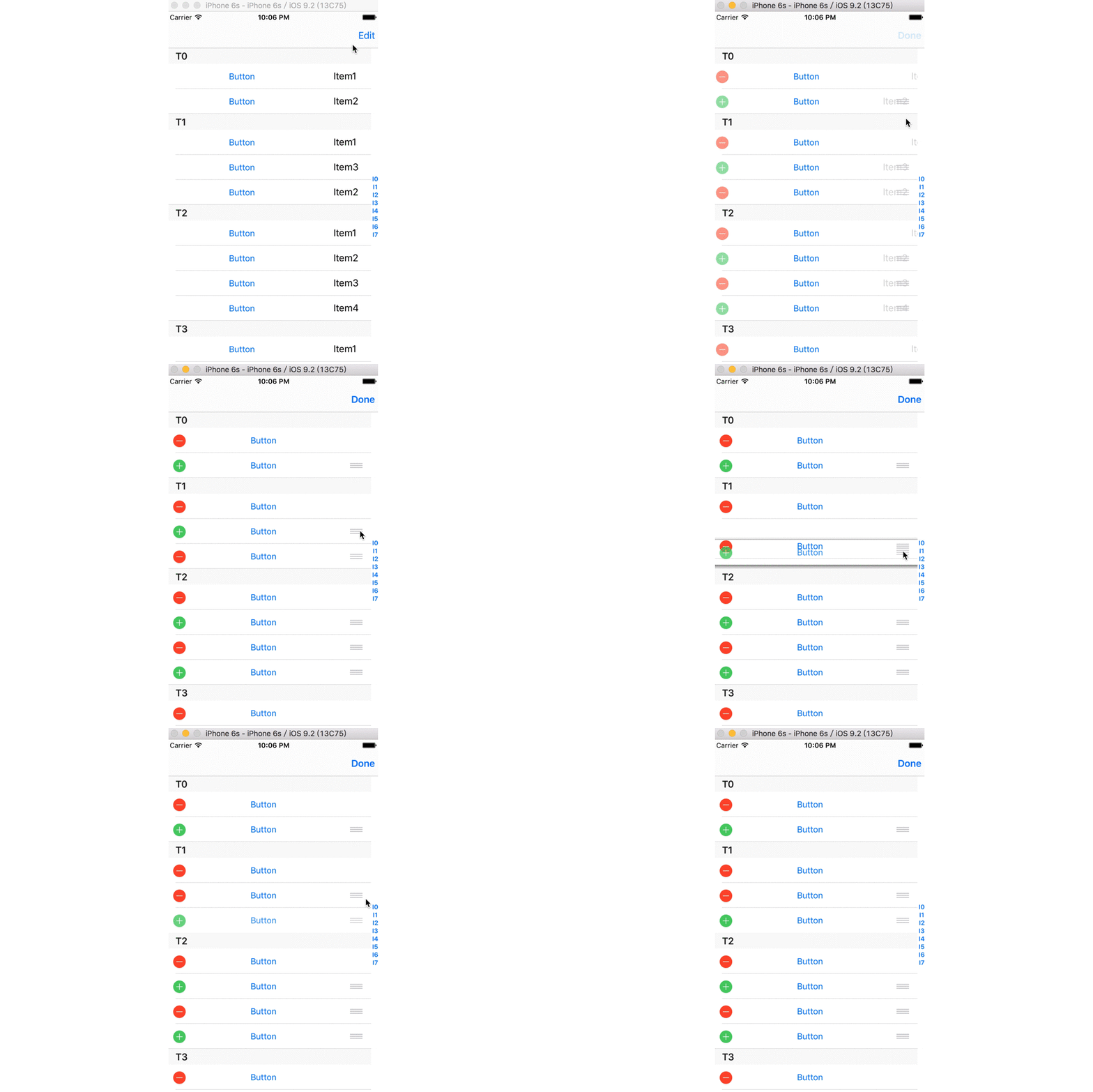
影 62 交换row效果图
4 自定义editingAccessoryView
4.1 修改附加视图
当进入编辑模式时,cell右边还有一个附件视图的位置,默认情况为空,用户可以使用标准视图或者自定义视图内容,只需修改UITableViewCell对象的editingAccessoryView属性,同时还可以修改删除按钮的显示内容,其由tableView:titleForDeleteConfirmationButtonForRowAtIndexPath方法决定显示的内容:
|
-(NSString*)tableView:(UITableView*)tableView titleForDeleteConfirmationButtonForRowAtIndexPath:(NSIndexPath *)indexPath |
|
返回参数: 为所要显示的标题内容。 |
如下所示,当进入编辑模式时,显示附件视图并修改删除按钮的内容:
 1 -(UITableViewCell*)tableView:(UITableView *)tableView cellForRowAtIndexPath:(NSIndexPath *)indexPath

 2 {

 3     UILabel *mainLabel;

 4     mainLabel = [[UILabel alloc] initWithFrame:CGRectMake(0.0, 0.0, 50.0, 15.0)];

 5     mainLabel.text = _array[indexPath.section][indexPath.row];

 6

 7     static NSString *CellIdentifier = @"myCell";

 8     UITableViewCell *cell = [tableView dequeueReusableCellWithIdentifier:CellIdentifier];

 9

10     [cell setEditingAccessoryView:mainLabel];

11 //    cell.editingAccessoryView = mainLabel; //或者直接赋值

12

13     return cell;

14 }

15 - (NSString *)tableView:(UITableView *)tableView titleForDeleteConfirmationButtonForRowAtIndexPath:(NSIndexPath *)indexPath

16 {

17     return @"myDelete";

18 }
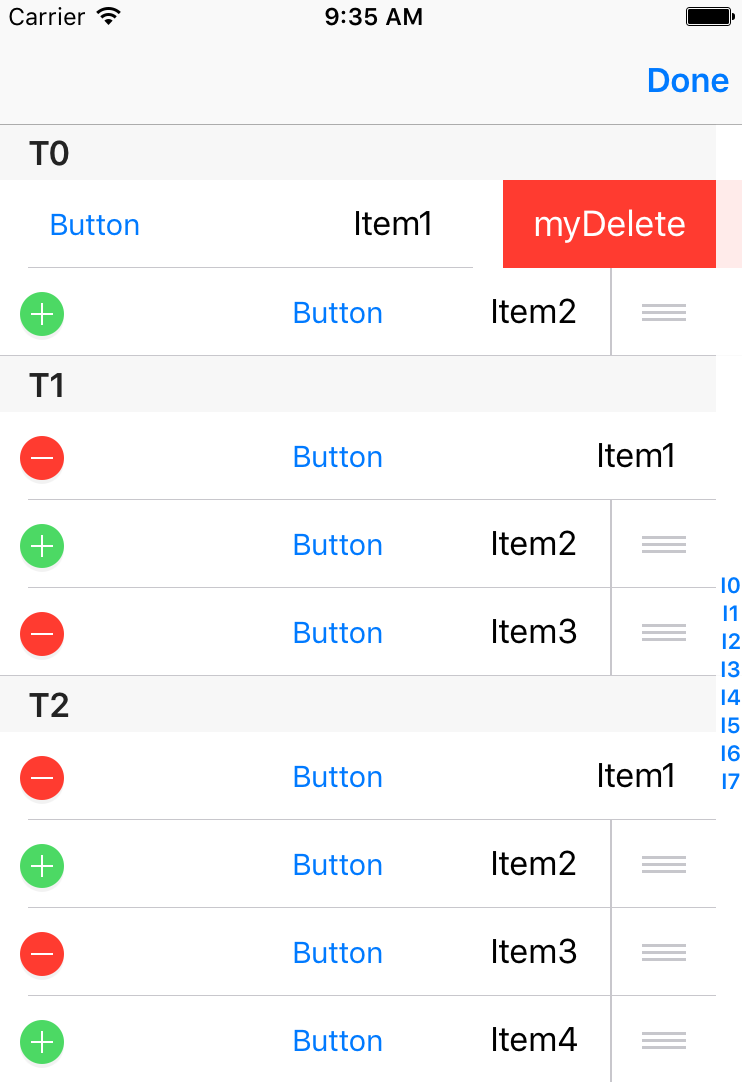
图 63 编辑模式自定义accessoryView效果图
4.2 修改删除按钮
对于那些支持删除操作的cell,当在编辑模式中点击左边的删除控件,会在右边出现有一个删除按钮;或者在正常模式下,水平滑动也能出现这个删除按钮,当点击这个删除按钮后,会调用data source对象的tableView:commitEditingStyle:方法(如6.1.1小节所示)。
UITableView支持修改上述这个删除按钮和相应响应方法,即用户可以实现UITableViewDelegate协议的tableView:editActionsForRowAtIndexPath方法来自定义显示内容和响应方法,该方法的定义为:
|
-(NSArray<UITableViewRowAction*>*)tableView:(UITableView*)tableView //UITableViewDelegate协议方法 editActionsForRowAtIndexPath:(NSIndexPath *)indexPath |
|
+ (instancetype)rowActionWithStyle:(UITableViewRowActionStyle)style //UITableViewRowAction类的便利方法 title:(NSString *)title handler:(void (^)(UITableViewRowAction *action, NSIndexPath *indexPath))handler |
|
rowActionWithStyle方法参数语义: style:为显示的类型; title:为显示的标题; handler:为响应的block。 |
如下所示,创建两个按钮来替换系统默认的删除按钮,当用户水平滑动时,出现两个按钮,当点击时执行相应的block。
 1 - (NSArray<UITableViewRowAction *> *)tableView:(UITableView *)tableView

 2                   editActionsForRowAtIndexPath:(NSIndexPath *)indexPath

 3 {

 4     UITableViewRowAction *first = [UITableViewRowAction rowActionWithStyle:UITableViewRowActionStyleDestructive title:@"first" handler:^(UITableViewRowAction * _Nonnull action, NSIndexPath * _Nonnull indexPath) {

 5         NSLog(@"UITableViewRowAction action first");

 6     }];

 7     UITableViewRowAction *second = [UITableViewRowAction rowActionWithStyle:UITableViewRowActionStyleNormal title:@"second" handler:^(UITableViewRowAction * _Nonnull action, NSIndexPath * _Nonnull indexPath) {

 8         NSLog(@"UITableViewRowAction action second");

 9     }];

10

11     NSArray * array =[[NSArray alloc] initWithObjects:first, second, nil];

12

13     return array;

14 }
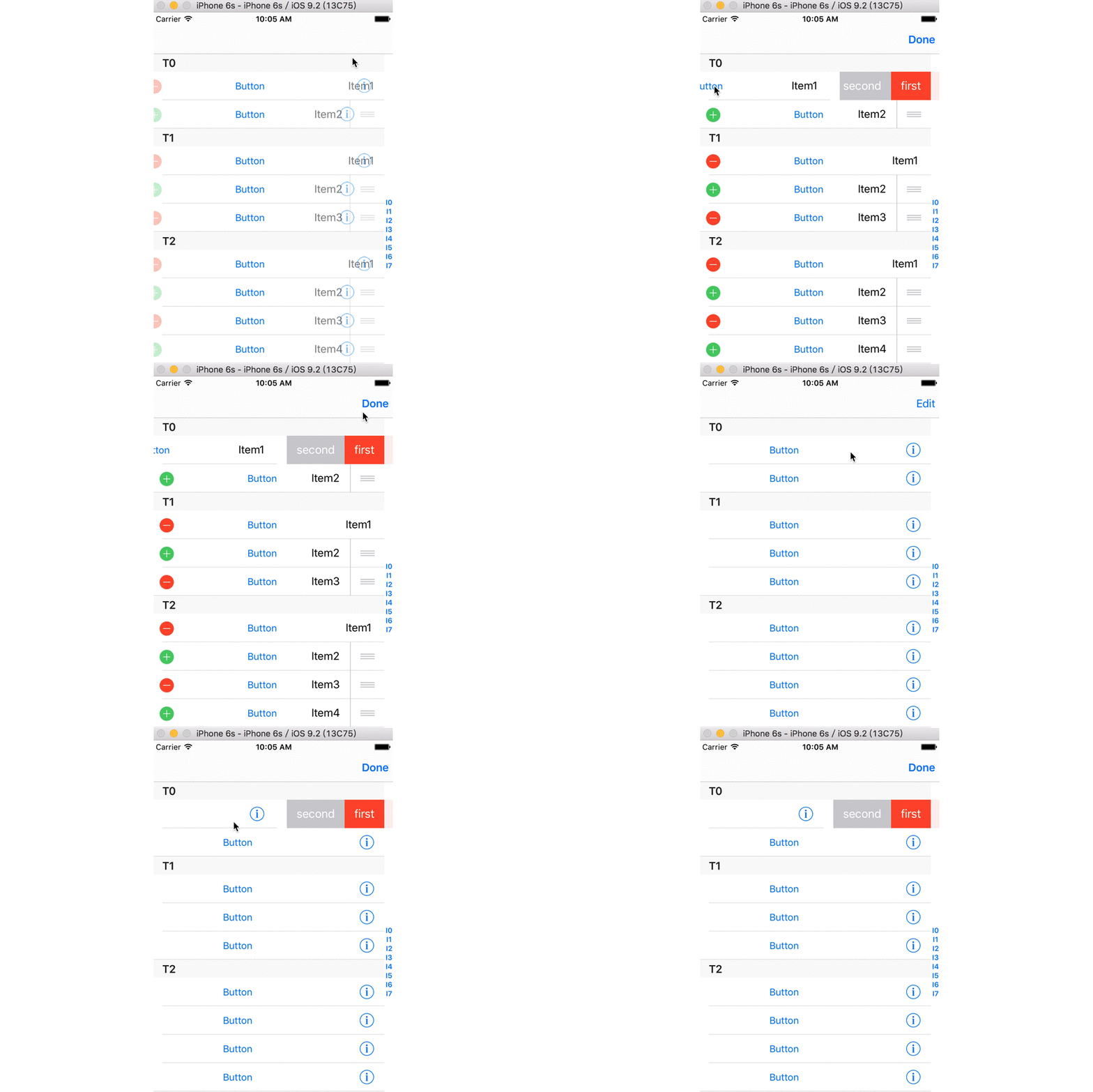
影 63 效果图
其中上述的itemX为附加视图的内容,而first和second按钮为修改的内容。
5 参考文献
[1] Table View Programming Guide for IOS
iOS UIKit:TableView之编辑模式(3)的更多相关文章
- ios之UITableViewController(二) tableView的编辑模式
tableView的编辑模式 表视图可以进入编辑模式,当进入编辑模式就可以进行删除.插入.移动单元等操作 效果图: 让表视图进入编辑模式,进入编辑模式的方法有两种,一种是使用导航栏的edit 按钮,另 ...
- 07-UIKit(tableview的编辑模式、accessoryView)
目录: 一.tableview的编辑模式-增删改查 二.不使用继承创建tableview 三.accessoryView辅助视图 回到顶部 一.tableview的编辑模式-增删改查 [1-conta ...
- iOS UIKit:TableView之单元格配置(2)
Table View是UITableView类的实例对象,其是使用节(section)来描述信息的一种滚动列表.但与普通的表格不同,tableView只有一行,且只能在垂直方向进行滚动.tableVi ...
- IOS第13天(3,私人通讯录,登陆状态数据存储,数据缓存, cell的滑动删除,进入编辑模式,单个位置刷新 )
*****联系人的界面的优化 HMContactsTableViewController.m #import "HMContactsTableViewController.h" # ...
- IOS开发学习笔记032-UITableView 的编辑模式
UITableView 的三种编辑模式 1.删除 2.排序 3.添加 进入编辑模式,需要设置一个参数 - (IBAction)remove:(UIBarButtonItem *)sender { NS ...
- UITableView编辑模式大全解
1.UITableView 的编辑模式 进入编辑模式 代码体现 // 设置 editing 属性 tableView?.editing = true // 这个设置的时候是有动画效果的 tableVi ...
- ios中tableview的移动添加删除
// // MJViewController.m // UITableView-编辑模式 // // Created by mj on 13-4-11. // Copyright (c) 2013年 ...
- iOS开发——UI进阶篇(四)tableView的全局刷新,局部刷新,左滑操作,左滑出现更多按钮,进入编辑模式,批量删除,自定义批量删除
首先创建项目,在storyboard如下布局控件,设置好约束 然后创建cell模型类XMGWineCell数据模型类XMGWine创建UITableView,设置数据源协议,实现数据源方法懒加载数据这 ...
- IOS第七天(6:UiTableView编辑模式, 拖动位置 ,滑动删除)
**********UiTableView编辑模式, 拖动位置 ,滑动删除 #import "HMViewController.h" @interface HMViewContro ...
随机推荐
- 【POJ】1054 The Troublesome Frog
题目是非常经典的搜索+剪枝.题意简言之就是,青蛙需要沿着直线踩着踏点通过田地,并且踏点需要至少为3.问哪条路径青蛙踩坏的作物最多.很好的一个条件是青蛙每次移动都是等间距的.题目需要注意将其排序. #i ...
- PO > Create PO时关于汇率问题需要注意的步骤
为了使得RMB采购的PO在审核时不会提示汇率丢失(如下图),在创建PO时需要注意几个步骤. 1)手动创建PO:在建立PO行之前,应该选择好正确的"地点","币 ...
- Heartbeat+DRBD+NFS 构建高可用的文件系统
1.实验拓扑图 2.修改主机名 1 2 3 vim /etc/sysconfig/network vim /etc/hosts drbd1.free.com drbd2.free.com 3. ...
- 阿里云数加平台——BI报表使用概述和总结
先声明一点,本人写此文章初衷只为对前段时间的工作做些总结,并做个记录,以备日后查用,此外也顺便与他人分享一下.当然间接上也为阿里云的大数据平台做了个免费广告.以下开始正文. 首先进入数加服务的控制面板 ...
- C#编程实现Excel文档中搜索文本
有了在Word文档中编程实现搜索文本的经验,在Excel中实现这个功能也并非难事. 打开Excel的VBA帮助,查看Excel的对象模型,很容易找到完成这个功能需要的几个集合和对象:Applicati ...
- [swustoj 411] 售货员的难题
售货员的难题(0411) Time limit(ms): 5000 Memory limit(kb): 65535 Submission: 1744 Accepted: 200 Description ...
- ☀【JS】Code
1 <!DOCTYPE html> <html lang="zh-CN"> <head> <meta charset="utf- ...
- cefSharp 设置运行时系统语言
在使用用CefSharp使用过程中,系统用了很多第三方控件.这些控件很多能够根据浏览器设置的语言来进行控件展示对应语言. 在cefSharp可以设置系统语言,代码如下: CefSharp.Settin ...
- git 实用命令
git 覆盖本地修改 ,git 放弃本地修改,强制更新 git fetch --all git reset --hard origin/master git fetch 只是下载远程的库的内容,不做任 ...
- 破解密码那些事儿(Hacking Secret Ciphers with Python)
作者:Al Sweigart 我们在电视和电影里头经常能够看到黑客们兴奋的快速敲击键盘,接着毫无意义的数字就在屏幕上飞奔(比如黑客帝国).然后让大家产生了一种奇妙的错觉,做黑客是一件高大上的事情, ...