
在canvas上面拖拽对象。
原文:https://html5.litten.com/how-to-drag-and-drop-on-an-html5-canvas/
下面作者的原始的版本会抖动一下(鼠标刚点下去的时候,位置会发生一下突变,不是很友好), 我修改了 一下。
var xDown , yDown;
function myDown(e){
   if (e.pageX < x + 15 + canvas.offsetLeft && e.pageX > x - 15 +
      canvas.offsetLeft && e.pageY < y + 15 + canvas.offsetTop &&
      e.pageY > y -15 + canvas.offsetTop){
      xDown = e.pageX - canvas.offsetLeft;
      yDown = e.pageY - canvas.offsetTop;
      dragok = true;
      canvas.onmousemove = myMove;
   }
}
这样就不会了。
-----------------------------------------------------------------------------------------------
How to Drag and Drop on an HTML5 Canvas
We explored using keyboard input to move a shape on an HTML5 canvas here http://html5.litten.com/moving-shapes-on-the-html5-canvas-with-the-keyboard/. Now we’ll take a look at using input from the mouse. With a few simple calculations, you can drag and drop shapes on the canvas with your mouse.
UPDATE: I’ve added a companion post for IE compatibility.
IE Compatible Canvas Drag and Drop With jQuery and ExCanvas
This example is coded for readability and not for optimized operation. All you need is a text editor like notepad and an HTML5 friendly browser (I’m using Firefox 3.6).
Here is the code listing that we will be discussing.
<!doctype html>

<html>

<head>

<meta charset="UTF-8" />

<title>Canvas Drag and Drop Test</title>

</head>

<body>

<section>

<div>

<canvas id="canvas" width="400" height="300">

This text is displayed if your browser does not support HTML5 Canvas.

</canvas>

</div>

<script type="text/javascript">

var canvas;

var ctx;

var x = 75;

var y = 50;

var WIDTH = 400;

var HEIGHT = 300;

var dragok = false;

function rect(x,y,w,h) {

 ctx.beginPath();

 ctx.rect(x,y,w,h);

 ctx.closePath();

 ctx.fill();

}

function clear() {

 ctx.clearRect(0, 0, WIDTH, HEIGHT);

}

function init() {

 canvas = document.getElementById("canvas");

 ctx = canvas.getContext("2d");

 return setInterval(draw, 10);

}

function draw() {

 clear();

 ctx.fillStyle = "#FAF7F8";

 rect(0,0,WIDTH,HEIGHT);

 ctx.fillStyle = "#444444";

 rect(x - 15, y - 15, 30, 30);

}

function myMove(e){

 if (dragok){

  x = e.pageX - canvas.offsetLeft;

  y = e.pageY - canvas.offsetTop;

 }

}

function myDown(e){

 if (e.pageX < x + 15 + canvas.offsetLeft && e.pageX > x - 15 +

 canvas.offsetLeft && e.pageY < y + 15 + canvas.offsetTop &&

 e.pageY > y -15 + canvas.offsetTop){

  x = e.pageX - canvas.offsetLeft;

  y = e.pageY - canvas.offsetTop;

  dragok = true;

  canvas.onmousemove = myMove;

 }

}

function myUp(){

 dragok = false;

 canvas.onmousemove = null;

}

init();

canvas.onmousedown = myDown;

canvas.onmouseup = myUp;

</script>

</section>

</body>

</html>
You can copy this code and paste it into a new file called something like draganddrop.html and when you open it with an HTML5 friendly browser like Firefox 3.6 it will display the canvas with a draggable square on it.
The details of how we create a canvas and draw our shape on it can be found in this previous post http://html5.litten.com/simple-animation-in-the-html5-canvas-element/.
In this example we draw a 30×30 pixel square which we can click on and drag around the canvas. Let’s look at the draw() function.
function draw() {

  clear();

  ctx.fillStyle = "#FAF7F8";

  rect(0,0,WIDTH,HEIGHT);

  ctx.fillStyle = "#444444";

  rect(x - 15, y - 15, 30, 30);

}
We create our draggable square with this call to rect()
rect(x-15, y-15, 30, 30);
rect(x, y, width, height)
The x and y parameters define the coordinate of the top left corner of the new rectangular path. width and height define the width and the height of the rectangle.
We want our x and y to be at the center of our square so we use
rect(x - 15, y - 15, 30, 30); instead of
rect(x, y, 30, 30);Now we need to add event listeners to detect when the mouse button is pressed down so we can begin dragging and when the mouse button is released so we can drop.
After calling init(), in which we create our canvas object, we attach event listeners to the new canvas object with
init();

canvas.onmousedown = myDown;

canvas.onmouseup = myUp;
When the user clicks their mouse on the canvas the canvas.onmousedown event is triggered and calls the function myDown(). myDown receives an event object e that has properties about the event. This event has, amongst others, the properties pageX and pageY which hold the values of the mouse’s current x and y coordinates on the page (not the window but the whole page).
function myDown(e){

if (e.pageX < x + 15 + canvas.offsetLeft && e.pageX > x - 15 +

canvas.offsetLeft && e.pageY < y + 15 + canvas.offsetTop &&

e.pageY > y -15 + canvas.offsetTop){

  x = e.pageX ;

  y = e.pageY ;

  dragok = true;

  canvas.onmousemove = myMove;

 }

}
Our first question to ask when the mouse is clicked on the canvas is, “Is this click on our draggable square?”.
We check with this test.
if (e.pageX < x + 15 + canvas.offsetLeft && e.pageX > x - 15 +

canvas.offsetLeft && e.pageY < y + 15 + canvas.offsetTop &&

e.pageY > y -15 + canvas.offsetTop)
Remember that we created our square so that (x,y) is at the center. To determine if the click was on the x axis inside the square, we look at the x value of the mouse click e.pageX and see if it is within 15 pixels of our square’s x value using the canvas objects offset since e.pageX is the value of the mouses x coordinate on the page not on the canvas.
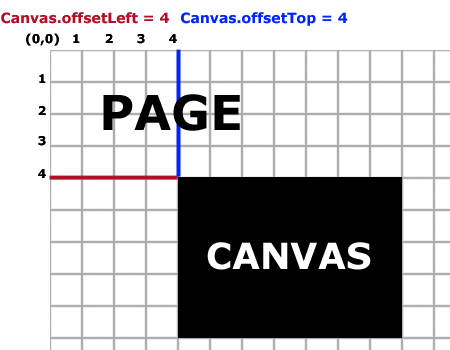
We also test the e.pageY value against our square’s y value. If our point is within the x and y values of our square then we set the variable dragok to true. Setting our square’s central (x,y) to (e.pageX - canvas5.offsetLeft, e.pageY - canvas5.offsetTop) makes it easy for us to move it (this is a very simple example).
  x = e.pageX - canvas5.offsetLeft;

  y = e.pageY - canvas5.offsetTop;

  dragok = true;
Now that we know the mouse button is down while it is over our draggable object, we can start listening for mouse movement (dragging).
canvas.onmousemove = myMove;
Here’s our myMove() function
function myMove(e){

 if (dragok){

  x = e.pageX - canvas.offsetLeft;

  y = e.pageY - canvas.offsetTop;

 }

}
We check to make sure that we are dragging something dragok = true and if we are, we update the x and y coordinates of our square with e.pageX and e.pageY adjusted with the offset values of our canvas.
Now we need to be able to drop the object by releasing the mouse button. When we do this we trigger our listener for the onmouseup event of our canvas (try moving your mouse off the canvas while dragging and observe the behavior of onmouseup. You will see that if you release the mouse while off of the canvas, it does not trigger the onmouseup event listener on the canvas. This can be useful in designing games.)
canvas.onmouseup = myUp;
The myUp() function simply sets dragok back to false and removes the onmousemove listener (we only need it when we are dragging).
function myUp(){

dragok = false;

canvas.onmousemove = null;

}
Here is our canvas in action…
Have fun with the code as that is the easiest way to learn.
Please leave a comment if you have any questions or corrections.
在canvas上面拖拽对象。的更多相关文章
- canvas 图片拖拽旋转之二——canvas状态保存(save和restore)
引言 在上一篇日志“canvas 图片拖拽旋转之一”中,对坐标转换有了比较深入的了解,但是仅仅利用坐标转换实现的拖拽旋转,会改变canvas坐标系的状态,从而影响画布上其他元素的绘制.因此,这个时候需 ...
- jQuery UI =>jquery-ui.js中sortable方法拖拽对象位置偏移问题
今天要处理sortable方法处理的对象,拖拽的时候,位置偏移的问题. 按理应该是鼠标在哪,对象就跟着在哪的 百度了一下问题,http://blog.csdn.net/samed/article/de ...
- HTML5新特性之Canvas+drag(拖拽图像实现图像反转)
1.什么是canvas 在网页上使用canvas元素时,会创建一块矩形区域,默认矩形区域宽度300px,高度150px.. 页面中加入canvas元素后,可以通过javascript自由控制.可以在其 ...
- 使用原生JavaScript的Canvas实现拖拽式图形绘制,支持画笔、线条、箭头、三角形、矩形、平行四边形、梯形以及多边形和圆形,不依赖任何库和插件,有演示demo
前言 需要用到图形绘制,没有找到完整的图形绘制实现,所以自己实现了一个 - - 一.实现的功能 1.基于oop思想构建,支持坐标点.线条(由坐标点组成,包含方向).多边形(由多个坐标点组成).圆形(包 ...
- 原生js实现Canvas实现拖拽式绘图,支持画笔、线条、箭头、三角形和圆形等等图形绘制功能,有实例Demo
前言 需要用到图形绘制,没有找到完整的图形绘制实现,所以自己实现了一个 - - 演示地址:查看演示DEMO 新版本支持IE5+(你没看错,就是某软的IE浏览器)以上任意浏览器的Canvas绘图:htt ...
- canvas 图片拖拽旋转之一——坐标转换translate
引言 对canvas中绘制的图片进行旋转操作,需要使用ctx.translate变换坐标系,将图片旋转的基点设为坐标系的原点,然后ctx.rotate旋转. 这个时候,因为canvas坐标系发生了旋转 ...
- html --- canvas --- javascript --- 拖拽圆圈
代码如下: <!DOCTYPE html> <html> <head> <meta charset="UTF-8"> <tit ...
- jquery.dad.js实现table的垂直拖拽(并取到当前拖拽对象)
http://sc.chinaz.com/jiaoben/161202572210.htm 1.首先官网实例,实现的都是div为容器的元素拖拽,示例如下: 2.最近的项目,要实现tbody的每一行tr ...
- 如何实现Canvas图像的拖拽、点击等操作
上一篇Canvas的博文写完后,有位朋友希望能对Canvas绘制出来的图像进行点击.拖拽等操作,因为Canvas绘制出的图像能很好的美化.好像是想做炉石什么的游戏,我也没玩过. Canvas在我的理解 ...
随机推荐
- (26)zabbix脚本报警介质自定义(钉钉)
zabbix机器人告警配置 首先在钉钉中创建一个群然后设置群机器人添加自定义机器人(webhook...) 添加后复制其中的webhook地址到报警脚本dingding.py中的webhook=... ...
- C语言之结构体、联合体
结构体 1,结构体即为多个基本数据类型组合而成的数据类型.结构体本质上同int等一样同为数据类型,可以定义变量,内部成员不能直接赋值. struct Man { ; ; }; 上面是错误的.正确写法 ...
- 条款37:绝不重新定义继承而来的缺省参数值(Never redefine a function's inherited default parameter value)
NOTE: 1.绝不重新定义一个继承而来的缺省参数值,因为缺省参数值都是静态绑定的,而virtual 函数-----你唯一应该覆盖的东西----却是动态绑定的.
- VS搭建一个WEB的简历第二天,,,最终目标写个好看的简历,再搭建一个自己脑海的网页
VS做简历的第二天 第二天吸取了第一天的教训写的代码 第一天写的代码https://www.cnblogs.com/pythonywy/p/10816215.html,写了一堆错误T T 非常感谢Li ...
- PAT Basic 1030
1030 完美数列 给定一个正整数数列,和正整数p,设这个数列中的最大值是M,最小值是m,如果M <= m * p,则称这个数列是完美数列. 现在给定参数p和一些正整数,请你从中选择尽可能多的数 ...
- tabel使用总结
对日常使用到的tabel做下记录: <table cellspacing="0"><!--单元格间距为零 默认为2 border默认为 0--> <t ...
- docker+Battery Historian 环境搭建(电量分析)
docker 安装(windows) 1. 下载 https://docs.docker.com/docker-for-windows/install/ 和 安装和添加环境变量(...) 2. 安 ...
- 82. Spring Boot – 启动彩蛋【从零开始学Spring Boot】
我们在[28. SpringBoot启动时的Banner设置 ] 这一小节介绍过设置Spring Boot的Banner,但是实际当中,我们希望做的更漂亮,所以也就有了这小节Spring Boot-启 ...
- 九度oj 题目1534:数组中第K小的数字
题目描述: 给定两个整型数组A和B.我们将A和B中的元素两两相加可以得到数组C. 譬如A为[1,2],B为[3,4].那么由A和B中的元素两两相加得到的数组C为[4,5,5,6]. 现在给你数组A和B ...
- IntelliJ IDEA 代码提示快捷键
1.写代码时用Alt-Insert(Code|Generate…)可以创建类里面任何字段的getter与setter方法. mac版 是ctrl+enter 2.CodeCompletion(代码完成 ...