
Ueditor百度编辑器插件的安装
[TOC]
插件下载地址:
百度ueditor(海马网盘):https://pan.baidu.com/s/1yik8haZNH46SkIEZNcSIvQ 密码:appt
百度ueditor含使用方法(童攀网盘):链接: https://pan.baidu.com/s/1jI88b90 密码: c9in
1. 引入
ueditor.config.js
ueditor.all.min.js
lang/zh-cn/zh-cn.js
<script src="__plus__/ueditor/ueditor.config.js"></script>

<script src="__plus__/ueditor/ueditor.all.min.js"></script>

<script src="__plus__/ueditor/lang/zh-cn/zh-cn.js"></script>
2. 编辑器显示处 id="content"
<textarea id="content" name="content"></textarea>
3.底部
<script type="text/javascript">

    //实例化编辑器

    //建议使用工厂方法getEditor创建和引用编辑器实例,如果在某个闭包下引用该编辑器,直接调用UE.getEditor('editor')就能拿到相关的实例

    UE.getEditor('content',{initialFrameWidth:1500,initialFrameHeight:400,});

</script>
效果:

4.ueditor编辑器按钮配置方法
定制工具栏图标
UEditor 工具栏上的按钮列表可以自定义配置,只需要通过修改配置项就可以实现需求
配置项修改说明
修改配置项的方法:
- 方法一:修改 ueditor.config.js 里面的 toolbars
js方法
<script type="text/javascript">

//实例化编辑器

//建议使用工厂方法getEditor创建和引用编辑器实例,如果在某个闭包下引用该编辑器,直接调用UE.getEditor(‘editor’)就能拿到相关的实例

UE.getEditor(‘content’,{initialFrameWidth:700,initialFrameHeight:400, toolbars: [[‘bold’, ‘italic’, ‘underline’, ‘fontborder’, ‘strikethrough’, ‘superscript’, ‘subscript’,

‘removeformat’, ‘formatmatch’, ‘autotypeset’, ‘blockquote’, ‘pasteplain’, ‘|’, ‘forecolor’, ‘backcolor’, ‘insertorderedlist’, ‘insertunorderedlist’,

‘selectall’, ‘cleardoc’]]});

</script>

>```

2. 方法二:实例化编辑器的时候传入 toolbars 参数(写在script代码块里)

>`var ue = UE.getEditor(‘container’);`

简单列表-注意toolbars数组里面只有一个数组时,编辑器上只有会有一行按钮,没有换行

toolbars: [[‘fullscreen’, ‘source’, ‘undo’, ‘redo’, ‘bold’]]

若想有多行列表-toolbars数组里面要有多个数组,每个数组占一行

例子:

把下面的代码放入高度后面:

```html

toolbars: [['fullscreen', 'source', 'undo', 'redo','bold', 'italic', 'underline', 'fontborder', 'strikethrough', 'superscript', 'subscript','removeformat', 'formatmatch', 'autotypeset', 'blockquote', 'pasteplain', '|', 'forecolor', 'backcolor', 'insertorderedlist', 'insertunorderedlist','selectall', 'cleardoc']]
<script type="text/javascript">

//实例化编辑器

//建议使用工厂方法getEditor创建和引用编辑器实例,如果在某个闭包下引用该编辑器,直接调用UE.getEditor('editor')就能拿到相关的实例

UE.getEditor('content',{initialFrameWidth:800,initialFrameHeight:400,toolbars: [['fullscreen', 'source', 'undo', 'redo','bold', 'italic', 'underline', 'fontborder', 'strikethrough', 'superscript', 'subscript','removeformat', 'formatmatch', 'autotypeset', 'blockquote', 'pasteplain', '|', 'forecolor', 'backcolor', 'insertorderedlist', 'insertunorderedlist','selectall', 'cleardoc']]});

</script>
效果:
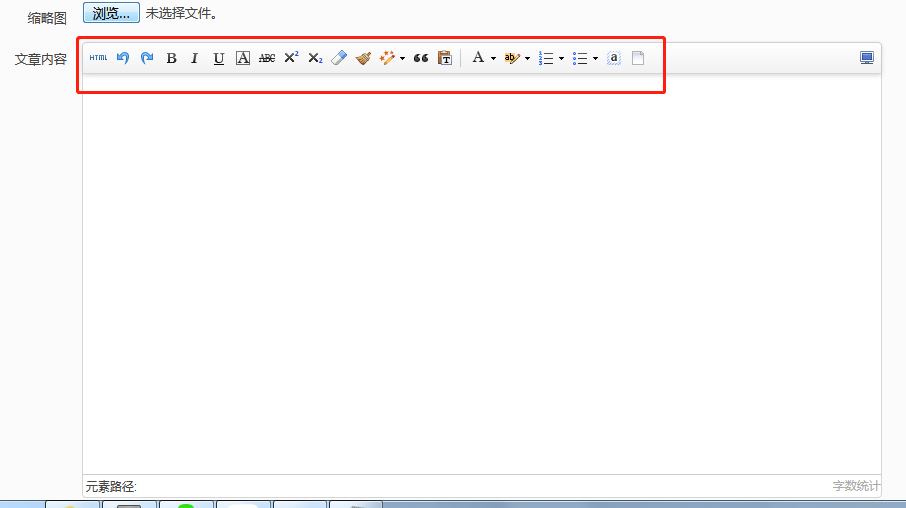
更多配置参考
https://www.cnblogs.com/52lnamp/p/9232919.html
按钮说明:
工具栏按钮分割线
配置项里用竖线 ‘|’ 代表分割线
完整的按钮列表
toolbars: [[‘anchor’, //锚点’undo’, //撤销’redo’, //重做’bold’, //加粗’indent’, //首行缩进’snapscreen’, //截图’italic’, //斜体’underline’, //下划线’strikethrough’,
//删除线’subscript’, //下标’fontborder’, //字符边框’superscript’, //上标’formatmatch’, //格式刷’source’, //源代码’blockquote’, //引用’pasteplain’, //纯文本粘贴模式’selectall’,
//全选’print’, //打印’preview’, //预览’horizontal’, //分隔线’removeformat’, //清除格式’time’, //时间’date’, //日期’unlink’, //取消链接’insertrow’, //前插入行’insertcol’,
//前插入列’mergeright’, //右合并单元格’mergedown’, //下合并单元格’deleterow’, //删除行’deletecol’, //删除列’splittorows’, //拆分成行’splittocols’, //拆分成列’splittocells’,
//完全拆分单元格’deletecaption’, //删除表格标题’inserttitle’, //插入标题’mergecells’, //合并多个单元格’deletetable’, //删除表格’cleardoc’, //清空文档’insertparagraphbeforetable’,
//”表格前插入行”‘insertcode’, //代码语言’fontfamily’, //字体’fontsize’, //字号’paragraph’, //段落格式’simpleupload’, //单图上传’insertimage’, //多图上传’edittable’, //表格属性’edittd’,
//单元格属性’link’, //超链接’emotion’, //表情’spechars’, //特殊字符’searchreplace’, //查询替换’map’, //Baidu地图’gmap’, //Google地图’insertvideo’, //视频’help’, //帮助’justifyleft’,
//居左对齐’justifyright’, //居右对齐’justifycenter’, //居中对齐’justifyjustify’, //两端对齐’forecolor’, //字体颜色’backcolor’, //背景色’insertorderedlist’, //有序列表’insertunorderedlist’,
//无序列表’fullscreen’, //全屏’directionalityltr’, //从左向右输入’directionalityrtl’, //从右向左输入’rowspacingtop’, //段前距’rowspacingbottom’, //段后距’pagebreak’, //分页’insertframe’,
//插入Iframe’imagenone’, //默认’imageleft’, //左浮动’imageright’, //右浮动’attachment’, //附件’imagecenter’, //居中’wordimage’, //图片转存’lineheight’, //行间距’edittip ‘, //编辑提示’customstyle’,
//自定义标题’autotypeset’, //自动排版’webapp’, //百度应用’touppercase’, //字母大写’tolowercase’, //字母小写’background’, //背景’template’, //模板’scrawl’, //涂鸦’music’, //音乐’inserttable’,
//插入表格’drafts’, // 从草稿箱加载’charts’, // 图表]]
百度编辑器ueditor上传图片顺序乱掉修改方法
https://blog.csdn.net/love545242884/article/details/76121303
public/rap/admin/lib/ueditor/1.4.3/dialogs/attachment/attachment.js里
_this.fileList.push(json);
改为
_this.fileList[$file.index()] = json;
public/rap/admin/lib/ueditor/1.4.3/dialogs/image/image.js里
_this.imageList.push(json);
改为
_this.imageList[$file.index()] = json;
百度ueditor使图片在编辑器中自适应大小
https://blog.csdn.net/sunny327/article/details/86580097
public/rap/admin/lib/ueditor/1.4.3/themes/iframe.css里添加代码
img {

    max-width:100%;/*图片自适应宽度*/

}

body {

    overflow-y:scroll !important;

}

.view {

    word-break: break-all;

}

.vote_area {

    display: block;

}

.vote_iframe {

    background-color: transparent;

    border: 0 none;

    height: 100%;

}

#edui1_imagescale{display:none !important;} /*去除点击图片后出现的拉伸边框*/
Ueditor百度编辑器插件的安装的更多相关文章
- 织梦替换ueditor百度编辑器,支持图片水印 教程
1下载ueditor百度编辑器 2 把下载的zip解压得到ueditor文件夹,把解压到的ueditor文件夹扔进你网站的include文件夹去 3 打开 /include/inc/inc_fun_f ...
- UEditor百度编辑器,工具栏上自定义添加一个普通按钮
添加一个名叫“hougelou”的普通按钮在工具栏上: 第一步:找到ueditor.config.js文件中的toolbars数组,增加一个“hougelou”字符串,然后找到labelMap数组,对 ...
- [UEditor]百度编辑器配置总结
前端配置文件ueditor.config.js 前端有两个重要的配置属性: UEDITOR_HOME_URL: 配置百度编辑器的资源目录路径,你可以手动指定此路径,默认是有URL变量指定,而URL变量 ...
- ueditor 百度编辑器图片上传 接 node.js 及一些前端自定义
百度编辑器 用node.js 做服务端 demo 大神已整理的 记录一下 以作参考 https://github.com/netpi/ueditor 1. 前端图片工具栏上传input file在这里 ...
- UEditor百度编辑器,工具栏自定义添加一个普通按钮
根据网上前辈提供的,还真的不错,下面也整理一下 添加一个名叫“macros”的普通按钮在工具栏上: 第一步:找到ueditor.config.js文件中的toolbars数组,增加一个“macros” ...
- Ueditor百度编辑器中的 setContent()方法的使用
百度编辑器Ueditor所提供的setContent()方法作用是:设置或者改变编辑器里面的文字内容或html内容 函数说明:setContent(string,boolean); 参数string ...
- ThinkPHP3.1.3 整合 UEditor百度编辑器 图片上传
第一步.前端模板实例化百度编辑器 <js file='__ROOT__/Data/UEditor/ueditor.config.js' /> <js file='__ROOT__/D ...
- Ueditor百度编辑器中 setContent()方法的使用
百度编辑器Ueditor所提供的setContent()方法作用是:设置或者改变编辑器里面的文字内容或html内容 函数说明:setContent(string,boolean); 参数string ...
- DEDECMS:DEDE整合(UEditor)百度编辑器以后,栏目内容、单页无法保存内容的bug处理方法
已经整合过百度编辑器的站长们或许会发现,在编辑单页文档和栏目内容的时候,百度编辑器不能够保存新增或已修改数据,经过排查后发现问题出现在catalog_edit.htm.catalog_add.htm这 ...
随机推荐
- kolla-ansible-----rally模块
Rally简介 Rally是OpenStack社区推出开源测试工具,可用于对OpenStack各个组件进行性能测试. 通过使用Rally组件,用户可完成OpenStack云计算平台的安装部署.功能验证 ...
- vim配置成c++IDE
mv ~/.vimrc ~/.vimrcbak mv ~/.vim ~/.vimbak git clone https://github.com/handy1989/vim.git mv vim/.v ...
- android 开发-文件存储之读写sdcard
android提供对可移除的外部存储进行文件存储.在对外部sdcard进行调用的时候首先要调用Environment.getExternalStorageState()检查sdcard的可用状态.通过 ...
- Java的compare比较
package com.jckb; public class Name implements Comparable<Name>{ private String firstName; pri ...
- Day1下午
T1 暴力50分 排A和B X,不用考虑X 用数组80分, 权值线段树.平衡树100, 一个函数? T2 打表 dp logn+1,+ 搜索,dp? txt..... T3 30分暴力和尽量均 ...
- ElasticSearch安装(以Docker的方式)
拉取docker镜像: docker pull docker.elastic.co/elasticsearch/elasticsearch:6.1.1 命令行方式启动 测试环境 :docker ...
- Spring Cloud 服务发现和消费
服务的发现和消费 有了服务中心和服务提供者,下面我们来实现一个服务的消费者: 服务消费者主要完成两个任务——服务的发现和服务的消费,服务发现的任务是由Eureka客户端完成,而服务消费的任务是由Rib ...
- CentOS 6.4系统中编译和升级内核
CentOS 6.4系统中编译和升级内核 [日期:2013-08-25] 来源:Linux社区 作者:vipshichg [字体:大 中 小] 可能因为以下几种原因,你可能需要对Linux kern ...
- Struts2笔记3--OGNL
一.OGNL入门 1.简介 OGNL的全称是对象图导航语言(Object-Graph Navigation Language),它是一种功能强大的开源表达式语言,使用这种表达式语言,可以通过某 ...
- python3基础01(常见语法基础汇总)
#!/usr/bin/env python# -*- coding:utf-8 -*- # 换行\n 续行\ s[:i] + s[i:] 等于 s#转义 \e 空 \000 八进制 \oyy 十六进制 ...