
使用C#编程语言开发Windows Service服务
转载-https://www.cnblogs.com/yubao/p/8443455.html
Create Windows Service project using Visual Studio

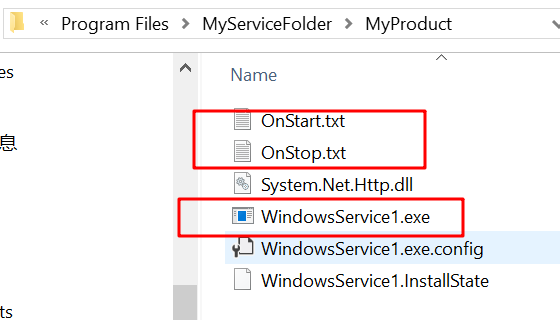
Create files on starting and stopping service:

   using System.IO;

   protected override void OnStart(string[] args)

    {

      File.Create(AppDomain.CurrentDomain.BaseDirectory + "OnStart.txt");

    }

    protected override void OnStop()

    {

      File.Create(AppDomain.CurrentDomain.BaseDirectory + "OnStop.txt");

    }
Try to run Windows Program on Debug mode
Click "Start" directly:

How to create a service use exe file
C:\Windows\system32>sc create -h

DESCRIPTION:

        Creates a service entry in the registry and Service Database.

USAGE:

        sc <server> create [service name] [binPath= ] <option1> <option2>...

OPTIONS:

NOTE: The option name includes the equal sign.

      A space is required between the equal sign and the value.

 type= <own|share|interact|kernel|filesys|rec|userown|usershare>

       (default = own)

 start= <boot|system|auto|demand|disabled|delayed-auto>

       (default = demand)

 error= <normal|severe|critical|ignore>

       (default = normal)

 binPath= <BinaryPathName to the .exe file>

 group= <LoadOrderGroup>

 tag= <yes|no>

 depend= <Dependencies(separated by / (forward slash))>

 obj= <AccountName|ObjectName>

       (default = LocalSystem)

 DisplayName= <display name>

 password= <password>
Start service use "sc create" command
C:\Windows\system32>sc create MyService binpath="C:\Users\yubao\Documents\Visual Studio 2017\Projects\WindowsService1\WindowsService1\bin\Debug\WindowsService1.exe" start=auto

[SC] CreateService SUCCESS
Start service:

Delete Service use "sc delete" command:
C:\Windows\system32>sc delete MyService

[SC] DeleteService SUCCESS
Install Service on Windows
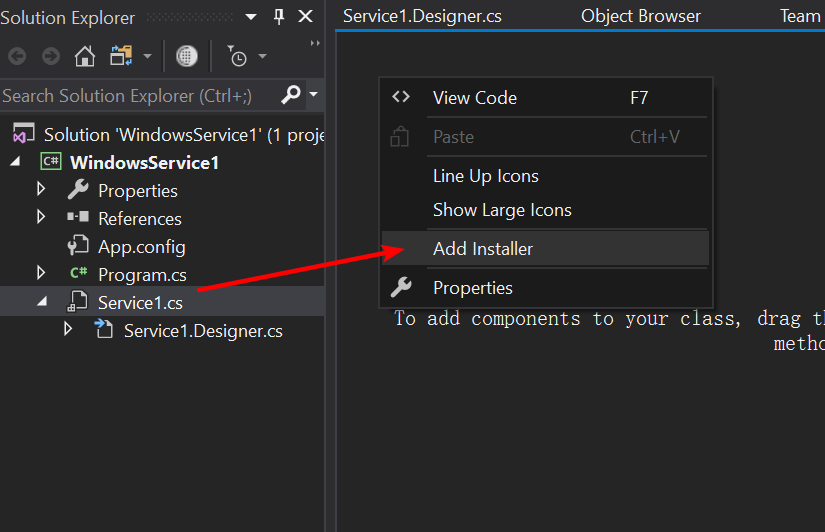
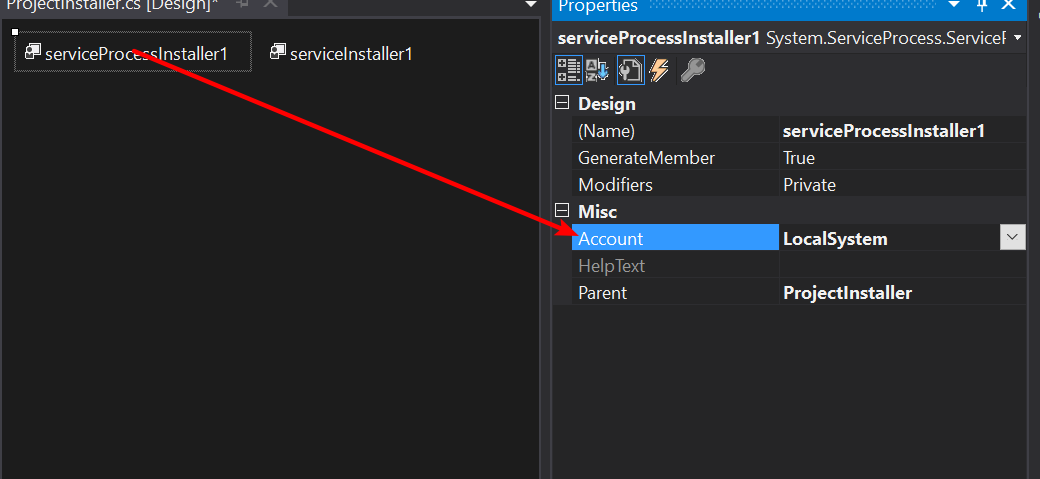

Install Service to Windows use InstallUtil.exe:
Where InstallUtil.exe is:
for win32: C:\Windows\Microsoft.NET\Framework\v4.0.30319
for win64: C:\Windows\Microsoft.NET\Framework64\v4.0.30319
Install Service:
C:\Windows\system32>InstallUtil.exe C:\Users\yubao\Documents\Visual Studio 2017\Projects\WindowsService1\WindowsService1\bin\Debug\WindowsService1.exe
Uninstall Service:
C:\Windows\system32>InstallUtil.exe /u "C:\Users\yubao\Documents\Visual Studio 2017\Projects\WindowsService1\WindowsService1\bin\x64\Release\WindowsService1.exe"
Use Setup Project to Install windows service
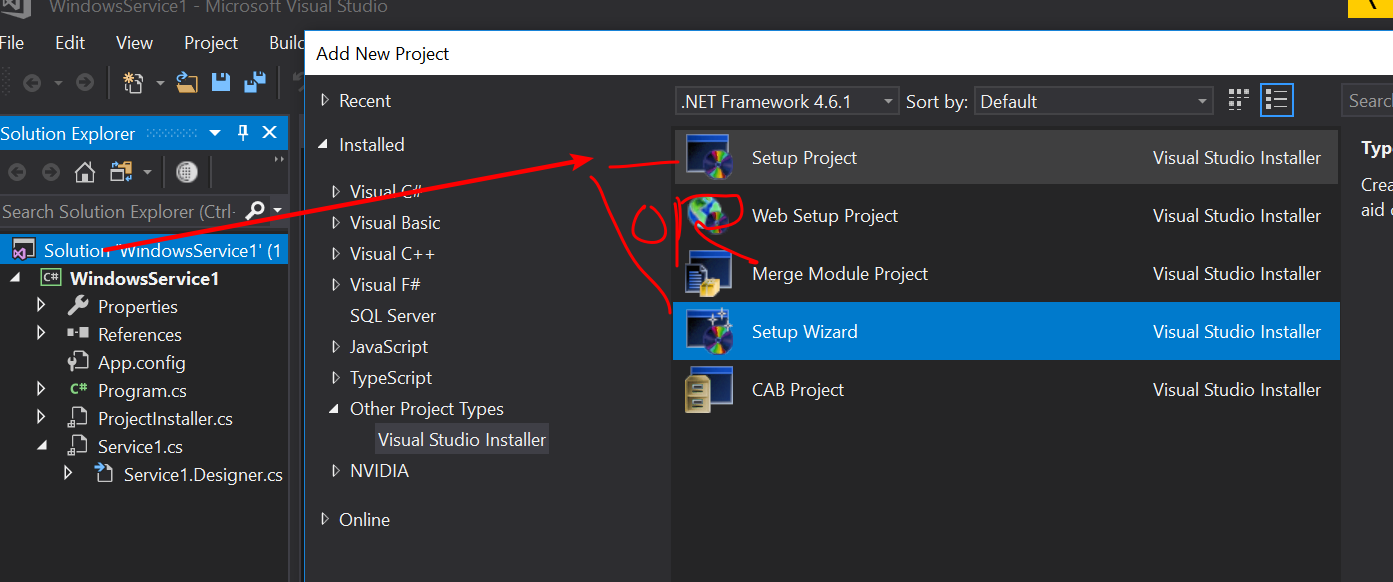
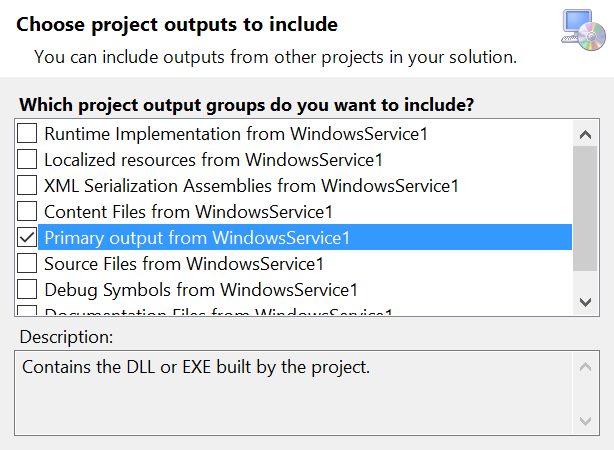
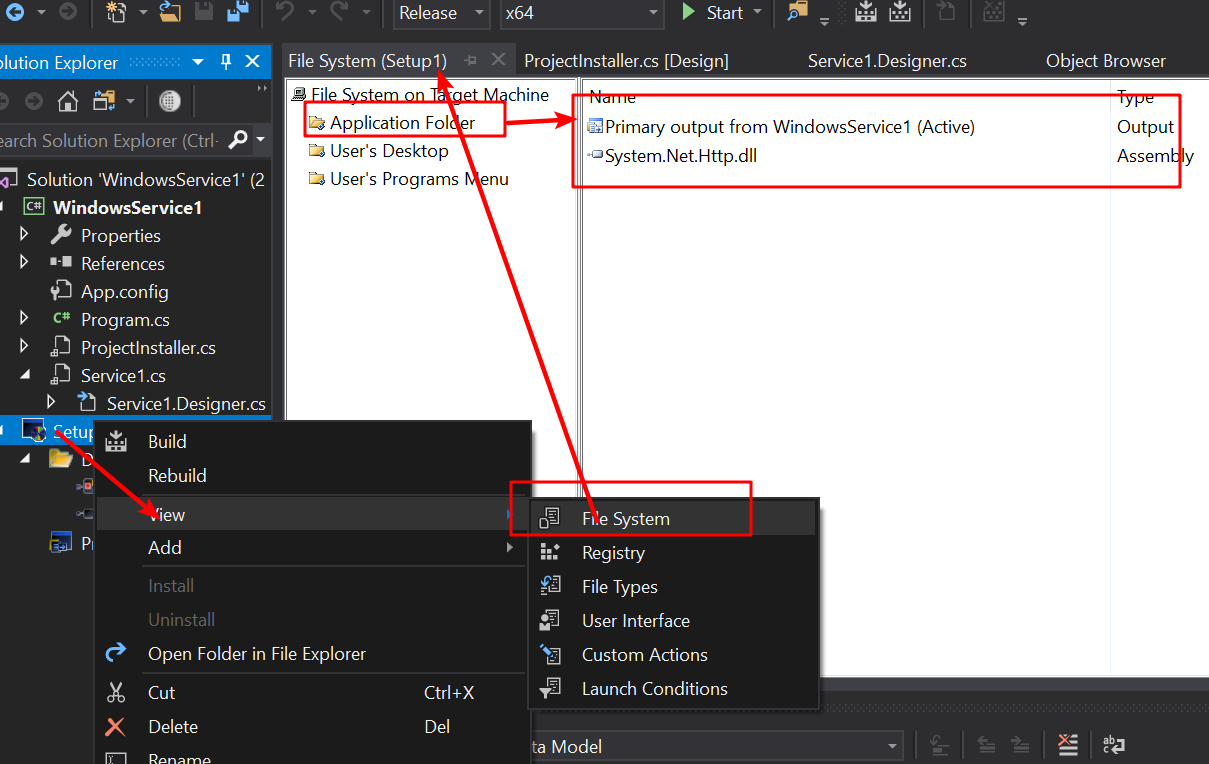
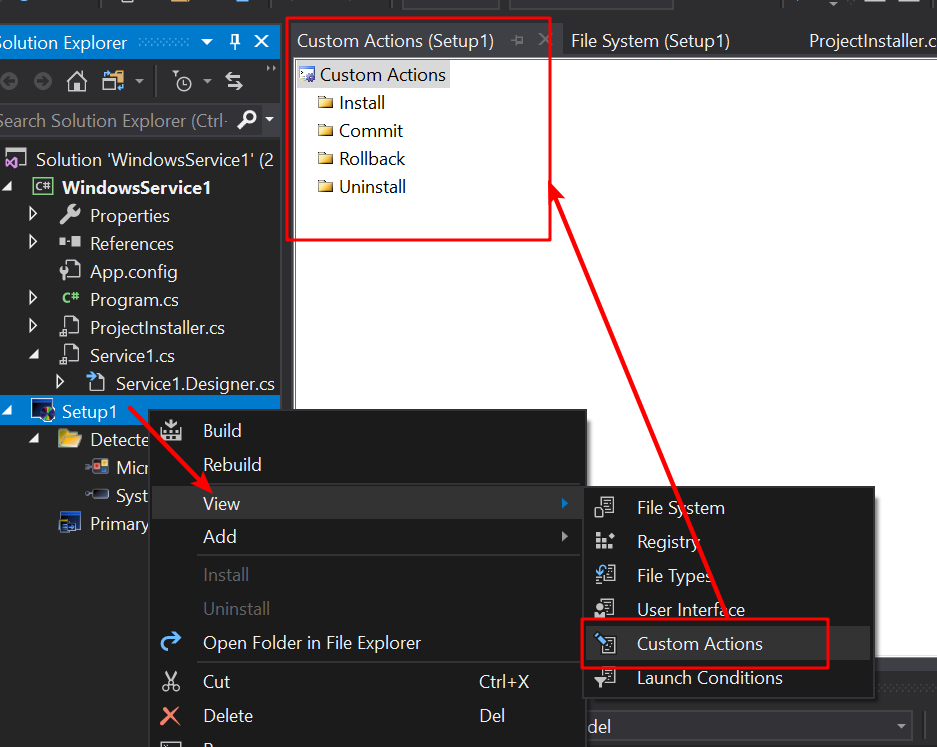
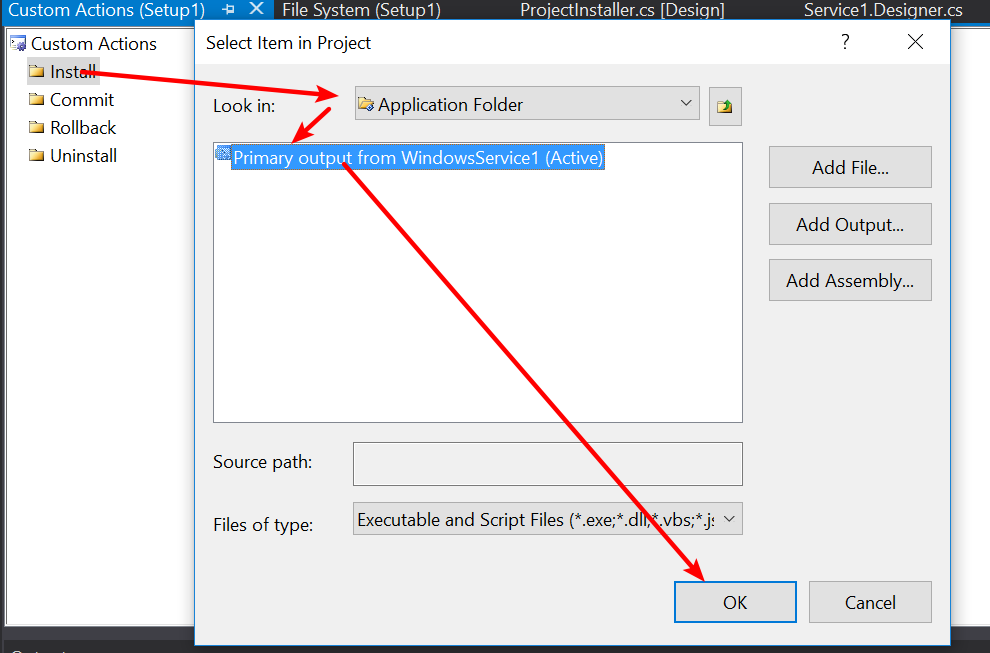
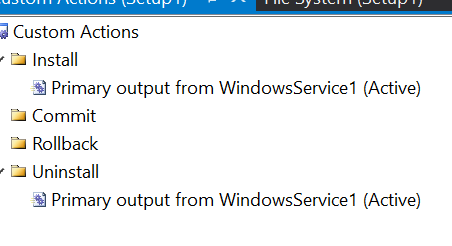
Build Setup Project to generate Installer files:
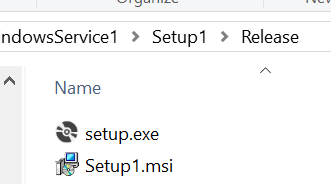
Double click "Setup.exe/msi" to start installation. And then you will see this typicall error for x64 target platform: ( for win32, you will never see this error)
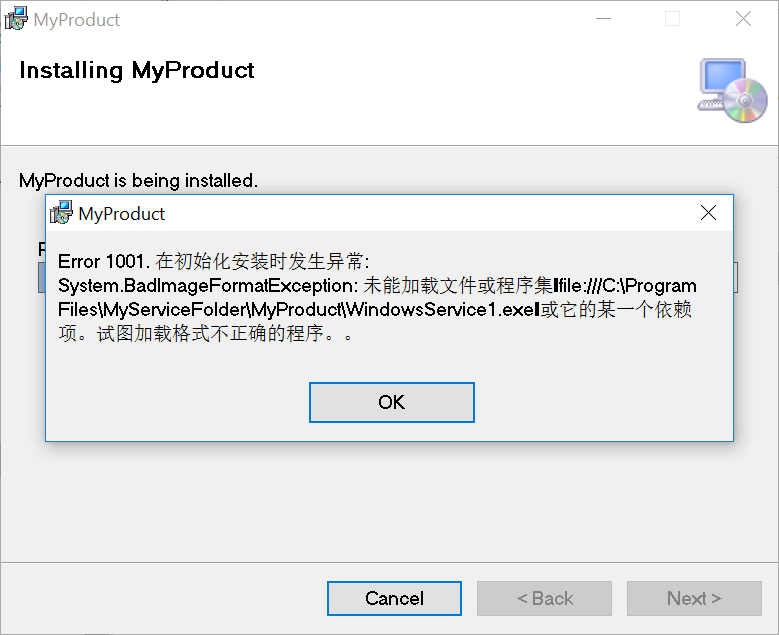
How to solve E1001 under x64 target system:
Download orca.exe from ORCA MSI Editor Standalone Download
Orca MSI Editor allows you to edit the properties of any MSI file. With this tool, you can change the title and text within the installer an look at how and where the files are delivered. It’s also handy if you need to “hack” an MSI to work with a newer version of Windows.
Edit .msi file with "orca.exe " tool:
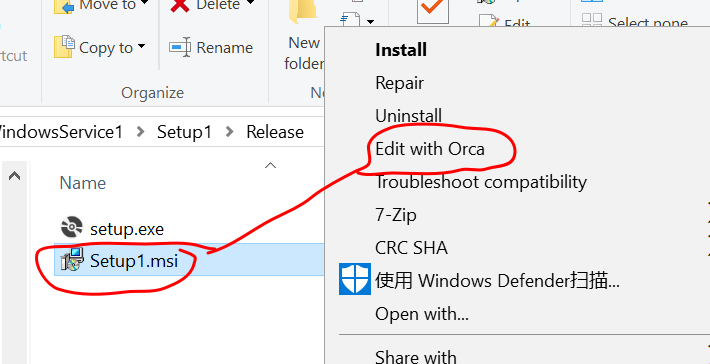
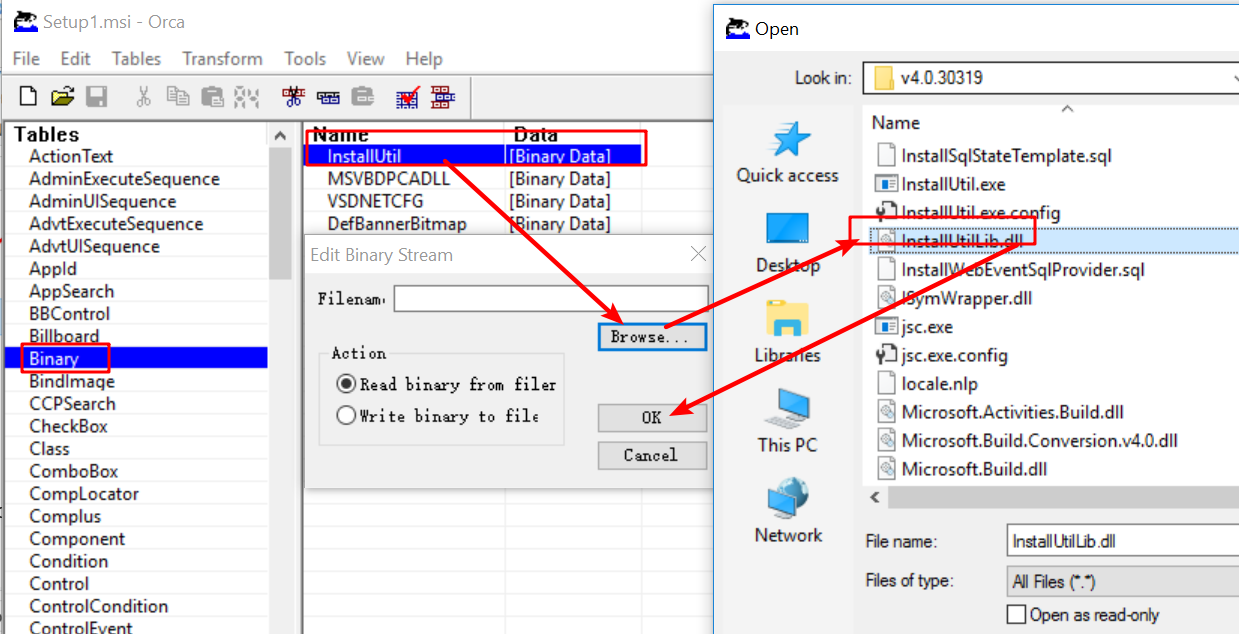
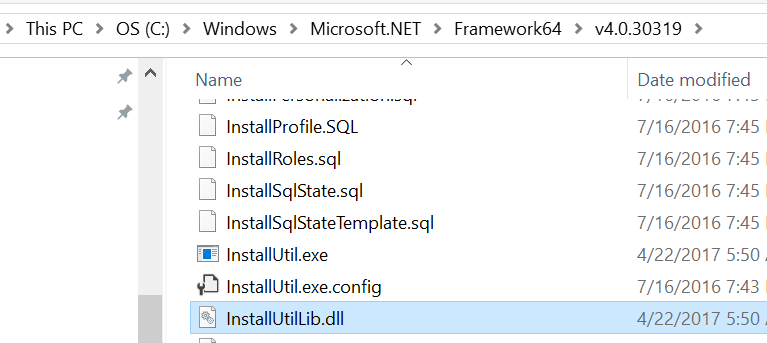
modify binary path to "C:\Windows\Microsoft.NET\Framework64\v4.0.30319\InstallUtilLib.dll"
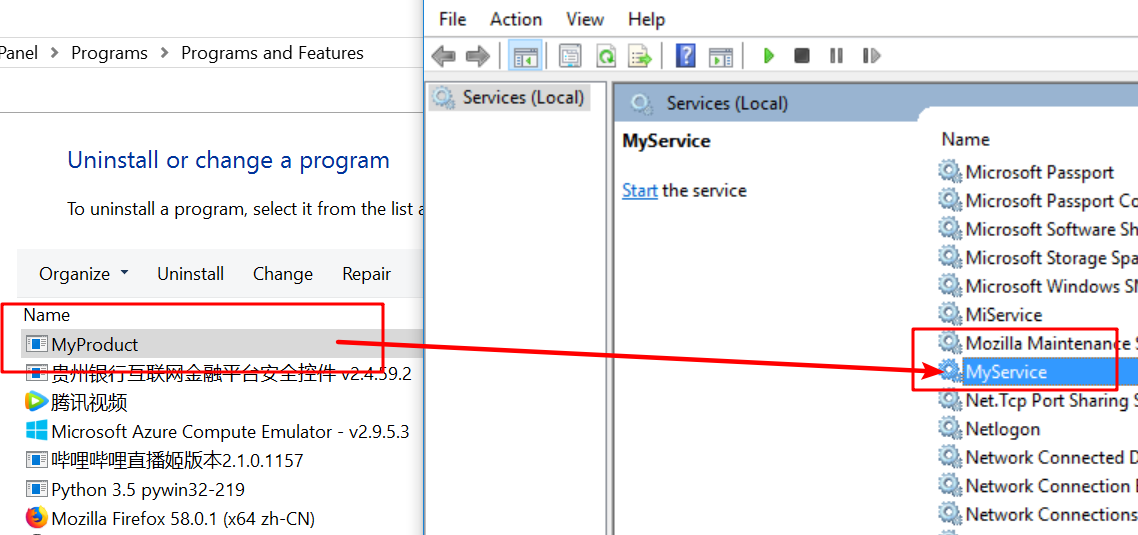
Final install path:
How to Debug Windows Service program on Visual Studio:
Service1.cs
using System;

using System.Collections.Generic;

using System.ComponentModel;

using System.Data;

using System.Diagnostics;

using System.Linq;

using System.ServiceProcess;

using System.Text;

using System.Threading.Tasks;

using System.IO;

namespace WindowsService1

{

  public partial class Service1 : ServiceBase

  {

    public Service1()

    {

      InitializeComponent();

    }

    public void OnDebug()

    {

      string[] str = { "0" };

      OnStart(str);

    }

    protected override void OnStart(string[] args)

    {

      File.Create(AppDomain.CurrentDomain.BaseDirectory + "OnStart.txt");

    }

    protected override void OnStop()

    {

      File.Create(AppDomain.CurrentDomain.BaseDirectory + "OnStop.txt");

    }

  }

}
Program.cs
using System;

using System.Collections.Generic;

using System.Linq;

using System.ServiceProcess;

using System.Text;

using System.Threading.Tasks;

namespace WindowsService1

{

  static class Program

  {

    /// <summary>

    /// The main entry point for the application.

    /// </summary>

    static void Main()

    {

#if DEBUG

      Console.WriteLine("This is debug mode");

      Service1 myService = new Service1();

      myService.OnDebug();

#else

      ServiceBase[] ServicesToRun;

      ServicesToRun = new ServiceBase[]

      {

                new Service1()

      };

      ServiceBase.Run(ServicesToRun);

#endif

    }

  }

}
How to make service auto start after installation:
ProjectInstaller.cs
using System;
using System.Collections;
using System.Collections.Generic;
using System.ComponentModel;
using System.Configuration.Install;
using System.Linq;
using System.ServiceProcess;
using System.Threading.Tasks;
namespace WindowsService1
{
[RunInstaller(true)]
public partial class ProjectInstaller : System.Configuration.Install.Installer
{
public ProjectInstaller()
{
InitializeComponent();
}
private void serviceInstaller1_AfterInstall(object sender, InstallEventArgs e)
{
new ServiceController(serviceInstaller1.ServiceName).Start();
}
}
}
使用C#编程语言开发Windows Service服务的更多相关文章
- 震惊!Windows Service服务和定时任务框架quartz之间原来是这种关系……
过场CG: 接到公司领导的文件指示,“小熊”需要在6月底去海外执行一个行动代号为[定时任务]的营救计划,这个计划关系到公司某个项目的生死(数据安全漏洞),作战部拟定两个作战方案: 方案一:使用务定 ...
- .NET开发Windows Service程序 - Topshelf
在实际项目开发过程中,会经常写一些类似定时检查,应用监控的应用.这类应用在windows平台通常都会写成window service程序. 在百度上搜索一下'c#开发windows service', ...
- C# Windows Service服务的创建和调试
前言 关于Windows服务创建和调试的文章在网络上的很多文章里面都有,直接拿过来贴在这里也不过仅仅是个记录,不会让人加深印象.所以本着能够更深刻了解服务项目的创建和调试过程及方法的目的,有了这篇记录 ...
- quartz.net结合Topshelf实现windows service服务托管的作业调度框架
topshelf可以很简单方便的实现windows service服务,详见我的一篇博客的介绍 http://www.cnblogs.com/xiaopotian/articles/5428361.h ...
- .Net Windows Service(服务) 调试安装及System.Timers.Timer 使用
Windows Service(服务) 是运行在后台的进程 1.VS建立 Windows 服务(.NET Framework) 2.添加Timer 双击Service1.cs可以拖控件(System ...
- ubuntu下安装 gSOAP 用于C/C++开发web service服务端与客户端
昨天在ubuntu下进行安装gSOAP,费了很多时间,没成功,今天又来找了大量教程资料,终于一次成功,这里写下自己的安装步骤和方法,供大家参考. 首先下载gsoap,我下载的是gsoap-2.8.1. ...
- Windows Service 服务搭配FluentScheduler实现定时任务调度
Windows Service 服务 创建Windows Service 项目 创建一个Windows Service项目,并将项目名称改为 TaskWindowService 在解决方案资源管理器内 ...
- 使用CXF开发Web Service服务
1.使用CXF开发Web Service服务端 1.1 开发一个Web Service业务接口,该接口要用@WebService修饰 (1)创建一个Java项目MyServer (2)在MyServe ...
- [开发笔记]-Windows Service服务相关注意事项
注意一:报错:“本地计算机上的 *** 服务启动后停止.某些服务在未由其他服务或程序使用时将自动停止.” 该问题主要的原因是 Service服务程序中有错误. 遇到这个问题时,无论是重新安装服务,还是 ...
随机推荐
- Java语言学习day39--8月14日
今日内容介绍1.Map接口2.模拟斗地主洗牌发牌 ###01Map集合概述 A:Map集合概述: 我们通过查看Map接口描述,发现Map接口下的集合与Collection接口下的集合,它们存储数据的形 ...
- 2021.07.02 UVa1197 多路归并模板
2021.07.02 UVa1197 多路归并模板 UVA11997 K Smallest Sums - 洛谷 | 计算机科学教育新生态 (luogu.com.cn) 分析: 题解 UVA11997 ...
- 别像弱智一样提问 Stop-Ask-Questions-The-Stupid-Ways
https://github.com/xcr1234/Stop-Ask-Questions-The-Stupid-Ways 你真的准备好了吗? 感谢群友 for you 提供 避免 xy-proble ...
- Java web与web gis学习笔记(一)——Tomcat环境搭建
系列链接: Java web与web gis学习笔记(一)--Tomcat环境搭建 Java web与web gis学习笔记(二)--百度地图API调用 JavaWeb和WebGIS学习笔记(三)-- ...
- HCNP Routing&Switching之代理ARP
前文我们了解了端口隔离相关话题,回顾请参考https://www.cnblogs.com/qiuhom-1874/p/16186451.html:今天我们来聊一聊ARP代理相关话题: 端口隔离之破解之 ...
- linux下can调试工具canutils安装与使用
0. 编译环境所需要的工具 libsocketcan-0.0.11.tar.bz2 canutils-4.0.6.tar.bz2 下载路径 https://public.pengutronix.de ...
- Spring mvc 使用@RequestBody 500错误
今天在使用@RequestBody的时候,遇到一个http500错误,记录一下 让我们来看看我是怎么样错的,贴上代码 @PostMapping("/User") public Us ...
- Nacos源码系列—服务端那些事儿
点赞再看,养成习惯,微信搜索[牧小农]关注我获取更多资讯,风里雨里,小农等你,很高兴能够成为你的朋友. 项目源码地址:公众号回复 nacos,即可免费获取源码 前言 在上节课中,我们讲解了客户端注册服 ...
- 查重工具Jplag的使用
目录 前言 一.Jplag是什么? 二.使用步骤 1.下载包 2.java环境配置 3.如何使用 三.总结 前言 说明一下本文章针对最新版本Jplag3.0使用JplagAPI 一.Jplag是什么? ...
- css修改文子背景浮动
伪元素选择器 """通过css操作文本内容""" 1.修改首个字体样式 p:first-letter{ color: blue; font- ...