
CentOS 7 最小化安装及优化
CentOS 7 最小化安装及优化
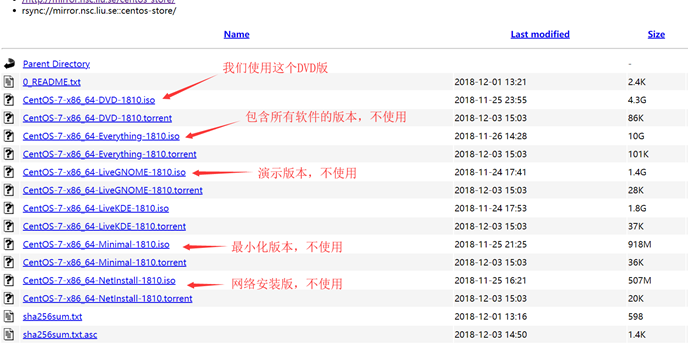
一、下载镜像文件
官方网站
新版本下载链接:https://wiki.centos.org/Download
旧版本下载链接:http://vault.centos.org/
CentO S7.6 :http://vault.centos.org/7.6.1810/isos/x86_64/
国内镜像源
阿里云镜像:https://opsx.alibaba.com/mirror
科技大学:http://mirrors.ustc.edu.cn/
清华大学:https://mirrors.tuna.tsinghua.edu.cn/
一、VMware 配置虚拟网络
配置虚拟网络编辑器
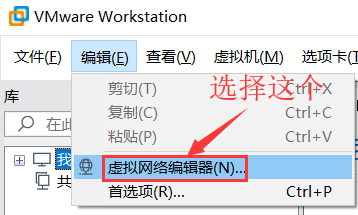
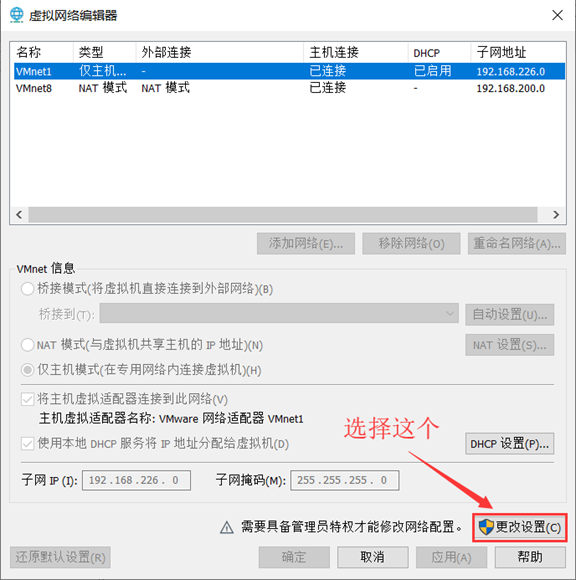
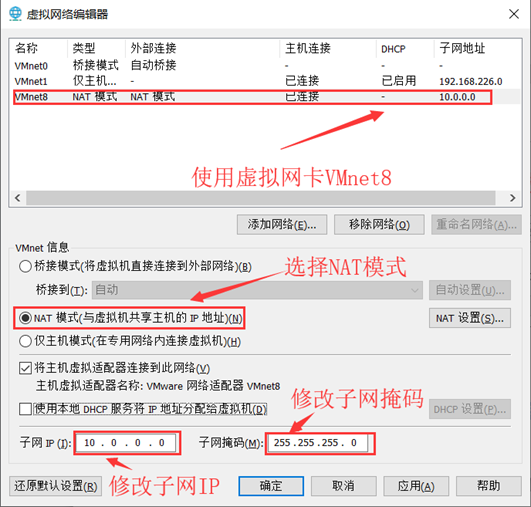
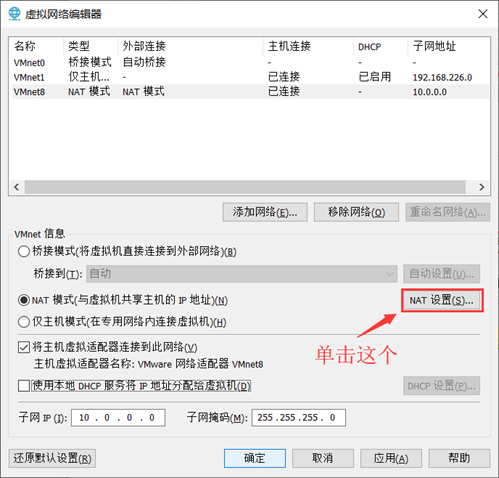
- 选择VMnet8使用NAT模式
- 子网IP:10.0.0.0
- 子网掩码:255.255.255.0
- NAT设置:
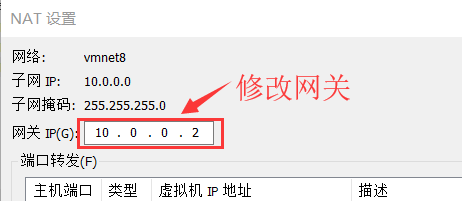
网关IP:10.0.0.2
完成后确定两次即可。
二、VMware 新建虚拟机
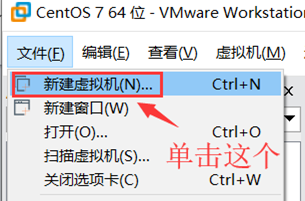
- 自定义模式
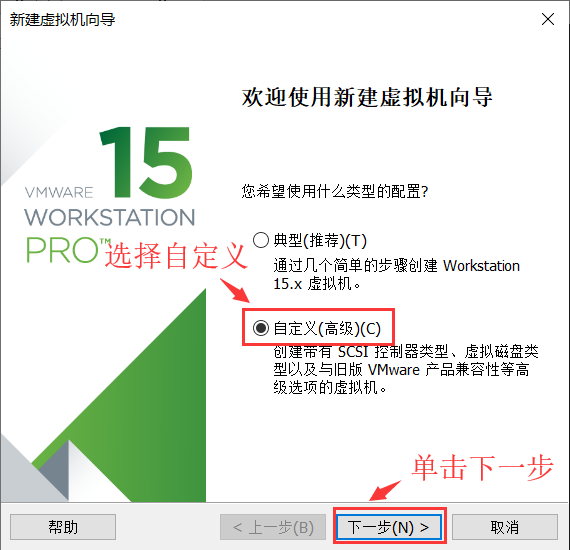
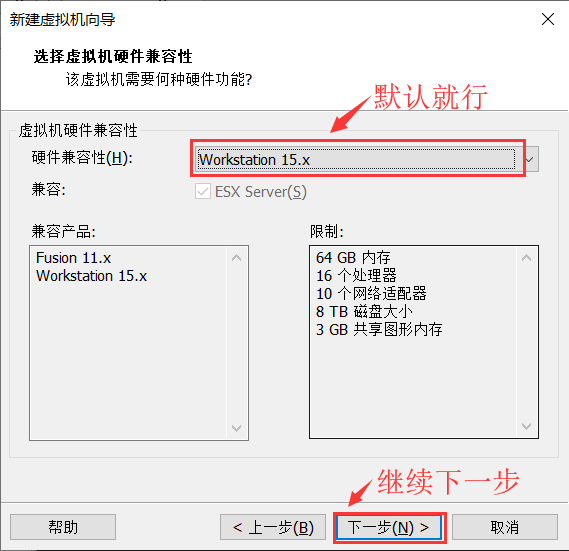
- 硬件兼容性:默认
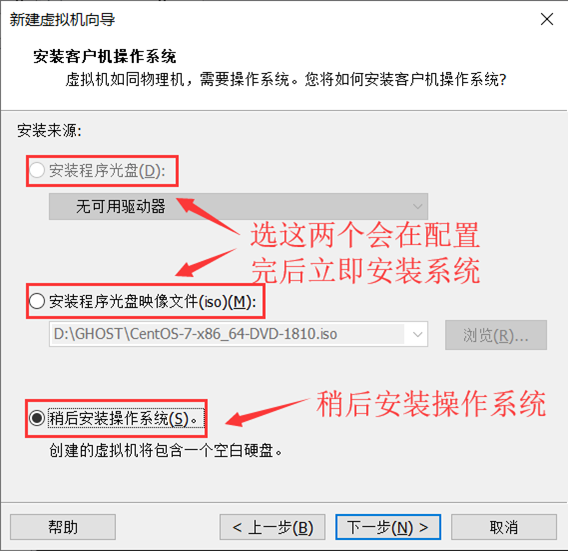
- 安装来源:稍后安装操作系统
- 客户机操作系统:Linux;版本:CentOS7 64 位

- 虚拟机名称:Linux运维模版机;位置:不要放在C盘

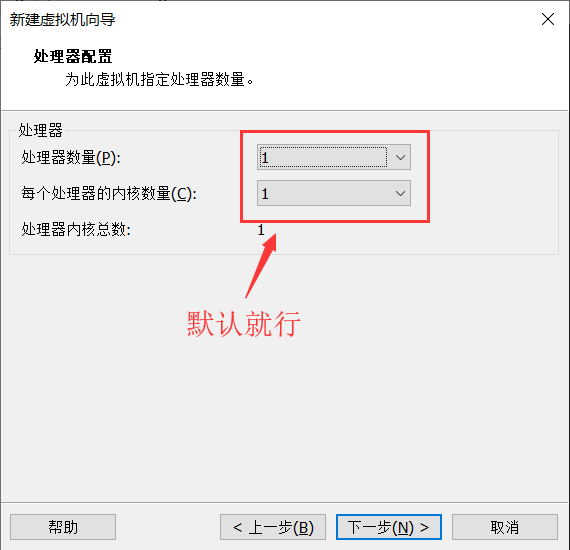
- 处理器:默认
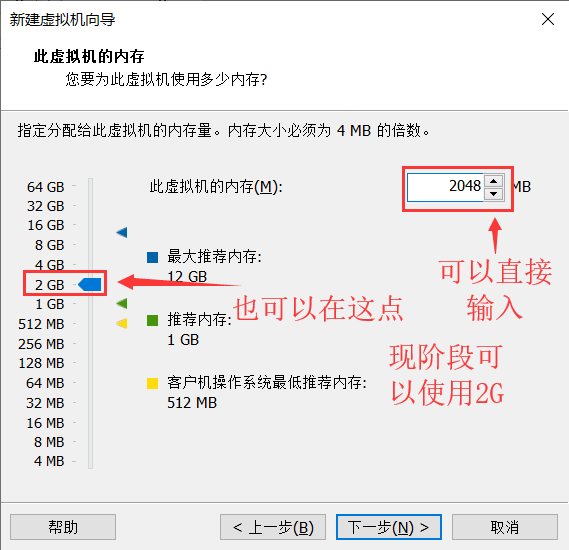
- 内存:2G
- 网络:NAT
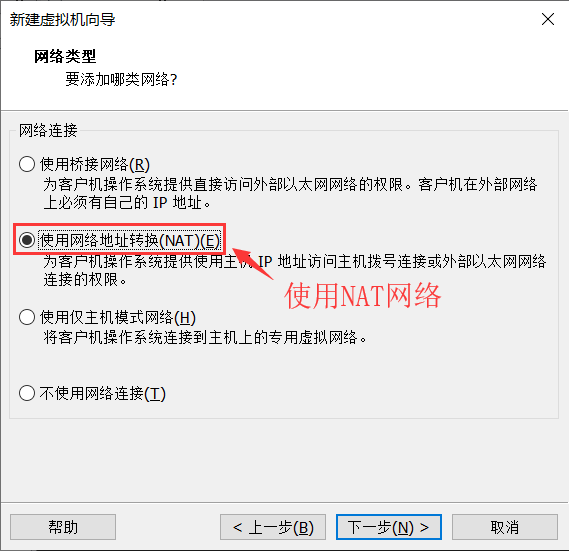
- 选择I/O控制器类型:默认
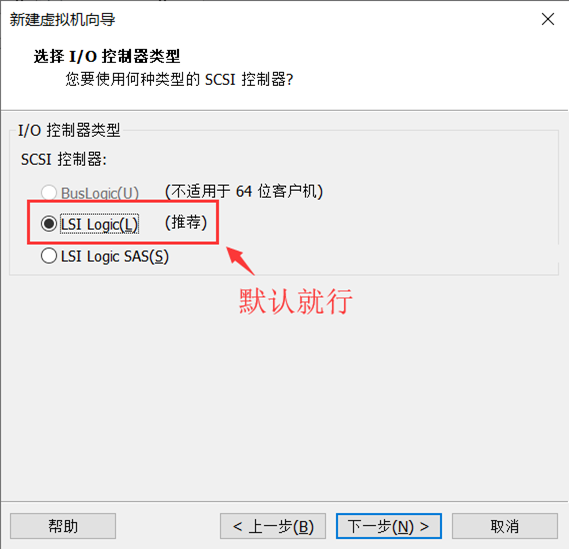
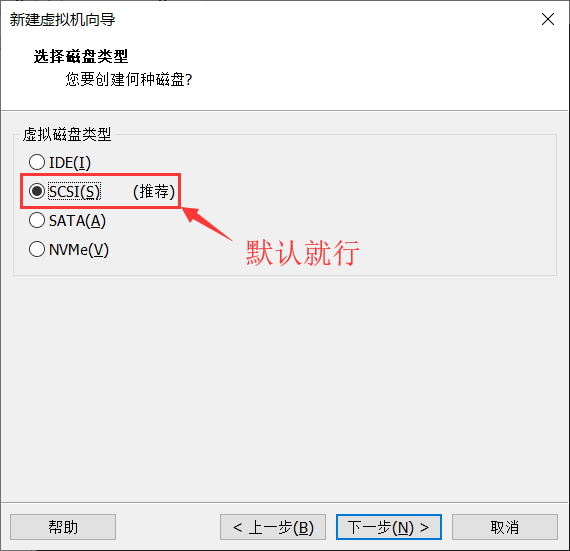
- 虚拟磁盘类型:默认
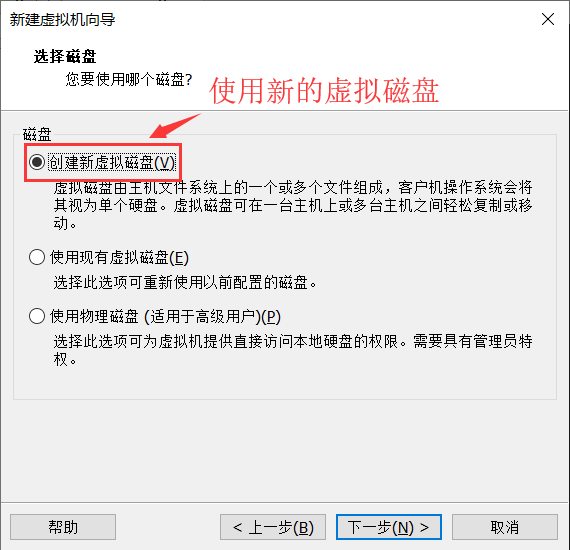
- 选择磁盘:创建新虚拟磁盘
- 指定磁盘容量:20G 将虚拟磁盘拆分为多个文件
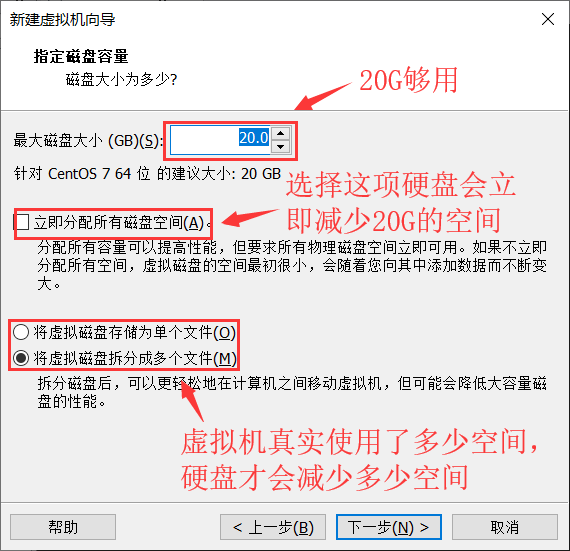
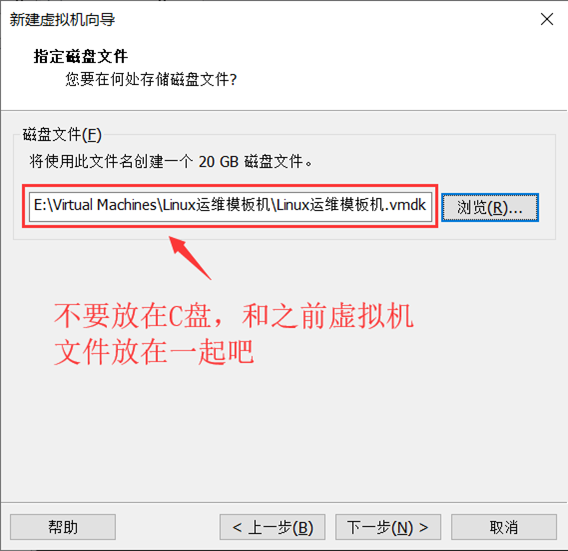
- 指定磁盘文件储存路径:不要放在C盘!
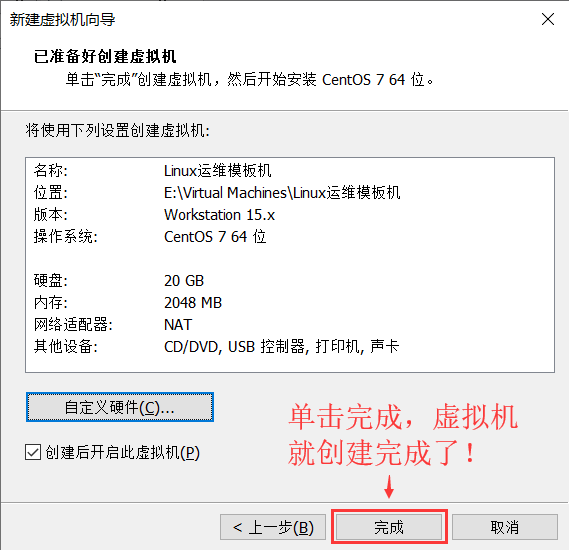
- 完成
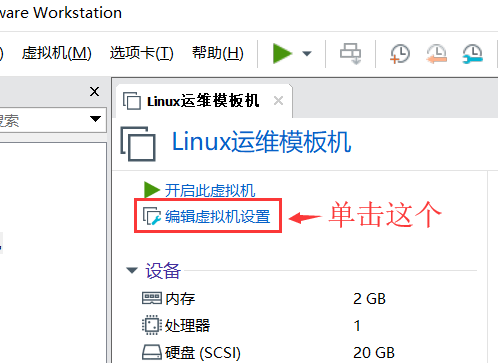
- 挂载镜像文件

三、CentOS 7 最小化安装
- 开启虚拟机
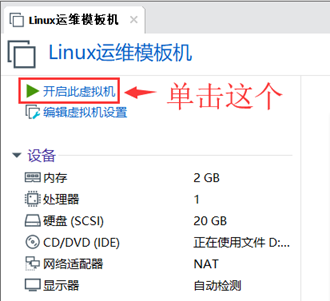
- 进入虚拟机界面
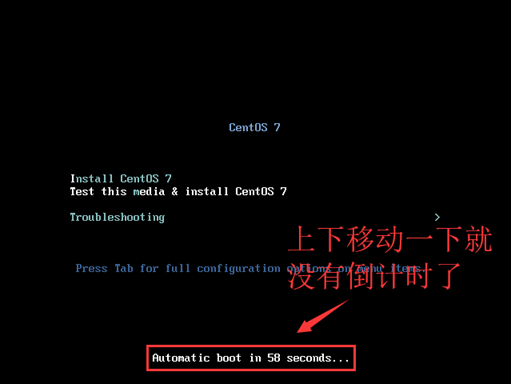
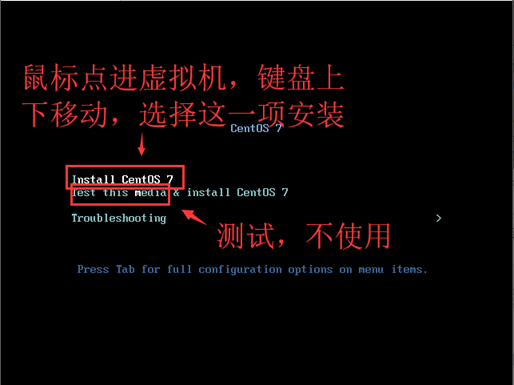
- 安装选择
4. 修改网卡名称为ethX
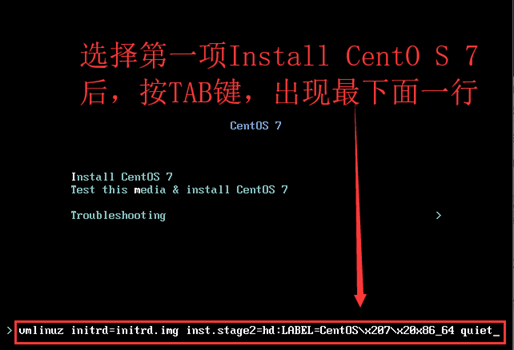
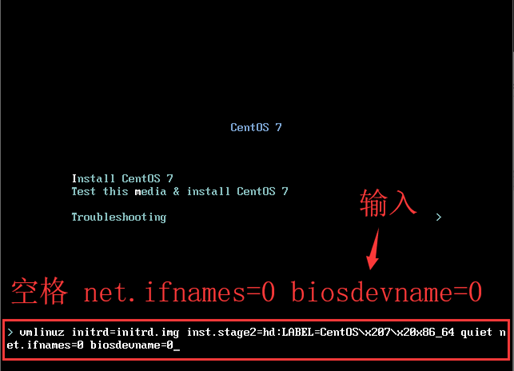
1、传递内核参数 net.ifnames=0 biosdevname=0 以 更改 网卡名称为 ethX
- 出现安装界面时,使用键盘 上下键 移动到第一行,即 Install Centos Linux 7
- 然后按 tab 键,即可出现 传递 参数界面。
- 在最后输入:空格 net.ifnames=0 biosdevname-0
- 修改完成后,回车!
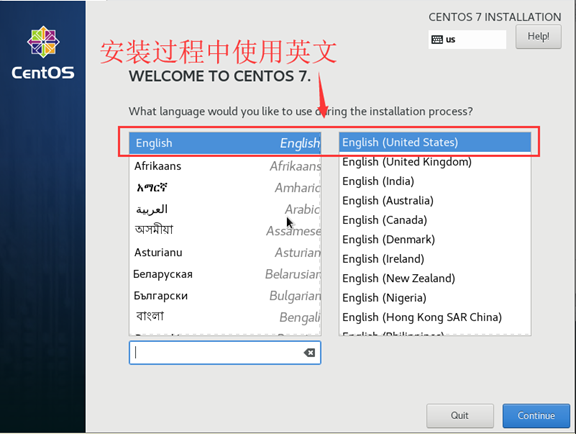
- 选择安装过程中使用的语言
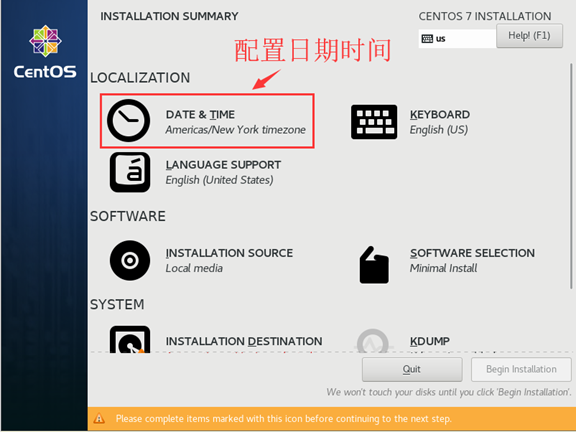
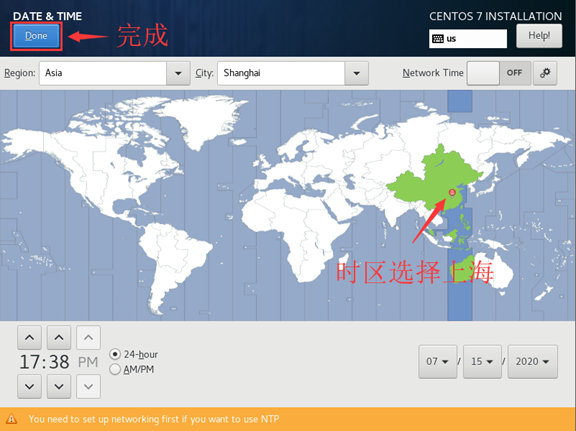
- 配置日期时间
- 设置系统语言
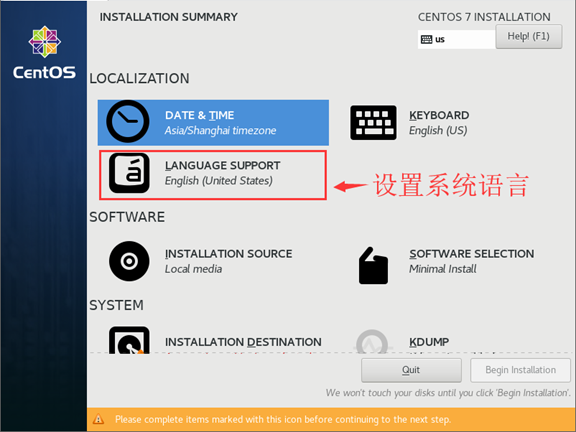
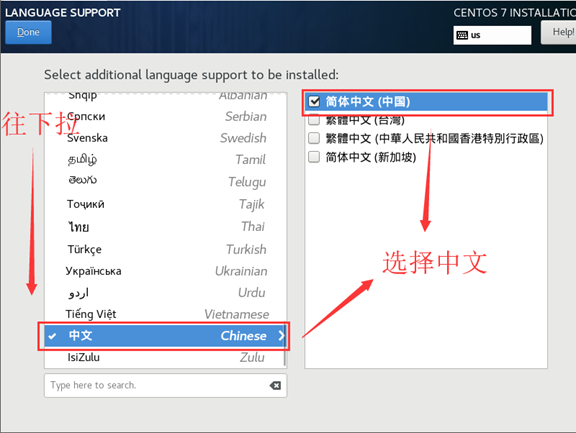
- 软件选择
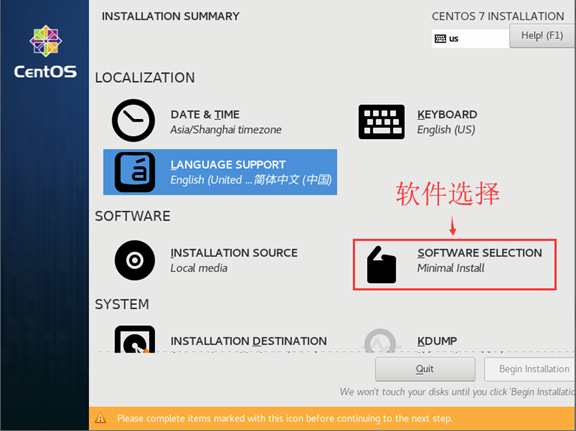
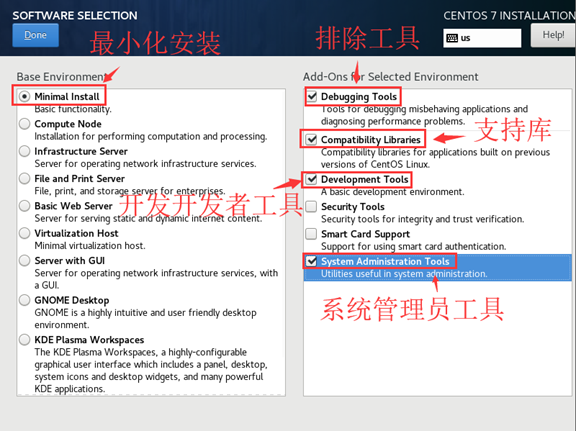
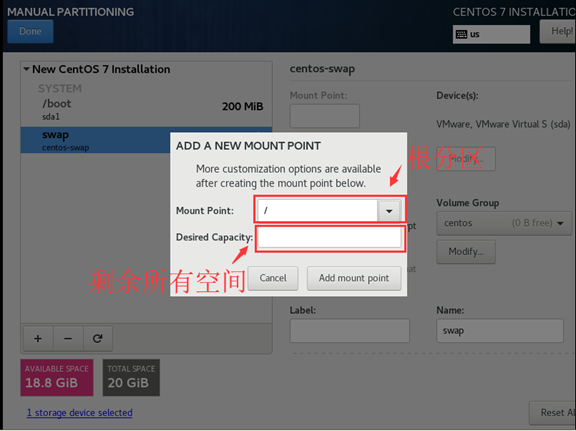
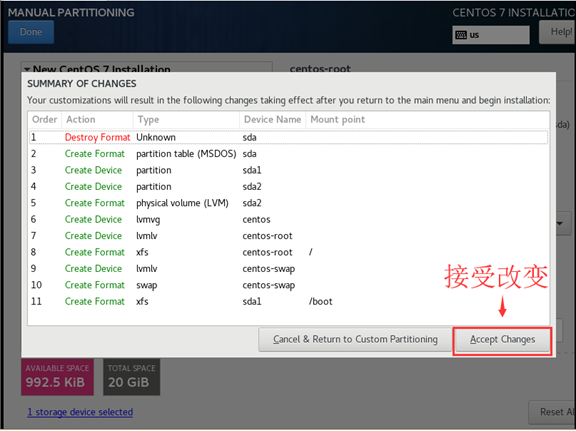
10. 安装磁盘选择(分区)
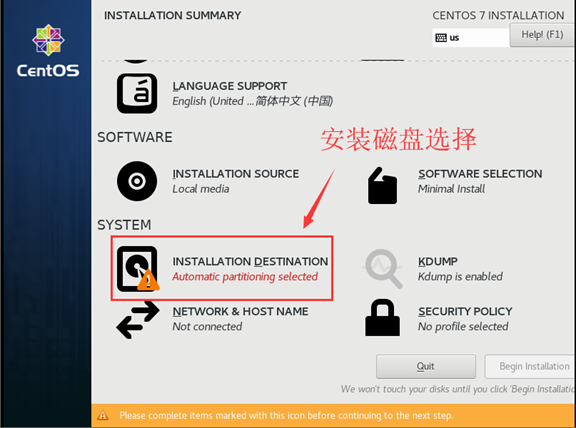

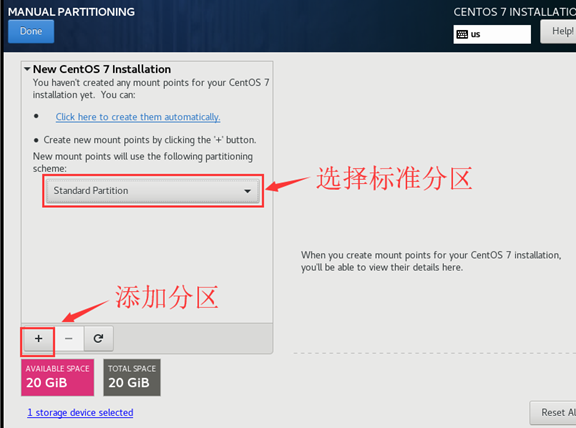
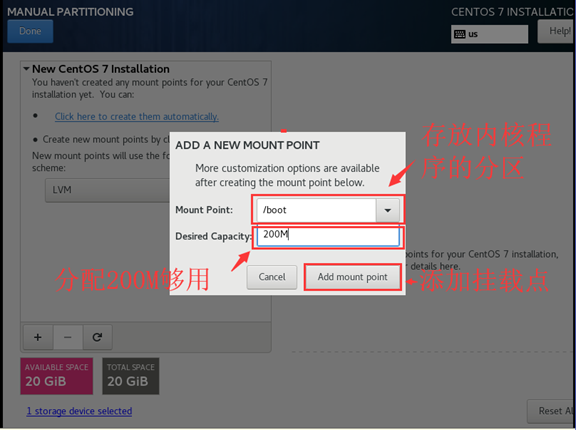
/boot 分区 200M 存放系统内核及引导程序
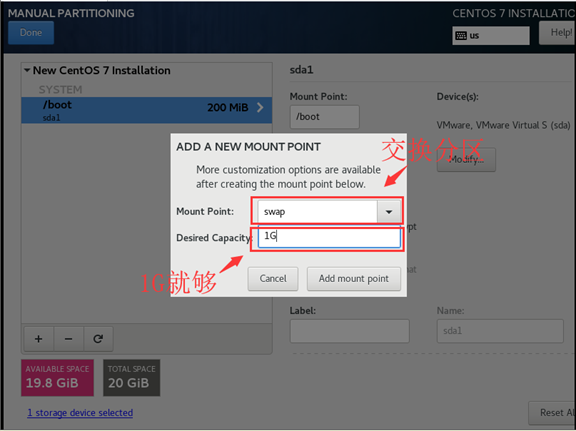
swap 分区 1G 交换分区 把磁盘空间临时充当内存使用
- 一般设为内存的1-1.5倍,内存大于8G的设为8G
- 可以在安装系统时进行分配,也可以在系统中进行分配
/ 其他所有剩余分区 根分区
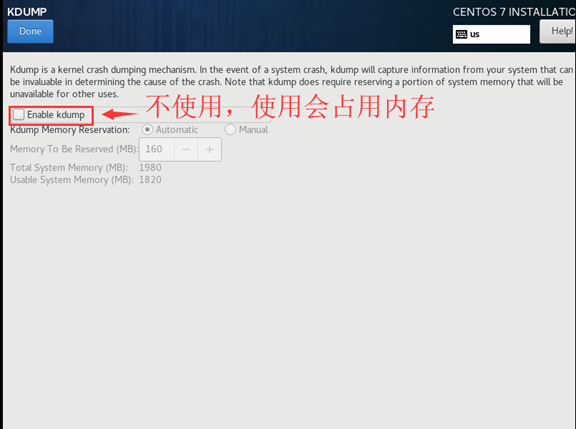
- KDUPB:不使用

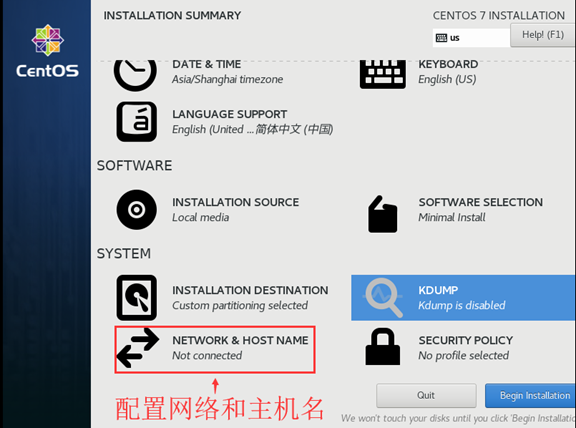
12. 配置网络和主机名
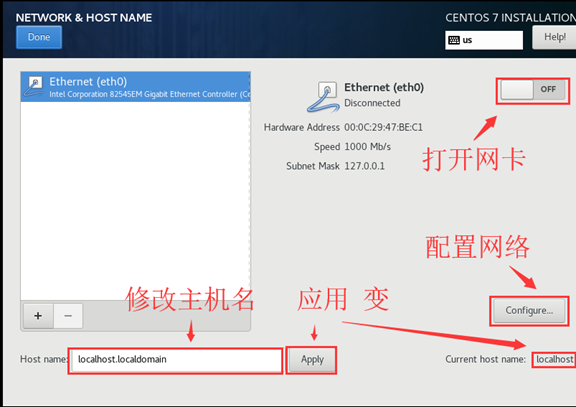
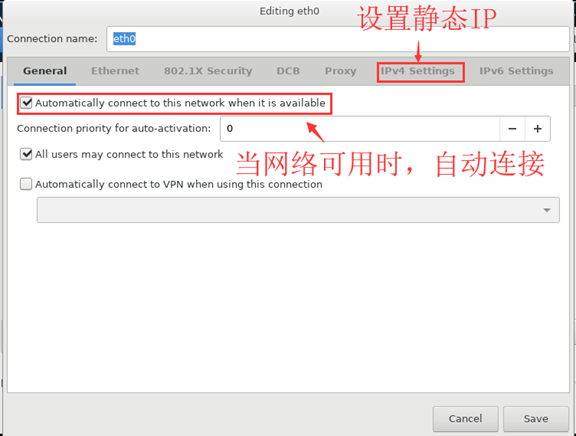
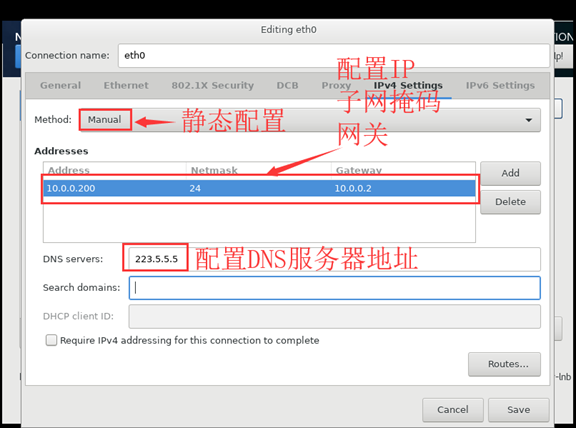
- 开始安装
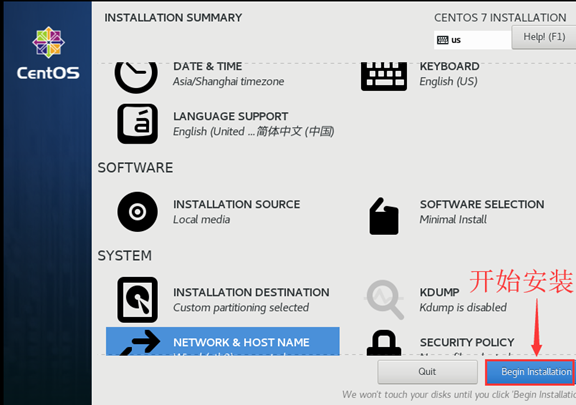
14. 用户配置
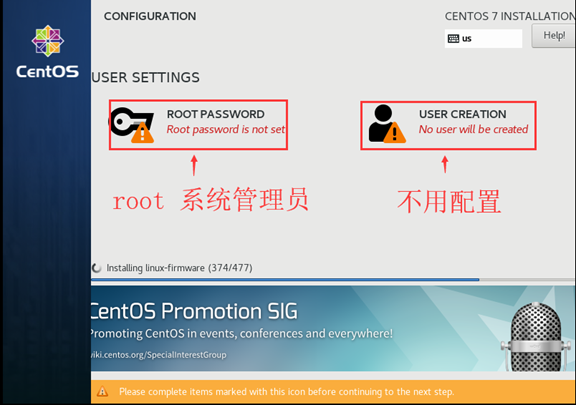
接下来就等待吧!
- 完成
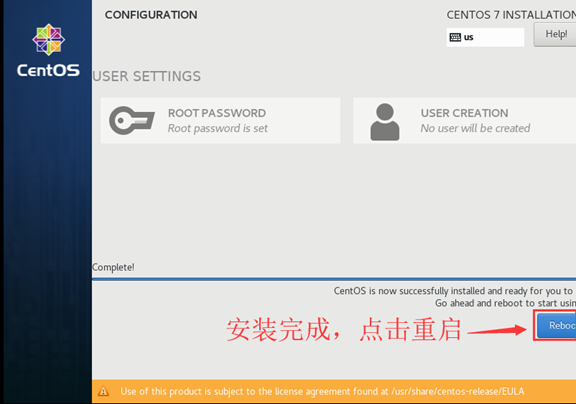
四、优化
- 修改yum源
sudo mv /etc/yum.repos.d/CentOS-Base.repo /etc/yum.repos.d/CentOS-Base.repo.backup

curl -o /etc/yum.repos.d/CentOS-Base.repo https://mirrors.aliyun.com/repo/Centos-7.repo
- 安装常用软件
yum -y install wget make automake cmake gcc gcc-c++ kernel-devel pcre pcre-devel zlib-devel \

openssl openssl-devel patch libffi-devel python-devel bzip2-devel ncurses-devel \

sqlite-devel readline-devel tk-devel gdbm-devel db4-devel libpcap-devel xz-devel \

glibc glibc-devel systemd-devel libevent libevent-devel ntpdate yum-utils lrzsz \

net-tools sysstat htop nc iotop iftop lsof nmap glances nethogs bind-utils nfs-utils \

tcpdump vim mtr traceroute quagga bc tree telnet screen dos2unix mlocate ncompress \

psmisc zip unzip bash-completion bash-completion-extras
- yum更新、清理、缓存
yum -y update

yum clean all

yum makecache
- 关闭防火墙
firewalld,并设置为开机不启动
systemctl stop firewalld

systemctl disable firewalld
- 关闭网络管理
NetworkManager,避免和network服务冲突,导致网络不通,或者网卡启动不成功等
systemctl stop NetworkManager

systemctl disable NetworkManager
- 关闭
selinux,修改配置文件
[root@openstack network-scripts]# cat /etc/sysconfig/selinux

# This file controls the state of SELinux on the system.

# SELINUX= can take one of these three values:

#     enforcing - SELinux security policy is enforced.

#     permissive - SELinux prints warnings instead of enforcing.

#     disabled - No SELinux policy is loaded.

SELINUX=disabled

# SELINUXTYPE= can take one of three values:

#     targeted - Targeted processes are protected,

#     minimum - Modification of targeted policy. Only selected processes are protected.

#     mls - Multi Level Security protection.

SELINUXTYPE=targeted
- 配置内核参数优化
[root@openstack network-scripts]# cat /etc/sysctl.conf

# Controls source route verification

net.ipv4.conf.default.rp_filter = 1

net.ipv4.ip_nonlocal_bind = 1

net.ipv4.ip_forward = 1

# Do not accept source routing

net.ipv4.conf.default.accept_source_route = 0

# Controls the System Request debugging functionality of the kernel

kernel.sysrq = 0

# Controls whether core dumps will append the PID to the core filename.

# Useful for debugging multi-threaded applications.

kernel.core_uses_pid = 1

# Controls the use of TCP syncookies

net.ipv4.tcp_syncookies = 1

# Disable netfilter on bridges.

net.bridge.bridge-nf-call-ip6tables = 0

net.bridge.bridge-nf-call-iptables = 0

net.bridge.bridge-nf-call-arptables = 0

# Controls the default maxmimum size of a mesage queue

kernel.msgmnb = 65536

# Controls the maximum size of a message, in bytes

kernel.msgmax = 65536

# Controls the maximum shared segment size, in bytes

kernel.shmmax = 68719476736

# Controls the maximum number of shared memory segments, in pages

kernel.shmall = 4294967296

# TCP kernel paramater

net.ipv4.tcp_mem = 786432 1048576 1572864

net.ipv4.tcp_rmem = 4096        87380   4194304

net.ipv4.tcp_wmem = 4096        16384   4194304

net.ipv4.tcp_window_scaling = 1

net.ipv4.tcp_sack = 1

# socket buffer

net.core.wmem_default = 8388608

net.core.rmem_default = 8388608

net.core.rmem_max = 16777216

net.core.wmem_max = 16777216

net.core.netdev_max_backlog = 262144

net.core.somaxconn = 20480

net.core.optmem_max = 81920

# TCP conn

net.ipv4.tcp_max_syn_backlog = 262144

net.ipv4.tcp_syn_retries = 3

net.ipv4.tcp_retries1 = 3

net.ipv4.tcp_retries2 = 15

# tcp conn reuse

net.ipv4.tcp_tw_reuse = 1

net.ipv4.tcp_tw_recycle = 1

net.ipv4.tcp_fin_timeout = 1

net.ipv4.tcp_max_tw_buckets = 20000

net.ipv4.tcp_max_orphans = 3276800

net.ipv4.tcp_timestamps = 1 #?

net.ipv4.tcp_synack_retries = 1

net.ipv4.tcp_syncookies = 1

# keepalive conn

net.ipv4.tcp_keepalive_time = 300

net.ipv4.tcp_keepalive_intvl = 30

net.ipv4.tcp_keepalive_probes = 3

net.ipv4.ip_local_port_range = 10001    65000

# swap

vm.overcommit_memory = 0

vm.swappiness = 10

#net.ipv4.conf.eth1.rp_filter = 0

#net.ipv4.conf.lo.arp_ignore = 1

#net.ipv4.conf.lo.arp_announce = 2

#net.ipv4.conf.all.arp_ignore = 1

#net.ipv4.conf.all.arp_announce = 2
- 配置资源控制,每个用户可以同时打开的最大文件数nofile、最大进程数nproc ... ....
[root@openstack network-scripts]# cat /etc/security/limits.conf

... ...

*                soft    core          unlimited

*                hard    core          unlimited

*                soft    nproc         1000000

*                hard    nproc         1000000

*                soft    nofile        100000

*                hard    nofile        100000

*                soft    memlock       32000

*                hard    memlock       32000

*                soft    msgqueue      8192000

*                hard    msgqueue      8192000
- poweroff关机,保存快照,此时centos7整个系统安装配置完成,可以使用了。
CentOS 7 最小化安装及优化的更多相关文章
- RHEL/CentOS 7最小化安装后需做的30件事情
导读 CentOS是一个工业标准的Linux发行版,是红帽企业版 Linux 的衍生版本.你安装完后马上就可以使用,但是为了更好地使用你的系统,你需要进行一些升级.安装新的软件包.配置特定服务和应用程 ...
- CentOS 7 最小化安装的网络配置
默认的最小化安装CentOS 7系统以后,是没有ipconfig这个命令的,依赖于net-tools工具包. 一.nmtui 这是一个类似于图形化的命令(和setup类似) 通过这个组件窗口可以设置各 ...
- CentOS 7 - 最小化安装后,解决无法使用yum命令问题!!
刚刚最小化方式安装了CentOS 7 后,说实话,真不习惯也不喜欢纯shell方式工作,使用root账号登入后,马上想安装GNOME,但是发现yum不能正常工作!!! 一,输入安装X Window命令 ...
- CentOS 7 - 最小化安装后,安装GNOME!!
CentOS 7的最小化安装,并没有安装任何X Window,GNOME是比较好的一个X Window,我决定安装GNOME! 通过yum grouplist命令,我发现GNOME已经处于可以安装列表 ...
- CentOS 7 - 最小化安装以及引发的问题!
一,操作系统和虚拟机 操作系统:CentOS 7 官方网站:https://www.centos.org 下载地址:https://www.centos.org/download/ 下载版本分三个:D ...
- CentOS系统最小化安装没有wget解决方案
-bash: wget: command not found的两种解决方法 今天给服务器安装新LNMP环境时,wget 时提示 -bash:wget command not found,很明显没有安装 ...
- 【深入学习linux】CentOS 7 最小化安装后的注意事项及一些必备组件的安装
转载:https://blog.csdn.net/F_Srion/article/details/54910943 在VM虚拟机中安装CentOS 7 时 有时候顾虑到电脑硬件性能,我们需要最小化安装 ...
- CentOS 7 最小化安装后的注意事项
http://blog.csdn.net/f_srion/article/details/54910943 在VM虚拟机中安装CentOS 7 时 有时候顾虑到电脑硬件性能,我们需要最小化安装,而最小 ...
- 【CentOS如何最小化安装】
近来发现越来越多的运维小伙伴们都有最小化安装系统的洁癖,因此,找老男孩来咨询,这个"洁癖"好习惯啊,必须支持,,因此发布本文和大家分享下. (1)系统安装类型选择及自定义额外包组 ...
随机推荐
- charles功能(四) 模拟 接口404/403返回值(blacklist方法)
1.tools-->blacklist 2.允许启用黑名单选择接口返回错误的形式 (404或者403),添加接口地址并保存 3.再次请求效果如下
- PyQt(Python+Qt)学习随笔:QTreeWidgetItem项是否禁用disable、隐藏isHidden和允许选中isSelected
老猿Python博文目录 专栏:使用PyQt开发图形界面Python应用 老猿Python博客地址 树型部件QTreeWidget的项QTreeWidgetItem对象具有是否禁用disable.是否 ...
- PyQt(Python+Qt)学习随笔:QAbstractItemView的autoScroll和autoScrollMargin属性
老猿Python博文目录 老猿Python博客地址 QAbstractItemView的autoScroll属性用于确认鼠标在视口边缘时是否自动滚动内容,默认值为True,autoScrollMarg ...
- Zookeeper的基本原理(zk架构、zk存储结构、watch机制、独立安装zk、集群间同步复制)
1.Hbase集群的高可用性与伸缩性 HBase可以实现对Regionserver的监控,当个别Regionserver不可访问时,将其负责的分区分给其他Regionsever,其转移过程较快,因为只 ...
- [Windows] Prism 8.0 入门(下):Prism.Wpf 和 Prism.Unity
1. Prism.Wpf 和 Prism.Unity 这篇是 Prism 8.0 入门的第二篇文章,上一篇介绍了 Prism.Core,这篇文章主要介绍 Prism.Wpf 和 Prism.Unity ...
- 你必须要知道的HTTP协议原理
1 基本概念 HTTP协议:基于TCP协议之上实现的无状态.全文本的标准通信协议. 客户端:例如pc浏览器,移动应用端,第三方服务器等能发起http访问的设备. 服务器:能够接受HTTP协议请求,并且 ...
- Java并发编程的艺术(二)——volatile、原子性
什么是volatile Java语言允许线程访问共享变量,为了确保共享变量能够被准确一致地更新,如果一个字段被声明为volatile,那么Java内存模型将会确保所有线程看到这个变量时值是一致的.保证 ...
- sqli-labs less-7(文件读写)
less-7 dump into outfile(文件读写) 通俗的来讲,就是通过outfile传入一句话木马到网站目录里,然后用菜刀或者蚁剑等连接 过程: 输入id=?判断闭合类型 页面上提示了使用 ...
- JavaSE01-概述
1.1 Java语言发展史 语言:人与人交流沟通的表达方式 计算机语言:人与计算机之间进行信息交流沟通的一种特殊语言 Java语言是美国Sun公司(Stanford University Networ ...
- centos下配置Apache的https强制跳转
vim /etc/httpd/conf/httpd.conf 新增如下三行 RewriteEngine on RewriteCond %{HTTPS} !=on RewriteRule ^(.*) ...