
38.Android之ListView简单学习(一)
android中ListView用的很普遍,今天来学习下,本篇主要以本地数据加载到listview,后面会学习从网络获取数据添加到listview。
首先改下布局文件:
 <?xml version="1.0" encoding="utf-8"?>

 <LinearLayout xmlns:android="http://schemas.android.com/apk/res/android"

     android:layout_width="match_parent"

     android:layout_height="match_parent"

     android:orientation="vertical" >

      <ListView

         android:id="@+id/listview"

         android:layout_width="match_parent"

         android:layout_height="wrap_content" >

     </ListView>

 </LinearLayout>
SimpleAdapter对应布局文件:
 <?xml version="1.0" encoding="utf-8"?>

 <LinearLayout xmlns:android="http://schemas.android.com/apk/res/android"

     android:layout_width="match_parent"

     android:layout_height="match_parent"

     android:orientation="vertical" >

     <LinearLayout

         android:layout_width="match_parent"

         android:layout_height="match_parent"

         android:orientation="vertical" >

         <LinearLayout

             android:layout_width="match_parent"

             android:layout_height="50dp" >

             <LinearLayout

                 android:layout_width="wrap_content"

                 android:layout_height="match_parent"

                 android:orientation="vertical" >

                 <ImageView

                     android:id="@+id/img"

                     android:layout_width="wrap_content"

                     android:layout_height="wrap_content" />

             </LinearLayout>

             <LinearLayout

                 android:layout_width="wrap_content"

                 android:layout_height="match_parent"

                 android:layout_weight="1"

                 android:orientation="vertical" >

                 <LinearLayout

                     android:layout_width="match_parent"

                     android:layout_height="wrap_content"

                     android:layout_weight="1"

                     android:orientation="vertical" >

                     <TextView

                         android:id="@+id/appnametext"

                         android:layout_width="wrap_content"

                         android:layout_height="match_parent"

                         android:gravity="center"

                         android:text="weixin" />

                 </LinearLayout>

                 <LinearLayout

                     android:layout_width="match_parent"

                     android:layout_height="wrap_content"

                     android:layout_weight="1"

                     android:orientation="horizontal" >

                     <TextView

                         android:id="@+id/sizetext"

                         android:layout_width="wrap_content"

                         android:layout_height="wrap_content"

                         android:layout_gravity="center"

                         android:text="15.23" />

                     <View

                         android:layout_width="1dp"

                         android:layout_height="match_parent"

                         android:layout_marginBottom="5dp"

                         android:layout_marginLeft="7dp"

                         android:layout_marginRight="3dp"

                         android:layout_marginTop="5dp"

                         android:background="#000000" />

                     <TextView

                         android:id="@+id/amounttext"

                         android:layout_width="wrap_content"

                         android:layout_height="wrap_content"

                         android:layout_gravity="center"

                         android:layout_marginLeft="2dp"

                         android:text="1234567" />

                 </LinearLayout>

             </LinearLayout>

             <LinearLayout

                 android:layout_width="wrap_content"

                 android:layout_height="match_parent"

                 android:orientation="vertical" >

                 <Button

                     android:id="@+id/dowmbutton"

                     android:layout_width="wrap_content"

                     android:layout_height="wrap_content"

                     android:layout_marginLeft="5dp"

                     android:layout_marginRight="10dp"

                     android:text="load" />

             </LinearLayout>

         </LinearLayout>

     </LinearLayout>

 </LinearLayout>
修改下MainActivity.java文件:
 package com.example.listviewdemo1;

 import java.util.ArrayList;

 import java.util.HashMap;

 import java.util.List;

 import java.util.Map;

 import android.app.Activity;

 import android.content.Context;

 import android.content.Intent;

 import android.os.Bundle;

 import android.view.LayoutInflater;

 import android.view.View;

 import android.view.ViewGroup;

 import android.widget.BaseAdapter;

 import android.widget.Button;

 import android.widget.ImageView;

 import android.widget.ListView;

 import android.widget.ListAdapter;

 import android.widget.SimpleAdapter;

 import android.widget.TextView;

 public class MainActivity extends Activity {

     private ListView listView;

     private Intent intent;

     private List<Map<String, Object>> mData;

     @Override

     protected void onCreate(Bundle savedInstanceState) {

         super.onCreate(savedInstanceState);

         setContentView(R.layout.activity_main);

         listView = (ListView) findViewById(R.id.listview);

         SimpleAdapter simpleAdapter = new SimpleAdapter(this, getData(),

                 R.layout.simp_adap, new String[] { "nametext", "teitext",

                         "amounttext" }, new int[] { R.id.appnametext,

                         R.id.sizetext, R.id.amounttext });

         listView.setAdapter(simpleAdapter);

         mData = getData();

         MyAdapter adapter = new MyAdapter(this);

         listView.setAdapter(adapter);

     }

     public List<Map<String, Object>> getData() {

         List<Map<String, Object>> list = new ArrayList<Map<String, Object>>();

         Map<String, Object> map = new HashMap<String, Object>();

         map.put("appnametext", "微信");

         map.put("sizetext", "15.2");

         map.put("amounttext", "1234323");

         map.put("appimg", R.drawable.weixin);

         list.add(map);

         map = new HashMap<String, Object>();

         map.put("appnametext", "手机QQ");

         map.put("sizetext", "8.5");

         map.put("amounttext", "122073323");

         map.put("appimg", R.drawable.qq);

         list.add(map);

         map = new HashMap<String, Object>();

         map.put("appnametext", "手机QQ空间");

         map.put("sizetext", "6.3");

         map.put("amounttext", "122393");

         map.put("appimg", R.drawable.qqko);

         list.add(map);

         map = new HashMap<String, Object>();

         map.put("appnametext", "微博");

         map.put("sizetext", "7.7");

         map.put("amounttext", "1278323");

         map.put("appimg", R.drawable.weib);

         list.add(map);

         map = new HashMap<String, Object>();

         map.put("appnametext", "陌陌");

         map.put("sizetext", "6.9");

         map.put("amounttext", "1279073");

         map.put("appimg", R.drawable.mom);

         list.add(map);

         map = new HashMap<String, Object>();

         map.put("appnametext", "飞信");

         map.put("sizetext", "6.9");

         map.put("amounttext", "1279073");

         map.put("appimg", R.drawable.fei);

         list.add(map);

         return list;

     }

     public final class ViewHolder {

         public ImageView appimg;

         public TextView appnametext;

         public TextView sizetext;

         public TextView amounttext;

         public Button dowmbutton;

     }

     public class MyAdapter extends BaseAdapter {

         private LayoutInflater mInflater;

         public MyAdapter(Context context) {

             this.mInflater = LayoutInflater.from(context);

         }

         @Override

         public int getCount() {

             return mData.size();

         }

         @Override

         public Object getItem(int arg0) {

             return null;

         }

         @Override

         public long getItemId(int arg0) {

             // TODO Auto-generated method stub

             return 0;

         }

         @Override

         public View getView(int arg0, View arg1, ViewGroup arg2) {

             // TODO Auto-generated method stub

             ViewHolder holder = null;

             if (arg1 == null) {

                 holder = new ViewHolder();

                 arg1 = mInflater.inflate(R.layout.simp_adap,null);

                 holder.appimg = (ImageView) arg1.findViewById(R.id.img);

                 holder.appnametext = (TextView) arg1.findViewById(R.id.appnametext);

                 holder.sizetext = (TextView) arg1.findViewById(R.id.sizetext);

                 holder.amounttext = (TextView) arg1.findViewById(R.id.amounttext);

                 holder.dowmbutton = (Button) arg1.findViewById(R.id.dowmbutton);

                 arg1.setTag(holder);

             } else {

                 holder = (ViewHolder) arg1.getTag();

             }

             holder.appimg.setBackgroundResource((Integer) mData.get(arg0).get("appimg"));

             holder.appnametext.setText((String) mData.get(arg0).get("appnametext"));

             holder.sizetext.setText((String) mData.get(arg0).get("sizetext"));

             holder.amounttext.setText((String) mData.get(arg0).get("amounttext"));

             return arg1;

         }

     }

 }
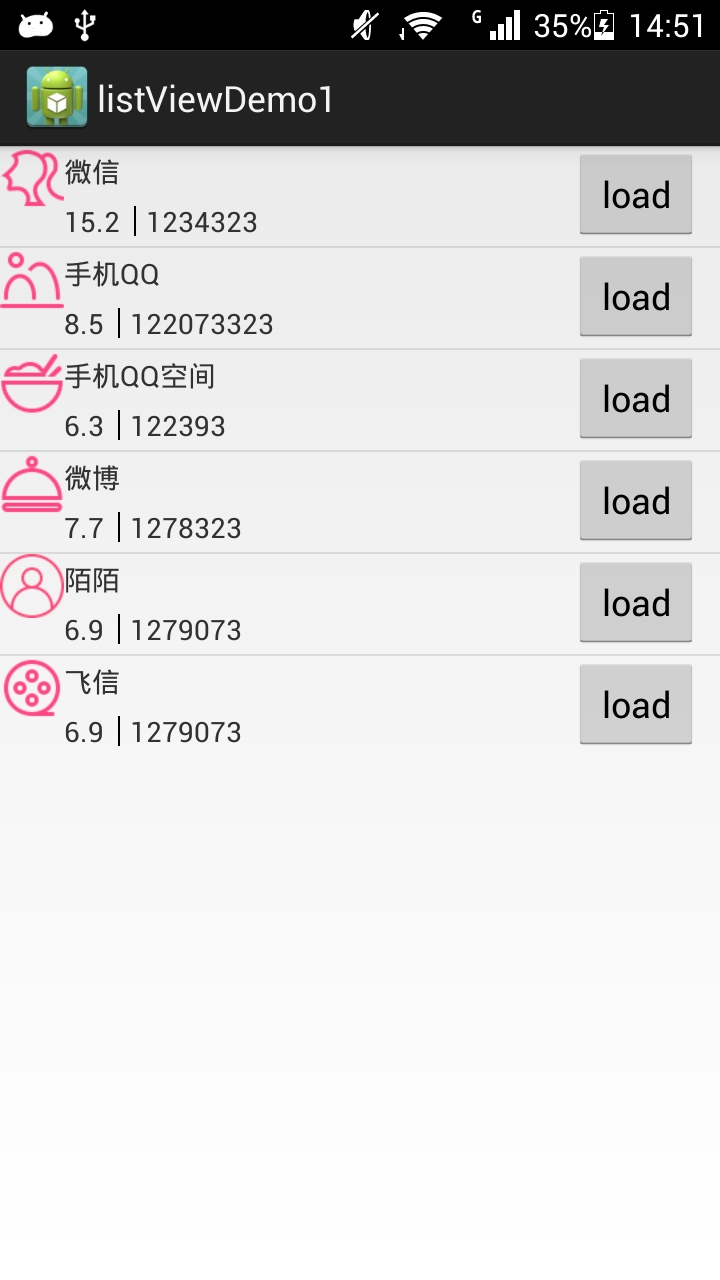
运行效果:
38.Android之ListView简单学习(一)的更多相关文章
- (转)Android之ListView原理学习与优化总结
转自: http://jishu.zol.com.cn/12893.html 在整理前几篇文章的时候有朋友提出写一下ListView的性能优化方面的东西,这个问题也是小马在面试过程中被别人问到的….. ...
- Android Studio IDE 简单学习和介绍
@import url(http://i.cnblogs.com/Load.ashx?type=style&file=SyntaxHighlighter.css);@import url(/c ...
- 【转】Android:Animation的简单学习--不错
原文网址:http://blog.csdn.net/huangbiao86/article/details/6683665 Animation动画效果.提供了一系列的动画效果,可以应用大多数 的控件. ...
- Android greenDAO 数据库 简单学习之基本使用
看网上对greenDAO介绍的不错,今天就动手来试一把,看看好不好使. greenDAO 官方网站:http://greendao-orm.com/ 代码托管地址:https://github.com ...
- Android 之 ListView的学习
ListView 是一个控件,一个在垂直滚动的列表中显示条目的一个控件,这些条目的内容来自于一个ListAdapter .EditText Button TextView ImageView Chec ...
- 42.Android之ListView中ArrayAdapter简单学习
今天学习下Android中ListView关于ArrayAdapter数据绑定, 废话少说直接上代码. 改下布局文件: <?xml version="1.0" encodin ...
- Android学习总结(十三) ———— ListView 简单用法
一.ListView的基本概念 在Android所有常用的原生控件当中,用法最复杂的应该就是ListView了,它专门用于处理那种内容元素很多,手机屏幕无法展示出所有内容的情况.ListView可以使 ...
- android SearchView和ListView简单使用
其实我写代码最担心遇到关于适配器的使用,在我的感觉中适配器是个难度很大的知识点,但是不能因为难而不去学习啊,毕竟现在时间很充裕,可以慢慢学,所以,不会也要写,真所谓,迎难而上啊. 下面是Search ...
- Android ListView简单实用
layout创建: activity_main.xml <LinearLayout xmlns:android="http://schemas.android.com/apk/res/ ...
随机推荐
- Codeforces Round #267 Div2 C George and Job --DP
题意:把长度为n的序列分成k个m长的连续小序列,这些连续小序列的和最大是多少. 解法:显然DP. 定义: dp[i][j] 为前 i 个元素分成j个m端,且 i 是第j个的末尾的最大和. 那么有: d ...
- FZU1894 志愿者选拔 --单调队列
做法:维护一个单调递减序列,只需输出序列中的第一个元素即可. 对于命令我们可以进行不同的处理: 如果是Q命令,则判断当前队列中是否仍有元素,如果没有则输出-1,如果有则直接输出队首. 如果是G命令,则 ...
- BZOJ 2186 [Sdoi2008]沙拉公主的困惑 【逆元】
题意:求中互质的数的个数,其中. 分析:因为,所以,我们很容易知道如下结论 对于两个正整数和,如果是的倍数,那么中与互素的数的个数为 本结论是很好证明的,因为中与互素的个数为,又知道, ...
- C++ 基础笔记(一)
解释型和编译型 解释型: 边解释边执行,翻译成机器代码后就执行. 编译型: 整篇代码编译成机器码后,保存在可执行文件中,然后启动该程序文件,运行获得结果. Hello World #include & ...
- Unity3D 多平台 预编译 宏定义
平台定义 UNITY_EDITOR 编辑器调用. UNITY_STANDALONE_OSX 专门为Mac OS(包括Universal,PPC和Intelarchitectures)平台的定义. UN ...
- javascript单元测试工具
单元测试关注的是验证一个模块或一段代码的执行效果是否和设计或预期一样.有些开发人员认为,编写测试用例浪费时间而宁愿去编写新的模块.然而,在处理大型应用程序时,单元测试实际上会节省时间:它能帮助您跟踪问 ...
- 给vps设置ssh供爬墙使用
在服务器上建一个 username : 添加用户:useradd -s /bin/false username,将用户的shell设置成/bin/false.这样用户就无法与系统进行交互. 设置密码: ...
- Camera中对焦模式总结
1,相机对焦模式有以下几种: auto //自动 infinity //无穷远 macro //微距 continuous-picture //持续对焦 fixed //固定焦距 2,常见对焦模 ...
- 对兼容ie浏览器所遇到的问题及总结
1,若直接给一个元素设置absolute定位.在浏览器缩放的时候.位置会错位.解决的方法是给外层的元素设置为relative定位. 2,低版本ie浏览器不支持placeholder属性 3,盒模型上规 ...
- tiff或tif文件的读取
以下是VC下读取TIFF文件的代码 char* szFileName = "K:\\地图\\fujian-DEM\\fujian1.tif"; TIFF* tiff = TIFFO ...