
PopupWindow弹出框
使用PopupWindow实现一个悬浮框,悬浮在Activity之上,显示位置可以指定
首先创建pop_window.xml:
<?xml version="1.0" encoding="utf-8"?>

<android.support.constraint.ConstraintLayout

    xmlns:android="http://schemas.android.com/apk/res/android"

    xmlns:app="http://schemas.android.com/apk/res-auto"

    android:background="#bbbbbb"

    android:layout_width="match_parent"

    android:layout_height="match_parent">

    <TextView

        android:id="@+id/tv_title"

        android:layout_width="wrap_content"

        android:layout_height="wrap_content"

        android:layout_marginStart="8dp"

        android:layout_marginLeft="8dp"

        android:layout_marginTop="8dp"

        android:layout_marginEnd="8dp"

        android:layout_marginRight="8dp"

        android:layout_marginBottom="8dp"

        app:layout_constraintBottom_toTopOf="@+id/tv_msg"

        app:layout_constraintEnd_toEndOf="parent"

        app:layout_constraintStart_toStartOf="parent"

        app:layout_constraintTop_toTopOf="parent" />

    <TextView

        android:id="@+id/tv_msg"

        android:layout_width="wrap_content"

        android:layout_height="wrap_content"

        android:layout_marginStart="8dp"

        android:layout_marginLeft="8dp"

        android:layout_marginTop="8dp"

        android:layout_marginEnd="8dp"

        android:layout_marginRight="8dp"

        android:layout_marginBottom="8dp"

        app:layout_constraintBottom_toTopOf="@+id/linearLayout"

        app:layout_constraintEnd_toEndOf="parent"

        app:layout_constraintStart_toStartOf="parent"

        app:layout_constraintTop_toTopOf="parent" />

    <LinearLayout

        android:id="@+id/linearLayout"

        android:layout_width="match_parent"

        android:layout_height="wrap_content"

        android:layout_marginStart="8dp"

        android:layout_marginLeft="8dp"

        android:layout_marginTop="8dp"

        android:layout_marginEnd="8dp"

        android:layout_marginRight="8dp"

        android:layout_marginBottom="8dp"

        android:orientation="horizontal"

        app:layout_constraintBottom_toBottomOf="parent"

        app:layout_constraintEnd_toEndOf="parent"

        app:layout_constraintHorizontal_bias="1.0"

        app:layout_constraintStart_toStartOf="parent"

        app:layout_constraintTop_toTopOf="parent"

        app:layout_constraintVertical_bias="0.625">

        <Button

            android:id="@+id/btn_cancel"

            android:layout_width="wrap_content"

            android:layout_height="wrap_content"

            android:text="取消" />

        <Button

            android:id="@+id/btn_ok"

            android:layout_width="wrap_content"

            android:layout_height="wrap_content"

            android:text="确定" />

    </LinearLayout>

</android.support.constraint.ConstraintLayout>
使用ConstraintLayout看起来比较麻烦,用拖拽还是很方便的。这里设置四个组件,两个TextView,两个Button
activity_main.xml:
<?xml version="1.0" encoding="utf-8"?>

<android.support.constraint.ConstraintLayout

	xmlns:android="http://schemas.android.com/apk/res/android"

    xmlns:app="http://schemas.android.com/apk/res-auto"

    xmlns:tools="http://schemas.android.com/tools"

    android:layout_width="match_parent"

    android:layout_height="match_parent"

    tools:context=".MainActivity">

    <Button

        android:id="@+id/btn_pop_window"

        android:layout_width="wrap_content"

        android:layout_height="wrap_content"

        android:layout_marginStart="8dp"

        android:layout_marginLeft="8dp"

        android:layout_marginTop="8dp"

        android:layout_marginEnd="8dp"

        android:layout_marginRight="8dp"

        android:layout_marginBottom="8dp"

        android:text="pop_window"

        app:layout_constraintBottom_toBottomOf="parent"

        app:layout_constraintEnd_toEndOf="parent"

        app:layout_constraintStart_toStartOf="parent"

        app:layout_constraintTop_toTopOf="parent" />

</android.support.constraint.ConstraintLayout>
主界面放置一个按钮。
MainActivity:
package com.fitsoft;

import android.os.Bundle;

import android.support.v7.app.AppCompatActivity;

import android.view.Gravity;

import android.view.LayoutInflater;

import android.view.View;

import android.view.WindowManager;

import android.widget.Button;

import android.widget.PopupWindow;

import android.widget.TextView;

import android.widget.Toast;

public class MainActivity extends AppCompatActivity {

    Button button;

    PopupWindow popupWindow;

    @Override

    protected void onCreate(Bundle savedInstanceState) {

        super.onCreate(savedInstanceState);

        setContentView(R.layout.activity_main);

        button = findViewById(R.id.btn_pop_window);

        button.setOnClickListener(new View.OnClickListener() {

            @Override

            public void onClick(View v) {

                popupWindow.showAsDropDown(v);

            }

        });

        //载入界面

        View view = LayoutInflater.from(this).inflate(R.layout.pop_window, null);

        {

            TextView textView = view.findViewById(R.id.tv_title);

            textView.setText("标题");

        }

        {

            TextView textView = view.findViewById(R.id.tv_msg);

            textView.setText("这里是popwindow的消息内容");

        }

        {

            Button button = view.findViewById(R.id.btn_ok);

            button.setOnClickListener(new View.OnClickListener() {

                @Override

                public void onClick(View v) {

                    Toast.makeText(v.getContext(), "您点击了确定按钮", Toast.LENGTH_SHORT).show();

                    popupWindow.dismiss();

                }

            });

        }

        {

            Button button = view.findViewById(R.id.btn_cancel);

            button.setOnClickListener(new View.OnClickListener() {

                @Override

                public void onClick(View v) {

                    Toast.makeText(v.getContext(), "您点击了取消按钮", Toast.LENGTH_SHORT).show();

                    popupWindow.dismiss();

                }

            });

        }

        //绑定

        popupWindow = new PopupWindow(view, WindowManager.LayoutParams.WRAP_CONTENT,

                WindowManager.LayoutParams.WRAP_CONTENT);

    }

}
这里调用了PopupWindow的构造方法:
/**

 * <p>Create a new non focusable popup window which can display the

 * <tt>contentView</tt>. The dimension of the window must be passed to

 * this constructor.</p>

 *

 * <p>The popup does not provide any background. This should be handled

 * by the content view.</p>

 *

 * @param contentView the popup's content

 * @param width the popup's width

 * @param height the popup's height

 */

public PopupWindow(View contentView, int width, int height) {

    this(contentView, width, height, false);

}
绑定视图,设置宽高...很好用...
最后用按钮的点击事件弹出窗口:
popupWindow.showAsDropDown(v);
效果图:
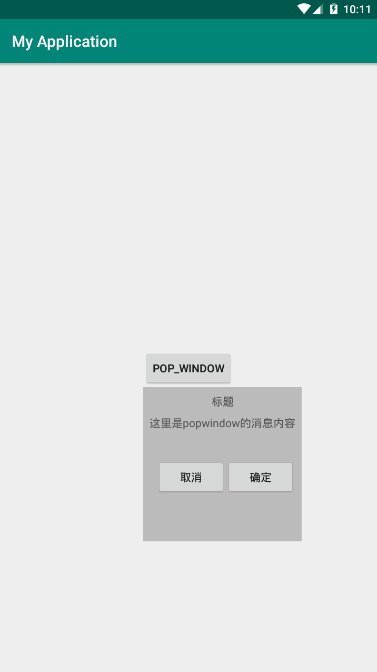
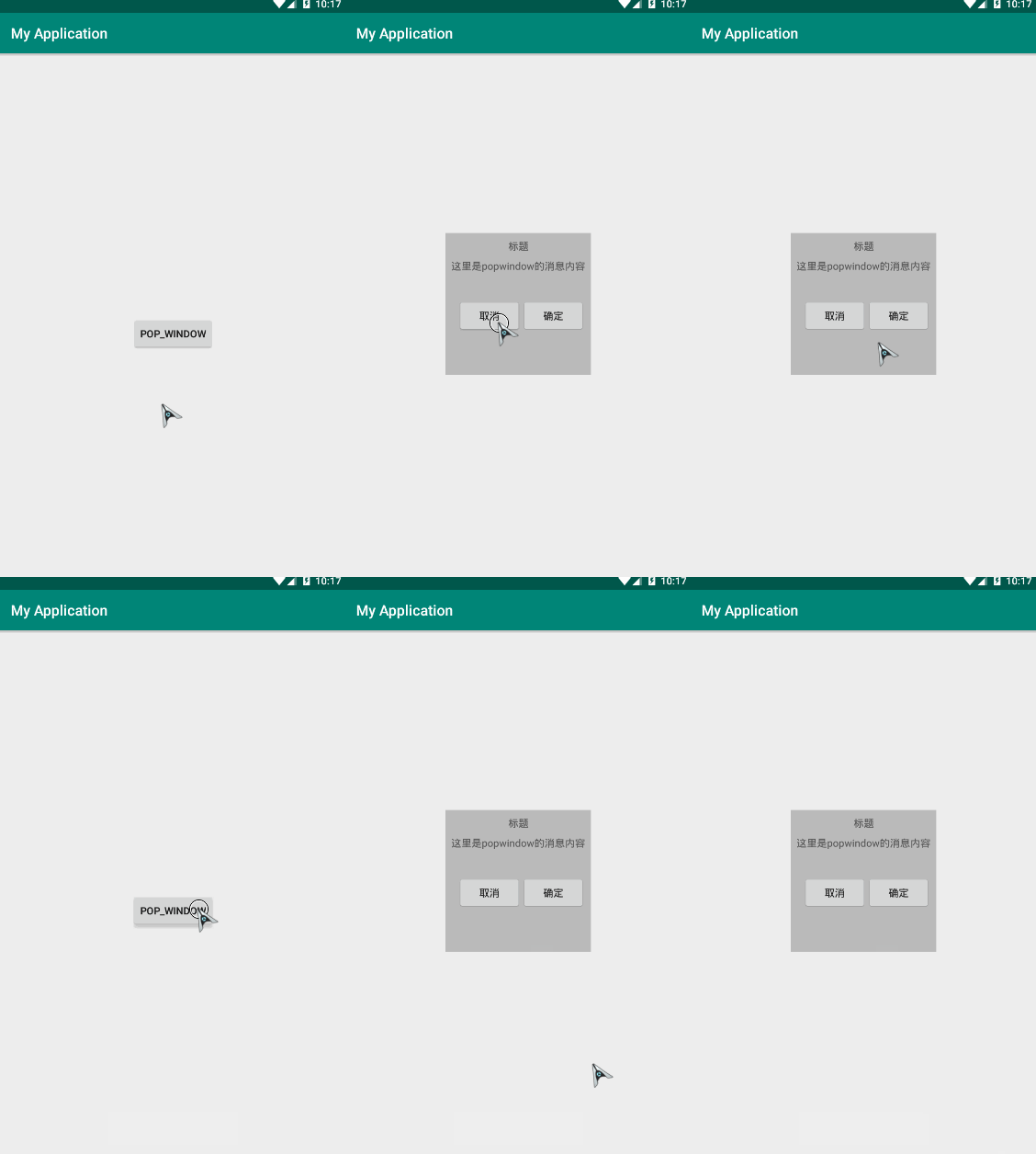
左对齐,显示在下方....调整一下弹出代码,将刚刚的弹出代码注释掉,用下面的代码替换:
popupWindow.showAtLocation(MainActivity.this.getWindow().getDecorView(),

                    Gravity.CENTER, 0, 0);
获取顶级布局,设置居中显示,x、y不偏移。
效果图:
PopupWindow弹出框的更多相关文章
- 练习PopupWindow弹出框之实现界面加载的时候显示弹出框到指定的view下面--两种延迟方法
今天在练习PopupWindow弹出框的时候,打算在界面加载的时候将弹出框展现出来并显示在指定的view下面. 初步方法是直接在OnResume方法里面直接执行showPopupWindows方法. ...
- 自定义PopupWindow弹出框(带有动画)
使用PopupWindow来实现弹出框,并且带有动画效果 首先自定义PopupWindow public class LostPopupWindow extends PopupWindow { pub ...
- android 三种弹出框之一PopupWindow
PopupWindow 在android的弹出框我目前了解到的是有三种:AlertDialog,PopupWindow,Activity伪弹框, AlertDialog太熟悉了,这里就不介绍了 就先看 ...
- 通用的popupwindow底部弹出框
前段时间做项目的时候,有几个底部弹出框,当时因为忙着赶进度所有就单独写了好几个popupwindow.后来就想着怎么实现一个通用的PopupWindow工具类 就是在要用到的时候创建该工具类的对象,并 ...
- appium 定位弹出框时报错
今天在做APP自动化时,发现定位弹出框无法定位,无奈,百度去找.发现了一篇不错的博客,故转载过来,供大家参考.后续会验证这个方法的可行性. 本博客转自:http://blog.csdn.net/qq7 ...
- Android 自定义界面的弹出框(可输入数据)
上午写了一篇博文,介绍了如何定义从屏幕底部弹出PopupWindow,写完之后,突然想起之前写过自定义内容显示的弹出框,就随手写了两个实例,分享出来: 第一种实现方式:继承Dialog 1.1 线定义 ...
- 关于Layer弹出框初探
layer至今仍作为layui的代表作,她的受众广泛并非偶然,而是这五年多的坚持,不断完善和维护.不断建设和提升社区服务,使得猿们纷纷自发传播,乃至于成为今天的Layui最强劲的源动力.目前,laye ...
- angularjs 弹出框 $modal
angularjs 弹出框 $modal 标签: angularjs 2015-11-04 09:50 8664人阅读 评论(1) 收藏 举报 分类: Angularjs(3) $modal只有一 ...
- 【代码笔记】iOS-自定义弹出框
代码: - (void)viewDidLoad { [super viewDidLoad]; // Do any additional setup after loading the view. [s ...
随机推荐
- 2321. 【NOIP普及组T1】方程
2321. [NOIP普及组T1]方程 时间限制: 1000 ms 空间限制: 262144 KB 题目描述
- exlipse php 插件安装地址
以前的exlipse PHP插件老是有问题,下面这个地址可以使用. http://www.phpsrc.org/eclipse/pti/
- Kafka 原理和实战
本文首发于 vivo互联网技术 微信公众号 https://mp.weixin.qq.com/s/bV8AhqAjQp4a_iXRfobkCQ作者简介:郑志彬,毕业于华南理工大学计算机科学与技术(双语 ...
- EOS源码分析:transaction的一生
最近在处理智能合约的事务上链问题,发现其中仍旧有知识盲点.原有的认识是一个事务请求会从客户端设备打包签名,然后通过RPC传到非出块节点,广播给超级节点,校验打包到可逆区块,共识确认最后变为不可逆区块. ...
- AVL树(二叉平衡树)详解与实现
AVL树概念 前面学习二叉查找树和二叉树的各种遍历,但是其查找效率不稳定(斜树),而二叉平衡树的用途更多.查找相比稳定很多.(欢迎关注数据结构专栏) AVL树是带有平衡条件的二叉查找树.这个平衡条件必 ...
- Linux应用开发自学之路
前言 在 「关于我 」那篇博文里,朋友们应该知道了我不是科班出身,是由机械强行转行到Linux应用开发方向.下面我就详细向大家介绍自己这一路上的转行历程,希望对大家有所启发. 我是学机械专业的,对于机 ...
- LSTM 反向传播算法
1. https://www.cnblogs.com/pinard/p/6519110.html (详细原理!) 2. https://blog.csdn.net/abeldeng/article/d ...
- 使用WPF为Powershell程序制作GUI界面
1. 使用Xaml创建应用界面 打开visual studio,创建一个新的项目,在已安装模板中选择Visual C# →Wpf应用. 完成创建后,我们得到如下图所示的应用界面. wpf界面是基于xa ...
- ASP.NET Core 3.0中使用动态控制器路由
原文:Dynamic controller routing in ASP.NET Core 3.0 作者:Filip W 译文:https://www.cnblogs.com/lwqlun/p/114 ...
- 第10章 文档对象模型DOM 10.1 Node节点类型
DOM是针对 HTML 和 XML 文档的一个 API(应用程序编程接口) .DOM描绘了一个层次化的节点树,允许开发人员添加.移除和修改页面的某一部分.DOM 脱胎于Netscape 及微软公司创始 ...