
C#创建一个Windows Service
Windows Service这一块并不复杂,但是注意事项太多了,网上资料也很凌乱,偶尔自己写也会丢三落四的。所以本文也就产生了,本文不会写复杂的东西,完全以基础应用的需求来写,所以不会对Windows Service写很深入。
本文介绍了如何用C#创建、安装、启动、监控、卸载简单的Windows Service 的内容步骤和注意事项。
一、创建一个Windows Service
1)创建Windows Service项目

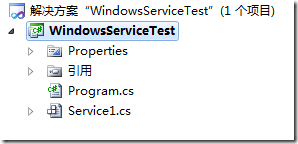
2)对Service重命名
将Service1重命名为你服务名称,这里我们命名为ServiceTest。
二、创建服务安装程序
1)添加安装程序
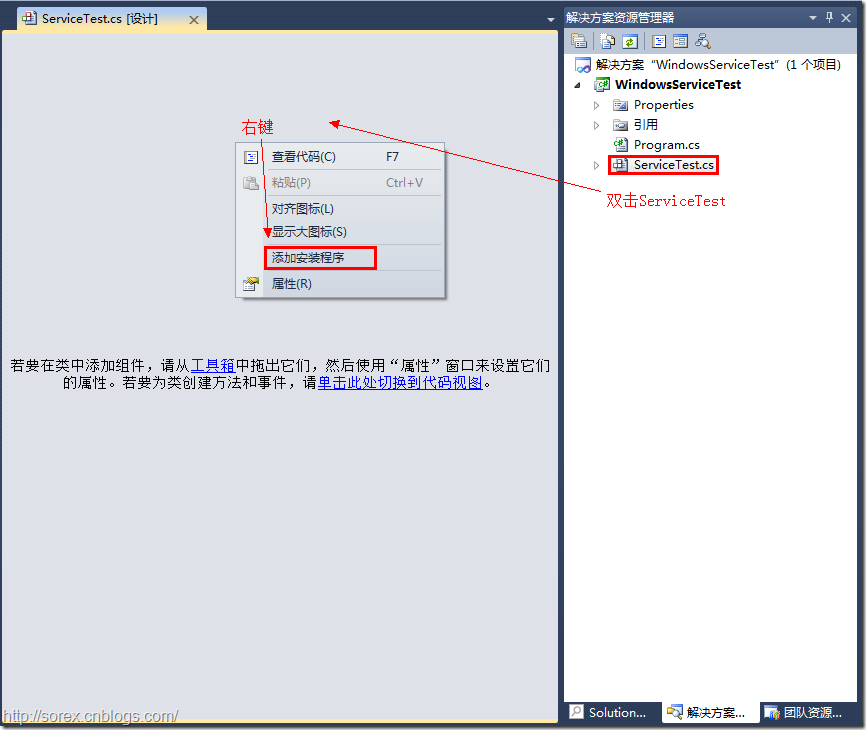

之后我们可以看到上图,自动为我们创建了ProjectInstaller.cs以及2个安装的组件。
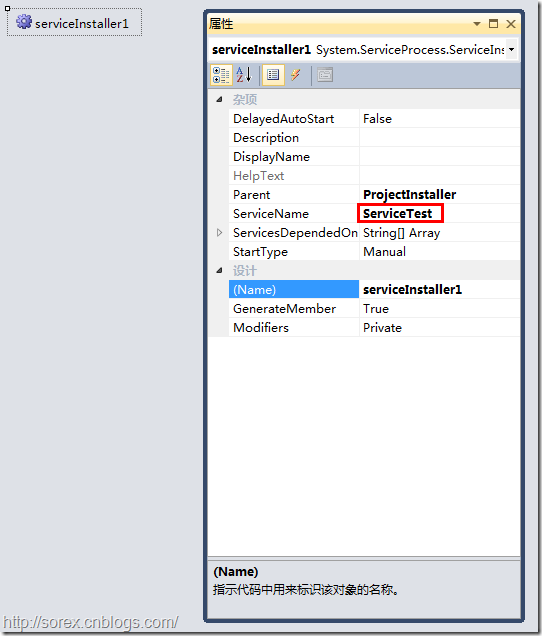
2)修改安装服务名
右键serviceInsraller1,选择属性,将ServiceName的值改为ServiceTest。
3)修改安装权限
右键serviceProcessInsraller1,选择属性,将Account的值改为LocalSystem。

三、写入服务代码
1)打开ServiceTest代码
右键ServiceTest,选择查看代码。
2)写入Service逻辑
添加如下代码:
|
1
2
3
4
5
6
7
8
9
10
11
12
13
14
15
16
17
18
19
20
21
22
23
24
25
26
27
28
29
30
31
32
33
34
35
|
using System;using System.Collections.Generic;using System.ComponentModel;using System.Data;using System.Diagnostics;using System.Linq;using System.ServiceProcess;using System.Text;namespace WindowsServiceTest{ public partial class ServiceTest : ServiceBase { public ServiceTest() { InitializeComponent(); } protected override void OnStart(string[] args) { using (System.IO.StreamWriter sw = new System.IO.StreamWriter("C:\\log.txt", true)) { sw.WriteLine(DateTime.Now.ToString("yyyy-MM-dd HH:mm:ss ") + "Start."); } } protected override void OnStop() { using (System.IO.StreamWriter sw = new System.IO.StreamWriter("C:\\log.txt", true)) { sw.WriteLine(DateTime.Now.ToString("yyyy-MM-dd HH:mm:ss ") + "Stop."); } } }} |
这里我们的逻辑很简单,启动服务的时候写个日志,关闭的时候再写个日志。
四、创建安装脚本
在项目中添加2个文件如下(必须是ANSI或者UTF-8无BOM格式):
1)安装脚本Install.bat
|
1
2
3
|
%SystemRoot%\Microsoft.NET\Framework\v4.0.30319\installutil.exe WindowsServiceTest.exeNet Start ServiceTestsc config ServiceTest start= auto |
2)卸载脚本Uninstall.bat
|
1
|
%SystemRoot%\Microsoft.NET\Framework\v4.0.30319\installutil.exe /u WindowsServiceTest.exe |
3)安装脚本说明
第二行为启动服务。
第三行为设置服务为自动运行。
这2行视服务形式自行选择。
4)脚本调试
如果需要查看脚本运行状况,在脚本最后一行加入pause
五、在C#中对服务进行控制
0)配置目录结构
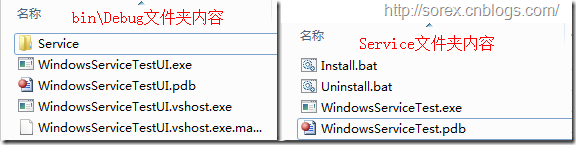
简历一个新WPF项目,叫WindowsServiceTestUI,添加对System.ServiceProcess的引用。
在WindowsServiceTestUI的bin\Debug目录下建立Service目录。
将WindowsServiceTest的生成目录设置为上面创建的Service目录。
生成后目录结构如下图
1)安装
安装时会产生目录问题,所以安装代码如下:
|
1
2
3
4
5
6
7
8
|
string CurrentDirectory = System.Environment.CurrentDirectory;System.Environment.CurrentDirectory = CurrentDirectory + "\\Service";Process process = new Process();process.StartInfo.UseShellExecute = false;process.StartInfo.FileName = "Install.bat";process.StartInfo.CreateNoWindow = true;process.Start();System.Environment.CurrentDirectory = CurrentDirectory; |
2)卸载
卸载时也会产生目录问题,所以卸载代码如下:
|
1
2
3
4
5
6
7
8
|
string CurrentDirectory = System.Environment.CurrentDirectory;System.Environment.CurrentDirectory = CurrentDirectory + "\\Service";Process process = new Process();process.StartInfo.UseShellExecute = false;process.StartInfo.FileName = "Uninstall.bat";process.StartInfo.CreateNoWindow = true;process.Start();System.Environment.CurrentDirectory = CurrentDirectory; |
3)启动
代码如下:
|
1
2
3
4
5
|
using System.ServiceProcess;ServiceController serviceController = new ServiceController("ServiceTest");serviceController.Start(); |
4)停止
|
1
2
3
|
ServiceController serviceController = new ServiceController("ServiceTest");if (serviceController.CanStop) serviceController.Stop(); |
5)暂停/继续
|
1
2
3
4
5
6
7
8
|
ServiceController serviceController = new ServiceController("ServiceTest");if (serviceController.CanPauseAndContinue){ if (serviceController.Status == ServiceControllerStatus.Running) serviceController.Pause(); else if (serviceController.Status == ServiceControllerStatus.Paused) serviceController.Continue();} |
6)检查状态
|
1
2
|
ServiceController serviceController = new ServiceController("ServiceTest");string Status = serviceController.Status.ToString(); |
六、调试Windows Service
1)安装并运行服务
2)附加进程
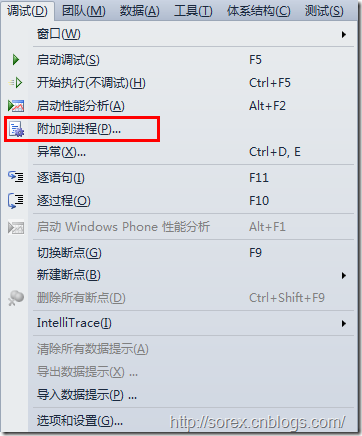
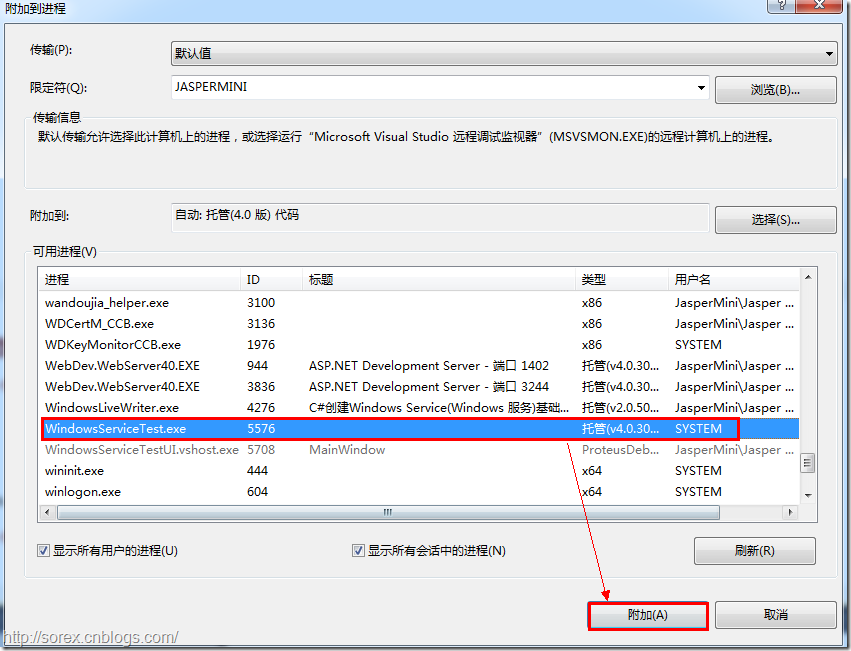
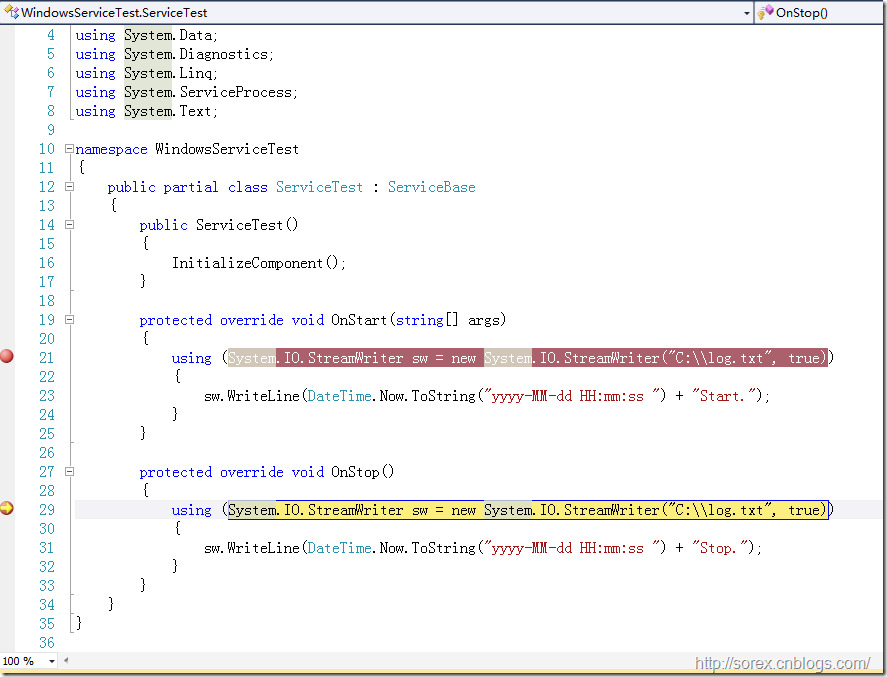
3)在代码中加入断点进行调试
七、总结
本文对Windows service的上述配置都未做详细解释,但是按上述步骤就可以制作可运行的Windows Service,从而达到了工作的需求。
示例代码请见:https://github.com/sorex/WindowsServiceTest
C#创建一个Windows Service的更多相关文章
- 使用Windows Service Wrapper快速创建一个Windows Service
前言 今天介绍一个小工具的使用.我们都知道Windows Service是一种特殊的应用程序,它的好处是可以一直在后台运行,相对来说,比较适合一些需要一直运行同时不需要过多用户干预的应用程序,这一类我 ...
- 使用Windows Service Wrapper快速创建一个Windows Service 如nginx
前言 今天介绍一个小工具的使用.我们都知道Windows Service是一种特殊的应用程序,它的好处是可以一直在后台运行,相对来说,比较适合一些需要一直运行同时不需要过多用户干预的应用程序,这一类我 ...
- 创建一个Windows Service 程序
1.新建Windows项目,选择"Windows服务"类型的项目. 2.在生成的Service1.cs中代码中写你需要的代码,如下: using System; using Sys ...
- Step by Step 创建一个WCF Service
原创地址:http://www.cnblogs.com/jfzhu/p/4025448.html 转载请注明出处 (一)创建WCF Service (1)创建WCF Service类库 创建一个Cla ...
- 为MongoDB创建一个Windows服务
一:选型,根据机器的操作系统类型来选择合适的版本,使用下面的命令行查询机器的操作系统版本 wmic os get osarchitecture 二:下载并安装 附上下载链接 点击安装包,我这里是把文件 ...
- 创建一个Windows服务程序与实现定时器效果
1.创建一个Windows服务程序 一. 新建Window服务项目 二. 添加安装程序 三. 配置服务属性 四. 编写定时器代码 publicpartialclassService1 ...
- 让自己的C++程序(非服务程序)运行为一个windows service
因为项目的一些变化和原因,需要把数据处理的一个后台程序创建为一个windows服务,运行以下命令能创建成功: sc create "MyApp Service Name" binP ...
- tomcat创建一个windows服务
具体步骤如下: 1.把JDK解压到C:\Program Files\Java下,Tomcat解压到D:\tomcat下 2.配置环境变量 JAVA_HOME:C:\Program Files\Java ...
- [翻译] 使用 .NET Core 3.0 创建一个 Windows 服务
原文: .NET Core Workers as Windows Services 在 .NET Core 3.0 中,我们引入了一种名为 Worker Service 的新型应用程序模板.此模板旨在 ...
随机推荐
- react篇章-React State(状态)-将生命周期方法添加到类中
将生命周期方法添加到类中 在具有许多组件的应用程序中,在销毁时释放组件所占用的资源非常重要. 每当 Clock 组件第一次加载到 DOM 中的时候,我们都想生成定时器,这在 React 中被称为挂载. ...
- 异步任务 -- FutureTask
任务提交 之前在分析线程池的时候,提到过 AbstractExecutorService 的实现: public Future<?> submit(Runnable task) { if ...
- Java拾遗补缺
JDK9的lib目录下已经不再包含dt.jar和tool.jar.
- JFinal框架使用
表单直接提交页面,不用ajax 后台; /** * 修改 */ public void edit() { String id=getPara("id"); String job=g ...
- 利用过滤器对string类型的入参进行统一trim
背景 最近做的一些项目都是后台管理系统,主要是对表单数据的增删改查操作,其中有些表单项是字符串类型的,对于这些类型的表单项就需要在保存或编辑之前要进行.trim()处理,刚开始感觉没什么,遇到了就手动 ...
- go语言解析 map[string]interface{} 数据格式
原文:https://blog.csdn.net/Nick_666/article/details/79801914 map记得分配内存 解析出来的int类型会变成float64类型 注意判断不为ni ...
- 【10.7校内测试】【队列滑窗】【2-sat】【贪心+栈二分+线段树(noip模拟好题)】【生日祭!】
比较好想的一道题,直接用队列滑窗,因为扫一遍往队列里加东西时,改变的只有一个值,开桶储存好就行了! #include<bits/stdc++.h> using namespace std; ...
- C++ tuple类型
前言 最近在看C++ Primer的时候,对于对象移动一直不太懂,所以在查找各种资料,仔细研究代码后,打算写篇博客记录下来,果然还是不要得过且过,看见不懂的就查,弄懂为止最好了. 对象移动 很多时候都 ...
- Codeforces Round #296 (Div. 1) B. Clique Problem 贪心
B. Clique Problem time limit per test 2 seconds memory limit per test 256 megabytes input standard i ...
- ROS知识(18)----Pluginlib原理
目录 Overview Example Providing a Plugin Registering/Exporting a Plugin The Plugin Description File Re ...