
Using variables inside Postman and Collection Runner
Variables are among the most powerful features in Postman. Using variables in your Postman requests, eliminates the need to duplicate requests, which can save a lot of time!
A very common scenario while testing APIs is that the API infrastructure might be present on your local machine, a staging setup, and a production setup. Using variables you can call all these APIs without having to replace values manually. You can also use variables to test for different users (for example, they might need different access tokens), different input values, and a lot more.
With Jetpacks(http://blog.getpostman.com/2014/01/16/ridiculously-easy-api-testing-introducing-jetpacks-for-postman/), you get even more power to play with variables. You can extract data from responses and set variable values automatically. You can chain requests one after the other with minimal effort. Variable values are also available inside tests to help you make them more generic.
Data variables let you test multiple instances of a request in one go. Imagine that you want to test an API which let's users post comments on a post. Using data variables you can test for hundreds of variations of a request with different IDs, tokens or content bodies.
Let's look at how you can use variables in your workflow inside Postman.
Create an environment
For this example, let's assume we want to create two environments, production and dev.
Click on "No environment" in the header.

1-dropdown
2. Select "Manage environments" and then on the "Add" button in the modal that comes up.
2-manage-environments
3. Fill in the values as shown in the screenshot below
3-add-environment
Press submit.
To create the dev environment, we can just duplicate this environment so that we don't have to type in variable keys all over again.
4-duplicated-environment

Click the duplicate environment icon, and then click on the environment name to edit. Fill in the values, as shown in the screenshot below.
4-2-duplicate-environment-values

Variables can be used almost everywhere inside Postman. They are available inside:
URL
URL params
Header values
form-data/url-encoded values
Raw body content
Helper fields
To use a variable you need to enclose the variable name with double curly braces – {{my_variable_name}}.
With our environments created, let's try out a sample request. Set the base URL field for the API to {{url}}/post.
6-url-request

Now select an environment from the environment selection dropdown.
5-dropdown-filled

Once an environment is selected, Postman will replace all instances of a variable with it's corresponding value. If no environment is selected, then Postman will try to find a matching global variable.
On hitting send here with the "Production" environment, we see that the request is made to "httpbin.org".
7-sent-request

Change the environment to "dev", and hit send. The request will be made to localhost:5000. It's as easy as that!
Now, let's modify this request by adding a POST body and setting a variable inside the body.
8-post-request

On hitting send, we see that the API received the response body with the variable replaced by it's value.
9-post-request-response

Variables with test scripts
You will need the Jetpacks upgrade for writing test scripts. If you still haven't purchased it, I strongly recommend that you do!
Inside Postman test scripts, you can set environment and global variables using the postman.setEnvironmentVariable and postman.setGlobalVariable functions. You can also access these values using the special environment and globals dictionaries.
Check out this blog entry about how you can extract values from response bodies and assign them to variables. Subsequent calls are made using these values. This is an extremely powerful feature and I am sure you will wonder how you went by without it!
Data variables
Data variables are used inside the Collection Runner. The Collection Runner can run a collection or a folder multiple times. For every iteration, it will pick up new values from a JSON or a CSV file and replace variables in the request with these values.
Let's save our request above in a collection and use data variables to change the response body.
10-data-variables-request
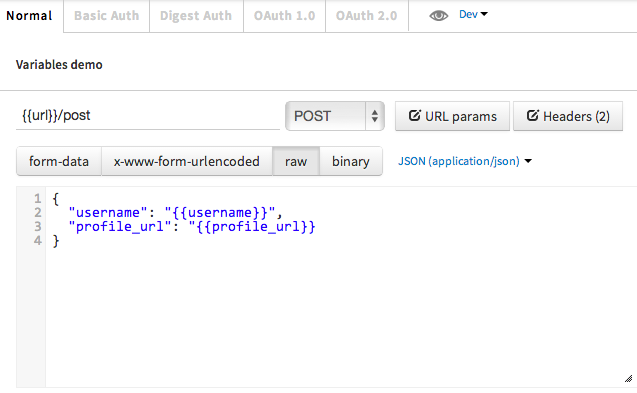
As shown in the screenshot above, I have added a couple of parameters to the JSON body. Values for these will be filled by Postman from a data file.
11-data-variables-test

I have also added a couple of tests which checks whether the correct value was received in the response. You can access the data values for a specific iteration using the special data variable. You can log values to the Chrome DevTools console inside test scripts. Make sure to enable Chrome DevTools first.
Postman lets you import CSV or JSON files as data sources.
The CSV file needs to have the variable names in it's first row. Subsequent rows should be separated by line breaks while the values should be separated by commas.
Download a sample CSV file(http://getpostman.com/samples/test_data_file.csv) to find out how it looks like.
profile_url, username

http://www.google.com, a85

http://www.google.com, google
The JSON file is an array of objects, with each object having key/value pairs. Postman supports only simple numerical and string values inside the JSON file.
Download a sample JSON file(http://getpostman.com/samples/test_data_file.json) to find out how it looks like.
[

{

"profile_url": "http://www.google.com",

"username": "a85",

"password": "blah"

},

{

"profile_url": "http://www.getpostman.com",

"username": "larry",

"password": "nocolors"

}

]
12-data-variables-start-test-run

Click on "Choose Files" and import the file that has the data with which the API is to be tested. For this example, we'll just run 2 iterations. I am running this example in the dev environment. Note that environment variables, global variables and data variables can be used together.
After clicking start, the requests are run one after the other. The Collection Runner window tells us that all our tests passed!
13-data-variables-test-run-results

Using variables is essential to maximising your Postman workflow. I hope this tutorial helped you gain a better understanding of this feature. If you have any questions, do let me know in the comments.
http://blog.getpostman.com/2014/02/20/using-variables-inside-postman-and-collection-runner/
Using variables inside Postman and Collection Runner的更多相关文章
- postman做自动化测试1——collection runner
一.添加collection 打开postman,点击“collection”页签,点击collection下面的添加按钮. 弹出 新建面板,输入名称和描述,点击“creat”按钮,新建成功 3 点击 ...
- Enabling Chrome Developer Tools inside Postman
Chrome's Developer Tools are an indispensable part of the modern web development workflow. However, ...
- postman—创建collection,执行collection和批量执行
接口测试中,可以在 Postman 逐个创建请求.但当请求逐渐增多时,如果我们不采取任何措施管理,散乱的请求维护起来就比较麻烦了.这个时候我们可以创建测试集 Collection 来对这些请求进行管理 ...
- 接口测试 Postman 做接口自动化测试_入门篇
可能是目前最好用的web接口调试工具 无需注册(注册后可多终端同步用例) 免费(每年付费$60可用云服务,30天免费试用) 保存历史记录 支持录制请求 基于Chrome的V8引擎,支持JS脚本(基本支 ...
- postman传json串,以及postman官方文档
最近在调试接口遇到一个问题.就是post接口传的body是一个json串. 刚开始还不知道,百度了一下才知道,其实很简单,就是在raw里面选择json.我的天如此简单的内容,而且支持html. 于是读 ...
- Postman高级应用——流程控制、调试、公共函数、外部数据文件
postman客户端下载地址:https://www.getpostman.com/apps 目录 流程控制 调试 公共函数 外部数据文件 流程控制 流程控制简言之就是设置接口的执行顺序,流程控制只有 ...
- 接口测试工具postman
一. 安装 1. 免费官网链接:https://www.getpostman.com/postman,下载好后双击.exe程序安装即可 2. 注意事项:建议安装在非系统盘,即C盘以外的盘,路径最好用全 ...
- API测试利器postMan 使用教程
自从开始做API开发之后,我就在寻找合适的API测试工具.一开始不是很想用Chrome扩展,用的 WizTools 的工具,后来试过一次 Postman 之后就停不下来了,还买了付费的Jetpacks ...
- How to Use Postman to Manage and Execute Your APIs
How to Use Postman to Manage and Execute Your APIs Postman is convenient for executing APIs because ...
随机推荐
- PS图像特效算法——镜像渐隐
这个特效的实现,可以先利用前面提到的渐变特效,做一个图像的渐变, 然后将原图与渐变图对称放置,将背景设置成黑色. clc; clear all; close all; Image=imread('4. ...
- 内核调试神器SystemTap — 简介与使用(一)
a linux trace/probe tool. 官网:https://sourceware.org/systemtap/ 简介 SystemTap是我目前所知的最强大的内核调试工具,有些家伙甚至说 ...
- BCD码转十进制C语言实现
#include <stdio.h> #include <stdlib.h> #define uchar unsigned char uchar BCD_Decimal(uch ...
- masm下几种常见函数调用方式
masm没有fastcall调用方式,其特点为: 1 第一个参数放入ecx,第二个参数放入edx: 2 如果有剩余参数则从右向左压栈: 3 被调用函数清理栈(平衡栈): 4 若有返回值放入eax: 5 ...
- 阅读spring源码
读Spring源码之前,你要先清楚,为什么你要用Spring... Spring最基本的功能是做为管理bean的容器,所以我以为应该先从org.springframework.context包了解咯, ...
- 学好js的步骤
第一步:打基础,建议看<JavaScript权威指南>,并作为参考书,供以后学习用. 第二步:进阶学习:建议看<JavaScript高级程序设计>,<精通JavaScri ...
- werfault进程使用CPU率高
werfault进程是Windows vista 错误报告进程,是用来向微软反馈报告.是安全的正常进程. 解决方法:1.打开控制面板”—“系统和维护”,点击“问题报告和解决方案”. 2.点击“更改设置 ...
- access窗口标签居中
Private Sub Form_Resize() On Error Resume Next Me.Width = Me.InsideWidth Me.Section(acDetail).Height ...
- es6(六):module模块(export,import)
es6之前,社区模块加载方案,主要是CommonJS(用于服务器)和AMD(用于浏览器) 而es6实现的模块解决方案完全可以替代CommonJS和AMD ES6模块设计思想:尽量静态化,在编译时就能确 ...
- JeeSite数据分页与翻页
本文章介绍的是JeeSite开源项目二次开发时的一些笔记,对于没有使用过JeeSite的可以不用往下看了,因为下面的代码是跟JeeSite二次开发相关的代码,不做JeeSite的二次开发,以下代码对您 ...