
WPF设计の自定义窗体
效果图如下:
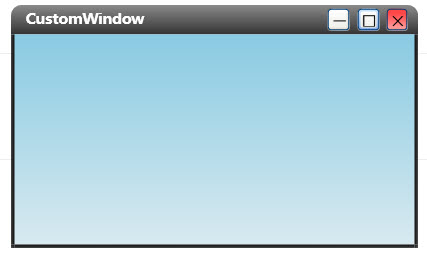
实现思路:
1.继承Window类
2.为自定义的CustomWindow类设计窗体样式(使用Blend很方便!)
3.为窗体增加最大最小化和关闭按钮,并实现鼠标拖拽改变窗体大小(使用Derek Bartram的WindowResizer.dll库)
代码说明:
1.继承Window类
创建CustomWindow类,继承自System.Window
代码

public class CustomWindow : Window

{

    public CustomWindow()

    {

        // 加载样式

        InitializeStyle();

        // 加载事件委托

        this.Loaded += delegate { InitializeEvent(); };

        // 解决最大化覆盖任务栏问题

        this.SourceInitialized += new EventHandler(win_SourceInitialized);

    }

}
代码

<src:CustomWindow

    x:Class="windowStyle1.Window1"

    xmlns="http://schemas.microsoft.com/winfx/2006/xaml/presentation"

    xmlns:x="http://schemas.microsoft.com/winfx/2006/xaml"

    xmlns:src="clr-namespace:windowStyle1"

    Title="CustomWindow"

    Height="358" Width="649" AllowsTransparency="True" WindowStyle="None">
2.为自定义的CustomWindow类设计窗体样式
窗体样式的设计可以使用Expression Blend来进行可视化开发,非常方便
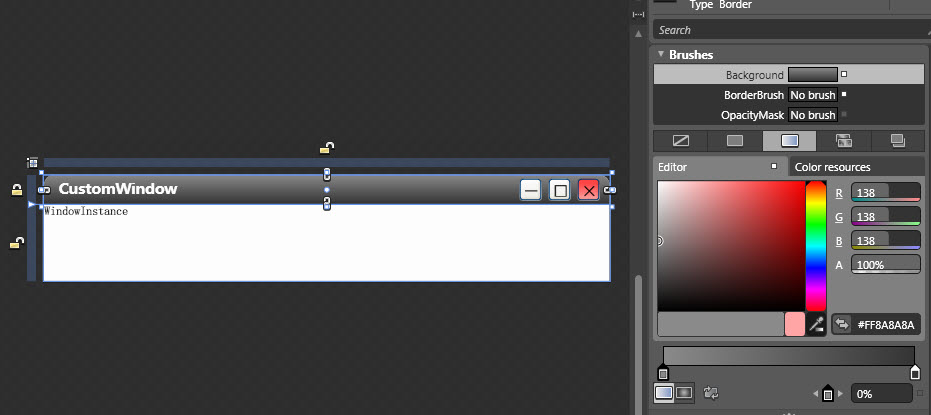
Blend会自动生成样式的xmal文件:
代码

<ResourceDictionary xmlns="http://schemas.microsoft.com/winfx/2006/xaml/presentation"

    xmlns:x="http://schemas.microsoft.com/winfx/2006/xaml" xmlns:d="http://schemas.microsoft.com/expression/blend/2008" xmlns:mc="http://schemas.openxmlformats.org/markup-compatibility/2006" mc:Ignorable="d" xmlns:Microsoft_Windows_Themes="clr-namespace:Microsoft.Windows.Themes;assembly=PresentationFramework.Luna">


    <ControlTemplate x:Key="WindowTemplateKey" TargetType="{x:Type Window}">

        <Border Background="{TemplateBinding Background}" BorderBrush="{TemplateBinding BorderBrush}" BorderThickness="{TemplateBinding BorderThickness}">

            <Grid>

                <AdornerDecorator>

                    <ContentPresenter/>

                </AdornerDecorator>

                <ResizeGrip x:Name="WindowResizeGrip" HorizontalAlignment="Right" VerticalAlignment="Bottom" IsTabStop="false" Visibility="Collapsed"/>

            </Grid>

        </Border>

        <ControlTemplate.Triggers>

            <MultiTrigger>

                <MultiTrigger.Conditions>

                    <Condition Property="ResizeMode" Value="CanResizeWithGrip"/>

                    <Condition Property="WindowState" Value="Normal"/>

                </MultiTrigger.Conditions>

                <Setter Property="Visibility" TargetName="WindowResizeGrip" Value="Visible"/>

            </MultiTrigger>

        </ControlTemplate.Triggers>

    </ControlTemplate>
3.为窗体增加最大最小化和关闭按钮,并实现鼠标拖拽改变窗体大小
按钮事件比较简单,通过分别为三个按钮添加Click事件即可
代码

/// <summary>

/// 加载按钮事件委托

/// </summary>

private void InitializeEvent()

{

    ControlTemplate baseWindowTemplate = (ControlTemplate)App.Current.Resources["CustomWindowControlTemplate"];

    Button minBtn = (Button)baseWindowTemplate.FindName("btnMin", this);

    minBtn.Click += delegate

    {

        this.WindowState = WindowState.Minimized;

    };

    Button maxBtn = (Button)baseWindowTemplate.FindName("btnMax", this);

    maxBtn.Click += delegate

    {

        this.WindowState = (this.WindowState == WindowState.Normal ? WindowState.Maximized : WindowState.Normal);

    };

    Button closeBtn = (Button)baseWindowTemplate.FindName("btnClose", this);

    closeBtn.Click += delegate

    {

        this.Close();

    };

    Border tp = (Border)baseWindowTemplate.FindName("topborder", this);

    tp.MouseLeftButtonDown += delegate

    {

        this.DragMove();

    };

}
仅仅这样实现的话还不够,因为窗体最大化后会覆盖任务栏,这是我们不希望看到的,所以还必须通过WINDOW API的窗口句柄来定义最大化后的尺寸
代码

/// <summary>

/// 重绘窗体大小

/// </summary>

void win_SourceInitialized(object sender, EventArgs e)

{

    System.IntPtr handle = (new WinInterop.WindowInteropHelper(this)).Handle;

    WinInterop.HwndSource.FromHwnd(handle).AddHook(new WinInterop.HwndSourceHook(WindowProc));

}

...

[DllImport("user32")]

internal static extern bool GetMonitorInfo(IntPtr hMonitor, MONITORINFO lpmi);

[DllImport("User32")]

internal static extern IntPtr MonitorFromWindow(IntPtr handle, int flags);

...

private static System.IntPtr WindowProc(System.IntPtr hwnd, int msg, System.IntPtr wParam, System.IntPtr lParam, ref bool handled)

{

    switch (msg)

    {

        case 0x0024:

            WmGetMinMaxInfo(hwnd, lParam);

            handled = true;

            break;

    }

    return (System.IntPtr)0;

}
最后是实现用鼠标拖拽改变窗体大小
然后在Windows1这个CustomWindow类的实例中绘制左右及底部5个拖拽热区(矩形)
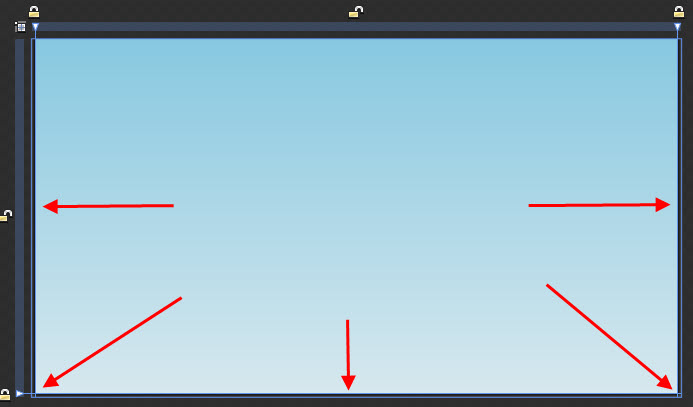
最后在Window1.xaml.cs中添加事件委托即可
代码

/// <summary>

/// 加载Resize委托

/// </summary>

public void InitializeResizeHandle()

{

    WindowResizer wr = new WindowResizer(this);

    wr.addResizerRight(right);

    wr.addResizerLeft(left);

    wr.addResizerDown(bottom);

    wr.addResizerLeftDown(leftbottom);

    wr.addResizerRightDown(rightbottom);

    //wr.addResizerUp(topSizeGrip);

    //wr.addResizerLeftUp(topLeftSizeGrip);

    //wr.addResizerRightUp(topRightSizeGrip);

}
大功告成了!
WPF设计の自定义窗体的更多相关文章
- WPF 之 自定义窗体标题栏
在WPF中自定义窗体标题栏,首先需要将窗体的WindowStyle属性设置为None,隐藏掉WPF窗体的自带标题栏.然后可以在窗体内部自定义一个标题栏. 例如,标题栏如下: <WrapPanel ...
- WPF 创建自定义窗体
在前面的一篇博客"WPF 自定义Metro Style窗体",展示了如何创建一个类似于Metro Style的Window,并在程序中使用.但是这个窗体不能够自由的改变大小.今天的 ...
- WPF设计の不规则窗体
我们在工作中,经常会需要画一些不规则的窗体,现在总结如下. 一.利用VisualBrush实现.这依赖于VisualBrush的特性,任何控件可以作为画刷,而画刷又可以作为背景. 此种方法可以用于实现 ...
- WPF自定义控件与样式(13)-自定义窗体Window & 自适应内容大小消息框MessageBox
一.前言 申明:WPF自定义控件与样式是一个系列文章,前后是有些关联的,但大多是按照由简到繁的顺序逐步发布的等,若有不明白的地方可以参考本系列前面的文章,文末附有部分文章链接. 本文主要内容: 自定义 ...
- WPF移动Window窗体(鼠标点击左键移动窗体自定义行为)
XAML代码部分:1.引用System.Windows.Interactivity 2.为指定的控件添加一个拖动的行为 3.很简单的了解行为的作用和用法 <Window xmlns=" ...
- WPF中自定义标题栏时窗体最大化处理之WindowChrome
注意: 本文方法基础是WindowChrome,而WindowChrome在.NET Framework 4.5之后才集成发布的.见:WindowChrome Class 在.NET Framewor ...
- 【转】WPF自定义控件与样式(13)-自定义窗体Window & 自适应内容大小消息框MessageBox
一.前言 申明:WPF自定义控件与样式是一个系列文章,前后是有些关联的,但大多是按照由简到繁的顺序逐步发布的等. 本文主要内容: 自定义Window窗体样式: 基于自定义窗体实现自定义MessageB ...
- wpf 自定义窗体的实现
首先创建自定义窗体的资源文件 <ControlTemplate x:Key="BaseWindowControlTemplate" TargetType="Wind ...
- [WPF自定义控件]?Window(窗体)的UI元素及行为
原文:[WPF自定义控件]?Window(窗体)的UI元素及行为 1. 前言 本来打算写一篇<自定义Window>的文章,但写着写着发觉内容太多,所以还是把使用WindowChrome自定 ...
随机推荐
- [PHP] swoole的安装和简单使用
1. pecl install swoole 开启http2支持需要的依赖库:apt-get install nghttp2 开启的几个参数: enable sockets supports? [no ...
- mediainfo使用
1.linux安装mediainfo yum install mediainfo(epel源安装) 2.输出文件信息到xml文件 mediainfo --OUTPUT=XML -f ftp ...
- 大数据Spark与Storm技术选型
先做一个对比: 对比点 Storm Spark Streaming 实时计算模型 纯实时,来一条数据,处理一条数据 准实时,对一个时间段内的数据收集起来,作为一个RDD,再处理 实时计算延迟度 毫 ...
- endpoint 异常
原文地址:http://blog.csdn.net/ltylove2007/article/details/6128333 其他信息: 无法加载协定为“ServiceReference1.WebSer ...
- CA 工作流程
散列函数 Hash 常见的有 MD5, SHA1, SHA256, 该类函数特点是函数单向不可逆,对输入非常敏感,输出长度固定,针对数据的任何修改都会改变散列函数的结果,用于防止信息篡改并验证数据的完 ...
- Spring 切入点配置
有关各种拦截的切入点配置举例 (1)只对返回值为String的方法进行拦截 @Pointcut("execution (java.lang.String com.zzdr.spring.se ...
- 网络基础 记一次HTTPS证书验证测试过程
记一次HTTPS证书验证测试过程 by:授客 QQ:1033553122 实践 1) 安装证书 选择主机A(假设10.202.95.88)上安装https证书 说明:采用https的服务器,必须安装数 ...
- Vue之axios请求数据
引入文件 <script src="https://cdn.staticfile.org/vue-resource/1.5.1/vue-resource.min.js"> ...
- RecyclerView 高度不能随着Item数量 自适应高度
在最近项目中遇到 ,在RecyclerView加载list数据时,高度无法自适应增长,看了很多博客,各种尝试,都没有解决这个问题,在某个博客中,讲到此解决方法,在此记录下. 即在RecyclerVie ...
- 你不可不知的Java引用类型之——SoftReference源码详解
定义 SoftReference是软引用,其引用的对象在内存不足的时候会被回收.只有软引用指向的对象称为软可达(softly-reachable)对象. 说明 垃圾回收器会在内存不足,经过一次垃圾回收 ...