
docker+springboot+elasticsearch+kibana+elasticsearch-head整合(详细说明 ,看这一篇就够了)
一开始是没有打算写这一篇博客的,但是看见好多朋友问关于elasticsearch的坑,决定还是写一份详细的安装说明与简单的测试demo,只要大家跟着我的步骤一步步来,100%是可以测试成功的。
一. docker安装
本人使用的是centos6,安装命令如下:
1.首先使用epel库安装docker
yum install -y http://mirrors.yun-idc.com/epel/6/i386/epel-release-6-8.noarch.rpm

yum install -y docker-io
安装完成后,使用命令 service docker start 启动docker
控制台输入docker ,出现如下界面表示安装成功

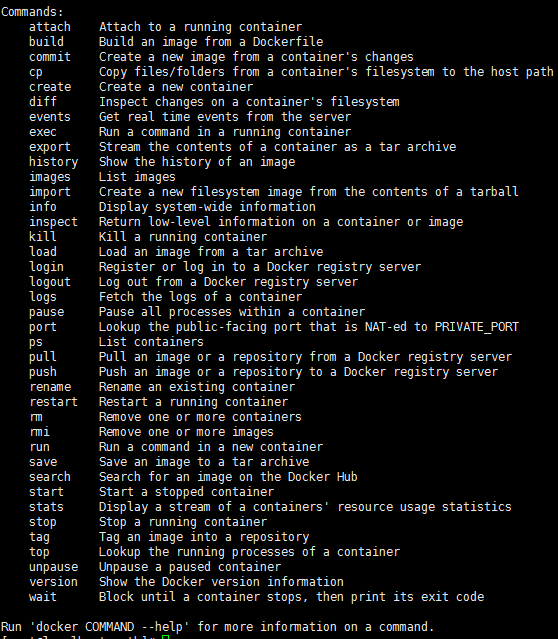
如果提示检查软件失败什么的,是因为之前先装了docker,再装了docker-io,直接使用命令 yum remove docker 删除docker,再执行
yum install -y docker-io 即可。
如果仍然提示 no package avalible...
使用rpm安装docker:
rpm -ivh docker源的方式 yum install
Ubuntu/Debian: curl -sSL https://get.docker.com | sh
Linux 64bit binary: https://get.docker.com/builds/Linux/x86_64/docker-1.7.1
Darwin/OSX 64bit client binary: https://get.docker.com/builds/Darwin/x86_64/docker-1.7.1
Darwin/OSX 32bit client binary: https://get.docker.com/builds/Darwin/i386/docker-1.7.1
Linux 64bit tgz: https://get.docker.com/builds/Linux/x86_64/docker-1.7.1.tgz
Windows 64bit client binary: https://get.docker.com/builds/Windows/x86_64/docker-1.7.1.exe
Windows 32bit client binary: https://get.docker.com/builds/Windows/i386/docker-1.7.1.exe
Centos 6/RHEL 6: https://get.docker.com/rpm/1.7.1/centos-6/RPMS/x86_64/docker-engine-1.7.1-1.el6.x86_64.rpm
https://get.docker.com/rpm/1.7.1/centos-6/RPMS/x86_64/docker-engine-1.7.1-1.el6.x86_64.rpm
Centos 7/RHEL 7: https://get.docker.com/rpm/1.7.1/centos-7/RPMS/x86_64/docker-engine-1.7.1-1.el7.centos.x86_64.rpm
Fedora 20: https://get.docker.com/rpm/1.7.1/fedora-20/RPMS/x86_64/docker-engine-1.7.1-1.fc20.x86_64.rpm
Fedora 21: https://get.docker.com/rpm/1.7.1/fedora-21/RPMS/x86_64/docker-engine-1.7.1-1.fc21.x86_64.rpm
Fedora 22: https://get.docker.com/rpm/1.7.1/fedora-22/RPMS/x86_64/docker-engine-1.7.1-1.fc22.x86_64.rpm
2.下载elasticsearch 镜像
在下载elasticsearch镜像之前,可以先改一下docker的镜像加速功能,我是用的阿里云的镜像加速,登录阿里云官网,产品-->云计算基础-->容器镜像服务, 进入管理控制台,如下图所示,复制加速器地址。
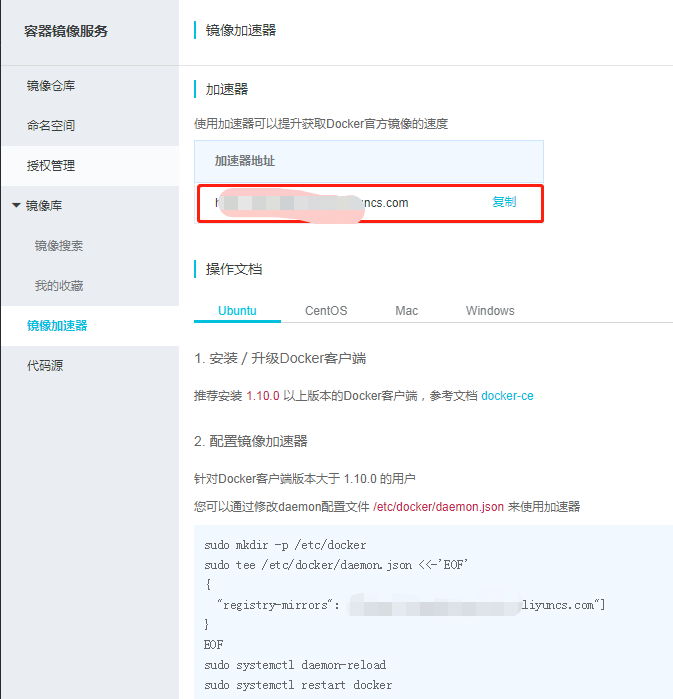
进入虚拟机,vim /etc/sysconfig/docker,加入下面一行配置
other_args="--registry-mirror=https://xxxx.aliyuncs.com"
:wq 保存退出
service docker restart 重启docker服务
ps -aux|grep docker 输入如下命令查看docker信息,出现如下信息则加速器配置成功

然后就可以快速pull镜像了。
docker pull elasticsearch
docker pull kibana
docker pull mobz/elasticsearch-head:5
将我们需要的三个镜像拉取下来
mkdir -p /opt/elasticsearch/data
vim /opt/elasticsearch/elasticsearch.yml

docker run --name elasticsearch -p : -p : -p : -e "discovery.type=single-node" -v /opt/elasticsearch/elasticsearch.yml:/usr/share/elasticsearch/config/elasticsearch.yml -v /opt/elasticsearch/data:/usr/share/elasticsearch/data -d elasticsearch
elasticsearch.yml 配置文件内容:
cluster.name: elasticsearch_cluster

node.name: node-master

node.master: true

node.data: true

http.port:

network.host: 0.0.0.0

network.publish_host: 192.168.6.77

discovery.zen.ping.unicast.hosts: ["192.168.6.77","192.168.6.78"]

http.host: 0.0.0.0

http.cors.enabled: true

http.cors.allow-origin: "*"

bootstrap.memory_lock: false

bootstrap.system_call_filter: false

# Uncomment the following lines for a production cluster deployment

#transport.host: 0.0.0.0

discovery.zen.minimum_master_nodes:
注意我的elasticsearch 是在两台服务器上的,所以集群部署的时候可以省略端口号,因为都是9300,如果你的集群是部署在同一台os上,则需要区分出来端口号。
cluster.name: elasticsearch_cluster 集群名字,所有集群统一。
node.name: node-master 你的节点名称,所有集群必须区分开。
http.cors.enabled: true

http.cors.allow-origin: "*"  支持跨域
discovery.zen.minimum_master_nodes: 1 可被发现作为主节点的数量
network.publish_host: 192.168.6.77 对外公布服务的真实IP
network.host: 0.0.0.0 开发环境可以设置成0.0.0.0,真正的生产环境需要指定IP地址。
我们启动elasticsearch容器多加了一个端口映射 -p 5601:5601 目的是让kibana使用该容器的端口映射,无需指定kibana容器的映射了。
启动kibana:
docker run --name kibana -e ELASTICSEARCH_URL=http://127.0.0.1:9200 --net=container:elasticsearch -d kibana
--net=container:elasticsearch 命令为指定使用elasticsearch的映射
这个时候,一般elasticsearch是启动报错的,我们需要修改一下linux的文件配置,如文件描述符的大小等。
需要修改的文件一共两个:
切换到root用户

、vi /etc/security/limits.conf 修改如下配置

* soft nofile

* hard nofile

2、vi /etc/sysctl.conf 添加配置

vm.max_map_count=

运行命令 sysctl -p
这个时候配置完了输入命令
ulimit -Sn
ulimit -Hn
出现如下信息即配置成功。
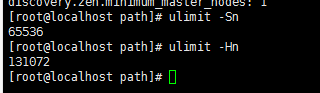
可是这个时候重启容器依然是报错的,没报错是你运气好,解决办法是重启一下docker就OK了。
service docker restart
然后重启elasticsearch 容器
docker restart elasticsearch
访问ip:9200
出现如下信息,则elasticsearch 启动成功
{

  "name" : "node-master",

  "cluster_name" : "elasticsearch_cluster",

  "cluster_uuid" : "QzD1rYUOSqmpoXPYQqolqQ",

  "version" : {

    "number" : "5.6.12",

    "build_hash" : "cfe3d9f",

    "build_date" : "2018-09-10T20:12:43.732Z",

    "build_snapshot" : false,

    "lucene_version" : "6.6.1"

  },

  "tagline" : "You Know, for Search"

}
接着同样的操作,在另外一台os上启动elasticsearch,两台不同的地方一是第二台我们不需要做-p 5601:5601的端口映射,第二是elasticsearch.yml配置文件的一些不同:
cluster.name: elasticsearch_cluster

node.name: node-slave

node.master: false

node.data: true

http.port:

network.host: 0.0.0.0

network.publish_host: 192.168.6.78

discovery.zen.ping.unicast.hosts: ["192.168.6.77:9300","192.168.6.78:9300"]

http.host: 0.0.0.0

http.cors.enabled: true

http.cors.allow-origin: "*"

bootstrap.memory_lock: false

bootstrap.system_call_filter: false

# Uncomment the following lines for a production cluster deployment

# #transport.host: 0.0.0.0

# #discovery.zen.minimum_master_nodes:

#
两台os中的elasticsearch都启动成功后,便可以启动kibana和head了。
重启kibana
docker restart kibana
访问http://ip:5601
出现如下页面则kibana启动成功
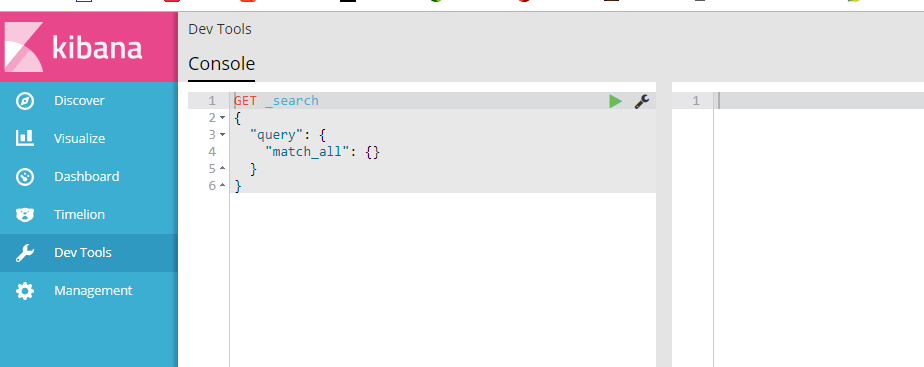
启动elasticsearch-head监控es服务
docker run -d -p 9100:9100 mobz/elasticsearch-head:5
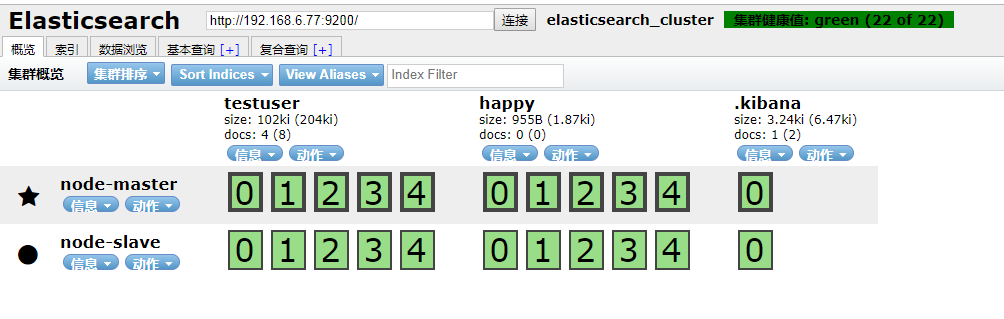
访问ip:9100
出现如下界面即启动head成功
到此我们的准备工作算是完成了,接下来新建springboot项目,pom引入
<dependency>
<groupId>org.springframework.boot</groupId>
<artifactId>spring-boot-starter-data-elasticsearch</artifactId>
</dependency>
其他mvc mybatis配置在此不再赘述,application.yml配置如下:
spring:

  data:

   elasticsearch:

    cluster-nodes: 192.168.6.77:

    repositories.enabled: true

    cluster-name: elasticsearch_cluster
编写仓库测试类 UserRepository:
package com.smkj.user.repository;

import org.springframework.data.elasticsearch.repository.ElasticsearchRepository;

import org.springframework.stereotype.Component;

import com.smkj.user.entity.XymApiUser;

/**

 * @author dalaoyang

 * @Description

 * @project springboot_learn

 * @package com.dalaoyang.repository

 * @email yangyang@dalaoyang.cn

 * @date 2018/5/4

 */

@Component

public interface UserRepository extends ElasticsearchRepository<XymApiUser,String> {

}
实体类中,加上如下注解:
@SuppressWarnings("serial")
@AllArgsConstructor
@NoArgsConstructor
@Data
@Accessors(chain=true)
@Document(indexName = "testuser",type = "XymApiUser")
最后一个注解是使用elasticsearch必加的,类似数据库和数据表映射
上边的几个就是贴出来给大家推荐一下lombok这个小东东,挺好用的,具体使用方法可以自行百度,不喜欢的同学可以直接删掉。
然后编写controller:
package com.smkj.user.controller;

import java.util.List;

import org.elasticsearch.action.get.GetResponse;

import org.elasticsearch.client.transport.TransportClient;

import org.elasticsearch.index.query.QueryBuilder;

import org.elasticsearch.index.query.QueryBuilders;

import org.elasticsearch.index.query.functionscore.FunctionScoreQueryBuilder;

import org.elasticsearch.index.query.functionscore.ScoreFunctionBuilders;

import org.springframework.beans.factory.annotation.Autowired;

import org.springframework.data.domain.Page;

import org.springframework.data.domain.PageRequest;

import org.springframework.data.domain.Pageable;

import org.springframework.data.elasticsearch.core.query.NativeSearchQueryBuilder;

import org.springframework.data.elasticsearch.core.query.SearchQuery;

import org.springframework.data.web.PageableDefault;

import org.springframework.http.HttpStatus;

import org.springframework.http.ResponseEntity;

import org.springframework.web.bind.annotation.GetMapping;

import org.springframework.web.bind.annotation.PathVariable;

import org.springframework.web.bind.annotation.RestController;

import com.google.common.collect.Lists;

import com.smkj.user.entity.XymApiUser;

import com.smkj.user.repository.UserRepository;

import com.smkj.user.service.UserService;

@RestController

public class UserController {

    @Autowired

    private UserService userService;

    @Autowired

    private UserRepository userRepository;

     @Autowired

        private TransportClient client;

@GetMapping("user/{id}")

    public XymApiUser getUserById(@PathVariable String id) {

    XymApiUser apiuser = userService.selectByPrimaryKey(id);

    userRepository.save(apiuser);

    System.out.println(apiuser.toString());

    return apiuser;

    }

/**

 * @param title   搜索标题

 * @param pageable page = 第几页参数, value = 每页显示条数

 */

@GetMapping("get/{id}")

public ResponseEntity  search(@PathVariable String id,@PageableDefault(page = , value = ) Pageable pageable){

       if (id.isEmpty()) {

           return new ResponseEntity(HttpStatus.NOT_FOUND);

       }

    // 通过索引、类型、id向es进行查询数据

       GetResponse response = client.prepareGet("testuser", "xymApiUser", id).get();

       if (!response.isExists()) {

           return new ResponseEntity(HttpStatus.NOT_FOUND);

       }

       // 返回查询到的数据

       return new ResponseEntity(response.getSource(), HttpStatus.OK);

}

/**

 * 3、查   +++:分页、分数、分域(结果一个也不少)

 * @param page

 * @param size

 * @param q

 * @return

 * @return

 */

@GetMapping("/{page}/{size}/{q}")

public Page<XymApiUser> searchCity(@PathVariable Integer page, @PathVariable Integer size, @PathVariable String q) {

    SearchQuery searchQuery = new NativeSearchQueryBuilder()

            .withQuery( QueryBuilders.prefixQuery("cardNum",q))

            .withPageable(PageRequest.of(page, size))

            .build();

    Page<XymApiUser> pagea = userRepository.search(searchQuery);

    System.out.println(pagea.getTotalPages());

    return pagea;

}

}
访问 http://localhost:8080/0/10/6212263602070571344

到此结束,不明白的朋友可以留言。
docker+springboot+elasticsearch+kibana+elasticsearch-head整合(详细说明 ,看这一篇就够了)的更多相关文章
- SpringBoot中异步请求和异步调用(看这一篇就够了)
原创不易,如需转载,请注明出处https://www.cnblogs.com/baixianlong/p/10661591.html,否则将追究法律责任!!! 一.SpringBoot中异步请求的使用 ...
- Spring Boot 2.x(十四):整合Redis,看这一篇就够了
目录 Redis简介 Redis的部署 在Spring Boot中的使用 Redis缓存实战 寻找组织 程序员经典必备枕头书免费送 Redis简介 Redis 是一个开源的使用 ANSI C 语言编写 ...
- elasticsearch kibana + 分词器安装详细步骤
elasticsearch kibana + 分词器安装详细步骤 一.准备环境 系统:Centos7 JDK安装包:jdk-8u191-linux-x64.tar.gz ES安装包:elasticse ...
- 关于 Docker 镜像的操作,看完这篇就够啦 !(下)
紧接着上篇<关于 Docker 镜像的操作,看完这篇就够啦 !(上)>,奉上下篇 !!! 镜像作为 Docker 三大核心概念中最重要的一个关键词,它有很多操作,是您想学习容器技术不得不掌 ...
- SpringBoot入门学习看这一篇就够了
1.SpringBoot是什么? SpringBoot是一套基于Spring框架的微服务框架. 2.为什么需要SpringBoot 由于Spring是一个轻量级的企业开发框架,主要的功能就是用于整合和 ...
- springboot整合apache ftpserver详细教程(看这一篇就够了)
原创不易,如需转载,请注明出处https://www.cnblogs.com/baixianlong/p/12192425.html,否则将追究法律责任!!! 一.Apache ftpserver相关 ...
- Elasticsearch入门,看这一篇就够了
目录 前言 可视化工具 kibana kibana 的安装 kibana 配置 kibana 的启动 Elasticsearch 入门操作 操作 index 创建 index 索引别名有什么用 删除索 ...
- Docker基础与实战,看这一篇就够了
docker 基础 什么是Docker Docker 使用 Google 公司推出的 Go 语言 进行开发实现,基于 Linux 内核的 cgroup,namespace,以及 AUFS 类的 Uni ...
- 《Docker基础与实战,看这一篇就够了》
什么是Docker? Docker 使用 Google 公司推出的 Go 语言 进行开发实现,基于 Linux 内核的 cgroup,namespace,以及 AUFS 类的 Union FS 等技术 ...
随机推荐
- Confluence 6 发送 Confluence 通知到其他 Confluence 服务器
你可以配置 Confluence 服务器向其他的 Confluence 服务器发送消息.在这种情况下,Confluence 服务器将不会显示 workbox. 希望发送消息到其他 Confluence ...
- 继续JS之DOM对象二
前面在JS之DOM中我们知道了属性操作,下面我们来了解一下节点操作.很重要!! 一.节点操作 创建节点:var ele_a = document.createElement('a');添加节点:ele ...
- CSS----注释的坑
css 中 style 注释 需要用 /* */ 第一种方法注释,结果是不正确的,css布局会出现问题 第二种方式注释正确,布局不会出现问题
- Git使用五:回到过去
reset:将仓库里面的内容恢复回暂存区,类似于从仓库里检出文件到暂存区checkout:将暂存区的文件恢复回工作区,即,把暂存区的文件检出到工作区 下面是之前三次提交的内容 三个区域的文件状态: 执 ...
- python一个用例,多组参数,多个结果
在某种情况下,需要用不同的参数组合测试同样的行为,你希望从test case的执行结果上知道在测试什么,而不是单单得到一个大的 test case:此时如果仅仅写一个test case并用内嵌循环来进 ...
- jenkins原理
原理:Jenkins是一个开源软件项目,是基于Java开发的一种持续集成工具,用于监控持续重复的工作,旨在提供一个开放易用的软件平台,使软件的持续集成变成可能. 直白的说:这个jenkins是CI ...
- ReSharper 8 & 9
ronle ZoJzmeVBoAv9Sskw76emgksMMFiLn4NM 9: admin@youbaozang.com SpFEMUSrPM0AGupqlNs6J1Ey7HrjpJZy admi ...
- [转] Shell编程之数组使用
#!/bin/bash #基本数组操作a=(1 2 3) ##()表示空数组echo "第0个元素:"${a[0]}echo "所有元素: "${a[@]}ec ...
- Linux 下压缩与解压.zip和.rar
)对于.zip linux下提供了zip和unzip程序,zip是压缩程序,unzip是解压程序.它们的参数选项很多,可用命令zip -help和unzip -help查看,这里只做简单介绍,举例说明 ...
- signal() 和 sigaction()
[摘自<Linux/Unix系统编程手册>] Unix系统提供了两种方式来改变信号处置:signal() 和 sigaction(). signal() 的行为在不同Unix实现间存在差异 ...