
docker+springboot+elasticsearch+kibana+elasticsearch-head整合(详细说明 ,看这一篇就够了)
一开始是没有打算写这一篇博客的,但是看见好多朋友问关于elasticsearch的坑,决定还是写一份详细的安装说明与简单的测试demo,只要大家跟着我的步骤一步步来,100%是可以测试成功的。
一. docker安装
本人使用的是centos6,安装命令如下:
1.首先使用epel库安装docker
yum install -y http://mirrors.yun-idc.com/epel/6/i386/epel-release-6-8.noarch.rpm

yum install -y docker-io
安装完成后,使用命令 service docker start 启动docker
控制台输入docker ,出现如下界面表示安装成功

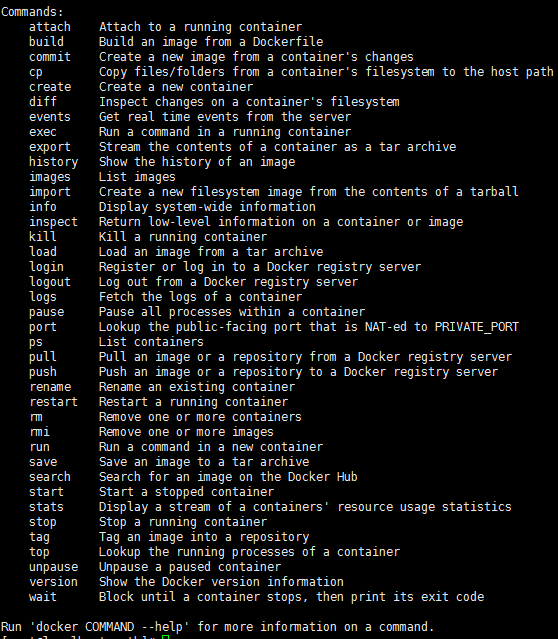
如果提示检查软件失败什么的,是因为之前先装了docker,再装了docker-io,直接使用命令 yum remove docker 删除docker,再执行
yum install -y docker-io 即可。
如果仍然提示 no package avalible...
使用rpm安装docker:
rpm -ivh docker源的方式 yum install
Ubuntu/Debian: curl -sSL https://get.docker.com | sh
Linux 64bit binary: https://get.docker.com/builds/Linux/x86_64/docker-1.7.1
Darwin/OSX 64bit client binary: https://get.docker.com/builds/Darwin/x86_64/docker-1.7.1
Darwin/OSX 32bit client binary: https://get.docker.com/builds/Darwin/i386/docker-1.7.1
Linux 64bit tgz: https://get.docker.com/builds/Linux/x86_64/docker-1.7.1.tgz
Windows 64bit client binary: https://get.docker.com/builds/Windows/x86_64/docker-1.7.1.exe
Windows 32bit client binary: https://get.docker.com/builds/Windows/i386/docker-1.7.1.exe
Centos 6/RHEL 6: https://get.docker.com/rpm/1.7.1/centos-6/RPMS/x86_64/docker-engine-1.7.1-1.el6.x86_64.rpm
https://get.docker.com/rpm/1.7.1/centos-6/RPMS/x86_64/docker-engine-1.7.1-1.el6.x86_64.rpm
Centos 7/RHEL 7: https://get.docker.com/rpm/1.7.1/centos-7/RPMS/x86_64/docker-engine-1.7.1-1.el7.centos.x86_64.rpm
Fedora 20: https://get.docker.com/rpm/1.7.1/fedora-20/RPMS/x86_64/docker-engine-1.7.1-1.fc20.x86_64.rpm
Fedora 21: https://get.docker.com/rpm/1.7.1/fedora-21/RPMS/x86_64/docker-engine-1.7.1-1.fc21.x86_64.rpm
Fedora 22: https://get.docker.com/rpm/1.7.1/fedora-22/RPMS/x86_64/docker-engine-1.7.1-1.fc22.x86_64.rpm
2.下载elasticsearch 镜像
在下载elasticsearch镜像之前,可以先改一下docker的镜像加速功能,我是用的阿里云的镜像加速,登录阿里云官网,产品-->云计算基础-->容器镜像服务, 进入管理控制台,如下图所示,复制加速器地址。
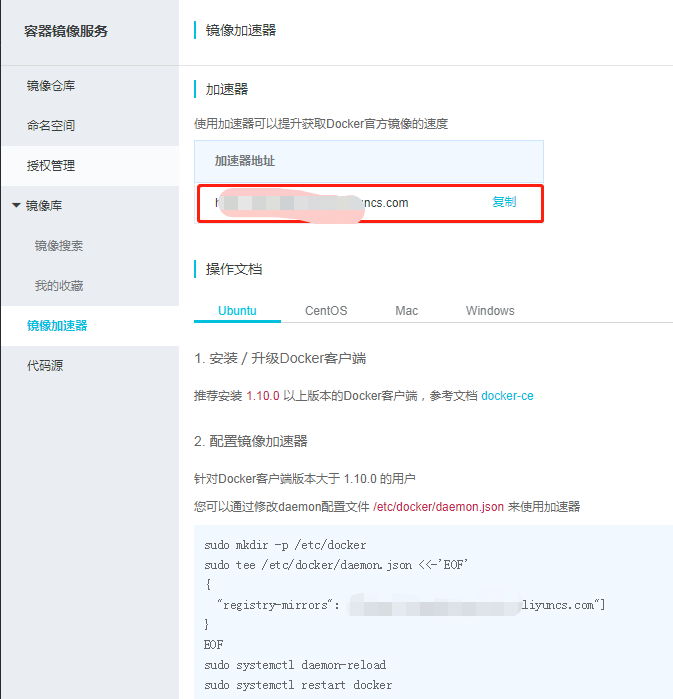
进入虚拟机,vim /etc/sysconfig/docker,加入下面一行配置
other_args="--registry-mirror=https://xxxx.aliyuncs.com"
:wq 保存退出
service docker restart 重启docker服务
ps -aux|grep docker 输入如下命令查看docker信息,出现如下信息则加速器配置成功

然后就可以快速pull镜像了。
docker pull elasticsearch
docker pull kibana
docker pull mobz/elasticsearch-head:5
将我们需要的三个镜像拉取下来
mkdir -p /opt/elasticsearch/data
vim /opt/elasticsearch/elasticsearch.yml

docker run --name elasticsearch -p : -p : -p : -e "discovery.type=single-node" -v /opt/elasticsearch/elasticsearch.yml:/usr/share/elasticsearch/config/elasticsearch.yml -v /opt/elasticsearch/data:/usr/share/elasticsearch/data -d elasticsearch
elasticsearch.yml 配置文件内容:
cluster.name: elasticsearch_cluster

node.name: node-master

node.master: true

node.data: true

http.port:

network.host: 0.0.0.0

network.publish_host: 192.168.6.77

discovery.zen.ping.unicast.hosts: ["192.168.6.77","192.168.6.78"]

http.host: 0.0.0.0

http.cors.enabled: true

http.cors.allow-origin: "*"

bootstrap.memory_lock: false

bootstrap.system_call_filter: false

# Uncomment the following lines for a production cluster deployment

#transport.host: 0.0.0.0

discovery.zen.minimum_master_nodes:
注意我的elasticsearch 是在两台服务器上的,所以集群部署的时候可以省略端口号,因为都是9300,如果你的集群是部署在同一台os上,则需要区分出来端口号。
cluster.name: elasticsearch_cluster 集群名字,所有集群统一。
node.name: node-master 你的节点名称,所有集群必须区分开。
http.cors.enabled: true

http.cors.allow-origin: "*"  支持跨域
discovery.zen.minimum_master_nodes: 1 可被发现作为主节点的数量
network.publish_host: 192.168.6.77 对外公布服务的真实IP
network.host: 0.0.0.0 开发环境可以设置成0.0.0.0,真正的生产环境需要指定IP地址。
我们启动elasticsearch容器多加了一个端口映射 -p 5601:5601 目的是让kibana使用该容器的端口映射,无需指定kibana容器的映射了。
启动kibana:
docker run --name kibana -e ELASTICSEARCH_URL=http://127.0.0.1:9200 --net=container:elasticsearch -d kibana
--net=container:elasticsearch 命令为指定使用elasticsearch的映射
这个时候,一般elasticsearch是启动报错的,我们需要修改一下linux的文件配置,如文件描述符的大小等。
需要修改的文件一共两个:
切换到root用户

、vi /etc/security/limits.conf 修改如下配置

* soft nofile

* hard nofile

2、vi /etc/sysctl.conf 添加配置

vm.max_map_count=

运行命令 sysctl -p
这个时候配置完了输入命令
ulimit -Sn
ulimit -Hn
出现如下信息即配置成功。
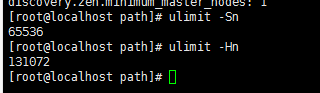
可是这个时候重启容器依然是报错的,没报错是你运气好,解决办法是重启一下docker就OK了。
service docker restart
然后重启elasticsearch 容器
docker restart elasticsearch
访问ip:9200
出现如下信息,则elasticsearch 启动成功
{

  "name" : "node-master",

  "cluster_name" : "elasticsearch_cluster",

  "cluster_uuid" : "QzD1rYUOSqmpoXPYQqolqQ",

  "version" : {

    "number" : "5.6.12",

    "build_hash" : "cfe3d9f",

    "build_date" : "2018-09-10T20:12:43.732Z",

    "build_snapshot" : false,

    "lucene_version" : "6.6.1"

  },

  "tagline" : "You Know, for Search"

}
接着同样的操作,在另外一台os上启动elasticsearch,两台不同的地方一是第二台我们不需要做-p 5601:5601的端口映射,第二是elasticsearch.yml配置文件的一些不同:
cluster.name: elasticsearch_cluster

node.name: node-slave

node.master: false

node.data: true

http.port:

network.host: 0.0.0.0

network.publish_host: 192.168.6.78

discovery.zen.ping.unicast.hosts: ["192.168.6.77:9300","192.168.6.78:9300"]

http.host: 0.0.0.0

http.cors.enabled: true

http.cors.allow-origin: "*"

bootstrap.memory_lock: false

bootstrap.system_call_filter: false

# Uncomment the following lines for a production cluster deployment

# #transport.host: 0.0.0.0

# #discovery.zen.minimum_master_nodes:

#
两台os中的elasticsearch都启动成功后,便可以启动kibana和head了。
重启kibana
docker restart kibana
访问http://ip:5601
出现如下页面则kibana启动成功
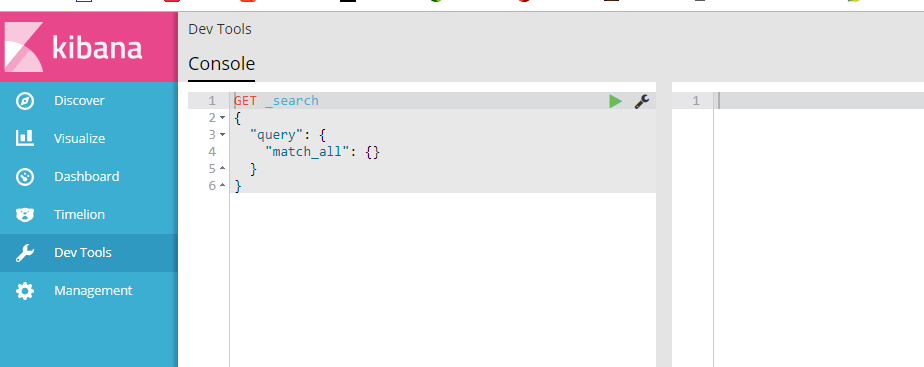
启动elasticsearch-head监控es服务
docker run -d -p 9100:9100 mobz/elasticsearch-head:5
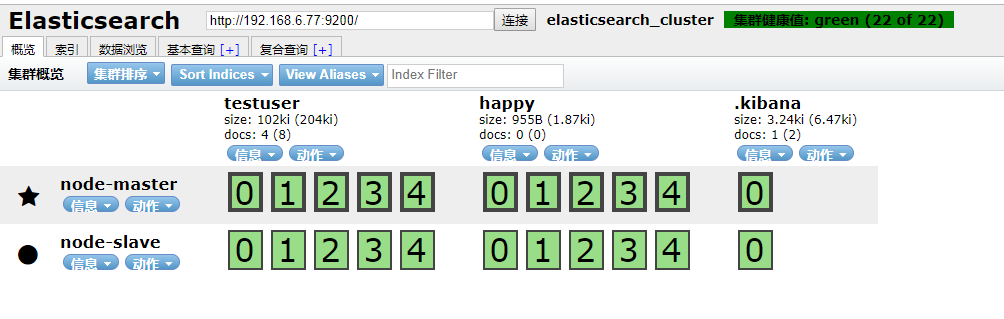
访问ip:9100
出现如下界面即启动head成功
到此我们的准备工作算是完成了,接下来新建springboot项目,pom引入
<dependency>
<groupId>org.springframework.boot</groupId>
<artifactId>spring-boot-starter-data-elasticsearch</artifactId>
</dependency>
其他mvc mybatis配置在此不再赘述,application.yml配置如下:
spring:

  data:

   elasticsearch:

    cluster-nodes: 192.168.6.77:

    repositories.enabled: true

    cluster-name: elasticsearch_cluster
编写仓库测试类 UserRepository:
package com.smkj.user.repository;

import org.springframework.data.elasticsearch.repository.ElasticsearchRepository;

import org.springframework.stereotype.Component;

import com.smkj.user.entity.XymApiUser;

/**

 * @author dalaoyang

 * @Description

 * @project springboot_learn

 * @package com.dalaoyang.repository

 * @email yangyang@dalaoyang.cn

 * @date 2018/5/4

 */

@Component

public interface UserRepository extends ElasticsearchRepository<XymApiUser,String> {

}
实体类中,加上如下注解:
@SuppressWarnings("serial")
@AllArgsConstructor
@NoArgsConstructor
@Data
@Accessors(chain=true)
@Document(indexName = "testuser",type = "XymApiUser")
最后一个注解是使用elasticsearch必加的,类似数据库和数据表映射
上边的几个就是贴出来给大家推荐一下lombok这个小东东,挺好用的,具体使用方法可以自行百度,不喜欢的同学可以直接删掉。
然后编写controller:
package com.smkj.user.controller;

import java.util.List;

import org.elasticsearch.action.get.GetResponse;

import org.elasticsearch.client.transport.TransportClient;

import org.elasticsearch.index.query.QueryBuilder;

import org.elasticsearch.index.query.QueryBuilders;

import org.elasticsearch.index.query.functionscore.FunctionScoreQueryBuilder;

import org.elasticsearch.index.query.functionscore.ScoreFunctionBuilders;

import org.springframework.beans.factory.annotation.Autowired;

import org.springframework.data.domain.Page;

import org.springframework.data.domain.PageRequest;

import org.springframework.data.domain.Pageable;

import org.springframework.data.elasticsearch.core.query.NativeSearchQueryBuilder;

import org.springframework.data.elasticsearch.core.query.SearchQuery;

import org.springframework.data.web.PageableDefault;

import org.springframework.http.HttpStatus;

import org.springframework.http.ResponseEntity;

import org.springframework.web.bind.annotation.GetMapping;

import org.springframework.web.bind.annotation.PathVariable;

import org.springframework.web.bind.annotation.RestController;

import com.google.common.collect.Lists;

import com.smkj.user.entity.XymApiUser;

import com.smkj.user.repository.UserRepository;

import com.smkj.user.service.UserService;

@RestController

public class UserController {

    @Autowired

    private UserService userService;

    @Autowired

    private UserRepository userRepository;

     @Autowired

        private TransportClient client;

@GetMapping("user/{id}")

    public XymApiUser getUserById(@PathVariable String id) {

    XymApiUser apiuser = userService.selectByPrimaryKey(id);

    userRepository.save(apiuser);

    System.out.println(apiuser.toString());

    return apiuser;

    }

/**

 * @param title   搜索标题

 * @param pageable page = 第几页参数, value = 每页显示条数

 */

@GetMapping("get/{id}")

public ResponseEntity  search(@PathVariable String id,@PageableDefault(page = , value = ) Pageable pageable){

       if (id.isEmpty()) {

           return new ResponseEntity(HttpStatus.NOT_FOUND);

       }

    // 通过索引、类型、id向es进行查询数据

       GetResponse response = client.prepareGet("testuser", "xymApiUser", id).get();

       if (!response.isExists()) {

           return new ResponseEntity(HttpStatus.NOT_FOUND);

       }

       // 返回查询到的数据

       return new ResponseEntity(response.getSource(), HttpStatus.OK);

}

/**

 * 3、查   +++:分页、分数、分域(结果一个也不少)

 * @param page

 * @param size

 * @param q

 * @return

 * @return

 */

@GetMapping("/{page}/{size}/{q}")

public Page<XymApiUser> searchCity(@PathVariable Integer page, @PathVariable Integer size, @PathVariable String q) {

    SearchQuery searchQuery = new NativeSearchQueryBuilder()

            .withQuery( QueryBuilders.prefixQuery("cardNum",q))

            .withPageable(PageRequest.of(page, size))

            .build();

    Page<XymApiUser> pagea = userRepository.search(searchQuery);

    System.out.println(pagea.getTotalPages());

    return pagea;

}

}
访问 http://localhost:8080/0/10/6212263602070571344

到此结束,不明白的朋友可以留言。
docker+springboot+elasticsearch+kibana+elasticsearch-head整合(详细说明 ,看这一篇就够了)的更多相关文章
- SpringBoot中异步请求和异步调用(看这一篇就够了)
原创不易,如需转载,请注明出处https://www.cnblogs.com/baixianlong/p/10661591.html,否则将追究法律责任!!! 一.SpringBoot中异步请求的使用 ...
- Spring Boot 2.x(十四):整合Redis,看这一篇就够了
目录 Redis简介 Redis的部署 在Spring Boot中的使用 Redis缓存实战 寻找组织 程序员经典必备枕头书免费送 Redis简介 Redis 是一个开源的使用 ANSI C 语言编写 ...
- elasticsearch kibana + 分词器安装详细步骤
elasticsearch kibana + 分词器安装详细步骤 一.准备环境 系统:Centos7 JDK安装包:jdk-8u191-linux-x64.tar.gz ES安装包:elasticse ...
- 关于 Docker 镜像的操作,看完这篇就够啦 !(下)
紧接着上篇<关于 Docker 镜像的操作,看完这篇就够啦 !(上)>,奉上下篇 !!! 镜像作为 Docker 三大核心概念中最重要的一个关键词,它有很多操作,是您想学习容器技术不得不掌 ...
- SpringBoot入门学习看这一篇就够了
1.SpringBoot是什么? SpringBoot是一套基于Spring框架的微服务框架. 2.为什么需要SpringBoot 由于Spring是一个轻量级的企业开发框架,主要的功能就是用于整合和 ...
- springboot整合apache ftpserver详细教程(看这一篇就够了)
原创不易,如需转载,请注明出处https://www.cnblogs.com/baixianlong/p/12192425.html,否则将追究法律责任!!! 一.Apache ftpserver相关 ...
- Elasticsearch入门,看这一篇就够了
目录 前言 可视化工具 kibana kibana 的安装 kibana 配置 kibana 的启动 Elasticsearch 入门操作 操作 index 创建 index 索引别名有什么用 删除索 ...
- Docker基础与实战,看这一篇就够了
docker 基础 什么是Docker Docker 使用 Google 公司推出的 Go 语言 进行开发实现,基于 Linux 内核的 cgroup,namespace,以及 AUFS 类的 Uni ...
- 《Docker基础与实战,看这一篇就够了》
什么是Docker? Docker 使用 Google 公司推出的 Go 语言 进行开发实现,基于 Linux 内核的 cgroup,namespace,以及 AUFS 类的 Union FS 等技术 ...
随机推荐
- TeamLab安装及使用
http://blog.csdn.net/crazin/article/details/9529061 最近想装个项目管理管理系统方便项目管理,调研了下这方面开源的软件还是比较多的,国内的有禅道,试用 ...
- leetcode(js)算法之914卡牌分组
给定一副牌,每张牌上都写着一个整数. 此时,你需要选定一个数字 X,使我们可以将整副牌按下述规则分成 1 组或更多组: 每组都有 X 张牌. 组内所有的牌上都写着相同的整数. 仅当你可选的 X > ...
- python面试30-40题
1.简述python引用计数机制 python垃圾回收主要以引用计数为主,标记-清除和分代清除为辅的机制,其中标记-清除和分代回收主要是为了处理循环引用的难题. 引用计数算法 当有1个变量保存了对 ...
- flutter No material widget found textfield widgets require a material widget ancestor
Error states that TextField widgets require a Material widget ancestor. Simply wrapping your whole l ...
- JavaScript(JS)之Javascript对象
简介: 在JavaScript中除了null和undefined以外其他的数据类型都被定义成了对象,也可以用创建对象的方法定义变量,String.Math.Array.Date.RegExp都是Jav ...
- java-HTML&javaSkcript&CSS&jQuery&ajax( 八)
一.JavaScript教程笔记 1.在web页面中一般使用JavaScript脚本语言,支持跨平台,跨浏览器,驱动网页,与用户交互.另外Node.js把JavaScript引入到了服务器端. Jav ...
- python网络爬虫笔记(八)
一.pthon 序列化json格式 1.将python内置对象转换成json 模块,dumps()方法返回的是一个str,内容是标准的JSON,dump()方法可以直接吧JSON写入一个file-li ...
- django----利用Form 实现两次密码输入是否一样 ( 局部钩子和全局钩子 )
from django import forms # 导入表单模块 from django.core.exceptions import ValidationError class RegisterF ...
- 关于使用easyui为前端框架,加载表格数据较多时在火狐浏览器会出现表格片段不停闪烁问题的兼容问题解决。
1.项目是可视化管理系统,加载的数据较多,使用谷歌浏览器从登陆界面跳转到主页时还算干净利落,但是使用火狐浏览器时在这一过程中在数据没有加载完毕之前,整个页面就仿佛是在闪烁,可以看到闪烁的是表格字段的片 ...
- 微信公众号开发调用自带地图 不显示(openLocation)
1.需要在wx.config中声明需要使用的功能(openLocation) 例如: wx.config({ debug: false, // 开启调试模式,调用的所有api的返回值会在客户端aler ...