
Docker | 第三章:Docker常用命令
前言
上一章节,简单介绍了在
CentOS下的Docker的安装过程,以及运行了一个官方提供的Hello,World镜像运行了第一个Docker。就像上一章中,验证Docker是否安装成功,我们执行的是docker info命令。运行镜像时,执行的是docker run imagesName。所以学习一个工具,主要还是学习如何利用本身工具提供的一些命令进行相应的操作。所以本章节,主要来介绍下Docker的常用命令。
Docker命令清单
docker提供了查看其所有支持的命令清单,只需运行
docker
或
docker help
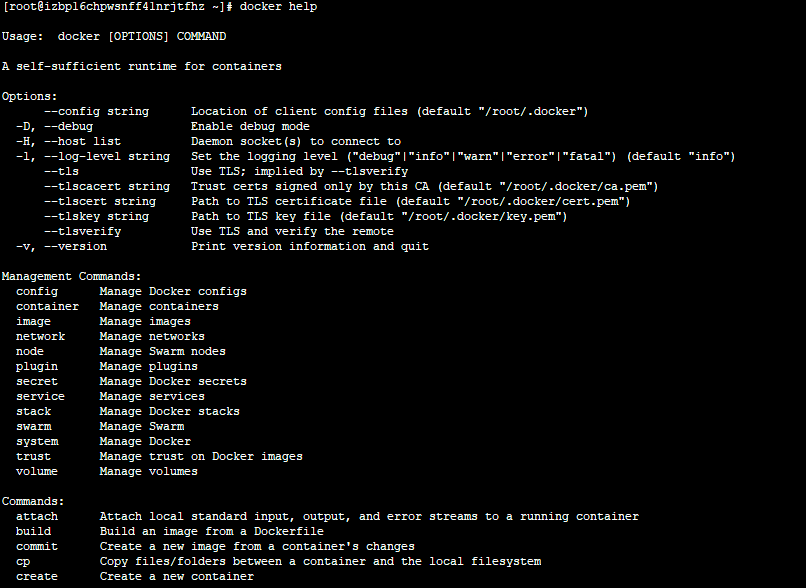
从提示中可以看出,Docker命令是很多的,可以管理Docker,有操作镜像、容器等等。对于常用的可能就是操作镜像和容器了。所以这里主要列举下对于镜像、容器常用的一些命令操作,同时也会列举下一些其他常用的命令。对于某个命令想知道其详细的参数选项时,可依照此模式进行查看。
docker COMMAND --help
如,查看run的详细信息
docker run --help
列举的run的详细选项及其用法说明(真的很多呀!)
Usage:    docker run [OPTIONS] IMAGE [COMMAND] [ARG...]

Run a command in a new container

Options:

      --add-host list                  Add a custom host-to-IP mapping (host:ip)

  -a, --attach list                    Attach to STDIN, STDOUT or STDERR

      --blkio-weight uint16            Block IO (relative weight), between 10 and 1000, or 0 to disable (default 0)

      --blkio-weight-device list       Block IO weight (relative device weight) (default [])

      --cap-add list                   Add Linux capabilities

      --cap-drop list                  Drop Linux capabilities

      --cgroup-parent string           Optional parent cgroup for the container

      --cidfile string                 Write the container ID to the file

      --cpu-period int                 Limit CPU CFS (Completely Fair Scheduler) period

      --cpu-quota int                  Limit CPU CFS (Completely Fair Scheduler) quota

      --cpu-rt-period int              Limit CPU real-time period in microseconds

      --cpu-rt-runtime int             Limit CPU real-time runtime in microseconds

  -c, --cpu-shares int                 CPU shares (relative weight)

      --cpus decimal                   Number of CPUs

      --cpuset-cpus string             CPUs in which to allow execution (0-3, 0,1)

      --cpuset-mems string             MEMs in which to allow execution (0-3, 0,1)

  -d, --detach                         Run container in background and print container ID

      --detach-keys string             Override the key sequence for detaching a container

      --device list                    Add a host device to the container

      --device-cgroup-rule list        Add a rule to the cgroup allowed devices list

      --device-read-bps list           Limit read rate (bytes per second) from a device (default [])

      --device-read-iops list          Limit read rate (IO per second) from a device (default [])

      --device-write-bps list          Limit write rate (bytes per second) to a device (default [])

      --device-write-iops list         Limit write rate (IO per second) to a device (default [])

      --disable-content-trust          Skip image verification (default true)

      --dns list                       Set custom DNS servers

      --dns-option list                Set DNS options

      --dns-search list                Set custom DNS search domains

      --entrypoint string              Overwrite the default ENTRYPOINT of the image

  -e, --env list                       Set environment variables

      --env-file list                  Read in a file of environment variables

      --expose list                    Expose a port or a range of ports

      --group-add list                 Add additional groups to join

      --health-cmd string              Command to run to check health

      --health-interval duration       Time between running the check (ms|s|m|h) (default 0s)

      --health-retries int             Consecutive failures needed to report unhealthy

      --health-start-period duration   Start period for the container to initialize before starting health-retries countdown (ms|s|m|h) (default 0s)

      --health-timeout duration        Maximum time to allow one check to run (ms|s|m|h) (default 0s)

      --help                           Print usage

  -h, --hostname string                Container host name

      --init                           Run an init inside the container that forwards signals and reaps processes

  -i, --interactive                    Keep STDIN open even if not attached

      --ip string                      IPv4 address (e.g., 172.30.100.104)

      --ip6 string                     IPv6 address (e.g., 2001:db8::33)

      --ipc string                     IPC mode to use

      --isolation string               Container isolation technology

      --kernel-memory bytes            Kernel memory limit

  -l, --label list                     Set meta data on a container

      --label-file list                Read in a line delimited file of labels

      --link list                      Add link to another container

      --link-local-ip list             Container IPv4/IPv6 link-local addresses

      --log-driver string              Logging driver for the container

      --log-opt list                   Log driver options

      --mac-address string             Container MAC address (e.g., 92:d0:c6:0a:29:33)

  -m, --memory bytes                   Memory limit

      --memory-reservation bytes       Memory soft limit

      --memory-swap bytes              Swap limit equal to memory plus swap: '-1' to enable unlimited swap

      --memory-swappiness int          Tune container memory swappiness (0 to 100) (default -1)

      --mount mount                    Attach a filesystem mount to the container

      --name string                    Assign a name to the container

      --network string                 Connect a container to a network (default "default")

      --network-alias list             Add network-scoped alias for the container

      --no-healthcheck                 Disable any container-specified HEALTHCHECK

      --oom-kill-disable               Disable OOM Killer

      --oom-score-adj int              Tune host's OOM preferences (-1000 to 1000)

      --pid string                     PID namespace to use

      --pids-limit int                 Tune container pids limit (set -1 for unlimited)

      --privileged                     Give extended privileges to this container

  -p, --publish list                   Publish a container's port(s) to the host

  -P, --publish-all                    Publish all exposed ports to random ports

      --read-only                      Mount the container's root filesystem as read only

      --restart string                 Restart policy to apply when a container exits (default "no")

      --rm                             Automatically remove the container when it exits

      --runtime string                 Runtime to use for this container

      --security-opt list              Security Options

      --shm-size bytes                 Size of /dev/shm

      --sig-proxy                      Proxy received signals to the process (default true)

      --stop-signal string             Signal to stop a container (default "SIGTERM")

      --stop-timeout int               Timeout (in seconds) to stop a container

      --storage-opt list               Storage driver options for the container

      --sysctl map                     Sysctl options (default map[])

      --tmpfs list                     Mount a tmpfs directory

  -t, --tty                            Allocate a pseudo-TTY

      --ulimit ulimit                  Ulimit options (default [])

  -u, --user string                    Username or UID (format: <name|uid>[:<group|gid>])

      --userns string                  User namespace to use

      --uts string                     UTS namespace to use

  -v, --volume list                    Bind mount a volume

      --volume-driver string           Optional volume driver for the container

      --volumes-from list              Mount volumes from the specified container(s)

  -w, --workdir string                 Working directory inside the container
镜像常用命令
- 搜索镜像,利用
search命令。
docker search jdk
- 拉取镜像,利用
pull命令。
  用法:docker pull [OPTIONS] NAME[:TAG|@DIGEST]

  docker pull jboss/base-jdk:8

- 查看已下载镜像列表,利用
images命令
docker images jboss/base-jdk:8
可查看所有已下载的镜像:
REPOSITORY          TAG                 IMAGE ID            CREATED             SIZE

hello-world         latest              2cb0d9787c4d        2 weeks ago         1.85kB
- 镜像拷贝,同时重命名,利用
tag命令
  # 比如,想创建拷贝一个镜像`hello-wrold`,同时命名为`lqdev.cn/hello-world:1`

  docker tag hello-world lqdev.cn/hello-world:1
此时查看镜像列表,就会发现多了一个镜像了:
[root@xx ~]# docker images

REPOSITORY             TAG                 IMAGE ID            CREATED             SIZE

hello-world            latest              2cb0d9787c4d        2 weeks ago         1.85kB

lqdev.cn/hello-world   1                   2cb0d9787c4d        2 weeks ago         1.85kB
- 基于Dockerfile创建一个新的镜像,利用
build命令(对于Dockerfile,在下一章节会详细进行说明的,这里就不过多介绍了。)
# 使用当前目录下的Dockerfile,同时镜像命名(`-t`,指tag)为:lqdev.cn/first:1

docker build -t lqdev.cn/first:1
- 删除镜像,利用
rmi命令(这里需要注意,当镜像有容器在使用时,是无法删除的,需要先删除容器再来删除镜像。)
  docker rmi jboss/base-jdk:8

  或者根据images_id删除

  docker rmi b123d943e165
容器常用命令
- 运行容器,利用
run命令。
docker run hello-world
运行命令是最常用的命令了,这里其常用选项进行列举说明下
-a stdin: 指定标准输入输出内容类型,可选 STDIN/STDOUT/STDERR 三项;

-d: 后台运行容器,并返回容器ID;

-i: 以交互模式运行容器,通常与 -t 同时使用;

-p: 端口映射,格式为:主机(宿主)端口:容器端口

-t: 为容器重新分配一个伪输入终端,通常与 -i 同时使用;

--name="nginx-lb": 为容器指定一个名称;

--dns 8.8.8.8: 指定容器使用的DNS服务器,默认和宿主一致;

--dns-search example.com: 指定容器DNS搜索域名,默认和宿主一致;

-h "mars": 指定容器的hostname;

-e username="ritchie": 设置环境变量;

--env-file=[]: 从指定文件读入环境变量;

--cpuset="0-2" or --cpuset="0,1,2": 绑定容器到指定CPU运行;

-m :设置容器使用内存最大值;

--net="bridge": 指定容器的网络连接类型,支持 bridge/host/none/container: 四种类型;

--link=[]: 添加链接到另一个容器;

--expose=[]: 开放一个端口或一组端口;
比如,我们后台运行redis实例,同时指定其宿主端口为16379。
docker run -p 16379:6379 -d redis:3.2
- 容器列表,使用
ps命令,可以列举出当前运行的容器,需要所有容器时,加入-a选项即可。
docker ps -a
此时,可看见所有的容器信息:
CONTAINER ID        IMAGE                    COMMAND             CREATED             STATUS                     PORTS               NAMES

3ba5b7475423        lqdev.cn/hello-world:1   "/hello"            7 seconds ago       Exited (0) 6 seconds ago                       distracted_goldwasser

02f1c3cc2a31        hello-world              "/hello"            20 hours ago        Exited (0) 20 hours ago                        vibrant_ritchie
- 停止容器,利用
stop命令。
 # docker stop 容器id

 docker stop 3ba5b7475423
- 启动已停止容器,利用
start命令。
 # docker start 容器id

   docker start 3ba5b7475423
- 重启容器,利用
restart命令。
  # docker restart 容器id

  docker restart 3ba5b7475423
- 强制停止容器,利用
kill命令。
  # docker kill 容器id

  docker kill 3ba5b7475423
- 删除容器,利用
rm命令(只能删除已经停止的容器,若需要删除正在运行的容器,可加入-f参数选项)
 # docker rm 容器ID

 docker rm 3ba5b7475423
- 进入容器,在一些场景下,比如想查看
redis的客户端redis-cli时,这个时候就需要进入容器了。进入容器有很多中,这里就exec进行讲解下,其他的比如attach不熟悉,大家可自行搜索下。
  # docker exec -it 容器ID 参数

  docker exec -it 3ba5b7475423 redis-cli

  参数说明:

    -d:分离模式: 在后台运行

    -i:即使没有附加也保持STDIN 打开

    -t:分配一个伪终端
此时就可以看见已经进入到客户端了,进行相应操作了。
[root@xxx ~]# docker exec -it 3ba5b7475423 redis-cli

127.0.0.1:6379> keys *

(empty list or set)

127.0.0.1:6379> set name okong

OK

127.0.0.1:6379> keys *

1) "name"

127.0.0.1:6379> get name

"okong"

127.0.0.1:6379>
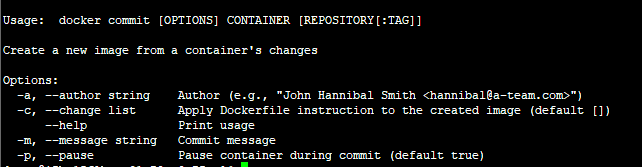
- 容器中创建一个镜像。在制作一些私有镜像时,常常是依赖于一个基础镜像后,然后进入容器中进行相关系统环境的配置,或者相应的优化。但若容器一删除,之前的修改都会没有了。故在这些场景下,可直接从修改后的容器中创建一个自己的私有镜像,这样里面的一些环境和相关优化项还是保留的。这个主要会在构建私有镜像章节时具体展开。
  # docker commit [options] 容器id name:tag

  docker commit 3ba5b7475423 lqdev.cn/redis:1

  参数说明:

    -a:提交的镜像作者

    -c:使用Dockerfile指令来创建镜像

    -m:提交时的说明文字

    -p:在commit时,将容器暂停
其他常用命令
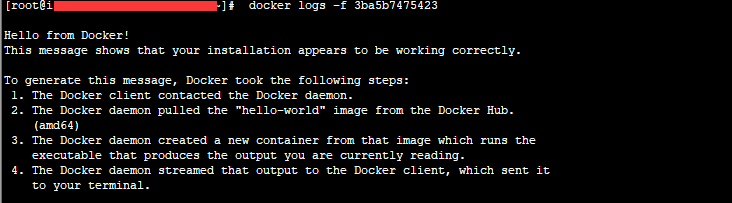
- 查看日志,利用
logs命令。
  # docker logs [OPTIONS] 容器ID

   docker logs -f 3ba5b7475423

   参数说明:

     -f : 跟踪日志输出

    --since :显示某个开始时间的所有日志

     -t : 显示时间戳

    --tail :仅列出最新N条容器日志
- 宿主和容器之间相互拷贝文件,利用
cp命令。
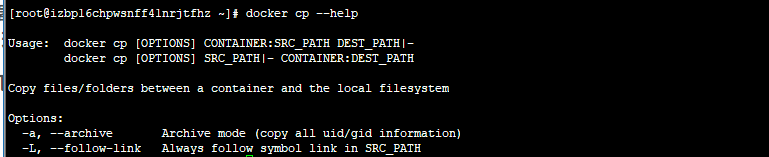
简单来说就是:
 # docker cp 容器名:要拷贝的文件在容器里面的路径  要拷贝到宿主机的相应路径

 # docker cp 要拷贝的文件路径 容器名:要拷贝到容器里面对应的路径

 docker cp 3ba5b7475423:/opt/a.json /opt

 docker cp /opt/a.json 3ba5b7475423:/opt
总结
本章节主要是介绍了下
Docker的一些常用命令的说明。文中未列举的命令,大家可直接使用命令docker command --help查看其命令说明或者自行谷歌下。熟悉了这些常用命令后,下一章节,主要会介绍下Dockerfile文件的语法及简单示例。
最后
若文中有错误或者遗漏之处,还望指出,共同进步!
参考资料
- https://docs.docker.com/engine/reference/commandline/docker/
- http://www.runoob.com/docker/docker-command-manual.html
老生常谈
- 个人QQ:
499452441 - 微信公众号:
lqdevOps

个人博客:http://blog.lqdev.cn
原文地址:http://blog.lqdev.cn/2018/07/31/docker/docker-three/
我的博客即将入驻“云栖社区”,诚邀技术同仁一同入驻。
Docker | 第三章:Docker常用命令的更多相关文章
- Linux学习笔记 一 第三章 Linux常用命令
第三章Linux常用命令 一.文件处理命令 1.命令格式 2.目录处理命令:ls 3.目录处理命令:mkdir 4.文件处理命令: touch
- 第三章 Docker 入门
第三章 docker 入门 3.1 确保docker已经就绪 首先查看docker程序是否存在,功能是否正常 [#3#cloudsoar@cloudsoar-virtual-machine ~]$su ...
- docker系列四之docker镜像与容器的常用命令
docker镜像与容器的常用命令 一.概述 docker的镜像于容器是docker中两个至关重要的概念,首先给各位读者解释一下笔者对于这两个概念的理解.镜像,我们从字面意思上看,镜子里成像,我们人 ...
- docker学习笔记二:常用命令
docker学习笔记二:常用命令 查看docker常用命令 docker --help 返回结果如下: 其中常用的命令如下: 1.image相关操作 展示所有的image: 删除image: rmi ...
- Docker(三)Docker常用命令
Docker常用命令 帮助命令 # 显示 Docker 版本信息 docker version # 显示系统信息,包括镜像和容器的数量 docker info # 查看帮助文档 帮助文档地址:http ...
- Docker容器(四)——常用命令
(1).基本使用方法 查看所有镜像.docker images [root@youxi1 ~]# docker images REPOSITORY TAG IMAGE ID CREATED SIZE ...
- Docker系列教程05 容器常用命令
https://mp.weixin.qq.com/s?__biz=MzI4ODQ3NjE2OA==&mid=2247483890&idx=1&sn=2721f08624e6de ...
- Java篇:Docker的介绍安装 和常用命令
文章目录 为什么 出现docker Docker的简介 容器(Container) 镜像(Image) 仓库(Repository) Docker的安装 查看容器 删除镜像 删除容器 部署应用 以my ...
- Docker小白到实战之常用命令演示,通俗易懂
前言 上一篇大概认识了Docker,主要是从概念.架构.优点及流程方面进行阐述,并进行安装和体验: 接下来就开始进行实操学习,在演示过程中会针对关键的知识点进行归纳和总结,这里先从常用命令说起,来吧, ...
随机推荐
- Break 、Continue 和ReadOnly、Const和Ref和Out params
Break和Continue区别 之前对于Break和Continue:ReadOnly和Const:ref和out,params之类的基础东东学习过,但是一直没有仔细去研究到底是怎么一回事儿,最近在 ...
- jsp 路径问题
<script type="text/javascript" src="<%=ApplicationContextUtil.getBasePath(r ...
- 项目一:第四天 1、快递员的条件分页查询-noSession,条件查询 2、快递员删除(逻辑删除) 3、基于Apache POI实现批量导入区域数据 a)Jquery OCUpload上传文件插件使用 b)Apache POI读取excel文件数据
1. 快递员的条件分页查询-noSession,条件查询 2. 快递员删除(逻辑删除) 3. 基于Apache POI实现批量导入区域数据 a) Jquery OCUpload上传文件插件使用 b) ...
- jQuery学习1
学习jQuery的过程中发现了一个博客把jquery的要点整理的很不错,摘抄其精华以备学习.感谢:http://blog.csdn.net/wph_1129/article/details/59932 ...
- HDU 5980 Find Small A (水题)
题意:众所周知,字符 'a' 的ASCII码为97.现在,找出给定数组中出现了多少次 'a' .注意,此处的数字为计算机中的32位整数.这表示, 1个数字由四个字符组成(一个字符由8位二进制数组成). ...
- 拦截导弹 (NYOJ—79) 最长字串问题 (NYOJ—17)
这是到动态规划的题目,属于有顺序的0 1 背包问题: 代码: #include<stdio.h> #include<string.h> ][]; //d[i][j] ]; in ...
- HTML代码中<%%>、<%=%>、<%:%>各是什么意思
运行.获取后台代码或值.<%%>之间可以写服务器端代码,比如<%for(var i=0;i<10;i++){//执行循环体}%> 又如<%for(var i=0;i ...
- CSS中position的absolute和relative用法
static: HTML元素的默认定位方式 absolute: 将对象从文档流中拖出,使用left,right,top,bottom等属性进行绝对定位.而其层叠通过z-index属性定义.绝对定位的元 ...
- MySQL server has gone away问题得解决方案
mysql出现ERROR : (2006, 'MySQL server has gone away') 的问题意思就是指client和MySQL server之间的链接断开了. 造成这样的原因一般是s ...
- ERROR 1010 (HY000): Error dropping database (can't rmdir './nsd', errno: 39)
在删除数据库的时候报标题所示错误 mysql> drop database test; ERROR 1010 (HY000): Error dropping database (can't rm ...