
DEVOPS技术实践_15:使用Docker作为Jenkins的slave
前面实验了使用docker搭建一个jenkins,下面实验使用docker作为jenkins的slave节点
1. 环境准备
- 一个运行Docker的主机或者群集
- Jenkins应该能访问互联网,方便安装插件。
- Jenkins服务器能够和GitHub通信。
- Jenkinss对Java所需要的Git,和Maven配置应该配置好。
- 一个Jenkins master.
2. 在Docker主机上开启远端的访问API
此处针对Docker 18.03
/etc/docker/daemon.json会被docker.service的配置文件覆盖,直接添加daemon.json不起作用。可以有如下几种设置:
直接编辑配置文件:Centos中docker daemon配置文件在/lib/systemd/system/docker.service,找到以下字段,在后面添加如下,注意,此处不能用”fd://”,否则报错
[Unit]

Description=Docker Application Container Engine

Documentation=https://docs.docker.com

BindsTo=containerd.service

After=network-online.target firewalld.service containerd.service

Wants=network-online.target

Requires=docker.socket

[Service]

Type=notify

# the default is not to use systemd for cgroups because the delegate issues still

# exists and systemd currently does not support the cgroup feature set required

# for containers run by docker

#ExecStart=/usr/bin/dockerd -H fd:// --containerd=/run/containerd/containerd.sock

ExecStart=/usr/bin/dockerd -H unix:///var/run/docker.sock -H tcp://0.0.0.0:2375    #添加

ExecReload=/bin/kill -s HUP $MAINPID

TimeoutSec=

RestartSec=

Restart=always

# Note that StartLimit* options were moved from "Service" to "Unit" in systemd .

# Both the old, and new location are accepted by systemd  and up, so using the old location

# to make them work for either version of systemd.

StartLimitBurst=

# Note that StartLimitInterval was renamed to StartLimitIntervalSec in systemd .

# Both the old, and new name are accepted by systemd  and up, so using the old name to make

# this option work for either version of systemd.

StartLimitInterval=60s

# Having non-zero Limit*s causes performance problems due to accounting overhead

# in the kernel. We recommend using cgroups to do container-local accounting.

LimitNOFILE=infinity

LimitNPROC=infinity

LimitCORE=infinity

# Comment TasksMax if your systemd version does not support it.

# Only systemd  and above support this option.

TasksMax=infinity

# set delegate yes so that systemd does not reset the cgroups of docker containers

Delegate=yes
执行
[root@node6 ~]# systemctl daemon-reload
[root@node6 ~]# systemctl restart docker.service
安装Docker插件
点击【管理Jenkins】–【管理插件】–【可选插件】然后安装此插件

3. 配置Docker插件
点击系统管理----->系统设置

添加配置

然后点击保存
4. 创建Docker镜像
需要创建一个Docker的镜像在Docker主机上,方便我们在创建Jenkins slaves时使用。
查看Docker的镜像
[root@node6 ~]# docker images
REPOSITORY          TAG                 IMAGE ID            CREATED             SIZE

jenkins/jenkins     lts                 fac78e370c0b         days ago          568MB
拉取ubuntu的镜像
由于拉取的Ubuntu安装git有点问题,重新拉去一个ubuntu16.04的镜像
[root@node6 ~]# docker pull dftbcros.mirror.aliyuncs.com/library/ubuntu:16.04
16.04: Pulling from library/ubuntu

e80174c8b43b: Pull complete

d1072db285cc: Pull complete

858453671e67: Pull complete

3d07b1124f98: Pull complete

Digest: sha256:bb5b48c7750a6a8775c74bcb601f7e5399135d0a06de004d000e05fd25c1a71c

Status: Downloaded newer image for dftbcros.mirror.aliyuncs.com/library/ubuntu:16.04

dftbcros.mirror.aliyuncs.com/library/ubuntu:16.04
[root@node6 ~]# docker images
REPOSITORY                                    TAG                 IMAGE ID            CREATED             SIZE

dftbcros.mirror.aliyuncs.com/library/ubuntu   16.04               5f2bf26e3524         days ago          123MB

jenkins/jenkins                               lts                 fac78e370c0b         days ago          568MB

centos                                        latest              0f3e07c0138f         weeks ago         220MB
[root@node6 ~]# docker pull centos
Using default tag: latest

latest: Pulling from library/centos

729ec3a6ada3: Pull complete

Digest: sha256:f94c1d992c193b3dc09e297ffd54d8a4f1dc946c37cbeceb26d35ce1647f88d9

Status: Downloaded newer image for centos:latest

docker.io/library/centos:latest
执行下面的命令运行Docker容器并在容器中执行命令。
root@37e4f2be0a41:/# apt-get update
Get: http://archive.ubuntu.com/ubuntu xenial InRelease [247 kB]

Get: http://security.ubuntu.com/ubuntu xenial-security InRelease [109 kB]

Get: http://security.ubuntu.com/ubuntu xenial-security/main amd64 Packages [985 kB]

Get: http://archive.ubuntu.com/ubuntu xenial-updates InRelease [109 kB]

Get: http://archive.ubuntu.com/ubuntu xenial-backports InRelease [107 kB]

Get: http://archive.ubuntu.com/ubuntu xenial/main amd64 Packages [1558 kB]

Get: http://security.ubuntu.com/ubuntu xenial-security/restricted amd64 Packages [12.7 kB]

Get: http://security.ubuntu.com/ubuntu xenial-security/universe amd64 Packages [589 kB]

Get: http://security.ubuntu.com/ubuntu xenial-security/multiverse amd64 Packages [6281 B]

Get: http://archive.ubuntu.com/ubuntu xenial/restricted amd64 Packages [14.1 kB]

Get: http://archive.ubuntu.com/ubuntu xenial/universe amd64 Packages [9827 kB]

Get: http://archive.ubuntu.com/ubuntu xenial/multiverse amd64 Packages [176 kB]

Get: http://archive.ubuntu.com/ubuntu xenial-updates/main amd64 Packages [1362 kB]

Get: http://archive.ubuntu.com/ubuntu xenial-updates/restricted amd64 Packages [13.1 kB]

Get: http://archive.ubuntu.com/ubuntu xenial-updates/universe amd64 Packages [993 kB]

Get: http://archive.ubuntu.com/ubuntu xenial-updates/multiverse amd64 Packages [19.3 kB]

Get: http://archive.ubuntu.com/ubuntu xenial-backports/main amd64 Packages [7942 B]

Get: http://archive.ubuntu.com/ubuntu xenial-backports/universe amd64 Packages [8807 B]

Fetched 16.1 MB in 6min 48s (39.5 kB/s)

Reading package lists... Done
安装git
root@37e4f2be0a41:/# apt-get install -y git
添加用户
root@:37e4f2be0a41/# adduser  jenkins

Adding user `jenkins' ...

Adding new group `jenkins' (1000) ...

Adding new user `jenkins' (1000) with group `jenkins' ...

Creating home directory `/home/jenkins' ...

Copying files from `/etc/skel' ...

Enter new UNIX password:

Retype new UNIX password:

passwd: password updated successfully

Changing the user information for jenkins

Enter the new value, or press ENTER for the default

    Full Name []:

    Room Number []:

    Work Phone []:

    Home Phone []:

    Other []:

Is the information correct? [Y/n] Y
安装SSH server
root@37e4f2be0a41:/# apt-get install openssh-serverd
root@37e4f2be0a41:/# mkdir /var/run/sshd
5. 安装所需的应用
root@37e4f2be0a41:/# apt-get install openjdk-8-jdk -y
root@37e4f2be0a41:/# apt-get install maven
root@37e4f2be0a41:/# exit
[root@node6 ~]# docker ps -a
37e4f2be0a41 5f2bf26e3524 "/bin/bash" About an hour ago Exited () seconds ago sweet_hypatia
6. 保存镜像
[root@node6 ~]# docker commit b119e7f28b50 maven-build-slave-0.2
sha256:3a444723b0557cf81661b3f95947c3deae8c93008476ac3a86cbb8b7979815ce
[root@node6 ~]# docker images
maven-build-slave-0.2 latest 3a444723b055 About a minute ago 568MB
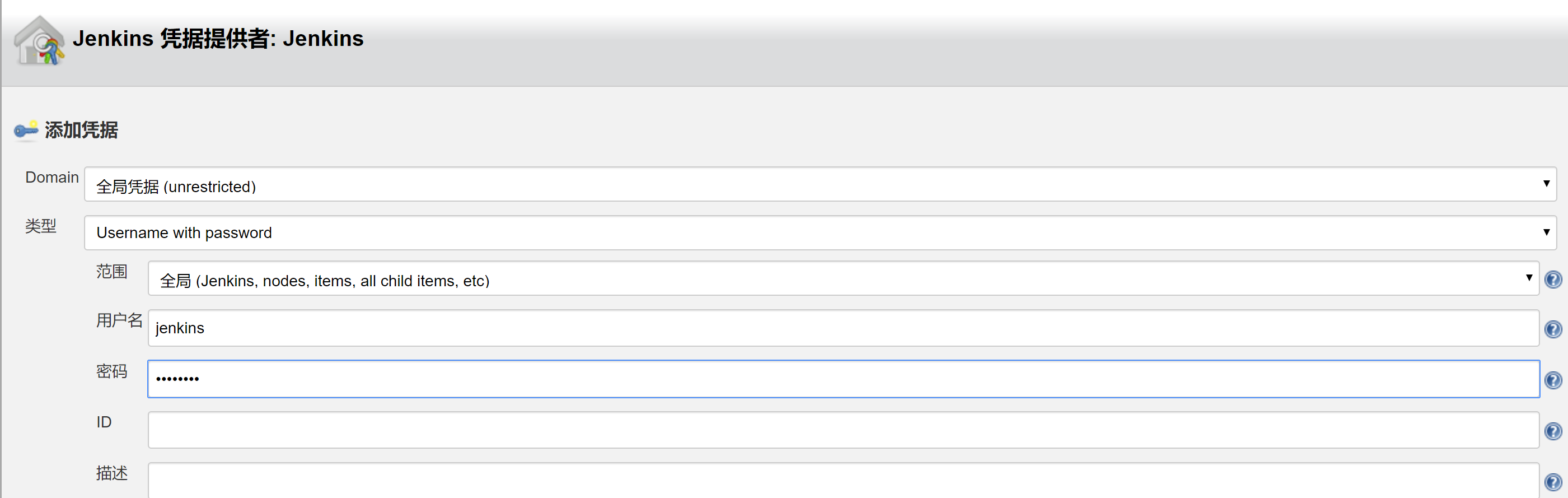
7. jenkins配置docker凭据
系统管理----->系统设置

创建凭据
配置模板

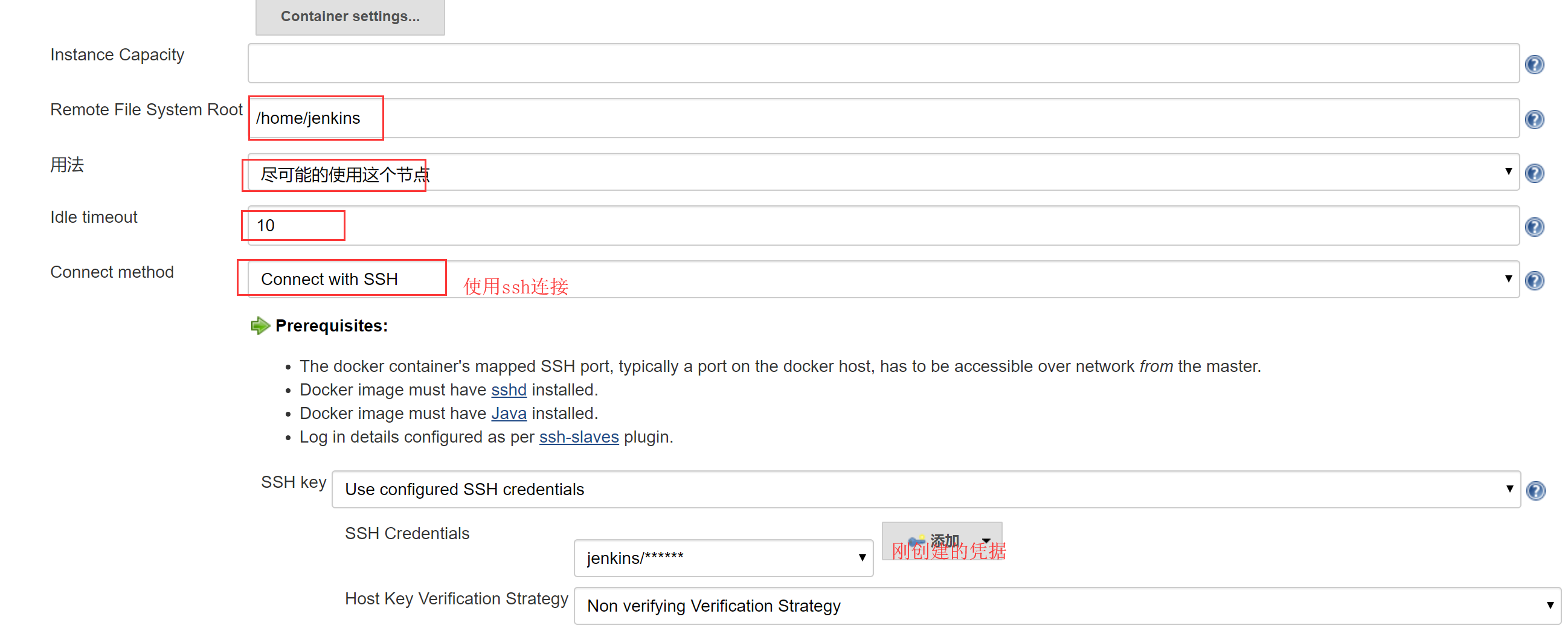
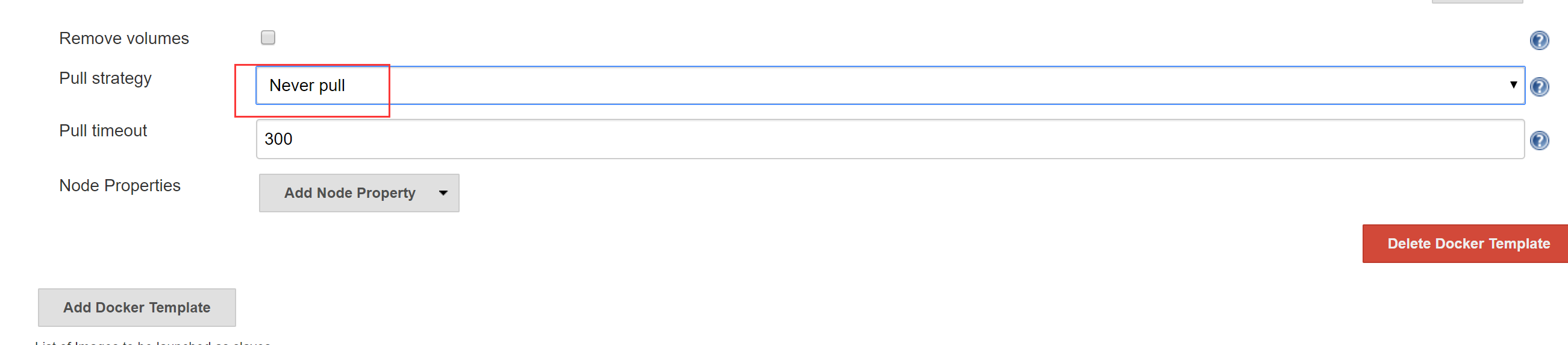
保存
8. jenkins测试
使用这个项目

pipeline语法
node('docker') {

    // some block

    stage('Preparation') {

    // some block

    //step

    git 'https://github.com/jglick/simple-maven-project-with-tests.git'

}

    stage('Build') {

    // some block

    //step

    withMaven(maven: 'M3') {

    // some block

    sh label: '', script: 'mvn -Dmaven.test.failuer.ignore clean install package'

}

}

}
构建即可
DEVOPS技术实践_15:使用Docker作为Jenkins的slave的更多相关文章
- DEVOPS技术实践_14:使用docker部署jenkins
一 基础环境准备 [root@node6 ~]# cat /etc/redhat-release CentOS Linux release (Core) [root@node6 ~]# yum -y ...
- DEVOPS技术实践_01:jenkins集成平台
一.准备环境 准备三台机器 角色 IP地址 用户名 密码 jenkins-master 172.25.254.130 admin meiyoumima gitlab 172.25.254 ...
- DEVOPS技术实践_16:使用Centos容器作为salve的报错offline的问题
上一篇创建了一个centos的容器,而且已经安装了openssh [root@node6 ~]# docker ps -a f2320c5d3c54 centos minutes ago Exited ...
- 使用docker搭建Jenkins 及slave的配置
安装Jenkins 使用docker docker run -d -p 8080:8080 -p 50000:50000 -v /opt/jenkins_home:/var/jenkins_home ...
- 非docker的jenkins的master如何使用docker的jenkins的slave
前提 1.存在jenkins的master,这个master不是docker的,是通过yum install jenkins安装的 2.使用docker创建n个jenkins,方法是docker pu ...
- DEVOPS技术实践_17:Jenkins使用扩展邮件功能发送邮件
一 环境准备 1.1 安装插件Email Extension 系统管理-管理插件-安装Email Extension插件 1.2 配置 配置jenkins邮箱的全局配置:系统管理-系统设置-完成邮箱配 ...
- DEVOPS技术实践_04:Jenkins参数化构建
一.参数化构建 1.1 各个参数的信息 凭据参数存储一个用户的账号密码信息,等等,运用最多的是选项参数 1.2 使用选项参数 构建已经变成参数化构建 1.3 获取这个值,修改Jenkinsfile文件 ...
- DEVOPS技术实践_03:Jenkins自动构建
一.提交代码自动构建 当开发人员在gitlab提交代码后,会自动触发jenkin构建 点击项目---->点击diy_maven-TEST----->点击配置--->构建触发器---- ...
- DEVOPS技术实践_18:Jenkins的Pinpeline对于参数的使用
因为最近使用Pipeline声明式语法构建项目,但是最近项目的参数设置较多,特地的来学习一下关于参数的调用和测试,主要式从一个大神那里学习的,结尾回贴上大神的博客链接 1 构建一个pipeline项目 ...
随机推荐
- Android中解析Json数据
在开发中常常会遇到解析json的问题 在这里总结几种解析的方式: 方式一: json数据: private String jsonData = "[{\"name\":\ ...
- python if 选择结构
- LeetCode74 Search a 2D Matrix
Write an efficient algorithm that searches for a value in an m x n matrix. This matrix has the follo ...
- Python3.6正向解析与反向解析域中主机
公司最近接手的一家跨国企业的项目,该企业单域.多站点,且遍布美国.巴西.日本.东京.新加坡等多个国家,服务器及客户端计算机数量庞大.由于处理一些特殊故障,需要找出一些不在域中的网络设备及存储.NBU等 ...
- @codechef - BIKE@ Chef and Bike
目录 @description@ @solution@ @accepted code@ @details@ @description@ 输入 n(n ≤ 22) 个点,m(m ≤ 8000) 个边.每 ...
- linux扫盲之CPU模式
相信研究linux的大大都知道linux有实模式.保护模式.虚拟模式三种. 不多说,拷贝黏贴! 80386开始,cpu有三种工作方式:实模式,保护模式和虚拟8086模式.只有在刚刚启动的时候是rea ...
- celery 计划任务使用
流程: 用户提交任务 --- > Celery --- > Broker 中间商(可以是数据库,redis) ---> 最后让celery 中的 worker 执行任务 1 单独使用 ...
- sublime 插件安装packagecontrol
https://packagecontrol.io/installation 第一步: Installation Simple The simplest method of installation ...
- Select multiple多选上移、下移
<!DOCTYPE HTML PUBLIC "-//W3C//DTD HTML 4.0 Transitional//EN"> <HTML> <HEAD ...
- js读取cookie 根据cookie名称获取值、赋值
借鉴:原作者https://blog.csdn.net/zouxuhang/article/details/80548417 //方法1 //存在问题:如果cookie中存在 aaaname= ...