
《React后台管理系统实战 :二》antd左导航:cmd批量创建子/目录、用antd进行页面布局、分离左导航为单独组件、子路由、动态写左导航、css样式相对陷阱
一、admin页面布局及路由创建
0)cmd批量创建目录及子目录
//创建各个目录,及charts和子目录bar

md home category product role  user charts\bar charts\line charts\pie

或

mkdir home category product role  user charts\bar charts\line charts\pie
目录结构
│  admin.jsx

│

├─category

├─charts

│  ├─bar

│  ├─line

│  └─pie

├─header

│      header.less

│      index.jsx

│

├─home

├─left

│      index.jsx

│      left.less

│

├─product

├─role

└─user
0.2 写基础文件,分别如下
F:admin-client\src\pages\admin>tree /f

卷 工作 的文件夹 PATH 列表

卷序列号为 284A-4B0E

F:.

│  admin.jsx

│

├─category

│      header.less

│      index.jsx

│

├─charts

│  ├─bar

│  │      header.less

│  │      index.jsx

│  │

│  ├─line

│  │      header.less

│  │      index.jsx

│  │

│  └─pie

│          header.less

│          index.jsx

│

├─header

│      header.less

│      index.jsx

│

├─home

│      header.less

│      index.jsx

│

├─left

│      index.jsx

│      left.less

│

├─product

│      header.less

│      index.jsx

│

├─role

│      header.less

│      index.jsx

│

└─user

        header.less

        index.jsx
1)用antd进行页面布局src/pages/admin/admin.jsx
import React,{Component} from 'react'

import {Redirect} from 'react-router-dom'

import memoryUtils from '../../utils/memoryUtils'

import { Layout } from 'antd'; //引入antd的页面布局

import LeftNav from './left' //因为文件名是index所以可省略

import Header from './header/index'

const { Footer, Sider, Content } = Layout;

class Admin extends Component{

    constructor(props){

        super(props);

    }

    render(){

        // 读取memoryUtils里的user数据,如果不存在就跳转到登录页面

        const user=memoryUtils.user

        if(!user || !user._id){

            return <Redirect to='/login'/>

        }

        return(

            <Layout style={{minHeight:'100%'}}>

                <Sider>

                    <LeftNav/>

                </Sider>

                <Layout>

                    <Header/>

                    <Content style={{backgroundColor:'#fff'}}>Content</Content>

                    <Footer style={{textAlign:'center',color:'#333'}}>版权所有@pasaulis</Footer>

                </Layout>

            </Layout>

        )

    }

}

export default Admin
2)分离出1步左侧组件src/pages/admin/left/index.jsx
import React,{Component} from 'react'

import {Link} from 'react-router-dom'

import './left.less'

import logo from '../../../assets/images/logo.png'

import { Menu, Icon } from 'antd';

const { SubMenu } = Menu;

export default class LeftNav extends Component{

    state = {

        collapsed: false,

      };

      toggleCollapsed = () => {

        this.setState({

          collapsed: !this.state.collapsed,

        });

      };

    render(){

        return (

        <div className='left'>

            <Link className='left-header'>

                <img src={logo} alt='logo' />

                <h1>深蓝管理后台</h1>

            </Link>

            <Menu

          defaultSelectedKeys={['1']}

          defaultOpenKeys={['sub1']}

          mode="inline"

          theme="dark"

          inlineCollapsed={this.state.collapsed}

        >

          <Menu.Item key="1">

            <Icon type="pie-chart" />

            <span>首页</span>

          </Menu.Item>

          <SubMenu

            key="sub1"

            title={

              <span>

                <Icon type="appstore" />

                <span>商品管理</span>

              </span>

            }

          >

            <Menu.Item key="5">分类管理</Menu.Item>

            <Menu.Item key="6">商品管理</Menu.Item>

          </SubMenu>

          <SubMenu

            key="sub2"

            title={

              <span>

                <Icon type="appstore" />

                <span>用户管理</span>

              </span>

            }

          >

            <Menu.Item key="9">Option 9</Menu.Item>

            <Menu.Item key="10">Option 10</Menu.Item>

            <SubMenu key="sub3" title="Submenu">

              <Menu.Item key="11">Option 11</Menu.Item>

              <Menu.Item key="12">Option 12</Menu.Item>

            </SubMenu>

          </SubMenu>

          <SubMenu

            key="sub3"

            title={

              <span>

                <Icon type="user" />

                <span>角色管理</span>

              </span>

            }

          >

            <Menu.Item key="5">分类管理</Menu.Item>

            <Menu.Item key="6">商品管理</Menu.Item>

          </SubMenu>

          <SubMenu

            key="sub4"

            title={

              <span>

                <Icon type="appstore" />

                <span>图形图表</span>

              </span>

            }

          >

            <Menu.Item key="5">分类管理</Menu.Item>

            <Menu.Item key="6">商品管理</Menu.Item>

          </SubMenu>

        </Menu>

        </div>

        )

    }

}
2.2 left/left.less
.left {

    .left-header {

        display: flex;

        align-items: center;

        height: 80px;

        background-color:#002140;

        img{

            height: 40px;

            width: 40px;

            margin:0 12px;

        }

        h1{

            color:white;

            font-size: 20px;

            margin-bottom: 0;

        }

    }

}
3)分离出1步头部组件src/pages/admin/header/index.jsx
import React,{Component} from 'react'

import './header.less'

export default class Header extends Component{

    render(){

        return(

            <div className='header'>

                header

            </div>

        )

    }

}
3.2 /header.less
.header{

    height: 80px;

}
4)写admin.jsx的路由
【1】引入路由组件
【2】以下8条为引入需要配置路由的页面
【3】路由配置在要显示的位置,即内容里
【3.2】如果以上都不匹配跳转到home页
import React,{Component} from 'react'

import {Redirect,Route,Switch} from 'react-router-dom' //【1】引入路由组件

import memoryUtils from '../../utils/memoryUtils'

import { Layout } from 'antd'; //引入antd的页面布局

import LeftNav from './left' //因为文件名是index所以可省略

import Header from './header/index'

//【2】以下8条为引入需要配置路由的页面

import Home from './home'

import Category from './category' //产品分类

import Product from './product'

import Role from './role' //角色管理页面

import User from './user' //用户管理页面

import Bar from './charts/bar' //图表页面

import Pie from './charts/pie'

import Line from './charts/line'

const { Footer, Sider, Content } = Layout;

class Admin extends Component{

    constructor(props){

        super(props);

    }

    render(){

        // 读取memoryUtils里的user数据,如果不存在就跳转到登录页面

        const user=memoryUtils.user

        if(!user || !user._id){

            return <Redirect to='/login'/>

        }

        return(

            <Layout style={{minHeight:'100%'}}>

                <Sider>

                    <LeftNav/>

                </Sider>

                <Layout>

                    <Header/>

                    {/*【3】路由配置在要显示的位置,即内容里 */}

                    <Content style={{backgroundColor:'#fff'}}>

                        <Switch>

                            <Route path='/home' component={Home}/>

                            <Route path='/category' component={Category}/>

                            <Route path='/product' component={Product}/>

                            <Route path='/role' component={Role}/>

                            <Route path='/user' component={User}/>

                            <Route path='/charts/bar' component={Bar}/>

                            <Route path='/charts/line' component={Line}/>

                            <Route path='/charts/pie' component={Pie}/>

                            {/*【3.2】如果以上都不匹配跳转到home页 */}

                            <Redirect to='/home'/>

                        </Switch>

                    </Content>

                    <Footer style={{textAlign:'center',color:'#333'}}>版权所有@pasaulis</Footer>

                </Layout>

            </Layout>

        )

    }

}

export default Admin
5)完善左侧导航路径src/page/admin/left/index.jsx
import React,{Component} from 'react'

import {Link} from 'react-router-dom'

import './left.less'

import logo from '../../../assets/images/logo.png'

import { Menu, Icon } from 'antd';

const { SubMenu } = Menu;

export default class LeftNav extends Component{

    state = {

        collapsed: false,

      };

      toggleCollapsed = () => {

        this.setState({

          collapsed: !this.state.collapsed,

        });

      };

    render(){

        return (

        <div className='left'>

            <Link className='left-header'>

                <img src={logo} alt='logo' />

                <h1>深蓝管理后台</h1>

            </Link>

        <Menu

          defaultSelectedKeys={['1']}

          defaultOpenKeys={['sub1']}

          mode="inline"

          theme="dark"

          inlineCollapsed={this.state.collapsed}

        >

          <Menu.Item key="1">

            <Link to='/home'>

                <Icon type="pie-chart" />

                <span>首页</span>

            </Link>

          </Menu.Item>

          <SubMenu

            key="sub1"

            title={

              <span>

                <Icon type="appstore" />

                <span>商品管理</span>

              </span>

            }

          >

            <Menu.Item key="2"><Link to='/category'>分类管理</Link></Menu.Item>

            <Menu.Item key="3"><Link to='/product'>商品管理</Link></Menu.Item>

          </SubMenu>

          <SubMenu

            key="sub2"

            title={

              <span>

                <Icon type="appstore" />

                <span>用户管理</span>

              </span>

            }

          >

            <Menu.Item key="4"><Link to='/user'>用户管理</Link></Menu.Item>

          </SubMenu>

          <SubMenu

            key="sub3"

            title={

              <span>

                <Icon type="user" />

                <span>角色管理</span>

              </span>

            }

          >

            <Menu.Item key="8"><Link to='/category'>角色管理</Link></Menu.Item>

            <Menu.Item key="9">角色管理</Menu.Item>

          </SubMenu>

          <SubMenu

            key="sub4"

            title={

              <span>

                <Icon type="appstore" />

                <span>图形图表</span>

              </span>

            }

          >

            <Menu.Item key="10"><Link to='/charts/bar'>柱状图表</Link></Menu.Item>

            <Menu.Item key="11"><Link to='/charts/line'>线图表</Link></Menu.Item>

            <Menu.Item key="12"><Link to='/charts/pie'>饼图表</Link></Menu.Item>

          </SubMenu>

        </Menu>

        </div>

        )

    }

}
5.2效果:http://localhost:3000/home
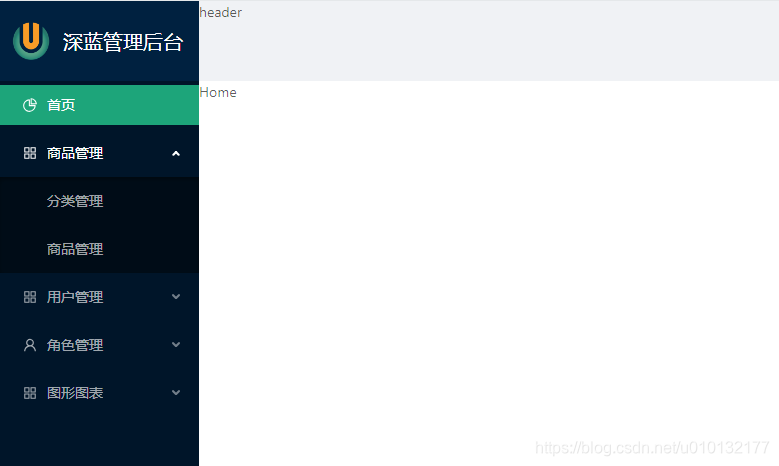
6)完善5步:动态加载左导航src/config/menuconfig.js配置文件
src/pages/admin/left/index.js
【1】根据配置文件自动写入左侧导航到页面
【2】调用自动写左导航函数,自动写入到此处
import React,{Component} from 'react'

import {Link} from 'react-router-dom'

import './left.less'

import logo from '../../../assets/images/logo.png'

import { Menu, Icon } from 'antd';

import menuList from '../../../config/menuConfig.js'

const { SubMenu } = Menu;

export default class LeftNav extends Component{

    state = {

        collapsed: false,

      };

      toggleCollapsed = () => {

        this.setState({

          collapsed: !this.state.collapsed,

        });

      };

	// 【1】根据配置文件自动写入左侧导航到页面函数

    getMenuItem=(menuList)=>{

        return menuList.map(item=>{//多级把参数内再写一函数

            if(!item.children){//如果不存在children则返回:

                return(

                <Menu.Item key={item.key}>

                    <Link to={item.key}>

                        <Icon type={item.icon}/>

                        <span>{item.title}</span>

                    </Link>

                </Menu.Item>

                )

            }else{//否则返回

                return(

                    <SubMenu

                        key={item.key}

                        title={

                            <span>

                            <Icon type={item.icon}/>

                            <span>{item.title}</span>

                            </span>

                        }

                        >

                        {

                        //递归调用此函数本身写入子级菜单

                        this.getMenuItem(item.children)

                        }

                    </SubMenu>

                )

            }

        })

    }

    render(){

        return (

        <div className='left'>

            <Link to='/home' className='left-header'>

                <img src={logo} alt='logo' />

                <h1>深蓝管理后台</h1>

            </Link>

        <Menu

          defaultSelectedKeys={['1']}

          defaultOpenKeys={['sub1']}

          mode="inline"

          theme="dark"

          inlineCollapsed={this.state.collapsed}

        >

            {

            //【2】调用自动写左导航函数,自动写入到此处

            this.getMenuItem(menuList)

            }

          {/* 以下为写死的方式,注释掉

          <Menu.Item key="1">

            <Link to='/home'>

                <Icon type="pie-chart" />

                <span>首页</span>

            </Link>

          </Menu.Item>

          <SubMenu

            key="sub1"

            title={

              <span>

                <Icon type="appstore" />

                <span>商品管理</span>

              </span>

            }

          >

            <Menu.Item key="2"><Link to='/category'>分类管理</Link></Menu.Item>

            <Menu.Item key="3"><Link to='/product'>商品管理</Link></Menu.Item>

          </SubMenu>

          <SubMenu

            key="sub2"

            title={

              <span>

                <Icon type="appstore" />

                <span>用户管理</span>

              </span>

            }

          >

            <Menu.Item key="4"><Link to='/user'>用户管理</Link></Menu.Item>

          </SubMenu>

          <SubMenu

            key="sub3"

            title={

              <span>

                <Icon type="user" />

                <span>角色管理</span>

              </span>

            }

          >

            <Menu.Item key="8"><Link to='/category'>角色管理</Link></Menu.Item>

            <Menu.Item key="9">角色管理</Menu.Item>

          </SubMenu>

          <SubMenu

            key="sub4"

            title={

              <span>

                <Icon type="appstore" />

                <span>图形图表</span>

              </span>

            }

          >

            <Menu.Item key="10"><Link to='/charts/bar'>柱状图</Link></Menu.Item>

            <Menu.Item key="11"><Link to='/charts/line'>线图表</Link></Menu.Item>

            <Menu.Item key="12"><Link to='/charts/pie'>饼图表</Link></Menu.Item>

          </SubMenu> */}

        </Menu>

        </div>

        )

    }

}
效果同上,菜单会自动根据config内的menuConfig.js加载。
6.2附件src/config/menuconfig.js
const menuList = [

  {

    title: '首页', // 菜单标题名称

    key: '/home', // 对应的path

    icon: 'home', // 图标名称

    isPublic: true, // 公开的

  },

  {

    title: '商品',

    key: '/products',

    icon: 'appstore',

    children: [ // 子菜单列表

      {

        title: '品类管理',

        key: '/category',

        icon: 'bars'

      },

      {

        title: '商品管理',

        key: '/product',

        icon: 'tool'

      },

    ]

  },

  {

    title: '用户管理',

    key: '/user',

    icon: 'user'

  },

  {

    title: '角色管理',

    key: '/role',

    icon: 'safety',

  },

  {

    title: '图形图表',

    key: '/charts',

    icon: 'area-chart',

    children: [

      {

        title: '柱形图',

        key: '/charts/bar',

        icon: 'bar-chart'

      },

      {

        title: '折线图',

        key: '/charts/line',

        icon: 'line-chart'

      },

      {

        title: '饼图',

        key: '/charts/pie',

        icon: 'pie-chart'

      },

    ]

  },

  {

    title: '订单管理',

    key: '/order',

    icon: 'windows',

  },

]

export default menuList
css样式陷阱及解决
随便刷新一个类似多级页面,http://localhost:3000/charts/bar
样式会变成这样(页面不能全屏),且控制台报错:
Refused to apply style from

'http://localhost:3000/charts/css/reset.css'

because its MIME type ('text/html') is not a supported stylesheet

 MIME type, and strict MIME checking is enabled.
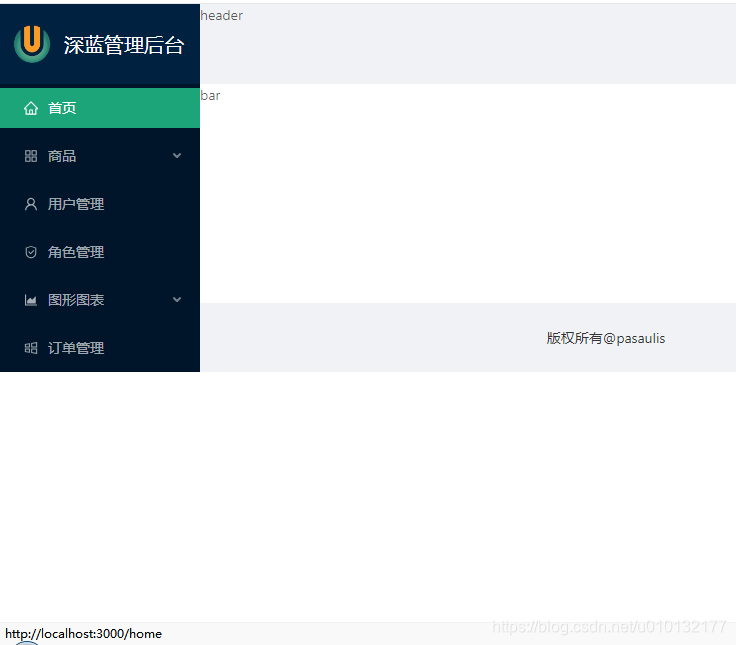
解决把之前写在public目录下的index.html样式的相对引用改成绝对引用:
【1】重置样式处改成绝对路径:<link rel="stylesheet" href="/css/reset.css" />
原:
<!DOCTYPE html>

<html lang="zh">

  <head>

    <meta charset="utf-8" />

    <link rel="icon" href="%PUBLIC_URL%/favicon.ico" />

    <meta name="viewport" content="width=device-width, initial-scale=1" />

    <meta name="theme-color" content="#000000" />

    <meta

      name="description"

      content="Web site created using create-react-app"

    />

    <link rel="apple-touch-icon" href="%PUBLIC_URL%/logo192.png" />

    <!--

      manifest.json provides metadata used when your web app is installed on a

      user's mobile device or desktop. See https://developers.google.com/web/fundamentals/web-app-manifest/

    -->

    <!-- 【1】重置样式 -->

    <link rel="stylesheet" href="/css/reset.css" />

    <link rel="manifest" href="%PUBLIC_URL%/manifest.json" />

    <!--

      Notice the use of %PUBLIC_URL% in the tags above.

      It will be replaced with the URL of the `public` folder during the build.

      Only files inside the `public` folder can be referenced from the HTML.

      Unlike "/favicon.ico" or "favicon.ico", "%PUBLIC_URL%/favicon.ico" will

      work correctly both with client-side routing and a non-root public URL.

      Learn how to configure a non-root public URL by running `npm run build`.

    -->

    <title>Admin</title>

  </head>

  <body>

    <noscript>You need to enable JavaScript to run this app.</noscript>

    <div id="root"></div>

    <!--

      This HTML file is a template.

      If you open it directly in the browser, you will see an empty page.

      You can add webfonts, meta tags, or analytics to this file.

      The build step will place the bundled scripts into the <body> tag.

      To begin the development, run `npm start` or `yarn start`.

      To create a production bundle, use `npm run build` or `yarn build`.

    -->

  </body>

</html>
7)6步动态加载左导航函数用reduce()写
/*

  根据menu的数据数组生成对应的标签数组

  使用reduce() + 递归调用

  */

  getMenuNodes = (menuList) => {

    // 得到当前请求的路由路径

    const path = this.props.location.pathname

    return menuList.reduce((pre, item) => {

      // 如果当前用户有item对应的权限, 才需要显示对应的菜单项

      if (this.hasAuth(item)) {

        // 向pre添加<Menu.Item>

        if(!item.children) {

          pre.push((

            <Menu.Item key={item.key}>

              <Link to={item.key}>

                <Icon type={item.icon}/>

                <span>{item.title}</span>

              </Link>

            </Menu.Item>

          ))

        } else {

          // 查找一个与当前请求路径匹配的子Item

          const cItem = item.children.find(cItem => path.indexOf(cItem.key)===0)

          // 如果存在, 说明当前item的子列表需要打开

          if (cItem) {

            this.openKey = item.key

          }

          // 向pre添加<SubMenu>

          pre.push((

            <SubMenu

              key={item.key}

              title={

                <span>

              <Icon type={item.icon}/>

              <span>{item.title}</span>

            </span>

              }

            >

              {this.getMenuNodes(item.children)}

            </SubMenu>

          ))

        }

      }

      return pre

    }, [])

  }

使用:

{this.getMenuNodes(menuList)}
效果同6
8)路由的withRouter高阶函数的使用,左导航完善:点在一个页面刷新不能显示选中状态
在控制台点开之前安装的react组件,搜索随便一个带路由的组件选中查看其带有的属性:this.props.location.pathname,而leftNav组件没有这些,因此无法确定选定状态
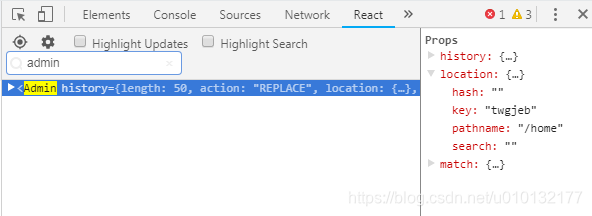
通过router的withRouter()高阶函数让leftNav具有路由属性,从而能确定当前页面位置,让导航具有选定状态:
src/pages/admin/left/index.jsx
【1】withRouter:高阶函数,用于把非路由组件包装成路由组件
【2】用withRouter高阶组件:
- 包装非路由组件, 返回一个新的组件
- 新的组件向非路由组件传递3个属性: history/location/match
【3】获取当前页面的路径
【4】选中路径为3步获取的路径,从而确定选中状态,刷新后也会有选中效果
import React,{Component} from 'react'

import {Link,withRouter} from 'react-router-dom' //【1】withRouter:高阶函数,用于把非路由组件包装成路由组件

import './left.less'

import logo from '../../../assets/images/logo.png'

import { Menu, Icon } from 'antd';

import menuList from '../../../config/menuConfig.js'

const { SubMenu } = Menu;

class LeftNav extends Component{

    state = {

        collapsed: false,

      };

      toggleCollapsed = () => {

        this.setState({

          collapsed: !this.state.collapsed,

        });

      };

    // 根据配置文件自动写入左侧导航到页面

    getMenuItem=(menuList)=>{

        return menuList.map(item=>{

            if(!item.children){

                return(

                <Menu.Item key={item.key}>

                    <Link to={item.key}>

                        <Icon type={item.icon}/>

                        <span>{item.title}</span>

                    </Link>

                </Menu.Item>

                )

            }else{

                return(

                    <SubMenu

                        key={item.key}

                        title={

                            <span>

                            <Icon type={item.icon}/>

                            <span>{item.title}</span>

                            </span>

                        }

                        >

                        {this.getMenuItem(item.children)}

                    </SubMenu>

                )

            }

        })

    }

    render(){

    //【3】获取当前页面的路径

        const path=this.props.location.pathname

        return (

        <div className='left'>

            <Link to='/home' className='left-header'>

                <img src={logo} alt='logo' />

                <h1>深蓝管理后台</h1>

            </Link>

        <Menu

          defaultSelectedKeys={[path]} //【4】选中路径为3步获取的路径,从而确定选中状态,刷新后也会有选中效果

          defaultOpenKeys={[path]}

          mode="inline"

          theme="dark"

          inlineCollapsed={this.state.collapsed}

        >

            {this.getMenuItem(menuList)}

        </Menu>

        </div>

        )

    }

}

/*【2】用withRouter高阶组件:

包装非路由组件, 返回一个新的组件

新的组件向非路由组件传递3个属性: history/location/match

 */

export default withRouter(LeftNav)
9)再优化:访问/跳转到/home后,没有选中状态
https://ant.design/components/menu-cn/#components-menu-demo-switch-mode
把上一步的leftNav组件的default改成selectedKeys即可。
		<Menu

          selectedKeys={[path]} //【1】换属性

          defaultOpenKeys={[path]}

          mode="inline"

          theme="dark"

          inlineCollapsed={this.state.collapsed}

        >
10)再优化:刷新后带子导航的没有默认展开
【1】得到当前请求的路由路径
【2】查找一个与当前请求路径匹配的子Item
【3】在第一次render()之前执行一次读取左导航config函数,防止放在render内多次渲染的浪费,为第一个render()准备数据(必须同步的)
【4】得到需要打开菜单项的key
【5】获取默认需要打开的路径
【6】调用方式修改,防止多次渲染,浪费资源
import React,{Component} from 'react'

import {Link,withRouter} from 'react-router-dom' //withRouter:高阶函数,用于把非路由组件包装成路由组件

import './left.less'

import logo from '../../../assets/images/logo.png'

import { Menu, Icon } from 'antd'

import menuList from '../../../config/menuConfig.js'

const { SubMenu } = Menu;

class LeftNav extends Component{

    state = {

        collapsed: false,

      };

    //控制左导航是否收缩

      toggleCollapsed = () => {

        this.setState({

          collapsed: !this.state.collapsed,

        });

      };

    // 根据配置文件自动写入左侧导航到页面

    getMenuItem=(menuList)=>{

        // 【1】得到当前请求的路由路径

        const path = this.props.location.pathname

        return menuList.map(item=>{

            if(!item.children){

                return(

                <Menu.Item key={item.key}>

                    <Link to={item.key}>

                        <Icon type={item.icon}/>

                        <span>{item.title}</span>

                    </Link>

                </Menu.Item>

                )

            }else{

                // 【2】查找一个与当前请求路径匹配的子Item

                const cItem = item.children.find(cItem => path.indexOf(cItem.key)===0)

                // 如果存在, 说明当前item的子列表需要打开

                if (cItem) {

                    this.openKey = item.key

                }

                return(

                    <SubMenu

                        key={item.key}

                        title={

                            <span>

                            <Icon type={item.icon}/>

                            <span>{item.title}</span>

                            </span>

                        }

                        >

                        {this.getMenuItem(item.children)}

                    </SubMenu>

                )

            }

        })

    }

    /*

    【3】在第一次render()之前执行一次读取左导航config函数,防止放在render内多次渲染的浪费

    为第一个render()准备数据(必须同步的)

    */

    componentWillMount () {

        this.menuNodes = this.getMenuItem(menuList)

    }

    render(){

        // 得到当前请求的路由路径

        let path=this.props.location.pathname

        // 【4】得到需要打开菜单项的key

        const openKey = this.openKey

        return (

        <div className='left'>

            <Link to='/home' className='left-header'>

                <img src={logo} alt='logo' />

                <h1>深蓝管理后台</h1>

            </Link>

        <Menu

          selectedKeys={[path]}

          defaultOpenKeys={[openKey]} //【5】获取默认需要打开的路径

          mode="inline"

          theme="dark"

          inlineCollapsed={this.state.collapsed}

        >    {/*【6】调用方式修改,防止多次渲染,浪费资源*/}

            {this.menuNodes}

        </Menu>

        </div>

        )

    }

}

/*用withRouter高阶组件:

包装非路由组件, 返回一个新的组件

新的组件向非路由组件传递3个属性: history/location/match

 */

export default withRouter(LeftNav)
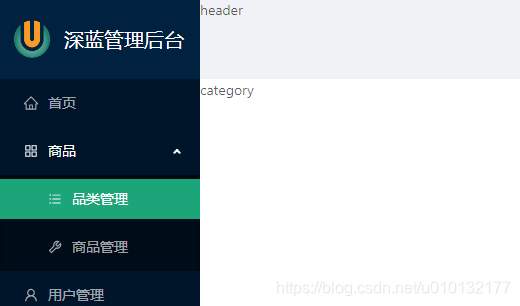
效果,刷新后,商品及子分类依然展开
《React后台管理系统实战 :二》antd左导航:cmd批量创建子/目录、用antd进行页面布局、分离左导航为单独组件、子路由、动态写左导航、css样式相对陷阱的更多相关文章
- 《React后台管理系统实战 :一》:目录结构、引入antd、引入路由、写login页面、使用antd的form登录组件、form前台验证、高阶函数/组件
实战 上接,笔记:https://blog.csdn.net/u010132177/article/details/104150177 https://gitee.com/pasaulis/react ...
- 《React后台管理系统实战 :三》header组件:页面排版、天气请求接口及页面调用、时间格式化及使用定时器、退出函数
一.布局及排版 1.布局src/pages/admin/header/index.jsx import React,{Component} from 'react' import './header. ...
- 《React后台管理系统实战 零》:基础笔记
day01 1. 项目开发准备 1). 描述项目 2). 技术选型 3). API接口/接口文档/测试接口 2. 启动项目开发 1). 使用react脚手架创建项目 2). 开发环境运行: npm s ...
- 《React后台管理系统实战 :四》产品分类管理页:添加产品分类、修改(更新)产品分类
一.静态页面 目录结构 F:\Test\react-demo\admin-client\src\pages\admin\category add-cate-form.jsx index.jsx ind ...
- SpringSecurity权限管理系统实战—二、日志、接口文档等实现
系列目录 SpringSecurity权限管理系统实战-一.项目简介和开发环境准备 SpringSecurity权限管理系统实战-二.日志.接口文档等实现 SpringSecurity权限管理系统实战 ...
- 【共享单车】—— React后台管理系统开发手记:主页面架构设计
前言:以下内容基于React全家桶+AntD实战课程的学习实践过程记录.最终成果github地址:https://github.com/66Web/react-antd-manager,欢迎star. ...
- 【共享单车】—— React后台管理系统开发手记:城市管理和订单管理
前言:以下内容基于React全家桶+AntD实战课程的学习实践过程记录.最终成果github地址:https://github.com/66Web/react-antd-manager,欢迎star. ...
- 【共享单车】—— React后台管理系统开发手记:Router 4.0路由实战演练
前言:以下内容基于React全家桶+AntD实战课程的学习实践过程记录.最终成果github地址:https://github.com/66Web/react-antd-manager,欢迎star. ...
- 【共享单车】—— React后台管理系统开发手记:UI菜单各个组件使用(Andt UI组件)
前言:以下内容基于React全家桶+AntD实战课程的学习实践过程记录.最终成果github地址:https://github.com/66Web/react-antd-manager,欢迎star. ...
随机推荐
- 微信+QQ跳转
加到对应页面的</body> 上面,或者<head> </head>之间 <script type="text/javascript"&g ...
- Oracle 设置NLS_CHARACTERSET字符集
Oracle 设置NLS_CHARACTERSET字符集 sqlplus "/ as sysdba"SQL> SHUTDOWN IMMEDIATE;SQL> START ...
- 跨域-JSONP
jsonp跨域 - 前端适配,后台配合 说明:前后台同时改造 cnpm i jsonp --save-dev 在App.vue里 import jsonp from 'jsonp' let url = ...
- python网络爬虫之解析网页的XPath(爬取Path职位信息)[三]
目录 前言 XPath的使用方法 XPath爬取数据 后言 @(目录) 前言 本章同样是解析网页,不过使用的解析技术为XPath. 相对于之前的BeautifulSoup,我感觉还行,也是一个比较常用 ...
- vs2015 C语言
1.C语言输入一行未知个数数字存入数组 参考:https://www.cnblogs.com/wd1001/p/4826855.html 2.VS2015编写C语言程序的流程 参考:http://c. ...
- Kubernetes的pod控制器之DaemonSet
DaemonSet 顶级参数介绍 [root@master manifests]# kubectl explain ds KIND: DaemonSet VERSION: extensions/v1b ...
- oracle用户密码忘记怎么修改
安装完数据库很久不用常常会忘记其密码,碰到这种情况不要动不动就重装数据库,按其下方法修改即可. 一:忘记sys,system用户的密码 1,在开始菜单点击‘运行’,输入‘cmd’,打开命令提示窗口,输 ...
- ConcurrentHashMap 实现缓存类
参考:https://blog.csdn.net/woshilijiuyi/article/details/81335497 在规定时间内,使用 hashMap 实现一个缓存工具类,需要考虑一下几点 ...
- codeforces- Shortest path of the king
The king is left alone on the chessboard. In spite of this loneliness, he doesn't lose heart, becaus ...
- Style 继承
在应用某个主题后,想在此基础上自定义新的样式,可以使用如下方式继承样式. <Style x:Key="ListViewItemStyle" TargetType=" ...