
How to enable $Admin Shares in Windows 7
Quote from: http://www.wintips.org/how-to-enable-admin-shares-windows-7/
As “Administrative shares” are defined all the default network shares that can be accessed remotely only from network administrators. The Admin shares are hidden and they are disabled by default in a Windows 7 based computers in order to prevent unauthorized users to access or modify them through a network environment.
In this tutorial, we explain how to SECURELY enable Admin$ shares for your disk volumes (C$, D$, etc.) on a Windows 7 based computer, so they will be accessible (from another computer on your network) only by specific users.

Step 1: Ensure that both computers belong to the same Workgroup.
To check if both computers belong to the same workgroup, do the following:
Malwarebytes™ Protection Removes Spyware, Adware & Malware. Start Your Free Download Now!
1. Right-click on “Computer-Name” icon on your desktop and choose “Properties” or (additionally) navigate to Windows Control Panel, choose “System and Security” and select “System”,

2. Look at “WORKGROUP” name at the right and ensure that it is the same name on both computers (e.g. WORKGROUP)

Step 2: Specify which user(s) can access the Admin Shares (Disk Volumes).
The Administrative shares can be (and must be) accessed from Administrator users only. So if you want a user from your network to be able to access Admin($) shares, you must give to this user local Administrative rights on the computer that you want to enable Admin shares. To do that:
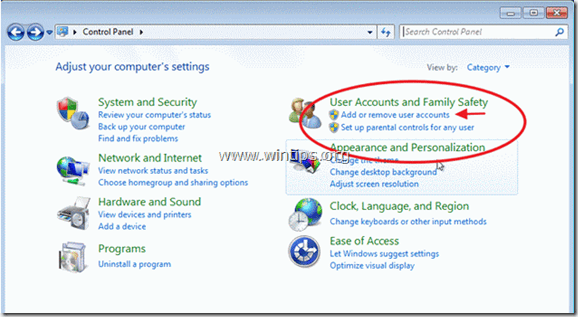
1. Go to your Windows control panel (“Start” > “Control Panel”).
2. Open “Add or remove user accounts”
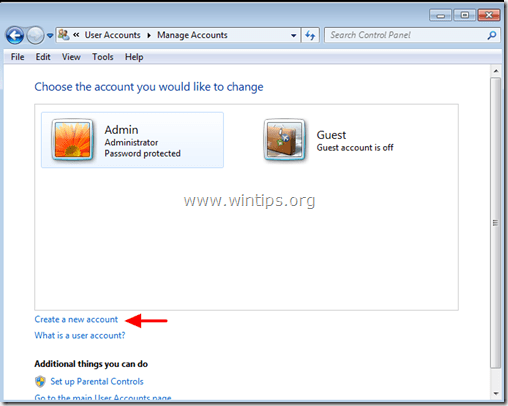
3. Now create a new account on your computer with Administrative privileges. Additionally, if you have already setup an account, ensure that he has Administrator privileges (choose the Account you want, select “Change the account type” option and set him as “Administrator”).
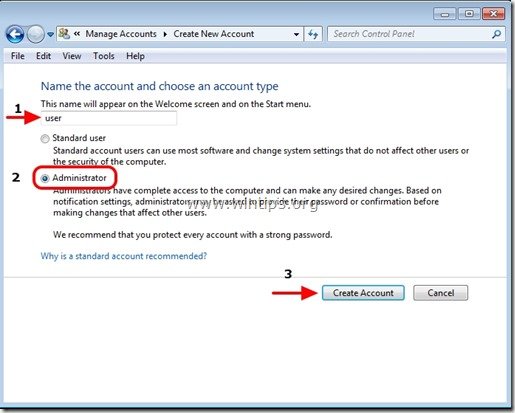
4. Give a username for your new account (e.g. user), set it up as an Administrator user and press “Create Account” button.
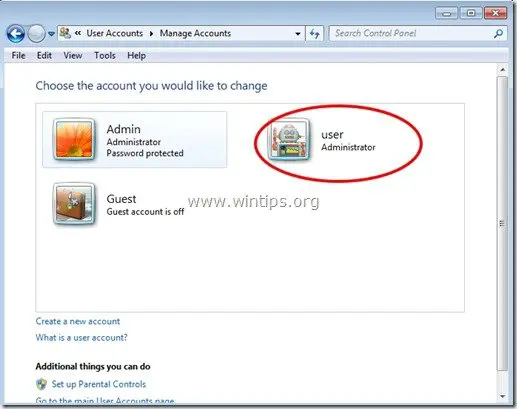
5. At this point the “Manage Accounts” options window should look like this:
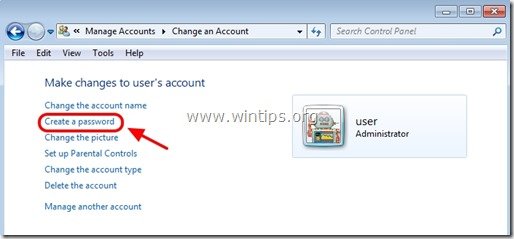
6. After you create your account your must specify a password. So click on the new account (e.g. user) and press “Create a password”.
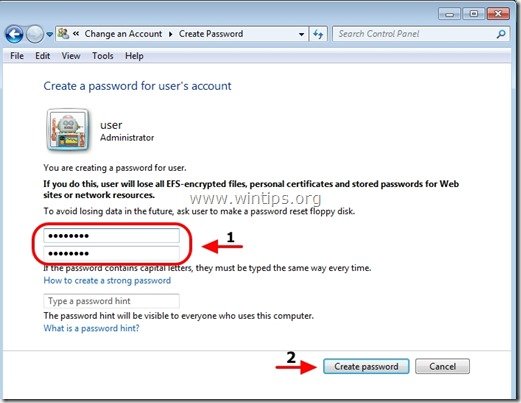
7. Type a strong password (2 times) and press “Create password” button.
Step 3: Enable “File and print sharing” through Windows Firewall.
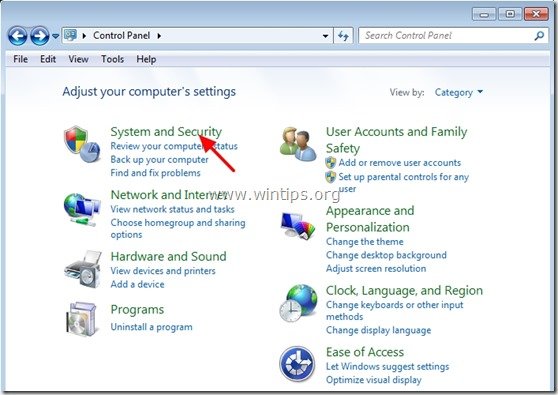
1. Navigate to Windows control panel and click on “System and Security”.
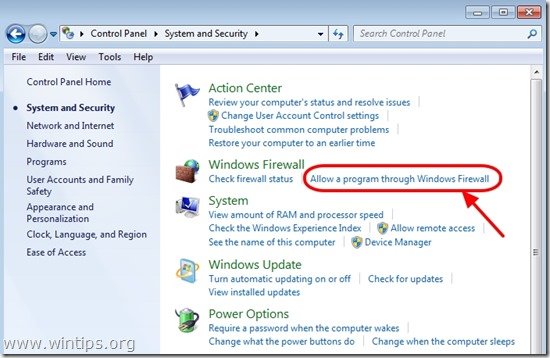
2. On “Windows Firewall” section, press the “Allow a program through Windows Firewall” option.
3. In”Allowed programs and features” list, check to enable the “File and Printer Sharing” feature and press “OK”.
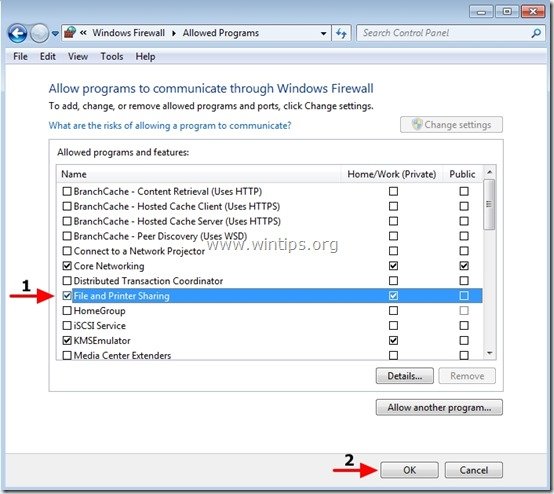
4. Restart your computer (Optionally).
Step 4. Check if you can access the admin shares from another computer.
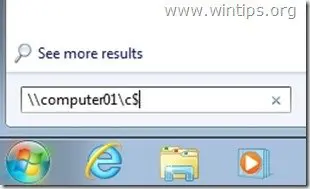
1. From another computer press the “Start” buton and in the search box type the following command:
“\\<ComputerName>\<DiskVolumeName>$” (without the quotes) and hit “Enter”.
Note: As “<ComputerName>” put the name of the computer with the Admin Shares enabled on it (e.g. “Computer01”) and as “<DiskVolumeName>” put the name of the volume that you want to access, (e.g. “C$” = Disk Volume C:\ , “D$” = Disk Volume D:\, etc.)
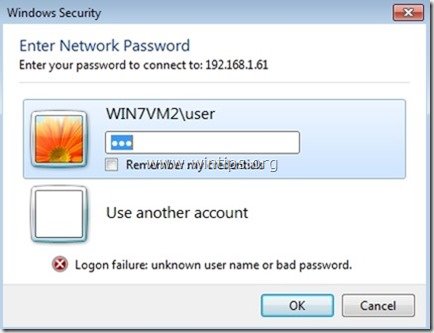
2. Now type the username & the password to access the remote computer’s admin shares (as specified in Step 1) & hit “Enter”.

3. If you follow the above steps as described, then you can access the remote computer’s admin shares without any problems.
Step 5: Modify registry settings on the computer with the Admin Shares Enabled(Optional)
Note: Perform this step ONLY if you face problems/errors when you try to access Admin Shares (e.g.logon failure).
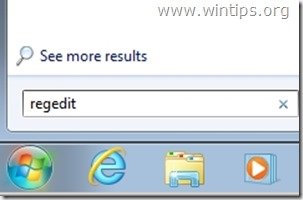
1. Go to the remote computer (with the Admin Shares enabled on it) and open Registry Editor. To do that, press “Start” button and in the search box type “regedit” and hit “Enter”.
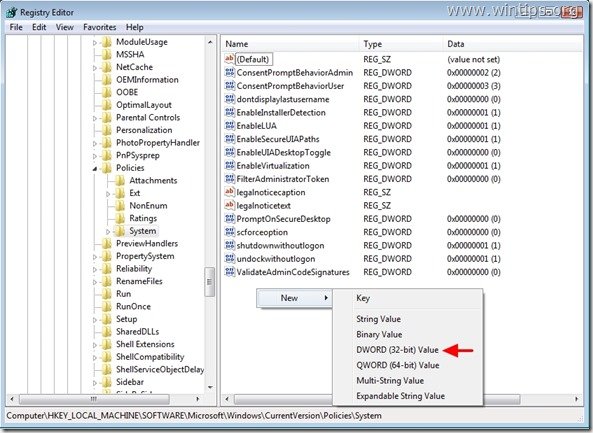
2. In registry editor navigate to the following path:
“HKEY_LOCAL_MACHINE\SOFTWARE\Microsoft\Windows\CurrentVersion\Policies\System”
3. Right-click on the right pane and choose “New” > “DWORD (32-bit) Value”.
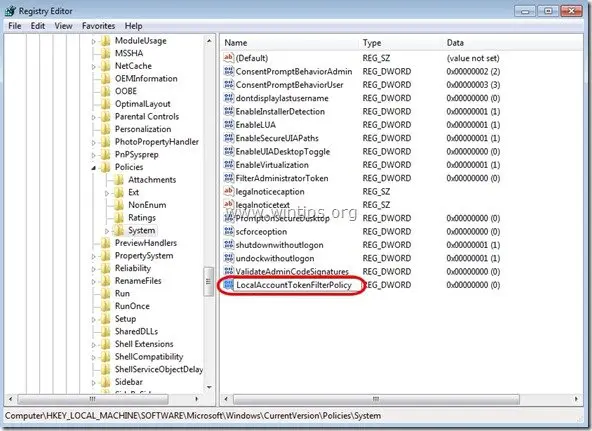
4. Type the “LocalAccountTokenFilterPolicy” for value name and press “Enter”.
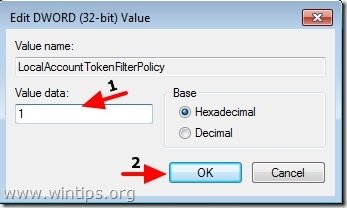
5. Double click on “LocalAccountTokenFilterPolicy” value to modify the “Value Data” from “0” to “1” and press “OK”
6. Exit Registry Editor and try again to access administrative shares on the remote computer.
How to enable $Admin Shares in Windows 7的更多相关文章
- Connecting to Shares And Common Shares
Now that you have these shares, how do people use them? Assuming that you have a share called Apps o ...
- 将windows下的PLSQL转移到Ubuntu上
1,首先下载安装wine,安装不成功的更新下源即可. 2,Ctal+Alt+T 打开控制台: cd ~/.wine/drive_c mkdir -p oracle/bin mkdir -p oracl ...
- Windows突破远程连接最大数去掉限制登录
当对方设置最大连接数 超过限制时 可以用这个命令 win+r 输入 mstsc /v:192.168.18.131:3389 /console windows server 2003 sp2 以 ...
- Windows Server体验之管理
安装了只有命令行界面的Windows Server之后怎么去管理,对于传统的Windows管理员来说确实是比较棘手的.因为没有了图形化的管理界面,需要更多的去依赖Powershell或者cmd命令去做 ...
- Total Commander 8.52 Beta 1
Total Commander 8.52 Beta 1http://www.ghisler.com/852_b1.php 10.08.15 Release Total Commander 8.52 b ...
- smb.conf - Samba组件的配置文件
总览 SYNOPSIS smb.conf是Samba组件的配置文件,包含Samba程序运行时的配置信息.smb.conf被设计成可由swat (8)程序来配置和管理.本文件包含了关于smb.conf的 ...
- BlackArch-Tools
BlackArch-Tools 简介 安装在ArchLinux之上添加存储库从blackarch存储库安装工具替代安装方法BlackArch Linux Complete Tools List 简介 ...
- PTH的几种食用姿势
PTH PTH(pass the hash)也叫做hash传递.在内网渗透中是一种很经典的攻击方式,原理就是攻击者可以直接通过NTLM Hash(mimikatz或其他手段抓取到的密码hash)访问远 ...
- oracle 学习
一.数据库语言部分1. SQL语言:关系数据库的标准语言2. PL/SQL:过程化语言Procedural Language3. SQL*Plus:简单的报表,操作系统接口 4. Oracle 8.0 ...
随机推荐
- ios 说一说UINavigationController 的堆栈
iOS的界面堆栈管理比android的要好用很多. 这里写两点:一点是 如何重回前面的vc,而不是push一个alloc的新界面.第二点就是判断当前堆栈显示的vc是何vc. vc堆栈: vc1-> ...
- HDU 3452 Bonsai(网络流之最小割)
题目地址:HDU 3452 最小割水题. 源点为根节点.再另设一汇点,汇点与叶子连边. 对叶子结点的推断是看度数是否为1. 代码例如以下: #include <iostream> #inc ...
- 【48】认识template元编程
1.TMP(template metaprogramming),模版元编程有两个效力:第一,它让某些事情更容易:第二,可将工作从运行期转移到编译期.
- 笔记本禁用自带键盘攻略-------针对shift默认按下的解决方案
长期以来楼主一直被一个问题困扰,就是win8进入界面,输密码时开大写其实是小写,开小写是大写.进入系统以后shift键是默认按下的.一直以为是电脑中毒了.上网查了一些东西,发现可能是因为键盘硬件方面的 ...
- PCL入门—点云操作 定义变量 显示点云 存储
// 定义相关变量 pcl::PointCloud<pcl::PointXYZ>::Ptr cloud_ptr (new pcl::PointCloud<pcl::PointXYZ& ...
- css中那些你可能没注意到的东西
1.inline元素,添加position:absolute;可定宽高,position:relative;则不行,不信你试试! 2.inline元素添加浮动后,不用加display:block;也可 ...
- Jordan Lecture Note-7: Soft Margin SVM
Soft Margin SVM (1)Recall 之前分析到SVM的模型为: \begin{align}\mathop{\min}&\quad \frac{1}{2}w^\prime w\ ...
- Android中的距离单位
px 像素:每个px对应屏幕上面的一个点 dip或dp(device independent pixels 设备独立像素):一种基于屏幕密度的抽象单位.在每英寸160点的显示器上,1dip=1px.但 ...
- iOS之文本属性Attributes的使用
1.NSKernAttributeName: @10 调整字句 kerning 字句调整 2.NSFontAttributeName : [UIFont systemFontOfSize:_fontS ...
- stitching detail输出的dot图含义
如果利用opencv里面提供的stitching detail的话. 输入参数: stitching_detail --save_graph a.dot 1.png 2.png 其中a.dot 文件中 ...