
好玩的WPF第四弹:用Viewport2DVisual3D实现3D旋转效果
原文:好玩的WPF第四弹:用Viewport2DVisual3D实现3D旋转效果
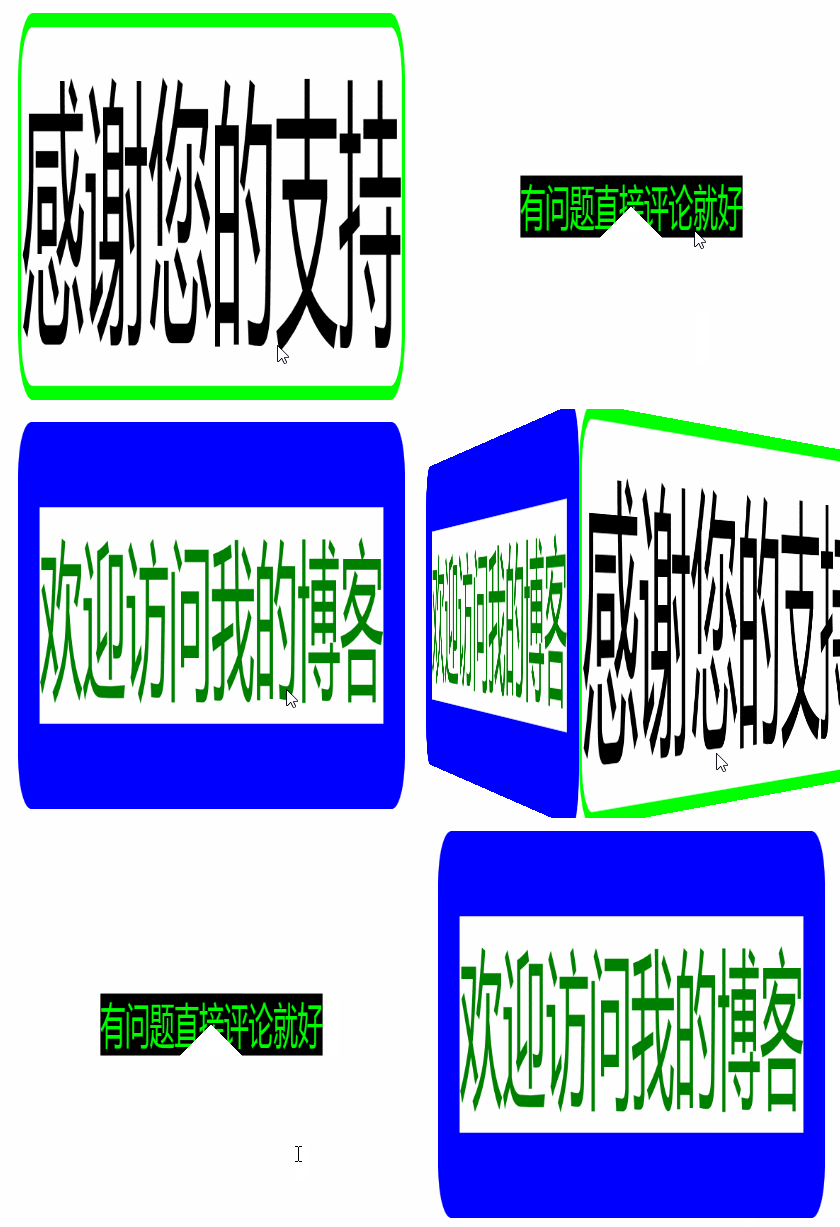
效果呢就是这么个效果,但是大家要发挥想象力,比如做成一个可以旋转的按钮等等。
定义一个这样的资源就好。
<Window.Resources>

        <DiffuseMaterial x:Key="DiffuseMaterialStyle" Viewport2DVisual3D.IsVisualHostMaterial="True"

                         Brush="White"/>

</Window.Resources>
关键是在Grid里放这么一个东西:
 <Viewport3D x:Name="view" ClipToBounds="True" RenderOptions.EdgeMode="Aliased">

     <Viewport3D.Camera>

          <PerspectiveCamera x:Name="perspectiveCam" FieldOfView="59" Position="0.5,0.5,2" LookDirection="0,0,-1">

              <PerspectiveCamera.Transform>

                   <RotateTransform3D x:Name="rot" CenterY="0.5" CenterX="0.5" CenterZ="-0.5">

                        <RotateTransform3D.Rotation>

                                <AxisAngleRotation3D x:Name="AxisAngleRot" Axis="0,1,0" Angle="0"/>

                        </RotateTransform3D.Rotation>

                   </RotateTransform3D>

               </PerspectiveCamera.Transform>

           </PerspectiveCamera>

      </Viewport3D.Camera>

      <ModelVisual3D>

          <ModelVisual3D.Content>

               <AmbientLight Color="White" />

          </ModelVisual3D.Content>

      </ModelVisual3D>

</Viewport3D>
正面:
<Viewport2DVisual3D Material="{StaticResource  DiffuseMaterialStyle }">

    <Viewport2DVisual3D.Geometry>

         <MeshGeometry3D Positions="0,1,0    0,0,0     1,0,0    1,1,0"

              TextureCoordinates="0,0   0,1     1,1     1,0"

              TriangleIndices="0 1 2  0 2 3"/>

    </Viewport2DVisual3D.Geometry>

    <Border BorderThickness="10" x:Name="FrontSide" BorderBrush="Blue" CornerRadius="1"

        PreviewMouseDown="FrontSide_PreviewMouseDown" >

        <TextBlock Text="欢迎访问我的博客" Foreground="Green" />

   </Border>

</Viewport2DVisual3D>
右侧:
<Viewport2DVisual3D Material="{StaticResource DiffuseMaterialStyle}">

      <Viewport2DVisual3D.Geometry>

            <MeshGeometry3D Positions="1,1,0     1,0,0     1,0,-1     1,1,-1"

                TextureCoordinates="0,0 0,1 1,1 1,0"

                TriangleIndices="0 1 2  0 2 3"/>

       </Viewport2DVisual3D.Geometry>

       <Border BorderThickness="1" x:Name="RightSide" BorderBrush="Lime" CornerRadius="4"

           PreviewMouseDown="RightSide_PreviewMouseDown"  >

           <Border.Background>

                <LinearGradientBrush EndPoint="0.5,1" StartPoint="0.5,0">

                    <GradientStop Color="White" />

                </LinearGradientBrush>

            </Border.Background>

            <TextBlock Text="感谢您的支持" FontSize="20"/>

       </Border>

</Viewport2DVisual3D>
大家对比上面这两个就知道正面的镂空是怎么来的了……
左侧:
<Viewport2DVisual3D Material="{StaticResource DiffuseMaterialStyle}">

      <Viewport2DVisual3D.Geometry>

            <MeshGeometry3D Positions="0,1,-1    0,0,-1   0,0,0    0,1,0"

            TextureCoordinates="0,0 0,1 1,1 1,0"

            TriangleIndices="0 1 3  0 2 3"/>

           </Viewport2DVisual3D.Geometry>

           <Border BorderThickness="40" x:Name="LeftSide" BorderBrush="White" CornerRadius="1"

                  PreviewMouseDown="LeftSide_PreviewMouseDown" >

              <Border.Background>

                  <LinearGradientBrush EndPoint="0.5,1" StartPoint="0.5,0">

                      <GradientStop Color="Black" />

                   </LinearGradientBrush>

               </Border.Background>

          <TextBlock Text="有问题直接评论就好" Foreground="Lime"/>

     </Border>

</Viewport2DVisual3D>
后方:
<Viewport2DVisual3D Material="{StaticResource DiffuseMaterialStyle}">

    <Viewport2DVisual3D.Geometry>

        <MeshGeometry3D Positions="1,1,-1    1,0,-1     0,0,-1     0,1,-1   0,0.5,-1"

           TextureCoordinates="0,0    0,1    1,1    1,0"

           TriangleIndices="0 1 2  0 2 4"/>

    </Viewport2DVisual3D.Geometry>

    <Border BorderThickness="1" x:Name="BackSide" BorderBrush="White" CornerRadius="4"

         PreviewMouseDown="BackSide_PreviewMouseDown" >

        <Border.Background>

           <LinearGradientBrush EndPoint="0.5,1" StartPoint="0.5,0">

               <GradientStop Color="White" />

           </LinearGradientBrush>

        </Border.Background>

        <TextBlock Text="常来哦……" FontSize="20"/>

   </Border>

</Viewport2DVisual3D>
大家先不管MeshGeometry3D这些东西是做什么的,后面我尽量简单快速的讲解它们。
所以先来看看程序的内部。
    public partial class MainWindow : Window

    {

        DispatcherTimer dispatTime = null;

        double AxAngle = 90;

        public MainWindow()

        {

            InitializeComponent();

            if (dispatTime == null)

                dispatTime = new DispatcherTimer();

            dispatTime.Tick += new EventHandler(DT_Tick);

            dispatTime.Interval = new TimeSpan(0, 0, 0, 0, 2);

        }

        private void DT_Tick(object sender, EventArgs e)

        {

            AxisAngleRot.Angle += 1;

            if (AxisAngleRot.Angle >= AxAngle)

                dispatTime.Stop();

        }

        private void FrontSide_PreviewMouseDown(object sender, MouseButtonEventArgs e)

        {

            AxisAngleRot.Angle = 0;

            AxAngle = 90;

            dispatTime.Start();

        }

        private void LeftSide_PreviewMouseDown(object sender, MouseButtonEventArgs e)

        {

            AxAngle = 360;

            dispatTime.Start();

        }

        private void BackSide_PreviewMouseDown(object sender, MouseButtonEventArgs e)

        {

            AxAngle = 270;

            dispatTime.Start();

        }

        private void RightSide_PreviewMouseDown(object sender, MouseButtonEventArgs e)

        {

            AxAngle = 180;

            dispatTime.Start();

        }

    }
像这种程序肯定会涉及到计时器的,就是DT_Tick方法。我将它设置为每次都转动1度,而下面这一行则是间隔的时间。
dispatTime.Interval = new TimeSpan(0, 0, 0, 0, 2);其余的每个方法都用于调节角度,可以看到在正面时会将角度重置一次。
所以接下来看看Positions是什么意思。
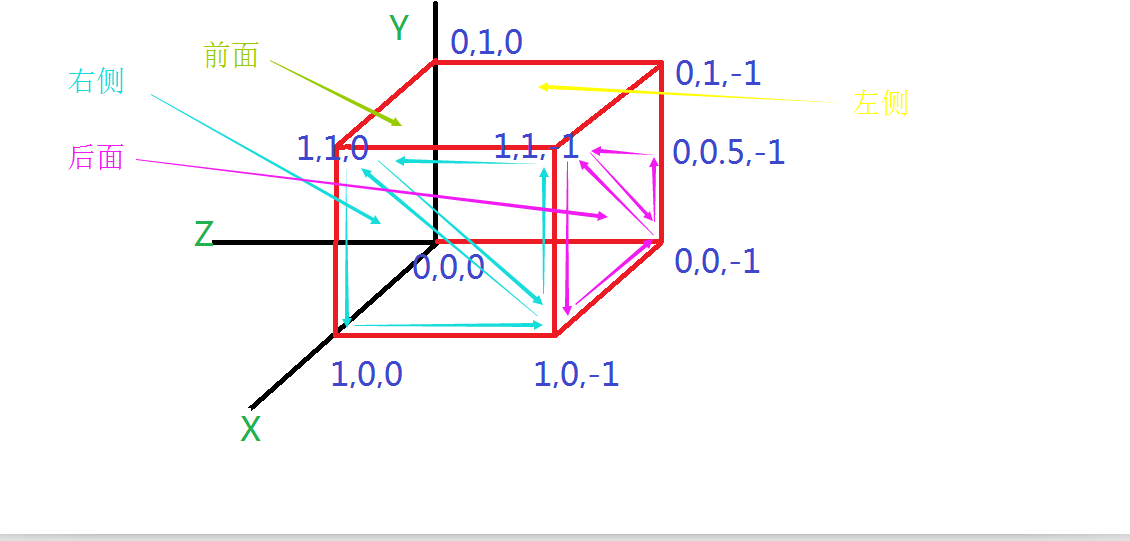
原谅我把正方体画歪了,图中另外用箭头指出了“正面”、“右侧”等。
大家看看Positions中都是3个数字一组对吧,这就是一个点,我在图中已经标识出来了。而TriangleIndices中也是3个数字一组,这3个数字指示了Positions中的组合索引(从0开始索引),然后3个数字组成三角形,如图中箭头所指向的。
而TextureCoordinates是WPF的3D纹理坐标,这里就不深究的,后面可以深入探讨写一篇博客。
大家也可以拿源码回去慢慢弄着玩嘛……
所以这篇博客就到此为止咯。掰掰……
好玩的WPF第四弹:用Viewport2DVisual3D实现3D旋转效果的更多相关文章
- 好玩的WPF第三弹:颤抖吧,地球!消失吧,地球!
原文:好玩的WPF第三弹:颤抖吧,地球!消失吧,地球! 版权声明:转载请联系本人,感谢配合!本站地址:http://blog.csdn.net/nomasp https://blog.csdn.net ...
- 好玩的WPF第一弹:窗口抖动+边框阴影效果+倒计时显示文字
原文:好玩的WPF第一弹:窗口抖动+边框阴影效果+倒计时显示文字 版权声明:转载请联系本人,感谢配合!本站地址:http://blog.csdn.net/nomasp https://blog.csd ...
- 好玩的WPF第二弹:电子表字体显示时间+多彩呼吸灯特效button
我们先来看看Quartz MS字体动态显示系统时间的效果,难度相较于上一篇也要简单很多. 首先是定义一个TextBlock例如以下. <Grid> <TextBlock Name=& ...
- 前端学习 第四弹: HTML(一)
前端学习 第四弹: HTML(一) 元素分类:块元素 内联元素 块级元素在浏览器显示时,通常会以新行来开始(和结束). 例子:<h1>, <p>, <ul>, &l ...
- WPF WebBrowser屏蔽弹出alert ,confirm ,prompt ,showModalDialog() ,window.open()
WPF WebBrowser屏蔽弹出alert ,confirm ,prompt ,showModalDialog() ,window.open()添加Microsoft.mshtml.dll,然后写 ...
- WPF案例 (四) 模拟Windows7桌面任务栏
原文:WPF案例 (四) 模拟Windows7桌面任务栏 这个程序模彷了Windows7的桌面任务栏,当在桌面上双击某个快捷方式时,将打开一个新的子界面,并且在任务栏里创建一个链接到此界面的任务栏图标 ...
- 『PyTorch』第四弹_通过LeNet初识pytorch神经网络_下
『PyTorch』第四弹_通过LeNet初识pytorch神经网络_上 # Author : Hellcat # Time : 2018/2/11 import torch as t import t ...
- jQuery 关于IE9上传文件无法进入后台问题的原因及解决办法(ajaxfileupload.js第四弹)
第四弹的诞生完全不在自己最初的计划之中,是有个网友看了先前关于<ajaxfileupload.js系列>的文章后提出的问题,由于自己一直是用chrome浏览器去测试demo,完全忽略IE浏 ...
- 模式匹配第四弹:if case,guard case,for case
2016-06-06 7388 作者:Olivier Halligon,原文链接,原文日期:2016-05-16 译者:walkingway:校对:Cee:定稿:numbbbbb 现在我们来重新回顾下 ...
随机推荐
- Wampserver 2.5 多网站配置方法
写在开头:本文适用于wampserver2.5版本号,和wamp的老版本号配置有语法上的差别,笔者正是由于被老版本号的配置办法给整迷糊了所以才总结了一篇针对2.5版本号的配置方法,假设您还停留在1.x ...
- 【Nutch2.2.1基础教程之1】nutch相关异常 分类: H3_NUTCH 2014-08-08 21:46 1549人阅读 评论(2) 收藏
1.在任务一开始运行,注入Url时即出现以下错误. InjectorJob: Injecting urlDir: urls InjectorJob: Using class org.apache.go ...
- php汉字 字节数组转换
<?php function stringToByteArray($str,$charset) { $str = iconv($charset,'UTF-16',$str); preg_matc ...
- USB 3.0规范中译本 第4章 超高速数据流模型
本文为CoryXie原创译文,转载及有任何问题请联系cory.xie#gmail.com. 本章展示数据和信息如何在超高速上通过的一种高层次的描述.请阅读协议层一章关于低层次协议的细节.本章提供设备架 ...
- NavMesh动态碰撞
今天遇到一个问题,就是怎样处理一些动态的障碍物. NavMesh是能够躲避静态的障碍物.NavMeshObstacle的作用就是动态添加障碍. 可是有个问题,NavMeshObstacle是圆,连椭圆 ...
- HBase总结(十一)hbase Java API 介绍及使用演示样例
几个相关类与HBase数据模型之间的相应关系 java类 HBase数据模型 HBaseAdmin 数据库(DataBase) HBaseConfiguration HTable 表(Table) H ...
- Android程序解析XML文件的方法及使用PULL解析XML案例
一.一般解析XML文件的方法有SAX和DOM.PULL (1)DOM(JAXP Crimson解析器) DOM是用与平台和语言无关的方式表示XML文档的官方W3C标准.DOM是以层次结构组织的节点或信 ...
- 【poj2528】Mayor's posters
Time Limit: 1000MS Memory Limit: 65536K Total Submissions: 59254 Accepted: 17167 Description The ...
- Double prefix overrides to provide 16-bit operand size in a 32/64 operating mode
A processor supports an operating mode in which the default address size is greater than 32 bits and ...
- android之ContentProvider和Uri具体解释
一.使用ContentProvider(内容提供者)共享数据 在android中ContentProvider的作用是对外共享数据,就是说能够通过ContentProvider把应用中的数据共享给其它 ...