
selenium+Python(select定位)
1、Select元素
1.打开百度-设置-搜索设置界面,如下图所示
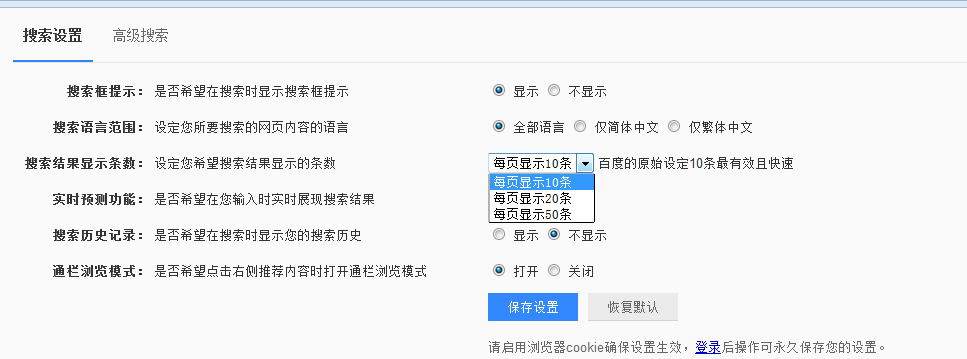
2.箭头所指位置,就是 select 选项框,打开页面元素定位,下方红色框框区域,可以看到 select 标签属性:
<select id="nr" name="NR">
3.选项有三个
<option selected="" value="10">每页显示 10 条</option>
<option value="20">每页显示 20 条</option>
<option value="50">每页显示 50 条</option>
2、定位select
定位select有多种方法,下面进行一一介绍
2.1 二次定位
1.定位 select 里的选项有多种方式,这里先介绍一种简单的方法:二次定位
2.基本思路,先定位 select 框,再定位 select 里的选项
完整代码如下:
# coding:utf-8

from selenium import webdriver

from selenium.webdriver.common.action_chains import ActionChains

driver = webdriver.Firefox()

driver.get("https://www.baidu.com/")

driver.implicitly_wait(20)

mouse = driver.find_element_by_link_text("设置")

ActionChains(driver).move_to_element(mouse).perform()

driver.find_element_by_link_text("搜索设置").click()

s = driver.find_element_by_id("nr")

s.find_element_by_xpath("//option[@value='50']").click()

# 二次定位另外一种写法

driver.find_element_by_id("nr").find_element_by_xpath("//option[@value='50']").click()
3.还有另外一种写法也是可以的,把最下面两步合并成为一步:
driver.find_element_by_id("nr").find_element_by_xpath("//option[@value='50']").click()
2.2 直接定位
1.有很多小伙伴说 firebug 只能定位到 select 框,还能定位里面的选项。
2.用 direbug 定位到 select 后,下方查看元素属性地方,点 select 标签前面的+号,就可以展开里面的选项内容了。
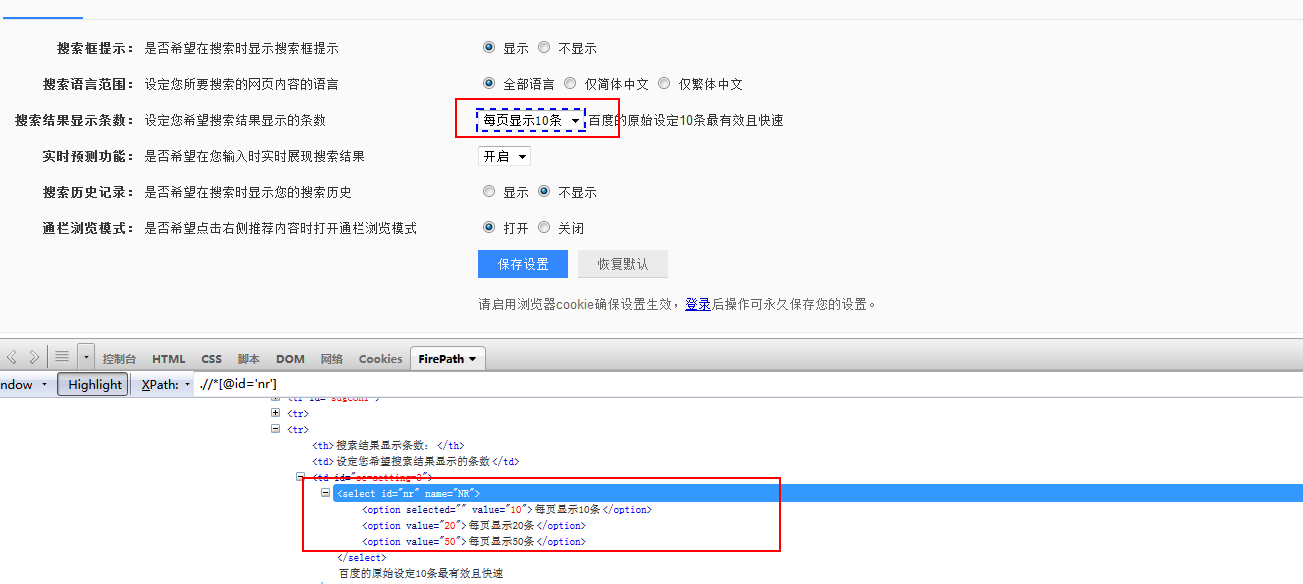
3.然后自己写 xpath 定位或者 css,一次性直接定位到 option 上的内容。
完整代码如下:
# coding:utf-8

from selenium import webdriver

from selenium.webdriver.common.action_chains import ActionChains

driver = webdriver.Firefox()

driver.get("https://www.baidu.com/")

driver.implicitly_wait(20)

mouse = driver.find_element_by_link_text("设置")

ActionChains(driver).move_to_element(mouse).perform()

driver.find_element_by_link_text("搜索设置").click()

# 直接点位

driver.find_element_by_xpath(".//*[@id='nr']/option[2]").click()
2.3 Select 模块(index)点位
1.除了上面介绍的两种简单的方法定位到 select 选项,selenium 还提供了更高级的玩法,导入 Select 模块。直接根据属性或索引定位。
2.先要导入 select 方法:
from selenium.webdriver.support.select import Select
3.然后通过 select 选项的索引来定位选择对应选项(从 0 开始计数),如选择第三个选项:select_by_index(2)
完整代码如下:
# coding:utf-8

from selenium import webdriver

from selenium.webdriver.common.action_chains import ActionChains

from selenium.webdriver.support.select import Select

driver = webdriver.Firefox()

driver.get("https://www.baidu.com/")

driver.implicitly_wait(20)

mouse = driver.find_element_by_link_text("设置")

ActionChains(driver).move_to_element(mouse).perform()

driver.find_element_by_link_text("搜索设置").click()

# 通过索引:select_by_index()

s = driver.find_element_by_id("nr")

Select(s).select_by_index(2)
2.4 Select 模块(value)定位
1.Select 模块里面除了 index 的方法,还有一个方法,通过选项的 value值来定位。每个选项,都有对应的 value 值,如
<select id="nr" name="NR">
<option selected="" value="10">每页显示 10 条</option>
<option value="20">每页显示 20 条</option>
<option value="50">每页显示 50 条</option>
2.第二个选项对应的 value 值就是“20”:select_by_value(2)
完整代码如下:
# coding:utf-8

from selenium import webdriver

from selenium.webdriver.common.action_chains import ActionChains

from selenium.webdriver.support.select import Select

driver = webdriver.Firefox()

driver.get("https://www.baidu.com/")

driver.implicitly_wait(20)

mouse = driver.find_element_by_link_text("设置")

ActionChains(driver).move_to_element(mouse).perform()

driver.find_element_by_link_text("搜索设置").click()

# 通过value定位:select_by_value()

s = driver.find_element_by_id("nr")

Select(s).select_by_value(20)
2.5 Select 模块(text)定位
1.Select 模块里面还有一个更加高级的功能,可以直接通过选项的文本内容来定位。
2.定位“每页显示 50 条”:select_by_visible_text("每页显示 50 条")
完整代码如下:
# coding:utf-8

from selenium import webdriver

from selenium.webdriver.common.action_chains import ActionChains

from selenium.webdriver.support.select import Select

driver = webdriver.Firefox()

driver.get("https://www.baidu.com/")

driver.implicitly_wait(20)

mouse = driver.find_element_by_link_text("设置")

ActionChains(driver).move_to_element(mouse).perform()

driver.find_element_by_link_text("搜索设置").click()

# 通过select_by_visible_text定位

s = driver.find_element_by_id("nr")

Select(s).select_by_visible_text("每页显示50条")
3.Select 模块其它方法
1.select 里面方法除了上面介绍的三种,还有更多的功能如下
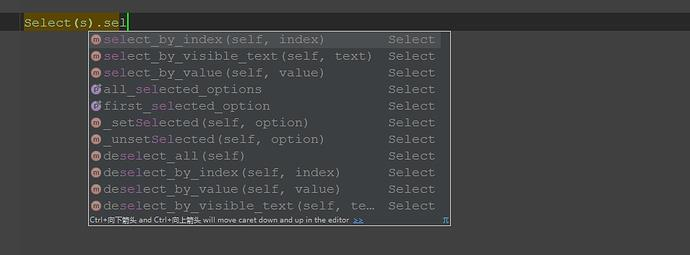
select_by_index() :通过索引定位
select_by_value() :通过 value 值定位
select_by_visible_text() :通过文本值定位
deselect_all() :取消所有选项
deselect_by_index() :取消对应 index 选项
deselect_by_value() :取消对应 value 选项
deselect_by_visible_text() :取消对应文本选项
first_selected_option() :返回第一个选项
all_selected_options() :返回所有的选项
selenium+Python(select定位)的更多相关文章
- selenium3 + python - select定位
一.Select模块(index) 1.导入Select模块.直接根据属性或索引定位 2.先要导入select方法:from selenium.webdriver.support.se ...
- Selenium+Python常见定位方法
参见官网:http://selenium-python.readthedocs.io/locating-elements.html 有多种策略来定位页面中的元素.你可以使用最适合你的情况.Seleni ...
- selenium+Python(定位 单选、复选框,多层定位)
1.定位一组元素webdriver 可以很方便的使用 findElement 方法来定位某个特定的对象,不过有时候我们却需要定位一组对象,这时候就需要使用 findElements 方法.定位一组对象 ...
- selenium python 一些操作和定位收集
(—)滚动条操作 python中selenium操作下拉滚动条方法汇总 selenium_webdriver(python)控制浏览器滚动条 selenium+Python(select定位) Sel ...
- python+selenium遇到元素定位不到的问题,顺便记录一下自己这次的错误(报错selenium.common.exceptions.NoSuchElementException)
今天在写selenium一个发送邮件脚本时,遇到一些没有找到页面元素的错误.经过自己反复调试,找原因百度,终于解决了.简单总结一下吧,原因有以下几点: 一:Frame控件嵌套,.Frame/Ifram ...
- python+selenium+bs4爬取百度文库内文字 && selenium 元素可以定位到,但是无法点击问题 && pycharm多行缩进、左移
先说一下可能用到的一些python知识 一.python中使用的是unicode编码, 而日常文本使用各类编码如:gbk utf-8 等等所以使用python进行文字读写操作时候经常会出现各种错误, ...
- [python爬虫] Selenium常见元素定位方法和操作的学习介绍
这篇文章主要Selenium+Python自动测试或爬虫中的常见定位方法.鼠标操作.键盘操作介绍,希望该篇基础性文章对你有所帮助,如果有错误或不足之处,请海涵~同时CSDN总是屏蔽这篇文章,再加上最近 ...
- [python爬虫] Selenium常见元素定位方法和操作的学习介绍(转载)
转载地址:[python爬虫] Selenium常见元素定位方法和操作的学习介绍 一. 定位元素方法 官网地址:http://selenium-python.readthedocs.org/locat ...
- python+selenium 元素被定位到而且click()也提示执行成功,但是页面就是没有变化和跳转。
python+selenium 元素被定位到而且click()也提示执行成功,但是页面就是没有变化和跳转. 如果多次定位和click(),有时候会跳转. 我遇到很多次就是很郁闷,有人说,操作太快的,页 ...
随机推荐
- IMU
(1)用IMU来进行预测 读入一个10/20帧的数据集,通过IMU来初步预测出位姿以及显示其路径. Christian Forster, Luca Carlone, Frank Dellaert, D ...
- android 去掉activity的切换动画
在styles.xml文件中增加样式代码: <style name="AppTheme" parent="Theme.AppCompat.Light.NoActio ...
- calendar模块
calendar模块是个日历模块 1 判断是否是闰年 #!/urs/bin/evn python # -*- coding:utf-8 -*- import calendar print(calen ...
- 在IIS7里配置 ISAPI,运行dll程序,总提示下载dll
在IIS7里配置 ISAPI,运行dll程序,总提示下载dll,只需要把对应站点应用程序池里面的高级设置里的启用32位应用程序,设为“true"即可.
- C++字符串结束标识
用一个字符数组可以存放一个字符串中的字符.如: char str[12]={'I',' ','a','m',' ','h','a','p','p','y'}; 用一维字符数组str来存放一个字符串″I ...
- 选择困难症的福音——团队Scrum冲刺阶段-Day 2
选择困难症的福音--团队Scrum冲刺阶段-Day 2 今日进展 编写提问部分 如何将不同的问题选项连接到不同的下一个问题 如何保证问题的链接不会弄丢 登陆注册界面 完成密码可见与不可见的更改 ui界 ...
- background-clip 和 background-origin 的区别
background-origin:指定绘制背景图片的起点. background-clip:是对背景图片的剪裁,指定背景图片的显示范围. 1.background-origin:padding | ...
- Scrum冲刺阶段1
各个成员在 Alpha 阶段认领的任务 人员 任务 何承华 美化设计 部分后端设计 陈宇 后端设计 丁培辉 美化设计 部分后端设计 温志铭 前端设计 杨宇潇 服务器搭建 张主强 前端设计 明日各个成员 ...
- latex表格代码
基本代码 \begin{table}[!h] \caption{Notations Used in Real-time Analysis.} \label{table:notation} \cent ...
- 【部署问题】解决Nginx: [error] open() "/usr/local/Nginx/logs/Nginx.pid" failed(2:No such file or directory)
问题:环境问题 解决方法: /usr/local/nginx/sbin/nginx -c /usr/local/nginx/conf/nginx.conf 使用nginx -c的参数指定nginx.c ...