
WinSetupFromUSB – Install Windows XP from USB Flash Drive
http://myeeeguides.wordpress.com/2008/11/15/winsetupfromusb-install-windows-xp-from-usb-flash-drive/
This guide will show you, how to use WinSetupFromUSB to create a bootable USB Flash Drive including all Windows source files, plus the following installation of Windows XP. Compare to the different USB_Multiboot versions, WinSetupFromUSB comes with a Graphical User Interface (GUI) and is in my opinion easier to use.
Here you can get the latest version of the program and you will also find many detailed informations about WinSetupFromUSB.
I’ve tested this guide with a 32-bit version of Windows XP and a 64-bit version of Windows Vista and it worked flawlessly.
Prerequisites:
All you need is:
- a USB Flash Drive with at least 1GB of storage
- the original Windows XP Setup CD
- WinSetupFromUSB
If you use nLite to slim down your version of Windows XP, please keep the following in mind:
under Operating System Options!
I also recommend to integrate Service Pack 3 into your Windows XP source files.
1. Preparations
Download and install WinSetupFromUSB. Default installation path isC:\WinSetupFromUSB.
Create a new folder with the name WINXPCD in the root directory of drive C:\and copy all files from your Windows XP Setup CD into this folder. Depending on your version of Windows XP, the content of C:\WINXPCD should look approximately like this:
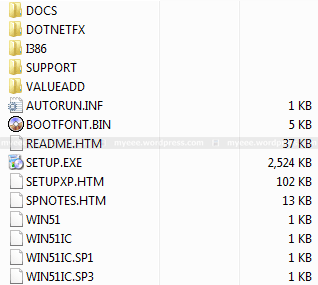
The following files will show you, which Service Pack is already integrated into your CD:
- WIN51IC.SP1, Sevice Pack 1
- WIN51IC.SP2, Sevice Pack 2
- WIN51IC.SP3, Sevice Pack 3
2. Start WinSetupFromUSB
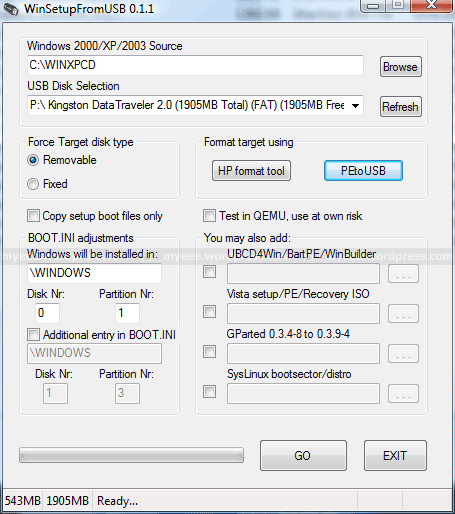
Connect the USB Flash Drive to your PC and start WinSetupFromUSB. It should show up under USB Disk Selection :

3. Select your Source Path
Click on Browse under Windows 2000/XP/2003 Source and navigate to the folder with your Windows XP Source Files. It should be C:\WINXPCD:

Click OK and C:\WINXPCD should show up under Windows 2000/XP/2003 Source :
4. Format USB Flash Drive
PeToUSB or HP Format Tool are used to format the USB Flash Drive. There is no need to download these programs seperately as they are already included in WinSetupFromUSB.
USB Flash Drives up to 2GB should be formatted with PeToUSB in FAT16, USB Flash Drives with 4GB or more with HP Format Tool in FAT32.
I will use PeToUSB to format my Kingston Data Traveler with 2GB.
In the main window of WinSetupFromUSB click PeToUSB under Format target using to start the program. The USB Flash Drive should show up underDestination Drive. Check USB Removable, Enable Disk Format and Quick Format. Uncheck Enable File Copy under File Copy Options :
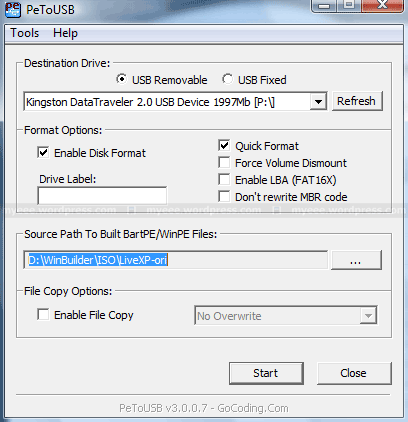
Click Start and answer the following two questions “Continue?” with Yes.
If everything goes well, the message “Operation Completed Successfully!” should appear. Click OK and close PeToUSB.
The process with HP Format Tool is similar.
5. Copy Windows XP Source Files
To start the process of copying the Windows XP source files to the USB Flash Drive, click GO in the main window of WinSetupFromUSB. Depending on the write speed of your USB Flash drive it may take a while to copy all files.
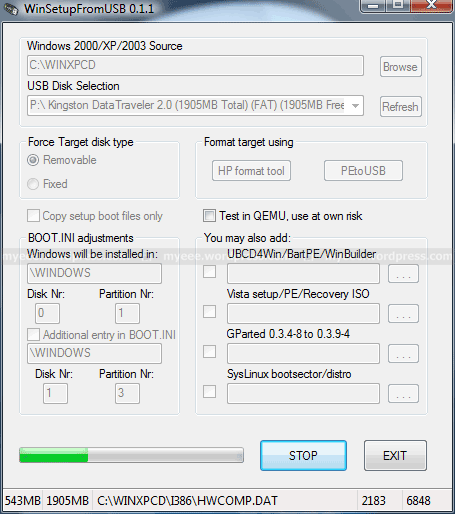
At the end the following notice about the Windows installation process should be displayed:

Click OK and close WinSetupFromUSB with EXIT.
6. Windows Installation – Part 1
Connect the USB Flash Drive to your PC and turn on the computer. Press ESCat the boot screen and you will be able to select the USB Flash Drive as your boot device from the boot menu.
Other manufacturers may use other keys, e.g. F8 or F12.
After booting from USB Flash Drive, the following menu should be displayed:
- Windows XP/2000/2003 Setup – First and Second parts
Press Enter or wait 10 seconds to get to the next menu:
- First part of Windows XP Home Edition setup
- Second part of XP Home Edition setup+Start Windows for first time
First part of Windows XP Home Edition setup is already selected. Press Enteror wait 10 seconds to start the Text mode part of setup. During this part you can create, delete and format partitions and finally the setup files are copied to your hard disk. At the end the system will restart automatically.
7. Windows Installation – Part 2
After restart, boot the PC again from your USB Flash Drive. The same menu should be displayed:
- Windows XP/2000/2003 Setup – First and Second parts
Press Enter or wait 10 seconds to get to the next menu:
- First part of Windows XP Home Edition setup
- Second part of XP Home Edition setup+Start Windows for first time
Second part of XP Home Edition setup+Start Windows for first time is already selected. Press Enter or wait 10 seconds to start the GUI mode part of setup. During this part you will be asked for your product key, timezone, usernames and other necessary informations. At the end the system will restart automatically.
8. Windows Installation – Part 3
After restart, boot the PC again from your USB Flash Drive. The same menu should be displayed:
- Windows XP/2000/2003 Setup – First and Second parts
Press Enter or wait 10 seconds to get to the next menu:
- First part of Windows XP Home Edition setup
- Second part of XP Home Edition setup+Start Windows for first time
Second part of XP Home Edition setup+Start Windows for first time is already selected. Press Enter or wait 10 seconds to Start Windows for the first time. The Windows installation process will be finished and finally the Windows Desktop will appear.
At next startup you can boot into Windows from your hard disk.
Notes:
After successsful installation, the following boot menu will always be displayed during startup:
- Microsoft Windows XP Home Edition
- USB Repair NOT to Start Microsoft Windows XP Home Edition
If you don’t plan to use the repair option and want to boot directly into windows, you have to do the following:
Open the file boot.ini in the root directory of drive C:\ with Notepad:
[Boot Loader]timeout=
Default=multi()disk()rdisk()partition()WINDOWS
[Operating Systems]
multi()disk()rdisk()partition()WINDOWS=”Microsoft Windows XP Home Edition” /noexecute=optin /fastdetect
multi()disk()rdisk()partition()WINDOWS=”USB Repair NOT to Start Microsoft Windows XP Home Edition” /noexecute=optin /fastdetect
Delete the following line:
multi()disk()rdisk()partition()WINDOWS=”USB Repair NOT to Start Microsoft Windows XP Home Edition” /noexecute=optin /fastdetect
Your computer may not boot the next time!
Save changes to the file.
At next startup the boot menu will not be displayed.
If you want to keep the repair option, you can reduce the time to display the operating system options from 30 to 5 seconds:
[Boot Loader]
timeout=
Save changes to the file.
At next startup the boot menu will be displayed only 5 seconds.
WinSetupFromUSB – Install Windows XP from USB Flash Drive的更多相关文章
- UEFI Bootable USB Flash Drive - Create in Windows(WIN7 WIN8)
How to Create a Bootable UEFI USB Flash Drive for Installing Windows 7, Windows 8, or Windows 8.1 In ...
- windows xp 连接USB网络打印机服务器(通用所有usb网络打印机服务器的安装)
usb网络打印机服务器是HP1101U 打印机是 hp1108 需要准备的其他东西:1.HP1108的驱动 首先,接好线,保证usb hp1101u能正常访问,这款USB一旦接入了网络,会分配一个ip ...
- How to install Windows 7 SP1 on Skylake
Download gigabyte windows usb installation tool http://www.gigabyte.cn/WebPage/-79/usb.html get Wind ...
- CF# Educational Codeforces Round 3 A. USB Flash Drives
A. USB Flash Drives time limit per test 2 seconds memory limit per test 256 megabytes input standard ...
- Codeforces Educational Codeforces Round 3 A. USB Flash Drives 水题
A. USB Flash Drives 题目连接: http://www.codeforces.com/contest/609/problem/A Description Sean is trying ...
- fedora 21下Virtual Box安装Windows XP SP3
Installing Virtual Box and Windows XP SP3 during Fedora 21 The first step:Download and Install Virtu ...
- busdog is a filter driver for MS Windows (XP and above) to sniff USB traffic.
https://code.google.com/p/busdog/ busdog is a filter driver for MS Windows (XP and above) to sniff U ...
- 初试 Windows XP Embedded 系统开发1
目前 Windows PE(Preinstallation Environment)和 Windows XP Embedded 是可以脱离主机里的硬盘独立运行的 Windows 操作系统,Window ...
- LPCScrypt, DFUSec : USB FLASH download, programming, and security tool, LPC-Link 2 Configuration tool, Firmware Programming
What does this tool do? The LPC18xx/43xx DFUSec utility is a Windows PC tool that provides support f ...
随机推荐
- web app变革之rem(转载)
rem这是个低调的css单位,近一两年开始崭露头角,有许多同学对rem的评价不一,有的在尝试使用,有的在使用过程中遇到坑就弃用了.但是我对rem综合评价是用来做web app它绝对是最合适的人选之一. ...
- .offset()与.position()区别
jQuery中有两个获取元素位置的方法offset()和position(),两者的定义如下: offset():获取匹配元素在当前视口的相对偏移.返回的对象包含两个整形属性:top 和 left ...
- ie兼容---haslayout
要想更好的理解 css, 尤其是 IE 下对 css 的渲染,haslayout 是一个非常有必要彻底弄清除的概念.大多IE下的显示错误,就是源于 haslayout. 什么是 haslayout ? ...
- 使用Python多线程犯的错误总结
在使用Python多线程的时候,在使用多线程编程的时候,由于对于变量作用域和多线程不是很熟悉,导致在使用多线程的时候,犯了低级的错误. 第一个错误: 在多线程中使用全局变量,导致多个线程修改全局变量. ...
- linux下实现两人、三人无序对话功能
序:引子 对话功能实际上就是利用管道见得通信.最原始的是一方发另一方收,不能进项交互,发送方的代码如下: /*============================================ ...
- 《彻底搞定C指针》文档整理
一.变量存储 #include <stdio.h> int main(void) { ; printf(“%d\n”, i); printf(“%d\n”, &i); //十进制打 ...
- 图像 - 创建 头像V1.0
byte[] logo //处理群头像信息 //byte[] logoByte = Convert.FromBase64String(logo); ////1.0 System.IO.MemorySt ...
- jenkins中Deploy to container Plugin插件发布配置
参数详解: 第一项(WAR/EAR files):是war包的相对路径(相对于工作区路径,即在工作区中war包的相对路径.)如我的maven执行完成之后会在工作区的target目录下生成项目.war, ...
- hdu 1078(记忆化搜索)
题目链接:http://acm.hdu.edu.cn/showproblem.php?pid=1078 //dp[i][j]表示从点i,j处开始能获得的最多cheese #include <io ...
- python 如何判断对象是否为类(class)
if type(att).__name__ == 'classobj': pass else: pass