
WPF入门教程系列十八——WPF中的数据绑定(四)
六、排序
如果想以特定的方式对数据进行排序,可以绑定到 CollectionViewSource,而不是直接绑定到 ObjectDataProvider。CollectionViewSource 则会成为数据源,并充当截取 ObjectDataProvider 中的数据的媒介,并提供排序、分组和筛选功能,然后将它传送到目标。
这个显示是使用 CollectionViewSource做为排序的数据源,首先将CollectionViewSource的Source 属性设置为 ObjectDataProvider的资源名称。然后通过设置CollectionViewSource.SortDescriptions属性,指定排序字段和排序顺序:
 <CollectionViewSource x:Key="studentsView" Source="{Binding Source={StaticResource students}}">

                    <CollectionViewSource.SortDescriptions>

                        <scm:SortDescription PropertyName="Name" Direction="Ascending" />

                        <scm:SortDescription PropertyName="Age" Direction="Descending" />

                    </CollectionViewSource.SortDescriptions>

                </CollectionViewSource>
WPF中的DataContext属性是非常有用的,如果你有多个控件需要绑定同一个数据源,那么按照WinForm中的做法是给每个控件都绑定一次数据源,那么做重复代码就会很多。而在WPF中你可以首先把这些需要绑定同一个数据源的控件放在同一个容器控件内,然后将容器控件的 DataContext 设置为绑定源,容器内的控件的数据源绑定就可以不必再绑定,使用容器的数据源。例如,下面
的示例:StackPanel的 DataContext 属性绑定了数据源,DataGrid就可以不必再次绑定了,直接使用StackPanel绑定的数据源。
<StackPanel DataContext="{StaticResource studentsView}">

            <TextBlock Width="248" Height="24" Text="数据排序:"

        TextWrapping="Wrap"/>

            <DataGrid  AutoGenerateColumns="False"

                ItemsSource="{Binding}" CanUserAddRows="False">

                <DataGrid.Columns>

                    <DataGridTextColumn Binding="{Binding Name}" Header="名称" />

                    <DataGridTextColumn Binding="{Binding Age}" Header="年龄" />

                    <DataGridTextColumn Binding="{Binding Country}" Header="国家" />

                    <DataGridTextColumn Binding="{Binding Birthday}" Header="出生日期" />

                </DataGrid.Columns>

            </DataGrid>

            </StackPanel>
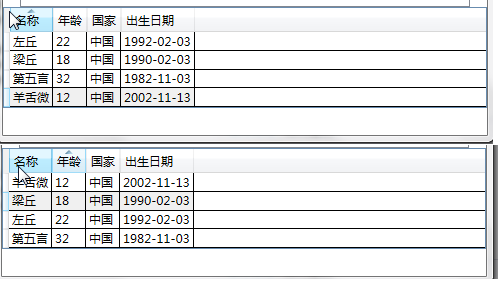
如果该容器没有定义 DataContext,那么它会继续查找下一个外部嵌套容器,直到它找到当前的 DataContext 为止。如下图所示。当点击列头时,数据就会进行顺序或逆序排序。如下图。
整个示例的全部代码如下:
<Window x:Class="WpfApp1.WindowBindData"

        xmlns="http://schemas.microsoft.com/winfx/2006/xaml/presentation"

        xmlns:x="http://schemas.microsoft.com/winfx/2006/xaml"

        xmlns:local="clr-namespace:WpfApp1.Services"

        xmlns:scm="clr-namespace:System.ComponentModel;assembly=WindowsBase"

        Title="WindowBindData" Height="700" Width="500">

    <Grid>

        <Grid.RowDefinitions>

            <RowDefinition Height="140"/>

            <RowDefinition Height="150"/>

            <RowDefinition Height="140"/>

            <RowDefinition Height="100*"/>

        </Grid.RowDefinitions>

        <StackPanel Grid.Row="0">

            <TextBlock Width="248" Height="24" Text="股票名称:"

        TextWrapping="Wrap"/>

            <ListBox x:Name="listStockName" Width="248" Height="56">

                <ListBoxItem Content="全通教育"/>

                <ListBoxItem Content="大智慧"/>

                <ListBoxItem Content="宝钢股份"/>

                <ListBoxItem Content="浦发银行"/>

                <ListBoxItem Content="工商银行"/>

                <ListBoxItem Content="中国建筑"/>

                <ListBoxItem Content="中国南车"/>

            </ListBox>

            <TextBlock Width="248" Height="24" Text="你所选中的股票名称:" />

            <TextBlock Width="248" Height="24" Text="{Binding ElementName=listStockName, Path=SelectedItem.Content}">

            </TextBlock>

        </StackPanel>

        <StackPanel Grid.Row="1">

            <TextBlock Width="248" Height="24" Text="颜色:"

        TextWrapping="Wrap"/>

            <ListBox x:Name="listColor" Width="248" Height="56">

                <ListBoxItem Content="Blue"/>

                <ListBoxItem Content="Red"/>

                <ListBoxItem Content="Green"/>

                <ListBoxItem Content="Gray"/>

                <ListBoxItem Content="Cyan"/>

                <ListBoxItem Content="GreenYellow"/>

                <ListBoxItem Content="Orange"/>

            </ListBox>

            <TextBlock Width="248" Height="24" Text="改变背景色:" />

            <TextBlock Width="248" Height="24" Text="{Binding ElementName=listColor, Path=SelectedItem.Content, Mode=OneWay}"

                       Background="{Binding ElementName=listColor, Path=SelectedItem.Content, Mode=OneWay}">

            </TextBlock>

            <TextBox Name="txtTwoWay" Text="{Binding ElementName=listColor,Path=SelectedItem.Content,Mode=TwoWay}"

                     Background="{Binding ElementName=listColor,Path=SelectedItem.Content,Mode=TwoWay}"></TextBox>

        </StackPanel>

        <StackPanel Grid.Row="2">

            <StackPanel.Resources>

                <XmlDataProvider x:Key="MyColors"  Source="Colors.xml"  XPath="colors">

                </XmlDataProvider>

            </StackPanel.Resources>

            <TextBlock Width="248" Height="24" Text="XML数据绑定:"

        TextWrapping="Wrap"/>

            <ListBox x:Name="listXmlColor" Width="248" Height="56" IsSynchronizedWithCurrentItem="True"

                     ItemsSource="{Binding Source={StaticResource MyColors},XPath=color/@name}">

            </ListBox>

            <TextBlock Width="248" Height="24" Text="选中的颜色:" />

            <TextBlock Width="248" Height="24" Text="{Binding ElementName=listXmlColor,  Path=SelectedValue, Mode=OneWay}"

                     >

            </TextBlock>

        </StackPanel>

        <StackPanel Grid.Row="3">

            <StackPanel.Resources>

                <ObjectDataProvider x:Key="students"  ObjectType="{x:Type local:StudentService}" MethodName="GetStudentList">

                </ObjectDataProvider>

                <DataTemplate x:Key="studentLayout" DataType="students">

                    <StackPanel Orientation="Horizontal">

                        <TextBlock Text="{Binding Path=Name}"

                            FontWeight="Bold" Foreground="Blue"/>

                        <TextBlock Text=", "></TextBlock>

                        <TextBlock Text="{Binding Path=Age}"></TextBlock>

                            <TextBlock Text=", "></TextBlock>

                            <TextBlock Text="{Binding Path=Birthday}"></TextBlock>

                              <TextBlock Text=", "></TextBlock>

                            <TextBlock Text="{Binding Path=Country}"></TextBlock>

                    </StackPanel>

                </DataTemplate>

                <CollectionViewSource x:Key="studentsView" Source="{Binding Source={StaticResource students}}">

                    <CollectionViewSource.SortDescriptions>

                        <scm:SortDescription PropertyName="Name" Direction="Ascending" />

                        <scm:SortDescription PropertyName="Age" Direction="Descending" />

                    </CollectionViewSource.SortDescriptions>

                </CollectionViewSource>

            </StackPanel.Resources>

            <TextBlock Width="248" Height="24" Text="对象数据绑定:"

        TextWrapping="Wrap"/>

            <ListBox x:Name="listObjectBind" Width="450" Height="80" IsSynchronizedWithCurrentItem="True"

                     ItemsSource="{Binding Source={StaticResource students}}"

                     ItemTemplate="{DynamicResource studentLayout}">

            </ListBox>

            <TextBlock Width="248" Height="24" Text="数据排序:"

        TextWrapping="Wrap"/>

            <DataGrid DataContext="{StaticResource studentsView}" AutoGenerateColumns="False"

                ItemsSource="{Binding}" CanUserAddRows="False">

                <DataGrid.Columns>

                    <DataGridTextColumn Binding="{Binding Name}" Header="名称" />

                    <DataGridTextColumn Binding="{Binding Age}" Header="年龄" />

                    <DataGridTextColumn Binding="{Binding Country}" Header="国家" />

                    <DataGridTextColumn Binding="{Binding Birthday}" Header="出生日期" />

                </DataGrid.Columns>

            </DataGrid>

        </StackPanel>

    </Grid>

</Window>
using System;

using System.Collections.Generic;

using System.Linq;

using System.Text;

using System.Threading.Tasks;

using System.Windows;

namespace WpfApp1.Models

{

    public class Student : DependencyObject

    {

        //声明一个静态只读的DependencyProperty字段

        public static readonly DependencyProperty NameProperty;

        public static readonly DependencyProperty AgeProperty;

        public static readonly DependencyProperty BirthdayProperty;

        public static readonly DependencyProperty CountryProperty;

        static Student()

        {

            //注册我们定义的依赖属性Name,Age,birthday,Country

            NameProperty = DependencyProperty.Register("Name", typeof(string), typeof(Student),

                new PropertyMetadata("名称", OnValueChanged));

            AgeProperty = DependencyProperty.Register("Age", typeof(string), typeof(Student),

                new PropertyMetadata("年龄", OnValueChanged));

            BirthdayProperty = DependencyProperty.Register("Birthday", typeof(string), typeof(Student),

                new PropertyMetadata("出生日期", OnValueChanged));

            CountryProperty = DependencyProperty.Register("Country", typeof(string), typeof(Student),

                new PropertyMetadata("国家", OnValueChanged));

        }

        private static void OnValueChanged(DependencyObject o, DependencyPropertyChangedEventArgs e)

        {

            //当值改变时,我们可以在此做一些逻辑处理

        }

        //属性包装器,通过它来读取和设置我们刚才注册的依赖属性

        public string Name

        {

            get { return (string)GetValue(NameProperty); }

            set { SetValue(NameProperty, value); }

        }

        public string Age

        {

            get { return (string)GetValue(AgeProperty); }

            set { SetValue(AgeProperty, value); }

        }

        public string Birthday

        {

            get { return (string)GetValue(BirthdayProperty); }

            set { SetValue(BirthdayProperty, value); }

        }

        public string Country

        {

            get { return (string)GetValue(CountryProperty); }

            set { SetValue(CountryProperty, value); }

        }

    }

}
using System;

using System.Collections.Generic;

using System.Linq;

using System.Text;

using System.Threading.Tasks;

using WpfApp1.Models;

namespace WpfApp1.Services

{

   public class StudentService

    {

       public List<Student> GetStudentList()

       {

           Student liang = new Student();

           liang.Age = "";

           liang.Name = "梁丘";

           liang.Birthday = "1990-02-03";

           liang.Country = "中国";

           Student zuo = new Student();

           zuo.Age = "";

           zuo.Name = "左丘";

           zuo.Birthday = "1992-02-03";

           zuo.Country = "中国";

           Student diwu = new Student();

           diwu.Age = "";

           diwu.Name = "第五言";

           diwu.Birthday = "1982-11-03";

           diwu.Country = "中国";

           Student yang = new Student();

           yang.Age = "";

           yang.Name = "羊舌微";

           yang.Birthday = "2002-11-13";

           yang.Country = "中国";

           List<Student> personList = new List<Student>();

           personList.Add(liang);

           personList.Add(zuo);

           personList.Add(diwu);

           personList.Add(yang);

           return personList;

       }

    }

}
WPF入门教程系列十八——WPF中的数据绑定(四)的更多相关文章
- WPF入门教程系列十五——WPF中的数据绑定(一)
使用Windows Presentation Foundation (WPF) 可以很方便的设计出强大的用户界面,同时 WPF提供了数据绑定功能.WPF的数据绑定跟Winform与ASP.NET中的数 ...
- WPF入门教程系列十六——WPF中的数据绑定(二)
三.绑定模式 通过上一文章中的示例,学习了简单的绑定方式.在这里的示例,要学习一下绑定的模式,和模式的使用效果. 首先,我们来做一个简单示例,这个示例是根据ListBox中的选中项,去改变TextBl ...
- WPF入门教程系列十九——ListView示例(一)
经过前面的学习,今天我做一个比较综合的WPF程序示例,主要包括以下功能: 1) 查询功能.从数据库(本地数据库(local)/Test中的S_City表中读取城市信息数据,然后展示到WPF的Windo ...
- WPF入门教程系列十四——依赖属性(四)
六.依赖属性回调.验证及强制值 我们通过下面的这幅图,简单介绍一下WPF属性系统对依赖属性操作的基本步骤: 借用一个常见的图例,介绍一下WPF属性系统对依赖属性操作的基本步骤: 第一步,确定Base ...
- WPF入门教程系列十二——依赖属性(二)
二. 依赖属性的优先级 由于WPF 允许我们可以在多个地方设置依赖属性的值,所以我们就必须要用一个标准来保证值的优先级别.比如下面的例子中,我们在三个地方设置了按钮的背景颜色,那么哪一个设置才会是最终 ...
- WPF入门教程系列十——布局之Border与ViewBox(五)
九. Border Border 是一个装饰的控件,此控件绘制边框及背景,在 Border 中只能有一个子控件,若要显示多个子控件,需要将一个附加的 Panel 控件放置在父 Border 中.然后可 ...
- WPF入门教程系列二十三——DataGrid示例(三)
DataGrid的选择模式 默认情况下,DataGrid 的选择模式为“全行选择”,并且可以同时选择多行(如下图所示),我们可以通过SelectionMode 和SelectionUnit 属性来修改 ...
- WPF入门教程系列三——Application介绍(续)
接上文WPF入门教程系列二——Application介绍,我们继续来学习Application 三.WPF应用程序的关闭 WPF应用程序的关闭只有在应用程序的 Shutdown 方法被调用时,应用程序 ...
- WPF入门教程系列二——Application介绍
一.Application介绍 WPF和WinForm 很相似, WPF与WinForm一样有一个 Application对象来进行一些全局的行为和操作,并且每个 Domain (应用程序域)中仅且只 ...
随机推荐
- [转]Windows7文件夹转移清理臃肿的C盘
当你使用Windows的时候,你会发现无论哪个版本的Windows,系统都会默认将用户文件夹和程序数据文件夹(xp下是Documents and Settings文件夹,而windows7和vista ...
- 2016-2-1 Servlet细节
Servlet的一些细节(韩顺平老师视频讲解)(1)由于客户端是通过URL地址访问web服务器中的资源,所以Servlet程序想要被外界访问,必须把servlet程序映射到一个URL地址上.这个工作在 ...
- 将一个字符串中的大写字母转换成小写字母,小写字母转换成大写字母(java)
背景:刚刚学到java的String和StringBuffer类,遇到如标题所示的题. 要求:必须要用到String类的toUpperCase方法和toLowerCase方法 思路:用到StringB ...
- 无法连接虚拟设别 ide1:0.
安装虚拟机时出现提示:无法连接虚拟设备 ide1:0,因为主机上没有相应的设备.您要在每次开启此虚拟机时都尝试连接此虚拟设备吗? ide1:0一般是虚拟机的光驱,配置选项是“使用物理驱动器”,而宿主机 ...
- tcpdump
tcpdump tcp -i eth1 -t -s -c and dst port ! and src net -w ./target.cap (1)tcp: ip icmp arp rarp 和 t ...
- css3新属性object-fit,对页面img处理
1.http://my.xueh5.com/xh5639998239/detail-3661.html 针对其进行深度讲解推荐 http://www.zhangxinxu.com/wordpress/ ...
- linux ping加执行时间
[root@back_zabbix_100 ~]# ping 10.10.30.250 | awk '{print $0"\t" strftime("%H:%M:%S&q ...
- 不同类型的指针+1之后增加的大小不同(a,&a的地址是一样的,但意思不一样)
main() { ]={,,,,}; ); printf(),*(ptr-)); } *(a+1)就是a[1],*(ptr-1)就是a[4], 执行结果是2, 5.&a+1不是首地址+1,系统 ...
- FizzBuzzWhizz游戏的高效解法
最近比较火的一道题(传送门),看见园友们的谈论(传送门1 传送门2),都是从1到100的扫描,我想说说的另一种想法. 可以把这道题转换成给100个人发纸牌的游戏,每人所报的就是纸牌上写的东西. 纸牌发 ...
- 用jquery实现瀑布流案例
一.瀑布流是我们常见的案例,这里主要讲述,用jquery的方式实现瀑布流的功能! 引言:我们经常见到很多网站的瀑布流功能,如淘宝.京东这些商品等等.. 实现它我们首先考虑几个问题:1.获取到数据 ...