
SAP Portal 上传资源到WRR
Uploading Resources to the Web Resource Repository
Prerequisites
You have been assigned the Content Administrator role.
Context
You can upload Web resources to the Web Resource Repository, so that they can be used by different portal components and applications. When you upload resources, they are saved as objects in the Portal Content Directory (PCD) and are also copied to the file system of the portal server (in the same folder hierarchy, and synchronized with any changes that you make). This allows the consumption of resources at runtime using relative paths. For example, a .css file that is saved in the Web Resource Repository can use a resource that is also saved in the Web Resource Repository, by specifying the following in one of its classes: background: url('../images/logo.png') .
Following are some guidelines for selecting resource files to upload:
- All resource file names that you want to upload must contain only legal characters ( A-Z , 0-9 , . , _ , % , ~ , - , ( , and ) )
- Maximum file name length is 100 characters
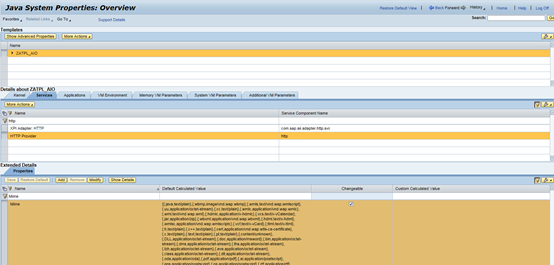
- To render, in Microsoft Internet Explorer, icons with an .ico extension that are saved in the Web Resource Repository, you need to enable support for .ico images in SAP NetWeaver Administrator.
In SAP NetWeaver Administrator, navigate to Configuration Infrastructure Java System Properties Services HTTP Provider. To the Mime property, add the following value: \{.ico,image/x-icon\} .
- Keep the folder hierarchy depth minimal, because the maximum file path for resource file storage is 120 characters (assuming that the root Web Resources folder is located here:C:\usr\sap\ROM\J00\j2ee\cluster\apps\sap.com\com.sap.portal.resourcerepository\servlet_jsp\com.sap.portal.resourcerepository\root\repo)
Note
To upload multiple resources simultaneously, add them to a compressed (.zip) file and then upload the compressed file.
If you have configured the Virus Scan Interface on your AS Java, all resource files are automatically scanned during the upload process.
Procedure
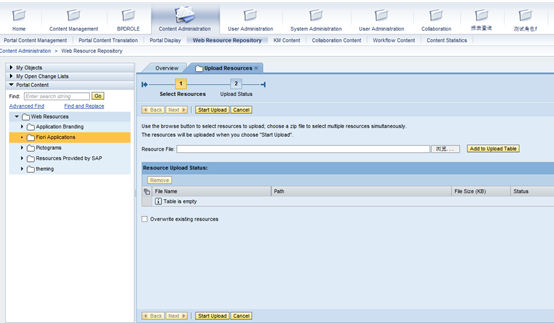
- Choose Content Administration Web Resource Repository.
- In the Portal Catalog, expand the Web Resources node and navigate to the folder into which you want to upload resources.
- From the context menu of the selected folder, choose Upload Resources . The first page of the Upload Resources wizard appears.
- In the Resource File field, choose the Browse button and select the file to upload from the file system. Choose Open .
- Choose Add to Upload Table . The selected file is added to the list of files to be uploaded. If you selected a compressed (.zip) file in the previous step, the contents of the file are extracted and added to the table, each file or folder in a single row.
In the list of files to be uploaded, each file has a status that indicates whether it can be uploaded. If a file cannot be uploaded, the reason is given (for example, a file may contain invalid characters or it may exceed the maximum file size allowed). For information about changing the maximum file size, see Modifying the Uploadable File Size . Use the Filter by Status field to more easily see the problematic files. A summary of the number of files with each status is displayed at the top of the table.
Note
To remove a resource or folder from the list of files to be uploaded, select it in the upload table and choose Remove . If you select a folder, all resources and folders located below that folder are removed from the list.
- By default, new files with duplicate names in the same folder in the Web Resource Repository are not uploaded during the upload process. To upload files with duplicate names and overwrite the existing files in the Web Resource Repository, choose the Overwrite existing resources checkbox.
Note
This option applies to all the duplicate files in the upload table.
Checks for duplicate resource names are not case-sensitive, meaning that My.png and my.png are treated as duplicate files.
- Choose Start Upload . The upload process starts, and the files with the valid (green) status are uploaded.
When the upload process is complete, the second page of the Upload Resources wizard appears. This page shows a list of all the files that were uploaded, and those that were not uploaded. A summary of the number of files that were and were not uploaded is displayed at the top of the table. If a file was not uploaded, the reason is given. Use the Filter by Status field to more easily see the files that were not uploaded.
You can now see the added resource files in the Portal Catalog, in the folder to which you uploaded them.
- To upload additional files, choose Restart Wizard ; otherwise choose Close .
SAP Portal 上传资源到WRR的更多相关文章
- 第三百八十七节,Django+Xadmin打造上线标准的在线教育平台—网站上传资源的配置与显示
第三百八十七节,Django+Xadmin打造上线标准的在线教育平台—网站上传资源的配置与显示 首先了解一下static静态文件与上传资源的区别,static静态文件里面一般防止的我们网站样式的文件, ...
- 如何使用电骡eMule上传资源
1 在电脑中创建一个文件夹专门为上传资源使用 在里面放入任意文件并右击显示ED2K链接 链接效果如下 2 登陆verycd网站,并点击上传资源 复制ED2K地址并选择分类
- django 网站上传资源的显示与配置
1. 上传资源的配置 1. 首先在项目里创建一个名称叫media的文件夹专门保存用户上传 2. settings.py文件配置上传资源的路径 # 上传资源路径,如果图片,上传文件等 MEDIA_UR ...
- 【UEditor】 UEditor整合项目上传资源到阿里云服务器
目录 关于此文 下载源码 JSP代码 Java代码 阿里云jar包引入配置 成功啦! 回到顶部 关于此文 项目中要实现编辑器生成带格式的html文档,存入模板,最后生成html的URL,所以选择了UE ...
- CSDN删除上传资源的办法
转自网友:http://blog.csdn.net/ssergsw/article/details/12489101 我按照下面的方法一试,果然成功了. 昨天晚上进行测试,上传了一个压缩包和大家分享, ...
- Wordpress上传资源报HTTP错误
简述 在公司内部搭建内部视频学习网站,经过对比选择了wordpress进行站点搭建.但是在上传视频遭遇到了各种问题,特将此处理过程进行记录. 原因排查 1.上传一个十几兆mp4的文件上传进度到达百分之 ...
- C# 之 向服务器上传资源
首先写客服端,winform 应用 或者 WPF 应用 模拟一个post提交: /// <summary> /// 将本地文件上传到指定的服务器(HttpWebRequest方法) /// ...
- Maven私服(Nexus)资源上传下载
1.settings.xml (向私服上传资源需要) <!-- Snapshot包的管理/Releases包的管理/第三方包管理--> <server> <id>l ...
- asp.net core系列 69 Amazon S3 资源文件上传示例
一. 上传示例 Install-Package AWSSDK.S3 -Version 3.3.104.10 using Amazon; using Amazon.Runtime; using Ama ...
随机推荐
- linux C编程 Makefile的使用
Makefile的作用就是"自动化编译" 一.Makefile基本规则 下面给出几个简单实例: 第一步:分别用vim创建prog.c code.c code.h三个文件 prog. ...
- ACM_拼接数字
拼接数字 Time Limit: 2000/1000ms (Java/Others) Problem Description: 给定一个正整数数组,现在把数组所有数字都拼接成一个大数字,如何使得拼接后 ...
- Android 性能优化(17)UI优化:Keeping Your App Responsive 拒绝ANR
Keeping Your App Responsive In this document What Triggers ANR? How to Avoid ANRs Reinforcing Respon ...
- 网站开发综合技术 三 JavaScript的DOM操作
第3部分 JavaScript的DOM操作 1.DOM的基本概念 DOM是文档对象模型,这种模型为树模型:文档是指标签文档:对象是指文档中每个元素:模型是指抽象化的东西. 2.Windows对象操作 ...
- duilib属性
原文转载自:http://blog.csdn.net/lixiang987654321/article/details/45008441 这里我想讲解一下duilib中的一些属性的理解,当然这是一篇永 ...
- Eclipse开发工具介绍
Eclipse是一个基于Java的.开放源码的.可扩展的应用开发平台,它为编程人员提供了一流的Java集成开发环境(Integrated Development Environment,IDE).在E ...
- Java图片上查找图片算法
之前用按键精灵写过一些游戏辅助,里面有个函数叫FindPic,就是在屏幕范围查找给定的一张图片,返回查找到的坐标位置. 现在,Java来实现这个函数类似的功能. 算法描述: 屏幕截图,得到图A,(查找 ...
- Python基础语法(转)
作者:Peter 出处:http://www.cnblogs.com/Peter-Zhang/ Python 基础语法(一) Python的特点 1. 简单 Python是一种代表简单思想的语言. ...
- (转)Hibernate框架基础——一对多关联关系映射
http://blog.csdn.net/yerenyuan_pku/article/details/52746413 上一篇文章Hibernate框架基础——映射集合属性详细讲解的是值类型的集合(即 ...
- UI绘图与信息、样式
UI的绘图功能是在视图尺寸确定以后,将信息和样式绘制的过程: 给信息和样式的修改提供的最后的机会. UILabel 控制行段间距的终极代码. class LineSpaceLabel: UILabel ...