
Windows Azure Service Bus (3) 队列(Queue) 使用VS2013开发Service Bus Queue
《Windows Azure Platform 系列文章目录》
在之前的Azure Service Bus中,我们已经介绍了Service Bus 队列(Queue)的基本概念。
在本章中,笔者将介绍如何使用Visual Studio 2013,开发一个Service Bus Queue的Demo Project。
场景:
1.在前端有一个ASP.NET页面,客户从输入框输入数据,并且通过按钮进行提交
2.输入框输入的数据,会被后端的WorkerRoleWithSBQueue接受处理,并在后端显示
主要步骤有:
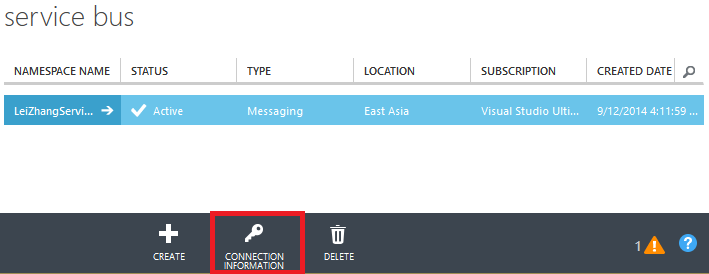
1.使用Azure Management Portal,创建Service Bus
2.修改Web Role逻辑
3.创建Cloud Project,添加Web Role和Service Bus Worker Role
4.配置WebRole和ServiceBusWorkerRole
3.DEMO
一.笔者已经在之前的文章中,介绍如何创建Service Bus了。不熟悉的读者,可以参考Windows Azure Service Bus (2) 队列(Queue)入门
二.创建Cloud Project
1.首先我们以管理员身份,运行VS2013
2.创建一个新的Cloud Service,命名为LeiServiceBusQueue,如下图:

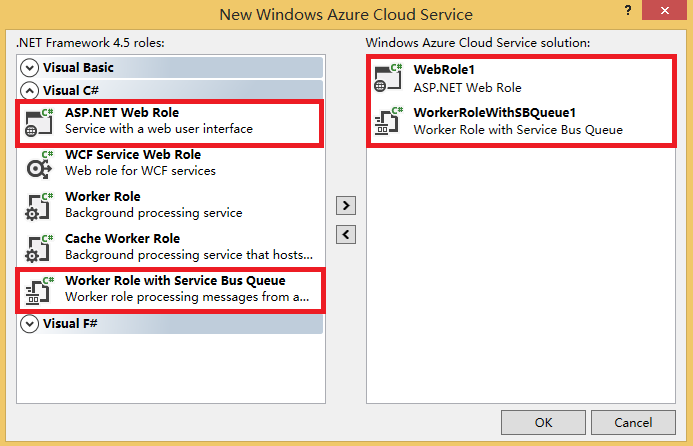
3.增加ASP.NET Web Role和Worker Role with Service Bus Queue。如下图
二.设置WorkerRoleWithSBQueue1
1.在WorkerRoleWithSBQueue1项目中,修改WorkerRole.cs代码,如下:
using System;

using System.Collections.Generic;

using System.Diagnostics;

using System.Linq;

using System.Net;

using System.Threading;

using Microsoft.ServiceBus;

using Microsoft.ServiceBus.Messaging;

using Microsoft.WindowsAzure;

using Microsoft.WindowsAzure.ServiceRuntime;

namespace WorkerRoleWithSBQueue1

{

    public class WorkerRole : RoleEntryPoint

    {

        // The name of your queue

        const string QueueName = "ProcessingQueue";// QueueClient is thread-safe. Recommended that you cache

        // rather than recreating it on every request

        QueueClient Client;

        ManualResetEvent CompletedEvent = new ManualResetEvent(false);

        public override void Run()

        {

            Trace.WriteLine("Starting processing of messages");

            // Initiates the message pump and callback is invoked for each message that is received, calling close on the client will stop the pump.

            Client.OnMessage((receivedMessage) =>

                {

                    try

                    {

                        // Process the message

                        Trace.WriteLine("Processing Service Bus message: " + receivedMessage.SequenceNumber.ToString());

                        string received = receivedMessage.GetBody<string>();

                        Trace.WriteLine("You input is" + received);

                    }

                    catch

                    {

                        // Handle any message processing specific exceptions here

                    }

                });

            CompletedEvent.WaitOne();

        }


     public override bool OnStart()

        {

            // Set the maximum number of concurrent connections

            ServicePointManager.DefaultConnectionLimit = ;

            // Create the queue if it does not exist already

            string connectionString = CloudConfigurationManager.GetSetting("Microsoft.ServiceBus.ConnectionString");

            var namespaceManager = NamespaceManager.CreateFromConnectionString(connectionString);

            if (!namespaceManager.QueueExists(QueueName))

            {

                namespaceManager.CreateQueue(QueueName);

            }// Initialize the connection to Service Bus Queue

            Client = QueueClient.CreateFromConnectionString(connectionString, QueueName);

            return base.OnStart();

        }

        public override void OnStop()

        {

            // Close the connection to Service Bus Queue

            Client.Close();

            CompletedEvent.Set();

            base.OnStop();

        }

    }

}
在上面的WokerRole.cs类代码中,分为两个逻辑:
(1)OnStart函数,表示WorkerRole在启动的时候,初始化了ProcessingQueue对象
(2)Run函数,表示在WorkerRole在执行的时候,将ProcessingQueue的内容输出
三.设置Web Role
1.在Web Role的根目录下,创建一个新的ASPX页面,重命名为ServiceBusQueue.aspx
在ServiceBusQueue.aspx页面中,
- 增加一个TextBox控件,重命名为txbInput
- 增加一个Button控件,重命名为BtnSend
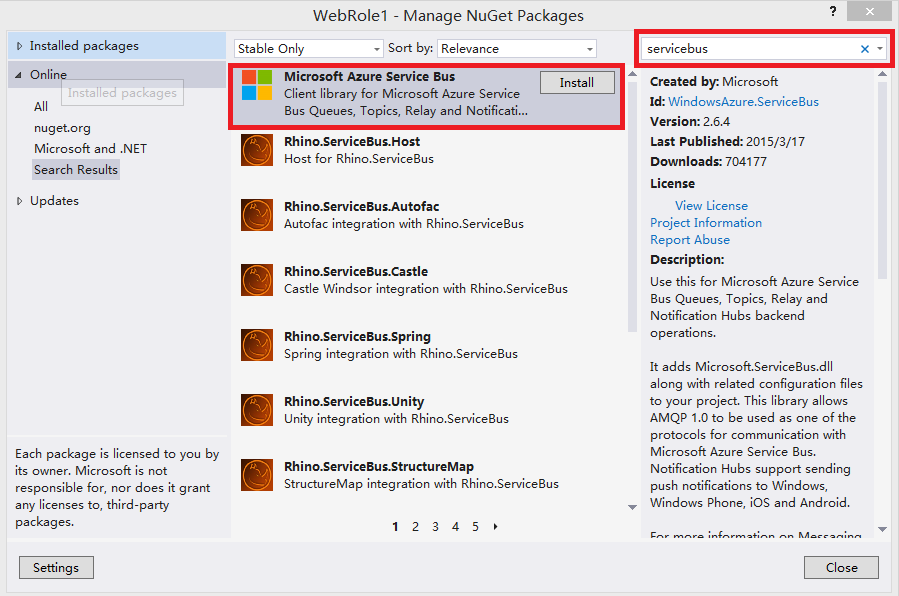
2.在WebRole1项目中,增加NuGet,添加ServiceBus引用。如下图:
3.在ServiceBusQueue.aspx.cs中,增加如下代码
using System;

using System.Collections.Generic;

using System.Linq;

using System.Web;

using System.Web.UI;

using System.Web.UI.WebControls;

using Microsoft.WindowsAzure;

using Microsoft.ServiceBus;

using Microsoft.ServiceBus.Messaging;

namespace WebRole1

{

    public partial class ServiceBusQueue : System.Web.UI.Page

    {

        const string QueueName = "ProcessingQueue";

     protected void Page_Load(object sender, EventArgs e)

        {

        }

        protected void BtnSend_Click(object sender, EventArgs e)

        {

            string strinput = txbInput.Text.ToString();

            Send(strinput);

            txbInput.Text = string.Empty;

        }

        private void Send(string text)

        {

            string connectionString = CloudConfigurationManager.GetSetting("Microsoft.ServiceBus.ConnectionString");

            MessagingFactory factory = MessagingFactory.CreateFromConnectionString(connectionString);

            // Initialize the connection to Service Bus Queue

            MessageSender sender = factory.CreateMessageSender(QueueName);

            BrokeredMessage message1 = new BrokeredMessage(text);

            sender.Send(message1);

        }

    }

}
上面的代码中,会将用户从界面的输入值,插入到ProcessingQueue对象中
四.配置WebRole和ServiceBusWorkerRole
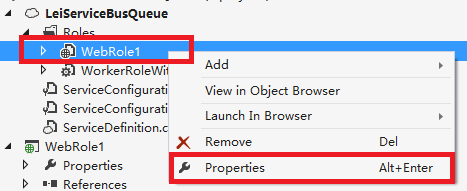
我们修改WebRole的配置文件,如下图:
在WebRole1的Settings中,点击Add Setting增加Microsoft.ServiceBus.ConnectionString对象,如下图:
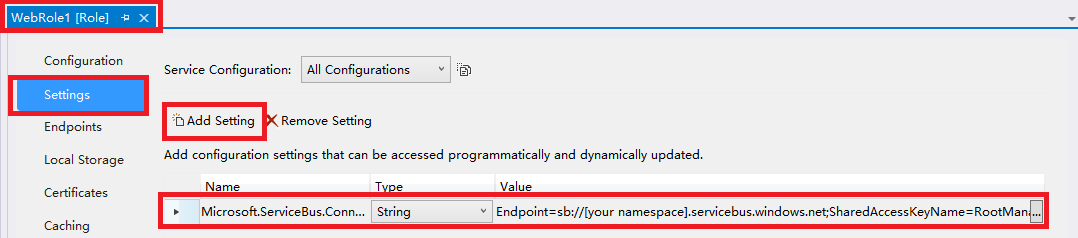
上图中,需要将Value值修改为我们在Azure Management Portal中创建的ServiceBus连接字符串,如下图:
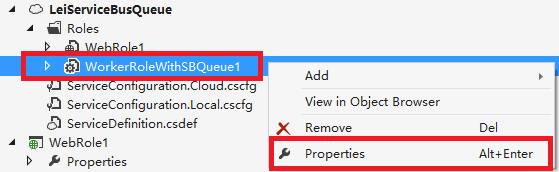
修改完毕后,我们需要修改ServiceBusWorkerRole的配置文件
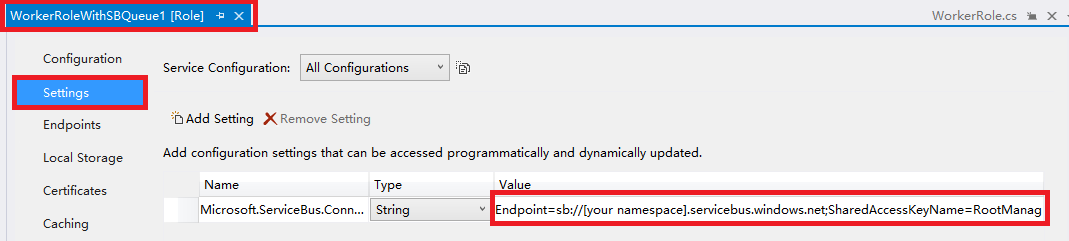
将Microsoft.ServiceBus.ConnectionString的Value属性,修改为我们在Azure Management Portal中创建的ServiceBus连接字符串。如下图:
五.然后我们用Visual Studio的Azure模拟器运行。
我们依次在ServiceBusQueue.aspx中,输入不同的值。如下图:
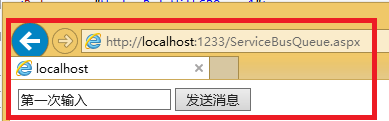

我们可以在Azure Compute模拟器中,查看到2次输入的结果。如下图:
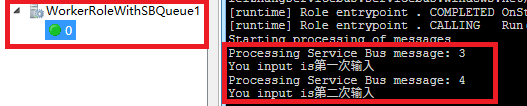
可以观察到,首先输入的值,最先被处理。这也说明了Service Bus Queue 先进先出的特性。
最后我们还可以在Management Portal中,查看到由代码生成的processingqueue对象

=====================================分隔符=======================================================
看到最后,如果有读者觉得,从Azure Compute Emulator查看到aspx页面的输入,这也太不智能啦。
放心,其实我们可以将aspx页面的输入,返回到另外的ReturnQueue对象中去,并在前端aspx进行显示:
(1)ProcessingQueue:插入(Send)数据
(2)ProcessingQueue:返回(Receive)数据
别问我为什么不能保存到代码中申明的ProcessingQueue中,笔者试验过,不能对ProcessingQueue同时执行Send和Receive操作
ServiceBusQueue.aspx.cs代码如下
using System;

using System.Collections.Generic;

using System.Linq;

using System.Web;

using System.Web.UI;

using System.Web.UI.WebControls;

using Microsoft.WindowsAzure;

using Microsoft.ServiceBus;

using Microsoft.ServiceBus.Messaging;

namespace WebRole1

{

    public partial class ServiceBusQueue : System.Web.UI.Page

    {

        const string QueueName = "ProcessingQueue";

        const string ReturnQueueName = "ReturnQueue";

        protected void Page_Load(object sender, EventArgs e)

        {

        }

        protected void BtnSend_Click(object sender, EventArgs e)

        {

            string strinput = txbInput.Text.ToString();

            Send(strinput);

            txbInput.Text = string.Empty;

        }

        private void Send(string text)

        {

            string connectionString = CloudConfigurationManager.GetSetting("Microsoft.ServiceBus.ConnectionString");

            MessagingFactory factory = MessagingFactory.CreateFromConnectionString(connectionString);

            // Initialize the connection to Service Bus Queue

            MessageSender sender = factory.CreateMessageSender(QueueName);

            BrokeredMessage message1 = new BrokeredMessage(text);

            sender.Send(message1);

        }

        protected void btnReceiveMessage_Click(object sender, EventArgs e)

        {

           string connectionString = CloudConfigurationManager.GetSetting("Microsoft.ServiceBus.ConnectionString");

           QueueClient Client = QueueClient.CreateFromConnectionString(connectionString, ReturnQueueName);

           var message = Client.Receive(TimeSpan.FromSeconds());

           if (message != null)

           {

               var ret = message.GetBody<string>();

               message.Complete();

           }

        }

    }

}
WorkerRole.cs代码如下:
using System;

using System.Collections.Generic;

using System.Diagnostics;

using System.Linq;

using System.Net;

using System.Threading;

using Microsoft.ServiceBus;

using Microsoft.ServiceBus.Messaging;

using Microsoft.WindowsAzure;

using Microsoft.WindowsAzure.ServiceRuntime;

namespace WorkerRoleWithSBQueue1

{

    public class WorkerRole : RoleEntryPoint

    {

        // The name of your queue

        const string QueueName = "ProcessingQueue";

        const string ReturnQueueName = "ReturnQueue";

        // QueueClient is thread-safe. Recommended that you cache

        // rather than recreating it on every request

        QueueClient Client;

        ManualResetEvent CompletedEvent = new ManualResetEvent(false);

        public override void Run()

        {

            Trace.WriteLine("Starting processing of messages");

            // Initiates the message pump and callback is invoked for each message that is received, calling close on the client will stop the pump.

            Client.OnMessage((receivedMessage) =>

                {

                    try

                    {

                        // Process the message

                        Trace.WriteLine("Processing Service Bus message: " + receivedMessage.SequenceNumber.ToString());

                        string received = receivedMessage.GetBody<string>();

                        Trace.WriteLine("You input is" + received);

                        SendToReturnQueue(ReturnQueueName, received);

                    }

                    catch

                    {

                        // Handle any message processing specific exceptions here

                    }

                });

            CompletedEvent.WaitOne();

        }

        private void SendToReturnQueue(string queueName, string inputString)

        {

            string connectionString = CloudConfigurationManager.GetSetting("Microsoft.ServiceBus.ConnectionString");

            MessagingFactory factory = MessagingFactory.CreateFromConnectionString(connectionString);

            // Initialize the connection to Service Bus Queue

            MessageSender sender = factory.CreateMessageSender(queueName);

            BrokeredMessage message1 = new BrokeredMessage(inputString);

            sender.Send(message1);

        }

        public override bool OnStart()

        {

            // Set the maximum number of concurrent connections

            ServicePointManager.DefaultConnectionLimit = ;

            // Create the queue if it does not exist already

            string connectionString = CloudConfigurationManager.GetSetting("Microsoft.ServiceBus.ConnectionString");

            var namespaceManager = NamespaceManager.CreateFromConnectionString(connectionString);

            if (!namespaceManager.QueueExists(QueueName))

            {

                namespaceManager.CreateQueue(QueueName);

            }

            if (!namespaceManager.QueueExists(ReturnQueueName))

            {

                namespaceManager.CreateQueue(ReturnQueueName);

            }

            // Initialize the connection to Service Bus Queue

            Client = QueueClient.CreateFromConnectionString(connectionString, QueueName);

            return base.OnStart();

        }

        public override void OnStop()

        {

            // Close the connection to Service Bus Queue

            Client.Close();

            CompletedEvent.Set();

            base.OnStop();

        }

    }

}
本博-三石Blog(下文简称本博),在本博客文章结尾处右下脚未注明转载、来源、出处的作品(内容)均为本博原创,本站对于原创作品内容对其保留版权,请勿随意转载,如若真有需要的朋友可以发Mail联系我;转载本博原创作品(内容)也必须遵循“署名-非商业用途-保持一致”的创作共用协议,请务必以文字链接的形式标明或保留文章原始出处和博客作者(Lei Zhang)的信息,关于本博摄影作品请务必注意保留(www.cnblog.com/threestone)等相关水印版权信息,否则视为侵犯原创版权行为;本博谢绝商业网站转载。版权所有,禁止一切有违中华人民共和国著作权保护法及相关法律和本博(法律)声明的非法及恶意抄袭。
Windows Azure Service Bus (3) 队列(Queue) 使用VS2013开发Service Bus Queue的更多相关文章
- Windows Azure Service Bus (5) 主题(Topic) 使用VS2013开发Service Bus Topic
<Windows Azure Platform 系列文章目录> 项目文件,请在这里下载 在笔者之前的文章中Windows Azure Service Bus (1) 基础 介绍了Servi ...
- Windows Azure Service Bus (6) 中继(Relay On) 使用VS2013开发Service Bus Relay On
<Windows Azure Platform 系列文章目录> 注意:本文介绍的是国内由世纪互联运维的Windows Azure服务. 项目文件请在这里下载. 我们在使用Azure平台的时 ...
- Windows Azure Service Bus (4) Service Bus Queue和Storage Queue的区别
<Windows Azure Platform 系列文章目录> 熟悉笔者文章的读者都了解,Azure提供两种不同方式的Queue消息队列: 1.Azure Storage Queue 具体 ...
- Windows Azure Cloud Service (11) PaaS之Web Role, Worker Role(上)
<Windows Azure Platform 系列文章目录> 本文是对Windows Azure Platform (六) Windows Azure应用程序运行环境内容的补充. 我们知 ...
- 无责任Windows Azure SDK .NET开发入门篇一[Windows Azure开发前准备工作]
一.Windows Azure开发前准备工作 首先我们需要了解什么是 Azure SDK for .NET?微软官方告诉我们:Azure SDK for .NET 是一套应用程序,其中包括 Visua ...
- 无责任Windows Azure SDK .NET开发入门篇(一):开发前准备工作
Windows Azure开发前准备工作 什么是 Azure SDK for .NET?微软官方告诉我们:Azure SDK for .NET 是一套应用程序,其中包括 Visual Studio 工 ...
- [Windows Azure] .NET Multi-Tier Application Using Storage Tables, Queues, and Blobs - 1 of 5
.NET Multi-Tier Application Using Storage Tables, Queues, and Blobs - 1 of 5 This tutorial series sh ...
- [书目20140902]实战Windows Azure——微软云计算平台技术详解 --徐子岩
目录第1章 云计算技术简介 1.1 云计算所要解决的问题 1.2 云计算平台的分类 1.3 微软云计算平台Windows Azure 1.3.1 高可用性 ...
- Windows Azure HandBook (5) Azure混合云解决方案
<Windows Azure Platform 系列文章目录> 在很多情况下,我们都会遇到本地私有云和公有云做互通互联的混合云场景.对于这种混合云的场景,微软的Windows Azure会 ...
随机推荐
- 我的ORM之三 -- 更新
我的ORM索引 更新语法 var 影响行数 = dbr.表.Update(实体).Where(条件).Execute(); 实体类型: 更新的实体类型和添加的实体类型一样,有三类: 1. 任何C#类. ...
- Backbone源码解析(二):Model(模型)模块
Model(模型)模块在bk框架中的作用主要是存储处理数据,它对外和对内都有很多操作数据的接口和方法.它与视图(Views)模块精密联系着,通过set函数改变数据结构从而改变视图界面的变化.下面我们来 ...
- 设计模式之美:Observer(观察者)
索引 意图 结构 参与者 适用性 效果 相关模式 实现 实现方式(一):Observer 模式结构样式代码. 别名 Dependency Publish-Subscribe 意图 定义对象间的一种一对 ...
- 走进AngularJs(七) 过滤器(filter)
过滤器(filter)正如其名,作用就是接收一个输入,通过某个规则进行处理,然后返回处理后的结果.主要用在数据的格式化上,例如获取一个数组中的子集,对数组中的元素进行排序等.ng内置了一些过滤器,它们 ...
- linux下目录操作
1. 常用函数 #include <dirent.h> //open a directory //failed-NULL, other-return a DIR stream DIR *o ...
- ssc
接了一个ssc的小项目,却因为对方的不作答而半途而废.我写了一天的代码算是废了. 主程序 <?xml version="1.0" encoding="utf-8&q ...
- redis中使用java脚本实现分布式锁
转载于:http://www.itxuexiwang.com/a/shujukujishu/redis/2016/0216/115.html?1455860390 edis被大量用在分布式的环境中,自 ...
- Atitit 从 RGB 到 HSL 或 HSV 的转换
Atitit 从 RGB 到 HSL 或 HSV 的转换 1.1. 从 RGB 到 HSL 或 HSV 的转换公式与原理1 1.2. public static HSV RGB2HSV(Color ...
- 设置easyui input默认值
/*设置input 焦点*/ $(function () { //集体调用 $(".formTextBoxes input").each(function () { $(this) ...
- Highcharts结合PhantomJS在服务端生成高质量的图表图片
项目背景 最近忙着给部门开发一套交互式的报表系统,来替换原有的静态报表系统. 老系统是基于dotnetCHARTING开发的,dotnetCHARTING的优势是图表类型丰富,接口调用简单,使用时只需 ...