
20165223 实验四 Android开发基础
实验四 Android开发基础
目录
一、实验报告封面
北京电子科技学院(BESTI)
实 验 报 告
| ◆ | ◇ | ◆ | ◇ |
|---|---|---|---|
| 课程 | Java程序设计 | 班级 | 1652班 |
| 姓名 | 蔡霓 | 学号 | 20165223 |
| 成绩 | 指导教师 | 娄嘉鹏 | |
| 实验日期 | 2018年5月14日 | 实验密级 | 非密级 |
| 预习程度 | 已预习 | 实验时间 | 13:45 - 15:25 |
| 必修/选修 | 选修 | 实验序号 | 四 |
实验名称:Android开发基础
二、具体实验内容
(一)Android Stuidio的安装测试
参考Android开发简易教程,安装 Android Stuidio。
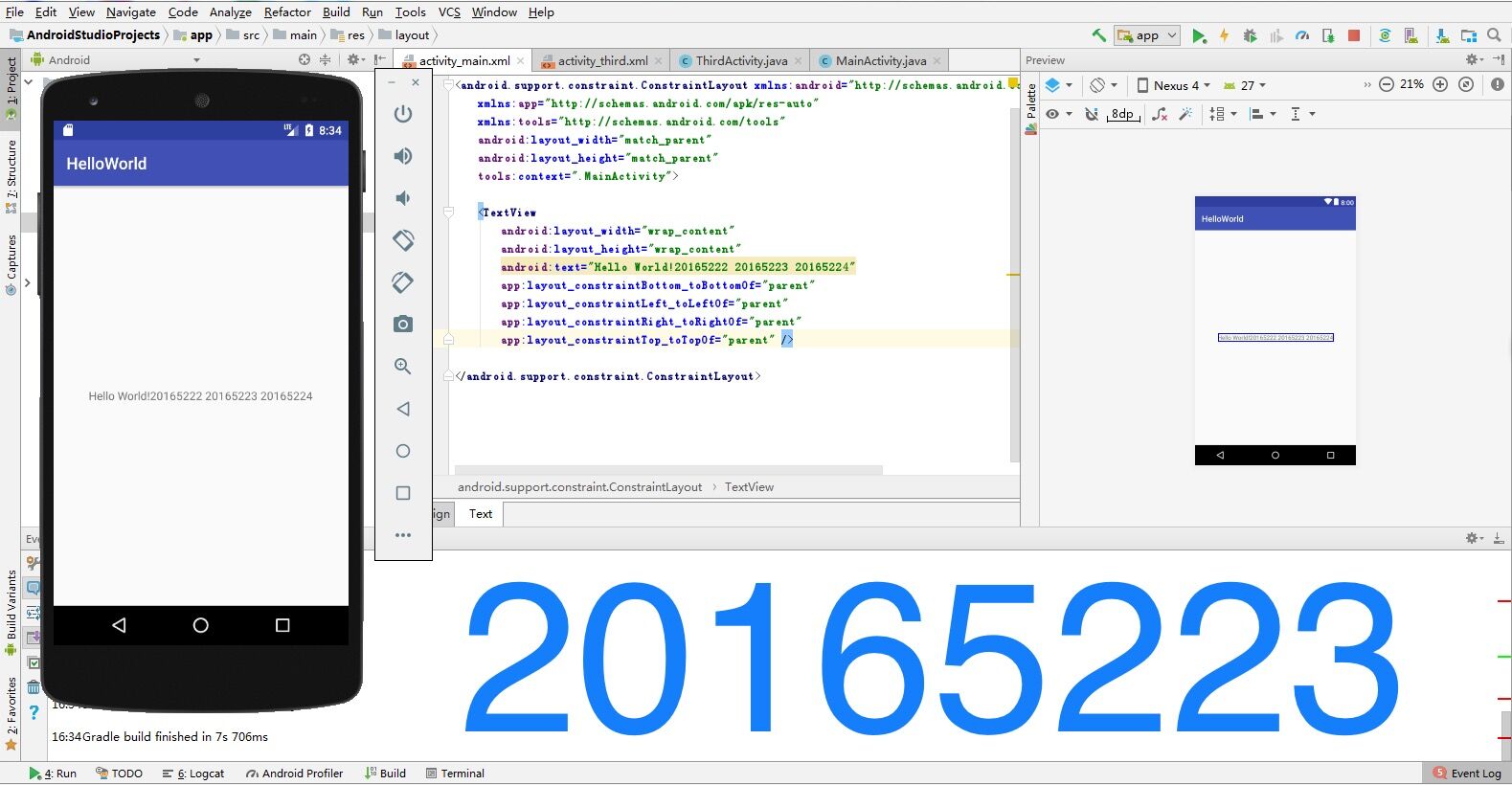
完成Hello World, 要求修改res目录中的内容,Hello World后要显示自己的学号,自己学号前后一名同学的学号。
学习Android Stuidio调试应用程序。
(1)实验步骤
- 创建project后,从
app→res→layout→activity_main.xml中找到text - 将
android:text="Hello World!"改为android:text="Hello World! 20165222 20165223 20165224" - 修改完成后运行
app→java→MainActivity→run→creat new vitual devices得到结果
(2)实验代码
activity_main.xml
<?xml version="1.0" encoding="utf-8"?>

<android.support.constraint.ConstraintLayout

    xmlns:android="http://schemas.android.com/apk/res/android"

    xmlns:tools="http://schemas.android.com/tools"

    xmlns:app="http://schemas.android.com/apk/res-auto"

    android:layout_width="match_parent"

    android:layout_height="match_parent"

    tools:context="com.example.dell1.helloworld.MainActivity">

    <TextView

        android:layout_width="wrap_content"

        android:layout_height="wrap_content"

        android:text="Hello World! 20165222 20165223 20165224"

        app:layout_constraintBottom_toBottomOf="parent"

        app:layout_constraintLeft_toLeftOf="parent"

        app:layout_constraintRight_toRightOf="parent"

        app:layout_constraintTop_toTopOf="parent" />

</android.support.constraint.ConstraintLayout>
(3)实验截图
(二)Activity测试
(1)实验步骤
- 参考《Java和Android开发学习指南(第二版)(EPUBIT,Java for Android 2nd)》第二十五章:
- 构建项目,运行教材相关代码
- 创建 ThirdActivity, 在ThirdActivity中显示自己的学号,修改代码让MainActivity启动ThirdActivity
- 提交代码运行截图和码云Git链接,截图要有学号水印,否则会扣分
(2)实验代码
MainActivity.java
package cn.edu.besti.is.cn20165223;

import android.os.Bundle;

import android.app.Activity;

import android.content.Intent;

import android.view.Menu;

import android.view.MotionEvent;

import android.view.View;

import android.view.View.OnTouchListener;

import android.widget.TextView;

public class MainActivity extends Activity implements

        OnTouchListener {

    @Override

    protected void onCreate(Bundle savedInstanceState) {

        super.onCreate(savedInstanceState);

        setContentView(R.layout.activity_main);

        TextView tv = (TextView) findViewById(R.id.textView1);

        tv.setOnTouchListener(this);

    }

    @Override

    public boolean onCreateOptionsMenu(Menu menu) {

// Inflate the menu; this adds items to the action bar if it

// is present.

        getMenuInflater().inflate(R.menu.menu_main, menu);

        return true;

    }

    @Override

    public boolean onTouch(View arg0, MotionEvent event) {

        Intent intent = new Intent(this, ThirdActivity.class);

        intent.putExtra("message", "20165223蔡霓");

        startActivity(intent);

        return true;

    }

}
ThirdActivity.java
package cn.edu.besti.is.cn20165223;

import android.content.Intent;

import android.support.v7.app.AppCompatActivity;

import android.os.Bundle;

import android.view.Menu;

import android.widget.TextView;

public class ThirdActivity extends AppCompatActivity {

    @Override

    protected void onCreate(Bundle savedInstanceState) {

        super.onCreate(savedInstanceState);

        setContentView(R.layout.activity_third);

        Intent intent = getIntent();

        String message = intent.getStringExtra("message");

        ((TextView) findViewById(R.id.textView1)).setText(message);

    }

    @Override

    public boolean onCreateOptionsMenu(Menu menu) {

        getMenuInflater().inflate(R.menu.menu_third, menu);

        return true;

    }

}
(3)实验截图

(三)UI测试
(1)实验步骤
- 参考《Java和Android开发学习指南(第二版)(EPUBIT,Java for Android 2nd)》第二十六章:
- 构建项目,运行教材相关代码
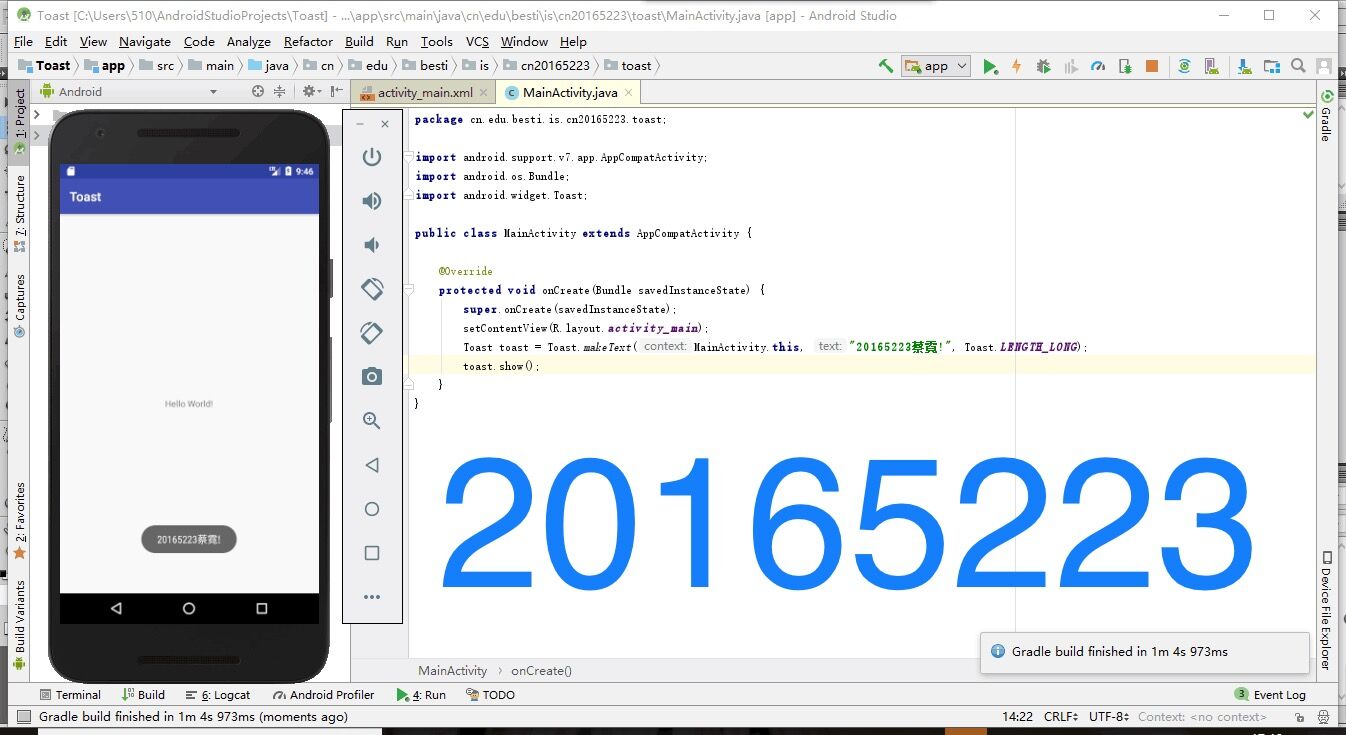
- 修改代码让Toast消息中显示自己的学号信息
- 提交代码运行截图和码云Git链接,截图要有学号水印,否则会扣分
(2)实验代码
package cn.edu.besti.is.cn20165223.toast;

import android.support.v7.app.AppCompatActivity;

import android.os.Bundle;

import android.widget.Toast;

public class MainActivity extends AppCompatActivity {

    @Override

    protected void onCreate(Bundle savedInstanceState) {

        super.onCreate(savedInstanceState);

        setContentView(R.layout.activity_main);

        Toast toast = Toast.makeText(MainActivity.this, "20165223蔡霓", Toast.LENGTH_LONG);

        toast.show();

    }

}
(3)实验截图
(四)布局测试
(1)实验步骤
- 参考《Java和Android开发学习指南(第二版)(EPUBIT,Java for Android 2nd)》第二十七章:
- 构建项目,运行教材相关代码
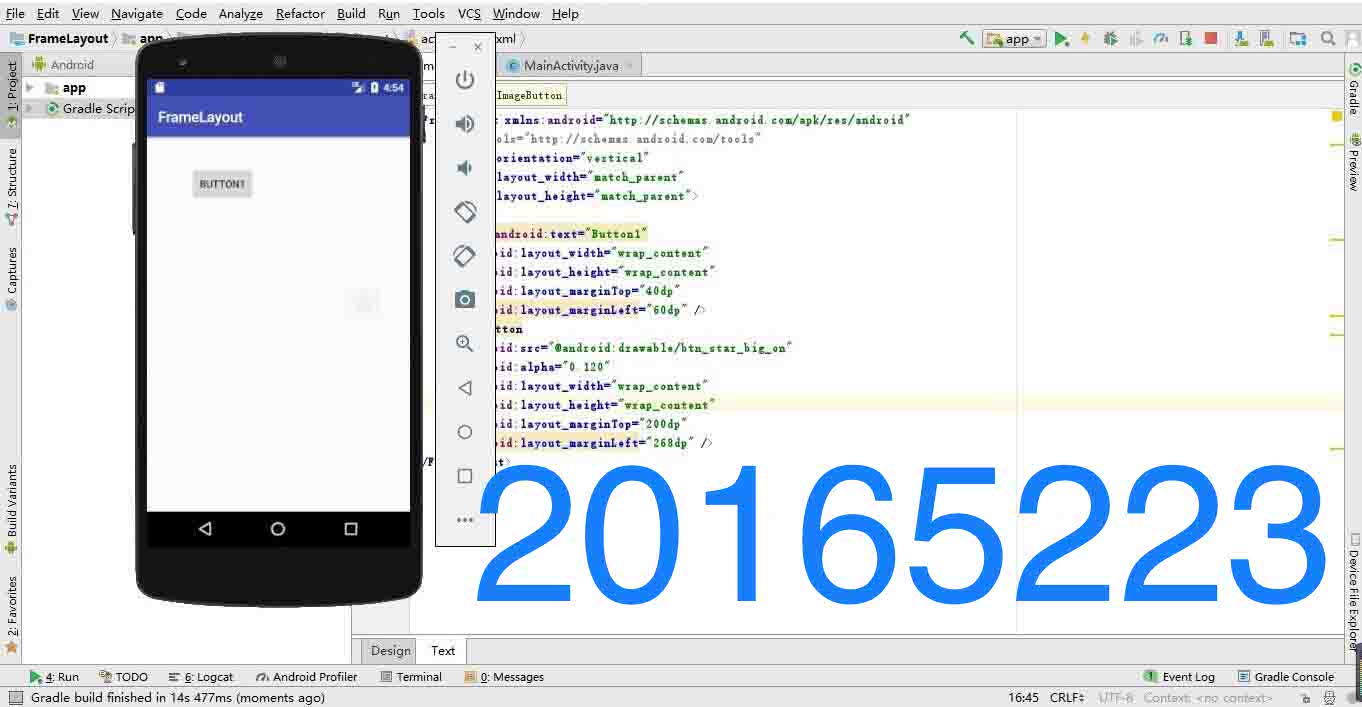
- 修改布局让P290页的界面与教材不同
- 提交代码运行截图和码云Git链接,截图要有学号水印,否则会扣分
(2)实验代码
activity_main.xml
<?xml version="1.0" encoding="utf-8"?>

<android.support.constraint.ConstraintLayout xmlns:android="http://schemas.android.com/apk/res/android"

    xmlns:app="http://schemas.android.com/apk/res-auto"

    xmlns:tools="http://schemas.android.com/tools"

    android:layout_width="match_parent"

    android:layout_height="match_parent"

    tools:context=".MainActivity">

    <Button

        android:id="@+id/button3"

        android:layout_width="wrap_content"

        android:layout_height="wrap_content"

        android:layout_marginLeft="8dp"

        android:layout_marginRight="8dp"

        android:layout_marginTop="228dp"

        android:text="Cancel"

        app:layout_constraintHorizontal_bias="0.971"

        app:layout_constraintLeft_toLeftOf="parent"

        app:layout_constraintRight_toRightOf="parent"

        app:layout_constraintTop_toTopOf="parent" />

    <Button

        android:id="@+id/button2"

        android:layout_width="wrap_content"

        android:layout_height="wrap_content"

        android:layout_marginLeft="8dp"

        android:layout_marginRight="8dp"

        android:layout_marginTop="48dp"

        android:text="Delete"

        app:layout_constraintHorizontal_bias="1.0"

        app:layout_constraintLeft_toLeftOf="parent"

        app:layout_constraintRight_toLeftOf="@+id/button"

        app:layout_constraintTop_toTopOf="parent" />

    <ImageView

        android:id="@+id/imageView"

        android:layout_width="96dp"

        android:layout_height="84dp"

        android:layout_marginBottom="180dp"

        android:layout_marginLeft="8dp"

        android:layout_marginRight="8dp"

        app:layout_constraintBottom_toBottomOf="parent"

        app:layout_constraintLeft_toLeftOf="parent"

        app:layout_constraintRight_toRightOf="parent"

        app:srcCompat="@android:drawable/presence_audio_online" />

    <Button

        android:id="@+id/button"

        android:layout_width="wrap_content"

        android:layout_height="wrap_content"

        android:layout_marginBottom="80dp"

        android:layout_marginLeft="8dp"

        android:layout_marginRight="8dp"

        android:layout_marginTop="8dp"

        android:text="Filter"

        app:layout_constraintBottom_toTopOf="@+id/imageView"

        app:layout_constraintHorizontal_bias="0.971"

        app:layout_constraintLeft_toLeftOf="parent"

        app:layout_constraintRight_toRightOf="parent"

        app:layout_constraintTop_toTopOf="parent"

        app:layout_constraintVertical_bias="0.192" />

    <Button

        android:id="@+id/button4"

        android:layout_width="wrap_content"

        android:layout_height="wrap_content"

        android:layout_marginBottom="8dp"

        android:layout_marginLeft="8dp"

        android:layout_marginRight="8dp"

        android:layout_marginTop="55dp"

        android:text="Save"

        app:layout_constraintBottom_toBottomOf="parent"

        app:layout_constraintHorizontal_bias="0.0"

        app:layout_constraintLeft_toLeftOf="parent"

        app:layout_constraintRight_toLeftOf="@+id/button5"

        app:layout_constraintTop_toBottomOf="@+id/button2"

        app:layout_constraintVertical_bias="0.592" />

    <Button

        android:id="@+id/tableRow"

        android:layout_width="wrap_content"

        android:layout_height="wrap_content"

        android:layout_marginBottom="8dp"

        android:layout_marginLeft="8dp"

        android:layout_marginRight="8dp"

        android:layout_marginTop="55dp"

        android:text="Share"

        app:layout_constraintBottom_toBottomOf="parent"

        app:layout_constraintHorizontal_bias="0.0"

        app:layout_constraintLeft_toLeftOf="parent"

        app:layout_constraintRight_toLeftOf="@+id/button5"

        app:layout_constraintTop_toBottomOf="@+id/button2"

        app:layout_constraintVertical_bias="0.032" />

    <TableRow

        android:id="@+id/button5"

        android:layout_width="wrap_content"

        android:layout_height="wrap_content"

        tools:layout_editor_absoluteX="160dp"

        tools:layout_editor_absoluteY="196dp">

        <ImageView android:src="@android:drawable/btn_star_big_off" />

        <TextClock />

        <ImageView android:src="@android:drawable/btn_star_big_on" />

    </TableRow>

</android.support.constraint.ConstraintLayout>
(3)实验截图
(五)事件处理测试
(1)实验步骤
- 参考《Java和Android开发学习指南(第二版)(EPUBIT,Java for Android 2nd)》第二十八章
- 构建项目,运行教材相关代码
- 提交代码运行截图和码云Git链接,截图要有学号水印,否则会扣分
(2)实验代码
MainActivity.java
package cn.edu.besti.is.cn20165223;

import android.support.v7.app.AppCompatActivity;

import android.widget.AnalogClock;

import android.app.Activity;

import android.graphics.Color;

import android.os.Bundle;

import android.view.Menu;

import android.view.View;

import com.example.multicolorclock.R;

public class MainActivity extends AppCompatActivity {

    int counter = 0;

    int[] colors = {Color.BLACK, Color.BLUE, Color.CYAN, Color.DKGRAY, Color.GRAY, Color.GREEN, Color.LTGRAY, Color.MAGENTA, Color.RED, Color.WHITE, Color.YELLOW};

    @Override

    protected void onCreate(Bundle savedInstanceState) {

        super.onCreate(savedInstanceState);

        setContentView(R.layout.activity_main);

    }

    @Override

    public boolean onCreateOptionsMenu(Menu menu) {

        // Inflate the menu; this adds items to the action bar if it

        // is present.

        getMenuInflater().inflate(R.menu.menu_main, menu);

        return true;

    }

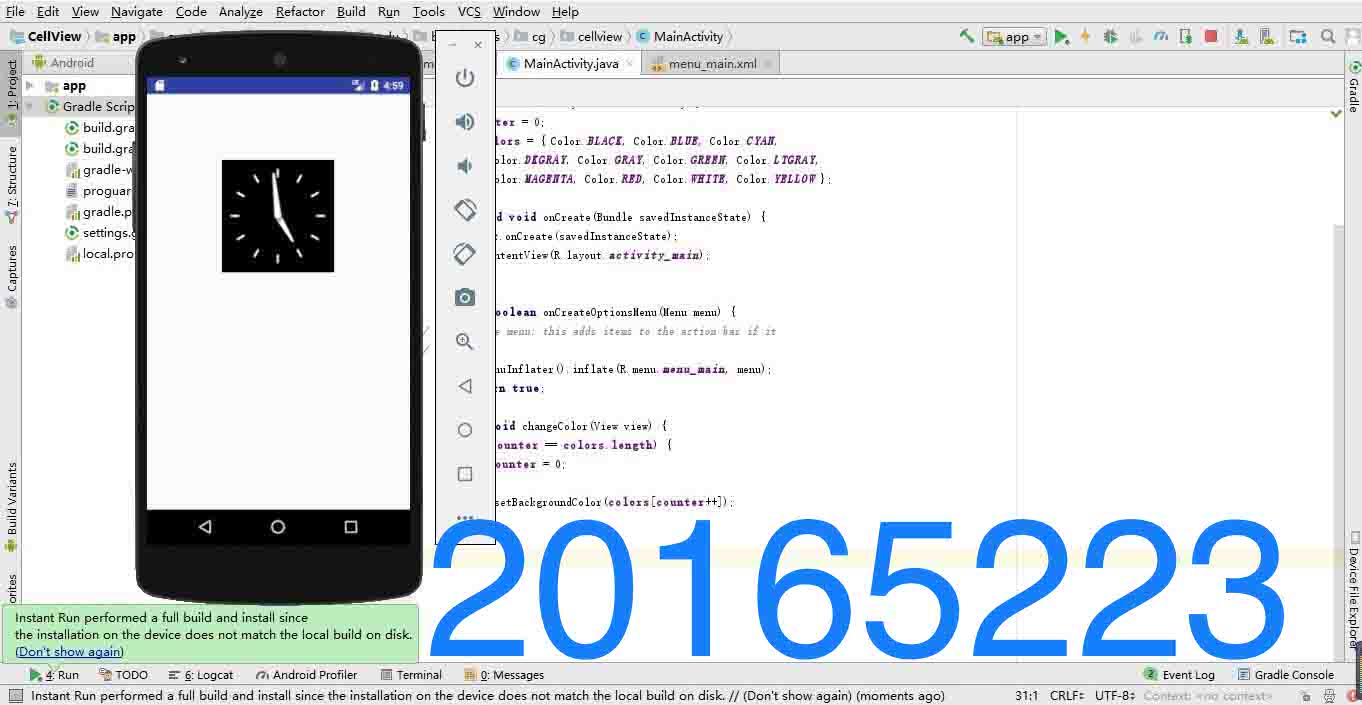
    public void changeColor(View view) {

        if (counter == colors.length) {

            counter = 0;

        }

        view.setBackgroundColor(colors[counter++]);

    }

}
(3)实验截图
三、实验总结
- 遇到的问题:
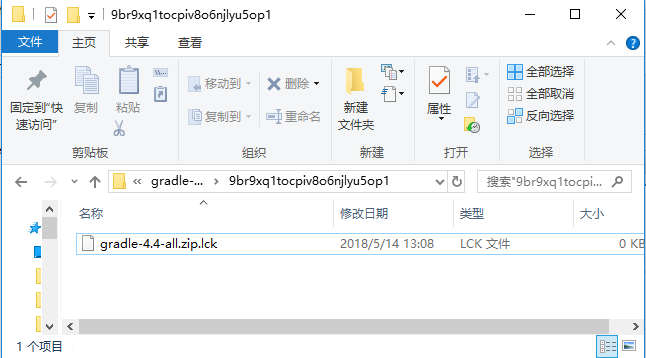

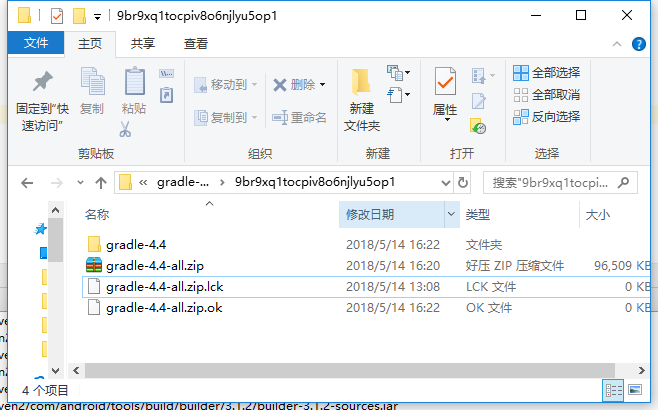
在下载gradle安装包的时候,第一次直接按照教程走,让电脑自行下载却出现上图的问题,打开模拟器的时候无法运行,提示是安装包有损坏,因此也没有出现运行成功的.ok文件。在网上查询资料后得知需要重新下载完整的安装包直接替换掉损坏的gradle包,于是我重新在网上找到合适的zip包下载后拖动进wapper这个隐藏文件夹后,再次运行就成功了。之后的安装也就顺理进行下去,没有再出什么错误。
- 分析与总结:
这次实验最困难的地方是第一个提交点,如何正确将Android开发系统安装进电脑里。这一步花费了我两天的时间才成功安装好,不仅是因为下载速度慢、安装内容多,还因为各种层出不穷的大小错误,最终还是逐个击破,其中艰难不必多说。其他几个提交点只是老师给出的最简单的看书修改范畴内的实验内容,在仔细看了《Java和Android开发学习指南(第二版)(EPUBIT,Java for Android 2nd)》需要学习的章节内容后,修改起来还是比较容易的,但也同时让我了解到一个全新的领域,还需要我进一步学习。
- 参考资料:
- Intellj IDEA 简易教程-Android开发
- Android开发简易教程
- 《Java和Android开发学习指南(第二版)(EPUBIT,Java for Android 2nd)》
四、PSP时间
| 实验步骤 | 耗时 | 百分比 |
|---|---|---|
| 题目分析 | 1h | 10% |
| 思路设计 | 2h | 20% |
| 代码实现 | 5h | 50% |
| 调试测试 | 1h | 10% |
| 实验总结 | 1h | 10% |
20165223 实验四 Android开发基础的更多相关文章
- 20145213 《Java程序设计》实验四 Android开发基础
20145213 <Java程序设计>实验四 Android开发基础 说在前面的话 不同以往实验,对于这次实验具体内容我是比较茫然的.因为点我,打开实验四的链接居然能飘出一股熟悉的味道,这 ...
- 实验四 Android开发基础
实验四 Android开发基础 实验内容 1.安装Android Studio 2.运行安卓AVD模拟器 3.使用安卓运行出虚拟手机并显示HelloWorld以及自己的学号 (一)SDK的安装 (二) ...
- 20145337实验四Android开发基础
20145337实验四Android开发基础 实验内容 基于Android Studio开发简单的Android应用并部署测试; 了解Android组件.布局管理器的使用: 掌握Android中事件处 ...
- 20145225《Java程序设计》 实验四 Android开发基础
20145225<Java程序设计> 实验四 Android开发基础 实验报告 实验内容 安装Android Studio 运行安卓AVD模拟器 使用安卓运行出虚拟手机并显示HelloWo ...
- 20145208 实验四 Android开发基础
20145208 实验四 Android开发基础 安装Android Studio 安装的具体步骤在老师的链接中已经很详细了,在此就不做赘述了. 在此提出我觉得安装的时候需要注意的两个地方 一是安装地 ...
- 20145215实验四 Android开发基础
20145215实验四 Android开发基础 实验内容 基于Android Studio开发简单的Android应用并部署测试; 了解Android组件.布局管理器的使用: 掌握Android中事件 ...
- 20155324 《Java程序设计》实验四 Android开发基础
20155324 <Java程序设计>实验四 Android开发基础 实验内容 1.基于Android Studio开发简单的Android应用并部署测试; 2.了解Android.组件. ...
- 20155228 实验四 Android开发基础
20155228 实验四 Android开发基础 实验内容 1.基于Android Studio开发简单的Android应用并部署测试; 2.了解Android.组件.布局管理器的使用: 3.掌握An ...
- 20155219实验四 Android开发基础设计实验报告
20155219实验四 Android开发基础设计实验报告 实验内容 安装Andriod Studio并配置软件 使用Andriod Studio软件实现Hello World!+学号的小程序 实验步 ...
随机推荐
- Visual Studio 2010 Shortcuts
Uploaded by ProNotion, updated on 11/28/2013 by jmb Platform: Windows/ English PDF Print Hide ...
- Executor介绍
1.Executor介绍: Executor是mybatis的核心接口之一,其中定义了数据库操作的基本方法,它的子类结构图如下:这这张关系图中,涉及到了模板方法模式和装饰器模式.BaseExecuto ...
- mybatis源码分析(一)------------入门
在进行源码分析前,先写一个使用mybatis进行开发的demo,方便我们后面进行分析. 一 关于mybatis的demo pom.xml文件 <project xmlns="http ...
- Json dump
json 模块提供了一种很简单的方式来编码和解码JSON数据. 其中两个主要的函数是 json.dumps() 和 json.loads() , 要比其他序列化函数库如pickle的接口少得多. 下面 ...
- FindBugs-IDEA插件的使用
前言 Findbugs很多人都并不陌生,Eclipse中有插件可以帮助查找代码中隐藏的bug,IDEA中也有这款插件.这个插件可以帮助我们查找隐藏的bug,比较重要的功能就是查找潜在的null指针. ...
- murongxixi的凸优化笔记
http://www.cnblogs.com/murongxixi/p/3598645.html 在前两节里已经涉及到集合的相对内部与闭包的概念,这一节我们深入研究它们的性质和计算,之后介绍凸函数的连 ...
- codeforces509B
Painting Pebbles CodeForces - 509B There are n piles of pebbles on the table, the i-th pile contains ...
- UVA 690 Pipeline Scheduling
https://vjudge.net/problem/UVA-690 题目 你有一台包含5个工作单元的计算机,还有10个完全相同的程序需要执行.每个程序需要$n(n<20)$个时间片来执行,可以 ...
- ElasticSearch查询 第四篇:匹配查询(Match)
<ElasticSearch查询>目录导航: ElasticSearch查询 第一篇:搜索API ElasticSearch查询 第二篇:文档更新 ElasticSearch查询 第三篇: ...
- JSON 解析 (二)—— Jackson的使用
Jackson是基于Java语言的一种JSON和Java对象的数据处理工具.功能上简单易用,性能上根据目前主流转换工具比较,Jackson相对比较高效. <dependency> < ...