
wx.Frame
wx.Frame
A frame is a window whose size and position can (usually) be changed by the user.
It usually has thick borders and a title bar, and can optionally contain a menu bar, toolbar and status bar. A frame can contain any window that is not a frame or dialog.
A frame that has a status bar and toolbar, created via the CreateStatusBar and CreateToolBar functions, manages these windows and adjusts the value returned by GetClientSize to reflect the remaining size available to application windows.
 Default event processing
wx.Frame processes the following events:
wxEVT_SIZE:if the frame has exactly one child window, not counting the status and toolbar, this child is resized to take the entire frame client area. If two or more windows are present, they should be laid out explicitly either by manually handlingwxEVT_SIZEor using sizers;wxEVT_MENU_HIGHLIGHT:the default implementation displays the help string associated with the selected item in the first pane of the status bar, if there is one.
 Window Styles
This class supports the following styles:
wx.DEFAULT_FRAME_STYLE: Defined aswx.MINIMIZE_BOX|wx.MAXIMIZE_BOX|wx.RESIZE_BORDER|wx.SYSTEM_MENU|wx.CAPTION|wx.CLOSE_BOX|wx.CLIP_CHILDREN.wx.ICONIZE: Display the frame iconized (minimized). Windows only.wx.CAPTION: Puts a caption on the frame. Notice that this flag is required bywx.MINIMIZE_BOX,wx.MAXIMIZE_BOXandwx.CLOSE_BOXon most systems as the corresponding buttons cannot be shown if the window has no title bar at all. I.e. ifwx.CAPTIONis not specified those styles would be simply ignored.wx.MINIMIZE: Identical towx.ICONIZE. Windows only.wx.MINIMIZE_BOX: Displays a minimize box on the frame.wx.MAXIMIZE: Displays the frame maximized. Windows and GTK+ only.wx.MAXIMIZE_BOX: Displays a maximize box on the frame. Notice that under wxGTKwx.RESIZE_BORDERmust be used as well or this style is ignored.wx.CLOSE_BOX: Displays a close box on the frame.wx.STAY_ON_TOP: Stay on top of all other windows, see alsowx.FRAME_FLOAT_ON_PARENT.wx.SYSTEM_MENU: Displays a system menu containing the list of various windows commands in the window title bar. Unlikewx.MINIMIZE_BOX,wx.MAXIMIZE_BOXandwx.CLOSE_BOXstyles this style can be used withoutwx.CAPTION, at least under Windows, and makes the system menu available without showing it on screen in this case. However it is recommended to only use it together withwx.CAPTIONfor consistent behaviour under all platforms.wx.RESIZE_BORDER: Displays a resizable border around the window.wx.FRAME_TOOL_WINDOW: Causes a frame with a small title bar to be created; the frame does not appear in the taskbar under Windows or GTK+.wx.FRAME_NO_TASKBAR: Creates an otherwise normal frame but it does not appear in the taskbar under Windows or GTK+ (note that it will minimize to the desktop window under Windows which may seem strange to the users and thus it might be better to use this style only withoutwx.MINIMIZE_BOXstyle). In wxGTK, the flag is respected only if the window manager supports_NET_WM_STATE_SKIP_TASKBARhint.wx.FRAME_FLOAT_ON_PARENT: The frame will always be on top of its parent (unlikewx.STAY_ON_TOP). A frame created with this style must have a notNoneparent.wx.FRAME_SHAPED: Windows with this style are allowed to have their shape changed with theSetShapemethod.
The default frame style is for normal, resizable frames. To create a frame which cannot be resized by user, you may use the following combination of styles:
style = wx.DEFAULT_FRAME_STYLE & ~(wx.RESIZE_BORDER | wx.MAXIMIZE_BOX)
 Window Extra Styles
See also the Window Styles. This class supports the following extra styles:
wx.FRAME_EX_CONTEXTHELP: Under Windows, puts a query button on the caption. When pressed, Windows will go into a context-sensitive help mode and wxWidgets will send awxEVT_HELPevent if the user clicked on an application window. Note that this is an extended style and must be set by calling SetExtraStyle before Create is called (two-step construction). You cannot use this style together withwx.MAXIMIZE_BOXorwx.MINIMIZE_BOX, so you should usewx.DEFAULT_FRAME_STYLE~ (wx``wx.MINIMIZE_BOX`` |wx.MAXIMIZE_BOX) for the frames having this style (the dialogs don’t have a minimize or a maximize box by default)wx.FRAME_EX_METAL: On Mac OS X, frames with this style will be shown with a metallic look. This is an extra style.
 Events Emitted by this Class
Event macros for events emitted by this class:
- EVT_CLOSE: Process a
wxEVT_CLOSE_WINDOWevent when the frame is being closed by the user or programmatically (seewx.Window.Close). The user may generate this event clicking the close button (typically the ‘X’ on the top-right of the title bar) if it’s present (see theCLOSE_BOXstyle). See wx.CloseEvent. - EVT_ICONIZE: Process a
wxEVT_ICONIZEevent. See wx.IconizeEvent. - EVT_MENU_OPEN: A menu is about to be opened. See wx.MenuEvent.
- EVT_MENU_CLOSE: A menu has been just closed. See wx.MenuEvent.
- EVT_MENU_HIGHLIGHT: The menu item with the specified id has been highlighted: used to show help prompts in the status bar by wx.Frame. See wx.MenuEvent.
- EVT_MENU_HIGHLIGHT_ALL: A menu item has been highlighted, i.e. the currently selected menu item has changed. See wx.MenuEvent.
Note
An application should normally define an wx.CloseEvent handler for the frame to respond to system close events, for example so that related data and subwindows can be cleaned up.
See also
wx.MDIParentFrame, wx.MDIChildFrame, wx.MiniFrame, wx.Dialog
 Class Hierarchy
 Inheritance diagram for class Frame:
 Control Appearance
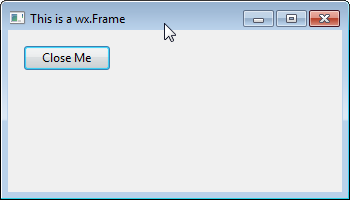
wxMSW

wxMAC

wxGTK
 Known Subclasses
wx.aui.AuiMDIParentFrame, DocChildFrame , DocParentFrame ,wx.html.HtmlHelpFrame, wx.MDIChildFrame, wx.MDIParentFrame, wx.MiniFrame,wx.PreviewFrame, wx.adv.SplashScreen
 Methods Summary
__init__ |
Default constructor. |
Centre |
Centres the frame on the display. |
Create |
Used in two-step frame construction. |
CreateStatusBar |
Creates a status bar at the bottom of the frame. |
CreateToolBar |
Creates a toolbar at the top or left of the frame. |
GetClientAreaOrigin |
Returns the origin of the frame client area (in client coordinates). |
GetMenuBar |
Returns a pointer to the menubar currently associated with the frame (if any). |
GetStatusBar |
Returns a pointer to the status bar currently associated with the frame (if any). |
GetStatusBarPane |
Returns the status bar pane used to display menu and toolbar help. |
GetToolBar |
Returns a pointer to the toolbar currently associated with the frame (if any). |
OnCreateStatusBar |
Virtual function called when a status bar is requested by CreateStatusBar . |
OnCreateToolBar |
Virtual function called when a toolbar is requested by CreateToolBar . |
PopStatusText |
|
ProcessCommand |
Simulate a menu command. |
PushStatusText |
|
SetMenuBar |
Tells the frame to show the given menu bar. |
SetStatusBar |
Associates a status bar with the frame. |
SetStatusBarPane |
Set the status bar pane used to display menu and toolbar help. |
SetStatusText |
Sets the status bar text and redraws the status bar. |
SetStatusWidths |
Sets the widths of the fields in the status bar. |
SetToolBar |
Associates a toolbar with the frame. |
 Properties Summary
MenuBar |
See GetMenuBar and SetMenuBar |
StatusBar |
See GetStatusBar and SetStatusBar |
StatusBarPane |
See GetStatusBarPane and SetStatusBarPane |
ToolBar |
See GetToolBar and SetToolBar |
 Class API
- class
wx.Frame(TopLevelWindow) -
Possible constructors:
Frame()

Frame(parent, id=ID_ANY, title="", pos=DefaultPosition,

      size=DefaultSize, style=DEFAULT_FRAME_STYLE, name=FrameNameStr)
A frame is a window whose size and position can (usually) be changed by the user.
Methods
__init__(self, *args, **kw)-
 Overloaded Implementations:
__init__ (self)
Default constructor.
__init__ (self, parent, id=ID_ANY, title=””, pos=DefaultPosition, size=DefaultSize, style=DEFAULT_FRAME_STYLE, name=FrameNameStr)
Constructor, creating the window.
Parameters: - parent (wx.Window) – The window parent. This may be, and often is,
None. If it is notNone, the frame will be minimized when its parent is minimized and restored when it is restored (although it will still be possible to minimize and restore just this frame itself). - id (wx.WindowID) – The window identifier. It may take a value of -1 to indicate a default value.
- title (string) – The caption to be displayed on the frame’s title bar.
- pos (wx.Point) – The window position. The value DefaultPosition indicates a default position, chosen by either the windowing system or wxWidgets, depending on platform.
- size (wx.Size) – The window size. The value DefaultSize indicates a default size, chosen by either the windowing system or wxWidgets, depending on platform.
- style (long) – The window style. See wx.Frame class description.
- name (string) – The name of the window. This parameter is used to associate a name with the item, allowing the application user to set Motif resource values for individual windows.
Note
For Motif,
MWM(the Motif Window Manager) should be running for any window styles to work (otherwise all styles take effect).See also
- parent (wx.Window) – The window parent. This may be, and often is,
Centre(self, direction=BOTH)-
Centres the frame on the display.
Parameters: direction (int) – The parameter may be wx.HORIZONTAL,wx.VERTICALorwx.BOTH.
Create(self, parent, id=ID_ANY, title="", pos=DefaultPosition, size=DefaultSize, style=DEFAULT_FRAME_STYLE, name=FrameNameStr)-
Used in two-step frame construction.
See wx.Frame for further details.
Parameters: Return type: bool
CreateStatusBar(self, number=1, style=STB_DEFAULT_STYLE, id=0, name=StatusBarNameStr)-
Creates a status bar at the bottom of the frame.
Parameters: - number (int) – The number of fields to create. Specify a value greater than 1 to create a multi-field status bar.
- style (long) – The status bar style. See wx.StatusBar for a list of valid styles.
- id (wx.WindowID) – The status bar window identifier. If -1, an identifier will be chosen by wxWidgets.
- name (string) – The status bar window name.
Return type: Returns: A pointer to the status bar if it was created successfully,
Noneotherwise.Note
The width of the status bar is the whole width of the frame (adjusted automatically when resizing), and the height and text size are chosen by the host windowing system.
See also
CreateToolBar(self, style=TB_DEFAULT_STYLE, id=ID_ANY, name=ToolBarNameStr)-
Creates a toolbar at the top or left of the frame.
Parameters: - style (long) – The toolbar style. See wx.ToolBar for a list of valid styles.
- id (wx.WindowID) – The toolbar window identifier. If -1, an identifier will be chosen by wxWidgets.
- name (string) – The toolbar window name.
Return type: Returns: A pointer to the toolbar if it was created successfully,
Noneotherwise.Note
By default, the toolbar is an instance of wx.ToolBar. To use a different class, override
OnCreateToolBar. When a toolbar has been created with this function, or made known to the frame withwx.Frame.SetToolBar, the frame will manage the toolbar position and adjust the return value fromwx.Window.GetClientSizeto reflect the available space for application windows. Under PocketPC, you should always use this function for creating the toolbar to be managed by the frame, so that wxWidgets can use a combined menubar and toolbar. Where you manage your own toolbars, create a wx.ToolBar as usual.See also
GetClientAreaOrigin(self)-
Returns the origin of the frame client area (in client coordinates).
It may be different from (0, 0) if the frame has a toolbar.
Return type: wx.Point
GetMenuBar(self)-
Returns a pointer to the menubar currently associated with the frame (if any).
Return type: wx.MenuBar See also
GetStatusBar(self)-
Returns a pointer to the status bar currently associated with the frame (if any).
Return type: wx.StatusBar See also
GetStatusBarPane(self)-
Returns the status bar pane used to display menu and toolbar help.
Return type: int See also
GetToolBar(self)-
Returns a pointer to the toolbar currently associated with the frame (if any).
Return type: wx.ToolBar See also
OnCreateStatusBar(self, number, style, id, name)-
Virtual function called when a status bar is requested by
CreateStatusBar.Parameters: - number (int) – The number of fields to create.
- style (long) – The window style. See wx.StatusBar for a list of valid styles.
- id (wx.WindowID) – The window identifier. If -1, an identifier will be chosen by wxWidgets.
- name (string) – The window name.
Return type: Returns: A status bar object.
Note
An application can override this function to return a different kind of status bar. The default implementation returns an instance of wx.StatusBar.
See also
OnCreateToolBar(self, style, id, name)-
Virtual function called when a toolbar is requested by
CreateToolBar.Parameters: - style (long) – The toolbar style. See wx.ToolBar for a list of valid styles.
- id (wx.WindowID) – The toolbar window identifier. If -1, an identifier will be chosen by wxWidgets.
- name (string) – The toolbar window name.
Return type: Returns: A toolbar object.
Note
An application can override this function to return a different kind of toolbar. The default implementation returns an instance of wx.ToolBar.
See also
PopStatusText(self, number=0)-
Parameters: number (int) –
ProcessCommand(self, id)-
Simulate a menu command.
Parameters: id (int) – The identifier for a menu item. Return type: bool
PushStatusText(self, text, number=0)-
Parameters: - text (string) –
- number (int) –
SetMenuBar(self, menuBar)-
Tells the frame to show the given menu bar.
Parameters: menuBar (wx.MenuBar) – The menu bar to associate with the frame. Note
If the frame is destroyed, the menu bar and its menus will be destroyed also, so do not delete the menu bar explicitly (except by resetting the frame’s menu bar to another frame or
None). Under Windows, a size event is generated, so be sure to initialize data members properly before callingSetMenuBar. Note that on some platforms, it is not possible to call this function twice for the same frame object.See also
SetStatusBar(self, statusBar)-
Associates a status bar with the frame.
If statusBar is
None, then the status bar, if present, is detached from the frame, but not deleted.Parameters: statusBar (wx.StatusBar) – See also
SetStatusBarPane(self, n)-
Set the status bar pane used to display menu and toolbar help.
Using -1 disables help display.
Parameters: n (int) –
SetStatusText(self, text, number=0)-
Sets the status bar text and redraws the status bar.
Parameters: - text (string) – The text for the status field.
- number (int) – The status field (starting from zero).
Note
Use an empty string to clear the status bar.
See also
SetStatusWidths(self, widths)-
Sets the widths of the fields in the status bar.
Parameters: widths (list of integers) – Must contain an array of n integers, each of which is a status field width in pixels. A value of -1 indicates that the field is variable width; at least one field must be -1. You should delete this array after calling SetStatusWidths.
SetToolBar(self, toolBar)-
Associates a toolbar with the frame.
Parameters: toolBar (wx.ToolBar) –
Properties
MenuBar-
See
GetMenuBarandSetMenuBar
StatusBar-
See
GetStatusBarandSetStatusBar
StatusBarPane-
See
GetStatusBarPaneandSetStatusBarPane
ToolBar-
See
GetToolBarandSetToolBar
wx.Frame的更多相关文章
- wx.ListCtrl简单使用例子
效果图: 示例代码: #! /usr/bin/env python #coding=utf-8 import wx import sys packages = [('jessica alba', 'p ...
- wxPython安装错误问题:No module named wx
今天心血来潮安装wxPython,本机win7,且已经安装Python,版本为2.7.3,然后IDE使用的PyCharm,然后wxPython下载的版本为:wxPython2.8-win32-unic ...
- wxPython 基本框架与运行原理 -- App 与 Frame
<wxPython in Action> chapter 1.2 笔记 wxPython 是 wxWidgets 的 Python 实现,“w” for Microsoft Windows ...
- PIL Image 转成 wx.Image、wx.Bitmap
import wx from PIL import Image def ConvertToWxImage(): pilImage = Image.open('1.png') image = wx.Em ...
- wx
wx The classes in this module are the most commonly used classes for wxPython, which is why they hav ...
- wx.Dialog
wx.Dialog A dialog box is a window with a title bar and sometimes a system menu, which can be moved ...
- wx.ToolBar
wx.ToolBar A toolbar is a bar of buttons and/or other controls usually placed below the menu bar in ...
- wx模块小实例
功能介绍: 查询数据库表数据,提取数据并显示 main.py(执行文件) #coding:gbk __author__ = 'Hito' import querySmscode import wx c ...
- Python中wx.FlexGridSizer
FlexGridSizer是GridSizer的一个更灵活的版本.它与标准的GridSizer几乎相同,除了下面3点例外: 1.每行和每列可以有各自的尺寸.2.默认情况下,当尺寸调整时,它行和列整体改 ...
随机推荐
- 深入浅出畅谈Zigbee
ZigBee采用802.15.4标准作为其对等通信的基础.该标准由ZigBee联盟(ZigBee Alliance)开发并管理.ZigBee Alliance是一家投资于该标准并在无线领域进行推广的联 ...
- 15 Tricks to Appear Smart in Emails(转)
英文原文:15 Tricks to Appear Smart in Emails 如果你不关心在邮件中表现聪明,就不要看本文了. 好吧,我们是孤独的. 在公司环境里,与电子通讯的肥沃土壤相比,没有什么 ...
- ac命令根据/var/log/wtmp文件登录退出时间计算用户连接时间
ac命令根据/var/log/wtmp文件登录退出时间计算用户连接时间
- c++一些面试题目
1.What is achieved by prefixing the 'static' keyword to a file-level function or file-level variable ...
- 【DSA MOOC】起泡排序的原理及常数优化
根据学堂在线TsinghuaX: 30240184X 数据结构(2015秋)这门课的内容,对bubblesort做了一些总结. 1. bubblesort(起泡排序),原理来自这样一个观察规律:若序列 ...
- 【HDU 4451 Dressing】水题,组合数
有衣服.裤子.鞋数量分别为n,m,k,给出p对不和谐的衣-裤或裤-鞋搭配,问一共有多少种和谐的衣裤鞋的搭配. 全部的组合有Cn1Cm1Ck1种. 设p对中有p1对衣-裤,p2对裤-鞋,则不和谐的搭配共 ...
- javascript第十五课:DOM
dom就是文档,就是整个网页的简称,dom里面的标签就是对象 使用javascript进行DHMTL网页开发(Dynamic Html 动态网页) dom就是把html页面模拟成一个对象,顶级对象wi ...
- 聚类算法初探(六)OPTICS
最近由于工作需要,对聚类算法做了一些相关的调研.现将搜集到的资料和自己对算法的一些理解整理如下,供大家参考. 另外在算法代码方面,我也做了一些实现(包括串行和并行),欢迎感兴趣的朋友探讨和交流. 第一 ...
- 【Android】Android实现截取当前屏幕图片并保存至SDCard
功能 1. 实现截取当前屏幕的功能. 2. 把截取的图片保存到SDCard中的某个目录文件夹下面. Java代码 package com.app.test01; import java.io.File ...
- 让你提前认识软件开发(23):怎样在C语言中运行shell命令?
第1部分 又一次认识C语言 怎样在C语言中运行shell命令? [文章摘要] Linux操作系统具备开源等诸多优秀特性,因此在很多通信类软件(主流开发语言为C语言)中,开发平台都迁移到了Linux上, ...