
Docker: 企业级镜像仓库Harbor部署(http)
Harbor离线安装包下载地址:https://github.com/goharbor/harbor
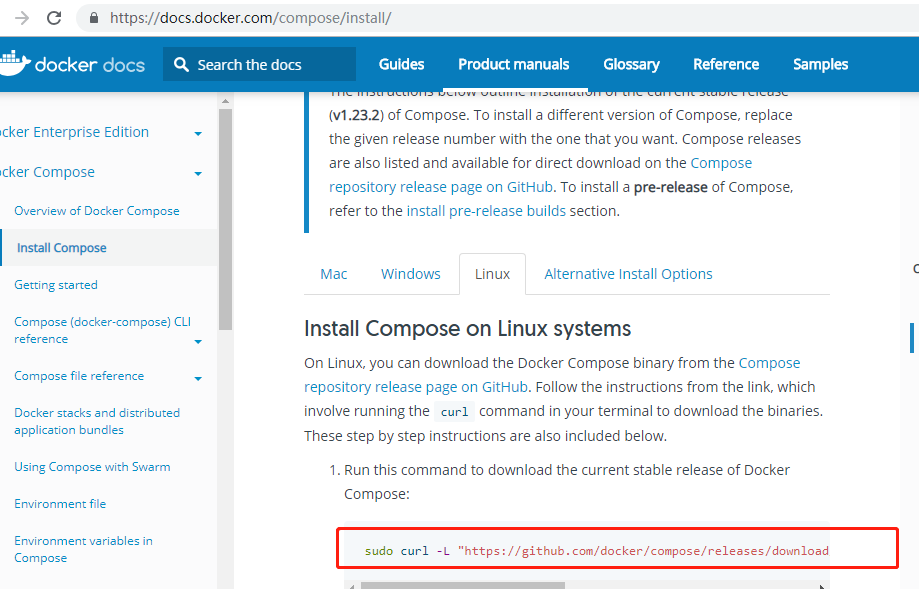
Docker compose(安装harbor需要用到docker compose)下载地址:https://docs.docker.com/compose/install/
Docker compose是单机容器编排工具
以下是操作过程
[root@ ~]# ls

anaconda-ks.cfg  dockerfile_.zip  nginx  nginx.tar  php  tomcat  wordpress  wordpress-4.9.-zh_CN.tar.gz

#使用xshell 将docker-compose-Linux-x86_64、harbor-offline-installer-v1.6.1.tgz放进宿主机
[root@ ~]# rz -E

rz waiting to receive.

[root@ ~]# rz -E

rz waiting to receive.

[root@ ~]# ls

anaconda-ks.cfg              harbor-offline-installer-v1.6.1.tgz  php        wordpress-4.9.-zh_CN.tar.gz

docker-compose-Linux-x86_64  nginx                                tomcat

dockerfile_.zip              nginx.tar                            wordpress

[root@ ~]# tar xvf harbor-offline-installer-v1.6.1.tgz

harbor/common/templates/

harbor/common/templates/nginx/

harbor/common/templates/nginx/nginx.https.conf

harbor/common/templates/nginx/notary.server.conf

harbor/common/templates/nginx/nginx.http.conf

harbor/common/templates/nginx/notary.upstream.conf

harbor/common/templates/ui/

harbor/common/templates/ui/env

harbor/common/templates/ui/private_key.pem

harbor/common/templates/ui/app.conf

harbor/common/templates/notary/

harbor/common/templates/notary/notary-signer.crt

harbor/common/templates/notary/signer-config.json

harbor/common/templates/notary/notary-signer-ca.crt

harbor/common/templates/notary/signer_env

harbor/common/templates/notary/server_env

harbor/common/templates/notary/signer-config.postgres.json

harbor/common/templates/notary/server-config.json

harbor/common/templates/notary/notary-signer.key

harbor/common/templates/notary/server-config.postgres.json

harbor/common/templates/adminserver/

harbor/common/templates/adminserver/env

harbor/common/templates/chartserver/

harbor/common/templates/chartserver/env

harbor/common/templates/db/

harbor/common/templates/db/env

harbor/common/templates/registry/

harbor/common/templates/registry/root.crt

harbor/common/templates/registry/config.yml

harbor/common/templates/registry/config_ha.yml

harbor/common/templates/registryctl/

harbor/common/templates/registryctl/env

harbor/common/templates/registryctl/config.yml

harbor/common/templates/log/

harbor/common/templates/log/logrotate.conf

harbor/common/templates/jobservice/

harbor/common/templates/jobservice/env

harbor/common/templates/jobservice/config.yml

harbor/common/templates/clair/

harbor/common/templates/clair/postgres_env

harbor/common/templates/clair/config.yaml

harbor/common/templates/clair/postgresql-init.d/

harbor/common/templates/clair/postgresql-init.d/README.md

harbor/common/templates/clair/clair_env

harbor/harbor.v1.6.1.tar.gz

harbor/prepare

harbor/NOTICE

harbor/LICENSE

harbor/install.sh

harbor/harbor.cfg

harbor/docker-compose.yml

harbor/open_source_license

harbor/ha/

harbor/ha/sample/

harbor/ha/sample/active_active/

harbor/ha/sample/active_active/keepalived_active_active.conf

harbor/ha/sample/active_active/check.sh

harbor/ha/sample/active_standby/

harbor/ha/sample/active_standby/keepalived_active_standby.conf

harbor/ha/sample/active_standby/check_harbor.sh

harbor/ha/initial-registry.sql

harbor/ha/docker-compose.tpl

harbor/ha/docker-compose.clair.yml

harbor/ha/docker-compose.clair.tpl

harbor/ha/docker-compose.yml

harbor/docker-compose.notary.yml

harbor/docker-compose.clair.yml

harbor/docker-compose.chartmuseum.yml

[root@ ~]# ls

anaconda-ks.cfg              harbor                               nginx.tar  wordpress

docker-compose-Linux-x86_64  harbor-offline-installer-v1.6.1.tgz  php        wordpress-4.9.-zh_CN.tar.gz

dockerfile_.zip              nginx                                tomcat

#将docker-compose-Linux-x86_64移动到 /usr/bin/docker-compose

[root@ ~]# mv docker-compose-Linux-x86_64 /usr/bin/docker-compose

#加上可执行权限

[root@ ~]# chmod +x /usr/bin/docker-compose

\[root@ ~]# cd harbor

[root@ harbor]# ls

common                          docker-compose.notary.yml  harbor.cfg            LICENSE              prepare

docker-compose.chartmuseum.yml  docker-compose.yml         harbor.v1.6.1.tar.gz  NOTICE

docker-compose.clair.yml        ha                         install.sh            open_source_license
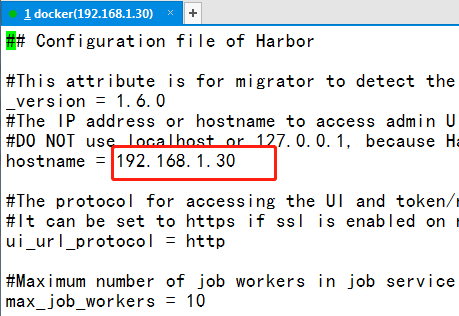
修改harbor.cfg文件,配置访问harbor的地址,这里配置成harbor主机的ip.如果这台机器有域名,也可以配置域名。
vi harbor.cfg
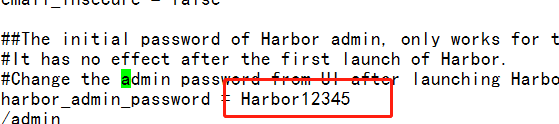
默认访问harbor前台界面的用户名是admin,默认密码在harbor.cfg文件中
#安装harbor准备
[root@ harbor]# ./prepare

loaded secret from file: /data/secretkey

Generated configuration file: ./common/config/nginx/nginx.conf

Generated configuration file: ./common/config/adminserver/env

Generated configuration file: ./common/config/ui/env

Generated configuration file: ./common/config/registry/config.yml

Generated configuration file: ./common/config/db/env

Generated configuration file: ./common/config/jobservice/env

Generated configuration file: ./common/config/jobservice/config.yml

Generated configuration file: ./common/config/log/logrotate.conf

Generated configuration file: ./common/config/registryctl/env

Generated configuration file: ./common/config/ui/app.conf

Generated certificate, key file: ./common/config/ui/private_key.pem, cert file: ./common/config/registry/root.crt

The configuration files are ready, please use docker-compose to start the service.


#安装harbor

[root@ harbor]# ./install.sh

[Step ]: checking installation environment ...

Note: docker version: 18.09.

Note: docker-compose version: 1.23.

[Step ]: loading Harbor images ...

Loaded image: goharbor/harbor-log:v1.6.1

Loaded image: goharbor/harbor-jobservice:v1.6.1

Loaded image: goharbor/redis-photon:v1.6.1

Loaded image: goharbor/nginx-photon:v1.6.1

Loaded image: goharbor/harbor-migrator:v1.6.1

Loaded image: goharbor/chartmuseum-photon:v0.7.1-v1.6.1

Loaded image: goharbor/harbor-ui:v1.6.1

Loaded image: goharbor/harbor-db:v1.6.1

Loaded image: goharbor/registry-photon:v2.6.2-v1.6.1

Loaded image: goharbor/notary-server-photon:v0.5.1-v1.6.1

Loaded image: goharbor/notary-signer-photon:v0.5.1-v1.6.1

Loaded image: goharbor/clair-photon:v2.0.6-v1.6.1

Loaded image: goharbor/harbor-adminserver:v1.6.1

[Step ]: preparing environment ...

Clearing the configuration file: ./common/config/adminserver/env

Clearing the configuration file: ./common/config/ui/env

Clearing the configuration file: ./common/config/ui/app.conf

Clearing the configuration file: ./common/config/ui/private_key.pem

Clearing the configuration file: ./common/config/db/env

Clearing the configuration file: ./common/config/jobservice/env

Clearing the configuration file: ./common/config/jobservice/config.yml

Clearing the configuration file: ./common/config/registry/config.yml

Clearing the configuration file: ./common/config/registry/root.crt

Clearing the configuration file: ./common/config/registryctl/env

Clearing the configuration file: ./common/config/registryctl/config.yml

Clearing the configuration file: ./common/config/nginx/nginx.conf

Clearing the configuration file: ./common/config/log/logrotate.conf

loaded secret from file: /data/secretkey

Generated configuration file: ./common/config/nginx/nginx.conf

Generated configuration file: ./common/config/adminserver/env

Generated configuration file: ./common/config/ui/env

Generated configuration file: ./common/config/registry/config.yml

Generated configuration file: ./common/config/db/env

Generated configuration file: ./common/config/jobservice/env

Generated configuration file: ./common/config/jobservice/config.yml

Generated configuration file: ./common/config/log/logrotate.conf

Generated configuration file: ./common/config/registryctl/env

Generated configuration file: ./common/config/ui/app.conf

Generated certificate, key file: ./common/config/ui/private_key.pem, cert file: ./common/config/registry/root.crt

The configuration files are ready, please use docker-compose to start the service.

[Step ]: checking existing instance of Harbor ...

[Step ]: starting Harbor ...

Creating network "harbor_harbor" with the default driver

Creating harbor-log ...

Creating registry   ...

Creating harbor-adminserver ...

Creating harbor-db          ...

Creating redis              ...

Creating harbor-ui          ...

Creating harbor-jobservice  ...

Creating nginx              ...

✔ ----Harbor has been installed and started successfully.----

Now you should be able to visit the admin portal at http://192.168.1.30.

For more details, please visit https://github.com/goharbor/harbor .

#查看启动容器的状态(install.sh文件里,执行了docker-compose配置文件,作用是启动容器)

[root@ harbor]# docker-compose ps

       Name                     Command                       State                          Ports

-----------------------------------------------------------------------------------------------------------------

harbor-adminserver   /harbor/start.sh                 Up (health: starting)

harbor-db            /entrypoint.sh postgres          Up (health: starting)   /tcp

harbor-jobservice    /harbor/start.sh                 Up

harbor-log           /bin/sh -c /usr/local/bin/ ...   Up (health: starting)   127.0.0.1:->/tcp

harbor-ui            /harbor/start.sh                 Up (health: starting)

nginx                nginx -g daemon off;             Up (health: starting)   0.0.0.0:->/tcp,

                                                                              0.0.0.0:->/tcp,

                                                                              0.0.0.0:->/tcp

redis                docker-entrypoint.sh redis ...   Up                      /tcp

registry             /entrypoint.sh /etc/regist ...   Up (health: starting)   /tcp
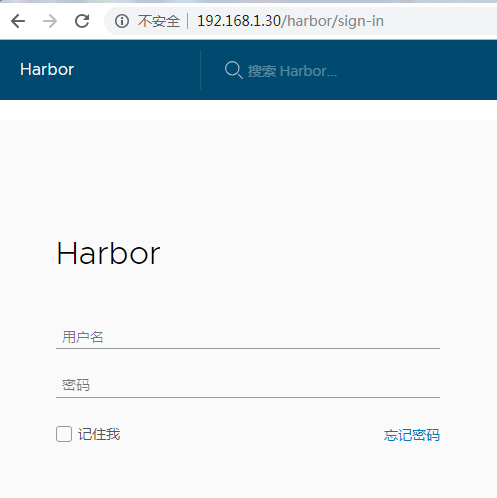
现在可以通过 http://192.168.1.30 来访问harbor了
作者: 梅梅~
出处: https://www.cnblogs.com/keeptesting
关于作者:专注软件测试,测试运维相关工作,请多多赐教!
本文版权归作者和博客园共有,欢迎转载,但未经作者同意必须保留此段声明,且在文章页面明显位置给出, 原文链接 欢迎沟通交流加微信联系。 微信:yangguangkg20140901 暗号:博客园.
Docker: 企业级镜像仓库Harbor部署(http)的更多相关文章
- Docker: 企业级镜像仓库Harbor的使用
上一节,演示了Harbor的安装部署 这次我们来讲解 Harbor的使用. 我们需要了解到: 1. 如何推镜像到镜像仓库 2. 如何从镜像仓库拉取镜像 3. 如何运行从私有仓库拉取的镜像 # 查看 h ...
- docker企业级镜像仓库Harbor管理
Harbor概述 Harbor是由VMWare公司开源的容器镜像仓库.事实上,Harbor是在Docker Registry上进行了相应的企业级扩展,从而获得了更加广泛的应用,这些新的企业级特性包括: ...
- Docker 企业级镜像仓库 Harbor 的搭建与维护
目录 一.什么是 Harbor 二.Harbor 安装 2.1.Harbor 安装环境 2.2.Harbor安装 2.3 配置HTTPS 三.Harbor 的使用 3.1.登录Harbor并使用 3. ...
- Docker企业级镜像仓库harbor(vmware 中国团队)
第一步:安装docker和docker-compose 第二步:下载harbor-offline-installer-v1.3.0.tgz 第三步:上传到/opt,并解压 第四步:修改harbor.c ...
- docker企业级镜像仓库harbor
第一步:安装docker和docker-compose 第二步:下载harbor-offine-installer-v1.5.1.tgz 第三步:上传到/opt,并解压 第四步:修改harbor.cf ...
- 企业级Docker镜像仓库Harbor部署与使用
yum install docker 官网地址:https://docs.docker.com/compose/install/ 运行此命令以下载Docker Compose的当前稳定版本 1 sud ...
- docker 镜像仓库 Harbor 部署 以及 跨数据复制
docker 镜像仓库 Harbor 部署 跨数据复制 Harbor 是 Vmwar 公司开源的 企业级的 Docker Registry 管理项目 它主要 提供 Dcoker Registry 管理 ...
- 企业级镜像仓库harbor搭建
企业级镜像仓库harbor搭建 一. Harbor概述 VMware公司最近开源了企业级Registry项目Harbor,其的目标是帮助用户迅速搭建一个企业级的Docker registry 服 ...
- 企业级镜像仓库 harbor
企业级镜像仓库 harbor 前言 a. 本文主要为 Docker的视频教程 笔记. b. 环境为 CentOS 7.0 云服务器 c. 上一篇:跨 Docker 宿主机网络 overlay 类型 h ...
随机推荐
- Python多环境管理
Python环境管理 什么是Anaconda Anaconda是专注于数据分析的Python发行版本,包含了conda.Python等190多个科学包及其依赖项.Anaconda通过管理工具包.开发环 ...
- 【Java基础】【22IO(其他流)&Properties】
22.01_IO流(序列流)(了解) 1.什么是序列流 序列流可以把多个字节输入流整合成一个, 从序列流中读取数据时, 将从被整合的第一个流开始读, 读完一个之后继续读第二个, 以此类推. 2.使用方 ...
- 【bug】----- Git上传文件错误导致本地代码丢失
1.问题描述:通过Git上传本地文件,在git commit操作后本地未上传的代码全部丢失... 2.解决: 第一步:在项目目录下打开Git Bash: 第二步:输入 git reflog 第三步:在 ...
- 全图化引擎(AI·OS)中的编译技术
全图化引擎又称算子执行引擎,它的介绍可以参考从HA3到AI OS -- 全图化引擎破茧之路.本文从算子化的视角介绍了编译技术在全图化引擎中的运用.主要内容有: 1. 通过脚本语言扩展通用算子上的用户订 ...
- ASP.NET MVC5多语言切换快速实现方案
功能 实现动态切换语言,Demo做了三种语言库可以切换,包括资源文件的定义,实体对象属性设置,后台代码Controller,IAuthorizationFilter,HtmlHelper的实现,做法比 ...
- 痞子衡嵌入式:第一本Git命令教程(1)- 准备(init/config/.gitignore)
今天是Git系列课程第一课,痞子衡给大家要讲的是创建仓库的准备工作. 1.建仓库git init 第一步是创建一个空仓库,这是一切操作的前提. // 打开git bash命令行,切换到指定目录下 ja ...
- Perl线程队列:Thread::Queue
(Thread::Queue)队列数据结构(FIFO)是线程安全的,它保证了某些线程从一端写入数据,另一些线程从另一端读取数据.只要队列已经满了,写入操作就自动被阻塞直到有空间支持写操作,只要队列空了 ...
- frame buffer简单应用
现在我们要在LCD上画一个点,我们无法直接对LCD屏进行操作.这时候就需要用到FrameBuffer,Linux可以FrameBuffer这个设备来供用户态进程实现直接写屏.首先我们先简单看一下lin ...
- [Go] golang的select多路选择功能
基于select的多路复用:1.解决如果一个channel中没有事件发过来,程序会立即阻塞,无法接收到第二个channel中的事件2.一般每一个case都代表一个通信操作,多个case会选一个能执行的 ...
- python学习笔记(十 一)、GUI图形用户界面
python图形用户界面就是包含按钮.输入框.选择框等组件的窗口.主要依赖与工具包进行代码编写.python GUI工具包并发互斥的,你可以选择多个工具包进行安装,有极大选择空间.每个工具包都有不同用 ...