
一个Windows Service项目的完整开发过程
(一)建立项目文件
先建立一个解决方案文件,然后添加三个项目。

分别是:
(1)Windows服务项目 -----ActiveMQSenderService项目,服务主要是定时轮询某表,将更新发送到Active MQ队列。
(2)测试项目 ----- ActiveMQServiceTest项目,由于Windows服务不便于测试,所以专门建立一个控制台项目用来测试业务逻辑正确性。
(3)业务逻辑项目 ----- ActiveMQProducer项目,将整体业务逻辑从Windows服务分离出去,降低耦合,便于维护。
(二)编写ActiveMQSenderService项目
1。首先添加对ActiveMQProducer的引用
2。建立项目文件如下结构

其中:
(1)ActiveMQSenderService.cs是Windows服务文件
(2)Install.bat和Unstall.bat用来自动安装和卸载ActiveMQSenderService
(3)ActiveMQSendLog用来记录服务运行日志
(4)App.Config用来记录项目配置文件
(5)ProjectInstall.cs是Windows服务安装程序
3.编写服务文件
ActiveMQSenderService.designer.cs:
        /// <summary>

        /// Required method for Designer support - do not modify

        /// the contents of this method with the code editor.

        /// </summary>

        private void InitializeComponent()

        {

            components = new System.ComponentModel.Container();

            this.timer = new System.Timers.Timer();

            ((System.ComponentModel.ISupportInitialize)(this.timer)).BeginInit();

            this.timer.Enabled = true;

            this.timer.Interval = 10000;

            this.timer.Elapsed += new System.Timers.ElapsedEventHandler(this.timer_Elapsed);

            this.ServiceName = "ActiveMQSenderService";

            dsQuery = new DataSet();

            ((System.ComponentModel.ISupportInitialize)(this.timer)).EndInit();

        }
ActiveMQSenderService.cs:
.csharpcode, .csharpcode pre
{
font-size: small;
color: black;
font-family: consolas, "Courier New", courier, monospace;
background-color: #ffffff;
/*white-space: pre;*/
}
.csharpcode pre { margin: 0em; }
.csharpcode .rem { color: #008000; }
.csharpcode .kwrd { color: #0000ff; }
.csharpcode .str { color: #006080; }
.csharpcode .op { color: #0000c0; }
.csharpcode .preproc { color: #cc6633; }
.csharpcode .asp { background-color: #ffff00; }
.csharpcode .html { color: #800000; }
.csharpcode .attr { color: #ff0000; }
.csharpcode .alt
{
background-color: #f4f4f4;
width: 100%;
margin: 0em;
}
.csharpcode .lnum { color: #606060; }
using System;

using System.Collections.Generic;

using System.ComponentModel;

using System.Data;

using System.Data.SqlClient;

using System.Diagnostics;

using System.Linq;

using System.ServiceProcess;

using System.Text;

namespace ActiveMQSenderService

{

    public partial class ActiveMQSenderService : ServiceBase

    {

        private System.Timers.Timer timer;

        private DataSet dsQuery;

        private DataSet dsLose;

        public ActiveMQSenderService()

        {

            InitializeComponent();

        }

        private void timer_Elapsed(object sender, System.Timers.ElapsedEventArgs e)

        {

            ActiveMQProducer producer = new ActiveMQProducer();

            producer.SendMessageArray();

        }

        protected override void OnStart(string[] args)

        {

            this.timer.Enabled = true;

            Log.LogMessage(string.Format("******Time:{0}  Service Started******",DateTime.Now));

        }

        protected override void OnStop()

        {

            this.timer.Enabled = false;

            Log.LogMessage(string.Format("******Time:{0} Service Stopped*******",DateTime.Now));

        }

    }

}
.csharpcode, .csharpcode pre
{
font-size: small;
color: black;
font-family: consolas, "Courier New", courier, monospace;
background-color: #ffffff;
/*white-space: pre;*/
}
.csharpcode pre { margin: 0em; }
.csharpcode .rem { color: #008000; }
.csharpcode .kwrd { color: #0000ff; }
.csharpcode .str { color: #006080; }
.csharpcode .op { color: #0000c0; }
.csharpcode .preproc { color: #cc6633; }
.csharpcode .asp { background-color: #ffff00; }
.csharpcode .html { color: #800000; }
.csharpcode .attr { color: #ff0000; }
.csharpcode .alt
{
background-color: #f4f4f4;
width: 100%;
margin: 0em;
}
.csharpcode .lnum { color: #606060; }
4.编写配置文件
<?xml version="1.0"?>

<configuration>

    <startup>

        <supportedRuntime version="v4.0" sku=".NETFramework,Version=v4.0"/>

    </startup>

    <connectionStrings>

        <add name="conn" connectionString="userid='';password='';initialCatelog='XXXXX';server='127.0.0.1';connectTimeout=30;providerName='System.Data.SqlClient'"/>

        <add name="SqlConnectionString" connectionString="Database=XXXXX;Data Source=localhost;Integrated Security=SSPI;"></add>

    </connectionStrings>

    <appSettings>

        <add key="ActiveMQServerAddress" value="tcp://localhost:61616"/>

        <add key="QueueName" value="activemqtest"/>

    </appSettings>

</configuration>
.csharpcode, .csharpcode pre
{
font-size: small;
color: black;
font-family: consolas, "Courier New", courier, monospace;
background-color: #ffffff;
/*white-space: pre;*/
}
.csharpcode pre { margin: 0em; }
.csharpcode .rem { color: #008000; }
.csharpcode .kwrd { color: #0000ff; }
.csharpcode .str { color: #006080; }
.csharpcode .op { color: #0000c0; }
.csharpcode .preproc { color: #cc6633; }
.csharpcode .asp { background-color: #ffff00; }
.csharpcode .html { color: #800000; }
.csharpcode .attr { color: #ff0000; }
.csharpcode .alt
{
background-color: #f4f4f4;
width: 100%;
margin: 0em;
}
.csharpcode .lnum { color: #606060; }需要将文件属性BuildAction设置为None

5.编写Install.bat和Uninstall.bat
Uninstall.bat
1: @echo off
2: :uninstall
3: %SystemRoot%/Microsoft.NET/Framework/v4.0.30319/installutil /uninstall ActiveMQSenderService.exe
4: pause
5: :end
.csharpcode, .csharpcode pre
{
font-size: small;
color: black;
font-family: consolas, "Courier New", courier, monospace;
background-color: #ffffff;
/*white-space: pre;*/
}
.csharpcode pre { margin: 0em; }
.csharpcode .rem { color: #008000; }
.csharpcode .kwrd { color: #0000ff; }
.csharpcode .str { color: #006080; }
.csharpcode .op { color: #0000c0; }
.csharpcode .preproc { color: #cc6633; }
.csharpcode .asp { background-color: #ffff00; }
.csharpcode .html { color: #800000; }
.csharpcode .attr { color: #ff0000; }
.csharpcode .alt
{
background-color: #f4f4f4;
width: 100%;
margin: 0em;
}
.csharpcode .lnum { color: #606060; }
.csharpcode, .csharpcode pre
{
font-size: small;
color: black;
font-family: consolas, "Courier New", courier, monospace;
background-color: #ffffff;
/*white-space: pre;*/
}
.csharpcode pre { margin: 0em; }
.csharpcode .rem { color: #008000; }
.csharpcode .kwrd { color: #0000ff; }
.csharpcode .str { color: #006080; }
.csharpcode .op { color: #0000c0; }
.csharpcode .preproc { color: #cc6633; }
.csharpcode .asp { background-color: #ffff00; }
.csharpcode .html { color: #800000; }
.csharpcode .attr { color: #ff0000; }
.csharpcode .alt
{
background-color: #f4f4f4;
width: 100%;
margin: 0em;
}
.csharpcode .lnum { color: #606060; }
1: @echo off
2: :install
3: %SystemRoot%/Microsoft.NET/Framework/v4.0.30319/installutil ActiveMQSenderService.exe
4: net start ActiveMQSenderService
5: pause
6: :end
.csharpcode, .csharpcode pre
{
font-size: small;
color: black;
font-family: consolas, "Courier New", courier, monospace;
background-color: #ffffff;
/*white-space: pre;*/
}
.csharpcode pre { margin: 0em; }
.csharpcode .rem { color: #008000; }
.csharpcode .kwrd { color: #0000ff; }
.csharpcode .str { color: #006080; }
.csharpcode .op { color: #0000c0; }
.csharpcode .preproc { color: #cc6633; }
.csharpcode .asp { background-color: #ffff00; }
.csharpcode .html { color: #800000; }
.csharpcode .attr { color: #ff0000; }
.csharpcode .alt
{
background-color: #f4f4f4;
width: 100%;
margin: 0em;
}
.csharpcode .lnum { color: #606060; }
6.设置服务安装文件

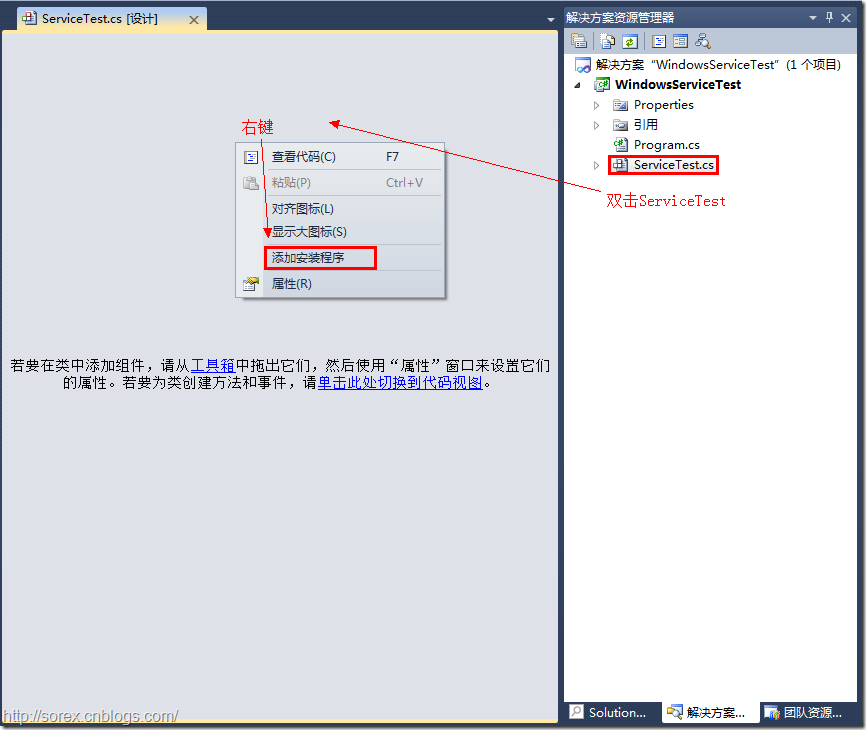

(1)打开ProjectInstall右键属性界面,添加一个serviceInstaller1控件,设置控件的右键属性:ServiceName为指定名称。

(2)设置serviceProcessInstaller1控件,将Account设置为LocalSystem.

(三)建立业务逻辑项目:主要包括:操作数据库,日志操作,ActiveMQ操作几个逻辑。
(四)建立业务逻辑测试项目:引用业务逻辑项目,测试想要测试的各种业务逻辑即可。
(五)测试服务方法:
(1)安装服务,运行Install.bat

(2)附加进程

引用:
http://www.cnblogs.com/xpvincent/p/3305997.html
http://www.cnblogs.com/alala666888/p/3421492.html
一个Windows Service项目的完整开发过程的更多相关文章
- C#创建一个Windows Service
Windows Service这一块并不复杂,但是注意事项太多了,网上资料也很凌乱,偶尔自己写也会丢三落四的.所以本文也就产生了,本文不会写复杂的东西,完全以基础应用的需求来写,所以不会对Window ...
- vs2010 windows service 项目不能引用类库项目
在一个windows 服务项目A中,引用了另外一个项目B,可以使用自动完成,引用其他项目中的类,按理,可以自动提示了,应该就是没问题了,但编译时却提示"未能找到类型或命名空间名称" ...
- Windows Service 项目中 Entity Framework 无法加载的问题
Windows Service 项目引用了别的类库项目,别的项目用到了 Entity Framework(通过Nuget引入),但是我的 Windows Service 无法开启,于是我修改了 App ...
- 让自己的C++程序(非服务程序)运行为一个windows service
因为项目的一些变化和原因,需要把数据处理的一个后台程序创建为一个windows服务,运行以下命令能创建成功: sc create "MyApp Service Name" binP ...
- 使用Windows Service Wrapper快速创建一个Windows Service
前言 今天介绍一个小工具的使用.我们都知道Windows Service是一种特殊的应用程序,它的好处是可以一直在后台运行,相对来说,比较适合一些需要一直运行同时不需要过多用户干预的应用程序,这一类我 ...
- 使用Windows Service Wrapper快速创建一个Windows Service 如nginx
前言 今天介绍一个小工具的使用.我们都知道Windows Service是一种特殊的应用程序,它的好处是可以一直在后台运行,相对来说,比较适合一些需要一直运行同时不需要过多用户干预的应用程序,这一类我 ...
- 创建一个Windows Service 程序
1.新建Windows项目,选择"Windows服务"类型的项目. 2.在生成的Service1.cs中代码中写你需要的代码,如下: using System; using Sys ...
- 新建一个Windows Service的方法
http://www.cnblogs.com/YanPSun/archive/2010/05/22/1741381.html http://blog.csdn.net/m15188153014/art ...
- Windows Service 服务搭配FluentScheduler实现定时任务调度
Windows Service 服务 创建Windows Service 项目 创建一个Windows Service项目,并将项目名称改为 TaskWindowService 在解决方案资源管理器内 ...
随机推荐
- linux 下 NetBeans 字体大小设置
在linux mint 12下安装了 NetBeans7.1.2使用之后,觉得字体不好看,字体普遍特别大,分三个方面改NetBeans的字体. 1. 代码字体大小 点击NetBeans菜单,工具--& ...
- IOC框架Ninject实践总结
原文地址:http://www.cnblogs.com/jeffwongishandsome/archive/2012/04/15/2450462.html IOC框架Ninject实践总结 一.控制 ...
- 一个FragmentActivity多个Fragment的生命周期事件记录
初次打开FragmentActivity时 VisitTaskManagerActivity(): onCreate VisitTaskManagerActivity(): onStart Visit ...
- ASP.NET单点登录(代码)
[p=25, null, left]由于某些原因,在我们的应用中会遇到一个用户只能在一个地方登录的情况,也就是我们通常所说的单点登录.在ASP.NET中实现单点登录其实很简单,下面就把主要的方法和全部 ...
- cannot conform to protocol 的一点事
学习UITableView过程中,回想视频打一遍代码,发现卡在了第一步.一直显示无法继承协议,而且还多了一个错误:definition conflicts with previous value.百度 ...
- 求职基础复习之快速排序c++版
#include<iostream> using namespace std; int partition(int a[],int p,int q){ int x = a[q]; ; fo ...
- Python字典方法copy()和deepcopy()的区别
from copy import deepcopy # import deepcopy模块 d = {} d['name'] = ['black', 'guts'] # d = {'name': [' ...
- Tasks Queues and Cron Jobs(任务队列和时钟守护作业)
一个网络应用必须迅速响应网络请求,一般要小于1s,最好是几十微秒,以便为坐在浏览器前面的用户提供一个流畅的体验.这就给不了应用太多的时间来处理工作.有时会是有更多的工作要做而不是有时间来做它.< ...
- HDU-4727 The Number Off of FFF 水题
题目链接:http://acm.hdu.edu.cn/showproblem.php?pid=4727 水题.. //STATUS:C++_AC_187MS_288KB #include <fu ...
- js滑动门及对像的使用
function scrollDoor() { } scrollDoor.prototype = { sd: function (menus, divs, openClass, closeClass) ...