
Internet Explorer for Mac the Easy Way: Run IE 7, IE8, & IE9 Free in a Virtual Machine
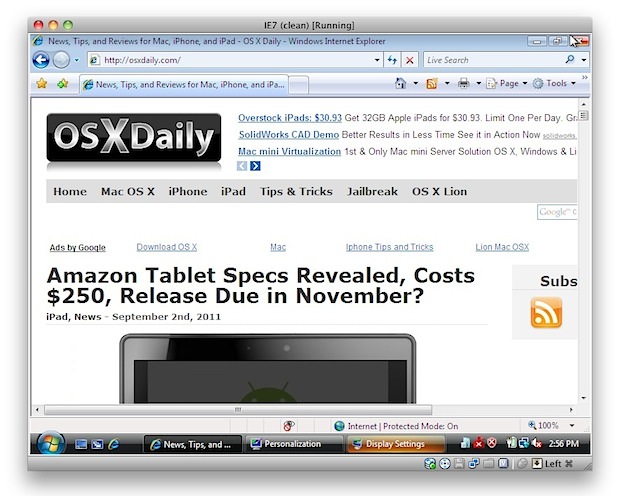
If you’re a Mac user that requires the usage of Internet Explorer under Mac OS X, you’ll find your choices are generally as follows: run IE on top of Mac OS X with Wine which can be slow and buggy, dual boot Windows and Mac OS X which is a nuisance because it requites rebooting, or use virtualization with something like Parallels, VMWare, or VirtualBox. Virtualization is generally the best method because you can run IE and other Windows apps directly atop OS X, but some of the VM software is expensive and you still need a Windows license key, right? Wrong!
Run Internet Explorer 7, 8, 10, & 11 in Mac OS X the Easy & Free Way
We’re going to walk you through how to install Internet Explorer 7,
8, 9, 10, and 11 in a virtual machine running Windows, directly in Mac
OS X – for free. This is achieved by using the freely
available VirtualBox software from Oracle, and combining that with free
Internet Explorer testing virtual machines from Microsoft, the trick is
converting these free IE vm’s so that they work flawlessly under OS X
(or Linux, technically), and that is all handled automatically with this
method.
Notes: the admin password for all of the IE VMs is
“Password1″ without the quotes. This has been tested and confirmed to
work with all modern versions of Mac system software including OS X
10.10 Yosemite, OS X 10.9 Mavericks, 10.8 Mountain Lion, OS X 10.7 Lion,
and Mac OS X 10.6 Snow Leopard.
Installation size per IE Virtual Machine is about 11GB, to install all Windows VM’s it will take about 48GB of disk space.
- Download & Install VirtualBox – Download Now (direct .dmg download link) – or visit VirtualBox Downloads page
- Launch the Terminal (located in /Applications/Utilities/)
- Decide which versions of Internet Explorer you want to download and install
– each version of Internet Explorer is contained within a separate
virtual machine that runs within VirtualBox. In other words, if you want
to run Internet Explorer 7, 8, and 9, you will need to download three
separate VM’s, which may take a while so keep that in mind. Select the
text below and copy it: Install ALL versions of Internet Explorer: IE7, IE 8, IE 9, IE10, IE11
curl -s https://raw.githubusercontent.com/xdissent/ievms/master/ievms.sh | bash
Install Internet Explorer 11 Only
curl -s https://raw.githubusercontent.com/xdissent/ievms/master/ievms.sh | IEVMS_VERSIONS="11" bash
Install Internet Explorer 10 Only
curl -s https://raw.githubusercontent.com/xdissent/ievms/master/ievms.sh | IEVMS_VERSIONS="10" bash
Install Internet Explorer 7 Only
curl -s https://raw.github.com/xdissent/ievms/master/ievms.sh | IEVMS_VERSIONS="7" bash
Install Internet Explorer 8 Only
curl -s https://raw.github.com/xdissent/ievms/master/ievms.sh | IEVMS_VERSIONS="8" bash
Install Internet Explorer 9 Only
curl -s https://raw.githubusercontent.com/xdissent/ievms/master/ievms.sh | IEVMS_VERSIONS="9" bash
- Copy and paste the selected command from above into the Terminal and
hit return, this will start the download and conversion process. How
long this takes depends on your internet connection and how many
versions of Internet Explorer you chose to install - Launch VirtualBox and boot Windows & Internet Explorer
– select the virtual machine corresponding to the version of Internet
Explorer you intend to use: IE7, IE8, IE9, then click on the “Start”
button to boot that Windows machine with that version of Internet
Explorer.
Remember that the default Windows admin password is “Password1″, it’s also the password hint within the VM should you forget it.
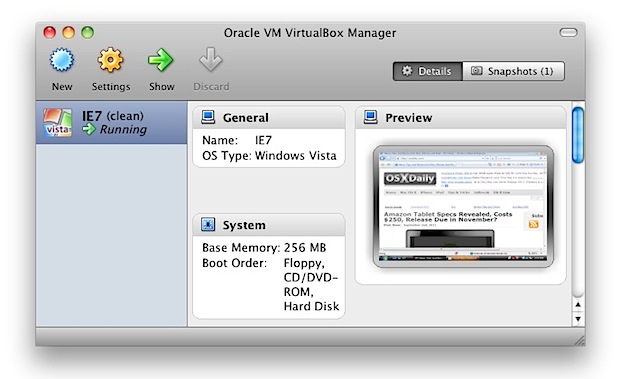
That’s really all there is to it. These commands are part of the ievsms script from xdissent and it manages the entire download, conversion, and installation procedure, it doesn’t get much easier.
Note: if you’re having trouble with the above URL or commands not
working, it may be because github changed the URL structure of their
source from github.com to githubusercontent, like the following:
curl -s https://raw.github.com/xdissent/ievms/master/ievms.sh | bash
Turns into:
curl -s https://raw.githubusercontent.com/xdissent/ievms/master/ievms.sh | bash
Note the URL change from github to githubusercontent, otherwise everything else is the same. (Thanks Blair!)
VM Snapshots Circumvent Microsofts 30 Day Limitation
The other great thing about this method is that it circumvents
Microsofts 30 day limitation by utilizing snapshots, a feature built
into VirtualBox. This preserves the original Windows VM state and allows
you to continuously use the IE virtual machine without any time
limitation simply by reverting to the original snapshot once the 30 day
lock occurs.
To use a snapshot after the 30 day Windows expiration, just open
VirtualBox, select the IE VM, and click on the “Snapshots” button. From
here you can boot from the original snapshot that was created and use IE
again for another 30 days. You can do this indefinitely, effectively
having a clean IE test environment forever.
What about IE 6?
IE6 is being rapidly abandoned as usage dies, but if you need to use it then you can follow this guide to get IE6 running in Mac OS X.
Getting it working isn’t quite as easy as the virtual machine methods
above and it utilizes a wine based emulator so your mileage may vary.
Why Use Internet Explorer on a Mac?
This has been a common question, but the primary reasons that Mac users
need Internet Explorer are either for web development and web app
compatibility purposes, or to access certain web sites or apps that
require the use of IE to gain access. If you’re not in either of those
groups, there isn’t much benefit to getting IE in Mac OS X, since
Safari, Chrome, and Firefox are all excellent browser choices with
significantly better performance on the Mac.
Internet Explorer for Mac the Easy Way: Run IE 7, IE8, & IE9 Free in a Virtual Machine的更多相关文章
- 建站手册-浏览器信息:Internet Explorer 浏览器
ylbtech-建站手册-浏览器信息:Internet Explorer 浏览器 1.返回顶部 1. http://www.w3school.com.cn/browsers/browsers_inte ...
- C# winform webbrowser如何指定内核为IE11? 输出 this.webbrowser.Version 显示版本是IE11的,但实际版本不是啊! 网上打的修改注册表HKEY_LOCAL_MACHINE\SOFTWARE\Wow6432Node\Microsoft\Internet Explorer\MAIN\FeatureControl\FEATURE_BROWSER_EMULA
最佳答案 1)假设你应用程序的名字为MyApplication.exe 2)运行Regedit,打开注册表,找到 HKEY_LOCAL_MACHINE\SOFTWARE\Wow6432Node\M ...
- How to run a (Tomcat)Java application server on a Azure virtual machine
http://www.windowsazure.com/en-us/documentation/articles/virtual-machines-java-run-tomcat-applicatio ...
- What is XMLHTTP? How to use security zones in Internet Explorer
Types of Security Zones Internet Zone This zone contains Web sites that are not on your computer or ...
- Selenium2学习-037-WebUI自动化实战实例-IE浏览器显示比例问题:org.openqa.selenium.remote.SessionNotFoundException: Unexpected error launching Internet Explorer. Browser zoom level was set to 94%. It should be set to 100%
好久没有写博文了,今天在给部门新人演示 Selenium WebDriver 启动其支持的各种浏览器时,启动 IE 时总是无法打开对应的百度网址,页面如下所示:
- IEHelper - Internet Explorer Helper Class
http://www.codeproject.com/Articles/4411/IEHelper-Internet-Explorer-Helper-Class Discussions (81) IE ...
- CVE-2012-4792Microsoft Internet Explorer 释放后使用漏洞
Microsoft Internet Explorer是微软Windows操作系统中默认捆绑的WEB浏览器. Microsoft Internet Explorer 6至8版本中存在释放后使用漏洞.通 ...
- CVE-2013-1347Microsoft Internet Explorer 8 远程执行代码漏洞
[CNNVD]Microsoft Internet Explorer 8 远程执行代码漏洞(CNNVD-201305-092) Microsoft Internet Explorer是美国微软(Mic ...
- How To Allow Blocked Content on Internet Explorer
Follow the steps below if you are tired of having to "Enable Blocked Content" in IE each t ...
随机推荐
- iTween基础之Audio(音量和音调的变化)
一.基础介绍:二.基础属性 原文地址 : http://blog.csdn.net/dingkun520wy/article/details/50826033 一.基础介绍 AudioTo:改变声音的 ...
- python num[y array
http://sebug.net/paper/books/scipydoc/numpy_intro.html npArr1=np.array([1,2,3],[4,5,6],[7,8,9]]) npA ...
- hihocoder #1300 : 展胜地的鲤鱼旗 dp
题目链接: http://hihocoder.com/problemset/problem/1300 题解: 先用栈预处理出每个‘)’匹配的‘(’的位子,放在pos数组中. dp[i]表示以i结尾的合 ...
- MyEclipse2015破解版_MyEclipse 2015 stable 2.0 稳定版 破解日志
前言:在MyEclipse 2015 Stable 1.0下载安装破解日志(http://www.cnblogs.com/wql025/p/5161979.html)一文中,笔者主要讲述了该版本的破解 ...
- java递归查询方法
一.需求 项目里要让用户能够设置所选择教材的章课节,以针对章课节提供相应的题目供用户做题. 设计:用户设置了教材后,首次登录,进行章节设置时.默认为用户选择第一章.第一课.第一节. 思路:用户访问页面 ...
- 解决java写入xml报错org.w3c.dom.DOMException:DOM002 Illeg
Exception is -- > org.w3c.dom.DOMException: DOM002 Illegal character 字符不被允许 org.w3c.dom.DOMExcept ...
- 【Android自学之旅】 目录
[Android自学之旅] 目录 [Android自学之旅] Android开发环境的搭建
- log4j 总结 精华
去年这个时候,为做软件工程的大作业就详细学过Log4J的用法了,时隔一年想要在新的项目中好好使用一下的时候,发现几乎全忘了,悲催啊…… 再上网查资料,总是不能找到一篇符合我的口味,拿来就能轻松上手,方 ...
- javascript 比较
javascript中由于是弱类型,所以在比较的时候有较大的麻烦.这次专门做了总结: Comparison Operators Comparison operators are used in log ...
- UVA 11174 Stand in a Line (组合+除法的求模)
题意:村子里有n个人,给出父亲和儿子的关系,有多少种方式可以把他们排成一列,使得没人会排在他父亲的前面 思路:设f[i]表示以i为根的子树有f[i]种排法,节点i的各个子树的根节点,即它的儿子为c1, ...