
Ubuntu系统部署tomcat并启用JMX实战案例
Ubuntu系统部署tomcat并启用JMX实战案例
作者:尹正杰
版权声明:原创作品,谢绝转载!否则将追究法律责任。
一.安装JDK环境
1>.更换阿里云的软件源
[root@zabbix_gateway250.yinzhengjie.org.cn ~]# vim /etc/apt/sources.list

[root@zabbix_gateway250.yinzhengjie.org.cn ~]#

[root@zabbix_gateway250.yinzhengjie.org.cn ~]# cat /etc/apt/sources.list

deb http://mirrors.aliyun.com/ubuntu/ bionic main restricted universe multiverse

deb-src http://mirrors.aliyun.com/ubuntu/ bionic main restricted universe multiverse

deb http://mirrors.aliyun.com/ubuntu/ bionic-security main restricted universe multiverse

deb-src http://mirrors.aliyun.com/ubuntu/ bionic-security main restricted universe multiverse

deb http://mirrors.aliyun.com/ubuntu/ bionic-updates main restricted universe multiverse

deb-src http://mirrors.aliyun.com/ubuntu/ bionic-updates main restricted universe multiverse

deb http://mirrors.aliyun.com/ubuntu/ bionic-proposed main restricted universe multiverse

deb-src http://mirrors.aliyun.com/ubuntu/ bionic-proposed main restricted universe multiverse

deb http://mirrors.aliyun.com/ubuntu/ bionic-backports main restricted universe multiverse

deb-src http://mirrors.aliyun.com/ubuntu/ bionic-backports main restricted universe multiverse

[root@zabbix_gateway250.yinzhengjie.org.cn ~]#

[root@zabbix_gateway250.yinzhengjie.org.cn ~]# apt-get update

2>.安装JDK
[root@tomcat250.yinzhengjie.org.cn ~]# apt-get -y install openjdk--jdk

3>.以二进制方式安装JDK
  博主推荐阅读:

    https://www.cnblogs.com/yinzhengjie/p/12199413.html
二.配置tomcat支持JMX功能
1>.基于二进制方式部署tomcat
  博主推荐阅读:

    https://www.cnblogs.com/yinzhengjie/p/12199468.html
2>.自定义tomcat测试首页
[root@tomcat250.yinzhengjie.org.cn ~]# echo "<h1>Jason Yin bolg is [https://www.cnblogs.com/yinzhengjie/].</h1>" > /yinzhengjie/softwares/tomcat/webapps/ROOT/index.html

[root@tomcat250.yinzhengjie.org.cn ~]#

[root@tomcat250.yinzhengjie.org.cn ~]# /yinzhengjie/softwares/tomcat/bin/catalina.sh start
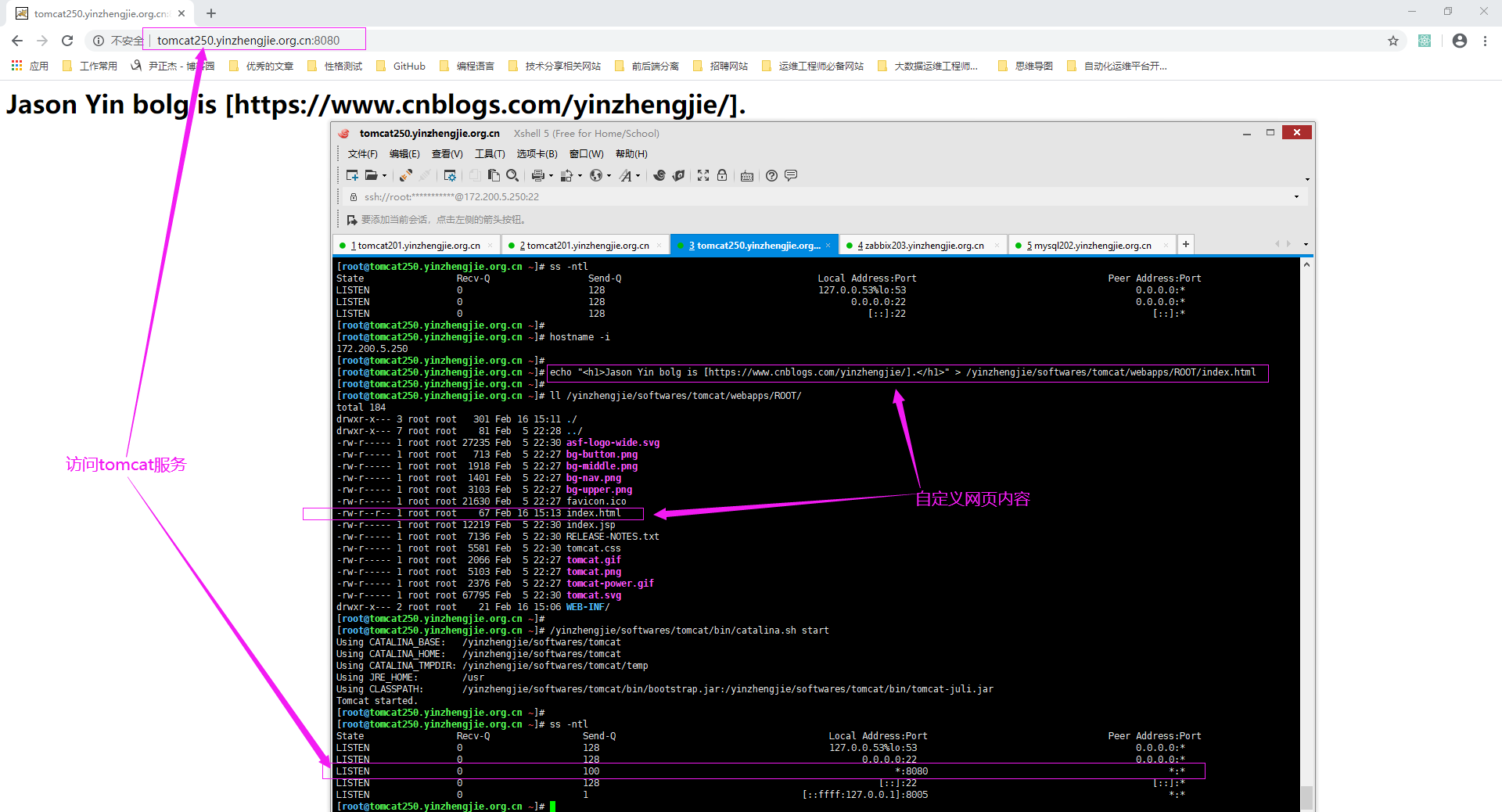
3>.配置tomcat支持JMX功能(/yinzhengjie/softwares/tomcat/bin/catalina.sh)
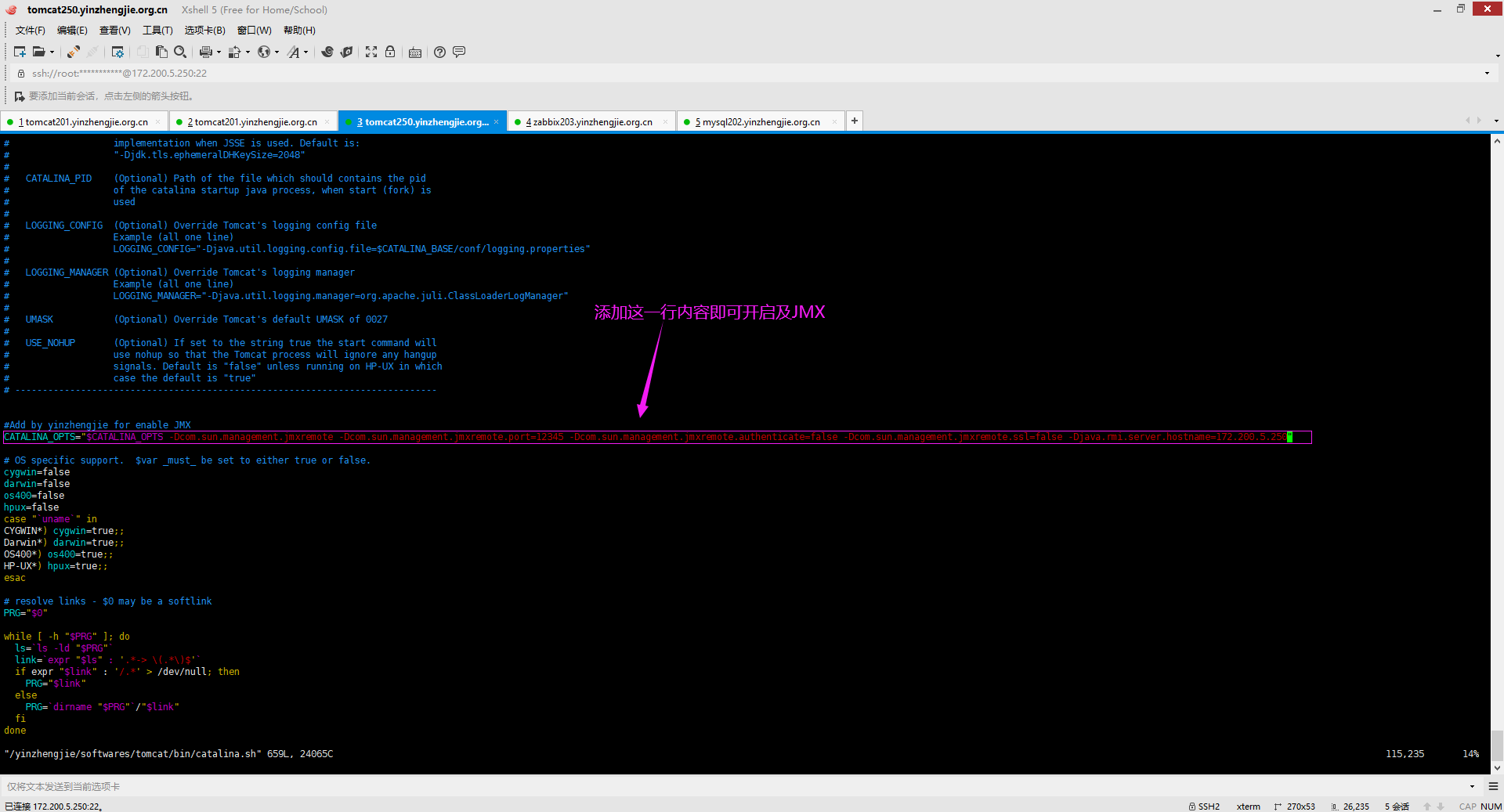
#Add by yinzhengjie for enable JMX

CATALINA_OPTS="$CATALINA_OPTS -Dcom.sun.management.jmxremote -Dcom.sun.management.jmxremote.port=12345 -Dcom.sun.management.jmxremote.authenticate=false -Dcom.sun.management.jmxremote.ssl=false -Djava.rmi.server.hostname=172.200.5.250"

温馨提示:

  -Dcom.sun.management.jmxremote:

    启用远程监控JMX。

  -Dcom.sun.management.jmxremote.port=:

    默认启动的JMX端口号,要和zabbix添加主机时候的端口一致即可。

  -Dcom.sun.management.jmxremote.authenticate=false :

    不使用用户名密码。

  -Dcom.sun.management.jmxremote.ssl=false:

    不使用ssl认证。

  -Djava.rmi.server.hostname=172.200.5.250":

    tomcat主机自己的IP地址,不要写zabbix服务器的地址。
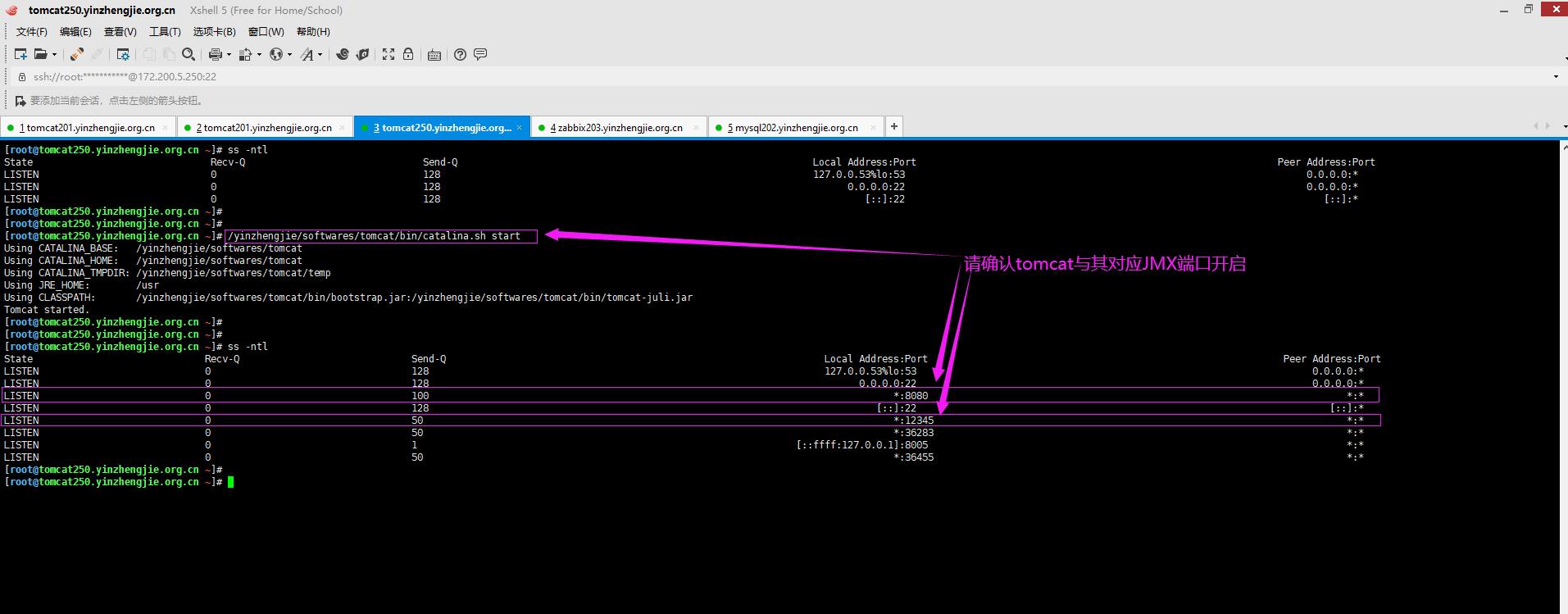
4>.重启tomcat并确认tomcat服务
[root@tomcat250.yinzhengjie.org.cn ~]# ss -ntl

State                              Recv-Q                              Send-Q                                                                   Local Address:Port                                                             Peer Address:Port

LISTEN                                                                                                                                      127.0.0.53%lo:                                                                    0.0.0.0:*

LISTEN                                                                                                                                            0.0.0.0:                                                                    0.0.0.0:*

LISTEN                                                                                                                                                  *:                                                                        *:*

LISTEN                                                                                                                                               [::]:                                                                       [::]:*

LISTEN                                                                                                                                   [::ffff:127.0.0.1]:                                                                        *:*

[root@tomcat250.yinzhengjie.org.cn ~]#

[root@tomcat250.yinzhengjie.org.cn ~]#

[root@tomcat250.yinzhengjie.org.cn ~]# /yinzhengjie/softwares/tomcat/bin/catalina.sh stop

Using CATALINA_BASE:   /yinzhengjie/softwares/tomcat

Using CATALINA_HOME:   /yinzhengjie/softwares/tomcat

Using CATALINA_TMPDIR: /yinzhengjie/softwares/tomcat/temp

Using JRE_HOME:        /usr

Using CLASSPATH:       /yinzhengjie/softwares/tomcat/bin/bootstrap.jar:/yinzhengjie/softwares/tomcat/bin/tomcat-juli.jar

[root@tomcat250.yinzhengjie.org.cn ~]#

[root@tomcat250.yinzhengjie.org.cn ~]#

[root@tomcat250.yinzhengjie.org.cn ~]# ss -ntl

State                               Recv-Q                               Send-Q                                                              Local Address:Port                                                               Peer Address:Port

LISTEN                                                                                                                                   127.0.0.53%lo:                                                                      0.0.0.0:*

LISTEN                                                                                                                                         0.0.0.0:                                                                      0.0.0.0:*

LISTEN                                                                                                                                            [::]:                                                                         [::]:*

[root@tomcat250.yinzhengjie.org.cn ~]#

[root@tomcat250.yinzhengjie.org.cn ~]#
[root@tomcat250.yinzhengjie.org.cn ~]# /yinzhengjie/softwares/tomcat/bin/catalina.sh stop
三.使用JConsole连接tomcat jmx进行测试
1>.window操作系统安装JAVA
  博主推荐阅读:

    https://www.cnblogs.com/yinzhengjie2020/p/12206579.html
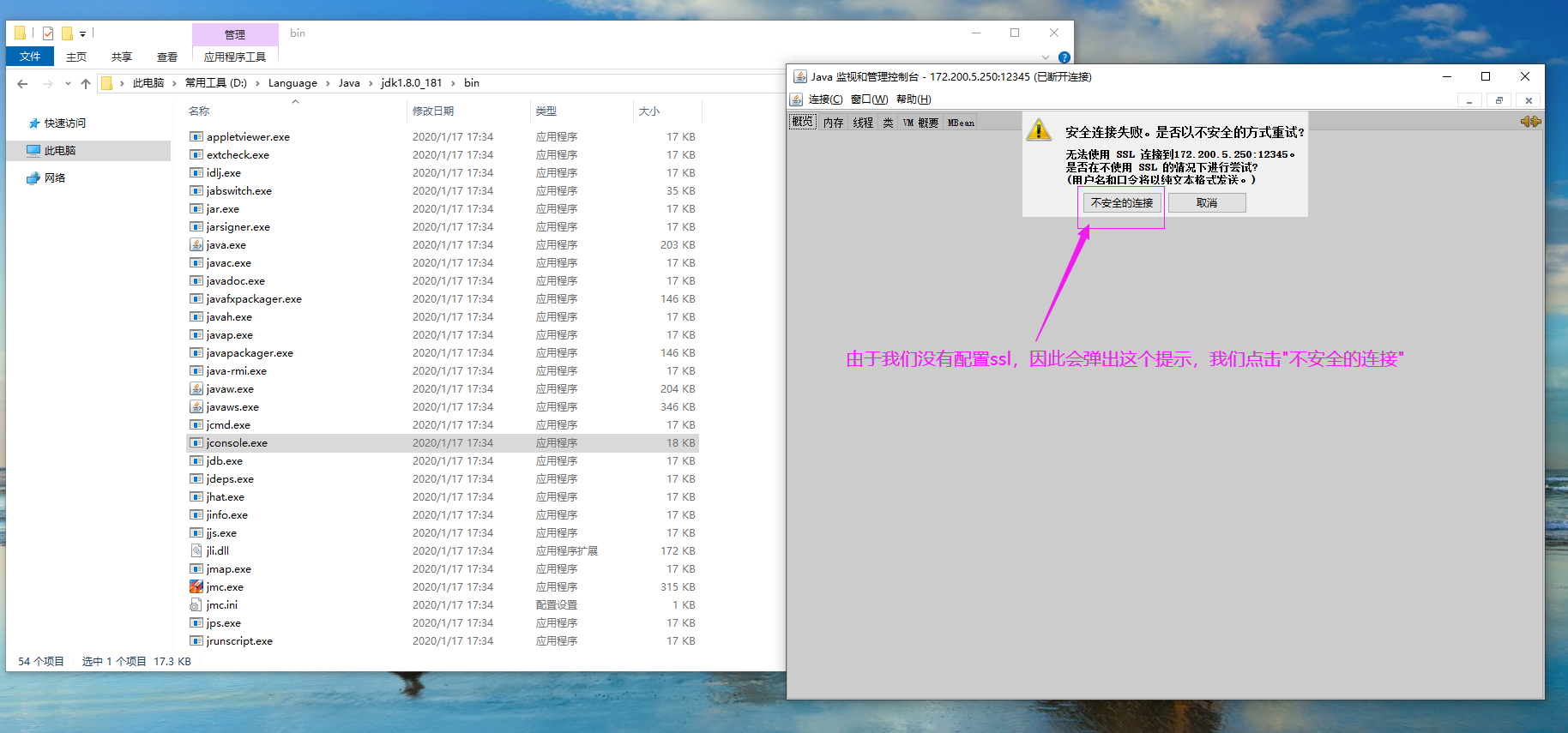
2>.如下图所示,运行JConsole并配置tomcat的JMX连接地址及端口,并点击"连接"

3>.点击"不安全的连接"
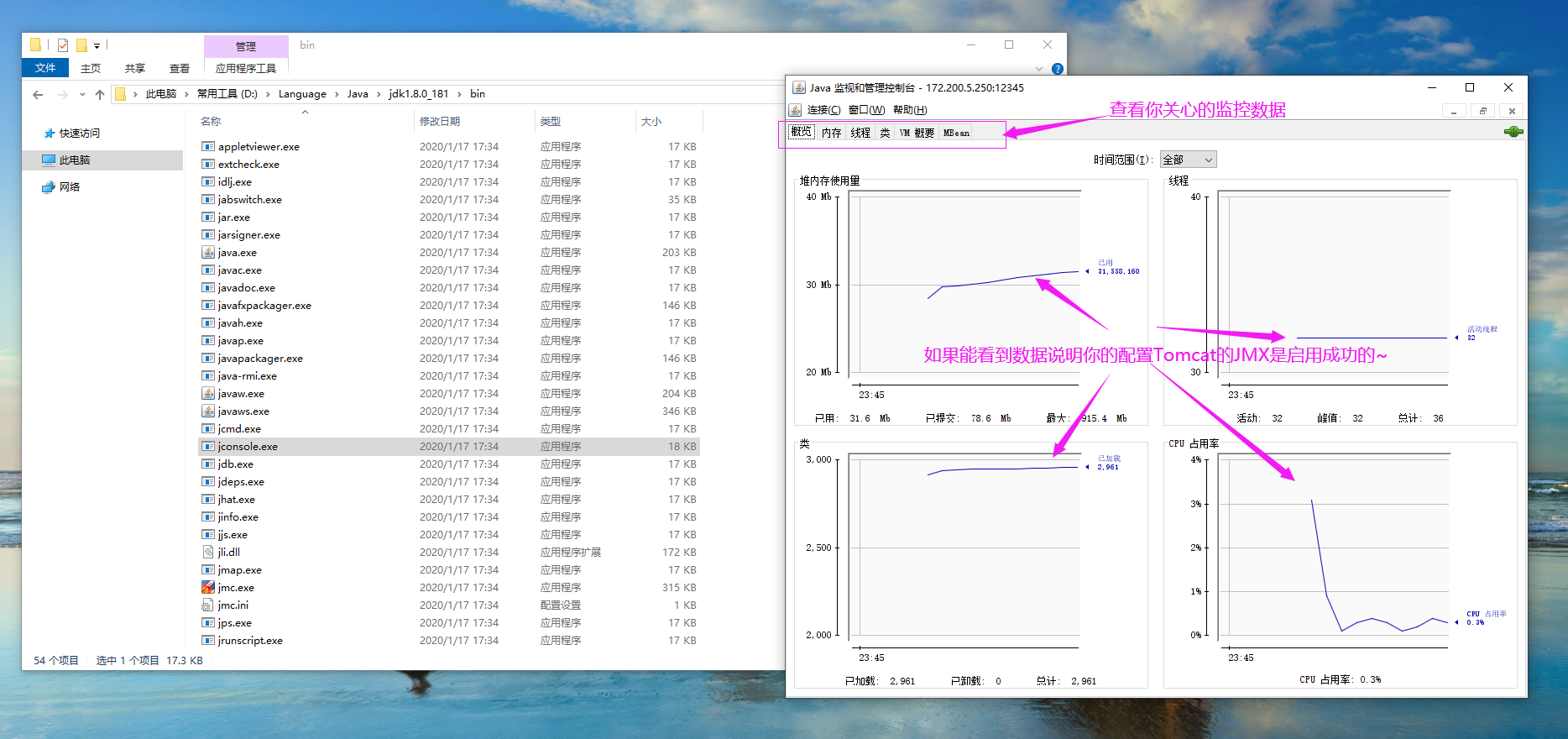
4>.查看你关心的监控数据
Ubuntu系统部署tomcat并启用JMX实战案例的更多相关文章
- 基于Ubuntu系统的Tomcat部署项目
第一步.拿到项目war包 第二步.上传到服务器/var/lib/tomcat8/webapps/ROOT目录下 第三步.使用命令解压war包 jar -xvf star1.0.0.war 第三步.重启 ...
- ubuntu系统部署python3.6.4
Ubuntu的版本为16.04,系统自带的Python版本较低,使用亲本版本3.6.4,下为安装步骤: 一.官网下载Python3.6.4版本 新建目录: sudo mkidr /usr/local/ ...
- Ubuntu上部署tomcat后无法访问8080端口问题
在tomacat的bin目录下,修改startup.sh文件,添加信息: #set java environment export JAVA_HOME=/usr/java/jdk1.8.0_111 e ...
- ubuntu系统部署web项目
1.安装java 下载java安装文件 可至http://www.oracle.com/technetwork/java/javase/downloads/index.html下载最新的JDK版本,当 ...
- 使用zabbix server监控tomcat实战案例
使用zabbix server监控tomcat实战案例 作者:尹正杰 版权声明:原创作品,谢绝转载!否则将追究法律责任. 大家都知道,zabbix server效率高是使用C语言编写的,有很多应用程序 ...
- 高级运维(四):Nginx常见问题处理、安装部署Tomcat服务器、使用Tomcat部署虚拟主机
一.Nginx常见问题处理 目标: 本案例要求对Nginx服务器进行适当优化,以提升服务器的处理性能: 1> 不显示Nginx软件版本号 2> 如果客户端访问服务器提示“Too many ...
- 使用Ubuntu系统编译安装Zabbix企业级监控系统
使用Ubuntu系统编译安装Zabbix企业级监控系统 作者:尹正杰 版权声明:原创作品,谢绝转载!否则将追究法律责任. Ubuntu系统部署笔记:https://www.cnblogs.com/ ...
- Ubuntu部署Tomcat Web服务
在Ubuntu平台中安装TomCat 本文将为大家介绍TomCat在Ubuntu平台中如何进行部署使用,带你快速入门使用TomCat TomCat简介 Tomcat是Apache 软件基金会(Apac ...
- CentOS和Ubuntu系统下安装 HttpFS (助推Hue部署搭建)
不多说,直接上干货! 我的集群机器情况是 bigdatamaster(192.168.80.10).bigdataslave1(192.168.80.11)和bigdataslave2(192.168 ...
随机推荐
- Nginx企业级优化!(重点)
隐藏Nginx版本号!(重点) 在生产环境中,需要隐藏 Nginx 的版本号,以避免安全漏洞的泄漏 一旦有黑客知道Nginx版本号便可以利用Nginx漏洞进行攻击,严重影响到了公司的安全 查看隐藏版本 ...
- OpenCV学习 - 图片集合成视频
这个很简单,没什么好说的...这里给出学习手册: 1.官方教程:https://docs.opencv.org 2.这个是一些video相关的API参考:https://docs.opencv.org ...
- 「JSOI2014」支线剧情2
「JSOI2014」支线剧情2 传送门 不难发现原图是一个以 \(1\) 为根的有根树,所以我们考虑树形 \(\text{DP}\). 设 \(f_i\) 表示暴力地走完以 \(i\) 为根的子树的最 ...
- 「JSOI2011」任务调度
「JSOI2011」任务调度 传送门 一开始还在想写平衡树,看到 \(\text{TRANS}\) 操作后就晓得要用可并堆了. 这题好像就是个可并堆的板子题??? ADD 直接往对应的对里面加元素 D ...
- php 基础 获取远程连接
1 file_get_contents get $opts = array( 'http'=>array( 'method'=>"GET", 'timeout'=> ...
- 并发队列之ArrayBlockingQueue
上一篇我们说了并发队列中的LinkedBlockingQueue队列,这次我们看看ArrayBlockingQueue,看看名字,我们想象一下LinkedList和ArrayList的区别,我们可以知 ...
- Java基础 -2.6
String字符串 在任何语言里面 都没有提供所谓的字符串这种基本数据类型,但是从实际的使用上来讲呢,各个编程语言 为了方便程序的开发,也都会提供有字符串的相应描述 在进行字符串变量使用的时候也可以使 ...
- 使用mvn deploy命令将本地jar包上传到maven私服
记录一下,以后少走弯路 前提:已经搭建好nexus maven私服,地址192.168.110.240:9091 在maven的setting.xml中找到<mirrors></mi ...
- JS拖拽-面向对象拖拽-继承
//普通拖拽 /* * CSS */ #div1{ width:100px; height:100px; position:absolute; background:red; cursor:move; ...
- 设计模式课程 设计模式精讲 2-2 UML类图讲解
1 类图讲解 1 类图讲解 + 公共方法 - private权限 # protected权限 包内和包外继承的子类都能引用 ~ default权限(包权限)只有包内能引用 下划线 静态 Stati ...