
[Asp.Net Core] Blazor Server Side 扩展用途 - 配合CEF来制作带浏览器核心的客户端软件 (二) 可运行版本
前言
大概3个星期之前立项, 要做一个 CEF+Blazor+WinForms 三合一到同一个进程的客户端模板.
这个东西在五一的时候做出了原型, 然后慢慢修正, 在5天之前就上传到github了.
地址 : https://github.com/BlazorPlus/BlazorCefApp
但是一直在忙各种东西, 没有时间写博客.
情况
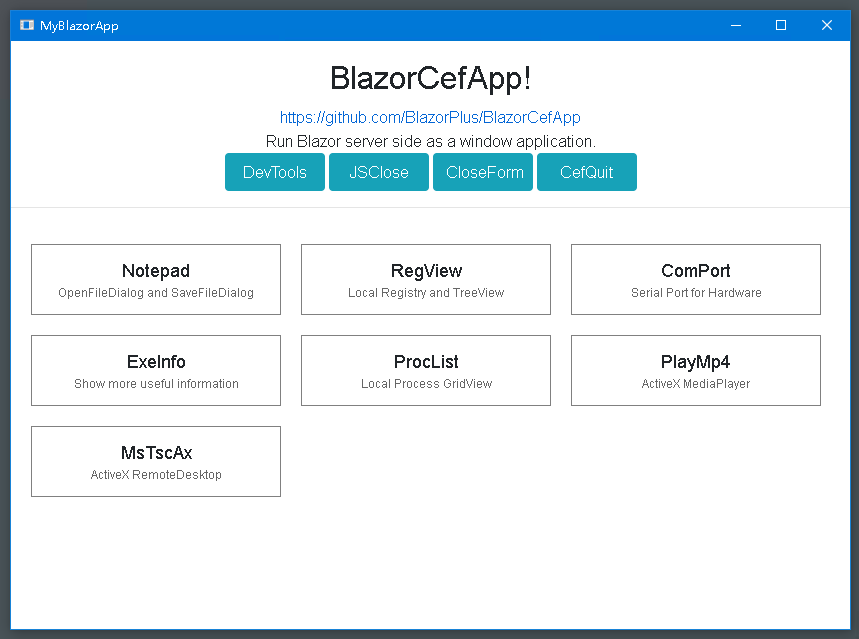
情况是这么一个情况 , 这个东西能运行, 够用. 也写了7个例子. 离当初的目标还有一些距离. 需要更多的时间去填坑.
CEF方面, 是按需包装, 没有用到的功能是没处理的. 不过按照原先设想, 大部分人都不会有去定制这个CEF的需要.
测试
看这篇博文的网友, 如果不想从github下载编译, 从 http://opensource.spotify.com/ 另行下载 CEF 的资源包,
可以直接在微云上下载已经编译好的版本 : https://share.weiyun.com/oibpnIro
项目模板
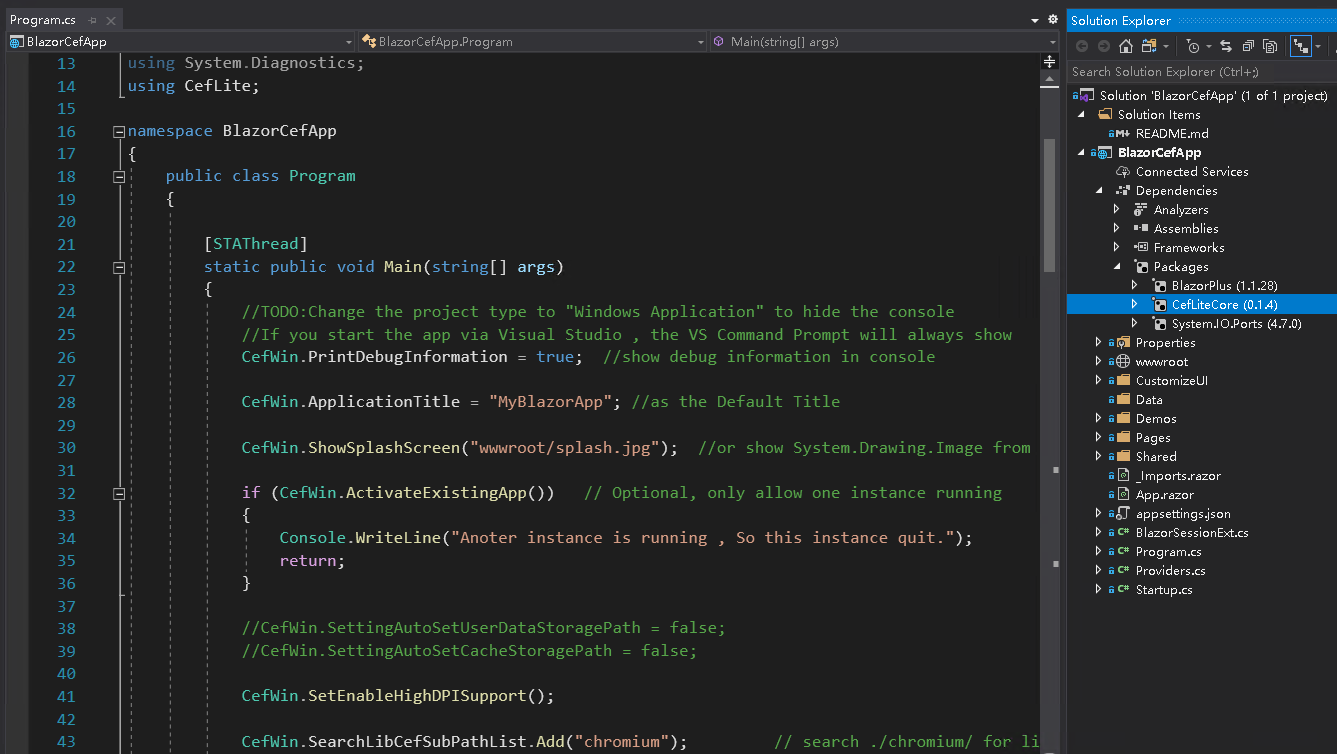
如图, 这是一个标准的 Blazor server side 工程. 有 Program.cs , 有 Startup.cs , 有 Shared/Pages, 有 wwwroot
其中引用的包是 CefLibCore , 源代码在 https://github.com/BlazorPlus/CefLite , 这个包里有CefLiteCore.dll, 存放着共用的代码逻辑
Program.cs
using System;

using Microsoft.AspNetCore.Hosting;

using Microsoft.Extensions.Hosting;

using CefLite;

namespace BlazorCefApp

{

    public class Program

    {

        [STAThread]

        static public void Main(string[] args)

        {

            //TODO:Change the project type to "Windows Application" to hide the console

            //If you start the app via Visual Studio , the VS Command Prompt will always show

            CefWin.PrintDebugInformation = true;  //show debug information in console

            CefWin.ApplicationTitle = "MyBlazorApp"; //as the Default Title

            CefWin.ShowSplashScreen("wwwroot/splash.jpg");  //or show System.Drawing.Image from embedded resource

            if (CefWin.ActivateExistingApp())   // Optional, only allow one instance running

            {

                Console.WriteLine("Anoter instance is running , So this instance quit.");

                return;

            }

            //CefWin.SettingAutoSetUserDataStoragePath = false;

            //CefWin.SettingAutoSetCacheStoragePath = false;

            CefWin.SetEnableHighDPISupport();

            CefWin.SearchLibCefSubPathList.Add("chromium");         // search ./chromium/ for libcef.dll

            CefInitState initState = CefWin.SearchAndInitialize();

            if (initState != CefInitState.Initialized)

            {

                if (initState == CefInitState.Failed)

                {

                    System.Windows.Forms.MessageBox.Show("Failed to start application\r\nCheck the github page about how to deploy the libcef.dll", "Error"

                       , System.Windows.Forms.MessageBoxButtons.OK, System.Windows.Forms.MessageBoxIcon.Error);

                }

                return;

            }

            using IHost host = CreateHostBuilder(args).Build();

            try

            {

                host.Start();

            }

            catch (Exception x)

            {

                Console.WriteLine(x);

                System.Windows.Forms.MessageBox.Show("Failed to start service. Please try again. \r\n" + x.Message, "Error"

                     , System.Windows.Forms.MessageBoxButtons.OK, System.Windows.Forms.MessageBoxIcon.Error);

                CefWin.CefShutdown();

                return;

            }

            CefWin.ApplicationHost = host;

            CefWin.ApplicationTask = host.WaitForShutdownAsync(CefWin.ApplicationCTS.Token);

            ShowMainForm();

            CefWin.RunApplication();

        }

        static void ShowMainForm()

        {

            string startUrl = aspnetcoreUrls.Split(';')[];

            DefaultBrowserForm form = CefWin.OpenBrowser(startUrl);

            form.Width = ;

            form.Height = ;

            form.StartPosition = System.Windows.Forms.FormStartPosition.CenterScreen;

            //CefWin.CenterForm(form);

            //form.WindowState = System.Windows.Forms.FormWindowState.Maximized;

        }

        static string aspnetcoreUrls = "http://127.12.34.56:7890";

        //static string aspnetcoreUrls = "http://127.12.34.56:7890;https://127.12.34.56:7891";

        //static string aspnetcoreUrls = "https://127.12.34.56:7891";       //Force to SSL , not so useful , just a test

        //static string aspnetcoreUrls = CefWin.MakeFixedLocalHostUrl();    //make fixed url by user name , so each user can open 1 instance

        //static string aspnetcoreUrls = CefWin.MakeRandomLocalHostUrl();   //random url allow multiple instance of this app , but cookie/localStorage will lost when open app again.

        static public IHostBuilder CreateHostBuilder(string[] args)

        {

            var builder = Host.CreateDefaultBuilder(args);

            builder.ConfigureWebHostDefaults(webBuilder =>

            {

                Console.WriteLine("aspnetcoreUrls : " + aspnetcoreUrls);

                webBuilder.UseUrls(aspnetcoreUrls);

                webBuilder.UseStartup<Startup>();

            });

            return builder;

        }

    }

}
这是程序入口. 它干了挺多东西的:
CefWin.PrintDebugInformation = true;
打印一些调试信息到 Console 中去. 如果项目编译成 Console , 在启动的时候就会显示控制台, 能看到一些调试信息.


CefWin.ApplicationTitle = "MyBlazorApp"; //as the Default Title
定义默认标题 , 目前的浏览器窗口使用这个标题. 还没有自动显示网页的document.title
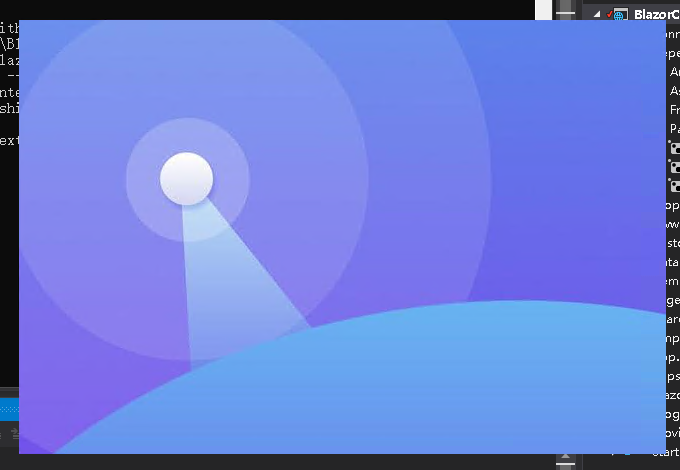
CefWin.ShowSplashScreen("wwwroot/splash.jpg");
显示一个启动页面. 自己换掉图片就可以定制了.
if (CefWin.ActivateExistingApp())   // Optional, only allow one instance running

{

    Console.WriteLine("Anoter instance is running , So this instance quit.");

    return;

}
监测程序是否已经在运行, 如果是的话, 那么就激活正在运行得程序, 自己退出.
如果想允许程序有多例执行, 那么就不要这段代码好了. 但下面的 static string aspnetcoreUrls 需要制定为动态变化的地址, 以免端口冲突.
//CefWin.SettingAutoSetUserDataStoragePath = false;

//CefWin.SettingAutoSetCacheStoragePath = false;

CefWin.SetEnableHighDPISupport();
一些选项 , 以后会增加越来越多的定制化选项. 默认情况下, 浏览器数据会保存在磁盘里的.
详细看 https://github.com/BlazorPlus/CefLite/blob/master/CefLite/CefWin.cs 关于 string folder; 那一段:

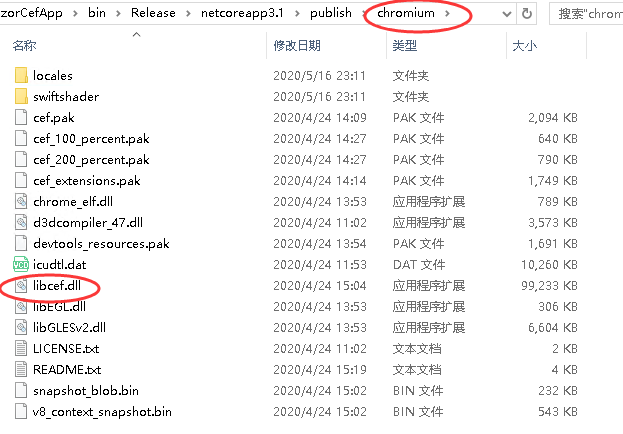
CefWin.SearchLibCefSubPathList.Add("chromium");         // search ./chromium/ for libcef.dll

CefInitState initState = CefWin.SearchAndInitialize();
搜索和启动CEF , 搜索方法是在指定的子目录 , 代码中是 "chromium" 里, 寻找 libcef.dll , 找到就加载.
if (initState != CefInitState.Initialized)

{

    if (initState == CefInitState.Failed)

    {

        System.Windows.Forms.MessageBox.Show("Failed to start application\r\nCheck the github page about how to deploy the libcef.dll", "Error"

            , System.Windows.Forms.MessageBoxButtons.OK, System.Windows.Forms.MessageBoxIcon.Error);

    }

    return;

}
如果状态不是 Initialized 初始化成功, 那么有可能是 Failed , 找不到 libcef.dll 或者其他问题, 例如这个exe是32位的, 但是下载的libcef.dll是64位的...
using IHost host = CreateHostBuilder(args).Build();

try

{

    host.Start();

}

catch (Exception x)

{

    Console.WriteLine(x);

    System.Windows.Forms.MessageBox.Show("Failed to start service. Please try again. \r\n" + x.Message, "Error"

            , System.Windows.Forms.MessageBoxButtons.OK, System.Windows.Forms.MessageBoxIcon.Error);

    CefWin.CefShutdown();

    return;

}
启动 Asp.Net Core , Blazor server side
如果启动失败, 最有可能是IP端口冲突了.
CefWin.ApplicationHost = host;

CefWin.ApplicationTask = host.WaitForShutdownAsync(CefWin.ApplicationCTS.Token);

ShowMainForm();

CefWin.RunApplication();
启动 WinForms , 打开默认浏览器, 指向blazor首页
static void ShowMainForm()

{

    string startUrl = aspnetcoreUrls.Split(';')[];

    DefaultBrowserForm form = CefWin.OpenBrowser(startUrl);

    form.Width = ;

    form.Height = ;

    form.StartPosition = System.Windows.Forms.FormStartPosition.CenterScreen;

    //CefWin.CenterForm(form);

    //form.WindowState = System.Windows.Forms.FormWindowState.Maximized;

}
这是启动这个MainForm的细节. 开发者可以定制一下.
Startup.cs
这个文件很普通, 就是标准的做法便可. 唯一要处理的是注释掉 app.UseHttpsRedirection() 因为是本地URL无需ssl .
MainLayout.razor
这文件已经被清空了.
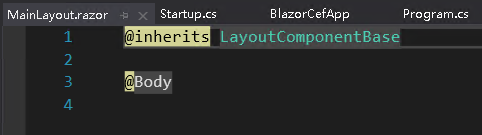
因为本例子是 单页应用程序 , 不需要任何共同的Layout
Index.razor 首页
@page "/"

<div style="text-align:center;padding-top:18px;">

    <h2>BlazorCefApp!</h2>

    <p>

        <a href="https://github.com/BlazorPlus/BlazorCefApp" target="_blank">https://github.com/BlazorPlus/BlazorCefApp</a>

        <br />

        Run Blazor server side as a window application.

        <br />

        <button class="btn btn-info" style="width:100px" @onclick="()=>BlazorSession.Current.ShowDevTools()">DevTools</button>

        <button class="btn btn-info" style="width:100px" onclick="window.close()">JSClose</button>

        <button class="btn btn-info" style="width:100px" @onclick="()=>BlazorSession.Current.CloseBrowser()">CloseForm</button>

        <button class="btn btn-info" style="width:100px" @onclick="()=>CefLite.CefWin.QuitWindowsEventLoop()">CefQuit</button>

        @*<button class="btn btn-info" style="width:100px" @onclick="()=>System.Windows.Forms.Application.Exit()">AppExit</button>*@

    </p>

    <hr />

</div>

@{

    RenderFragment RenderItem<T>(string title, string comment)

        where T : ComponentBase

        =>

    @<div class="main-menu-item" @onclick="() => { BlazorSession.Current.ShowDialog<T>(null); }">

        <div class="main-menu-item-title">@title</div>

        <div class="main-menu-item-comment">@comment</div>

    </div>

    ;

}

<div class="main-menu" style="display:flex;flex-direction:row;flex-wrap:wrap;">

    @(RenderItem<Demos.Notepad.Notepad>("Notepad","OpenFileDialog and SaveFileDialog"))

    @(RenderItem<Demos.RegView.RegView>("RegView", "Local Registry and TreeView"))

    @(RenderItem<Demos.ComPort.ComPort>("ComPort", "Serial Port for Hardware"))

    @(RenderItem<Demos.ExeInfo.ExeInfo>("ExeInfo", "Show more useful information"))

    @(RenderItem<Demos.ProcList.ProcList>("ProcList", "Local Process GridView"))

    @(RenderItem<Demos.PlayMp4.PlayMp4>("PlayMp4", "ActiveX MediaPlayer"))

    @(RenderItem<Demos.MsTscAx.MsTscAx>("MsTscAx", "ActiveX RemoteDesktop"))

</div>
如文章一开始的截图. 这个页面的主要作用有
- 提供一个 DevTools 按钮, 让开发者可以打开调试工具. 开发者可以自行写代码实现不同的方式打开DevTools, 例如热键.
- 提供3种(4种)关闭窗口退出程序的方案. 看情况自己使用.
- 引入 7 种 Demo , Demos.Notepad.Notepad , ......
所有的 demo 都是以 dialog 的方式弹出. 不是URL跳转.

Notepad 例子
这里分析一下 Notepad 的做法
HTML:
@inherits DemoDialogBase

@inject BlazorSession bses

<div class="dialog-content-full" @onkeypress="Dialog_KeyPress">

    <div style="display:flex;flex-direction:row;">

        <button onclick="history.back()">Back</button>

        <button @onclick="ShowOpenFileDialog">OpenFileDialog</button>

        <button @onclick="ShowSaveFileDialog">SaveFileDialog</button>

        <div style="flex:99999;text-align:center;padding:3px;">

            @(currentFilePath==null?"Untitled":System.IO.Path.GetFileName(currentFilePath))

            <span style="color:red">@(originalTextCode != currentTextCode?"*":"")</span>

        </div>

        @if (currentFilePath != null)

        {

            <button @onclick="ExploreCurrentFile">Explore</button>

        }

        <button @onclick="SaveCurrentFile">SaveNow(CTRL+S)</button>

    </div>

    <BlazorDomTree TagName="textarea" OnRootReady="textarea_ready" spellcheck="false" placeholder="Type text here.." style="width:100%;height:100%;overflow-y:scroll;resize:none" />

</div>
C# :
    string currentFilePath;

    string originalTextCode = "";

    string currentTextCode = "";

    PlusControl textarea;

    void textarea_ready(BlazorDomTree bdt)

    {

        textarea = bdt.Root;

        textarea.OnChanging(delegate

        {

            currentTextCode = textarea.Value;

            StateHasChanged();

        });

        textarea.SetFocus();

    }

    void WriteToFile(string filepath)

    {

        try

        {

            System.IO.File.WriteAllText(filepath, currentTextCode);

            originalTextCode = currentTextCode;

        }

        catch (Exception x)

        {

            bses.ConsoleError(x.ToString());

            bses.Alert("Error", x.Message);

        }

    }

    void ShowOpenFileDialog()

    {

        if (string.IsNullOrWhiteSpace(currentTextCode) || originalTextCode == currentTextCode)

        {

            ShowOpenFileDialogImpl();

            return;

        }

        bses.Confirm("Open", "Open another file without saving text?", (result) =>

        {

            if (result == true)

                ShowOpenFileDialogImpl();

            else

                textarea.SetFocus();

        });

    }

    void ShowOpenFileDialogImpl()

    {

        bses.RunBrowser(browser =>

        {

            var form = browser.FindForm();

            using (System.Windows.Forms.OpenFileDialog dialog = new System.Windows.Forms.OpenFileDialog())

            {

                if (currentFilePath != null)

                    dialog.FileName = currentFilePath;

                dialog.Filter = "Text Files|*.txt";

                var res = dialog.ShowDialog(form);

                if (res != System.Windows.Forms.DialogResult.OK)

                    return;

                bses.InvokeInRenderThread(delegate

                {

                    string txt;

                    string openfilepath = dialog.FileName;

                    try

                    {

                        txt = System.IO.File.ReadAllText(openfilepath);

                    }

                    catch (Exception x)

                    {

                        bses.ConsoleError(x.ToString());

                        bses.Alert("Error", x.Message);

                        return;

                    }

                    currentFilePath = openfilepath;

                    originalTextCode = currentTextCode = txt;

                    textarea.Value = txt;

                    textarea.SetFocus();

                    StateHasChanged();

                    bses.Toast("Load " + System.IO.Path.GetFileName(currentFilePath));

                });

            }

        });

    }

    void ShowSaveFileDialog()

    {

        bses.RunBrowser(browser =>

        {

            var form = browser.FindForm();

            using (System.Windows.Forms.SaveFileDialog dialog = new System.Windows.Forms.SaveFileDialog())

            {

                if (currentFilePath != null)

                    dialog.FileName = currentFilePath;

                dialog.Filter = "Text Files|*.txt";

                var res = dialog.ShowDialog(form);

                if (res != System.Windows.Forms.DialogResult.OK)

                    return;

                bses.InvokeInRenderThread(delegate

                {

                    string savefilepath = dialog.FileName;

                    try

                    {

                        WriteToFile(savefilepath);

                    }

                    catch (Exception x)

                    {

                        bses.ConsoleError(x.ToString());

                        bses.Alert("Error", x.Message);

                        return;

                    }

                    currentFilePath = savefilepath;

                    originalTextCode = currentTextCode;

                    textarea.SetFocus();

                    StateHasChanged();

                    bses.Toast("Save " + System.IO.Path.GetFileName(currentFilePath));

                });

            }

        });

    }

    void SaveCurrentFile()

    {

        if (currentFilePath == null)

            ShowSaveFileDialog();

        else

            WriteToFile(currentFilePath);

    }

    void ExploreCurrentFile()

    {

        System.Diagnostics.Process.Start("Explorer", "/select, \""+currentFilePath+"\"");

    }

    protected override void OnDialogCancel(string mode)

    {

        if (string.IsNullOrWhiteSpace(currentTextCode) || originalTextCode == currentTextCode)

        {

            Close();

            return;

        }

        bses.Confirm("Quit", "Quit without saving text?", (result) =>

        {

            if (result == true)

                Close();

            else

                textarea.SetFocus();

        });

    }

    void Dialog_KeyPress(KeyboardEventArgs args)

    {

        bses.ConsoleLog(System.Text.Json.JsonSerializer.Serialize(args));

        if (args.CtrlKey && args.Code == "KeyS")

        {

            SaveCurrentFile();

        }

    }
HTML 的代码挺短的. 它实现了一个简单布局.
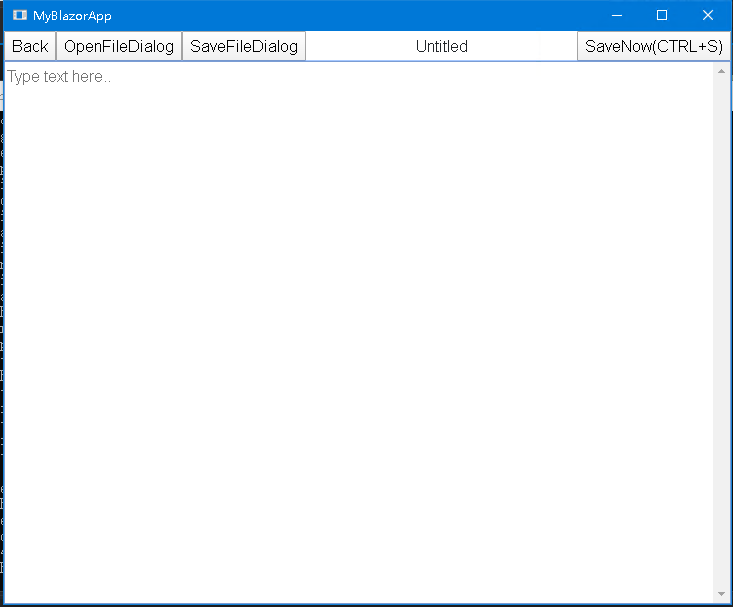
需要留意的地方:
- Back 按钮的做法是 history.back() , 纯 JavaScript
- 如果是从文件读来的, 或者已保存为文件, 那么显示文件名, 否则显示 Untitled
- 有 originalTextCode != currentTextCode 的比较, 显示文件已修改未保存的红色星星
- 如果有文件名信息, 还提供了 ExploreCurrentFile 的便利 , 这也是与系统进行交互的例子
- 处理了 @onkeypress="Dialog_KeyPress" , 实现 CTRL+S 热键
- 最下面使用了 BlazorDomTree , 而不是用 InputTextArea , 因为需要在内容在被修改的过程中执行代码, 而不是等到onchange触发.
现在回头分析 C# 代码:
    string currentFilePath;

    string originalTextCode = "";

    string currentTextCode = "";

    PlusControl textarea;

    void textarea_ready(BlazorDomTree bdt)

    {

        textarea = bdt.Root;

        textarea.OnChanging(delegate

        {

            currentTextCode = textarea.Value;

            StateHasChanged();

        });

        textarea.SetFocus();

    }
BlazorDomTree , PlusControl 是 BlazorPlus 包里的功能.  用于像jQuery一样写代码控制DOM

在

呈现之后, OnRootReady便会执行, textarea=bdt.Root 便可得到这个 Element (<textarea/>) 的 C# 引用.
然后监听 OnChanging 事件, 任何形式的改变, 例如打字, 黏贴, 删除等等, 都会触发, 保存内容到 currentTextCode , 并且执行 StateHasChanged()
这个StateHasChanged 必须要手动调用, 因为这个事件不是 Blazor 的 EventCallback 编译方式.
    void ShowOpenFileDialogImpl()

    {

        bses.RunBrowser(browser =>

        {

            var form = browser.FindForm();

            using (System.Windows.Forms.OpenFileDialog dialog = new System.Windows.Forms.OpenFileDialog())

            {

                if (currentFilePath != null)

                    dialog.FileName = currentFilePath;

                dialog.Filter = "Text Files|*.txt";

                var res = dialog.ShowDialog(form);

                if (res != System.Windows.Forms.DialogResult.OK)

                    return;

                bses.InvokeInRenderThread(delegate

                {

                    string txt;

                    string openfilepath = dialog.FileName;

                    try

                    {

                        txt = System.IO.File.ReadAllText(openfilepath);

                    }

                    catch (Exception x)

                    {

                        bses.ConsoleError(x.ToString());

                        bses.Alert("Error", x.Message);

                        return;

                    }

                    currentFilePath = openfilepath;

                    originalTextCode = currentTextCode = txt;

                    textarea.Value = txt;

                    textarea.SetFocus();

                    StateHasChanged();

                    bses.Toast("Load " + System.IO.Path.GetFileName(currentFilePath));

                });

            }

        });

    }
使用
bses.RunBrowser(browser => { .... });
来实现两个效果 :
- 取得一个 ICefWinBrowser browser 对象, 使用 browser.FindForm() 来获得 WinForm窗体
- 让 delegate 代码在 WinForms线程(主线程) 执行 , 而不是 blazor 的 render thread
在 WinForms线程执行时, 便可直接执行 WinForms 代码了:
            var form = browser.FindForm();

            using (System.Windows.Forms.SaveFileDialog dialog = new System.Windows.Forms.SaveFileDialog())

            {

                if (currentFilePath != null)

                    dialog.FileName = currentFilePath;

                dialog.Filter = "Text Files|*.txt";

                var res = dialog.ShowDialog(form);

                if (res != System.Windows.Forms.DialogResult.OK)

                    return;
这是很标准的 SaveFileDialog 流程呀
获取到要打开的文件路径后, 要这么干 :
                bses.InvokeInRenderThread(delegate

                {
这是从 WinForms 线程 , 切换回 Blazor 的 render 线程
这一点非常重要. Blazor要活在自己的线程, WinForms也要活在自己的线程, 两者不能搞错.
处理 ESC/后退 命令 :
前面已经提及到, BACK按钮是执行 history.back() 的. 如果文件没保存, 如何阻止返回呢?
    protected override void OnDialogCancel(string mode)

    {

        if (string.IsNullOrWhiteSpace(currentTextCode) || originalTextCode == currentTextCode)

        {

            Close();

            return;

        }

        bses.Confirm("Quit", "Quit without saving text?", (result) =>

        {

            if (result == true)

                Close();

            else

                textarea.SetFocus();

        });

    }
这里重写了 DemoDialogBase.cs 的方法 OnDialogCancel
并且做出了合适的处理.
如果是用户关闭整个窗口呢?
由于这只是一个例子, 代码需要足够简单, 所以没有写得太详细.
要解决这个问题, 需要具体工程具体解决.
基本的原理是在 ShowMainForm 的时候就关联 FormClosed 事件并处理.
在 Notepad.razor 用 RunBrowser 的方式得到 form 并关联 FormClosed 也可以.
关于发布方式
把程序发不成单一个exe , 一百多兆, 有好处也有坏处.
实际上这是dotnet自己做的一个打包过程, 运行的时候, 是需要解压的.. 这个解压过程要好几秒..
第二次运行第三次运行就快了.
如果不把dotnetcore打包进去, 那么客户端又要另行安装框架. 为部署增加了多一层麻烦.
还是那一句, 有利有弊的东西, 要自行选择.
小结
这个项目目前已经打通了 CEF , WinForms , Blazor (Asp.net core) 三者的关系,
并且都在同一个进程, 同一个AppDomain里, 可以直接互相调用.
后面有时间再继续写更多的例子.
如有任何问题, 请加QQ群

[Asp.Net Core] Blazor Server Side 扩展用途 - 配合CEF来制作带浏览器核心的客户端软件 (二) 可运行版本的更多相关文章
- [Asp.Net Core] Blazor Server Side 扩展用途 - 配合CEF来制作客户端浏览器软件
前言 大家用过微信PC端吧? 这是用浏览器做的. 用过Visual Studio Code吧? 也是用浏览器做的. 听说, 暴雪客户端也包含浏览器核心?? 在客户端启动一个浏览器, 并不是什么难事了. ...
- [Asp.Net Core] Blazor Server Side 项目实践 - 切换页面时保留状态
前言: 这是 项目实践系列 , 算是中高级系列博文, 用于为项目开发过程中不好解决的问题提出解决方案的. 不属于入门级系列. 解释起来也比较跳跃, 只讲重点. 因为有网友的项目需求, 所以提前把这些解 ...
- Blazor server side 自家的一些开源的, 实用型项目的进度之 CEF客户端
距离上次提出 [Asp.Net Core] Blazor Server Side 扩展用途 - 配合CEF来制作带浏览器核心的客户端软件 的想法后, 差不多2个星期了. 这个玩意也做了一半, 自用是没 ...
- ASP.NET Core Blazor 初探之 Blazor Server
上周初步对Blazor WebAssembly进行了初步的探索(ASP.NET Core Blazor 初探之 Blazor WebAssembly).这次来看看Blazor Server该怎么玩. ...
- ASP.NET Core Blazor Webassembly 之 路由
web最精妙的设计就是通过url把多个页面串联起来,并且可以互相跳转.我们开发系统的时候总是需要使用路由来实现页面间的跳转.传统的web开发主要是使用a标签或者是服务端redirect来跳转.那今天来 ...
- 022年9月12日 学习ASP.NET Core Blazor编程系列三——实体
学习ASP.NET Core Blazor编程系列一--综述 学习ASP.NET Core Blazor编程系列二--第一个Blazor应用程序(上) 学习ASP.NET Core Blazor编程系 ...
- ASP.NET Core Blazor Webassembly 之 组件
关于组件 现在前端几大轮子全面组件化.组件让我们可以对常用的功能进行封装,以便复用.组件这东西对于搞.NET的同学其实并不陌生,以前ASP.NET WebForm的用户控件其实也是一种组件.它封装ht ...
- 学习ASP.NET Core Blazor编程系列二——第一个Blazor应用程序(中)
学习ASP.NET Core Blazor编程系列一--综述 学习ASP.NET Core Blazor编程系列二--第一个Blazor应用程序(上) 四.创建一个Blazor应用程序 1. 第一种创 ...
- 学习ASP.NET Core Blazor编程系列四——迁移
学习ASP.NET Core Blazor编程系列一--综述 学习ASP.NET Core Blazor编程系列二--第一个Blazor应用程序(上) 学习ASP.NET Core Blazor编程系 ...
随机推荐
- Linux安装jdk(详细教程)
一.JDK介绍 JDK是 Java 语言的软件开发工具包,主要用于移动设备.嵌入式设备上的java应用程序.JDK是整个java开发的核心,它包含了JAVA的运行环境(JVM+Java系统类库)和JA ...
- QT踩坑记录1-多线程信号与槽
QT踩坑记录1-多线程信号与槽 QTC++Bugs 错误输出 无错误输出, 但是声明了信号的连接,但是无法使用 程序中就是无命令 介绍 QT 典型程序 #include <QObject> ...
- java 之 jsp tomcat启动失败问题
问题描述: 创建了一个helloServlet 代码如下 package Test; import java.io.IOException; import javax.servlet.ServletE ...
- 【shell】Shell变量基础及深入
1. 什么是变量 变量就是用一个固定的字符串(也可能是字符数字等的组合),替代更多更复杂的内容,这个内容里可能还会包含变量和路径,字符串等其他内容. 变量的定义是存在内存中. x=1 y=2 2. 变 ...
- 1309:【例1.6】回文数(Noip1999)
传送门:http://ybt.ssoier.cn:8088/problem_show.php?pid=1309 [题目描述] 若一个数(首位不为零)从左向右读与从右向左读都是一样,我们就将其称之为回文 ...
- [每日短篇] 1C - Spring Data JPA (0)
2019独角兽企业重金招聘Python工程师标准>>> 准备把 Spring Data JPA 完整看一遍,顺便把关键要点记录一下.在写这篇文章的今天,再不用 Spring Boot ...
- spring IoC容器类接口关系梳理
整理了下spring中容器类的接口,用UML画了张图(并不十分严格按照UML标准,省略了些方法).
- 树上倍增法求LCA
我们找的是任意两个结点的最近公共祖先, 那么我们可以考虑这么两种种情况: 1.两结点的深度相同. 2.两结点深度不同. 第一步都要转化为情况1,这种可处理的情况. 先不考虑其他, 我们思考这么一个问题 ...
- 【Hexo】使用Hexo+github pages+travis ci 实现自动化部署
目录 一.说明 二.成品展示 三.前期准备 本地安装 node.js 本地安装 git github 账号 创建仓库 travis ci 账号 四.安装 Hexo 五.使用 hexo 搭建博客 六.部 ...
- ssm(spring,spring mvc,mybatis)框架
ssm框架各个技术的职责 spring :spring是一个IOC DI AOP的 容器类框架 spring mvc:spring mvc 是一个mvc框架 mybatis:是一个orm的持久层框架 ...