
使用SecureCRT的SFTP在WINDOWS与LINUX之间传输文件(转载)
参考文献:
http://ice-k.iteye.com/blog/1068275
http://www.cnblogs.com/chen1987lei/archive/2010/11/26/1888391.html
背景:
方案:
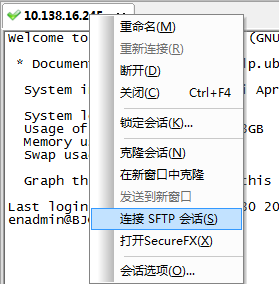
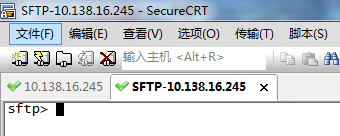
SFTP命令

sftp> help

Available commands:

ascii                          Set transfer mode to ASCII

binary                         Set transfer mode to binary

cd path                        Change remote directory to 'path'

lcd path                       Change local directory to 'path'

detail remote-path             Display system information about remote

                                 file or folder

ldetail local-path             Display system information about local

                                 file or folder

chgrp group path               Change group of file 'path' to 'group'

chmod mode path                Change permissions of file 'path' to 'mode'

chown owner path               Change owner of file 'path' to 'owner'

exit                           Quit sftp

help                           Display this help text

include filename               Include commands from 'filename'

                                 Alternate: < filename

get [-r][-a | -b] remote-path  Download file

                                 -r downloads directory recursively

                                 force ascii (-a) or binary (-b) mode

ln [-s] existingpath linkpath  Hardlink / symlink remote file

ls [options] [path]            Display remote directory listing

lls [options] [path]           Display local directory listing

mkdir path                     Create remote directory

lmkdir path                    Create local directory

mv oldpath newpath             Move remote file

lmv oldpath newpath            Move local file

open [user@]host[:port]        Connect to remote host

put [-r][-a | -b] local-path   Upload file

                                 -r uploads directory recursively

                                 force ascii (-a) or binary (-b) mode

pwd                            Display remote working directory

lpwd                           Print local working directory

quit                           Quit sftp

rename oldname newname         Rename remote file

lrename oldname newname        Rename local file

rmdir path                     Remove remote directory

lrmdir path                    Remove local directory

rm path                        Delete remote file

lrm path                       Delete local file

su username                    Substitutes the current user

                                 This is only supported with VShell for

                                 Windows 3.5 or later.

type [transfer-mode]           Display or set file transfer mode

view remote-path               Download and open file

version                        Display protocol version
翻译一下就是:
sftp-- help

可用命令:

cd 路径                        更改远程目录到“路径”

lcd 路径                       更改本地目录到“路径”

chgrp group path               将文件“path”的组更改为“group”

chmod mode path                将文件“path”的权限更改为“mode”

chown owner path               将文件“path”的属主更改为“owner”

exit                           退出 sftp

help                           显示这个帮助文本

get 远程路径                   下载文件

ln existingpath linkpath       符号链接远程文件

ls [选项] [路径]               显示远程目录列表

lls [选项] [路径]              显示本地目录列表

mkdir 路径                     创建远程目录

lmkdir 路径                    创建本地目录

mv oldpath newpath             移动远程文件

open [用户@]主机[:端口]        连接到远程主机

put 本地路径                   上传文件

pwd                            显示远程工作目录

lpwd                           打印本地工作目录

quit                           退出 sftp

rmdir 路径                     移除远程目录

lrmdir 路径                    移除本地目录

rm 路径                        删除远程文件

lrm 路径                       删除本地文件

symlink existingpath linkpath  符号链接远程文件

version                        显示协议版本
我们主要用到的就是一下六个命令
cd 路径                        更改远程目录到“路径”

lcd 路径                       更改本地目录到“路径”

ls [选项] [路径]               显示远程目录列表

lls [选项] [路径]              显示本地目录列表

put 本地路径                   上传文件

get 远程路径                   下载文件
这里在详细说明一下远程目录和本地目录。
远程目录:ls查看到的是ubuntu虚拟机上面的目录
本地目录:lls查看到的是windows实体机上面的目录。
实例:
假设我需要实现windows下的e:\sftp\test1.txt和ubuntu下/home/enadmin/test2.txt的互换,可以进行一下操作:
put操作:windows->linux
查看目录权限
root@BJCGNMON01:/home# ll

total 20

drwxr-xr-x  5 root    root    4096 Apr 18 15:21 ./

drwxr-xr-x 24 root    root    4096 Jan  3 14:14 ../

drwxr-xr-x  9 enadmin enadmin 4096 Apr 18 15:22 enadmin/

drwxr-xr-x  2 root    root    4096 Apr 18 15:21 sftp/--可以看到sftp的权限是root的

drwxr-xr-x  2 root    root    4096 Apr 18 14:57 test/

root@BJCGNMON01:/home# chown -R enadmin.enadmin sftp/

root@BJCGNMON01:/home# ll

total 20

drwxr-xr-x  5 root    root    4096 Apr 18 15:21 ./

drwxr-xr-x 24 root    root    4096 Jan  3 14:14 ../

drwxr-xr-x  9 enadmin enadmin 4096 Apr 18 15:22 enadmin/

drwxr-xr-x  2 enadmin enadmin 4096 Apr 18 15:21 sftp/--修改以后权限变成enadmin的了

drwxr-xr-x  2 root    root    4096 Apr 18 14:57 test/
拷贝文件
sftp> put test* --初始想将文件从windows系统put到ubuntu系统,发现失败,提示拒绝访问

Uploading test1.txt to /home/test1.txt

put: failed to upload e:/sftp/test1.txt. 拒绝访问。

Uploading test2.txt to /home/test2.txt

put: failed to upload e:/sftp/test2.txt. 拒绝访问。

Uploading test3.txt to /home/test3.txt

put: failed to upload e:/sftp/test3.txt. 拒绝访问。

sftp> pwd --查看当前目录是/home目录,权限是root的

/home

sftp> cd /home/enadmin/ --我切换到enadmin目录下

sftp> ls

Graphs.pm             msmtp                 ntp

sent                  smokeping.tar.gz      smokepingrtt.tar.gz

smokepingrtt2.tar.gz  Target                wqy

wqy-zenhei-0.8.38-1.deb

sftp> lls

test1.txt             test2.txt             test3.txt

sftp> put test* -再次尝试将windows下的文件put到/homg/enadmin目录下,这次成功

Uploading test1.txt to /home/enadmin/test1.txt

  100% 4 bytes      4 bytes/s 00:00:00

e:/sftp/test1.txt: 4 bytes transferred in 0 seconds (4 bytes/s)

Uploading test2.txt to /home/enadmin/test2.txt

  100% 4 bytes      4 bytes/s 00:00:00

e:/sftp/test2.txt: 4 bytes transferred in 0 seconds (4 bytes/s)

Uploading test3.txt to /home/enadmin/test3.txt

  100% 5 bytes      5 bytes/s 00:00:00

e:/sftp/test3.txt: 5 bytes transferred in 0 seconds (5 bytes/s)

sftp> cd /home/sftp/--在修改sftp目录权限以后,再次切换到sftp目录下

sftp> ls

sftp> lls

test1.txt             test2.txt             test3.txt

sftp> put test* --这回put成功。所以跟权限相关

Uploading test1.txt to /home/sftp/test1.txt

  100% 4 bytes      4 bytes/s 00:00:00

e:/sftp/test1.txt: 4 bytes transferred in 0 seconds (4 bytes/s)

Uploading test2.txt to /home/sftp/test2.txt

  100% 4 bytes      4 bytes/s 00:00:00

e:/sftp/test2.txt: 4 bytes transferred in 0 seconds (4 bytes/s)

Uploading test3.txt to /home/sftp/test3.txt

  100% 5 bytes      5 bytes/s 00:00:00

e:/sftp/test3.txt: 5 bytes transferred in 0 seconds (5 bytes/s)
注意点:这里需要注意权限的问题。加入我是使用enadmin账户初始连接ubuntu的,那么我put的文件只能放到文件夹权限是enadmin 的目录下,不能放到文件夹权限是root的目录下。如果想放到文件夹权限是root的目录下,那么初始就使用root账户连接ubunut,然后再创建 sftp会话,这样就可以了。
get操作:linux->windows
get操作没有权限设定
sftp> pwd

/home/enadmin

sftp> lpwd

e:/Documents

sftp> lcd e:/sftp --切换目录

sftp> lls

rc.local              test1.txt             test2.txt

test3.txt

sftp> ls

Graphs.pm             msmtp                 ntp

sent                  smokeping.tar.gz      smokepingrtt.tar.gz

smokepingrtt2.tar.gz  Target                test1.txt

test2.txt             test3.txt             wqy

wqy-zenhei-0.8.38-1.deb

sftp> get Graphs.pm --下载文件到windows

Downloading Graphs.pm from /home/enadmin/Graphs.pm

  100% 13KB     13KB/s 00:00:00

/home/enadmin/Graphs.pm: 13503 bytes transferred in 0 seconds (13 KB/s)

sftp> lls --查看windows目录

Graphs.pm             rc.local              test1.txt

test2.txt             test3.txt

sftp>
使用SecureCRT的SFTP在WINDOWS与LINUX之间传输文件(转载)的更多相关文章
- SecureCRT的SFTP在Windows与Linux之间传输文件
使用SecureCRT软件ssh连接到Linux虚拟机.然后在SecureCRT上面打开SFTP会话
- 使用SecureCRT的SFTP在WINDOWS与LINUX之间传输文件
景: 有一台主机,安装了windows7,在其安装了virtualbox,然后安装了ubuntu虚拟机.在windows7上安装SecureCRT来ssh连接ubuntu虚拟机.一般在windows上 ...
- 如何使用xftp工具在Windows与Linux之间传输文件
如何使用xftp工具在Windows与Linux之间传输文件 整理者:vashon 声明:感谢开源社区 xftp工具是一款SFTP,FTP文件传输软件,可在Windows pc与Unix/Linux之 ...
- 通过SSH实现Windows与linux之间传输文件
Linux是非常好的开发环境,但很多时候我们希望能够在Windows上操作,通过SSH协议可以实现两者之间传输文件. 一 需要在Linux系统上安装ssh-server,有的linux系统自带了. 查 ...
- 用rz,sz命令在windows和linux之间传输文件(转)
转自http://www.linuxmine.com/178.html有很多人没有听说过ZModem协议,更不知道有rz/sz这样方便的工具: 下面一段是从SecureCRT的帮助中copy的: ZM ...
- Windows、Linux之间传输文件的几种方式
常见的文件传输协议有ftp.sftp,sftp就是在ftp的基础上对传输的数据进行了加密. ftp速度快,sftp速度略慢但安全性高. ftp默认使用21端口,sftp默认使用22端口. 我使用的是C ...
- 利用SSH secure Shell实现windows与linux之间传输文件
在windows下安装SSH secure Shell.默认安装后有两个快捷方式. linux下需要安装openssh-server utuntu默认安装了opens是-client,所以不需要安装, ...
- windows与linux之间传输文件
1.使用SSH Secure Shell Client 百度网盘 下载地址 http://pan.baidu.com/s/1kTmp00J 2.使用pscp 百度网盘地址:http://pan.bai ...
- linux CentOS 安装rz和sz命令 lrzsz 实现windows和linux之间的文件上传 下载
https://blog.nbhao.org/1902.html https://bbs.csdn.net/topics/391989523 https://www.cnblogs.com/zhoul ...
随机推荐
- ios7内购、Game Center 实现 in-App Purchases & Game Center
猴子原创,欢迎转载.转载请注明: 转载自Cocos2D开发网–Cocos2Dev.com,谢谢! 原文地址: http://www.cocos2dev.com/?p=514 昨天使用ios7SDK b ...
- Socket实现聊天客户端
今天在极客学院上看到了一个关于Socket的视频讲解,感觉还不错,就写了份代码,拿来分享一下. Socket使用方法 关于Socket的使用,我们首先要弄清楚的是,在服务器端还是在客户端使用.因为这的 ...
- 【一天一道LeetCode】#103. Binary Tree Zigzag Level Order Traversal
一天一道LeetCode 本系列文章已全部上传至我的github,地址:ZeeCoder's Github 欢迎大家关注我的新浪微博,我的新浪微博 欢迎转载,转载请注明出处 (一)题目 来源: htt ...
- Java-IO之对象输入流输出流(ObjectInputStream和ObjectOutputStream)
ObjectInputStream和ObjectOutputStream的作用是对基本数据和对象进行序列化操作支持.创建文件输出流对应的ObjectOutputStream对象,该ObjectOutp ...
- Unity插件 - MeshEditor(二) 模型网格编辑器(高级)
源码已上传至github,并持续更新,链接请看底部.(本帖跟随github持续更新) 继先前的一篇MeshEditor之后,MeshEditor第二版发布,这次在先前的基础上加入了为模型新增顶点以及删 ...
- 采购申请 POCIRM-001:ORA-01403: 未找到任何数据
今天同事让帮忙看一个问题,在销售模块提交销售订单生成采购订单的请求时报错 查看请求日志 +------------------------------------------------------- ...
- APACHE,NGINX 详细分析
Apache是目前最流行的Web应用服务器,占据了互联网应用服务器70%以上的份额.Apache能取得如此成功并不足为奇:它免费.稳定且性能卓越:但Apache能取得如此佳绩的另一个原因是,当时互联网 ...
- 测试adb功能(后续学习会不断添加)
在安卓中最常用来调试的工具就是ADB,废话不多说,看看几个常用的ADB命令: 1.查看设备的连接状态 在windows cmd中输入 adb devices 会显示设备的相关信息. 2.adb she ...
- Java进阶(三十) 判断字符串编码类型
java 判断字符串编码类型 public static String getEncoding(String str) { String encode = "GB2312"; tr ...
- C语言assert的用法
assert宏的原型定义在<assert.h>中,其作用是如果它的条件返回错误,则终止程序执行,原型定义:#include <assert.h>void assert( int ...