
wpf应用程序 打印标签
新建一个wpf应用程序,Xaml如下:
<Window x:Class="CreateBarCodeDemo.MainWindow"

        xmlns="http://schemas.microsoft.com/winfx/2006/xaml/presentation"

        xmlns:x="http://schemas.microsoft.com/winfx/2006/xaml"

        Title="MainWindow" Height="350" Width="525">

    <Grid>

        <StackPanel>

            <Button Height="40" Width="80" Margin="20" Content="打印" Click="btnPrint_Click"/>

        </StackPanel>

    </Grid>

</Window>
新建打印窗体(wpf),Xaml如下:
<Window x:Class="CreateBarCodeDemo.PrintWindow"

        xmlns="http://schemas.microsoft.com/winfx/2006/xaml/presentation"

        xmlns:x="http://schemas.microsoft.com/winfx/2006/xaml"

        xmlns:i="http://schemas.microsoft.com/expression/2010/interactivity"

        xmlns:ei="http://schemas.microsoft.com/expression/2010/interactions"

        xmlns:d="http://schemas.microsoft.com/expression/blend/2008"

        xmlns:mc="http://schemas.openxmlformats.org/markup-compatibility/2006"

        Title="打印人物卡" mc:Ignorable="d" Width="380" Height="250" WindowStartupLocation="CenterScreen" ContentRendered="Window_ContentRendered">

    <Grid x:Name="printArea" Width="350" Height="210">

        <Grid.RowDefinitions>

            <RowDefinition Height="0.233*"/>

            <RowDefinition Height="0.767*"/>

        </Grid.RowDefinitions>

        <Grid x:Name="grid" Margin="0" UseLayoutRounding="False">

            <Grid.ColumnDefinitions>

                <ColumnDefinition Width="0.262*"/>

                <ColumnDefinition Width="0.738*"/>

            </Grid.ColumnDefinitions>

            <StackPanel Margin="0" d:LayoutOverrides="Width">

                <Image x:Name="image" Source="Resources/logo.png" Stretch="Fill" Margin="0" Height="42.111"/>

            </StackPanel>

            <TextBlock x:Name="tbTitle" HorizontalAlignment="Center" TextWrapping="Wrap" VerticalAlignment="Center" Text="人物卡" FontSize="22" Grid.Column="1" Margin="0"/>

        </Grid>

        <Grid Margin="0" Grid.Row="1">

            <Grid.RowDefinitions>

                <RowDefinition Height="0.812*"/>

                <RowDefinition Height="0.188*"/>

            </Grid.RowDefinitions>

            <Grid.ColumnDefinitions>

                <ColumnDefinition/>

            </Grid.ColumnDefinitions>

            <Grid Margin="0" Grid.RowSpan="2">

                <Grid>

                    <Grid.ColumnDefinitions>

                        <ColumnDefinition Width="0.3*"/>

                        <ColumnDefinition Width="0.4*"/>

                        <ColumnDefinition Width="0.25*"/>

                        <ColumnDefinition Width="0.4*"/>

                    </Grid.ColumnDefinitions>

                    <Grid.RowDefinitions>

                        <RowDefinition Height="0.2*"/>

                        <RowDefinition Height="0.2*"/>

                        <RowDefinition Height="0.2*"/>

                        <RowDefinition Height="0.4*"/>

                    </Grid.RowDefinitions>

                    <Label Content="姓名" FontSize="12" BorderBrush="Black" BorderThickness="2" Margin="0,0,-2,-2" HorizontalContentAlignment="Center" VerticalContentAlignment="Center" />

                    <Label Name="lbName"  Grid.Column="1" BorderBrush="Black" BorderThickness="2" Margin="0,0,-2,-2" HorizontalContentAlignment="Center" VerticalContentAlignment="Center" FontSize="12"/>

                    <Label Content="年龄"  Grid.Row="1" FontSize="12" BorderBrush="Black" BorderThickness="2" Margin="0,0,-2,-2" HorizontalContentAlignment="Center" VerticalContentAlignment="Center"/>

                    <Label Name="lbAge"  Grid.Row="1" Grid.Column="1" BorderBrush="Black" BorderThickness="2" Margin="0,0,-2,-2" HorizontalContentAlignment="Center" VerticalContentAlignment="Center" FontSize="12"/>

                    <Label Content="能力"  Grid.Row="2" FontSize="12" BorderBrush="Black" BorderThickness="2" Margin="0,0,-2,-2" HorizontalContentAlignment="Center" VerticalContentAlignment="Center"/>

                    <Label Name="lbSAbility" Grid.Row="2" Grid.Column="1"  BorderBrush="Black" BorderThickness="2" Margin="0,0,-2,-2" HorizontalContentAlignment="Center" VerticalContentAlignment="Center" FontSize="12"/>

                    <Label Content="职位"  Grid.Row="2" Grid.Column="2" FontSize="12" BorderBrush="Black" BorderThickness="2" Margin="0,0,-2,-2" HorizontalContentAlignment="Center" VerticalContentAlignment="Center"/>

                    <Label Name="lbTitle" Grid.Row="2" Grid.Column="3"  BorderBrush="Black" BorderThickness="2" Margin="0,0,-2,-2" HorizontalContentAlignment="Center" VerticalContentAlignment="Center" FontSize="12"/>

                    <Label  Content="性别"  Grid.Column="2" FontSize="12" BorderBrush="Black" BorderThickness="2" Margin="0,0,-2,-2" HorizontalContentAlignment="Center" VerticalContentAlignment="Center"/>

                    <Label Content="职业"  Grid.Column="2" Grid.Row="1" FontSize="12" BorderBrush="Black" BorderThickness="2" Margin="0,0,-2,-2" HorizontalContentAlignment="Center" VerticalContentAlignment="Center"/>

                    <Label Name="lbSex"  Grid.Column="3" BorderBrush="Black" BorderThickness="2" Margin="0,0,-2,-2" HorizontalContentAlignment="Center" VerticalContentAlignment="Center" FontSize="12"/>

                    <Label Name="lbJob"  Grid.Row="1" Grid.Column="3" BorderBrush="Black" BorderThickness="2" Margin="0,0,-2,-2" HorizontalContentAlignment="Center" VerticalContentAlignment="Center" FontSize="12"/>

                    <Label Content="悬赏"  Grid.Row="3" FontSize="14" BorderBrush="Black" BorderThickness="2" Margin="0,0,-2,-2" HorizontalContentAlignment="Center" VerticalContentAlignment="Center"/>

                    <Label Grid.Row="3" Grid.Column="1" Grid.ColumnSpan="3" BorderBrush="Black" BorderThickness="2" Margin="0,0,-2,-2" HorizontalContentAlignment="Center" VerticalContentAlignment="Center" FontSize="14">

                        <Image Name="Imageid" Stretch="Fill" Height="50" Width="215" Margin="0,3,0,0"/>

                    </Label>

                </Grid>

            </Grid>

        </Grid>

    </Grid>

</Window>
项目引用BarcodeLib.dll(用来生成条码)。
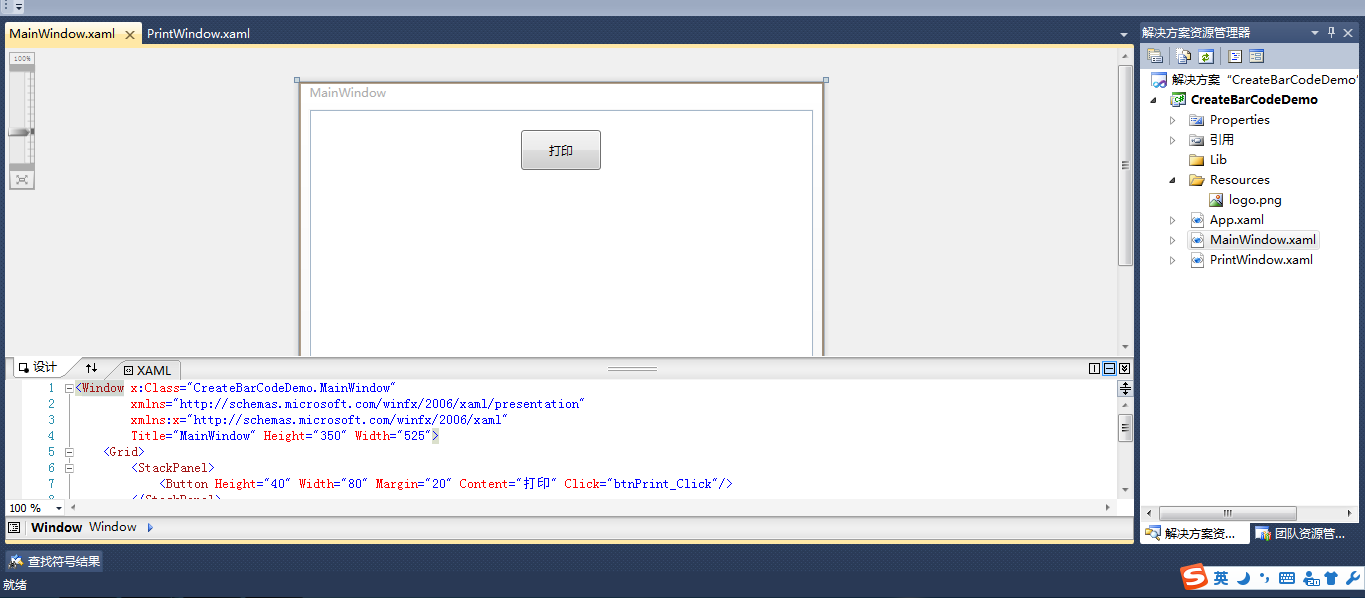
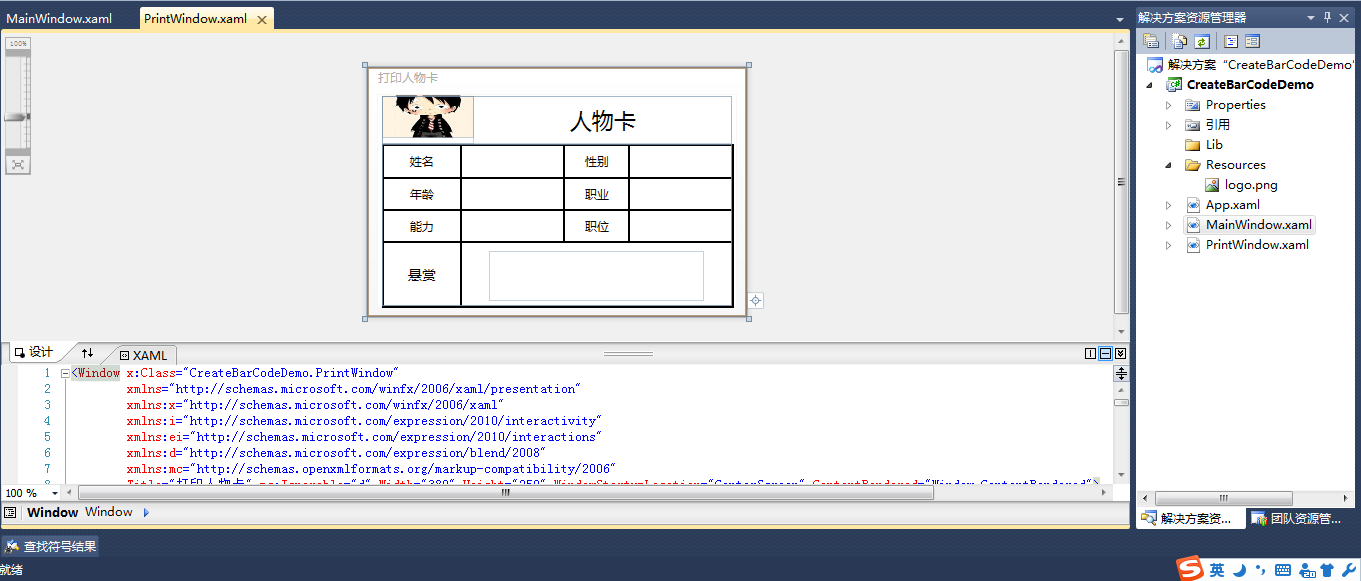
两个窗体界面效果如下:
主窗体:
打印窗体:
主窗体的后置代码如下:
using System;

using System.Collections.Generic;

using System.Linq;

using System.Text;

using System.Windows;

using System.Windows.Controls;

using System.Windows.Data;

using System.Windows.Documents;

using System.Windows.Input;

using System.Windows.Media;

using System.Windows.Media.Imaging;

using System.Windows.Navigation;

using System.Windows.Shapes;

namespace CreateBarCodeDemo

{

    /// <summary>

    /// MainWindow.xaml 的交互逻辑

    /// </summary>

    public partial class MainWindow : Window

    {

        public MainWindow()

        {

            InitializeComponent();

        }

        private void btnPrint_Click(object sender, RoutedEventArgs e)

        {

            PrintWindow pw = new PrintWindow("路飞", "男", , "海贼", "橡胶果实", "船长", "500000000$");

            pw.ShowDialog();

        }

    }

}
点击打印时,ShoW出打印窗体;
通过打印窗体的构造函数,传入要打印的信息;
打印窗体呈现完后,执行了Window_ContentRendered事件,进行打印标签;
打印方法里通过调用BarcodeLib.Barcode生成一个条码;
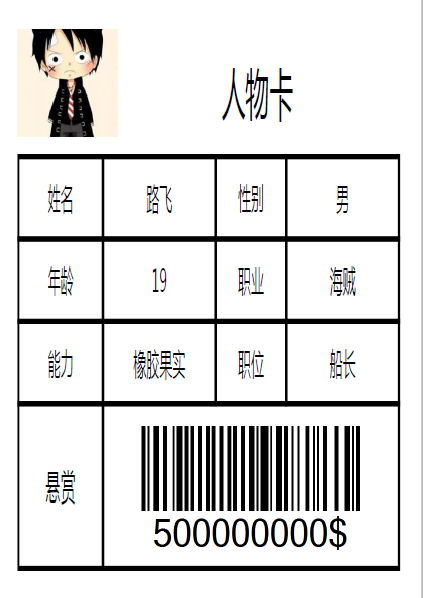
最后将整个打印窗体的布局打印出来。
打印窗体的后置代码如下:
using System;

using System.Collections.Generic;

using System.Linq;

using System.Text;

using System.Windows;

using System.Windows.Controls;

using System.Windows.Data;

using System.Windows.Documents;

using System.Windows.Input;

using System.Windows.Media;

using System.Windows.Media.Imaging;

using System.Windows.Shapes;

using System.IO;

namespace CreateBarCodeDemo

{

    /// <summary>

    /// PrintWindow.xaml 的交互逻辑

    /// </summary>

    public partial class PrintWindow : Window

    {

        public PrintWindow()

        {

            InitializeComponent();

        }

        /// <summary>

        /// show出打印窗体时,通过构造函数传入要打印的信息

        /// </summary>

        /// <param name="tankNo"></param>

        /// <param name="workOrderNo"></param>

        /// <param name="ownerSerialnum"></param>

        /// <param name="capacity"></param>

        /// <param name="shellmaterial"></param>

        /// <param name="tankType"></param>

        /// <param name="barCode"></param>

        public PrintWindow(string name, string sex, int age

            , string job, string ability, string title, string barCode)

            : this()

        {

            this.lbName.Content = name;

            this.lbSex.Content = sex;

            this.lbAge.Content = age;

            this.lbJob.Content = job;

            this.lbSAbility.Content = ability;

            this.lbTitle.Content = title;

            CreateBarCode(barCode);

        }

        /// <summary>

        /// 将条码字符串转换成图形

        /// </summary>

        /// <param name="barCode">rfid</param>

        private void CreateBarCode(string barCode)

        {

            ImageSource imageSource = null;

            string data = barCode;

            if (data != null)

            {

                try

                {

                    System.Drawing.Image image = null;

                    using (BarcodeLib.Barcode b = new BarcodeLib.Barcode())

                    {

                        b.LabelFont = new System.Drawing.Font(b.LabelFont.FontFamily,  / data.Length, System.Drawing.GraphicsUnit.Pixel);

                        b.IncludeLabel = true;

                        image = b.Encode(BarcodeLib.TYPE.CODE128, data, , );

                    }

                    var stream = new MemoryStream();

                    image.Save(stream, System.Drawing.Imaging.ImageFormat.Png);

                    stream.Seek(, SeekOrigin.Begin);

                    var bi = new System.Windows.Media.Imaging.BitmapImage();

                    bi.BeginInit();

                    bi.StreamSource = stream;

                    bi.EndInit();

                    imageSource = bi;

                }

                catch { }

            }

            this.Imageid.Source = imageSource;

        }

        /// <summary>

        /// 在窗口的内容呈现完毕之后发生

        /// 打印流程卡标签并关闭窗口

        /// </summary>

        /// <param name="sender"></param>

        /// <param name="e"></param>

        private void Window_ContentRendered(object sender, EventArgs e)

        {

            try

            {

                PrintDialog dialog = new PrintDialog();

                //if (dialog.ShowDialog() == true)

                {

                    DrawingVisual visual = new DrawingVisual();

                    using (DrawingContext dc = visual.RenderOpen())

                    {

                        Rect rect = new Rect(dialog.PrintableAreaWidth * 0.05,

                                             dialog.PrintableAreaHeight * 0.05,

                                             dialog.PrintableAreaWidth * 0.90,

                                             dialog.PrintableAreaHeight * 0.90);

                        dc.DrawRectangle(new VisualBrush(printArea), null, rect);

                    }

                    dialog.PrintVisual(visual, null);

                }

            }

            catch (Exception ex)

            {

                MessageBox.Show(ex.Message);

                MessageBox.Show(ex.StackTrace);

            }

            this.Close();

        }

    }

}
打印的标签图片如下:
wpf应用程序 打印标签的更多相关文章
- 细数改善WPF应用程序性能的10大方法
WPF(Windows Presentation Foundation)应用程序在没有图形加速设备的机器上运行速度很慢是个公开的秘密,给用户的感觉是它太吃资源了,WPF程序的性能和硬件确实有很大的关系 ...
- 【C#】1.3 WPF应用程序学习要点
分类:C#.VS2015 创建日期:2016-06-14 使用教材:十二五国家级规划教材<C#程序设计及应用教程>(第3版) 一.要点概述 <C#程序设计及应用教程>(第3版) ...
- WPF 获取程序路径的一些方法,根据程序路径获取程序集信息
一.WPF 获取程序路径的一些方法方式一 应用程序域 //获取基目录即当前工作目录 string str_1 = System.AppDomain.CurrentDomain.BaseDirector ...
- WPF 之 WPF应用程序事件
当新建一个wpf应用程序,会自动生成一个App.xaml和MainWindow.xaml文件. 其中 App.xam 用来设置Application,应用程序的起始文件和资源及应用程序的一些属性和事件 ...
- 11、创建不使用XAML的WPF应用程序
首先新建一个空的项目,然后添加一个类,引用一下程序集: PresentationCore.dll PresentationFramework.dll WindowsBase.dll namespace ...
- WPF发布程序后未授予信任的解决办法
WPF发布程序后未授予信任的解决办法 基于浏览器的WPF应用程序由于需要比较高的操作权限,所以在项目的安全性属性中选择了“这是完全可信的应用程序”选项.可是,在发布部署后,在其他电脑上打开xbap文件 ...
- 【ASP.NET Web API教程】3.3 通过WPF应用程序调用Web API(C#)
原文:[ASP.NET Web API教程]3.3 通过WPF应用程序调用Web API(C#) 注:本文是[ASP.NET Web API系列教程]的一部分,如果您是第一次看本博客文章,请先看前面的 ...
- WPF应用程序支持多国语言解决方案
原文:WPF应用程序支持多国语言解决方案 促使程序赢得更多客户的最好.最经济的方法是使之支持多国语言,而不是将潜在的客户群限制为全球近70亿人口中的一小部分.本文介绍四种实现WPF应用程序支持多国语言 ...
- 在WPF应用程序中使用Font Awesome图标
Font Awesome 在网站开发中,经常用到.今天介绍如何在WPF应用程序中使用Font Awesome . 如果是自定义的图标字体,使用方法相同. 下载图标字体 在官方网站或github上下载资 ...
随机推荐
- jQuery插件实现左右无缝轮播
前段时间学习jQuery的时候,在网上找了个SuperSlide插件,做轮播图demo,感觉对于新人而言,还是挺容易上手的,代码量也少. 直接贴代码吧. 1.HTML <!DOCTYPE htm ...
- 如何判断网页中引入jquery
直接上代码,不信自己测. <html xmlns="http://www.w3.org/1999/xhtml"><meta http-equiv="Co ...
- Python之线程&进程
线程: 线程是操作系统能够进行运算调度的最小单位.它被包含在进程之中,是进程中的实际运作单位.一条线程指的是进程中一个单一顺序的控制流,一个进程中可以并发多个线程,每条线程并行执行不同的任务. thr ...
- Python之列表&元组&字典
今天学习了Python的基本数据类型,做以下笔记,以备查用. 一.列表 列表的常用方法: 1.append()方法 def append(self, p_object): # real signatu ...
- 转delphi中 formclose的事件 action:=cafree form:=nil分别是什么意思?
转自:http://www.cnblogs.com/jshchg/articles/1929894.html MDI子窗体关闭时用到的(以下摘自Delphi的帮助)caNone The form i ...
- Matlab - 矩阵元素引用
>> A = [ ; ; ] A = 1. 选择第m行n列的元素 >> A(,) ans = 2. 选择第i列所有元素 >> A(:,) ans = 3. 选择第j ...
- aspose 解决插入html后字体问题
/// <summary> /// 添加html /// </summary> /// <param name="strText"></p ...
- NFS挂载故障卡死的问题
NFS挂载故障卡死的问题 默认是硬的,改成软的.比如:mount -t nfs -o rw,vers=4,noacl,nocto,noatime,nodiratime,rsize=131072,wsi ...
- 588. [NOIP1999] 拦截导弹
588. [NOIP1999] 拦截导弹 ★ 输入文件:missile.in 输出文件:missile.out 简单对比 时间限制:1 s 内存限制:128 MB 题目描述 某国为了防御敌国的导 ...
- 01背包dp+并查集 Codeforces Round #383 (Div. 2)
http://codeforces.com/contest/742/problem/D 题目大意:有n个人,每个人有重量wi和魅力值bi.然后又有m对朋友关系,朋友关系是传递的,如果a和b是朋友,b和 ...