
【Selenium-WebDriver自学】WebDriver交互代码(十一)
==========================================================================================================
写在前面:
最近项目一直很忙,没有时间来整理自动化测试方面的知识。
由于项目忙,自动化测试一直未使用到项目中来,希望接下来在项目之余,能够抽出时间来将自动化测试投入到实际的项目中来。
==========================================================================================================
参考链接:http://www.cnblogs.com/itliucheng/p/5578788.html
1、Selenium定位器
下表给出了定位selenium 元素的webdriver的Java语法。

使用Jquery查找元素

2、常用命令
下表列出了webdriver的最常用的命令以及它的语法,这将有助于我们开发webdriver脚本。
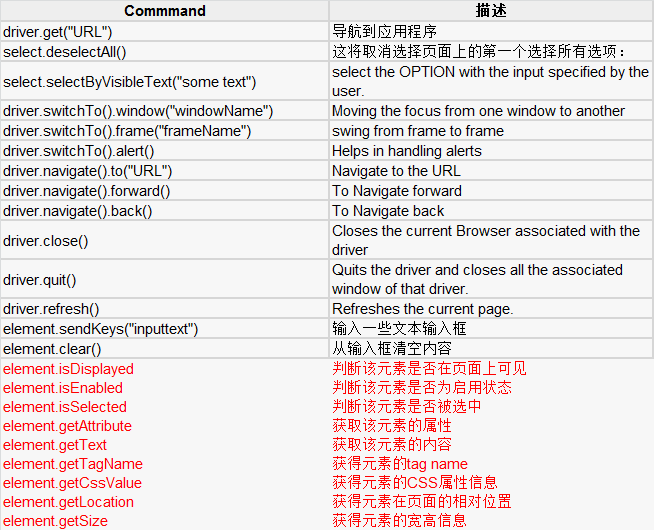
3、文本框的相互作用
String result = driver.findElement(By.id("cpar1")).getAttribute("value");

driver.findElement(By.id("cpar1")).sendKeys("10");

driver.navigate().to("http://www.baidu.com");

driver.findElement(By.id("kw")).clear();

driver.findElement(By.id("kw")).sendKeys("魔兽");

driver.findElement(By.id("su")).click();
4、单选按钮互动
// Click on Radio Button

driver.findElement(By.id("cpayoff1")).click();


WebElement radioOption = driver.findElement(By.xpath("//input[@value='orange']"));

          if(!radioOption.isSelected()){

              radioOption.click();

          }

          List<WebElement> fruits = driver.findElements(By.name("fruit"));

          for(WebElement fruit : fruits){

              if(fruit.getAttribute("value").equals("watermelon")){

                  if(!fruit.isSelected()){

                      fruit.click();

                      Assert.assertTrue(fruit.isSelected());

                      break;

                  }

              }

          }
5、复选框交互
// Click on check Box

driver.findElement(By.id("caddoptional")).click();
6、下拉交互
用“selectByVisibleText'或'selectByIndex'或'selectByValue'的方法选择一个选项。

Select dropdown = new Select(driver.findElement(By.id("ccompound")));

dropdown.selectByVisibleText("continuously");


Select dropSelect = new Select(driver.findElement(By.name("fruit")));

//判断页面是否进行多选

 Assert.assertTrue(dropSelect.isMultiple());

 //使用选择项索引选择第三个选项

 dropSelect.selectByIndex(3);

 //根据value值选择

 dropSelect.selectByValue("value");

  //根据选项文字选择

  dropSelect.selectByVisibleText("苹果");

  //取消所有选项的选中状态

 dropSelect.deselectAll();

 //取消第三个的选中状态

 dropSelect.deselectByIndex(3);

 //根据value值取消选择

 dropSelect.deselectByValue("value");

 //根据选项文字取消选择

 dropSelect.deselectByVisibleText("苹果");
7、同步
THREAD.SLEEP

Thread.Sleep(1000); //Will wait for 1 second.

显式等待

WebElement DynamicElement = (new WebDriverWait(driver, 10)).until(ExpectedConditions.presenceOfElementLocated(By.id("DynamicElement")));

隐式等待

WebElement DynamicElement = driver.findElement(By.id("DynamicElement"));

流利等待

Wait wait = new FluentWait(driver)

  .withTimeout(60, SECONDS)

  .pollingEvery(10, SECONDS)

  .ignoring(NoSuchElementException.class);

WebElement dynamicelement = wait.until(new Function<webdriver,webElement>()

{

  public WebElement apply(WebDriver driver)

  {

  return driver.findElement(By.id("dynamicelement"));

  }

 }

);
8、拖放
http://www.yiibai.com/selenium/selenium_drag_drop.html#article-start

WebElement From = driver.findElement(By.xpath(".//*[@id='j3_7']/a"));

        WebElement To = driver.findElement(By.xpath(".//*[@id='j3_1']/a"));

        Actions builder = new Actions(driver);

        Action dragAndDrop = builder.clickAndHold(From)

                        .moveToElement(To)

                        .release(To)

                        .build();

        dragAndDrop.perform();
9、键盘操作
void sendKeys(java.lang.CharSequence keysToSend)

void pressKey(java.lang.CharSequence keyToPress)

void releaseKey(java.lang.CharSequence keyToRelease)
10、鼠标操作
Click - 进行点击。我们还可以执行基于坐标的点击。

contextClick - 执行上下文点击/右键单击一个元素或基于坐标

doubleClick - 执行双击webelement或基于坐标。如果留空它执行双击当前位置。

mouseDown - 执行一个元素上按下鼠标操作或基于坐标。

mouseMove - 执行元素上的鼠标移动操作或基于坐标。

mouseUp - 释放鼠标通常伴随着鼠标按下的动作和行为的基础上统筹。

void click(WebElement onElement)

void contextClick(WebElement onElement)

void doubleClick(WebElement onElement)

void mouseDown(WebElement onElement)

void mouseUp(WebElement onElement)

void mouseMove(WebElement toElement)

void mouseMove(WebElement toElement, long xOffset, long yOffset)
11、多选择操作
12、查找所有链接
java.util.List<WebElement> links = driver.findElements(By.tagName("a"));

        System.out.println("Number of Links in the Page is " + links.size());

        for (int i = 1; i<=links.size(); i=i+1)

        {

          System.out.println("Name of Link# " + i - + links.get(i).getText());

        }
13、等待操作
设定查找页面元素的最大等待时间,调用findElement方法的时候没有能立即找到某个元素,则程序会每隔一段时间后不断的尝试判断页面的DOM中是否出现被查找的元素,如果超过设定的等待时长依旧没有找到,则抛出NoSuchElementException
14、隐形等待
driver.manage().timeouts().implicitlyWait(10, TimeUnit.SECONDS);

@BeforeClass

 public static void init() {

     System.out.println("init...");

     System.setProperty("webdriver.chrome.driver","C:\\Program Files (x86)\\Google\\Chrome\\Application\\chromedriver.exe");

     // 创建一个 ChromeDriver 的接口,用于连接 Chrome,

     //必须要有chromedriver.exe文件,selenium默认不能启动chrome

     // 创建一个 Chrome 的浏览器实例

     driver = new ChromeDriver();

     //最大化浏览器

     driver.manage().window().maximize();

     //设置全局的隐形等待

     driver.manage().timeouts().implicitlyWait(10, TimeUnit.SECONDS);

 }
隐性等待的默认时长是0,一旦设置,这个隐试等待会在webdriver对象实例的整个生命周期起作用
15、显示等待
显示等待比隐式等待更节约测试脚本执行的时间,推荐使用显示等待判断页面元素是否存在
使用ExpectedConditions类中自带的方法,可以进行显示等待的判断
//页面元素是否在页面上可用和可被点击

ExpectedConditions.elementToBeClickable(By locator);

//页面元素是否处于被选中状态

ExpectedConditions.elementToBeSelected(By locator);

//页面元素在页面是否存在

ExpectedConditions.presenceOfElementLocated(By locator);

//是否包含特定的文本

ExpectedConditions.textToBePresentInElement(locator, text)

//页面元素值

ExpectedConditions.textToBePresentInElementValue(locator, text);

//标题

ExpectedConditions.titleContains(title);

// 等待元素可见且可被单击

wait.until(ExpectedConditions.elementToBeClickable(By.id(id)));
16、自定义的显示等待
public static void sendKeysByXPath(WebDriver driver, String path, String key) {

        WebDriverWait wait = new WebDriverWait(driver, 10); // 最多等10秒

        WebElement element = wait.until(new ExpectedCondition<WebElement>() {

            @Override

            public WebElement apply(WebDriver d) {

                return d.findElement(By.xpath(path));

            }

        });

        highLightElement(driver,element);

        element.clear();

        element.sendKeys(key);

    }
17、操作javascript的Alert弹窗
driver.findElement(By.xpath(path)).click();

//切换到alert弹出框

Alert alert = driver.switchTo().alert();

AssertionUtil.assertEquals("这是个alert弹出框", alert.getText());

//使用alert的accept方法,单击alert的确定按钮,关闭alert

alert.accept();

//如果alert未弹出,会抛出NoAlertPresentException异常

//切换回去原来的窗体

driver.switchTo().defaultContent();

alert.accept();是确定

alert.dismiss();是取消
18、操作模态框
driver.switchTo().activeElement();
==========================================================================================================
写在后面:
这个模块学习的内容,应该是平时写代码过程中用到的最多的内容。可以尝试将部分内容写成共通,比如alert框的确定和消失等。
==========================================================================================================
【Selenium-WebDriver自学】WebDriver交互代码(十一)的更多相关文章
- [Selenium] 搭建 Android WebDriver 环境
1.安装 Android SDK 到如下网址下载 Android SDK http://developer.android.com/sdk/index.html 2.创建 Android 虚拟设备 解 ...
- 【译】Selenium 2.0 WebDriver
Selenium WebDriver 注意:我们正致力于完善帮助指南的每一个章节,虽然这个章节仍然存在需要完善的地方,不过我们坚信当前你看到的帮助信息是精确无误的,后续我们会提供更多的指导信息来完 ...
- Selenium 2.0 WebDriver 自动化测试 使用教程 实例教程 API快速参考
Selenium 2.0 WebDriver 自动化测试 使用教程 实例教程 API快速参考 //System.setProperty("webdriver.firefox.bin" ...
- 浅谈python中selenium库调动webdriver驱动浏览器的实现原理
最近学web自动化时用到selenium库,感觉很神奇,遂琢磨了一下,写了点心得. 当我们输入以下三行代码并执行时,会发现新打开了一个浏览器窗口并访问了百度首页,然而这是怎么做到的呢? from se ...
- selenium跳过webdriver检测并爬取淘宝我已购买的宝贝数据
简介 上一个博文已经讲述了如何使用selenium跳过webdriver检测并爬取天猫商品数据,所以在此不再详细讲,有需要思路的可以查看另外一篇博文. 源代码 # -*- coding: utf-8 ...
- Python3.x:Selenium中的webdriver进行页面元素定位
Python3.x:Selenium中的webdriver进行页面元素定位 页面上的元素就像人一样,有各种属性,比如元素名字,元素id,元素属性(class属性,name属性)等等.webdriver ...
- Selenium Firefox 官方Webdriver -- Geckodriver 下载地址
Selenium Firefox 官方Webdriver -- Geckodriver 下载地址 https://github.com/mozilla/geckodriver/releases
- 孤荷凌寒自学python第八十一天学习爬取图片1
孤荷凌寒自学python第八十一天学习爬取图片1 (完整学习过程屏幕记录视频地址在文末) 通过前面十天的学习,我已经基本了解了通过requests模块来与网站服务器进行交互的方法,也知道了Beauti ...
- Python + Selenium +Chrome 批量下载网页代码修改【新手必学】
Python + Selenium +Chrome 批量下载网页代码修改主要修改以下代码可以调用 本地的 user-agent.txt 和 cookie.txt来达到在登陆状态下 批量打开并下载网页, ...
随机推荐
- ASP.NET AJAX入门系列(9):在母版页中使用UpdatePanel
本文简单介绍一下在母版页中使用UpdatePanel控件,翻译自官方文档. 主要内容 1.添加UpdatePanel控件到Content Page 2.通过Master Page刷新UpdatePan ...
- python json.dumps(output) ^ SyntaxError: invalid syntax
问题 下面代码在有些机器上执行正常,有些机器上执行报错: import json output={} print json.dumps(output) python代码报错: line 277 pri ...
- 虚拟机怎么发送ctrl+alt+delete组合键
相信各位It的从业人员都遇到过安装了虚拟机搭建测试环境,可是在使用windows服务器版本操作系统的时候.出现要求发送ctrl+alt+delete组合键,才能登陆操作系统.为此咗嚛提供3个方法给您解 ...
- 利用Mega2560实现USB转串口
1. 介绍 2560的串口一共有4个,分别对应数字接口0-1,18-19,16-17,14-15所有串口都可以跟pc通信,但只有0-1是跟板子上的usb2ttl连接,电脑上显示的串口编号就是0-1对应 ...
- 页面框架加载完自动执行函数$(function(){});
页面中有一些大的资源文件,如图片,声音等,如果一个事件绑定写在这些加载资源代码的下方,那么要等资源加载完才会绑定,这样体验不够好. 于是想不等资源加载完,只要框架加载完成就绑定事件,就可以把代码放在以 ...
- tomcat源码 Connector
Connector容器主要负责解析socket请求,在tomcat中的源码位于org.apache.catalina.connector和org.apache.coyote包路径下:通过上两节的分析, ...
- quartz里job不执行的解决方案(并发量太低原因)
这里写链接内容 使用框架spring3+quartz1.8 生产环境中碰到会有job一直不执行的情况,后来分析是因为quartz中线程总数太少,而项目中所有的job都是并发执行的就会导致当到达时间节点 ...
- SQL优化系列——查询优化器
大多数查询优化器将查询计划用“计划节点”树表示.计划节点封装执行查询所需的单个操作.节点被布置为树,中间结果从树的底部流向顶部.每个节点具有零个或多个子节点 - 这些子节点是输出作为父节点输入的节点. ...
- python面向对象:类空间,对象空间, 组合
一. 类空间,对象空间 1. 类空间,对象空间 创建一个类就会创建一个类的名称空间,用来存储类中定义的所有名字,这些名字称为类的属性 而类有两种属性:静态属性和动态属性 静态属性就是直接在类中定义的变 ...
- [UE4]关卡蓝图