
ASP.NET CORE RAZOR :将文件上传至 ASP.NET Core 中的 Razor 页面
本部分演示使用 Razor 页面上传文件。
本教程中的 Razor 页面 Movie 示例应用使用简单的模型绑定上传文件,非常适合上传小型文件。 有关流式传输大文件的信息,请参阅通过流式传输上传大文件。
在下列步骤中,向示例应用添加电影计划文件上传功能。 每个电影计划由一个 Schedule 类表示。 该类包括两个版本的计划。 其中一个版本 (PublicSchedule) 提供给客户。 另一个版本 (PrivateSchedule) 用于公司员工。 每个版本作为单独的文件进行上传。 本教程演示如何通过单个 POST 将两个文件上传至服务器。
添加 FileUpload 类
创建 Razor 页以处理一对文件上传。 添加 FileUpload 类(此类与页面绑定以获取计划数据)。 右键单击“Models”文件夹。 选择“添加” > “类”。 将类命名为“FileUpload”,并添加以下属性:
using Microsoft.AspNetCore.Http;

using System.ComponentModel.DataAnnotations;

namespace RazorPagesMovie.Models

{

    public class FileUpload

    {

        [Required]

        [Display(Name="Title")]

        [StringLength(, MinimumLength = )]

        public string Title { get; set; }

        [Required]

        [Display(Name="Public Schedule")]

        public IFormFile UploadPublicSchedule { get; set; }

        [Required]

        [Display(Name="Private Schedule")]

        public IFormFile UploadPrivateSchedule { get; set; }

    }

}
此类有一个属性对应计划标题,另各有一个属性对应计划的两个版本。 3 个属性皆为必需属性,标题长度必须为 3-60 个字符。
添加用于上传文件的 helper 方法
为避免处理未上传计划文件时出现代码重复,请首先上传一个静态 helper 方法。 在此应用中创建一个“Utilities”文件夹,然后在“FileHelpers.cs”文件中添加以下内容。 helper 方法 ProcessFormFile 接受 IFormFile 和 ModelStateDictionary,并返回包含文件大小和内容的字符串。 检查内容类型和长度。 如果文件未通过验证检查,将向 ModelState 添加一个错误。
using System;

using System.ComponentModel.DataAnnotations;

using System.IO;

using System.Net;

using System.Reflection;

using System.Text;

using System.Threading.Tasks;

using Microsoft.AspNetCore.Http;

using Microsoft.AspNetCore.Mvc.ModelBinding;

using RazorPagesMovie.Models;

namespace RazorPagesMovie.Utilities

{

    public class FileHelpers

    {

        public static async Task<string> ProcessFormFile(IFormFile formFile, ModelStateDictionary modelState)

        {

            var fieldDisplayName = string.Empty;

            // Use reflection to obtain the display name for the model

            // property associated with this IFormFile. If a display

            // name isn't found, error messages simply won't show

            // a display name.

            MemberInfo property =

                typeof(FileUpload).GetProperty(formFile.Name.Substring(formFile.Name.IndexOf(".") + ));

            if (property != null)

            {

                var displayAttribute =

                    property.GetCustomAttribute(typeof(DisplayAttribute)) as DisplayAttribute;

                if (displayAttribute != null)

                {

                    fieldDisplayName = $"{displayAttribute.Name} ";

                }

            }

            // Use Path.GetFileName to obtain the file name, which will

            // strip any path information passed as part of the

            // FileName property. HtmlEncode the result in case it must

            // be returned in an error message.

            var fileName = WebUtility.HtmlEncode(Path.GetFileName(formFile.FileName));

            if (formFile.ContentType.ToLower() != "text/plain")

            {

                modelState.AddModelError(formFile.Name,

                                         $"The {fieldDisplayName}file ({fileName}) must be a text file.");

            }

            // Check the file length and don't bother attempting to

            // read it if the file contains no content. This check

            // doesn't catch files that only have a BOM as their

            // content, so a content length check is made later after

            // reading the file's content to catch a file that only

            // contains a BOM.

            if (formFile.Length == )

            {

                modelState.AddModelError(formFile.Name, $"The {fieldDisplayName}file ({fileName}) is empty.");

            }

            else if (formFile.Length > )

            {

                modelState.AddModelError(formFile.Name, $"The {fieldDisplayName}file ({fileName}) exceeds 1 MB.");

            }

            else

            {

                try

                {

                    string fileContents;

                    // The StreamReader is created to read files that are UTF-8 encoded.

                    // If uploads require some other encoding, provide the encoding in the

                    // using statement. To change to 32-bit encoding, change

                    // new UTF8Encoding(...) to new UTF32Encoding().

                    using (

                        var reader =

                            new StreamReader(

                                formFile.OpenReadStream(),

                                new UTF8Encoding(encoderShouldEmitUTF8Identifier: false, throwOnInvalidBytes: true),

                                detectEncodingFromByteOrderMarks: true))

                    {

                        fileContents = await reader.ReadToEndAsync();

                        // Check the content length in case the file's only

                        // content was a BOM and the content is actually

                        // empty after removing the BOM.

                        if (fileContents.Length > )

                        {

                            return fileContents;

                        }

                        else

                        {

                            modelState.AddModelError(formFile.Name,

                                                     $"The {fieldDisplayName}file ({fileName}) is empty.");

                        }

                    }

                }

                catch (Exception ex)

                {

                    modelState.AddModelError(formFile.Name,

                                             $"The {fieldDisplayName}file ({fileName}) upload failed. " +

                                             $"Please contact the Help Desk for support. Error: {ex.Message}");

                    // Log the exception

                }

            }

            return string.Empty;

        }

    }

}
以上内容如果看不懂就不用看了,核心思想就是检查上传文件是否合乎要求。
将文件保存到磁盘(拓展内容,本案例未用到)
示例应用将文件内容保存到数据库字段。 若要将文件内容保存到磁盘,请使用文件流:
using (var fileStream = new FileStream(filePath, FileMode.Create))

{

    await formFile.CopyToAsync(fileStream);

}
将文件保存到 Azure Blob 存储(拓展内容,本案例未用到)
若要将文件内容上传到 Azure Blob 存储,请参阅使用 .NET 的 Azure Blob 存储入门。 本主题演示如何使用UploadFromStream 将文件流保存到 blob 存储。
添加 Schedule 类
右键单击“Models”文件夹。 选择“添加” > “类”。 将类命名为“Schedule”,并添加以下属性:
using System;

using System.Collections.Generic;

using System.ComponentModel.DataAnnotations;

using System.ComponentModel.DataAnnotations.Schema;

namespace RazorPagesMovie.Models

{

    public class Schedule

    {

        public int ID { get; set; }

        public string Title { get; set; }

        public string PublicSchedule { get; set; }

        [Display(Name = "Public Schedule Size (bytes)")]

        [DisplayFormat(DataFormatString = "{0:N1}")]

        public long PublicScheduleSize { get; set; }

        public string PrivateSchedule { get; set; }

        [Display(Name = "Private Schedule Size (bytes)")]

        [DisplayFormat(DataFormatString = "{0:N1}")]

        public long PrivateScheduleSize { get; set; }

        [Display(Name = "Uploaded (UTC)")]

        [DisplayFormat(DataFormatString = "{0:F}")]

        public DateTime UploadDT { get; set; }

    }

}
此类使用 Display 和 DisplayFormat 特性,呈现计划数据时,这些特性会生成友好型的标题和格式。
更新 MovieContext
在 MovieContext (Models/MovieContext.cs) 中为计划指定 DbSet:
using Microsoft.EntityFrameworkCore;

namespace RazorPagesMovie.Models

{

    public class MovieContext:DbContext

    {

        public MovieContext(DbContextOptions<MovieContext> options)

            : base(options)

        {

        }

        public DbSet<Movie> Movie { get; set; }

        public DbSet<Class> Class { get; set; }

        public DbSet<Schedule> Schedule { get; set; }

    }

}
将 Schedule 表添加到数据库
打开包管理器控制台 (PMC):“工具” > “NuGet 包管理器” > “包管理器控制台”。
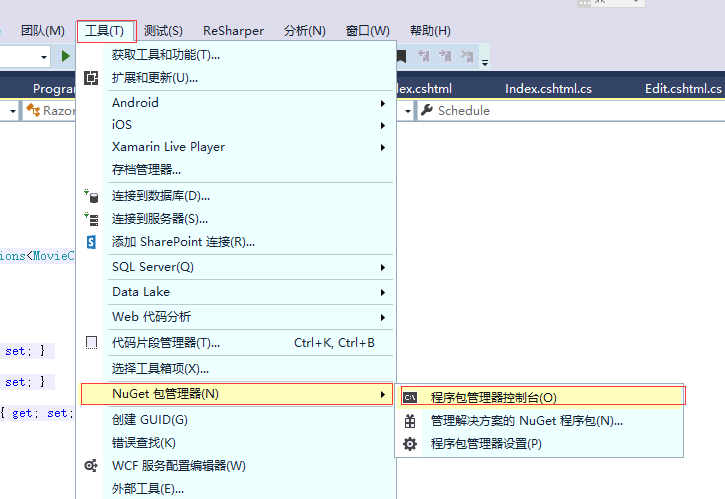
在 PMC 中执行以下命令。 这些命令将向数据库添加 Schedule 表:
Add-Migration AddScheduleTable

Update-Database
添加文件上传 Razor 页面
在“Pages”文件夹中创建“Schedules”文件夹。 在“Schedules”文件夹中,创建名为“Index.cshtml”的页面,用于上传具有如下内容的计划:
@page

@model RazorPagesMovie.Pages.Schedule.IndexModel

@{

    ViewData["Title"] = "Schedules";

}

<h2>Schedules</h2>

<hr />

<h3>Upload Schedules</h3>

<div class="row">

    <div class="col-md-4">

        <form method="post" enctype="multipart/form-data">

            <div class="form-group">

                <label asp-for="FileUpload.Title" class="control-label"></label>

                <input asp-for="FileUpload.Title" type="text" class="form-control" />

                <span asp-validation-for="FileUpload.Title" class="text-danger"></span>

            </div>

            <div class="form-group">

                <label asp-for="FileUpload.UploadPublicSchedule" class="control-label"></label>

                <input asp-for="FileUpload.UploadPublicSchedule" type="file" class="form-control" style="height:auto" />

                <span asp-validation-for="FileUpload.UploadPublicSchedule" class="text-danger"></span>

            </div>

            <div class="form-group">

                <label asp-for="FileUpload.UploadPrivateSchedule" class="control-label"></label>

                <input asp-for="FileUpload.UploadPrivateSchedule" type="file" class="form-control" style="height:auto" />

                <span asp-validation-for="FileUpload.UploadPrivateSchedule" class="text-danger"></span>

            </div>

            <input type="submit" value="Upload" class="btn btn-default" />

        </form>

    </div>

</div>

<h3>Loaded Schedules</h3>

<table class="table">

    <thead>

        <tr>

            <th></th>

            <th>

                @Html.DisplayNameFor(model => model.Schedule[].Title)

            </th>

            <th>

                @Html.DisplayNameFor(model => model.Schedule[].UploadDT)

            </th>

            <th class="text-center">

                @Html.DisplayNameFor(model => model.Schedule[].PublicScheduleSize)

            </th>

            <th class="text-center">

                @Html.DisplayNameFor(model => model.Schedule[].PrivateScheduleSize)

            </th>

        </tr>

    </thead>

    <tbody>

        @foreach (var item in Model.Schedule)

        {

            <tr>

                <td>

                    <a asp-page="./Delete" asp-route-id="@item.ID">Delete</a>

                </td>

                <td>

                    @Html.DisplayFor(modelItem => item.Title)

                </td>

                <td>

                    @Html.DisplayFor(modelItem => item.UploadDT)

                </td>

                <td class="text-center">

                    @Html.DisplayFor(modelItem => item.PublicScheduleSize)

                </td>

                <td class="text-center">

                    @Html.DisplayFor(modelItem => item.PrivateScheduleSize)

                </td>

            </tr>

        }

    </tbody>

</table>

@section Scripts {

    @{await Html.RenderPartialAsync("_ValidationScriptsPartial");}

}
每个窗体组包含一个 <label>,它显示每个类属性的名称。 FileUpload 模型中的 Display 特性提供这些标签的显示值。例如,UploadPublicSchedule 特性的显示名称通过 [Display(Name="Public Schedule")] 进行设置,因此呈现窗体时会在此标签中显示“Public Schedule”。
每个窗体组包含一个验证 <span>。 如果用户输入未能满足 FileUpload 类中设置的属性特性,或者任何 ProcessFormFile方法文件检查失败,则模型验证会失败。 模型验证失败时,会向用户呈现有用的验证消息。 例如,Title 属性带有 [Required] 和 [StringLength(60, MinimumLength = 3)] 注释。 用户若未提供标题,会接收到一条指示需要提供值的消息。如果用户输入的值少于 3 个字符或多于 60 个字符,则会接收到一条指示值长度不正确的消息。 如果提供不含内容的文件,则会显示一条指示文件为空的消息。
添加页面模型
将页面模型 (Index.cshtml.cs) 添加到“Schedules”文件夹中:
using System;

using System.Collections.Generic;

using System.Threading.Tasks;

using Microsoft.AspNetCore.Mvc;

using Microsoft.AspNetCore.Mvc.RazorPages;

using Microsoft.EntityFrameworkCore;

using RazorPagesMovie.Models;

using RazorPagesMovie.Utilities;

namespace RazorPagesMovie.Pages.Schedule

{

    public class IndexModel : PageModel

    {

        private readonly RazorPagesMovie.Models.MovieContext _context;

        public IndexModel(RazorPagesMovie.Models.MovieContext context)

        {

            _context = context;

        }

        [BindProperty]

        public FileUpload FileUpload { get; set; }

        public IList<Models.Schedule> Schedule { get; private set; }

        public async Task OnGetAsync()

        {

            Schedule = await _context.Schedule.AsNoTracking().ToListAsync();

        }

        public async Task<IActionResult> OnPostAsync()

        {

            // Perform an initial check to catch FileUpload class

            // attribute violations.

            if (!ModelState.IsValid)

            {

                Schedule = await _context.Schedule.AsNoTracking().ToListAsync();

                return Page();

            }

            var publicScheduleData =

                await FileHelpers.ProcessFormFile(FileUpload.UploadPublicSchedule, ModelState);

            var privateScheduleData =

                await FileHelpers.ProcessFormFile(FileUpload.UploadPrivateSchedule, ModelState);

            // Perform a second check to catch ProcessFormFile method

            // violations.

            if (!ModelState.IsValid)

            {

                Schedule = await _context.Schedule.AsNoTracking().ToListAsync();

                return Page();

            }

            var schedule = new Models.Schedule()

            {

                PublicSchedule = publicScheduleData,

                PublicScheduleSize = FileUpload.UploadPublicSchedule.Length,

                PrivateSchedule = privateScheduleData,

                PrivateScheduleSize = FileUpload.UploadPrivateSchedule.Length,

                Title = FileUpload.Title,

                UploadDT = DateTime.UtcNow

            };

            _context.Schedule.Add(schedule);

            await _context.SaveChangesAsync();

            return RedirectToPage("./Index");

        }

    }

}
页面模型(Index.cshtml.cs 中的 IndexModel)绑定 FileUpload 类:
[BindProperty]

public FileUpload FileUpload { get; set; }
此模型还使用计划列表 (IList<Schedule>) 在页面上显示数据库中存储的计划:
public IList<Models.Schedule> Schedule { get; private set; }
页面加载 OnGetAsync 时,会从数据库填充 Schedules,用于生成已加载计划的 HTML 表:
public async Task OnGetAsync()

{

    Schedule = await _context.Schedule.AsNoTracking().ToListAsync();

}
将窗体发布到服务器时,会检查 ModelState。 如果无效,会重新生成 Schedule,且页面会呈现一个或多个验证消息,陈述页面验证失败的原因。 如果有效,FileUpload 属性将用于“OnPostAsync”中,以完成两个计划版本的文件上传,并创建一个用于存储数据的新 Schedule 对象。 然后会将此计划保存到数据库:
        public async Task<IActionResult> OnPostAsync()

        {

            // Perform an initial check to catch FileUpload class

            // attribute violations.

            if (!ModelState.IsValid)

            {

                Schedule = await _context.Schedule.AsNoTracking().ToListAsync();

                return Page();

            }

            var publicScheduleData =

                await FileHelpers.ProcessFormFile(FileUpload.UploadPublicSchedule, ModelState);

            var privateScheduleData =

                await FileHelpers.ProcessFormFile(FileUpload.UploadPrivateSchedule, ModelState);

            // Perform a second check to catch ProcessFormFile method

            // violations.

            if (!ModelState.IsValid)

            {

                Schedule = await _context.Schedule.AsNoTracking().ToListAsync();

                return Page();

            }

            var schedule = new Models.Schedule()

            {

                PublicSchedule = publicScheduleData,

                PublicScheduleSize = FileUpload.UploadPublicSchedule.Length,

                PrivateSchedule = privateScheduleData,

                PrivateScheduleSize = FileUpload.UploadPrivateSchedule.Length,

                Title = FileUpload.Title,

                UploadDT = DateTime.UtcNow

            };

            _context.Schedule.Add(schedule);

            await _context.SaveChangesAsync();

            return RedirectToPage("./Index");

        }
链接文件上传 Razor 页面
打开“_Layout.cshtml”,然后向导航栏添加一个链接以访问文件上传页面:
            <div class="navbar-collapse collapse">

                <ul class="nav navbar-nav">

                    <li><a asp-page="/Index">Home</a></li>

                    <li><a asp-page="/About">About</a></li>

                    <li><a asp-page="/Contact">Contact</a></li>

                    <li><a asp-page="/Product">产品展示</a></li>

                    <li><a asp-page="/Movies/Index">RpMovie</a></li>

                    <li><a asp-page="/Schedule/Index">文件上传</a></li>

                </ul>

            </div>
现在可以运行看一下效果了
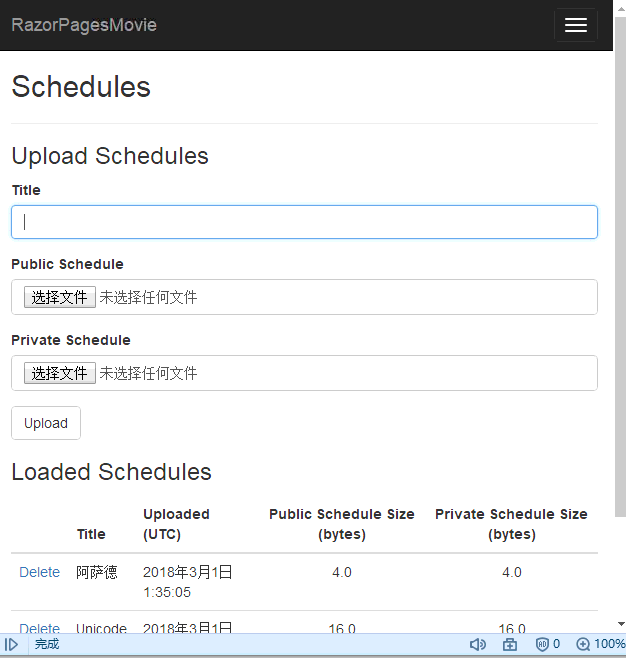
这里只能上传文本文件,还要注意.txt文件必须为Unicode文件类型,否则文件中带有汉字的话,上传后会提示错误消息
Error: Unable to translate bytes [D7] at index 0 from specified code page to Unicode.
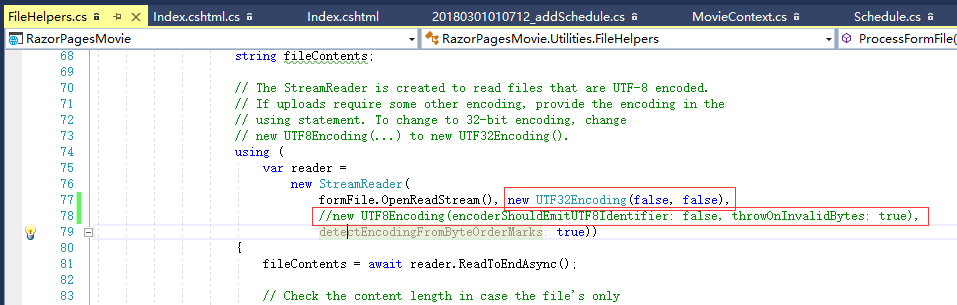
解决方法:FileHelpers.cs文件中修改读取字符编码的格式为
                    using (

                        var reader =

                            new StreamReader(

                                formFile.OpenReadStream(),
                   new UTF32Encoding(false, false),//使用此字符编码

                                //new UTF8Encoding(encoderShouldEmitUTF8Identifier: false, throwOnInvalidBytes: true),//原字符编码

                                detectEncodingFromByteOrderMarks: true))
修改后上传文件中包含中文字符就没问题了。
添加计划删除确认页面
用户单击删除计划时,为其提供取消此操作的机会。 向“Schedules”文件夹添加删除确认页面 (Delete.cshtml):
@page "{id:int}"

@model RazorPagesMovie.Pages.Schedule.DeleteModel

@{

    ViewData["Title"] = "Delete Schedule";

}

<h2>Delete Schedule</h2>

<h3>Are you sure you want to delete this?</h3>

<div>

    <h4>Schedule</h4>

    <hr />

    <dl class="dl-horizontal">

        <dt>

            @Html.DisplayNameFor(model => model.Schedule.Title)

        </dt>

        <dd>

            @Html.DisplayFor(model => model.Schedule.Title)

        </dd>

        <dt>

            @Html.DisplayNameFor(model => model.Schedule.PublicScheduleSize)

        </dt>

        <dd>

            @Html.DisplayFor(model => model.Schedule.PublicScheduleSize)

        </dd>

        <dt>

            @Html.DisplayNameFor(model => model.Schedule.PrivateScheduleSize)

        </dt>

        <dd>

            @Html.DisplayFor(model => model.Schedule.PrivateScheduleSize)

        </dd>

        <dt>

            @Html.DisplayNameFor(model => model.Schedule.UploadDT)

        </dt>

        <dd>

            @Html.DisplayFor(model => model.Schedule.UploadDT)

        </dd>

    </dl>

    <form method="post">

        <input type="hidden" asp-for="Schedule.ID" />

        <input type="submit" value="Delete" class="btn btn-default" /> |

        <a asp-page="./Index">Back to List</a>

    </form>

</div>
页面模型 (Delete.cshtml.cs) 在请求的路由数据中加载由 id 标识的单个计划。 将“Delete.cshtml.cs”文件添加到“Schedules”文件夹:
using System;

using System.Collections.Generic;

using System.Linq;

using System.Threading.Tasks;

using Microsoft.AspNetCore.Mvc;

using Microsoft.AspNetCore.Mvc.RazorPages;

using Microsoft.EntityFrameworkCore;

namespace RazorPagesMovie.Pages.Schedule

{

    public class DeleteModel : PageModel

    {

        private readonly RazorPagesMovie.Models.MovieContext _context;

        public DeleteModel(RazorPagesMovie.Models.MovieContext context)

        {

            _context = context;

        }

        [BindProperty]

        public Models.Schedule Schedule { get; set; }

        public async Task<IActionResult> OnGetAsync(int? id)

        {

            if (id == null)

            {

                return NotFound();

            }

            Schedule = await _context.Schedule.SingleOrDefaultAsync(m => m.ID == id);

            if (Schedule == null)

            {

                return NotFound();

            }

            return Page();

        }

        public async Task<IActionResult> OnPostAsync(int? id)

        {

            if (id == null)

            {

                return NotFound();

            }

            Schedule = await _context.Schedule.FindAsync(id);

            if (Schedule != null)

            {

                _context.Schedule.Remove(Schedule);

                await _context.SaveChangesAsync();

            }

            return RedirectToPage("./Index");

        }

    }

}
OnPostAsync 方法按 id 处理计划删除:
public async Task<IActionResult> OnPostAsync(int? id)

{

    if (id == null)

    {

        return NotFound();

    }

    Schedule = await _context.Schedule.FindAsync(id);

    if (Schedule != null)

    {

        _context.Schedule.Remove(Schedule);

        await _context.SaveChangesAsync();

    }

    return RedirectToPage("./Index");

}
成功删除计划后,RedirectToPage 将返回到计划的“Index.cshtml”页面。
有效的 Schedules Razor 页面
页面加载时,计划标题、公用计划和专用计划的标签和输入将呈现提交按钮:
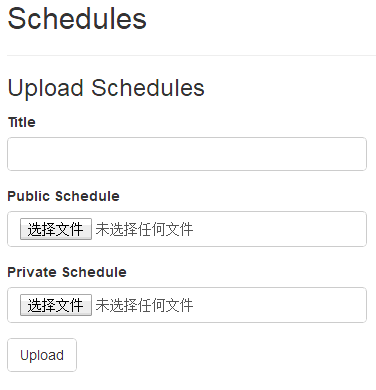
在不填充任何字段的情况下选择“上传”按钮会违反此模型上的 [Required] 特性。 ModelState 无效。 会向用户显示验证错误消息:
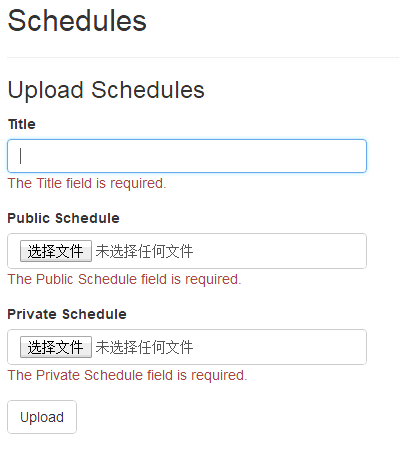
上传一个或多个计划时,“已加载计划”部分会显示已加载计划:

用户可单击该表中的“删除”链接以访问删除确认视图,并在其中选择确认或取消删除操作。
ASP.NET CORE RAZOR 到此结束
源代码
 https://pan.baidu.com/s/1c4k5au8
密码:rtr7
ASP.NET CORE RAZOR :将文件上传至 ASP.NET Core 中的 Razor 页面的更多相关文章
- Asp.Net实现无刷新文件上传并显示进度条(非服务器控件实现)(转)
Asp.Net实现无刷新文件上传并显示进度条(非服务器控件实现) 相信通过Asp.Net的服务器控件上传文件在简单不过了,通过AjaxToolkit控件实现上传进度也不是什么难事,为什么还要自己辛辛苦 ...
- [代码示例]用Fine Uploader+ASP.NET MVC实现ajax文件上传
原文 [代码示例]用Fine Uploader+ASP.NET MVC实现ajax文件上传 Fine Uploader(http://fineuploader.com/)是一个实现 ajax 上传文件 ...
- ASP.NET MVC下使用文件上传
这里我通过使用uploadify组件来实现异步无刷新多文件上传功能. 1.首先下载组件包uploadify,我这里使用的版本是3.1 2.下载后解压,将组件包拷贝到MVC项目中 3. 根目录下添加新 ...
- .net core webapi 文件上传在 Swagger 文档中的有好提示处理
前提: 需要nuget Swashbuckle.AspNetCore 我暂时用的是 4.01 最新版本: 描述:解决 .net core webapi 上传文件使用的是 IFormFile,在S ...
- [转]ExtJs入门之filefield:文件上传的配置+结合Ajax完美实现文件上传的asp.net示例
原文地址:http://www.stepday.com/topic/?459 作文一个ExtJs的入门汉子,学习起来的确是比较费劲的事情,不过如今在这样一个网络资源如此丰富的时代,依然不是那么难了的. ...
- [Asp.net]通过uploadify将文件上传到B服务器的共享文件夹中
写在前面 客户有这样的一个需求,针对项目中文档共享的模块,客户提出如果用户上传特别的大,或者时间久了硬盘空间就会吃满,能不能将这些文件上传到其他的服务器?然后就稍微研究了下这方面的东西,上传到网络中的 ...
- asp.net.mvc 的单文件上传和多文件上传的简单例子
首先打开vs2012,创建空的mvc4项目,名称为MVCStudy,选择基本模板
- .Net Core实现将文件上传到七牛云存储
功能:将图片上传到七牛云存储 准备工作 注册七牛账号,提交实名认证(基本上1天内内审核通过) 登录七牛后台->对象存储->新建空间 (基本概念:https://developer.qini ...
- JQuery文件上传插件uploadify在MVC中Session丢失的解决方案
<script type="text/javascript"> var auth = "@(Request.Cookies[FormsAuthenticati ...
随机推荐
- C#实时读取数据----局部页面刷新【转】
I)现在刚开始学习C#,对一些基本的控件了解的不够,有个实时监控的系统,需要页面中的数据每5秒钟刷新一次, 要是每5秒钟页面全部的刷新,那页面根本就没法看了,对这个问题在CSDN上也专门开了帖子,问了 ...
- Appium+python自动化4-元素定位uiautomatorviewer【转载】
前言 环境搭建好了,下一步元素定位,元素定位本篇主要介绍如何使用uiautomatorviewer,通过定位到页面上的元素,然后进行相应的点击等操作. uiautomatorviewer是androi ...
- Android视频压缩并且上传
一,做视频上传首先第一步要从相册里选取视频,这一步.我的上篇博客中已经讲过了. protected void onActivityResult(int requestCode, int resultC ...
- js-获取用户移动端网络类型:wifi、4g、3g、2g...
今天工作时间很宽裕, 忽然想起,自己做过的所有页面中,有些页面经常会面临用户在网络状态很差的时候打开页面,页面是挂了的状态,感觉很LOW~. 所以我决定在今后的页面中我需要先判断用户的网络状态, 若是 ...
- HDU 2602.Bone Collector-动态规划0-1背包
Bone Collector Time Limit: 2000/1000 MS (Java/Others) Memory Limit: 32768/32768 K (Java/Others)To ...
- Codeforces 825F - String Compression
825F - String Compression 题意 给出一个字符串,你要把它尽量压缩成一个短的字符串,比如一个字符串ababab你可以转化成3ab,长度为 3,比如bbbacacb转化成3b2a ...
- mysql增加和删除字段
时间字段: `create_time` datetime NOT NULL DEFAULT CURRENT_TIMESTAMP COMMENT '创建时间', `last_update_time` t ...
- NOI2014 部分题解
感觉NOI2014的一些题目也是比较好做的... 但是笔者往往有思路却没有想清楚就开始搞了...这样还是不太好.. Day1 T1 起床困难综合征 (我感觉这题应该叫综合征不是综合症...) a ...
- Java多线程设计模式(4)线程池模式
前序: Thread-Per-Message Pattern,是一种对于每个命令或请求,都分配一个线程,由这个线程执行工作.它将“委托消息的一端”和“执行消息的一端”用两个不同的线程来实现.该线程模式 ...
- MSSQL收缩事务日志&日志文件过大无法收缩
原文:MSSQL收缩事务日志&日志文件过大无法收缩 一.MS SQL SERVER 2005 --1.清空日志 exec('DUMP TRANSACTION 数据库名 WITH NO_LOG' ...