
Linux atop 监控系统状态
atop是一个功能非常强大的linux服务器监控工具,它的数据采集主要包括:CPU、内存、磁盘、网络、进程等,并且内容非常的详细,特别是当那一部分存在压力它会以特殊的颜色进行展示,如果颜色是红色那么说明已经非常严重了。
注意:所有的信息都是反映过去10S的状态信息
使用
atop工具安装好后在运行命令atop就能弹出监控界面

接下来我们就来详细看看每行参数意义。
atop:改行列出了服务器的host、当前时间、信息收集的频率
PRC:该列展示整个系统的性能状况;
- sys:过去10s所有的进程在内核态运行的时间总和
- usr:过去10s所有的进程在用户态的运行时间总和
- #proc:进程总数
- #trun:过去10s转换的进程数
- #zombie:过去10s僵死进程的数量
- #exit:在10s采样周期期间退出的进程数量
CPU: cpu列展示了服务器的CPU整体的一个状态信息,包括内核和用户所占的比例、处理中断所占的比例、CPU的处于空闲下比例(这里是100%*cpu核心数,CPU有时候也会因为由于磁盘性能问题出现等待的空闲)
- sys:cpu在处理进程时处于内核态的时间所占的比例
- usr:cpu在处理进程时处于用户态的时间所占的比例
- irq:cpu在处理进程的中断请求所占的实际比例
- idle:cpu处于空闲状态下的时间比例(除了本身空闲,还有比如等待磁盘io的情况下也会处于空闲状态)
cpu:每个核心的状态信息,和总的CPU信息一样,每列加起来的总和就是总的CPU的状态信息。
CPL:cpl也反应了服务器整体的性能,展示信息包括进程等待队列数,分别从过去1分钟、5分钟、15分钟的采样信息。
- avg1:过去1分钟进程等待队列数
- avg5:过去5分钟进程等待队列数
- avg15:过去15分钟进程等待队列数
- csw(context swapping):上下文交换次数
- intr(interrupt):中断发生的次数
- numcpu:cpu的核心数
mem:该列主要展示内存的使用信息。
- tot:物理内存总量
- free:空闲内存的大小(不能单单从这个字段就判断内存不足,还需要参考free -m中的-/+ buffers/cache:free因为这块的内容随时就可以拿过来使用,还可以从是否有使用Swap来判断是否内存不足)
- cache:用于页缓存的内存大小
- dirty:内存中的脏页大小
- buff:用于文件缓存的内存大小
- slab:系统内核占用的内存大小
SWP:交换空间使用情况
- tot:交换空间总量
- free:交换空间剩余空间总量
PAG列:虚拟内存分页情况
- swin:换入内存页数
- swout:换出内存页数
LVM/DSK:每个分区信息以一列来进行展示
- busy:磁盘忙时所占比例
- read、KiB/r 、MBr/s:每秒读的请求数和请求的kb、mb数
- write、KiB/w 、MBr/w:每秒写的请求数和请求的kb、mb数
- avq:磁盘平均队列长度(根据实际的监控该列好像是磁盘平均请求数avgrq)
- avio:磁盘的平均io时间
NET:展示了传输层(TCP/UDP)、网络层(ip)、网络接口的网络传输信息。
transport:传输层(TCP/UDP)的数据输入输出的展示,例如在服务器的内部进程之间的数据传输就是在传输层展示,以为还不需要往下通过网络进行传输。
network:网络层(ip)的数据输入输出的展示;
eth0:默认的网络接口的数据输入输出的展示,也就是通过etho的ip的数据传输的展示,
- sp:网卡的带宽(1000M)
- pcki:传入的数据包的大小
- pcko:传出的数据包的大小
- si:每秒传入的数据大小
- so:每秒传出的数据大小
- coll(collisions):每秒的冲突数
- mlti(MULTICAST):每秒的多路广播的数量
- erri/erro:每秒输入输出的错误数
- drpi/drpo:每秒的输入输出的丢包数
lo:通过127.0.0.1网络接口的数据传输的数据展示,参数和上面的eth0是一样的
进程列
进程列展示了每个进程在过去10S内的数据
m模式:内存状态模式
SYSCPU:过去10s内进程处于内核模式占用的CPU时间
USRCPU:过去10S进程处于用户模式占用的CPU时间
VSIZE:过去10S进程占用的虚拟空间大小
RSIZE:过去10S进程占用的内存空间大小
PSIZE:过去10S进程占用的页大小
VGROW:过去10S进程增长的虚拟空间大小
RGROW:过去10S进程增长的内存大小
SWAPSZ:过去10S进程使用交换空间的大小。
MEM:过去10S进程占用内存百分比
d模式:磁盘状态模式
RDDSK:过去10S进程读磁盘的数据量
p模式:进程状态模式,同一个名称的进程显示一列,根据进程名进行分组显示
NPROCS:相同名称的进程数量
其它的参数上面已经有列出
v模式:线程状态模式
u模式:用户模式
根据用户进行分组显示
g模式:标准模式
s:进程当前的状态,包括:s(sleeping),R(runing)等
atop的相关文件
/etc/atop:目录保存的是atop的配置文件
/etc/rc.d/init.d/atop:atop的启动文件
/etc/cron.d/atop:atop的定时任务文件,默认是每天0点开始
/var/log/atop:atop日志文件,默认是每天0点开始会产生当天的一个日志文件,然后可以通过atop -r file 查看信息,但是没有找到自动播放的的功能,只能通过输入b显示一个指定的时间的信息,可以写个循环来实现
/usr/bin/atop:atop命令目录
atop -r atop_20160510 -b 13:00 -e 17:00
atop产生的日志文件信息是10分钟一个采样周期进行记录,可以通过修改/etc/atop/atop.daily文件进行修改。
atop的其它参数:
Usage: atop [-flags] [interval [samples]]

        or

Usage: atop -w  file  [-S] [-a] [interval [samples]]

       atop -r [file] [-b hh:mm] [-e hh:mm] [-flags]

    generic flags:

      -a  show or log all processes (i.s.o. active processes only)

      -R  calculate proportional set size (PSS) per process

      -P  generate parseable output for specified label(s)

      -L  alternate line length (default 80) in case of non-screen output

      -f  show fixed number of lines with system statistics

      -F  suppress sorting of system resources

      -G  suppress exited processes in output

      -l  show limited number of lines for certain resources

      -y  show individual threads

      -1  show average-per-second i.s.o. total values

      -x  no colors in case of high occupation

      -g  show general process-info (default)

      -m  show memory-related process-info

      -d  show disk-related process-info

      -n  show network-related process-info

      -s  show scheduling-related process-info

      -v  show various process-info (ppid, user/group, date/time)

      -c  show command line per process

      -o  show own defined process-info

      -u  show cumulated process-info per user

      -p  show cumulated process-info per program (i.e. same name)

      -C  sort processes in order of cpu-consumption (default)

      -M  sort processes in order of memory-consumption

      -D  sort processes in order of disk-activity

      -N  sort processes in order of network-activity

      -A  sort processes in order of most active resource (auto mode)

    specific flags for raw logfiles:

      -w  write raw data to   file (compressed)

      -r  read  raw data from file (compressed)

          special file: y[y...] for yesterday (repeated)

      -S  finish atop automatically before midnight (i.s.o. #samples)

      -b  begin showing data from specified time

      -e  finish showing data after specified time
下载地址:http://www.atoptool.nl/downloadatop.php
总结
在atop的展示页面也可以输入m(内存)、p(进程)、u(用户)、d(磁盘)、c(进程运行的代码)、v(线程) 进行页面切换。
We’re all familiar with top, a real-time system monitor. Some prefer htop and previously I mentioned iotop for disk read/write monitoring. Lets looks at another popular tool for Linux server performance analysis: atop.
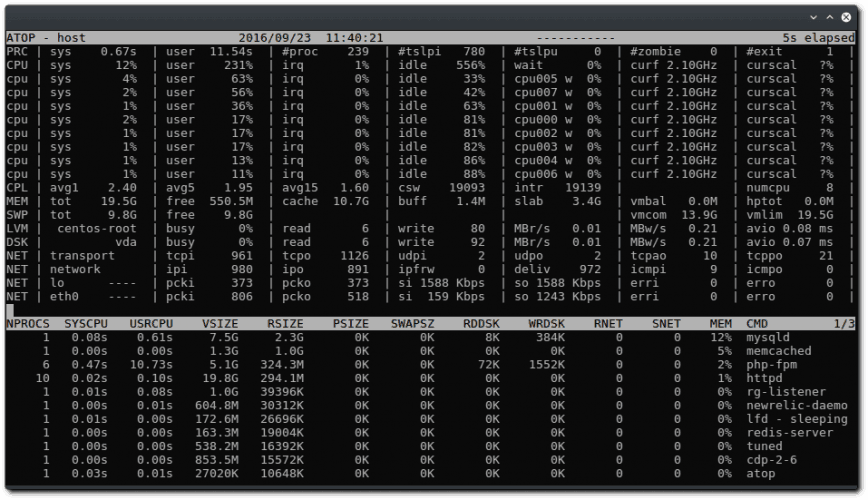
Advantages of atop
Atop is a ASCII full-screen performance monitor which can log and report the activity of all server processes. One feature I really like is that atop will stay active in the background for long-term server analysis (up to 28 days by default). Other advantages include:
- Shows resource usage of ALL processes, even those that are closed/completed.
- Monitors threads within processes & ignores processes that are unused.
- Accumulates resource usage for all processes and users with the same name.
- Highlights critical resources using colors (red).
- Will add or remove columns as the size of the display window changes.
- Includes disk I/O and network utilization.
- Uses netatop kernel module to monitor TCP & UDP and network bandwidth.
Once atop is launched, by default it will show system activity for CPU, memory, swap, disks and network in 10 second intervals. In addition, for each process and thread you can analyse CPU utilization, memory consumption, disk I/O, priority, username, state, and even exit codes.
Install atop on RHEL/CentOS/Fedora Linux
First install and enable EPEL (Extra Packages for Enterprise Linux) repo. See: RedHat solution #308983.
yum install atop
Install atop on Debian/Ubuntu Linux
apt-get install atop
Once installed on any distro, you can launch it similar to top using:
atop
Guide on using atop system & process Monitor
A good place to start would be to read the man pages:
man atop
Other useful commands:
Launch with average-per-second total values:
atop -1
Launch with active processes only:
atop -a
Launch with command line per process
atop -c
Launch with disk info
atop -d
Launch with memory info
atop -m
Launch with network info
atop -n
Launch with scheduling info
atop -s
Launch with various info (ppid, user, time)
atop -v
Launch with individual threads
atop -y
Once atop is running, press the following shortcut keys to sort processes:
- a – sort in order of most active resource.
- c – revert to sorting by cpu consumption (default).
- d – sort in order of disk activity.
- m – sort in order of memory usage
- n – sort in order of network activity
Guide to reading atop reports/logs
By default after install the atop daemon writes snapshots to a compressed log file (eg. /var/log/atop/atop_20140813). These log files can be read using:
atop -r /full/path/to/atop/log/file
Once you open a log file (eg. atop -r /var/log/atop/atop_20140813) then use t to go forward in 10 minute intervals and T to go back. You can analyse specific times by pressing b then entering the time. The above shortcut keys also work in this mode… a, c, d, m,n.
You can use shortcuts with atopsar. For example, using the flag “-c 30 5” with atopsar will generate a report for current CPU utilization for 5 minutes (ten times with intervals of 30 seconds):
atopsar -c 30 5
Using the flag -A with return all available reports.
atopsar -A
But you can limit this to a specific time window using beginning “-b” and end “-e” flags:
atopsar -A -b 11:00 -e 11:15
atop: http://www.atoptool.nl/
Other popular command line Linux server performance analysis tools
top, htop, nmon, net-tools, iptraf, collectl, glances, iostat and vmstat.
Linux atop 监控系统状态的更多相关文章
- Linux watch 监控系统状态
1.linux下watch命令的基本用法 # watch --helpUsage: watch [-dhntv] [--differences[=cumulative]] [--help] [--in ...
- 【Linux】监控系统的状态
1.w命令 w命令是一个很强大的命令,该命令显示的信息比较丰富.以下是我的虚拟机w命令的一个展示 从上图我们可以看到: 第一行从左面开始显示的信息依次为:时间.系统运行时间.登陆用户数.平均负载 第二 ...
- sar监控系统状态
sar 命令很强大,它可以监控系统所有资源状态,比如平均负载.网卡流量.磁盘状态.内存使用等等. 它不同于其他系统状态监控工具的地方在于,它可以打印历史信息,可以显示当天从零点开始到当前时刻的系统状态 ...
- 使用haproxy 2.0 prometheus metrics 监控系统状态
haproxy 2.0 已经发布一段时间了,提供内部直接暴露的prometheus metrics 很方便 ,可以快速的监控系统的状态 以下是一个简单的demo 环境准备 docker-compose ...
- Linux记录-监控系统开发
需求:使用shell定制各种个性化告警工具,但需要统一化管理.规范化管理.思路:指定一个脚本包,包含主程序.子程序.配置文件.邮件引擎.输出日志等.主程序:作为整个脚本的入口,是整个系统的命脉.配置文 ...
- linux系统常用监控系统状态信息命令
[root@bogon ~]# uptime #平均负载 23:33:21 up 2:09, 3 users, load average: 0.02, 0.05, 0.05 [root@bogon ~ ...
- Linux atop监控
200 ? "200px" : this.width)!important;} --> 介绍 atop是一个功能非常强大的linux服务器监控工具,它的数据采集主要包括:CP ...
- Linux atop监控说明
2017-02-22 09:42 by pursuer.chen, 7060 阅读, 2 评论, 收藏, 编辑 介绍 atop是一个功能非常强大的linux服务器监控工具,它的数据采集主要包括:CPU ...
- Linux基础--------监控系统、进程管理、软件包管理-------free、dd、kill、 rpm、yum、源码安装python
作业一:1) 开启Linux系统前添加一块大小为15G的SCSI硬盘 2) 开启系统,右击桌面,打开终端 3) 为新加的硬盘分区,一个主分区大小为5G,剩余空间给扩展分区,在扩展分区上划分1个逻辑分区 ...
随机推荐
- 【原创】C++之自定义高效的swap(1)
1 问题背景 当交换两个包含了指针成员的类,我们最想看到的是直接交换其指针.但是当我们调用std::swap标准库这个模板函数时,通常它都会复制3个指针指向的对象作为交换所用,缺乏效率.如下: ...
- Centos7安装MySQL8.0 - 操作手册
MySQL 8 正式版 8.0.11 已发布,官方表示 MySQL 8 要比 MySQL 5.7 快 2 倍,还带来了大量的改进和更快的性能! 一. Mysql8.0版本相比之前版本的一些特性 1) ...
- Spring mybatis源码篇章-MapperScannerConfigurer关联dao接口
前言:Spring针对Mybatis的XML方式的加载MappedStatement,通过引入MapperScannerConfigurer扫描类来关联相应的dao接口以供Service层调用.承接前 ...
- Nacos系列:Nacos的Java SDK使用
Maven依赖 Nacos提供完整的Java SDK,便于配置管理和服务发现及管理,以 Nacos-0.8.0 版本为例 添加Maven依赖: <dependency> <group ...
- python字符串(string)方法整理
python中字符串对象提供了很多方法来操作字符串,功能相当丰富. print(dir(str)) [..........'capitalize', 'casefold', 'center', 'co ...
- MySQL系列详解一:MySQL&&多实例安装-技术流ken
简介 MySQL是一个真正的多用户.多线程SQL数据库服务器.SQL(结构化查询语言)是世界上最流行的和标准化的数据库语言,它使得存储.更新和存取信息更加容易.MySQL是一个客户机/服务器结构的实现 ...
- javascript小实例,编写一个方法,实现从n-m个数中随机选出一个整数
别怪我是一个闷葫芦,没那么多花哨的语言,废话不多说,先说说小实例的要求: 编写一个方法,实现从n-m个数中随机选出一个整数,要求:传递的参数不足两个或者不是有效数字,返回[0-1]之间的随机数,需要解 ...
- JAVA实现ATM源代码及感想
源代码 //20173626 信1705-2 郑锦package ATM;import java.io.IOException;import java.io.File;import java.io.F ...
- C#装箱和拆箱。
装箱:值类型-->引用类型. 拆箱:引用类型-->值类型 装箱:把值类型拷贝一份到堆里.反之拆箱. 具有父子关系 是拆装箱的条件之一. 所以: class Program { static ...
- [android] xml文件的序列化
生成xml文件,模拟备份短信,创建短信的业务bean,创建一个domain的包放业务bean,这个业务bean里面,定义成员属性,生成get set方法,生成有参和无参的构造方法. 生成随机数,实例化 ...