
CentOS RHEL 安装 Tomcat 7
This post will cover installing and basic configuration of Tomcat 7 on CentOS 5.x. The procedure can be used for Fedora and RHEL as well. Tomcat 7 implements the JavaServer Pages 2.2 and Servlet 3.0 specifications and a number of new features. The Manager application also has a new look with finer-grain roles and access than 6.x In this post, we'll install the required JDK, Tomcat, configure Tomcat as a service, create a start/stop/restart script, and (optionally) configure Tomcat to run under a non-root user. For this installation, we'll use Tomcat 7.0.19, the current stable release of Tomcat 7. This post began with the first Tomcat 7 release and I have tried to keep it updated to keep things as "copy and paste" as possible. I've also updated the post for JDK 6, Update 26. To begin, we'll need to install the Java Development Kit (JDK) 1.6
JDK 1.6 is the minimum JDK version for Tomcat 7. If you do have the JDK installed, you can skip to: Step 2: Download and Unpack Tomcat 7.0.19:
You can download the JDK here: http://www.oracle.com/technetwork/java/javase/downloads/index.html We'll install the latest JDK, which is JDK 6 Update 26. The JDK is specific to 32 and 64 bit versions. My CentOS box is 64 bit, so I'll need: jdk-6u26-linux-x64.bin If you are on 32 bit, you'll need: jdk-6u26-linux-i586.bin Download the appropriate JDK and save it to a directory. I'm saving it to /root. Move (mv) or copy (cp) the file to the /opt directory:
[root@srv6 ~]# mv jdk-6u26-linux-x64.bin /opt/jdk-6u26-linux-x64.bin
Create a new directory /usr/java.
[root@srv6 ~]# mkdir /usr/java
Change to the /usr/java directory we created and install the JDK using 'sh /opt/jdk-6u26-linux-x64.bin'
[root@srv6 ~]# cd /usr/java

[root@srv6 java]# sh /opt/jdk-6u26-linux-x64.bin
Set the JAVA_HOME path. This is where we installed our JDK above. To set it for your current session, you can issue the following from the CLI:
[root@srv6 java]# JAVA_HOME=/usr/java/jdk1.6.0_26

[root@srv6 java]# export JAVA_HOME

[root@srv6 java]# PATH=$JAVA_HOME/bin:$PATH

[root@srv6 java]# export PATH
To set the JAVA_HOME permanently, we add below to either the ~/.bashrc or ~/.bash_profile of the user (in this case, root). We can also add it /etc/profile and then source it to give to all users.
JAVA_HOME=/usr/java/jdk1.6.0_26

export JAVA_HOME

PATH=$JAVA_HOME/bin:$PATH

export PATH
Once you have added the above to ~/.bash_profile or ~/.bashrc, you should log out, then log back in and check that the JAVA_HOME is set correctly.
[root@srv6 ~]#  echo $JAVA_HOME

/usr/java/jdk1.6.0_26
Download apache-tomcat-7.0.19.tar.gz here Alternatively, you can download using wget.
[root@srv6 ~]# wget http://apache.mivzakim.net/tomcat/tomcat-7/v7.0.19/bin/apache-tomcat-7.0.19.tar.gz
Save the file to a directory. I'm saving it to /root/apache-tomcat-7.0.19.tar.gz Before proceeding, you should verify the MD5 Checksum for your Tomcat download (or any other download). Since we saved the Tomcat download to /root/apache-tomcat-7.0.19.tar.gz, we'll go to the /root directory and use the md5sum command.
[root@srv6 ~]# md5sum apache-tomcat-7.0.19.tar.gz

5a5e9bc742714d1b7210d9f68764fd8e *apache-tomcat-7.0.19.zip
Compare the output above to the MD5 Checksum provided by here the Apache Tomcat MD5 page and insure that they match exactly. Now, move (mv) or copy (cp) the file to the /usr/share directory:
[root@srv6 ~]# mv apache-tomcat-7.0.19.tar.gz /usr/share/apache-tomcat-7.0.19.tar.gz
Change to the /usr/share directory and unpack the file using tar -xzf:
[root@srv6 ~]# cd /usr/share

[root@sv2 srv6 ]# tar -xzf apache-tomcat-7.0.19.tar.gz
This will create the directory /usr/share/apache-tomcat-7.0.19
We will now see how to run Tomcat as a service and create a simple Start/Stop/Restart script, as well as to start Tomcat at boot. Change to the /etc/init.d directory and create a script called 'tomcat' as shown below.
[root@srv6 share]# cd /etc/init.d

[root@srv6 init.d]# vi tomcat
#!/bin/bash

#

# tomcat: Start/Stop Tomcat 7

#

# chkconfig: - 90 10

# description: Tomcat is a Java application Server.

# processname: tomcat

CATALINA_HOME=/opt/tomcat

TOMCAT_USER=tomcat

LOCKFILE=/var/lock/subsys/tomcat

RETVAL=0

start(){

   echo "Starting Tomcat7: "

   su - $TOMCAT_USER -c "$CATALINA_HOME/bin/startup.sh"

   RETVAL=$?

   echo

   [ $RETVAL -eq 0 ] && touch $LOCKFILE

   return $RETVAL

}

stop(){

   echo "Shutting down Tomcat7: "

   $CATALINA_HOME/bin/shutdown.sh

   RETVAL=$?

   echo

   [ $RETVAL -eq 0 ] && rm -f $LOCKFILE

   return $RETVAL

}

case "$1" in

	start)

		start

		;;

	stop)

		stop

		;;

	restart)

		stop

		start

		;;

	status)

		status tomcat

		;;

	*)

		echo $"Usage: $0 {start|stop|restart|status}"

		exit 1

		;;

esac

exit $?
The above script is simple and contains all of the basic elements you will need to get going. As you can see, we are simply calling the startup.sh and shutdown.sh scripts located in the Tomcat bin directory (/usr/share/apache-tomcat-7.0.19/bin). You can adjust your script according to your needs and, in subsequent posts, we'll look at additional examples. CATALINA_HOME is the Tomcat home directory (/usr/share/apache-tomcat-7.0.19) Now, set the permissions for your script to make it executable:
[root@srv6 init.d]# chmod 755 tomcat
We now use the chkconfig utility to have Tomcat start at boot time. In my script above, I am using chkconfig: 234 20 80. 2445 are the run levels and 20 and 80 are the stop and start priorities respectively. You can adjust as needed.
[root@srv6 init.d]# chkconfig --add tomcat

[root@srv6 init.d]# chkconfig --level 234 tomcat on
Verify it:
[root@srv6 init.d]# chkconfig --list tomcat

tomcat          0:off   1:off   2:on    3:on    4:on    5:off   6:off
Now, let's test our script. Start Tomcat:
[root@srv6 ~]# service tomcat start

Using CATALINA_BASE:   /usr/share/apache-tomcat-7.0.19

Using CATALINA_HOME:   /usr/share/apache-tomcat-7.0.19

Using CATALINA_TMPDIR: /usr/share/apache-tomcat-7.0.19/temp

Using JRE_HOME:        /usr/java/jdk1.6.0_26

Using CLASSPATH:       /usr/share/apache-tomcat-7.0.19/bin/bootstrap.jar:/usr/share/apache-tomcat-7.0.19/bin/tomcat-juli.jar
Stop Tomcat:
[root@srv6 ~]# service tomcat stop

Using CATALINA_BASE:   /usr/share/apache-tomcat-7.0.19

Using CATALINA_HOME:   /usr/share/apache-tomcat-7.0.19

Using CATALINA_TMPDIR: /usr/share/apache-tomcat-7.0.19/temp

Using JRE_HOME:        /usr/java/jdk1.6.0_26

Using CLASSPATH:       /usr/share/apache-tomcat-7.0.19/bin/bootstrap.jar:/usr/share/apache-tomcat-7.0.19/bin/tomcat-juli.jar
Restarting Tomcat (Must be started first):
[root@srv6 ~]# service tomcat restart

Using CATALINA_BASE:   /usr/share/apache-tomcat-7.0.19

Using CATALINA_HOME:   /usr/share/apache-tomcat-7.0.19

Using CATALINA_TMPDIR: /usr/share/apache-tomcat-7.0.19/temp

Using JRE_HOME:        /usr/java/jdk1.6.0_26

Using CLASSPATH:       /usr/share/apache-tomcat-7.0.19/bin/bootstrap.jar:/usr/share/apache-tomcat-7.0.19/bin/tomcat-juli.jar

Using CATALINA_BASE:   /usr/share/apache-tomcat-7.0.19

Using CATALINA_HOME:   /usr/share/apache-tomcat-7.0.19

Using CATALINA_TMPDIR: /usr/share/apache-tomcat-7.0.19/temp

Using JRE_HOME:        /usr/java/jdk1.6.0_26

Using CLASSPATH:       /usr/share/apache-tomcat-7.0.19/bin/bootstrap.jar:/usr/share/apache-tomcat-7.0.19/bin/tomcat-juli.jar
We should review the Catalina.out log located at /usr/share/apache-tomcat-7.0.19/logs/catalina.out and check for any errors.
[root@srv6 init.d]# more /usr/share/apache-tomcat-7.0.19/logs/catalina.out
We can now access the swanky new Tomcat Manager page at: http://yourdomain.com:8080 or http://yourIPaddress:8080 and we should see the Tomcat home page.
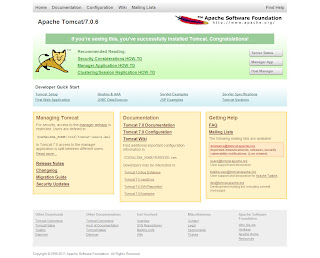
Tomcat 7 contains a number of changes that offer finer-grain roles. For security reasons, no users or passwords are created for the Tomcat manager roles by default. In a production deployment, it is always best to remove the Manager application. To set roles, user name(s) and password(s), we need to configure the tomcat-users.xml file located at $CATALINA_HOME/conf/tomcat-users.xml. In the case of our installation, $CATALINA_HOME is located at /usr/share/apache-tomcat-7.0.19. By default the Tomcat 7 tomcat-users.xml file will look as below.
<!--

  Licensed to the Apache Software Foundation (ASF) under one or more

  contributor license agreements.  See the NOTICE file distributed with

  this work for additional information regarding copyright ownership.

  The ASF licenses this file to You under the Apache License, Version 2.0

  (the "License"); you may not use this file except in compliance with

  the License.  You may obtain a copy of the License at

      http://www.apache.org/licenses/LICENSE-2.0

  Unless required by applicable law or agreed to in writing, software

  distributed under the License is distributed on an "AS IS" BASIS,

  WITHOUT WARRANTIES OR CONDITIONS OF ANY KIND, either express or implied.

  See the License for the specific language governing permissions and

  limitations under the License.

-->

<tomcat-users>

<!--

  NOTE:  By default, no user is included in the "manager-gui" role required

  to operate the "/manager/html" web application.  If you wish to use this app,

  you must define such a user - the username and password are arbitrary.

-->

<!--

  NOTE:  The sample user and role entries below are wrapped in a comment

  and thus are ignored when reading this file. Do not forget to remove

  <!.. ..> that surrounds them.

-->

<!--

  <role rolename="tomcat"/>

  <role rolename="role1"/>

  <user username="tomcat" password="tomcat" roles="tomcat"/>

  <user username="both" password="tomcat" roles="tomcat,role1"/>

  <user username="role1" password="tomcat" roles="role1"/>

-->

</tomcat-users>
Note that while examples are provided, the elements between the <tomcat-users> and </tomcat-users> tags have been commented-out. New roles for Tomcat 7 offer finer-grained access. The following roles are available: manager-gui manager-status manager-jmx manager-script admin-gu admin-script. We can enable access for the manager-gui role, for example as below:
<tomcat-users>

<role rolename="manager-gui">

<user username="tomcat" password="secret" roles="manager-gui">

</user>

</role></tomcat-users>
Caution should be exercised in granting multiple roles so as not to under-mind security.
In our Tomcat configuration above, we are running Tomcat as Root. For security reasons, it is always best to run services with the only those privileges that are necessary. There are some who make a strong case that this is not required, but it's always best to err on the side of caution. To run Tomcat as non-root user, we need to do the following: 1. Create the group 'tomcat':
[root@srv6 ~]# groupadd tomcat
2. Create the user 'tomcat' and add this user to the tomcat group we created above.
[root@srv6 ~]# useradd -s /bin/bash -g tomcat tomcat
The above will create a home directory for the user tomcat in the default user home as /home/tomcat If we want the home directory to be elsewhere, we simply specify so using the -d switch.
[root@srv6 ~]# useradd -g tomcat -d /usr/share/apache-tomcat-7.0.19/tomcat tomcat
The above will create the user tomcat's home directory as /usr/share/apache-tomcat-7.0.19/tomcat 3. Change ownership of the tomcat files to the user tomcat we created above:
[root@srv6 ~]# chown -Rf tomcat.tomcat /usr/share/apache-tomcat-7.0.19/
Note: it is possible to enhance our security still further by making certain files and directories read-only. This will not be covered in this post and care should be used when setting such permissions. 4. Adjust the start/stop service script we created above. In our new script, we need to su to the user tomcat:
#!/bin/bash

# description: Tomcat Start Stop Restart

# processname: tomcat

# chkconfig: 234 20 80

JAVA_HOME=/usr/java/jdk1.6.0_26

export JAVA_HOME

PATH=$JAVA_HOME/bin:$PATH

export PATH

TOMCAT_HOME=/usr/share/apache-tomcat-7.0.19/bin

case $1 in

start)

/bin/su tomcat $TOMCAT_HOME/startup.sh

;;

stop)

/bin/su tomcat $TOMCAT_HOME/shutdown.sh

;;

restart)

/bin/su tomcat $TOMCAT_HOME/shutdown.sh

/bin/su tomcat $TOMCAT_HOME/startup.sh

;;

esac

exit 0
Note: the following applies when you are running Tomcat in "stand alone" mode with Tomcat running under the minimally privileged user Tomcat we created in the previous step. To run services below port 1024 as a user other than root, you can add the following to your IP tables:
[root@srv6 ~]# iptables -t nat -A PREROUTING -p tcp -m tcp --dport 80 -j REDIRECT --to-ports 8080

[root@srv6 ~]# iptables -t nat -A PREROUTING -p udp -m udp --dport 80 -j REDIRECT --to-ports 8080
CentOS RHEL 安装 Tomcat 7的更多相关文章
- CentOS下安装Tomcat 8
CentOS下安装Tomcat 8 安装Tomcat8 去http://tomcat.apache.org/download-80.cgi下载Tomcat8的安装文件apache-tomcat-8.0 ...
- 从零开始学 Java - CentOS 下安装 Tomcat
生活以痛吻我,我仍报之以歌 昨天晚上看到那个冯大辉老师的微信公众号,「小道消息」上的一篇文章,<生活以痛吻我,我仍报之以歌>.知乎一篇匿名回答,主题为<冯大辉到底是不是技术大牛,一个 ...
- linux自学(八)之开始centos学习,安装tomcat
上一篇:linux自学(七)之开始ccentos学习,安装jdk 由于tomcat小,我们直接使用在线下载然后解压形式 首先,进入cd /usr/local目录下并创建tomcat目录,把tomcat ...
- centos中安装tomcat
1.先保证centos中安装了jre的环境. 2.上传tomcat的压缩包到root根目录. 3.切换到根目录 输入命令cd ~ , 然后 ll , 查看上传情况: 4.选中复制压缩文件,输入解压命令 ...
- 在CentOS下安装tomcat并配置环境变量(改默认端口8080为8081)
不多说,直接上干货! 第一步:下载tomcat压缩包 http://archive.apache.org/dist/tomcat/tomcat-7/v7.0.73/bin/ 第二步:上传tomcat压 ...
- CentOS下安装Tomcat
CentOS版本:CentOS-7-x86_64-Minimal-1810 1.安装JDK 详情查看:CentOS下安装JDK-rpm文件.CentOS安装JDK-tar.gz文件 2.下载tomca ...
- CentOS/RHEL 安装EPEL第三方软件源
EPEL源简介 EPEL(Extra Packages for Enterprise Linux) 是由 FedORA 社区打造,为 RHEL 及衍生发行版如 CentOS等提供高质量软件包的项目.装 ...
- 在 CentOS 7 安装 Tomcat
一. 安装 JDK 8 1.1 下载 JDK 8 cd /opt/ wget --no-cookies --no-check-certificate --header "Cookie: gp ...
- centos中安装tomcat+jenkins
1) 安装tomcat 安装tomcat6: http://www.cnblogs.com/itech/p/3506011.html 安装tomcat7: http://www.cnblogs.com ...
随机推荐
- Android读取自定义View属性
Android读取自定义View属性 attrs.xml : <?xml version="1.0" encoding="utf-8"?> < ...
- (转)postman中 form-data、x-www-form-urlencoded、raw、binary的区别
1.form-data: 就是http请求中的multipart/form-data,它会将表单的数据处理为一条消息,以标签为单元,用分隔符分开.既可以上传键值对,也可以上传文件.当上传的字段是文件 ...
- AOP的实现机制
1 AOP各种的实现 AOP就是面向切面编程,我们可以从几个层面来实现AOP. 在编译器修改源代码,在运行期字节码加载前修改字节码或字节码加载后动态创建代理类的字节码,以下是各种实现机制的比较. 类别 ...
- C文件编译、链接指令
通过mac终端 输入指令: cc -c 文件名.c 可以把C文件编译成.o文件(其实是2进制文件) 然后通过指令 cc 文件名.o 把.o文件链接C文件所需要的C语言的底层库,成为可以直接运行的lin ...
- DNS劫持解决方法
刚在家上网,发自己的浏览器竟然还会弹出页面广告(我浏览器装了屏蔽广告的浏览器应用,理论上就不会出现什么弹出来的广告). 于是自己仔细研究了下,发现在易迅的页面竟然嵌套了一个iframe,首先易迅肯定不 ...
- MicroStation VBA基础
实习笔记1 2016年8月1日 14:12 Option Explicit 缺省情况下,如果使用一个没有声明的变量,它将继承“Variant”类型.在模块.窗体和类的通用声明区使用“OptionExp ...
- git diff的用法
在git提交环节,存在三大部分:working tree(工作区), index file(暂存区:stage), commit(分支:master) working tree:就是你所工作在的目录, ...
- android项目中配置NDK自动编译生成so文件
1 下载ndk开发包 2 在android 项目中配置编译器(以HelloJni项目为例) 2.1 创建builer (a)Project->Properties->Builder ...
- 使用dig查询dns解析
原文地址:使用dig查询dns解析 作者:chenwenming 一般来说linux下查询域名解析有两种选择,nslookup或者dig,而在使用上我觉得dig更加方便顺手. 如果是在debian下的 ...
- 简述java序列化
1. 什么是Java对象序列化 Java平台允许我们在内存中创建可复用的Java对象,但一般情况下,只有当JVM处于运行时,这些对象才可能存在,即,这些对象的生命周期不会比JVM的生命周期 ...