
企业IT管理员IE11升级指南【13】—— 如何把IEMP迁移到GPP
企业IT管理员IE11升级指南 系列:
【1】—— Internet Explorer 11增强保护模式 (EPM) 介绍
【2】—— Internet Explorer 11 对Adobe Flash的支持
【6】—— Internet Explorer 11面向IT专业人员的常见问题
【11】—— 通过SCCM 2012和WSUS部署Internet Explorer 11
【16】—— 使用Compat Inspector快速定位IE兼容性问题
如何把IEMP迁移到GPP
背景
Internet Explorer Maintenance (IEM) 从Internet Explorer 10以后就已取消。安装Internet Explorer 10的客户端不能从域控制器的组策略中取得IEM策略。
详细信息可以参考以下文档:
http://technet.microsoft.com/en-us/library/jj890998.aspx
当在Windows 2008 R2域控制上将Internet Explorer 升级到10+以, IEM 从GPO 的编辑窗口消失,见下图
|
Windows 2008 R2 DC上升级到IE10以前 |
Windows 2008 R2 DC上升级到IE10后 |
|
|
|


这里主要介绍,如何将Windows 2012 域控制器和windows 2008 R2域控制器上的IEMP迁移到GPP中。
Windows 2012 DC:
将IEM的设置迁移到“Preferences -> Windows Settings -> Registry” 或 “Preferences -> Control Panel Settings -> Internet Settings”
详细内容可以查看以下官方文档:
How to configure Group Policy Preference settings for Internet Explorer 11 in Windows 8.1 or Windows Server 2012 R2: http://support.microsoft.com/kb/2898604
在本文的结尾,附录了详细的步骤供参考。


Windows 2008 R2 DC:
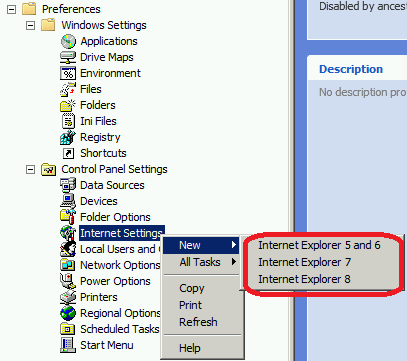
在Windows 2008 R2 域控制器上,在“Preferences -> Control Panel Settings -> Internet Settings” 中没有 “IE10/IE11” 选项。这是目前的界面设计。
IT管理员可以使用 “Preferences -> Windows Settings -> Registry” 或logon scripts 来发布IE组策略。
详细步骤在本文的详细步骤章节。
|
IT管理员可以使用 “Preferences -> Windows Settings -> Registry” 或logon scripts 来发布IE组策略 |
在Windows 2008 R2 域控制器上,在“Preferences -> Control Panel Settings -> Internet Settings” 中没有 “IE10/IE11” 选项 |
|
|
|

详细步骤
已 “Internet Properties -> LAN Settings” 为例,演示如何通过以下三种方式进行设置:
这个演示中, “LAN Settings” 如下图
1) 打勾 “Automatically detect settings”.
2) 启用 “Proxy Server” 并设置为 “ProxyServer:8080”.
3) 选择“Bypass proxy server for local addresses”.

方法 1: 使用 “Preferences -> Windows Settings -> Registry”
条件: 这个方法可用户Windows 2008 R2 DC 和 Windows 2012 DC,可以发布到Windows 7以上操作系统的 IE8, IE9, IE10+。对于Windows XP客户端,GPP可以在安装“Group Policy Preference Client Side Extensions for Windows XP (KB943729)” http://www.microsoft.com/en-us/download/details.aspx?id=3628 后使用。
1) 在DC上的IE中配置“Internet Properties -> LAN Settings”:

如果需要“Exceptions”,配置如下:

2) 在GPO编辑窗口中选择新建“Registry Item”。

3) 点击下图中的 “…” 按钮,并选择以下路径 “HKEY_CURRENT_USER\Software\Microsoft\Windows\CurrentVersion\Internet Settings\Connections”,选择 “DefaultConnectionSettings” 并点击 “Select”按钮。

4) 点击“OK” 确认这设置。

5) 使用步骤3~4相同的方式,新建“Registry Item”。
输入 “HKEY_CURRENT_USER\Software\Microsoft\Windows\CurrentVersion\Internet Settings” 并选择 “ProxyEnable” 和点击 “Select” 按钮。

6) 输入“HKEY_CURRENT_USER\Software\Microsoft\Windows\CurrentVersion\Internet Settings” 并选择 “ProxyServer” 和点击“Select”按钮。

7) 如果选择了 “Bypass proxy server for local addresses” 或设置了 “Exceptions”,需要设置“HKEY_CURRENT_USER\Software\Microsoft\Windows\CurrentVersion\Internet Settings” 并选择 “ProvideOverride” 和点击“Select”按钮。

注意:如果打勾了 “Bypass proxy server for local addresses”, “ProvideOverride” 将在结尾包含 “<local>”,例如 “LocalServer;LocalServer1;<local>”.
8) 整个设置完成后,如下图:

9) 在test OU 中发布这个GPO,这客户端运行“gpupdate /force”,客户将立即获得这些设置。
10) 这个方式适用于IE8, IE9, IE10 和IE11客户端。
方式 2: 使用 “Preferences -> Control Panel Settings -> Internet Settings”
条件: 这个方式可用于Windows 2008 R2 DC 和Windows 2012 DC,Wndows 2008 R2 DC可以发布给IE5-IE9客户端;Windows 2012 DC 可以发布给IE5-IE11 客户端。对于Windows XP客户端,GPP可以在安装“Group Policy Preference Client Side Extensions for Windows XP (KB943729)” http://www.microsoft.com/en-us/download/details.aspx?id=3628 后使用。
1) 根据DC 版本选择:
|
Windows 2008 R2 DC |
Windows 2012 DC |
|
在windows 2008 R2 DC 上,安装 http://support.microsoft.com/kb/2530309, 这样下图中的“Internet Explorer 8” 选项将发布给IE8 和 IE9 客户端。 |
在windows 2012 DC上,安装http://support.microsoft.com/kb/2898604 这样下图中的“Internet Explorer 10” 选项将发布给IE10 和 IE11 客户端 |
|
|
|


2) 使用Windows 2012 DC上 “Internet Explorer 10” 演示例子: 点击New Internet Explorer 10 Properties 窗口上的“LAN settings“ 按钮,弹出下图 Local Area Network(LAN) setting 窗口。当前相关设置项下有红色虚线。

3) 完成设置后,按F5 (或 F6) 确认输入,红色虚线将变为绿色实线,如下图。
注意:红色虚线的内容将被忽略,只有在按F5后,相关设置才会开启,红色虚线将变为绿色实线,设置才会通过GPP发布给用户端。相关功能键开启/禁用设置说明如下:
功能键:
F5 – 开启当前页面上所有设置。
F6 – 开启当前选中的设置。
F7 – 禁用当前选中的设置。
F8 –禁用当前页面上所有设置。

4) 如上图完成配置后,按 “OK” 按钮。
5) 在test OU 中发布这个GPO,这客户端运行“gpupdate /force”,客户将立即获得这些设置。
注意:类似的步骤可以用户Windows 2008 R2 DC向IE8或更低版本IE客户端发布IE配置。
方式3: 使用 “Logon Script”
条件:这个方式可用于Windows 2008 R2 DC 和 windows 2012 DC向IE6+ 客户端发布配置。备注,完成IE8+版本的本地测试。
以下1到4步可以在任何一台IE机器上完成,这里我们简单的已DC为例
1) 在DC 上完成“Internet Properties -> LAN Settings” 配置:

2) 用“regedit”命令在DC上打开注册表编辑器,
3) 导出下面的值到“registry.reg”
Windows Registry Editor Version 5.00
[HKEY_CURRENT_USER\Software\Microsoft\Windows\CurrentVersion\Internet Settings]
"ProxyEnable"=dword:00000001
"ProxyServer"="proxyserver:8080"
[HKEY_CURRENT_USER\Software\Microsoft\Windows\CurrentVersion\Internet Settings\Connections]
"DefaultConnectionSettings"=hex:46,00,00,00,5e,01,00,00,0b,00,00,00,10,00,00,\
00,70,72,6f,78,79,73,65,72,76,65,72,3a,38,30,38,30,13,00,00,00,3c,2d,6c,6f,\
6f,70,62,61,63,6b,3e,3b,3c,6c,6f,63,61,6c,3e,00,00,00,00,01,00,00,00,00,00,\
00,00,00,00,00,00,00,00,00,00,00,00,00,00,00,00,00,00,00,00,00,00,01,00,00,\
00,02,00,00,00,0a,ac,12,24,00,00,00,00,00,00,00,00,00,00,00,00,00,00,00,00,\
00,00,00,00,00,00,00,00,00,00,00,00,00,00,00,00,00,00,00,00,00,00,00,00,00,\
00,00,00,00,00,00,00,00,00,00,00,00,00,00,00,00,00,00,00,00,00,00,00,00,00,\
00,00,00,00,00,00,00,00,00,00,00,00,00,00,00,00,00,00,00,00,00,00,00,00,00,\
00,00,00,00,00,00,00,00,00,00,00,00,00,00,00,00,00,00,00,00,00,00,00,00,00,\
00,00,00,00
4) 创建批处理文件“Test.bat”,内容如下:
reg import registry.reg
5) 复制“registry.reg” 和 “Test.bat” 到DC policy sysvol路径(类似:“sysvol/domain/Policies/GPOUniqueID/User/Scripts/Logon),并设置“Test.bat” 为 logon script.
6) 在test OU 中发布这个GPO,IE客户端重登录系统后将获得这些设置。
参考链接
Red / Green: GP Preferences doesn’t work even though the policy applied and after gpupdate \force
How to Add Trust Sites into IE before IE10 through Group Policy
How to configure Internet Explorer security zone sites using group polices
企业IT管理员IE11升级指南【13】—— 如何把IEMP迁移到GPP的更多相关文章
- 企业IT管理员IE11升级指南【17】—— F12 开发者工具
企业IT管理员IE11升级指南 系列: [1]—— Internet Explorer 11增强保护模式 (EPM) 介绍 [2]—— Internet Explorer 11 对Adobe Flas ...
- 企业IT管理员IE11升级指南【16】—— 使用Compat Inspector快速定位IE兼容性问题
企业IT管理员IE11升级指南 系列: [1]—— Internet Explorer 11增强保护模式 (EPM) 介绍 [2]—— Internet Explorer 11 对Adobe Flas ...
- 企业IT管理员IE11升级指南【15】—— 代理自动配置脚本
企业IT管理员IE11升级指南 系列: [1]—— Internet Explorer 11增强保护模式 (EPM) 介绍 [2]—— Internet Explorer 11 对Adobe Flas ...
- 企业IT管理员IE11升级指南【1】—— Internet Explorer 11增强保护模式 (EPM) 介绍
企业IT管理员IE11升级指南 系列: [1]—— Internet Explorer 11增强保护模式 (EPM) 介绍 [2]—— Internet Explorer 11 对Adobe Flas ...
- 企业IT管理员IE11升级指南【2】—— Internet Explorer 11 对Adobe Flash的支持
企业IT管理员IE11升级指南 系列: [1]—— Internet Explorer 11增强保护模式 (EPM) 介绍 [2]—— Internet Explorer 11 对Adobe Flas ...
- 企业IT管理员IE11升级指南【3】—— IE11 新的GPO设置
企业IT管理员IE11升级指南 系列: [1]—— Internet Explorer 11增强保护模式 (EPM) 介绍 [2]—— Internet Explorer 11 对Adobe Flas ...
- 企业IT管理员IE11升级指南【4】—— IE企业模式介绍
企业IT管理员IE11升级指南 系列: [1]—— Internet Explorer 11增强保护模式 (EPM) 介绍 [2]—— Internet Explorer 11 对Adobe Flas ...
- 企业IT管理员IE11升级指南【5】—— 不跟踪(DNT)例外
企业IT管理员IE11升级指南 系列: [1]—— Internet Explorer 11增强保护模式 (EPM) 介绍 [2]—— Internet Explorer 11 对Adobe Flas ...
- 企业IT管理员IE11升级指南【6】—— Internet Explorer 11面向IT专业人员的常见问题
企业IT管理员IE11升级指南 系列: [1]—— Internet Explorer 11增强保护模式 (EPM) 介绍 [2]—— Internet Explorer 11 对Adobe Flas ...
随机推荐
- SQL语句50题
-- 一.创建教学系统的数据库,表,以及数据 --student(sno,sname,sage,ssex) 学生表--course(cno,cname,tno) 课程表--sc(sno,cno,sco ...
- java爬虫实现爬取百度风云榜Top10
最近在项目中遇到了java和python爬虫进行程序调用和接口对接的问题, 刚开始也是调试了好久才得出点门道. 而后,自己也发现了爬虫的好玩之处,边想着用java来写个爬虫玩玩,虽说是个不起眼的dem ...
- Leetcode 992 Subarrays with K Different Integers
题目链接:https://leetcode.com/problems/subarrays-with-k-different-integers/ 题意:已知一个全为正数的数组A,1<=A.leng ...
- C#嵌入子窗体,判断子窗体是否打开了
/// <summary> /// 嵌入子窗体,判断子窗体是否打开了 /// </summary> public static Form1 f; public void For ...
- Excel 统计区间频数,按照条件标记
MS Office 2013 统计区间频数--countif函数 如要统计[75,90)区间段的成绩,使用 =COUNTIF(L3:L44, ">=75")-COUN ...
- docker 安装kafka
1.下载镜像这里使用了wurstmeister/kafka和wurstmeister/zookeeper这两个版本的镜像 docker pull wurstmeister/zookeeperdocke ...
- 当TFS/VSTS遇上Power BI
引言 众所周知,要对TFS进行深入的图表分析,往往需要依赖于SQL Server Analysis Service和SQL Server Reporting Service.虽然随着TFS对敏捷项目的 ...
- Android进阶:七、Retrofit2.0原理解析之最简流程【上】
retrofit 已经流行很久了,它是Square开源的一款优秀的网络框架,这个框架对okhttp进行了封装,让我们使用okhttp做网路请求更加简单.但是光学会使用只是让我们多了一个技能,学习其源码 ...
- Linux环境下vi/vim编辑器常用命令
使用vi文本编辑器 配置文件是Linux系统中的显著特征之一,其作用有点类似于Windows系统中的注册表,只不过注册表是集中管理,而配置文件采用了分散的自由管理方式.那么如何使用Linux字符操作界 ...
- web-storage-cache 使用JS数据缓存
https://github.com/WQTeam/web-storage-cache 使用WebStorageCache,只要在页面上引入下面代码即可. <script src="s ...