
Android Animation简述
Android Animation简述
属性动画(Property Animation)
Android 3.0中采用(API Level 11),属性动画使得你能改变任何对象的属性产生动画,包括未在屏幕上渲染的对象。这个系统是可扩展的,也能够应用于自定义类型的属性。
视图动画(View Animation)
绘制动画(Drawable Animation)
二、属性动画(Property Animation)
在API Demos样例工程的com.example.android.apis.animation包内提供了许多使用属性动画的例子。
|
Class
|
Description
|
|
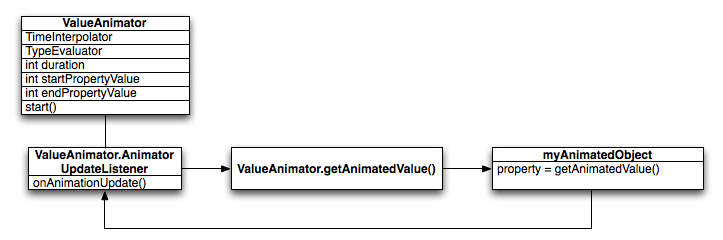
属性动画主要的计时器,也计算动画后的属性的值。它有所有核心的功能,包括计算动画值并包含每个动画的计时详细,动画是否重复的信息,接收更新事件的监听者,以及能够设置自定义的类型来赋值。它分为两部分来实现属性动画:计算动画值和设置这些值到动画中的对象和属性。ValueAnimator不实现第二部分,所以你必须监听来更新ValueAnimator计算的值,并用你自己的逻辑来修改你想动画的对象。更多信息请看Animating with ValueAnimator小节。 |
|
|
ValueAnimator的一个子类,允许你设置一个目标对象和对象的属性进行动画。当这个类计算好一个动画的新值后,相应的会更新其属性。大多数时候你都会想用ObjectAnimator,因为它使得动画值到目标对象的处理更简单了。无论如何,你有时也会想直接用ValueAnimator,因为ObjectAnimator有更多些的约束,比如需要指定acessor方法呈现在目标对象上。
|
|
|
提供组织动画的结构,使它们能相关联得运行。你能够设置动画一起播放,顺序播放或者指定延迟播放。更多信息请看Choreographing multiple animations with Animator Sets小节。 |
|
Class/Interface
|
Description
|
|
计算int属性值的默认计算器
|
|
|
计算float属性值的默认计算器
|
|
|
计算color属性值的默认计算器,其中color属性以16进制表示
|
|
|
一个允许你创建自己的计算器的接口。如果要动画的对象属性不是int,float或颜色,你必须实现TypeEvaluator接口来指定如何计算对象属性的动画值。你也能够为int,float和color指定一个自定义的TypeEvaluator,如果想要不同于默认习性的方式处理这些类型。关于如何写一个自定义的计算器的更多信息,请看Using a TypeEvaluator小节。 |
一个时间内插器作为时间的方法,定义了动画中具体的值如何计算。举例来说,你能够指明动画在整个过程中线性发生的,意味着动画在整个时间内平衡地进行;或者你能够指明动画使用非线性的时间,举例来说,在开始加速并在结束减速。表格3描述了在android.view.animation中的内插器。如果没有一个提供的内插器适合你的需要,可以继承TimeInterpolator接口,创建你自己的内插器。如何写一个自定义的内插器的更多信息,请看Using interpolators 小节。
|
Class/Interface
|
Description
|
|
变化速率开始和结束很慢但加速通过了中间
|
|
|
变化速率开始非常的慢,然后加速
|
|
|
变化开始向后,继而猛冲向前
|
|
|
变化开始向后,猛冲向前并超过目标值,继而最终返回至结束值
|
|
|
变化在结束时弹跳
|
|
|
动画重复一个指定的循环次数
|
|
|
变化速率开始时非常的快,然后减速
|
|
|
变化速率是一个恒量
|
|
|
变化急冲向前并超过目标值,然后返回
|
|
|
允许你实现自己内插器的一个接口
|
- ValueAnimator animation = ValueAnimator.ofFloat(0f, 1f);
- animation.setDuration(1000);
- animation.start();
- ValueAnimator animation = ValueAnimator.ofObject(new MyTypeEvaluator(), startPropertyValue, endPropertyValue);
- animation.setDuration(1000);
- animation.start();
无论如何,先前的代码片段没有真正影响到对象,因为ValueAnimator不直接操作对象或属性。你想要做的最可能的事是用这些计算过的值来改变对象。你通过在ValueAnimator内定义监听者,来适当地处理动画生命期里的重要事件,如帧刷新。当实现了监听者,你能够通过调用getAnimatedValue()来获得计算过的值,用于具体的帧刷新。关于监听者的更多信息,请看Animation Listeners小节。
- ObjectAnimator anim = ObjectAnimator.ofFloat(foo, "alpha", 0f, 1f);
- anim.setDuration(1000);
- anim.start();
1. 如果你有权利这么做的话,给该类加上setter方法。
2. 用一个你有权力更改的封装类,同时使得该封装类通过一个正确地setter方法接收值并传递给原先的对象。
3. 用ValueAnimator代替。
- ObjectAnimator.ofFloat(targetObject, "propName", 1f)
·根据你动画的属性或物体,你可能需要在View内调用invalidate()方法强行用更新后的动画值重绘屏幕。你可以在onAnimationUpdate()回调里做这个操作。例如,产生Drawable对象的颜色属性值动画,当对象重绘自己时引起的屏幕更新。所有View上的属性setters方法,例如setAlpha()和setTranslationX()会适当地使视图无效,所以当你调用这些方法设置新值时不需要再使视图无效。关于监听者的更多信息,请看Animation Listeners小节。
如下的样例代码是从Bouncing Balls例子中取出的(修改简单了),它以如下方式进行了Animator对象。
2. Plays squashAnim1, squashAnim2, stretchAnim1, and stretchAnim2 at the same time.
- AnimatorSet bouncer = new AnimatorSet();
- bouncer.play(bounceAnim).before(squashAnim1);
- bouncer.play(squashAnim1).with(squashAnim2);
- bouncer.play(squashAnim1).with(stretchAnim1);
- bouncer.play(squashAnim1).with(stretchAnim2);
- bouncer.play(bounceBackAnim).after(stretchAnim2);
- ValueAnimator fadeAnim = ObjectAnimator.ofFloat(newBall, "alpha", 1f, 0f);
- fadeAnim.setDuration(250);
- AnimatorSet animatorSet = new AnimatorSet();
- animatorSet.play(bouncer).before(fadeAnim);
- animatorSet.start();
关于如何使用动画者集合的更完整的例子,请看API Demos中Bouncing Balls样例。
·onAnimationStart() – 当动画开始时调用
·onAnimationEnd() – 当动画结束时调用
·onAnimationRepeat() – 当动画重复时调用
·onAnimationCancel() - 当动画取消时调用。一个被取消的动画也会调用onAnimationEnd(),无论它是如何停止的。
·onAnimationUpdate() – 在动画的每一帧调用。监听这个事件来使用在动画期间由ValueAnimator 生成的计算值。使用这个值,查询传入事件的ValueAnimator 对象再由getAnimatedValue() 方法得到当前动画的值。如果你用ValueAnimator,这个监听者是被要求实现的。
例如,在API Demos中Bouncing Balls样例创建了一个AnimatorListenerAdapter 用于onAnimationEnd()回调:
- ValueAnimatorAnimator fadeAnim = ObjectAnimator.ofFloat(newBall, "alpha", 1f, 0f);
- fadeAnim.setDuration(250);
- fadeAnim.addListener(new AnimatorListenerAdapter() {
- public void onAnimationEnd(Animator animation) {
- balls.remove(((ObjectAnimator)animation).getTarget());
- }
- <LinearLayout
- android:orientation="vertical"
- android:layout_width="wrap_content"
- android:layout_height="match_parent"
- android:id="@+id/verticalContainer"
- android:animateLayoutChanges="true" />
- public class FloatEvaluator implements TypeEvaluator {
- public Object evaluate(float fraction, Object startValue, Object endValue) {
- float startFloat = ((Number) startValue).floatValue();
- return startFloat + fraction * (((Number) endValue).floatValue() - startFloat);
- }
- }
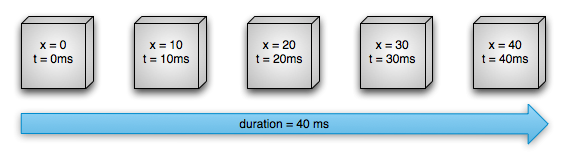
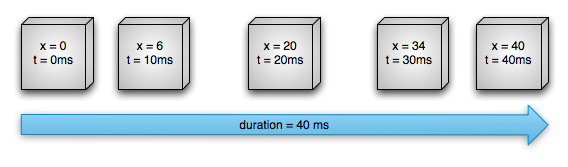
在动画系统中内插器从动画者那接收表现动画逝去时间的分数。内插器修改这个分数,同时变为它打算提供的动画类型。Android系统在android.view.animation package提供了一套公共的内插器。如果没有一个适合你的需要,你可以实现TimeInterpolator 接口来创造自己的内插器。
- public float getInterpolation(float input) {
- return (float)(Math.cos((input + 1) * Math.PI) / 2.0f) + 0.5f;
- }
- public float getInterpolation(float input) {
- return input;
- }
|
ms elapsed
|
Elapsed fraction/Interpolated fraction (Linear) |
Interpolated fraction (Accelerate/Decelerate) |
|
0
|
0
|
0
|
|
200
|
0.2
|
0.1
|
|
400
|
0.4
|
0.345
|
|
600
|
0.6
|
0.8
|
|
800
|
0.8
|
0.9
|
|
1000
|
1
|
1
|
- Keyframe kf0 = Keyframe.ofFloat(0f, 0f);
- Keyframe kf1 = Keyframe.ofFloat(.5f, 360f);
- Keyframe kf2 = Keyframe.ofFloat(1f, 0f);
- PropertyValuesHolder pvhRotation = PropertyValuesHolder.ofKeyframe("rotation", kf0, kf1, kf2);
- ObjectAnimator rotationAnim = ObjectAnimator.ofPropertyValuesHolder(target, pvhRotation)
- rotationAnim.setDuration(5000ms);
- ObjectAnimator.ofFloat(myView, "rotation", 0f, 360f);
- ObjectAnimator animX = ObjectAnimator.ofFloat(myView, "x", 50f);
- ObjectAnimator animY = ObjectAnimator.ofFloat(myView, "y", 100f);
- AnimatorSet animSetXY = new AnimatorSet();
- animSetXY.playTogether(animX, animY);
- animSetXY.start();
- PropertyValuesHolder pvhX = PropertyValuesHolder.ofFloat("x", 50f);
- PropertyValuesHolder pvhY = PropertyValuesHolder.ofFloat("y", 100f);
- ObjectAnimator.ofPropertyValuesHolder(myView, pvhX, pvyY).start();
- myView.animate().x(50f).y(100f);
关于ViewPropertyAnimator更多的详细信息,参见相应的Android Developers blog post。
为了区分动画文件是使用的新的属性动画APIs还是用的遗留的view animation框架,从Android3.1开始,你应当为属性动画的XML文件保存进res/animator/目录(而不是res/anim/)。使用的animator 目录名称是随意的,但如果你想要用在Eclipse ADT插件(ADT 11.0.0+)中的布局编辑器工具的话是必须的,因为ADT只查找res/animator/目录中的属性动画资源。
- <set android:ordering="sequentially">
- <set>
- <objectAnimator
- android:propertyName="x"
- android:duration="500"
- android:valueTo="400"
- android:valueType="intType"/>
- <objectAnimator
- android:propertyName="y"
- android:duration="500"
- android:valueTo="300"
- android:valueType="intType"/>
- </set>
- <objectAnimator
- android:propertyName="alpha"
- android:duration="500"
- android:valueTo="1f"/>
- </set>
- AnimatorSet set = (AnimatorSet) AnimatorInflater.loadAnimator(myContext,
- R.anim.property_animator);
- set.setTarget(myObject);
- set.start();
Android Animation简述的更多相关文章
- Android Animation学习(六) View Animation介绍
Android Animation学习(六) View Animation介绍 View Animation View animation系统可以用来执行View上的Tween animation和F ...
- Android Animation学习(五) ApiDemos解析:容器布局动画 LayoutTransition
Android Animation学习(五) ApiDemos解析:容器布局动画 LayoutTransition Property animation系统还提供了对ViewGroup中的View改变 ...
- Android Animation学习(四) ApiDemos解析:多属性动画
Android Animation学习(四) ApiDemos解析:多属性动画 如果想同时改变多个属性,根据前面所学的,比较显而易见的一种思路是构造多个对象Animator , ( Animator可 ...
- Android Animation学习(三) ApiDemos解析:XML动画文件的使用
Android Animation学习(三) ApiDemos解析:XML动画文件的使用 可以用XML文件来定义Animation. 文件必须有一个唯一的根节点: <set>, <o ...
- Android Animation学习(二) ApiDemos解析:基本Animators使用
Android Animation学习(二) ApiDemos解析:基本Animatiors使用 Animator类提供了创建动画的基本结构,但是一般使用的是它的子类: ValueAnimator.O ...
- Android Animation学习(一) Property Animation原理介绍和API简介
Android Animation学习(一) Property Animation介绍 Android Animation Android framework提供了两种动画系统: property a ...
- Android动画学习笔记-Android Animation
Android动画学习笔记-Android Animation 3.0以前,android支持两种动画模式,tween animation,frame animation,在android3.0中 ...
- android动画效果编程基础--Android Animation
动画效果编程基础--Android Animation 动画类型 Android的animation由四种类型组成 XML中 alpha 渐变透明度动画效果 scale 渐变尺寸伸缩动画效果 tran ...
- Android animation学习笔记之view/drawable animation
前一章中总结了android animation中property animation的知识和用法,这一章总结View animation和Drawable animation的有关知识: View ...
随机推荐
- SharePoint 2013 对象模型操作"网站设置"菜单
在SharePoint的开发中,经常会有客户提到网站操作上的栏目过多,其实,我们除了可以通过Feature的方式添加,还可以通过服务器端对象模型的方式添加:下面,让我用简单的例子,给大家介绍一下: 1 ...
- SharePoint 使用代码为页面添加WebPart
传统的SharePoint实施中,我们通常会创建SharePoint页面,然后添加webpartzone,而后在上面添加webpart:但是有些情况下,也要求我们使用代码,将webpart添加到相应w ...
- Arcengine实现创建网络数据集札记(三)
后记 下面给出项目中用到的自定义的封装类. AE许可初始化封装类: public class AELicenseChecker { private static volatile AELicenseC ...
- 浅谈Adapter中观察者模式
首先让我们看一个客户端图片 这是京东客户端的购物车界面.有这么一种功能,当我们在商品列表中调整商品数量等信息的时候,下方的金额总数也随之变化. 可以看出,这个界面有一个数据源,一个适配器,一个List ...
- 安卓开发_浅谈Android动画(一)
动画效果,针对图片实现 现在学习四种基本的简单动画效果 一.Tween Animation共同属性 1.Duration:动画持续时间(毫秒单位) 2.fillAfter:设置为true,动画转化在动 ...
- OC--代理模式
一,代理设计模式的场合: 当对象A发生了一些行为,想告知对象B (让对象B成为对象A的代理对象) 对象B想监听对象A的一些行为 (让对象B成为对象A的代理对象) 当对象A无法处理某些行为的时候,想让对 ...
- iOS应用程序开发之应用间的跳转(用着微信等第三方分享登陆)
简介 配置和实现 判断应用启动方式 一.简介 最实际项目开发中,我们难免会遇到需要从一个应用跳转到另一个应用的情况.比如微信分享,实际就是一种应用间的跳转.但是有时候我们需要实现自己的两个应用间的跳转 ...
- Stronger (What Doesn't Kill You)
今天听一个歌曲,挺不错的.以前一直不知道意思.这次把歌词摘抄下来. 试听音乐: 原版MV: You know the bed feels warmer 你知道被窝里的温暖 Sleeping here ...
- dubbo学习之服务消费者
1.简介 上节讲了如何发布一个dubbo服务,这节主要讲如何进行消费,创建一个消费者. 2.详细步骤 2.1 项目目录结构 2.2 创建maven项目 这里演示时其实通过一个main方法就可以了,没必 ...
- AFTER触发器与INSTEAD OF触发器
在对表进行操作时,总会产生 INSERTED 和(或)DELETED表,不管这个操作是否已经进行.这里的和/或,要看进行的什么操作,插入,产生 INSERTED 表,删除,产生DELETED表,而up ...