
selenium webdriver 右键另存为下载文件(结合robot and autoIt)
首先感谢Lakshay Sharma 大神的指导

最近一直在研究selenium webdriver右键菜单,发现selenium webdriver 无法操作浏览器右键菜单,如图
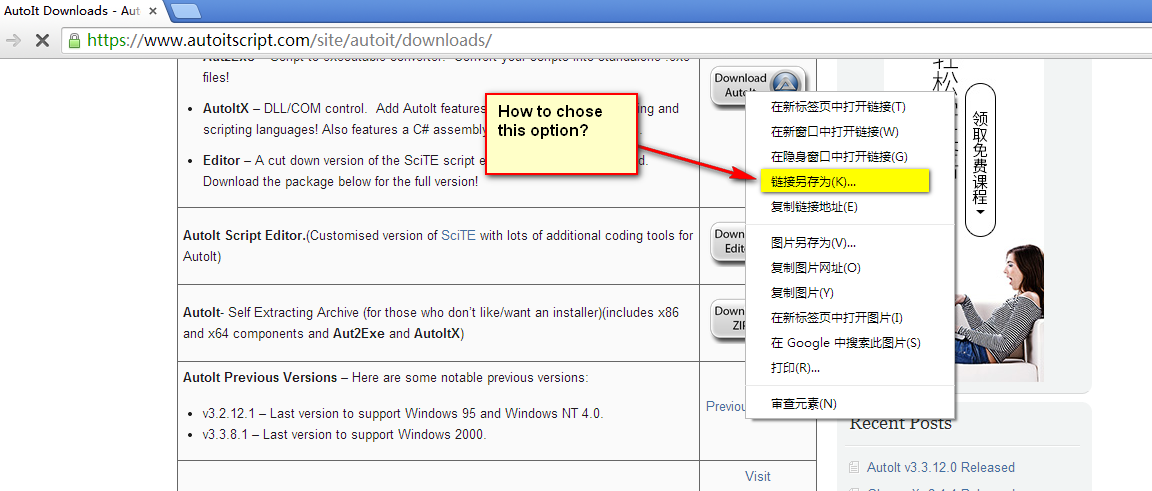
如果我想右键另存为,根本操作不了。
也有在网上看到webdriver right click option的一些代码,拿来用发现不能用的。
Actions act = new Actions(driver);

WebElement link = driver.findElement(By.id("xpath"));

act.moveToElement(link).contextClick().sendKeys(Keys.ArrowsDown).build().perform();
使用Actions没办法拿到右键菜单。
后来在某论坛发帖,一个印度籍的专家给出solution, perfect!完美解决
http://forumsqa.com/question/how-to-click-the-option-of-the-menu-which-the-right-click-pop-up/
方案如下:
1.selenium 弹出右键菜单
2.robot选择相关菜单
3.调用autoIt实现windows gui另存操作
tips:
目测autoIt没法操作web elements,比如我当前使用autoIt获取富文本框,却没法拿到相关的 classs,拿到的只能是浏览器的信息

废话不多说,test case 如下
1.打开autoIt的官网
2.click download 页面
3.选择autoIt下载图标,单击右键另存为
4.在弹出另存为窗口输入指定路径,单击保存
如果您有selenium基础,1~2都很easy。 调出右键菜单只需要action的contexClick方法
Action.contextClick(myElement).build().perform();
接下来就是选择右键菜单的另存为
使用robot,模拟键盘操作,使用方向键 ↓
Robot robot = new Robot();

// This will bring the selection down one by one

robot.keyPress(KeyEvent.VK_DOWN);

Thread.sleep(1000);

robot.keyPress(KeyEvent.VK_DOWN);

Thread.sleep(1000);

robot.keyPress(KeyEvent.VK_DOWN);

Thread.sleep(1000);

robot.keyPress(KeyEvent.VK_DOWN);

Thread.sleep(1000);

// This is to release the down key, before this enter will not work

robot.keyRelease(KeyEvent.VK_DOWN);

Thread.sleep(1000);

robot.keyPress(KeyEvent.VK_ENTER);
接下来就该交给autoIt处理另存为窗口

autoIt使用方法:
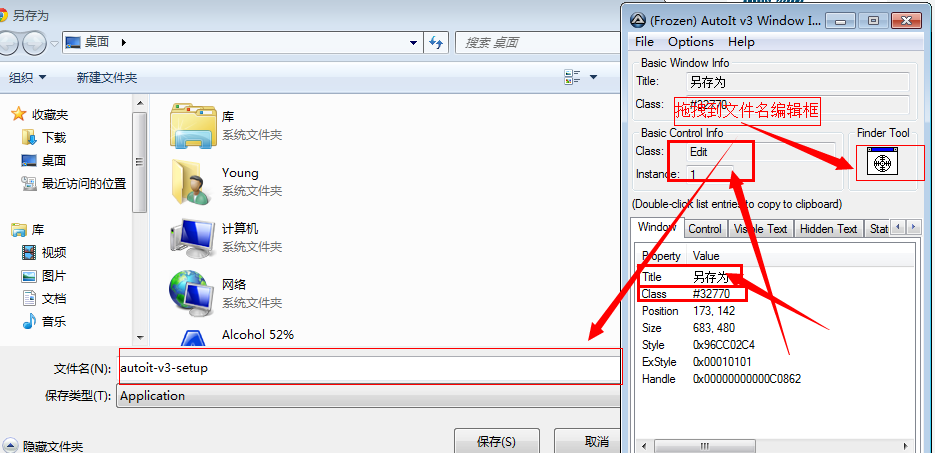
依次定位保存按钮,使用ControlFocus方法,定位编辑框(文件名)title是“另存为”,class是Edit ,instance 是1
然后使用ControlSetText方法输入保存路径,定位保存按钮,使用ControlClick方法单击保存按钮
ControlFocus("另存为", "","Edit1");ControlFocus("title","text",controlID) Edit1=Edit instance

; Wait  seconds for the Upload window to appear

  WinWait("[CLASS:#32770]","",)

; Set input focus to the edit control of Upload window using the handle returned by WinWait

  ControlFocus("另存为","","Edit1")

  Sleep()

; Set the File name text on the Edit field

  ControlSetText("另存为", "", "Edit1", "d:\autoit-v3-setup")

  Sleep()

; Click on the Open button

  ControlClick("另存为", "","Button1");
然后使用autoIt转换为EXE格式的可执行文件
使用java的runTime类调用
Runtime.getRuntime().exec("E:\\test\\download.exe");
全部代码如下:
package com.packt.webdriver.chapter2;

import java.awt.AWTException;

import java.awt.Robot;

import java.awt.event.KeyEvent;

import java.io.File;

import java.io.IOException;

import java.util.List;

import java.util.concurrent.TimeUnit;

import org.apache.commons.io.FileUtils;

import org.openqa.selenium.By;

import org.openqa.selenium.JavascriptExecutor;

import org.openqa.selenium.Keys;

import org.openqa.selenium.OutputType;

import org.openqa.selenium.TakesScreenshot;

import org.openqa.selenium.WebDriver;

//import org.openqa.selenium.WebDriver.Navigation;

import org.openqa.selenium.WebElement;

import org.openqa.selenium.chrome.ChromeDriver;

import org.openqa.selenium.chrome.ChromeOptions;

import org.openqa.selenium.firefox.FirefoxDriver;

import org.openqa.selenium.interactions.Actions;

import com.thoughtworks.selenium.Selenium;

import com.thoughtworks.selenium.webdriven.WebDriverBackedSelenium;

public class AutoItDownload  {

    public static void main (String [] args) throws InterruptedException, AWTException

    {

        String URL="https://www.autoitscript.com";

        //avoid Chrome warnning message like "unsupported command-line flag --ignore-certificate-errors. "

        ChromeOptions options = new ChromeOptions();

        options.addArguments("--test-type");

        System.setProperty("webdriver.chrome.driver", "E:\\chromedriver.exe");

        WebDriver driver = new ChromeDriver(options);

         //WebDriver driver = new FirefoxDriver();

        driver.get(URL);

        driver.manage().window().maximize();

        driver.manage().timeouts().pageLoadTimeout(30, TimeUnit.SECONDS);

        driver.manage().timeouts().implicitlyWait(30, TimeUnit.SECONDS);

        WebElement editor=driver.findElement(By.xpath("//*[@id='menu-item-207']"));

        Actions actions=new Actions(driver);

        actions.moveToElement(editor).perform();

        //locate download link

        WebElement d=driver.findElement(By.xpath("//*[@id='menu-item-209']/a"));

        d.click();

        Thread.sleep(5000);

        //right click the download link

        //locate download link

        //right click the download link

        WebElement download=driver.findElement(By.xpath("//img[starts-with(@alt,'download autoit')]"));//*[@id="content-area"]/div/table/tbody/tr[1]/td[2]/p/a/img

        JavascriptExecutor js=(JavascriptExecutor)driver;

        // roll down and keep the element to the center of browser

        js.executeScript("arguments[0].scrollIntoView(true);", download);

        actions.moveToElement(download).contextClick().build().perform();

        Robot robot = new Robot();

     // This will bring the selection down one by one

     robot.keyPress(KeyEvent.VK_DOWN);

     Thread.sleep(1000);

     robot.keyPress(KeyEvent.VK_DOWN);

     Thread.sleep(1000);

     robot.keyPress(KeyEvent.VK_DOWN);

     Thread.sleep(1000);

     robot.keyPress(KeyEvent.VK_DOWN);

     Thread.sleep(1000);

    // robot.keyPress(KeyEvent.VK_DOWN);

     //Thread.sleep(1000);

     // This is to release the down key, before this enter will not work

     robot.keyRelease(KeyEvent.VK_DOWN);

     Thread.sleep(1000);

     robot.keyPress(KeyEvent.VK_ENTER);

        // this code block will snapshot the browser

        File scrShot=new File("d:\\1.png");

        File scrFile= ((TakesScreenshot)driver).getScreenshotAs(OutputType.FILE);

        try {

            FileUtils.copyFile(scrFile, scrShot);

        } catch (IOException e) {

            // TODO Auto-generated catch block

            System.out.println("Can't save screenshot");

            e.printStackTrace();

        }

        finally

        {

            System.out.println("screen shot finished");

        }

       // System.out.println(scrFile.getAbsolutePath());

        //call autoIt to save the file

        try {

            Runtime.getRuntime().exec("E:\\test\\download.exe");

        } catch (IOException e) {

            // TODO Auto-generated catch block

            e.printStackTrace();

        }

        Thread.sleep(150000);

        driver.quit();

    }

}
效果图:

selenium webdriver 右键另存为下载文件(结合robot and autoIt)的更多相关文章
- webdriver高级应用- 右键另存为下载文件
1.要使用右键另存,需要先按照第三方工具AutoIt: 链接: https://pan.baidu.com/s/12aBBhOOTmyQpH9hukt0XGA 密码: fcdk 2.创建一个名为loa ...
- 使用selenium实现右键另存为保存文件
1.需要借住autoit工具和Robot类,下载地址:https://www.autoitscript.com/site/autoit/downloads/ 2.autoit的使用不再详细讲解.如下图 ...
- 转:python webdriver API 之下载文件
webdriver 允许我们设置默认的文件下载路径.也就是说文件会自动下载并且存在设置的那个目录中.要想下载文件,首选要先确定你所要下载的文件的类型.要识别自动文件的下载类型可以使用 curl ,如图 ...
- python3+selenium入门14-上传下载文件
上传文件一种方式是通过定位input标签,然后使用send_keys()方法传入需要上传文件的路径.另一种是使用第三方插件去上传文件.下面看下imput标签的方式.工具可以自己查下. <!DOC ...
- js使用浏览器的另存为下载文件
页面上的页面如下: 我需要根据返回的url下载文件: js: //判断浏览器类型 function myBrowser(){ var userAgent = navigator.userAgent; ...
- python模拟鼠标键盘操作 GhostMouse tinytask 调用外部脚本或程序 autopy右键另存为
0.关键实现:程序窗口前置 python 通过js控制滚动条拉取全文 通过psutil获取pid窗口句柄,通过win32gui使程序窗口前置 通过pyauto实现右键菜单和另存为操作 1.参考 aut ...
- Selenium Webdriver——AutoIt和robot实现右键另存
方案如下: 1.selenium 弹出右键菜单 2.robot选择相关菜单 3.调用autoIt实现windows gui另存操作 test case 如下: 1.打开百度(谷歌浏览器) 2.选择百度 ...
- Win 7 IE11不能下载文件,右键另存为也不行
在IE11中不能下载文件,右键另存为也无效. 发现 在IE11中点击“INTERNET选项”后,IE临时文件夹的地址没有显示,大小为0,修改只能让设置在8-8MB,注销再登录后,一切设置无效. 问题就 ...
- python webdriver api-右键另存下载文件
右键另存下载文件 先编辑SciTE脚本: ;ControlFocus("title","text",controlID) ;表示将焦点切换到标题为title窗体 ...
随机推荐
- cocos2dx-lua_修改源码流程(cocos2dx-3.10、win7、Cocos Code IDE1.2)
以下是在cocos2dx-3.10.win7.Cocos Code IDE1.2下假定你已经配置好了cocos2dx的环境.1.修改源代码步骤(1)在Cocos/Cocos2d-x/cocos2d-x ...
- React Diff算法
Web界面由DOM树来构成,当其中某一部分发生变化时,其实就是对应的某个DOM节点发生了变化.在React中,构建UI界面的思路是由当前状态决定界面.前后两个状态就对应两套界面,然后由React来比较 ...
- css使absolute相对于父容器进行定位而不是以body(为什么绝对定位(absolute)的父级元素必须是相对定位(relative))
借知乎的回答如下解释: 首先,我想告诉你的是,如果父级元素是绝对定位(absolute)或者没有设置,里面的绝对定位(absolute)自动以body定位.这句话是错的.正确的是:只要父级元素设了po ...
- java 的public private protected作用域
- Beta阶段项目展示
1.团队简介 韩青长 前端工程师 我是韩青长,技术小白,抱着对软工的好奇和对未来工作的憧憬选了这门课.暂时选择了测试的工作,也对开发和UI有一定兴趣.从前上帝创造了我们,现在轮到我们来创造自己的软件了 ...
- JS 中如何将<br/> 替换成 /n
JS 中如何将<br/> 替换成 /n function a() { var data = "aaaa<br/>bbbb<br/>cccc"; ...
- php实现文件上传与下载(上)
php实现文件的上传与下载是一个挺基本的功能,一般网站多多少少都会有这样的需求在内,当然不是说所有的文件都可以被上传,那这网络就太没有安全性可言了.因为接触php时间不长,今天写练练手,随笔也就是公开 ...
- Mybatis学习总结(一)——入门基础
一.Mybatis介绍 1.MyBatis是什么? MyBatis 本是apache的一个开源项目iBatis, 2010年这个项目由apache software foundation 迁移到了go ...
- css zoom属性兼容ie,firefox,chrome
jquery代码: $("body").css({ "zoom":"2", "transform":"scal ...
- 又一枚精彩的弹幕效果jQuery实现
精彩的弹幕效果分享给大家,具有一定的参考价值,感兴趣的朋友可以尝试制作弹幕,具体内容如下 简易弹幕效果:将发布的内容随机显示在弹幕右侧,逐渐左移最后消失. 涉及知识点:val().random ...