
win 10 下面安装 mysql-8.0.12-winx64 的过程
win10 上面如何安装多个 MySQL8
1.官网下载 MySQL Community Downloads
https://dev.mysql.com/downloads/mysql/

2.解压到你要安装的目录
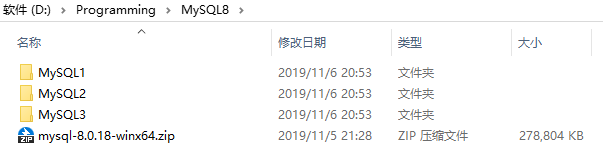
3.在MySQL的根目录下面新建my.ini的配置文件
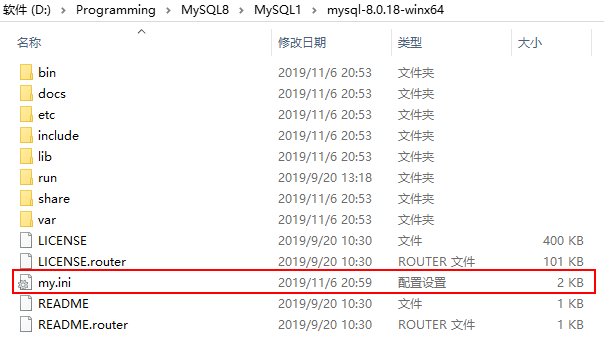

[mysqld]

# 设置3306端口

port=3306

# 设置mysql的安装目录(需要设置为自己的安装目录)

basedir=D:\Programming\MySQL8\MySQL1\mysql-8.0.18-winx64

# 设置mysql数据库的数据的存放目录(mysql-8.0.18不需要手动创建data文件夹)

datadir=D:\Programming\MySQL8\MySQL1\mysql-8.0.18-winx64\data

# 允许最大连接数

max_connections=200

# 允许连接失败的次数(这是为了防止有人从该主机试图攻击数据库系统)

max_connect_errors=10

# 服务端使用的字符集默认为utf8mb4

character-set-server=utf8mb4

# 创建新表时将使用的默认存储引擎

default-storage-engine=INNODB

# 默认使用mysql_native_password插件认证

default_authentication_plugin=mysql_native_password

# 去掉sql_mode中的only_full_group_by

sql_mode=strict_trans_tables,no_zero_in_date,no_zero_date,error_for_division_by_zero,no_engine_substitution

[mysql]

# 设置mysql客户端默认字符集

default-character-set=utf8mb4

[client]

# 设置mysql客户端连接服务端时默认使用的端口

port=3306

default-character-set=utf8mb4
4.通过管理员的身份打开cmd窗口跳转路径到MySQL的bin目录
# 进入到mysql的bin目录底下操作:

# 初始化mysql

mysqld --defaults-file=D:\Programming\MySQL8\MySQL1\mysql-8.0.18-winx64\my.ini --initialize --console

# 安装mysql服务

mysqld --install [服务名] MySQL1 --defaults-file=D:\Programming\MySQL8\MySQL1\mysql-8.0.18-winx64\my.ini

mysqld --install MySQL1 --defaults-file=D:\Programming\MySQL8\MySQL1\mysql-8.0.18-winx64\my.ini

# 启动mysql服务

net start [服务名]

net start mysql1

# 停止mysql服务

net stop [服务名]

net stop mysql1

# 卸载mysql服务

mysqld -remove [服务名]

mysqld --remove mysql1

# 登录mysql

mysql -h localhost -u root -P 3306 -p

# 修改mysql密码

alter user 'root'@'localhost' identified with mysql_native_password by '123456';

flush privileges;

# 开启mysql远程访问

# 方式一:

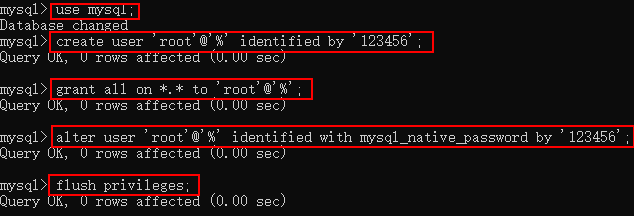
use mysql;

create user 'root'@'%' identified by '123456';

grant all on *.* to 'root'@'%';

alter user 'root'@'%' identified with mysql_native_password by '123456';

flush privileges;

# 方式二:

use mysql;

select user,authentication_string,host from user;

update user set host = '%' where user = 'root';

flush privileges;

alter user 'root'@'%' identified with mysql_native_password by '123456';

5.其他
MySQL2安装步骤
D:\Programming\MySQL8\MySQL2\mysql-8.0.18-winx64\bin>mysqld --defaults-file=D:\Programming\MySQL8\MySQL2\mysql-8.0.18-winx64\my.ini --initialize --console

2019-11-06T13:19:04.091682Z 0 [System] [MY-013169] [Server] D:\Programming\MySQL8\MySQL2\mysql-8.0.18-winx64\bin\mysqld.exe (mysqld 8.0.18) initializing of server in progress as process 3276

2019-11-06T13:19:07.073501Z 5 [Note] [MY-010454] [Server] A temporary password is generated for root@localhost: X>cZPPE6Qkpi

D:\Programming\MySQL8\MySQL2\mysql-8.0.18-winx64\bin>mysqld --install MySQL2 --defaults-file=D:\Programming\MySQL8\MySQL2\mysql-8.0.18-winx64\my.ini

Service successfully installed.

D:\Programming\MySQL8\MySQL2\mysql-8.0.18-winx64\bin>net start mysql2

MySQL2 服务正在启动 .

MySQL2 服务已经启动成功。

D:\Programming\MySQL8\MySQL2\mysql-8.0.18-winx64\bin>mysql -h localhost -u root -P 3307 -p

Enter password: ************

Welcome to the MySQL monitor.  Commands end with ; or \g.

Your MySQL connection id is 8

Server version: 8.0.18

Copyright (c) 2000, 2019, Oracle and/or its affiliates. All rights reserved.

Oracle is a registered trademark of Oracle Corporation and/or its

affiliates. Other names may be trademarks of their respective

owners.

Type 'help;' or '\h' for help. Type '\c' to clear the current input statement.

mysql> alter user 'root'@'localhost' identified with mysql_native_password by '123456';

Query OK, 0 rows affected (0.01 sec)

mysql> flush privileges;

Query OK, 0 rows affected (0.00 sec)

mysql> use mysql;

Database changed

mysql> create user 'root'@'%' identified by '123456';

Query OK, 0 rows affected (0.00 sec)

mysql> grant all on *.* to 'root'@'%';

Query OK, 0 rows affected (0.00 sec)

mysql> alter user 'root'@'%' identified with mysql_native_password by '123456';

Query OK, 0 rows affected (0.00 sec)

mysql> flush privileges;

Query OK, 0 rows affected (0.00 sec)

mysql>
MySQL3安装步骤
D:\Programming\MySQL8\MySQL3\mysql-8.0.18-winx64\bin>mysqld --defaults-file=D:\Programming\MySQL8\MySQL3\mysql-8.0.18-winx64\my.ini --initialize --console

2019-11-06T13:22:41.619497Z 0 [System] [MY-013169] [Server] D:\Programming\MySQL8\MySQL3\mysql-8.0.18-winx64\bin\mysqld.exe (mysqld 8.0.18) initializing of server in progress as process 3956

2019-11-06T13:22:44.022580Z 5 [Note] [MY-010454] [Server] A temporary password is generated for root@localhost: dF-++?wor5oH

D:\Programming\MySQL8\MySQL3\mysql-8.0.18-winx64\bin>mysqld --install MySQL3 --defaults-file=D:\Programming\MySQL8\MySQL3\mysql-8.0.18-winx64\my.ini

Service successfully installed.

D:\Programming\MySQL8\MySQL3\mysql-8.0.18-winx64\bin>net start mysql3

MySQL3 服务正在启动 .

MySQL3 服务已经启动成功。

D:\Programming\MySQL8\MySQL3\mysql-8.0.18-winx64\bin>mysql -h localhost -u root -P 3308 -p

Enter password: ************

Welcome to the MySQL monitor.  Commands end with ; or \g.

Your MySQL connection id is 8

Server version: 8.0.18

Copyright (c) 2000, 2019, Oracle and/or its affiliates. All rights reserved.

Oracle is a registered trademark of Oracle Corporation and/or its

affiliates. Other names may be trademarks of their respective

owners.

Type 'help;' or '\h' for help. Type '\c' to clear the current input statement.

mysql> alter user 'root'@'localhost' identified with mysql_native_password by '123456';

Query OK, 0 rows affected (0.00 sec)

mysql> flush privileges;

Query OK, 0 rows affected (0.00 sec)

mysql> use mysql;

Database changed

mysql> create user 'root'@'%' identified by '123456';

Query OK, 0 rows affected (0.00 sec)

mysql> grant all on *.* to 'root'@'%';

Query OK, 0 rows affected (0.01 sec)

mysql> alter user 'root'@'%' identified with mysql_native_password by '123456';

Query OK, 0 rows affected (0.00 sec)

mysql> flush privileges;

Query OK, 0 rows affected (0.00 sec)

mysql>
win 10 下面安装 mysql-8.0.12-winx64 的过程的更多相关文章
- Linux安装mysql.8.0.12
1. linux安装mysql8.0.12,亲测可用. 以下是安装过程中出现的问题: 1 [root@localtest1 file]# systemctl start mysqld 2 Job fo ...
- win10 安装mysql 8.0.12
按照CSDN以及博客园的其他教程, 之前安装过几次都有或多或少的bug 主要安装步骤: 1.配置my.ini文件 2.管理员进入终端, 切换到.../bin目录下进行操作 3.指令操作: 1) mys ...
- 【Linux】CentOS 7.4 安装 MySQL 8.0.12 解压版
安装环境/工具 1.Linux(CentOS 7.4版) 2.mysql-8.0.12-el7-x86_64.tar.gz 安装步骤 参考:https://dev.mysql.com/doc/refm ...
- windows下mysql 8.0.12安装步骤及基本使用教程
本文实例为大家分享了windows下mysql 8.0.12安装步骤及使用教程,供大家参考,具体内容如下 补充:mysql 已经更新到了 8.0.19,大致步骤和这个差不多,照着来就完事了. 我下载的 ...
- MySQL 8.0.12 基于Windows 安装教程(超级详细)
MySQL 8.0.12 基于Windows 安装教程(超级详细) (一步一步来,装不了你找我!) 本教程仅适用Windows系统,如果你原本装了没装上,一定要先删除原本的数据库,执行:mysqld ...
- 安装Mysql 8.0的艰难体验
背景: Mysql 8.0 以后版本,在性能等方面有了很大提升,而且在自动编号.Timestamp等字段的设置上有了很方便的进步,因此在一年前即开始将原有的基于5.5版本的服务器逐渐向8.0转移.但转 ...
- centos 8及以上安装mysql 8.0
本文适用于centos 8及以上安装mysql 8.0,整体耗时20分钟内,不需要FQ 1.环境先搞好 systemctl stop firewalld //关闭防火墙 systemctl disab ...
- cmake编译安装mysql 5.6.12
cmake安装mysql 5.6.12 从mysql 5.5 开始就要用cmake编译安装 下载mysql 下载地址:http://pan.baidu.com/s/1o68xxqE 一.安装mysql ...
- windows下安装 mysql 8.0 以上版本以及遇到的问题
Windows 上安装 MySQL Windows 上安装 MySQL 相对来说会较为简单,地那就链接 https://cdn.mysql.com//Downloads/MySQL-8.0/mysql ...
- SQLyog 报错2058 :连接 mysql 8.0.12 解决方法
今天闲来无事,下载新版的 mysql 8.0.12 安装. 为了方便安装查看,我下载了sqlyog 工具 连接 mysql 配置新连接报错:错误号码 2058,分析是 mysql 密码加密方法变了. ...
随机推荐
- [ethernet]ubuntu更换网卡驱动
问题: 网络不能ping通,dmesg显示很多 [::00.0: eth0: link up [::00.0: eth0: link up [::00.0: eth0: link up [::00.0 ...
- Sublime Text3 安装Markdown
Sublime Text3是一款给力的文本编辑器,通过安装插件可以编辑Markdown文本,在编辑Markdown文本的同时可以实时预览编辑效果. 安装准备: 找到菜单栏:Preferences → ...
- [C#] 类型学习笔记三:自定义值类型
既前两篇之后,这一篇我们讨论通过struct 关键字自定义值类型. 在第一篇已经讨论过值类型的优势,节省空间,不会触发Gargage Collection等等. 在对性能要求比较高的场景下,通过str ...
- [CodeChef - GERALD07 ] Chef and Graph Queries
Read problems statements in Mandarin Chineseand Russian. Problem Statement Chef has a undirected gra ...
- Linux系统网络基础知识及配置
一:DNS(domain name system)简介 DNS(Domain Name System,域名系统),因特网上作为域名和IP地址相互映射的一个分布式数据库,能够使用户更方便的访问互联网,而 ...
- 深入理解Spring MVC(山东数漫江湖)
初始工程 使用Spring Boot和web,thymeleaf的starter来设置初始工程.xml配置如下: <parent> <groupId>org.springf ...
- 2017 ACM-ICPC 亚洲区(乌鲁木齐赛区)网络赛 H. Skiing (拓扑排序+假dp)
题目链接:https://nanti.jisuanke.com/t/16957 题目: In this winter holiday, Bob has a plan for skiing at the ...
- HTML -- get与post提交方式的区别 -- (转)
在写代码过程中,get与post是两种不同的提交方式.下面,列举出两种方式的不同. 方法/步骤 get是从服务器上获取数据,post是向服务器传送数据. get是把参数数据队列加到提交表单的A ...
- chromedriver版本 支持的Chrome版本
在使用selenium测试时,如果选择chrome浏览器,需要将chrome driver的exe文件放在项目下 错误的driver版本,会导致无法正常打开本机的浏览器 以下为对应关系 来自网络 ch ...
- Laravel 5.2 一、安装与目录结构
一.Laravel 安装 这里选择通过 Composer 的 create-project 命令来安装 Laravel 应用. composer create-project laravel/lara ...