
Tensorflow深度学习之十二:基础图像处理之二
Tensorflow深度学习之十二:基础图像处理之二
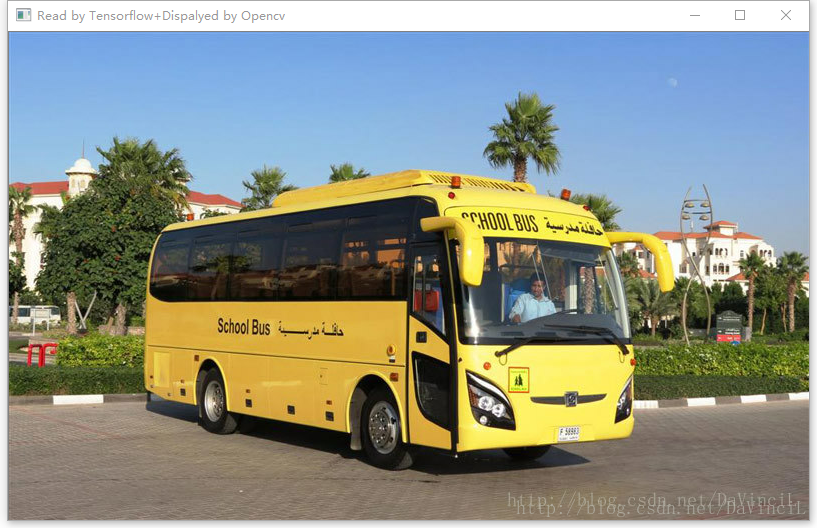
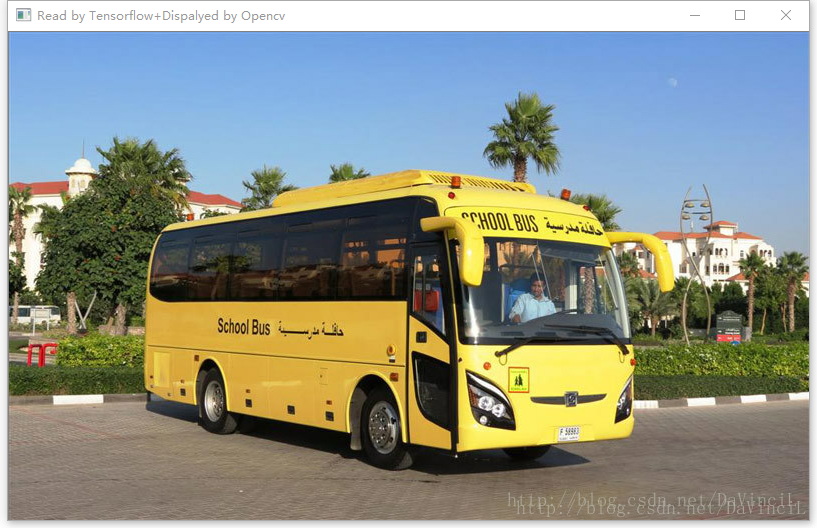
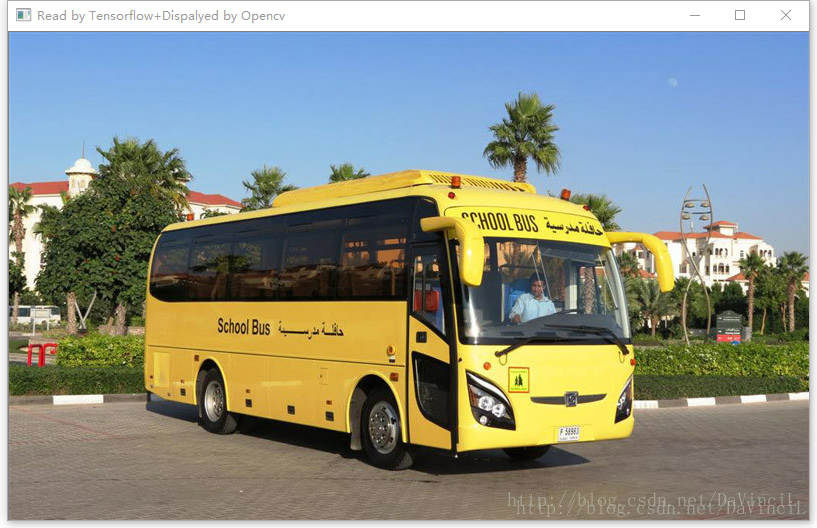
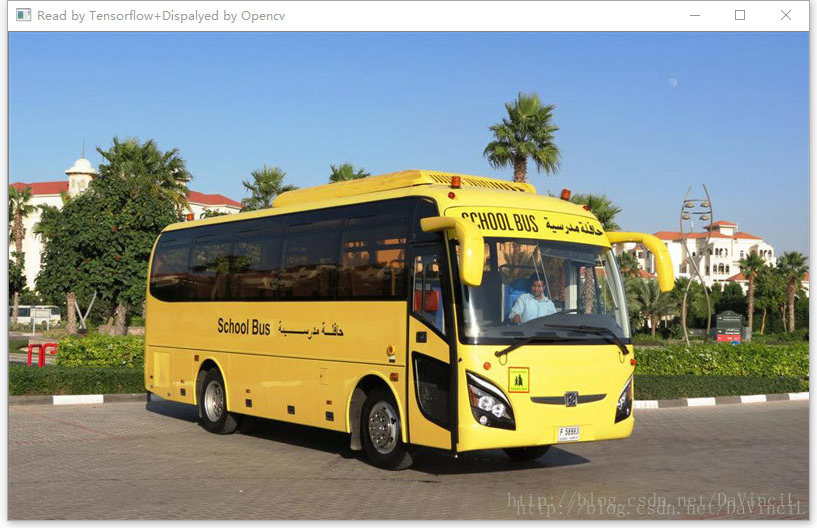
首先放出原始图像:

1、图像的翻转
import tensorflow as tf

import cv2

# 这里定义一个tensorflow读取的图片格式转换为opencv读取的图片格式的函数

# 请注意:

# 在tensorflow中,一个像素点的颜色顺序是R,G,B。

# 在opencv中,一个像素点的颜色顺序是B,G,R。

# 因此,我们循环遍历每一个像素点,将第0位的颜色和第2位的颜色数值换一下即可。

# 第一个参数name:将要显示的窗口名称。

# 第二个参数image:储存图片信息的一个tensor。

def cv2Show(name="", image=None):

    # 获取矩阵信息

    np = image.eval()

    # 获取行数列数

    row, col = len(np),len(np[1])

    # 两重循环遍历

    for i in range(row):

        for j in range(col):

            # 交换数值

            tmp = np[i][j][0]

            np[i][j][0] = np[i][j][2]

            np[i][j][2] = tmp

    # 显示图片

    cv2.imshow(name,np)

    pass

# tensorflow会话

with tf.Session() as sess:

    # 以二进制的方式读取图片。

    image_raw_data = tf.gfile.FastGFile("bus.jpg", "rb").read()

    # 按照jpeg的格式解码图片。

    image_data = tf.image.decode_jpeg(image_raw_data)

    # 显示原图片。

    cv2Show("Read by Tensorflow+Dispalyed by Opencv",image_data)

    # 上下翻转图像

    up_and_down = tf.image.flip_up_down(image_data)

    cv2Show("up and down",up_and_down)

    # 左右翻转图像

    left_and_right = tf.image.flip_left_right(image_data)

    cv2Show("left and right", left_and_right)

    # 沿对角线翻转图像

    transposed = tf.image.transpose_image(image_data)

    cv2Show("transposed image", transposed)

    # 以一定概率上下翻转图像

    random_up_and_down = tf.image.random_flip_up_down(image_data)

    cv2Show("random up and down", random_up_and_down)

    # 以一定概率左右翻转图像

    random_left_and_right = tf.image.random_flip_left_right(image_data)

    cv2Show("random left and right", random_left_and_right)

cv2.waitKey()- 1
- 2
- 3
- 4
- 5
- 6
- 7
- 8
- 9
- 10
- 11
- 12
- 13
- 14
- 15
- 16
- 17
- 18
- 19
- 20
- 21
- 22
- 23
- 24
- 25
- 26
- 27
- 28
- 29
- 30
- 31
- 32
- 33
- 34
- 35
- 36
- 37
- 38
- 39
- 40
- 41
- 42
- 43
- 44
- 45
- 46
- 47
- 48
- 49
- 50
- 51
- 52
- 53
- 54
- 55
- 56
- 57
- 58
- 59
- 60
程序运行结果如下:
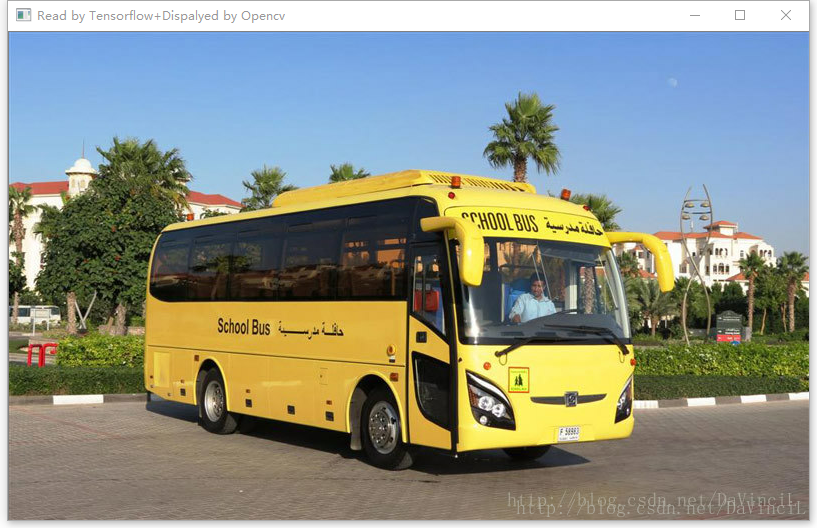
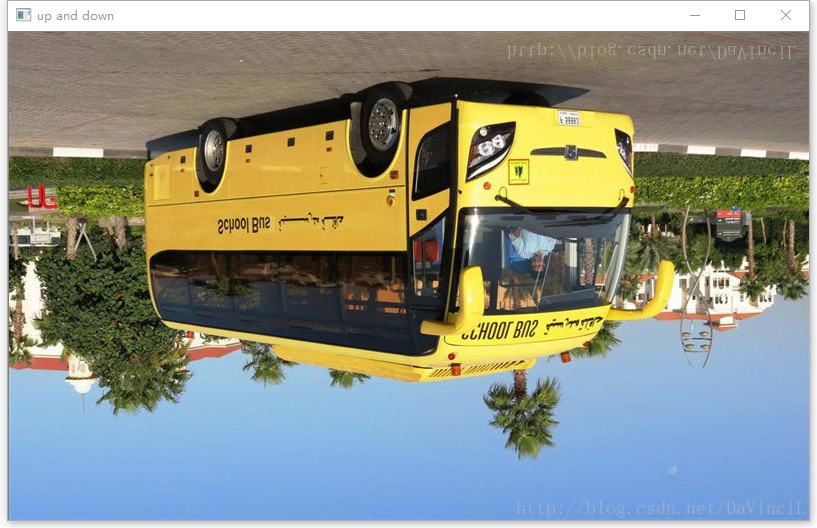

注:由于个人的显示器限制,这里只截取了部分的对角线翻转的图像。

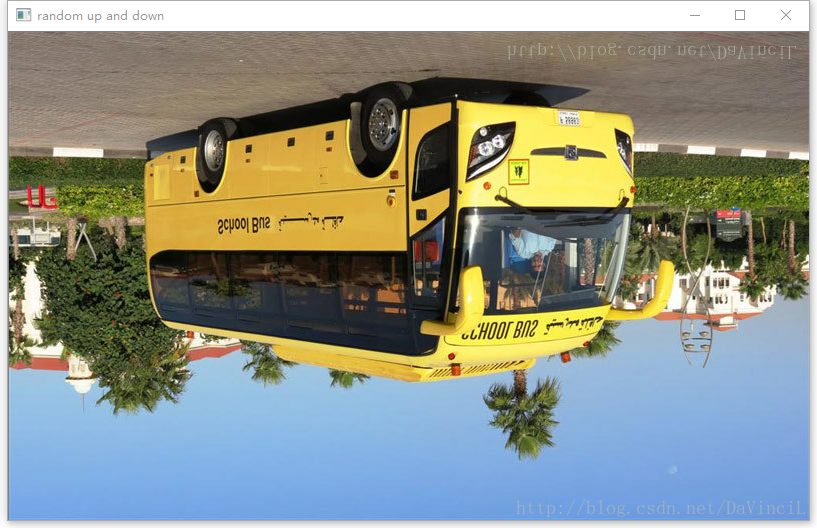
注:可以看到这里按照一定的概率翻转,只有上下进行了翻转,而左右并没有翻转。

2、图像的亮度调整
import tensorflow as tf

import cv2

# 这里定义一个tensorflow读取的图片格式转换为opencv读取的图片格式的函数

# 请注意:

# 在tensorflow中,一个像素点的颜色顺序是R,G,B。

# 在opencv中,一个像素点的颜色顺序是B,G,R。

# 因此,我们循环遍历每一个像素点,将第0位的颜色和第2位的颜色数值换一下即可。

# 第一个参数name:将要显示的窗口名称。

# 第二个参数image:储存图片信息的一个tensor。

def cv2Show(name="", image=None):

    # 获取矩阵信息

    np = image.eval()

    # 获取行数列数

    row, col = len(np),len(np[1])

    # 两重循环遍历

    for i in range(row):

        for j in range(col):

            # 交换数值

            tmp = np[i][j][0]

            np[i][j][0] = np[i][j][2]

            np[i][j][2] = tmp

    # 显示图片

    cv2.imshow(name,np)

    pass

# tensorflow会话

with tf.Session() as sess:

    # 以二进制的方式读取图片。

    image_raw_data = tf.gfile.FastGFile("bus.jpg", "rb").read()

    # 按照jpeg的格式解码图片。

    image_data = tf.image.decode_jpeg(image_raw_data)

    # 显示原图片。

    cv2Show("Read by Tensorflow+Dispalyed by Opencv",image_data)

    # 将图片的亮度-0.5

    adjusted1 = tf.image.adjust_brightness(image_data, -0.5)

    cv2Show("brightness -0.5", adjusted1)

    # 将图片的亮度+0.5

    adjusted2 = tf.image.adjust_brightness(image_data, 0.5)

    cv2Show("brightness +0.5",adjusted2)

    # 随机调整图像的亮度:

    # random_brightness(image, max_delta, seed=None)

    # image:待调整的图像

    # max_delta:在[-max_delte,max_delte)的范围随机调整图像的亮度

    # seed:随机数种子

    adjusted3 = tf.image.random_brightness(image_data, 0.3)

    cv2Show("random brightness", adjusted3)

cv2.waitKey()- 1
- 2
- 3
- 4
- 5
- 6
- 7
- 8
- 9
- 10
- 11
- 12
- 13
- 14
- 15
- 16
- 17
- 18
- 19
- 20
- 21
- 22
- 23
- 24
- 25
- 26
- 27
- 28
- 29
- 30
- 31
- 32
- 33
- 34
- 35
- 36
- 37
- 38
- 39
- 40
- 41
- 42
- 43
- 44
- 45
- 46
- 47
- 48
- 49
- 50
- 51
- 52
- 53
- 54
- 55
- 56
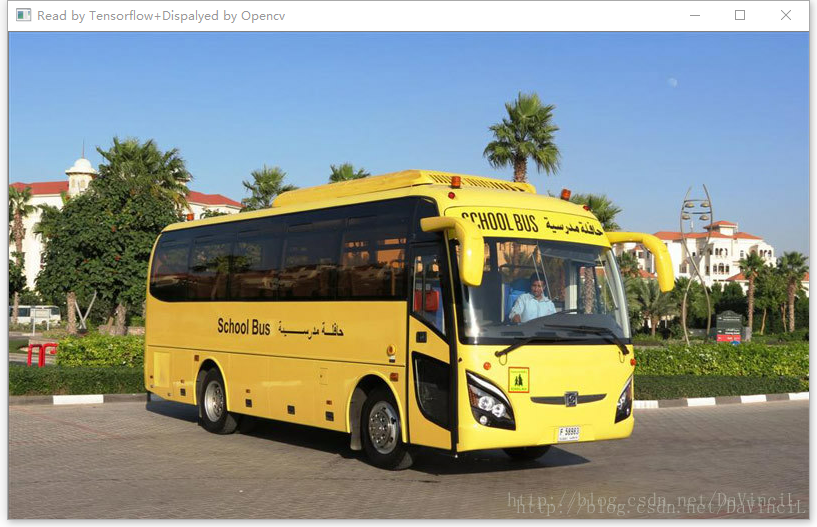
程序运行如下:



3、调整图像的对比度
import tensorflow as tf

import cv2

# 这里定义一个tensorflow读取的图片格式转换为opencv读取的图片格式的函数

# 请注意:

# 在tensorflow中,一个像素点的颜色顺序是R,G,B。

# 在opencv中,一个像素点的颜色顺序是B,G,R。

# 因此,我们循环遍历每一个像素点,将第0位的颜色和第2位的颜色数值换一下即可。

# 第一个参数name:将要显示的窗口名称。

# 第二个参数image:储存图片信息的一个tensor。

def cv2Show(name="", image=None):

    # 获取矩阵信息

    np = image.eval()

    # 获取行数列数

    row, col = len(np),len(np[1])

    # 两重循环遍历

    for i in range(row):

        for j in range(col):

            # 交换数值

            tmp = np[i][j][0]

            np[i][j][0] = np[i][j][2]

            np[i][j][2] = tmp

    # 显示图片

    cv2.imshow(name,np)

    pass

# tensorflow会话

with tf.Session() as sess:

    # 以二进制的方式读取图片。

    image_raw_data = tf.gfile.FastGFile("bus.jpg", "rb").read()

    # 按照jpeg的格式解码图片。

    image_data = tf.image.decode_jpeg(image_raw_data)

    # 显示原图片。

    cv2Show("Read by Tensorflow+Dispalyed by Opencv",image_data)

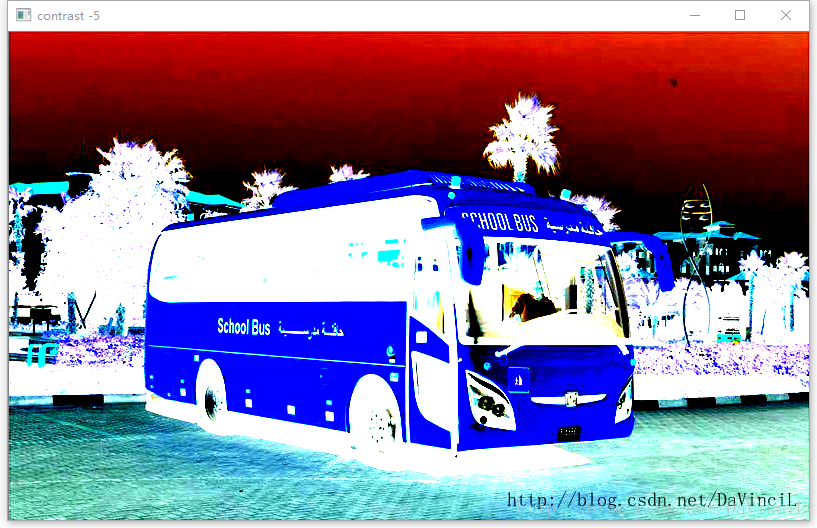
    # 将图片的对比度-5

    adjusted1 = tf.image.adjust_contrast(image_data, -5)

    cv2Show("contrast -5", adjusted1)

    # 将图片的对比度+5

    adjusted2 = tf.image.adjust_contrast(image_data, 5)

    cv2Show("contrast +5",adjusted2)

    # 随机调整图像的对比度:

    # random_contrast(image, lower, upper, seed=None)

    # image:待调整的图像

    # lower,upper:在[lower,upper]的范围随机调整图像的对比度。lower非负。

    # seed:随机数种子

    adjusted3 = tf.image.random_contrast(image_data, 1, 9)

    cv2Show("random contrast", adjusted3)

cv2.waitKey()- 1
- 2
- 3
- 4
- 5
- 6
- 7
- 8
- 9
- 10
- 11
- 12
- 13
- 14
- 15
- 16
- 17
- 18
- 19
- 20
- 21
- 22
- 23
- 24
- 25
- 26
- 27
- 28
- 29
- 30
- 31
- 32
- 33
- 34
- 35
- 36
- 37
- 38
- 39
- 40
- 41
- 42
- 43
- 44
- 45
- 46
- 47
- 48
- 49
- 50
- 51
- 52
- 53
- 54
- 55
- 56
程序运行如下:


4、调整图像的色相
import tensorflow as tf

import cv2

# 这里定义一个tensorflow读取的图片格式转换为opencv读取的图片格式的函数

# 请注意:

# 在tensorflow中,一个像素点的颜色顺序是R,G,B。

# 在opencv中,一个像素点的颜色顺序是B,G,R。

# 因此,我们循环遍历每一个像素点,将第0位的颜色和第2位的颜色数值换一下即可。

# 第一个参数name:将要显示的窗口名称。

# 第二个参数image:储存图片信息的一个tensor。

def cv2Show(name="", image=None):

    # 获取矩阵信息

    np = image.eval()

    # 获取行数列数

    row, col = len(np),len(np[1])

    # 两重循环遍历

    for i in range(row):

        for j in range(col):

            # 交换数值

            tmp = np[i][j][0]

            np[i][j][0] = np[i][j][2]

            np[i][j][2] = tmp

    # 显示图片

    cv2.imshow(name,np)

    pass

# tensorflow会话

with tf.Session() as sess:

    # 以二进制的方式读取图片。

    image_raw_data = tf.gfile.FastGFile("bus.jpg", "rb").read()

    # 按照jpeg的格式解码图片。

    image_data = tf.image.decode_jpeg(image_raw_data)

    # 显示原图片。

    cv2Show("Read by Tensorflow+Dispalyed by Opencv",image_data)

    # adjust_hue(image, delta, name=None)

    # delte的范围:[-1,1]

    # 将图片的色相+0.1

    adjusted1 = tf.image.adjust_hue(image_data, 0.1)

    cv2Show("hue +0.1", adjusted1)

    # 将图片的色相+0.3

    adjusted2 = tf.image.adjust_hue(image_data, 0.3)

    cv2Show("hue +0.3", adjusted2)

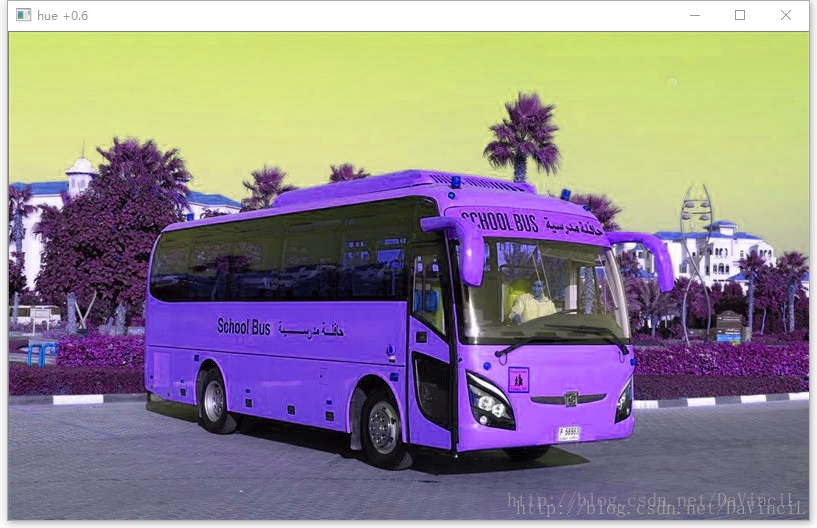
    # 将图片的色相+0.6

    adjusted3 = tf.image.adjust_hue(image_data, 0.6)

    cv2Show("hue +0.6", adjusted3)

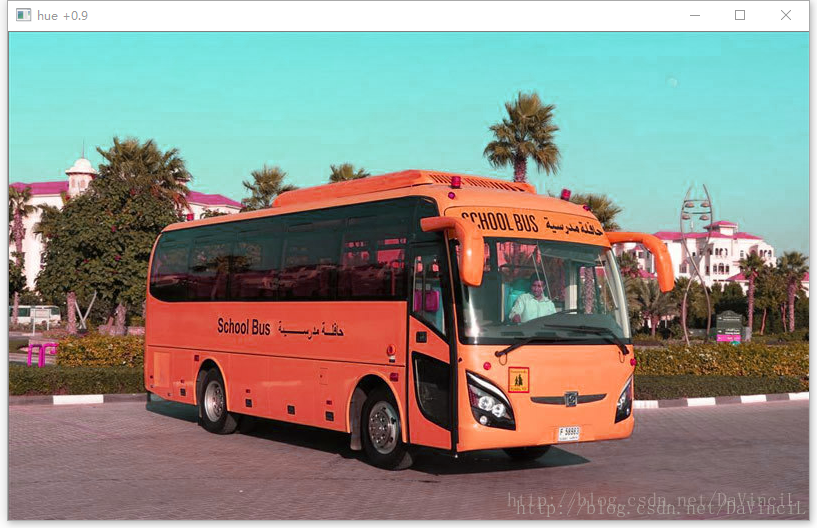
    # 将图片的色相+0.9

    adjusted4 = tf.image.adjust_hue(image_data, 0.9)

    cv2Show("hue +0.9", adjusted4)

    # 随机调整图像的色相:

    # random_hue(image, max_delta, seed=None)

    # image:待调整的图像

    # max_delta:在[-max_delta,max_delta]的范围随机调整图像的色相。max_delta的范围[0,0.5]。

    # seed:随机数种子

    adjusted5 = tf.image.random_hue(image_data,0.4)

    cv2Show("random hue", adjusted5)

cv2.waitKey()- 1
- 2
- 3
- 4
- 5
- 6
- 7
- 8
- 9
- 10
- 11
- 12
- 13
- 14
- 15
- 16
- 17
- 18
- 19
- 20
- 21
- 22
- 23
- 24
- 25
- 26
- 27
- 28
- 29
- 30
- 31
- 32
- 33
- 34
- 35
- 36
- 37
- 38
- 39
- 40
- 41
- 42
- 43
- 44
- 45
- 46
- 47
- 48
- 49
- 50
- 51
- 52
- 53
- 54
- 55
- 56
- 57
- 58
- 59
- 60
- 61
- 62
- 63
- 64
- 65
- 66
程序运行结果如下:



5、调整图像的饱和度
import tensorflow as tf

import cv2

# 这里定义一个tensorflow读取的图片格式转换为opencv读取的图片格式的函数

# 请注意:

# 在tensorflow中,一个像素点的颜色顺序是R,G,B。

# 在opencv中,一个像素点的颜色顺序是B,G,R。

# 因此,我们循环遍历每一个像素点,将第0位的颜色和第2位的颜色数值换一下即可。

# 第一个参数name:将要显示的窗口名称。

# 第二个参数image:储存图片信息的一个tensor。

def cv2Show(name="", image=None):

    # 获取矩阵信息

    np = image.eval()

    # 获取行数列数

    row, col = len(np),len(np[1])

    # 两重循环遍历

    for i in range(row):

        for j in range(col):

            # 交换数值

            tmp = np[i][j][0]

            np[i][j][0] = np[i][j][2]

            np[i][j][2] = tmp

    # 显示图片

    cv2.imshow(name,np)

    pass

# tensorflow会话

with tf.Session() as sess:

    # 以二进制的方式读取图片。

    image_raw_data = tf.gfile.FastGFile("bus.jpg", "rb").read()

    # 按照jpeg的格式解码图片。

    image_data = tf.image.decode_jpeg(image_raw_data)

    # 显示原图片。

    cv2Show("Read by Tensorflow+Dispalyed by Opencv",image_data)

    # 将图片的饱和度-5

    adjusted1 = tf.image.adjust_saturation(image_data, -5)

    cv2Show("saturation -5", adjusted1)

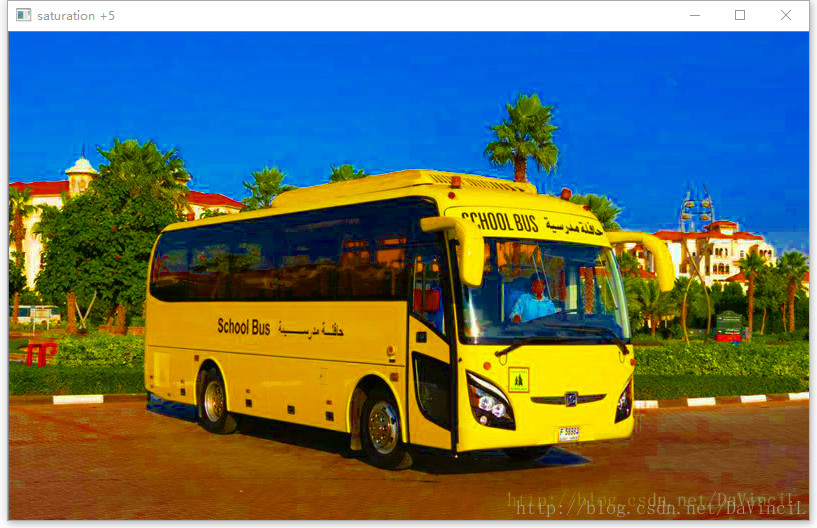
    # 将图片的饱和度+5

    adjusted2 = tf.image.adjust_saturation(image_data, 5)

    cv2Show("saturation +5", adjusted2)

    # 随机调整图像的饱和度:

    # random_saturation(image, lower, upper, seed=None)

    # image:待调整的图像

    # lower,upper:在[lower,upper]的范围随机调整图像的饱和度。lower非负。

    # seed:随机数种子

    adjusted3 = tf.image.random_saturation(image_data, 1, 9)

    cv2Show("random saturation", adjusted3)

cv2.waitKey()- 1
- 2
- 3
- 4
- 5
- 6
- 7
- 8
- 9
- 10
- 11
- 12
- 13
- 14
- 15
- 16
- 17
- 18
- 19
- 20
- 21
- 22
- 23
- 24
- 25
- 26
- 27
- 28
- 29
- 30
- 31
- 32
- 33
- 34
- 35
- 36
- 37
- 38
- 39
- 40
- 41
- 42
- 43
- 44
- 45
- 46
- 47
- 48
- 49
- 50
- 51
- 52
- 53
- 54
- 55
- 56
程序运行结果如下:


6、图像的标准化
import tensorflow as tf

import cv2

# 这里定义一个tensorflow读取的图片格式转换为opencv读取的图片格式的函数

# 请注意:

# 在tensorflow中,一个像素点的颜色顺序是R,G,B。

# 在opencv中,一个像素点的颜色顺序是B,G,R。

# 因此,我们循环遍历每一个像素点,将第0位的颜色和第2位的颜色数值换一下即可。

# 第一个参数name:将要显示的窗口名称。

# 第二个参数image:储存图片信息的一个tensor。

def cv2Show(name="", image=None):

    # 获取矩阵信息

    np = image.eval()

    # 获取行数列数

    row, col = len(np),len(np[1])

    # 两重循环遍历

    for i in range(row):

        for j in range(col):

            # 交换数值

            tmp = np[i][j][0]

            np[i][j][0] = np[i][j][2]

            np[i][j][2] = tmp

    # 显示图片

    cv2.imshow(name,np)

    pass

# tensorflow会话

with tf.Session() as sess:

    # 以二进制的方式读取图片。

    image_raw_data = tf.gfile.FastGFile("bus.jpg", "rb").read()

    # 按照jpeg的格式解码图片。

    image_data = tf.image.decode_jpeg(image_raw_data)

    # 显示原图片。

    cv2Show("Read by Tensorflow+Dispalyed by Opencv",image_data)

    # 将代表一张图像的三维矩阵中的数字均值变成0,方差变为1。

    adjusted = tf.image.per_image_standardization(image_data)

    cv2Show("image_standardization", adjusted)

cv2.waitKey()- 1
- 2
- 3
- 4
- 5
- 6
- 7
- 8
- 9
- 10
- 11
- 12
- 13
- 14
- 15
- 16
- 17
- 18
- 19
- 20
- 21
- 22
- 23
- 24
- 25
- 26
- 27
- 28
- 29
- 30
- 31
- 32
- 33
- 34
- 35
- 36
- 37
- 38
- 39
- 40
- 41
- 42
- 43
- 44
程序运行结果如下:

Tensorflow深度学习之十二:基础图像处理之二的更多相关文章
- TensorFlow深度学习基础与应用实战高清视频教程
TensorFlow深度学习基础与应用实战高清视频教程,适合Python C++ C#视觉应用开发者,基于TensorFlow深度学习框架,讲解TensorFlow基础.图像分类.目标检测训练与测试以 ...
- 没有博士学位,照样玩转TensorFlow深度学习
教程 | 没有博士学位,照样玩转TensorFlow深度学习 机器之心2017-01-24 12:32:22 程序设计 谷歌 操作系统 阅读(362)评论(0) 选自Codelabs 机器之心编译 参 ...
- TensorFlow 深度学习中文第二版·翻译完成
原文:Deep Learning with TensorFlow Second Edition 协议:CC BY-NC-SA 4.0 不要担心自己的形象,只关心如何实现目标.--<原则>, ...
- (转) TensorFlow深度学习,一篇文章就够了
TensorFlow深度学习,一篇文章就够了 2016/09/22 · IT技术 · TensorFlow, 深度学习 分享到:6 原文出处: 我爱计算机 (@tobe迪豪 ) 作者: 陈迪 ...
- (转)深度学习word2vec笔记之基础篇
深度学习word2vec笔记之基础篇 声明: 1)该博文是多位博主以及多位文档资料的主人所无私奉献的论文资料整理的.具体引用的资料请看参考文献.具体的版本声明也参考原文献 2)本文仅供学术交流,非商用 ...
- 深度学习word2vec笔记之基础篇
作者为falao_beiliu. 作者:杨超链接:http://www.zhihu.com/question/21661274/answer/19331979来源:知乎著作权归作者所有.商业转载请联系 ...
- TensorFlow深度学习,一篇文章就够了
http://blog.jobbole.com/105602/ 作者: 陈迪豪,就职小米科技,深度学习工程师,TensorFlow代码提交者. TensorFlow深度学习框架 Google不仅是大数 ...
- 问题集录--TensorFlow深度学习
TensorFlow深度学习框架 Google不仅是大数据和云计算的领导者,在机器学习和深度学习上也有很好的实践和积累,在2015年年底开源了内部使用的深度学习框架TensorFlow. 与Caffe ...
- 学习参考《TensorFlow深度学习》高清中文版PDF+英文版PDF+源代码
我们知道,TensorFlow是比较流行的深度学习框架,除了看手册文档外,推荐大家看看<Tensorflow深度学习>,共分5方面内容:基础知识.关键模块.算法模型.内核揭秘.生态发展.前 ...
随机推荐
- Concurrency and Application Design (二)
Dispatch Queues dispatch queues 是基于c机制的一系列自定义任务操作.遵循先进先出的规则.每次只执行一个任务,直到上个任务完成才执行新的任务.相反的,并发的dispatc ...
- 从零开始开发iPhone,教你如何在真机调试iPhone应用程序
对于真机调试,首先要在苹果网站上注册APP ID,以及购买iPhone Develop Program(iDP) 开发者授权,99美元.然后要创建证书请求CSR,创建步骤如下:设置OCSP和CRL为关 ...
- Frotinet60D IP映射 開放指定端口是實際應用
有多個外網IP的環境中,在某一部電腦上,如何使用多個外網IP中的某一個?且為使用的Bitcomet開放TCP,TUP特定端口? 1.在本機windows防火墻中"輸入" 和&quo ...
- 嵌入式Linux驱动案例之中的一个
前几天解决一个嵌入式Linux驱动问题,做为一个案例进行记录. 本案例是一个CPU通过LocalBus总线訪问外围一个设备,详细设备是一个DSP器件.在实际应用中,性能要求非常高,对数据訪问速度提出比 ...
- Unix系统介绍
一.基础知识 操作系统 用户与计算机硬件之间的界面,是控制.管理计算机内各种硬件与软件资源.它是一个多用户.多任务.分时的操作系统. 对于分时系统:假如a进程需要16个时间片,现在根据优先级只分配了1 ...
- vs项目添加链接文件
在vs2012(或以后版本)中,从一个项目中拖拽文件到另一项目,并按住alt键,会生成链接文件. 项目文件中会生成link节点. <ItemGroup> <Compile Inclu ...
- python(37)- 软件开发规范
软件开发规范 一.为什么要设计好目录结构? 1.可读性高: 不熟悉这个项目的代码的人,一眼就能看懂目录结构,知道程序启动脚本是哪个,测试目录在哪儿,配置文件在哪儿等等.从而非常快速的了解这个项目. 2 ...
- c++ builder 版CreateAnonymousThread用法
万一老师的<如今, Delphi 的多线程已经很易用了!>讲到了TThread.CreateAnonymousThread用法 如今我来讲在c++ builder使用 CreateAnon ...
- 编译3.10内核 出现错误 “undefined reference to...." 解决方法
向内核中加入C文件后.假设想编译进内核须要改动当前文件夹下的Kconfig文件和Makefile文件. 如:加入一个test.c文件到driver文件夹下,则须要改动Kconfig文件: config ...
- Kristen Grauman
http://www.cs.utexas.edu/~grauman/ CV Publications Code Data Short ...