
jQuery插件ImgAreaSelect 实例讲解一(头像上传预览和裁剪功能)
上一节随笔中,我们已经知道了关于jQuery插件ImgAreaSelect基本的知识;那么现在看一下实例:
首先,要知道我们应该实现什么功能?
(1)图片能够实现上传预览功能
(2)拖拽裁剪图片,使其能够显示裁剪后的区域
(3)显示要裁剪区域的坐标
其次,该如何引用该插件呢?
那就具体看一下吧!
第一步:先将样式和文件包引入(根据你自己的位置引入)
<!--引入imgareaselect的css样式-->

<link rel="stylesheet" type="text/css" href="../jquery.imgareaselect-0.9.10/css/imgareaselect-default.css" />

<!--引入jquery包-->

<script type="text/javascript" src="../jquery-1.11.2.min.js"></script>

<!--引入imgareaselect的js文件-->

<script type="text/javascript" src="../jquery.imgareaselect-0.9.10/scripts/jquery.imgareaselect.pack.js"></script>
第二步:先用div布局样式,如下图所示
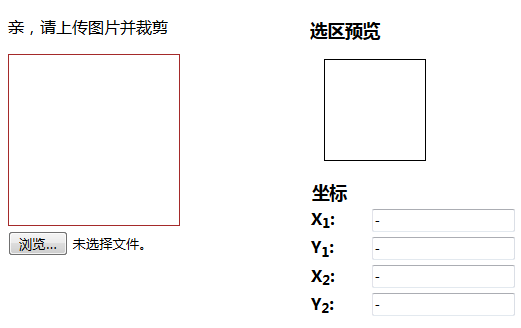
<body>

    <div style="float:left; width:300px;">

        <p>亲,请上传图片并裁剪</p>

        <div style="width:300px; height:300px;float: left;">

        	<!--原图-->

          <img id="uploadPreview"/>

           <input id="uploadImage" type="file" name="photoimage" class="fimg1" onchange="PreviewImage();" />  <!--//对这个按钮加一个事件-->

        </div>

    </div>

	  <div style="float:left; width:300px;">

        <p style="font-size:110%; font-weight:bold; padding-left:0.1em;">

       选区预览

        </p>

        <div style="margin:0 1em; width:100px; height:100px;border: 1px solid black;">

            <div id="preview" style="width:100px; height:100px; overflow:hidden;">

            	<!--裁剪后的图片-->

                <img id="tp" style="width:200px; height:200px;">

            </div>

        </div>

        <!--做一个表格用来放选取图片的坐标-->

        <table style="margin-top:1em;">

            <thead>

            <tr>

            <th colspan="2" style="font-size:110%; font-weight:bold; text-align:left; padding-left: 0.1em;"> 坐标</th>

            </tr>

            </thead>

            <tbody>

            <tr>

            <td style="width:10%;"><b>X<sub>1</sub>:</b></td>

            <td style="width:30%;"><input type="text" id="x1" value="-" /></td>

            </tr>

            <tr>

            <td><b>Y<sub>1</sub>:</b></td>

            <td><input type="text" id="y1" value="-" /></td>

            </tr>

            <tr>

            <td><b>X<sub>2</sub>:</b></td>

            <td><input type="text" id="x2" value="-" /></td>

            </tr>

            <tr>

            <td><b>Y<sub>2</sub>:</b></td>

            <td><input type="text" id="y2" value="-" /></td>

            </tr>

            </tbody>

        </table>

        </div>

     </div>

	</body>
css样式:
	<style>

		 #uploadPreview

			{

		    width: 170px;

		    height: 170px;

		    background-position: center center;

		    background-size: cover;

		    border: 1px solid brown;

		    -webkit-box-shadow: 0 0 0px 0px rgba(0, 0, 0, 0);

		    display: inline-block;

		    }

		</style>
第三步:实现图片的上传预览效果
思路:通过input 将图片的 src传给第一个img,然后再将第一个img的src传给第二个img的src
<script>

//通过input将图片路径传给第一个img

$("#uploadImage").on("change", function(){

    // 得到一个参考文件列表

    var files = !!this.files ? this.files : [];

    // 如果没有选择任何文件,或者没有文件读到就返回

    if (!files.length || !window.FileReader) return;

    // 只有进行选择的文件是一个形象

    if (/^image/.test( files[0].type)){

        // 创建一个新的FileReader的实例

        var reader = new FileReader();

        // 读取本地文件作为一个DataURL

        reader.readAsDataURL(files[0]);

        // 当加载时,图像数据设置为背景的div

        reader.onloadend = function(){

        	//给第一个img添加路径

   		$("#uploadPreview").attr("src",this.result);

   		  //给第二个img添加路径

   		 $("#tp").attr("src",this.result);

   		 //开启裁剪功能

		$('#uploadPreview ').imgAreaSelect( {handles:true, fadeSpeed:200, onSelectEnd : preview});

        }

    }

});

</script>
这样,就能够实现如下效果:
点击浏览
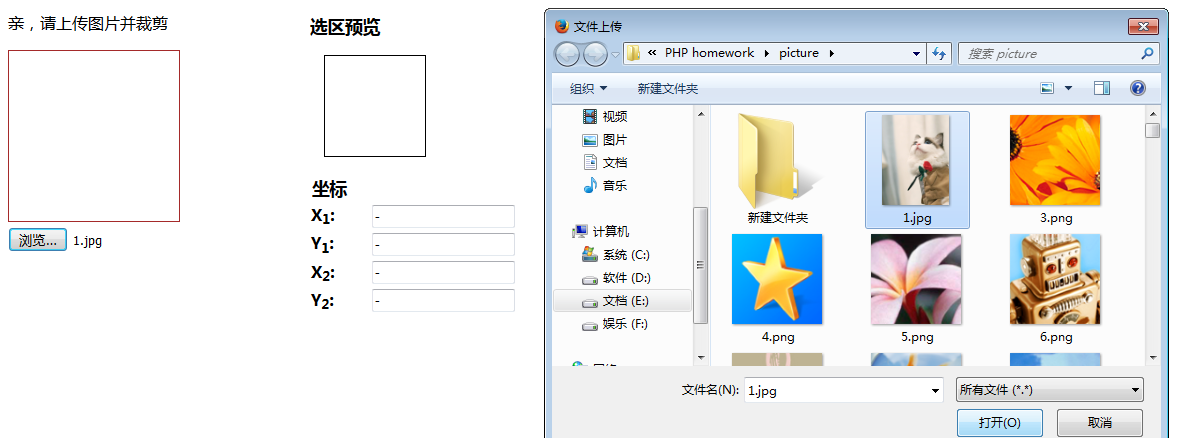
点击选择 :
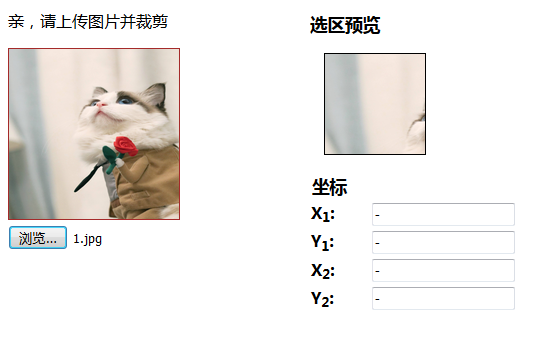
第四步:实现区域选择功能
<script>

 function preview(img, selection)

    {

        if(!selection.width || !selection.height)   //判断选取区域不为空

            return;

            //分别取高宽比率

        var scaleX = 100 / selection.width;

        var scaleY = 100 / selection.height;

        var img = new Image();

        //传路径

        img.src = document.getElementById('uploadPreview').src;

        //给裁剪的图片定义高和宽

       $('#preview img').css( {

            width : Math.round(scaleX * 170),   //170为第一个img的宽,不然截取的图片会有所缺失,可以自己试试

            height: Math.round(scaleY * 170),  //170为第一个img的高

            marginLeft: -Math.round(scaleX * selection.x1),

            marginTop: -Math.round(scaleY * selection.y1)

       });

       //显示坐标

        $('#x1').val(selection.x1);

        $('#y1').val(selection.y1);

        $('#x2').val(selection.x2);

        $('#y2').val(selection.y2);

    }

  </script>
这样就可以实现如下效果啦~~~
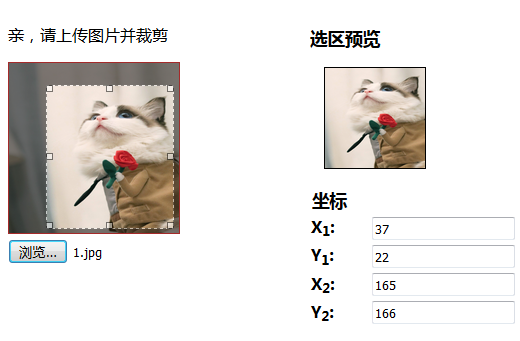
到这一步就可以实现头像的上传以及裁剪功能了,当然后期还要将路径添加到数据库就更完美了~~~~
(------------------------------------------------------------------------此处应有分割线----------------------------------------------------------------------)
如果你只想实现简单的图片裁剪功能,那么可以看看下面代码,此处不做注释了~~~
当然,如果上边的代码看不太明白,也可以参照下面的这个进行修改,将图片上传预览功能添加上即可哈~~~~
效果图:(对比图片就可以知道,下面这个就只是少了浏览功能,其他完全一样)
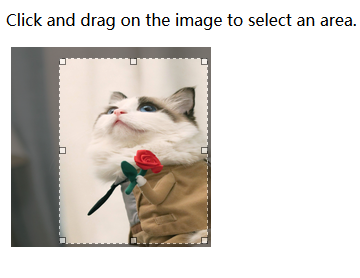
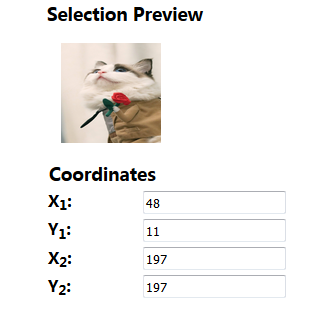
<!DOCTYPE html>

<html>

	<head>

		<meta charset="UTF-8">

		<title></title>

				<!--在HTML头部加入:-->

		<link rel="stylesheet" type="text/css" href="../jquery.imgareaselect-0.9.10/css/imgareaselect-default.css" />

		<script type="text/javascript" src="../jquery-1.11.2.min.js"></script>

		<script type="text/javascript" src="../jquery.imgareaselect-0.9.10/scripts/jquery.imgareaselect.pack.js"></script>

	<script type="text/javascript">

    $(document).ready(function() {

        $('#photo').imgAreaSelect( {handles:true, fadeSpeed:200, onSelectEnd : preview});

    });

// 如果加上aspectRatio: '1:1',$('#photo').imgAreaSelect( {aspectRatio: '1:1',handles:true, fadeSpeed:200, onSelectEnd : preview});则选取区域固定为正方形。

    function preview(img, selection)

    {

    	//等同于var scaleX = 100 / (selection.width || 1)

        //先对||前面的进行布尔运算,如果结果是true(即width存在且不是0),就使用width,否则使用||后的变量1

    	//也就是先检查 selection.width 有没有值,有的话就用 100 / 该值再付给 scaleX,没的话就用 100 / 1 来赋值;

        if(!selection.width || !selection.height)

            return;

        var scaleX = 100 / selection.width;

        var scaleY = 100 / selection.height;

        //设置裁剪后图片的宽高

        $('#preview img').css( {

            width : Math.round(scaleX * 200),

            height: Math.round(scaleY * 200),

            marginLeft: -Math.round(scaleX * selection.x1),

            marginTop: -Math.round(scaleY * selection.y1)

        });

        $('#x1').val(selection.x1);

        $('#y1').val(selection.y1);

        $('#x2').val(selection.x2);

        $('#y2').val(selection.y2);

        $('w').val(selection.width);

        $('h').val(selection.height);

    }

    </script>

	</head>

	<body>

		<div>

	<!--选取的图片-->

    <div style="float:left; width:70%;">

        <p>

        Click and drag on the image to select an area.

        </p>

        <div style="margin:0 0.3em; width:200px; height:200px;">

            <img id="photo" src="./images/1.jpg" style="width:200px; height:200px;"/>

        </div>

    </div>

    <!--截取的图片-->

    <div style="float:left; width:30%;">

        <p style="font-size:110%; font-weight:bold; padding-left:0.1em;">

        Selection Preview

        </p>

        <div style="margin:0 1em; width:100px; height:100px;">

            <div id="preview" style="width:100px; height:100px; overflow:hidden;">

                <img src="./images/1.jpg" style="width:200px; height:200px;">

            </div>

        </div>

        <table style="margin-top:1em;">

            <thead>

            <tr>

            <th colspan="2" style="font-size:110%; font-weight:bold; text-align:left; padding-left: 0.1em;"> Coordinates</th>

            </tr>

            </thead>

            <tbody>

            <tr>

            <td style="width:10%;"><b>X<sub>1</sub>:</b></td>

            <td style="width:30%;"><input type="text" id="x1" value="-" /></td>

            </tr>

            <tr>

            <td><b>Y<sub>1</sub>:</b></td>

            <td><input type="text" id="y1" value="-" /></td>

            </tr>

            <tr>

            <td><b>X<sub>2</sub>:</b></td>

            <td><input type="text" id="x2" value="-" /></td>

            </tr>

            <tr>

            <td><b>Y<sub>2</sub>:</b></td>

            <td><input type="text" id="y2" value="-" /></td>

            </tr>

            </tbody>

        </table>

        </div>

       </div>

	</body>

</html>
未完待续,明天还有一个小例子~~~
it's a good day today, hope your Mrs Right is companying with you and the same as the next 520~~~if not, please insist that your Mrs Right is on the way, and maybe on next 520, you will be one of the former~~~~
转载请标明本博客地址 http://www.cnblogs.com/chenguanai/p/6883401.html#3697090
jQuery插件ImgAreaSelect 实例讲解一(头像上传预览和裁剪功能)的更多相关文章
- jQuery插件ImgAreaSelect 实例讲解二
在上一篇随笔http://www.cnblogs.com/chenguanai/p/6883401.html中,已经了解了头像的上传预览和裁剪功能:那么这次就再看一下imgareaselect的裁剪功 ...
- 使用jquery插件uploadfive、jcrop实现头像上传
1.html页面部分代码:(实现选着图片时,jcrop能够刷新图片) <script type="text/javascript"> $(function(){ $(& ...
- php头像上传预览
php头像上传带预览: 说道上传图片,大家并不陌生,不过,在以后开发的项目中,可能并不会让你使用提交刷新页面式的上传图片,比如上传头像,按照常理,肯定是在相册选择照片之后,确认上传,而肯定不会通过fo ...
- php部分--头像上传预览
前台页面显示 <style type="text/css"> #yl{ width:200px; height:300px; background-image:url( ...
- input file图片上传预览
两种方法,方法一: js代码: //头像上传预览 $("#up").change(function() { var $file = $(this); var fileObj = $ ...
- input file图片上传预览效果
两种方法,方法一: js代码: //头像上传预览 $("#up").change(function() { var $file = $(this); var fileObj = $ ...
- 基于bootstrap的上传插件fileinput实现ajax异步上传功能(支持多文件上传预览拖拽)
首先需要导入一些js和css文件 ? 1 2 3 4 5 6 <link href="__PUBLIC__/CSS/bootstrap.css" rel="exte ...
- 上传预览图片的插件jquery-fileupload
上传预览图片的插件jquery-fileupload github地址:https://github.com/blueimp/jQuery-File-Upload 中文文档:http://www.jq ...
- Jquery图片上传预览效果
uploadPreview.js jQuery.fn.extend({ uploadPreview: function (opts) { var _self = this, _this = $(thi ...
随机推荐
- Android Google AdMob 广告接入示例
Android Google AdMob 广告接入示例 [TOC] 首先请大家放心,虽然 Google搜索等服务被qiang了,但是 广告服务国内还是可以用的,真是普天同庆啊~~~噗! 其实这篇文章也 ...
- 转账示例(一):Dao层面实现(本例采用QueryRunner来执行sql语句,数据源为C3P0)
缺点:Dao层面把Service层面的操作完成了,不利于后期的代码修改和重构 1.自行创建C3P0Util account数据库 2.jar包 3.Dao层面 接口: package com.lear ...
- ssh相关命令
ssh命令 ssh命令是openssh套件中的客户端连接工具,可以给予ssh加密协议实现安全的远程登录服务器. 语法ssh(选项)(参数)选项 -1:强制使用ssh协议版本1: -2:强制使用ssh协 ...
- ENetwork Basic Configuration PT Practice SBA
CCNA Exploration: 网络基础知识 (版本 4.0) A few things to keep in mind while completing this activity: 1 Do ...
- 网站启用gzip压缩
gzip压缩启用不启用还是要看实际情况的,启用gzip后可以相应的减轻带宽压力但是同时也会增加cpu的压力(压缩解压),相反的如果不启用那么cpu压力也会相应的减少,具体情况具体分析. Linux开启 ...
- Jenkins: 使用groovy + job-dsl 创建并触发job
Jenkins: 使用groovy + job-dsl 创建并触发job 背景: 我们的 Automation 测试脚本需要在10个不同语言的机器上跑,本地化测试产品. 我们用Jenkins启动测试执 ...
- 【 js 模块加载 】深入学习模块化加载(node.js 模块源码)
一.模块规范 说到模块化加载,就不得先说一说模块规范.模块规范是用来约束每个模块,让其必须按照一定的格式编写.AMD,CMD,CommonJS 是目前最常用的三种模块化书写规范. 1.AMD(Asy ...
- 安卓Native和H5页面进行交互
安卓Native和H5页面进行交互 1.H5页面调用安卓Native界面 1)通过给webView添加JsInterface,安卓提供接口,让H5来进行调用 a)安卓写一个类,里面的方法需要用通 ...
- [视频]物联网&集成系统中的物联交互、数据存储、效果展示形成快速解决方案。附:ServerSuperIO 3.6.2 版本发布。
ServerSuperIO v3.6.2版本更新内容: 设备驱动与实时库对接的Tag配置与OPC Client读取数据的配置统一用一个配置文件. 设备驱动继承DeviceDynamic接口的子类支持存 ...
- jquery分页插件的修改
前言 最近分页功能使用的比较多,所以从网上下载个jquery分页插件来使用, 之前用的都挺好的,直到昨天出现了逻辑问题,反复查看自己的代码,最后发现是点击页码后执行了多个点击事件.最后只有自己查看源码 ...