
Authentication failure. Retrying - 彻底解决vagrant up时警告
碰到的问题
使用vagrant启动虚拟机时,出现如下警告:
vagrant up default: Warning: Authentication failure. Retrying...原因分析
授权失败主要原因:
虚拟机获取不到物理机的公钥(有疑问的小伙伴,建议先了解一下SSH)
解决方案
将公钥复制到虚拟机vagrant用户家目录下的authorized_keys文件中
Vagrantfile中指定物理机当前用户的私钥路径
步骤一、确认物理机中已经生成了公钥和私钥
以windows系统为例,查看当前登录用户的文件夹下是否包含.ssh文件夹,以及.ssh文件夹下是否包含id_rsa(私钥)、id_rsa.pub(公钥)两个文件
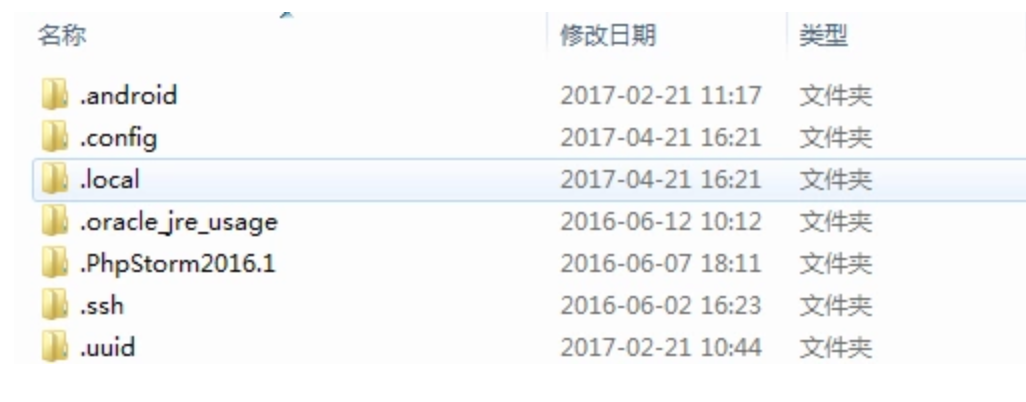
.ssh文件夹文件如下: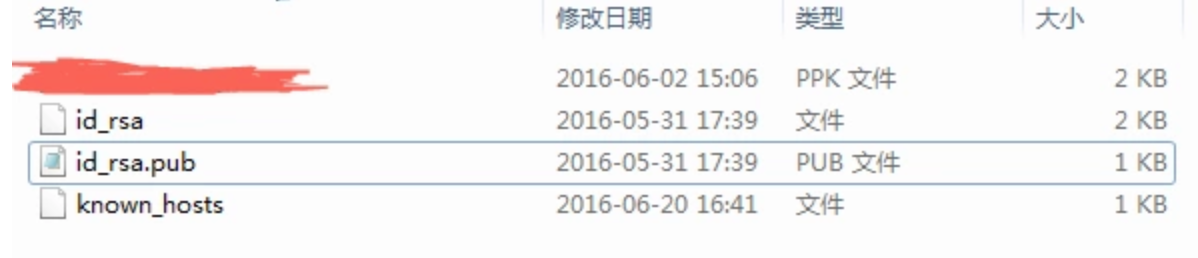
注意:必须打开 【显示隐藏的文件、文件夹或驱动器】才能看到.ssh文件夹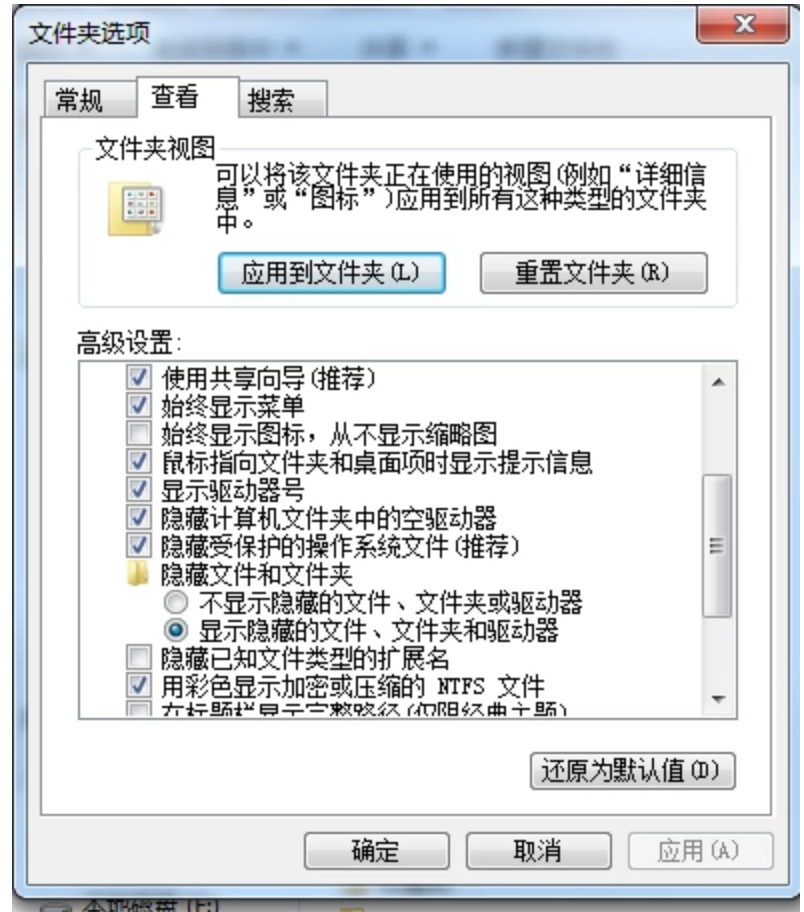
如果已经包含id_rsa(私钥)、id_rsa.pub(公钥)两个文件则可跳过步骤一。如果没有两个文件则继续往下看
生成公钥和私钥有多种方法,我们使用最常用的办法。开发者一般都会安装git。直接使用git bash生成一下就好了
进入git安装目录
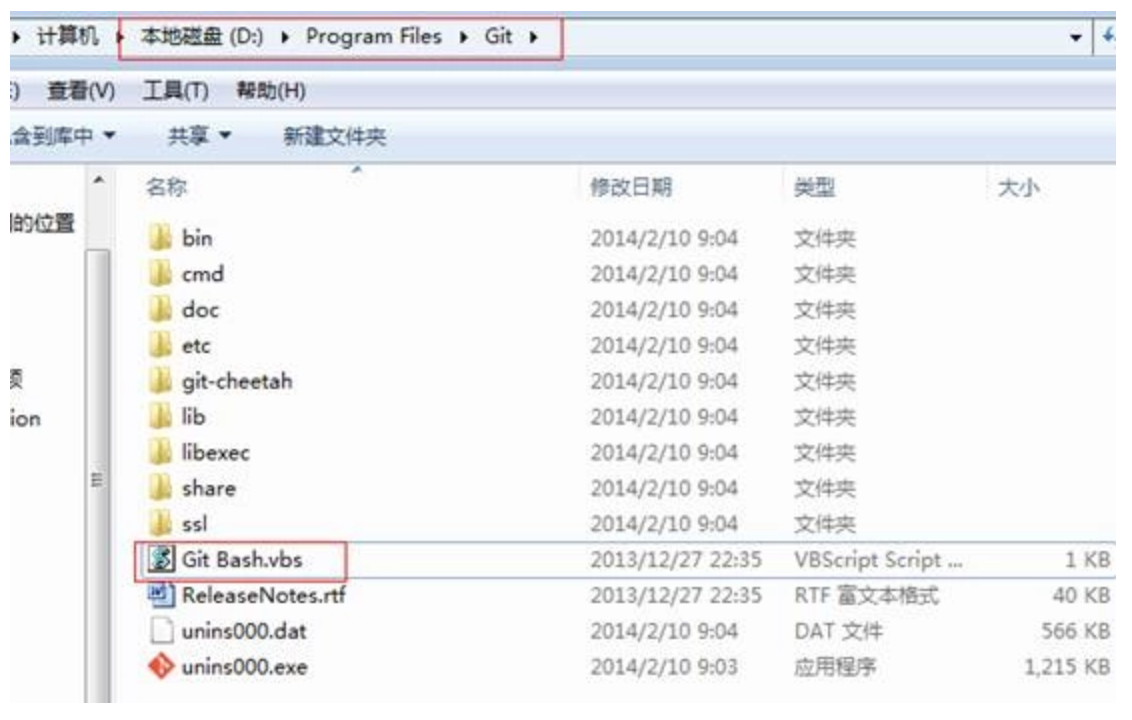
运行git-bash.vbs

执行ssh-keygen
一路回车,完成后,记住下面的地址

进入该路径,发现有两个文件:

这两个文件的含是:首先,他们是1对的,两者缺1不可,id_rsa 是私钥,id_rsa.pub是公钥
步骤二、将公钥复制到authorized_keys文件中
小伙伴可能奇怪,vagrant都报错了,怎么还能进入虚拟机?没错!其实此时虚拟机已经启动完毕了,只不过此时不能接受vagrant的命令,也无法设置共享目录。
你只需要用客户端工具(例如:Xshell)登录虚拟机
一般来说默认的用户名是vagrant,密码也是vagrant。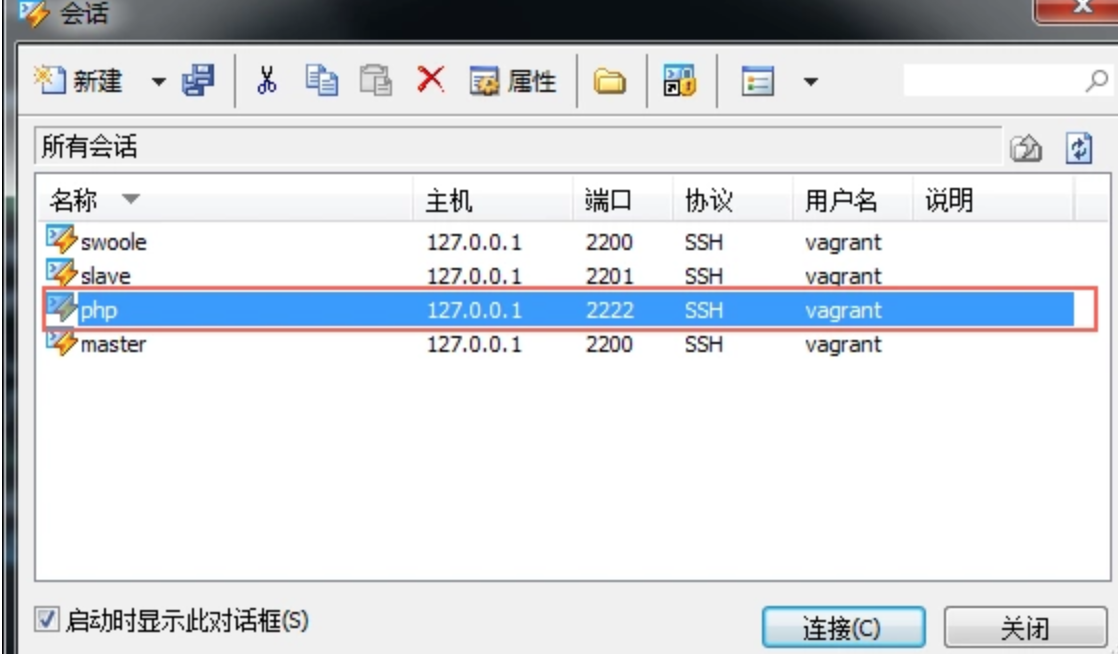
进入.ssh目录
查看是否有authorized_keys文件
[vagrant@localhost .ssh]$ pwd

/home/vagrant/.ssh

[vagrant@localhost .ssh]$ ls -al

total 8

drwx------  2 vagrant root      28 Jul 26  2016 .

drwx------. 8 vagrant vagrant 4096 Nov  6 11:02 ..

-rw-------  1 vagrant vagrant  786 Jul 26  2016 authorized_keys

[vagrant@localhost .ssh]$
如果authorized_keys文件不存在,则自己手动创建一下。
注意authorized_keys 文件的权限是600,所有者是vagrant,所属组也是vagrant
[vagrant@localhost .ssh]$ touch authorized_keys

[vagrant@localhost .ssh]$ chmod 600 authorized_keys
复制公钥
如果已经存在authorized_keys文件,复制物理机公钥文件id_rsa.pub的内容,粘贴到authorized_keys文件中。每个公钥只占一行
注意:公钥内容只占一行
例如我的authorized_keys文件中有两个公钥
[vagrant@localhost .ssh]$ vim authorized_keys

  1 ssh-rsa AAAAB3NzaC1yc2EAAAADAQABAAABAQDlo4N35+9OM2UCAC82E4RtiqROZU/jI6bgg76QAA56cGdLwk4CNZzbn309nNRtO7tyBtWCyFx2AOn3Hd8hIFWiokMgxlf3eSjowT9dZqmbhGrYzAkPq    r63rpHUX7M4FVjMLtoREqrGbBQZ7uZItViKeXXXl7bsGOUserLchzi+p3PJgjmw5j6ea+Kj2P7EThvcevoEPLcwGyckCTEiYo8nJ21K5bkmKCi2F8kaaJ9zbIeJ/2woayUkoZeufNo3A/gZx2bvHYAiFT    4RYLDwjrspq7pQS5Cs83YUGvolPKQfCrJRH3N+sNaeHx1NzEULMvQNxgEsFIVpi5k7OBIf4BY/ vagrant

  2 ssh-rsa AAAAB3NzaC1yc2EAAAADAQABAAABAQCov9Z/3qVWXkxLS6koRWxNu9lEt+e0+/6M+XCtDx7qWiCCZovNSCbKAHO3gwCV3myIyoiP/9bv2d0Sw18d/5BMYHWT4l85IZdF87no0Euu8Yt1w4BEU    rCbL0jrDXHlVBhMyCeETr7BKDlM56meiNMo/PvNuN3qcp6tukLUXgrFRQ24hgg1mMvqQ0Km5UHYnHr+Vygc3udEVEEG5Px+04y6ap8gRZg7tKVgckdXZ7+1rNJtTXqR81uXXXbyown4eoccqsUTOK3iUs    2GdFwH/t3unbCSLu13UKDcLGG6hKG/x4aA1itIl3NdbzODgbte8UGXlifomayG+PTaf1tvb+n/ dc@GZ-Design003
步骤三、在物理机的Vagrantfile中添加以下内容
config.ssh.private_key_path = "C:/Users/dc/.ssh/id_rsa"

config.ssh.forward_agent = true
Vagrantfile全部配置内容如下:
# -*- mode: ruby -*-

# vi: set ft=ruby :

# All Vagrant configuration is done below. The "2" in Vagrant.configure

# configures the configuration version (we support older styles for

# backwards compatibility). Please don't change it unless you know what

# you're doing.

Vagrant.configure(2) do |config|

  config.vm.box = "web"

  config.ssh.private_key_path = "C:/Users/dc/.ssh/id_rsa"

  config.ssh.forward_agent = true

#  config.winnfsd.logging="on"

#  config.winnfsd.uid=1

#  config.winnfsd.gid=1

#  config.vm.synced_folder "./","/vagrant",type:"nfs"

  config.vm.define :web do |web|

    web.vm.provider "virtualbox" do |v|

          v.customize ["modifyvm", :id, "--name", "web", "--memory", "2048", "--cpus","2"]

    end

    web.vm.box = "web"

    web.vm.hostname = "web"

    web.vm.synced_folder "./","/vagrant"

#    web.vm.network:private_network, ip: "192.168.33.11"

    web.vm.network "public_network"

  end

  config.vm.define :php do |php|

    php.vm.provider "virtualbox" do |v|

          v.customize ["modifyvm", :id, "--name", "php", "--memory", "512"]

    end

    php.vm.box = "php"

    php.vm.network:private_network, ip: "192.168.33.10"

#    php.vm.network "public_network", ip: "192.168.33.10"

    php.vm.synced_folder "./","/vagrant",type:"nfs"

    php.winnfsd.logging="on"

    php.winnfsd.uid=1

    php.winnfsd.gid=1

    php.vm.synced_folder "./","/vagrant"

  end

  config.vm.define :swoole do |swoole|

    swoole.vm.provider "virtualbox" do |v|

          v.customize ["modifyvm", :id, "--name", "swoole", "--memory", "512"]

    end

    swoole.vm.box = "swoole"

#    swoole.vm.network:private_network, ip: "192.168.33.12"

    swoole.vm.network "public_network", ip: "192.168.33.12"

#    swoole.vm.synced_folder "./","/vagrant",type:"nfs"

    swoole.vm.synced_folder "./","/vagrant"

  end

  config.vm.define :master do |master|

    master.vm.provider "virtualbox" do |v|

          v.customize ["modifyvm", :id, "--name", "master", "--memory", "512"]

    end

    master.vm.box = "master"

    master.vm.network "public_network"

    master.vm.synced_folder "./","/vagrant"

  end

  config.vm.define :slave do |slave|

    slave.vm.provider "virtualbox" do |v|

          v.customize ["modifyvm", :id, "--name", "slave", "--memory", "512"]

    end

    slave.vm.box = "slave"

    slave.vm.network "public_network"

    slave.vm.synced_folder "./","/vagrant"

  end

end

  # The most common configuration options are documented and commented below.

  # For a complete reference, please see the online documentation at

  # https://docs.vagrantup.com.

  # Every Vagrant development environment requires a box. You can search for

  # boxes at https://atlas.hashicorp.com/search.

  # Disable automatic box update checking. If you disable this, then

  # boxes will only be checked for updates when the user runs

  # `vagrant box outdated`. This is not recommended.

  # config.vm.box_check_update = false

  # Create a forwarded port mapping which allows access to a specific port

  # within the machine from a port on the host machine. In the example below,

  # accessing "localhost:8080" will access port 80 on the guest machine.

  # config.vm.network "forwarded_port", guest: 80, host: 8080

  # Create a private network, which allows host-only access to the machine

  # using a specific IP.

  # config.vm.network "private_network", ip: "192.168.33.10"

  # Create a public network, which generally matched to bridged network.

  # Bridged networks make the machine appear as another physical device on

  # your network.

  # config.vm.network "public_network"

  # Share an additional folder to the guest VM. The first argument is

  # the path on the host to the actual folder. The second argument is

  # the path on the guest to mount the folder. And the optional third

  # argument is a set of non-required options.

  # config.vm.synced_folder "../data", "/vagrant_data"

  # Provider-specific configuration so you can fine-tune various

  # backing providers for Vagrant. These expose provider-specific options.

  # Example for VirtualBox:

  #

  # config.vm.provider "virtualbox" do |vb|

  #   # Display the VirtualBox GUI when booting the machine

  #   vb.gui = true

  #

  #   # Customize the amount of memory on the VM:

  #   vb.memory = "1024"

  # end

  #

  # View the documentation for the provider you are using for more

  # information on available options.

  # Define a Vagrant Push strategy for pushing to Atlas. Other push strategies

  # such as FTP and Heroku are also available. See the documentation at

  # https://docs.vagrantup.com/v2/push/atlas.html for more information.

  # config.push.define "atlas" do |push|

  #   push.app = "YOUR_ATLAS_USERNAME/YOUR_APPLICATION_NAME"

  # end

  # Enable provisioning with a shell script. Additional provisioners such as

  # Puppet, Chef, Ansible, Salt, and Docker are also available. Please see the

  # documentation for more information about their specific syntax and use.

  # config.vm.provision "shell", inline: <<-SHELL

  #   sudo apt-get update

  #   sudo apt-get install -y apache2

  # SHELL
步骤四、重启虚拟机
在物理机的命令行重启虚拟机
vagrant reload XXXX

转载:https://segmentfault.com/a/1190000011925921
Authentication failure. Retrying - 彻底解决vagrant up时警告的更多相关文章
- vagrant up时提示 Authentication failure. Retrying
vagrant up时提示 Authentication failure. Retrying 如图,启动时就报这个错误,virtualbox启动正常 用vagrant的账号密码也可以登录 就是不能使用 ...
- vagrant up default: Warning: Authentication failure. Retrying...的一些解决办法
vagrant up default: Warning: Authentication failure. Retrying...的一些解决办法 一般看到这个信息时,虚拟机已经启动成功,可以中断命令后v ...
- Vagrant up Warning: Authentication failure. Retrying...
Vagrant up Warning: Authentication failure. Retrying... Vagrant up Warning: Authentication failure. ...
- vagrant up报错 Warning: Authentication failure. Retrying...解决方案
参照链接 https://www.cnblogs.com/zqifa/p/vagrant-1.html 可以解决问题.
- Linux下切换root用户提示Authentication failure错误的解决方法(亲测有效)
第一种情况可能是root密码输入错误造成的,再仔细检查一遍是否输入错误 第二种是刚安装完,没有设置root用户密码导致的,我的就是最小化安装,就会出现这种小问题 解决办法:sudo passwd 然后 ...
- ubantu下su命令Authentication failure失败的解决方式
Ubuntu安装后,root用户默认是被锁定了的,不允许登录,也不允许 su 到 root . 可以使用: sudo passwd 来重新设置root密码,后即可登陆root. ortonwu@ubu ...
- linux使用su切换用户提示 Authentication failure的解决方法& 复制文件时,报cp: omitting directory `XXX'
linux使用su切换用户提示 Authentication failure的解决方法:这个问题产生的原因是由于ubtun系统默认是没有激活root用户的,需要我们手工进行操作,在命令行界面下,或者在 ...
- su Authentication failure解决
su Authentication failure解决 关于Ubuntu桌面系统su root时认证失败的问题 1. Ubuntu 默认没有给root用户设置密码,当我们su root命令时, 提示认 ...
- su: authentication failure 解决方法
在Linux上切换root时,密码正确..但提示:su: authentication failure ->sudo passwd ->Password:你当前的密码 ->Enter ...
随机推荐
- org.apache.shiro.session.UnknownSessionException: There is no session with id [xxxx]的解决方案
org.apache.shiro.session.UnknownSessionException: There is no session with id [xxxx]的解决方案 背景描述 Sprin ...
- DRF 视图初识
from django.shortcuts import render from rest_framework.generics import ListAPIView,CreateAPIView,Up ...
- 多选文件批量上传前端(ajax*formdata)+后台(Request.Files[i])---input+ajax原生上传
1.配置Web.config;设定上传文件大小 <system.web> <!--上传1000M限制(https://www.cnblogs.com/Joans/p/4315411. ...
- RabbitMQ direct交换器
1:队列和交换器多次绑定 String[] routekeys={"routekey1","routekey2","routekey3"}; ...
- c# String类
- [openssl][nginx] 使用openssl模拟ssl/tls客户端测试nginx stream
一 server的配置 nginx # cat conf/nginx.conf daemon off; events { debug_connection ; } stream { upstream ...
- altium designer(AD13)隐藏敷铜的方法
覆铜,就是将PCB上闲置的空间作为基准面,然后用固体铜填充,这些铜区又称为灌铜.敷铜的意义在于,减小地线阻抗,提高抗干扰能力;降低压降,提高电源效率;还有,与地线相连,减小环路面积. 如果拿到别人的P ...
- 《你说对就队》第九次团队作业:Beta冲刺与验收准备
<你说对就队>第九次团队作业:Beta冲刺与验收准备 项目 内容 这个作业属于哪个课程 [教师博客主页链接] 这个作业的要求在哪里 [作业链接地址] 团队名称 <你说对就队> ...
- BZOJ3277 串 和 BZOJ3473 字符串
字符串 给定n个字符串,询问每个字符串有多少子串(不包括空串)是所有n个字符串中至少k个字符串的子串? 分析 参照自为风月马前卒和Candy?的题解. 广义后缀自动机不就是把很多串的SAM建到了一个S ...
- machine learning (6)---how to choose features, polynomial regression
how to choose features, polynomial regression:通过定义更适合我们的feature,选择更好的模型,使我们的曲线与数据更好的拟合(而不仅仅是一条直线) 可以 ...