
Python交互图表可视化Bokeh:7. 工具栏
ToolBar工具栏设置
① 位置设置
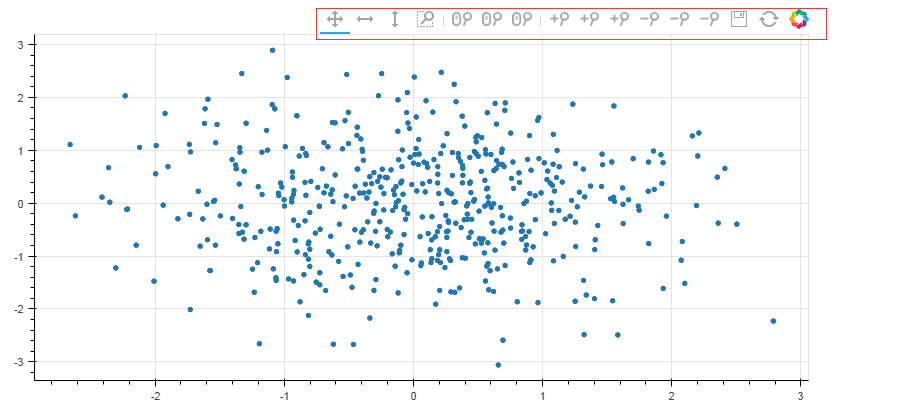
② 移动、放大缩小、存储、刷新
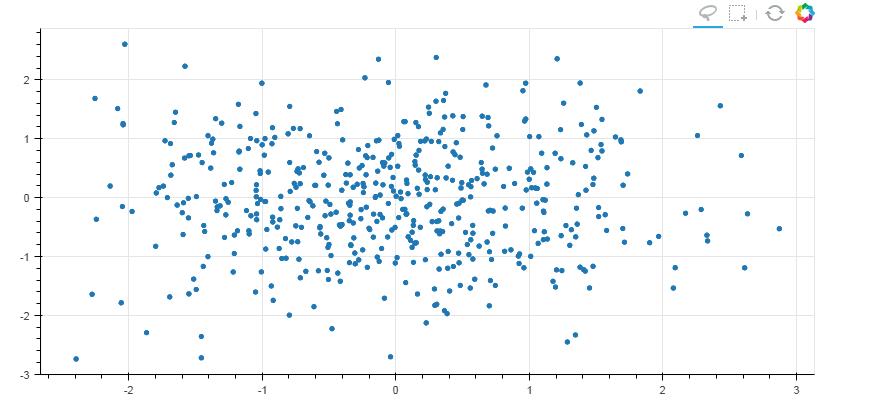
③ 选择
④ 提示框、十字线
1. 位置设置
import numpy as np

import pandas as pd

import matplotlib.pyplot as plt

% matplotlib inline

import warnings

warnings.filterwarnings('ignore')

# 不发出警告

from bokeh.io import output_notebook

output_notebook()

# 导入notebook绘图模块

from bokeh.plotting import figure,show

from bokeh.models import ColumnDataSource

# 导入图表绘制、图标展示模块

# 导入ColumnDataSource模块

# 工具栏 tools

# (1)设置位置

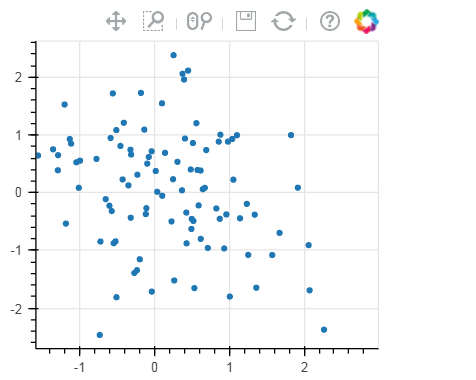
p = figure(plot_width=300, plot_height=300,

          toolbar_location="above")

# 工具栏位置:"above","below","left","right"

p.circle(np.random.randn(100),np.random.randn(100))

show(p)
# 工具栏 tools

# (1)设置位置

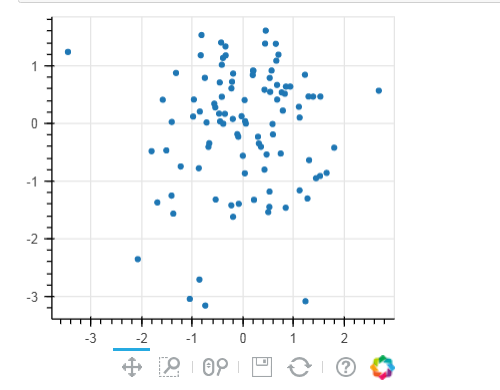
p = figure(plot_width=300, plot_height=300,

           toolbar_location="below",

           toolbar_sticky=False)

# 工具栏位置设置为"below"时,可增加toolbar_sticky参数使得toolsbar不被遮挡

p.circle(np.random.randn(100),np.random.randn(100))

show(p)
2. 移动、放大缩小、存储、刷新
# 工具栏 tools

# (2)移动、放大缩小、存储、刷新

TOOLS = '''

        pan, xpan, ypan,

        box_zoom,

        wheel_zoom, xwheel_zoom, ywheel_zoom,

        zoom_in, xzoom_in, yzoom_in,

        zoom_out, xzoom_out, yzoom_out,

        save,reset

        '''

#pan是直接移动;xpan和ypan分别是横轴、竖轴移动;box_zoom是矩形框放大,wheel_zoom滚轮缩放:直接缩放、X轴缩放、Y轴缩放;通过鼠标点击缩放zoom_in

p = figure(plot_width=800, plot_height=400,toolbar_location="above",

           tools = TOOLS)

# 添加toolbar

# 这里tools = '' 则不显示toolbar

p.circle(np.random.randn(500),np.random.randn(500))

show(p)
3. 选择
# 工具栏 tools

# (3)选择

TOOLS = '''

        box_select,lasso_select,

        reset

        '''

#画多边形和矩形

p = figure(plot_width=800, plot_height=400,toolbar_location="above",

           tools = TOOLS)

# 添加toolbar

p.circle(np.random.randn(500),np.random.randn(500))

show(p)
#联动

from bokeh.layouts import gridplot

TOOLS = '''

        box_select,lasso_select,

        reset

        '''

df = pd.DataFrame(np.random.randn(500,2), columns = ['A', 'B'])

source = ColumnDataSource(data=df)

p1 = figure(plot_width=400, plot_height=400,toolbar_location="above",tools = TOOLS)

p2 = figure(plot_width=400, plot_height=400,toolbar_location="above",tools = TOOLS)

p1.circle(x='index', y='A',source=source)

p2.line(x='index', y='B',source=source)

s = gridplot([[p1, p2]])

show(s)
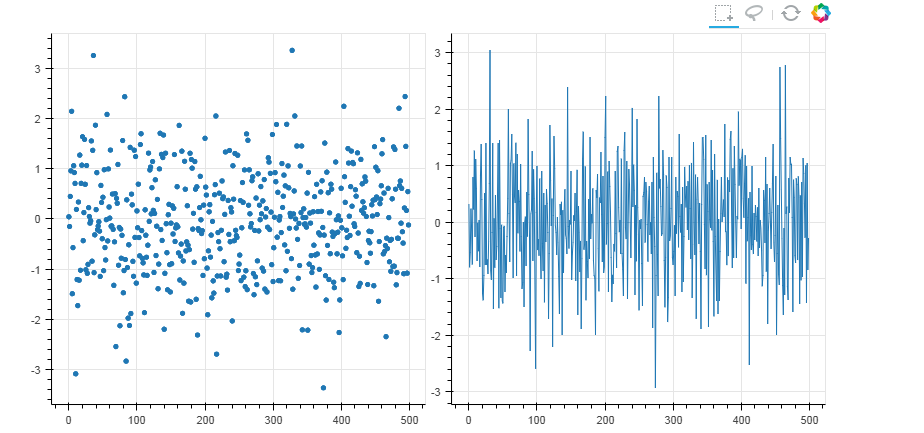
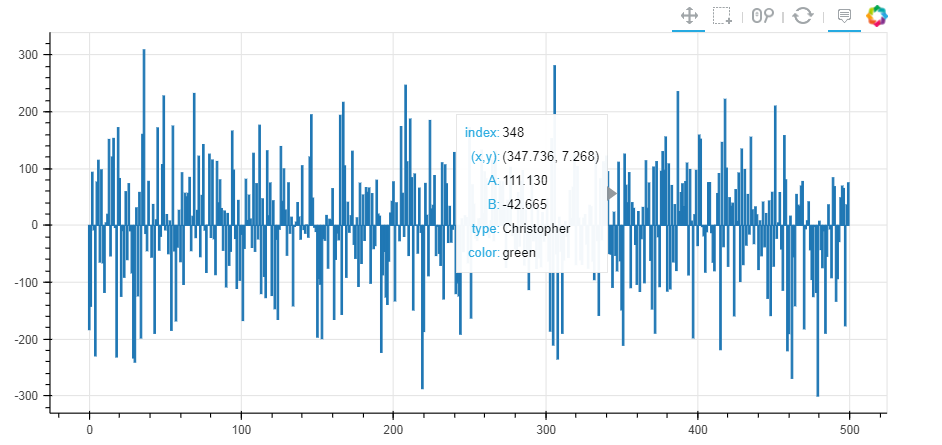
4. 提示框、十字线
# 工具栏 tools

# (4)提示框、十字线

from bokeh.models import HoverTool

# 用于设置显示标签内容

df = pd.DataFrame({'A':np.random.randn(500)*100,

                  'B':np.random.randn(500)*100,

                  'type':np.random.choice(['pooh', 'rabbit', 'piglet', 'Christopher'],500),

                  'color':np.random.choice(['red', 'yellow', 'blue', 'green'],500)})

df.index.name = 'index'

source = ColumnDataSource(df)

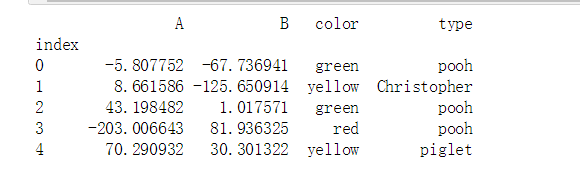
print(df.head())

# 创建数据 → 包含四个标签

p1 = figure(plot_width=800, plot_height=400,toolbar_location="above",

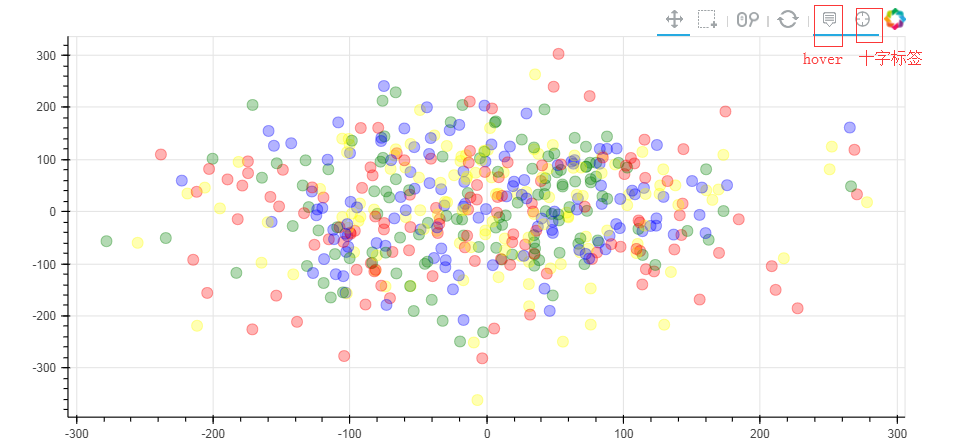
            tools=['hover,box_select,reset,wheel_zoom,pan,crosshair'])   # 注意这里书写方式;  hover它的作用是只是会显示出点的每个标签;crossshair是显示十字叉

# 如果不设置标签,就只写hover,例如 tools='hover,box_select,reset,wheel_zoom,pan,crosshair'

p1.circle(x = 'A',y = 'B',source = source,size = 10,alpha = 0.3, color = 'color')

show(p1)
from bokeh.models import HoverTool

# 用于设置显示标签内容

df = pd.DataFrame({'A':np.random.randn(500)*100,

                  'B':np.random.randn(500)*100,

                  'type':np.random.choice(['pooh', 'rabbit', 'piglet', 'Christopher'],500),

                  'color':np.random.choice(['red', 'yellow', 'blue', 'green'],500)})

df.index.name = 'index'

source = ColumnDataSource(df)

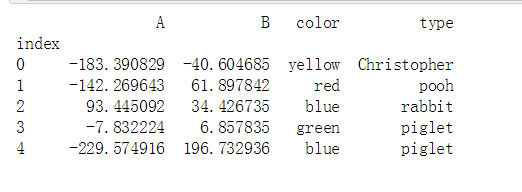
print(df.head())

# 创建数据 → 包含四个标签

hover = HoverTool(tooltips=[

                            ("index", "$index"),

                            ("(x,y)", "($x, $y)"),

                            ("A", "@A"),

                            ("B", "@B"),

                            ("type", "@type"),

                            ("color", "@color"),

                        ])

# 设置标签显示内容

# $index:自动计算 → 数据index

# $x:自动计算 → 数据x值

# $y:自动计算 → 数据y值

# @A:显示ColumnDataSource中对应字段值

p1 = figure(plot_width=800, plot_height=400,toolbar_location="above",

            tools=[hover,'box_select,reset,wheel_zoom,pan,crosshair'])   # 注意这里书写方式;  hover它的作用是只是会显示出点的每个标签;crossshair是显示十字叉

# 如果不设置标签,就只写hover,例如 tools='hover,box_select,reset,wheel_zoom,pan,crosshair'

p1.circle(x = 'A',y = 'B',source = source,size = 10,alpha = 0.3, color = 'color')

show(p1)

p2 = figure(plot_width=800, plot_height=400,toolbar_location="above",

           tools=[hover,'box_select,reset,wheel_zoom,pan'])

p2.vbar(x = 'index', width=1, top='A',source = source)

show(p2)

print(hover) #就是一个生成器

HoverTool(id='3b80258a-2940-4c8a-af3e-9a3905cb7c09', ...)
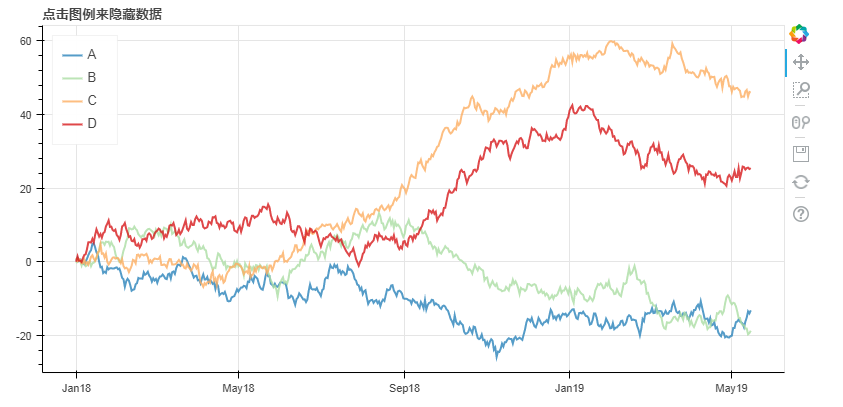
5. 筛选数据
隐藏
# 1、筛选数据 - 隐藏

# legend.click_policy

from bokeh.palettes import Spectral4

# 导入颜色模块

df = pd.DataFrame({'A':np.random.randn(500).cumsum(),

                  'B':np.random.randn(500).cumsum(),

                  'C':np.random.randn(500).cumsum(),

                  'D':np.random.randn(500).cumsum()},

                 index = pd.date_range('',freq = 'D',periods=500))

# 创建数据

p = figure(plot_width=800, plot_height=400, x_axis_type="datetime")

p.title.text = '点击图例来隐藏数据'

for col,color in zip(df.columns.tolist(),Spectral4):

    p.line(df.index,df[col],line_width=2, color=color, alpha=0.8,legend = col)

p.legend.location = "top_left"

p.legend.click_policy="hide"

# 设置图例,点击隐藏

show(p)

消隐
# 1、筛选数据 - 消隐

# legend.click_policy

from bokeh.palettes import Spectral4

# 导入颜色模块

df = pd.DataFrame({'A':np.random.randn(500).cumsum(),

                  'B':np.random.randn(500).cumsum(),

                  'C':np.random.randn(500).cumsum(),

                  'D':np.random.randn(500).cumsum()},

                 index = pd.date_range('',freq = 'D',periods=500))

# 创建数据

p = figure(plot_width=800, plot_height=400, x_axis_type="datetime")

p.title.text = '点击图例来隐藏数据'

for col,color in zip(df.columns.tolist(),Spectral4):

    p.line(df.index,df[col],line_width=2, color=color, alpha=0.8,legend = col,

           muted_color=color, muted_alpha=0.2)   # 设置消隐后的显示颜色、透明度 可以设置muted_color = 'black'

p.legend.location = "top_left"

p.legend.click_policy="mute"

# 设置图例,点击隐藏

show(p)
6. 交互工具
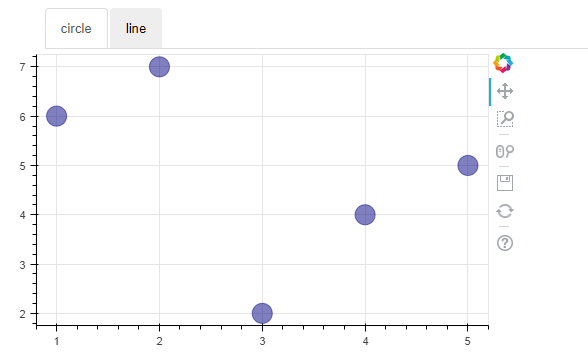
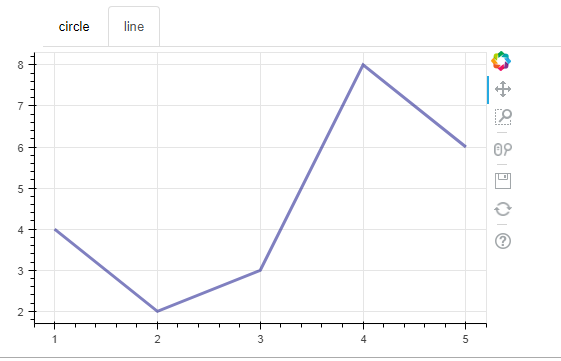
# 2、交互小工具

# 图表分页

from bokeh.models.widgets import Panel, Tabs

# 导入panel,tabs模块

p1 = figure(plot_width=500, plot_height=300)

p1.circle([1, 2, 3, 4, 5], [6, 7, 2, 4, 5], size=20, color="navy", alpha=0.5)

tab1 = Panel(child=p1, title="circle")

# child → 页码

# title → 分页名称

p2 = figure(plot_width=500, plot_height=300)

p2.line([1, 2, 3, 4, 5], [4, 2, 3, 8, 6], line_width=3, color="navy", alpha=0.5)

tab2 = Panel(child=p2, title="line")

tabs = Tabs(tabs=[ tab1, tab2 ])

# 设置分页图表

show(tabs)
Python交互图表可视化Bokeh:7. 工具栏的更多相关文章
- Python交互图表可视化Bokeh:1. 可视交互化原理| 基本设置
Bokeh pandas和matplotlib就可以直接出分析的图表了,最基本的出图方式.是面向数据分析过程中出图的工具:Seaborn相比matplotlib封装了一些对数据的组合和识别的功能:用S ...
- Python交互图表可视化Bokeh:5 柱状图| 堆叠图| 直方图
柱状图/堆叠图/直方图 ① 单系列柱状图② 多系列柱状图③ 堆叠图④ 直方图 1.单系列柱状图 import numpy as np import pandas as pd import matplo ...
- Python交互图表可视化Bokeh:6. 轴线| 浮动| 多图表
绘图表达进阶操作 ① 轴线设置② 浮动设置③ 多图表设置 1. 轴线标签设置 设置字符串 import numpy as np import pandas as pd import matplotli ...
- Python交互图表可视化Bokeh:4. 折线图| 面积图
折线图与面积图 ① 单线图.多线图② 面积图.堆叠面积图 1. 折线图--单线图 import numpy as np import pandas as pd import matplotlib.py ...
- Python交互图表可视化Bokeh:3. 散点图
散点图 ① 基本散点图绘制② 散点图颜色.大小设置方法③ 不同符号的散点图 1. 基本散点图绘制 import numpy as np import pandas as pd import matpl ...
- Python交互图表可视化Bokeh:2. 辅助参数
图表辅助参数设置 辅助标注.注释.矢量箭头 参考官方文档:https://bokeh.pydata.org/en/latest/docs/user_guide/annotations.html#col ...
- Python绘制六种可视化图表详解,三维图最炫酷!你觉得呢?
Python绘制六种可视化图表详解,三维图最炫酷!你觉得呢? 可视化图表,有相当多种,但常见的也就下面几种,其他比较复杂一点,大都也是基于如下几种进行组合,变换出来的.对于初学者来说,很容易被这官网上 ...
- Python 数据图表工具的比较
Python 的科学栈相当成熟,各种应用场景都有相关的模块,包括机器学习和数据分析.数据可视化是发现数据和展示结果的重要一环,只不过过去以来,相对于 R 这样的工具,发展还是落后一些. 幸运的是,过去 ...
- Python绘图与可视化
Python有很多可视化工具,本篇只介绍Matplotlib. Matplotlib是一种2D的绘图库,它可以支持硬拷贝和跨系统的交互,它可以在Python脚本.IPython的交互环境下.Web应用 ...
随机推荐
- Python 生产者与消费者模型
定义: 在并发编程中使用生产者和消费者模式能够解决绝大多数并发问题.该模式通过平衡生产线程和消费线程的工作能力来提高程序的整体处理数据的速度. 为什么要使用生产者和消费者模式 在线程世界里,生 ...
- 点9图 Android设计中如何切图.9.png
转载自:http://blog.csdn.net/buaaroid/article/details/51499516 本文主要介绍如何制作 切图.9.png(点9图),另一篇姊妹篇文章Android屏 ...
- CentOS 7 连接ssh方法
自己在VMware中装了CentOS 6.3,然后主机(或者说xshell)与里面的虚拟机连不通,刚学习,一头雾水,查了半天,也不知道怎么弄. 经指点,找到下面这篇文章,感谢博主: http://bl ...
- hive学习03-求一年中的最大温度
知识点: substr.concat函数的使用: row_number() over(distribute by year sort by temp desc) #按照年分组,按照tmp去排序 需 ...
- vue----less引用
1.安装less. npm install less less-loader --save-dev 2.修改webpack.config.js { test: /\.less$/, use:[ 'st ...
- Windows Server 2016 + SCO 2016 安装及配置介绍
Windows Server 2016 + SCO 2016 安装及配置介绍 高文龙关注1人评论6332人阅读2017-02-26 23:23:02 Windows Server 2016 + SCO ...
- laravel 里面结合关联查询 的when()用法
Laravel 5.6 里面的when用法: $name = $request->get('name'); //活动标题 $start_time = $request->get('star ...
- AI学习吧-登录注册
登录注册注销 如果需要给表设置权限,没有登录就不可以查看,只需要在每个视图函数之前加上Auth_classes=[ ]即可! 增加两张表,做登录认证 #models.py #做登录验证 class U ...
- @ResponseBody//该注解会将返回值转为json格式并放到响应体中返回到前台
- python虚拟环境搭建
1.安装python环境 2.检查pip 3.pip install virtualenv 4.创建测试:virtualenv testvir 5.pip install virtualenvwra ...