
Hololens开发笔记之Gesture手势识别(手势检测反馈)
本文实现当使用者手出现在Hololens视野范围内时,跟踪手并给出反馈的效果。
1、在Manager上添加HandsManager脚本组件,用于追踪识别手
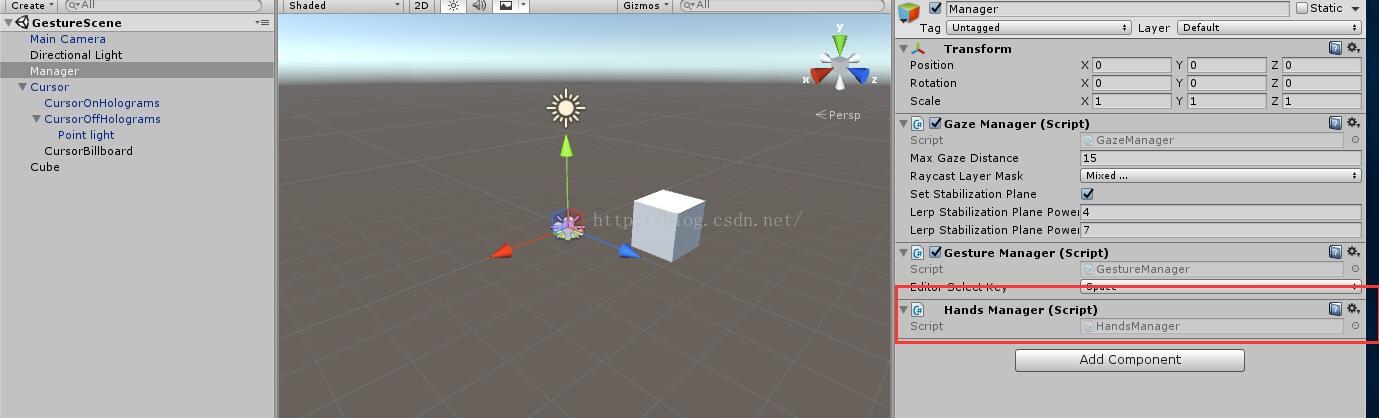
HandsManager.cs如下(直接使用HoloTooKit中脚本)
// Copyright (c) Microsoft Corporation. All rights reserved.

// Licensed under the MIT License. See LICENSE in the project root for license information.

using System.Collections.Generic;

using UnityEngine.VR.WSA.Input;

namespace HoloToolkit.Unity

{

    /// <summary>

    /// HandsManager determines if the hand is currently detected or not.

    /// </summary>

    public partial class HandsManager : Singleton<HandsManager>

    {

        /// <summary>

        /// HandDetected tracks the hand detected state.

        /// Returns true if the list of tracked hands is not empty.

        /// </summary>

        public bool HandDetected

        {

            get { return trackedHands.Count > ; }

        }

        private HashSet<uint> trackedHands = new HashSet<uint>();

        void Awake()

        {

            //识别到来源

            InteractionManager.SourceDetected += InteractionManager_SourceDetected;

            //来源丢失

            InteractionManager.SourceLost += InteractionManager_SourceLost;

        }

        private void InteractionManager_SourceDetected(InteractionSourceState state)

        {

            // 检测来源是否为手,如果是手则加入跟踪集合

            if (state.source.kind != InteractionSourceKind.Hand)

            {

                return;

            }

            trackedHands.Add(state.source.id);

        }

        private void InteractionManager_SourceLost(InteractionSourceState state)

        {

            // 检测丢失的来源是否为手,如果是手则从跟踪集合中去除

            if (state.source.kind != InteractionSourceKind.Hand)

            {

                return;

            }

            if (trackedHands.Contains(state.source.id))

            {

                trackedHands.Remove(state.source.id);

            }

        }

        void OnDestroy()

        {

            InteractionManager.SourceDetected -= InteractionManager_SourceDetected;

            InteractionManager.SourceLost -= InteractionManager_SourceLost;

        }

    }

}
该脚本中使用到了底层API Interaction Input
底层API运行获得输入来源的更多详细信息,例如它在世界中的位置和速度。
如何处理底层交互事件
使用底层交互是很容易的:
1) 注册InteractionManager事件
2) 处理事件
停止它也很容易:
1) 取消注册事件
处理底层交互事件
一旦注册了底层交互事件,在事件发生时你就可以得到回调。你可以使用获取到的时间信息来处理应用行为。
void InteractionManager_SourcePressed(InteractionSourceState state)

{

// state变量里包含以下信息:

// 当前凝视射线信息

// 来源是否被点击

// 位置、速度之类的属性

// 来源id和来源类型 ( hand, voice, controller或其他)

}
如何停止交互事件
当你不再想要关注一些事件后,只需要取消时间注册即可。
InteractionManager.SourcePressed -= InteractionManager_SourcePressed;
输入源变化事件
这些事件描述了输入源的当前状态:
1) detected( 即将激活)
2) lost( 即将取消激活)
3) updates( 移动或者一些状态在变化)
4) is pressed( 点击、按钮按下或者语音选中)
5) is released( 点击结束,按钮松开,语音选中结束)
输入源状态
每个事件都会有一个InteractionSourceState参数,这个参数代表了实时输入源状态:
1) 是否是点击状态
2) InteractionSourceProperties包含了输入源位置信息 InteractionSourceLocation,能够获得当前输入源位置和速度信息
3) 凝视射线信息,用于判断事件发生时用户是否在注视目标
4) 来源类型信息,包括hand、voice、controller或者其他类型
2、在Cursor下新建Empty对象,并重命名为CursorBillboard,并添加Billboard脚本组件
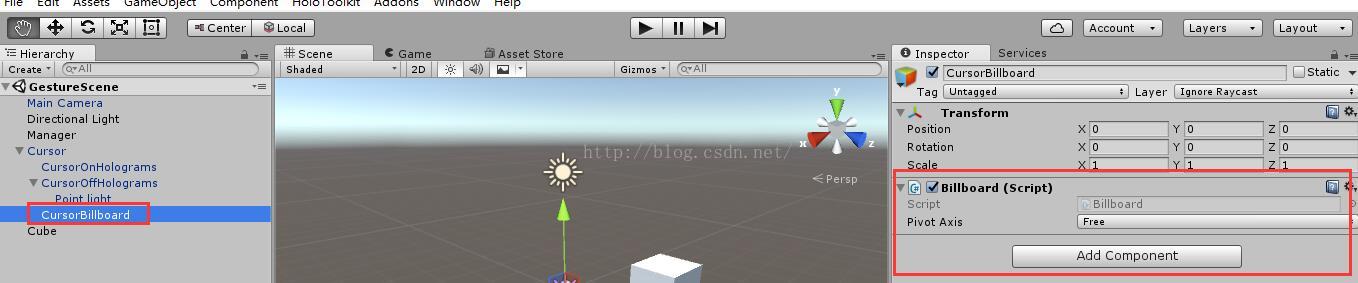
Billboard脚本如下(可以直接在HoloToolKit中找到)
// Copyright (c) Microsoft Corporation. All rights reserved.

// Licensed under the MIT License. See LICENSE in the project root for license information.

using UnityEngine;

namespace HoloToolkit.Unity

{

    public enum PivotAxis

    {

        // Rotate about all axes.

        Free,

        // Rotate about an individual axis.

        X,

        Y

    }

    /// <summary>

    /// The Billboard class implements the behaviors needed to keep a GameObject

    /// oriented towards the user.

    /// </summary>

    public class Billboard : MonoBehaviour

    {

        /// <summary>

        /// The axis about which the object will rotate.

        /// </summary>

        [Tooltip("Specifies the axis about which the object will rotate (Free rotates about both X and Y).")]

        public PivotAxis PivotAxis = PivotAxis.Free;

        /// <summary>

        /// Overrides the cached value of the GameObject's default rotation.

        /// </summary>

        public Quaternion DefaultRotation { get; private set; }

        private void Awake()

        {

            // Cache the GameObject's default rotation.

            DefaultRotation = gameObject.transform.rotation;

        }

        /// <summary>

        /// Keeps the object facing the camera.

        /// </summary>

        private void Update()

        {

            // Get a Vector that points from the Camera to the target.

            Vector3 forward;

            Vector3 up;

            // Adjust for the pivot axis. We need a forward and an up for use with Quaternion.LookRotation

            switch (PivotAxis)

            {

                // If we're fixing one axis, then we're projecting the camera's forward vector onto

                // the plane defined by the fixed axis and using that as the new forward.

                case PivotAxis.X:

                    Vector3 right = transform.right; // Fixed right

                    forward = Vector3.ProjectOnPlane(Camera.main.transform.forward, right).normalized;

                    up = Vector3.Cross(forward, right); // Compute the up vector

                    break;

                case PivotAxis.Y:

                    up = transform.up; // Fixed up

                    forward = Vector3.ProjectOnPlane(Camera.main.transform.forward, up).normalized;

                    break;

                // If the axes are free then we're simply aligning the forward and up vectors

                // of the object with those of the camera.

                case PivotAxis.Free:

                default:

                    forward = Camera.main.transform.forward;

                    up = Camera.main.transform.up;

                    break;

            }

            // Calculate and apply the rotation required to reorient the object

            transform.rotation = Quaternion.LookRotation(forward, up);

        }

    }

}
3、在Cursor上添加CursorFeedback脚本组件
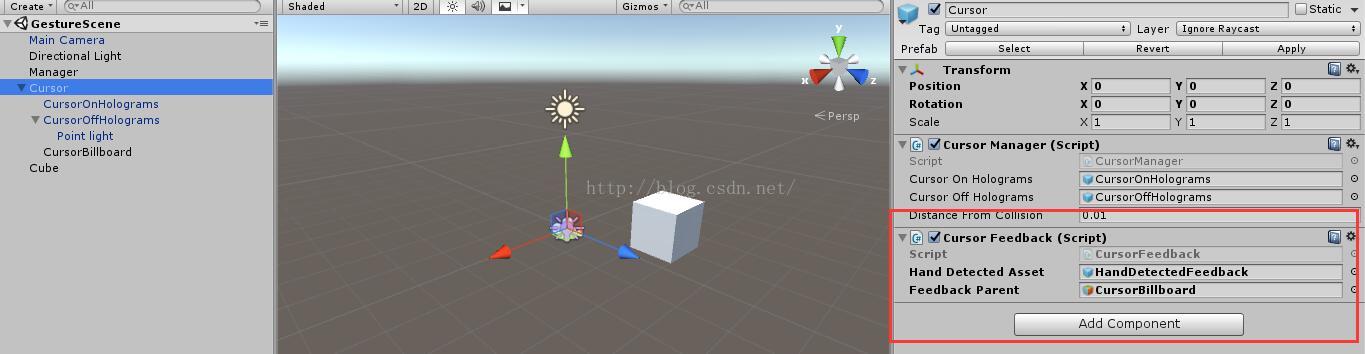
1) 在HoloToolkit -> Input -> Prefabs中找到HandDetectedFeedback Prefab 并拖到CursorFeedback的hand detected asset上
2) 将刚才创建的CursorBillboard拖到CursorFeedback的Feedback Parent上
CursorFeedback脚本如下((可以直接在HoloToolKit中找到))
// Copyright (c) Microsoft Corporation. All rights reserved.

// Licensed under the MIT License. See LICENSE in the project root for license information.

using UnityEngine;

namespace HoloToolkit.Unity

{

    /// <summary>

    /// CursorFeedback class takes GameObjects to give cursor feedback

    /// to users based on different states.

    /// </summary>

    public class CursorFeedback : MonoBehaviour

    {

        [Tooltip("Drag a prefab object to display when a hand is detected.")]

        public GameObject HandDetectedAsset;

        private GameObject handDetectedGameObject;

        [Tooltip("Drag a prefab object to parent the feedback assets.")]

        public GameObject FeedbackParent;

        void Awake()

        {

            if (HandDetectedAsset != null)

            {

                handDetectedGameObject = InstantiatePrefab(HandDetectedAsset);

            }

            else

            {

                Debug.LogError("Missing a required game object asset.  Check HandDetectedAsset is not null in editor.");

            }

        }

        private GameObject InstantiatePrefab(GameObject inputPrefab)

        {

            GameObject instantiatedPrefab = null;

            if (inputPrefab != null && FeedbackParent != null)

            {

                instantiatedPrefab = GameObject.Instantiate(inputPrefab);

                // Assign parent to be the FeedbackParent

                // so that feedback assets move and rotate with this parent.

                instantiatedPrefab.transform.parent = FeedbackParent.transform;

                // Set starting state of the prefab's GameObject to be inactive.

                instantiatedPrefab.gameObject.SetActive(false);

            }

            else

            {

                Debug.LogError("Missing a required game object asset.  Check FeedbackParent is not null in editor.");

            }

            return instantiatedPrefab;

        }

        void Update()

        {

            UpdateHandDetectedState();

        }

        private void UpdateHandDetectedState()

        {

            if (handDetectedGameObject == null)

            {

                return;

            }

            handDetectedGameObject.SetActive(HandsManager.Instance.HandDetected);

        }

    }

}
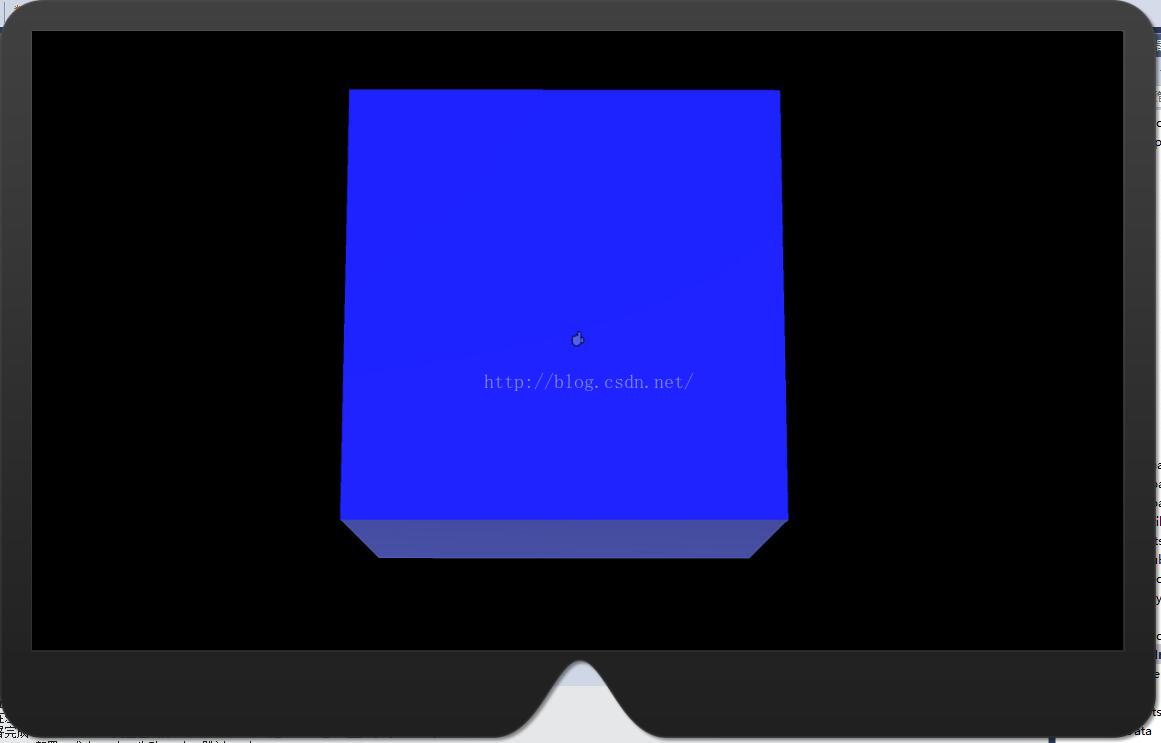
4、运行测试
当手出现在Hololens视野中时,手被检测到,在凝视射线处出现一个蓝色的小手(Hololens模拟器中需要处于hold状态才会出现蓝色小手,真机上只要手举起就可以)
Hololens开发笔记之Gesture手势识别(手势检测反馈)的更多相关文章
- Hololens开发笔记之Gesture手势识别(Manipulation手势控制物体旋转)
Manipulation gesture:保持点击手势,在3D世界中绝对运动 当你想要全息图像1:1响应用户手部移动时,操纵手势能被用于移动.缩放或旋转全息图像.如此的一个用处是使得用户可以在世界中绘 ...
- Hololens开发笔记之Gesture手势识别(Manipulation手势控制物体平移)
Manipulation gesture:保持点击手势,在3D世界中绝对运动 当你想要全息图像1:1响应用户手部移动时,操纵手势能被用于移动.缩放或旋转全息图像.如此的一个用处是使得用户可以在世界中绘 ...
- HoloLens开发笔记之Gesture input手势输入
手势是HoloLens三个首要输入形式之一.一旦你使用凝视定位了一个全息图像,手势允许你与它交互.手势输入允许你使用手或者点击器原生地与全息图像交互. 手势之外,你也可以在应用中使用语音输入来交互. ...
- Hololens开发笔记之Gesture手势识别(单击,双击)
本文使用手势识别实现识别单击及双击手势的功能,当单击Cube时改变颜色为蓝色,当双击Cube时改变颜色为绿色. 手势识别是HoloLens交互的重要输入方法之一.HoloLens提供了底层API和高层 ...
- Hololens开发笔记之Gesture手势识别(基本介绍)
手势识别是HoloLens交互的重要输入方法之一.HoloLens提供了底层API和高层API,可以满足不同的手势定制需求.底层API能够获取手的位置和速度信息,高层API则借助手势识别器来识别预设的 ...
- Hololens开发笔记之使用Unity开发一个简单的应用
一.Hololens概述 Hololens有以下特性 1.空间映射借助微软特殊定制的全息处理单元(HPU),HoloLens 实现了对周边环境的快速扫描和空间匹配.这保证了 HoloLens能够准确地 ...
- Android开发笔记——图片缓存、手势及OOM分析
把图片缓存.手势及OOM三个主题放在一起,是因为在Android应用开发过程中,这三个问题经常是联系在一起的.首先,预览大图需要支持手势缩放,旋转,平移等操作:其次,图片在本地需要进行缓存,避免频繁访 ...
- Hololens开发笔记之连接PC实现资源共享
官网原文介绍:https://developer.microsoft.com/en-us/windows/holographic/using_the_windows_device_portal Hol ...
- Hololens开发笔记:UDP接收数据
Hololens的应用需要与其他设备通信的时候,UDP是比较方便的一种方式,Unity3d 2017.3 C#开发的时候可以用Windows.Networking.Sockets.DatagramSo ...
随机推荐
- JDE FORM开发--checkBox
checkBox设置时,必须指定DD.
- 2016.9.18 --- Shenyang ol
1001 Resident Evil 1002 List wants to travel 1003 hannnnah_j’s Biological Test 1004 Mathematician QS ...
- 如果重新设计网络,有没有可能合并IP地址跟MAC地址?
前阵子看网络基础相关的书籍,冒过一个疑问,为什么要有MAC地址跟IP地址?两者可否合二为一? 现在的逻辑是这样子:在数据传输过程中,路由器查看这个数据包的IP地址,跟路由表中记录的“IP集合:下一 ...
- [强连通分量] POJ 2186 Popular Cows
Popular Cows Time Limit: 2000MS Memory Limit: 65536K Total Submissions: 31815 Accepted: 12927 De ...
- Unity3d_学习笔记_入门
转自:http://blog.csdn.net/zlfxy/article/details/8722437 本文内容来自“编程教父”的视频课程. 1.Unity3d一个游戏引擎,可以用来开发很多游戏. ...
- C#泛型类容器
非泛型容器的缺点: (1) 性能问题. 在使用值类型时,必须将值类型装箱(Boxing)以便推送和存储,并且在将值类型从容器中取出时将其取消装箱(Unboxing).装箱和取消装箱都会根据值类型的权限 ...
- Android 学习第5课,配置android
昨天与今天都在配置安卓的开发环境, 搞的头都大了,步骤比较多 1. 先下载安装 java 的 jdk ,这个是最基础的组件 2. 再下载 android SDK, http://developer. ...
- .NET 强引用和弱引用
一:什么是弱引用 了解弱引用之前,先了解一下什么是强引用 例如 : Object obj=new Object(); 就是一个强引用,内存分配一份空间给用以存储Object数据,这块内存有一个 ...
- Scalding初探之三:Hadoop实战
Java版本 如果在Scala工程中混入Java类导致java版本不match,可能会抛错 java.lang.UnsupportedClassVersionError: XXX Unsupporte ...
- centos启用ftp功能
1.安装vsftpd组件,安装完后,有/etc/vsftpd/vsftpd.conf 文件,用来配置,还有新建了一个ftp用户和ftp的组,指向home目录为/var/ftp,默认是nologin(不 ...