
[转]File uploads in ASP.NET Core
本文转自:https://docs.microsoft.com/en-us/aspnet/core/mvc/models/file-uploads
By Steve Smith
ASP.NET MVC actions support uploading of one or more files using simple model binding for smaller files or streaming for larger files.
View or download sample from GitHub
Uploading small files with model binding
To upload small files, you can use a multi-part HTML form or construct a POST request using JavaScript. An example form using Razor, which supports multiple uploaded files, is shown below:
<form method="post" enctype="multipart/form-data" asp-controller="UploadFiles" asp-action="Index">

    <div class="form-group">

        <div class="col-md-10">

            <p>Upload one or more files using this form:</p>

            <input type="file" name="files" multiple />

        </div>

    </div>

    <div class="form-group">

        <div class="col-md-10">

            <input type="submit" value="Upload" />

        </div>

    </div>

</form>
In order to support file uploads, HTML forms must specify an enctype of multipart/form-data. The files input element shown above supports uploading multiple files. Omit the multiple attribute on this input element to allow just a single file to be uploaded. The above markup renders in a browser as:
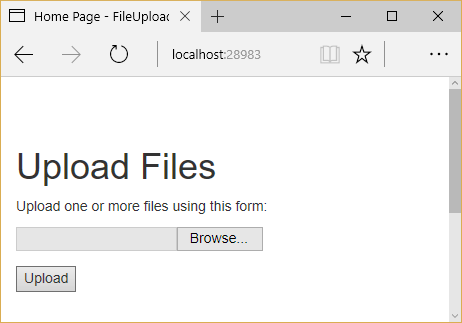
The individual files uploaded to the server can be accessed through Model Binding using the IFormFile interface. IFormFile has the following structure:
public interface IFormFile

{

    string ContentType { get; }

    string ContentDisposition { get; }

    IHeaderDictionary Headers { get; }

    long Length { get; }

    string Name { get; }

    string FileName { get; }

    Stream OpenReadStream();

    void CopyTo(Stream target);

    Task CopyToAsync(Stream target, CancellationToken cancellationToken = null);

}
Warning
Don't rely on or trust the FileName property without validation. The FileName property should only be used for display purposes.
When uploading files using model binding and the IFormFile interface, the action method can accept either a single IFormFile or an IEnumerable<IFormFile> (or List<IFormFile>) representing several files. The following example loops through one or more uploaded files, saves them to the local file system, and returns the total number and size of files uploaded.
Warning: The following code uses GetTempFileName, which throws an IOException if more than 65535 files are created without deleting previous temporary files. A real app should either delete temporary files or use GetTempPath and GetRandomFileName to create temporary file names. The 65535 files limit is per server, so another app on the server can use up all 65535 files.
[HttpPost("UploadFiles")]

public async Task<IActionResult> Post(List<IFormFile> files)

{

    long size = files.Sum(f => f.Length);

    // full path to file in temp location

    var filePath = Path.GetTempFileName();

    foreach (var formFile in files)

    {

        if (formFile.Length > 0)

        {

            using (var stream = new FileStream(filePath, FileMode.Create))

            {

                await formFile.CopyToAsync(stream);

            }

        }

    }

    // process uploaded files

    // Don't rely on or trust the FileName property without validation.

    return Ok(new { count = files.Count, size, filePath});

}
Files uploaded using the IFormFile technique are buffered in memory or on disk on the web server before being processed. Inside the action method, the IFormFile contents are accessible as a stream. In addition to the local file system, files can be streamed to Azure Blob storage or Entity Framework.
To store binary file data in a database using Entity Framework, define a property of type byte[] on the entity:
public class ApplicationUser : IdentityUser

{

    public byte[] AvatarImage { get; set; }

}
Specify a viewmodel property of type IFormFile:
public class RegisterViewModel

{

    // other properties omitted

    public IFormFile AvatarImage { get; set; }

}
Note
IFormFile can be used directly as an action method parameter or as a viewmodel property, as shown above.
Copy the IFormFile to a stream and save it to the byte array:
// POST: /Account/Register

[HttpPost]

[AllowAnonymous]

[ValidateAntiForgeryToken]

public async Task<IActionResult> Register(RegisterViewModel model)

{

    ViewData["ReturnUrl"] = returnUrl;

    if  (ModelState.IsValid)

    {

        var user = new ApplicationUser {

          UserName = model.Email,

          Email = model.Email

        };

        using (var memoryStream = new MemoryStream())

        {

            await model.AvatarImage.CopyToAsync(memoryStream);

            user.AvatarImage = memoryStream.ToArray();

        }

    // additional logic omitted

    // Don't rely on or trust the model.AvatarImage.FileName property

    // without validation.

}
Note
Use caution when storing binary data in relational databases, as it can adversely impact performance.
Uploading large files with streaming
If the size or frequency of file uploads is causing resource problems for the app, consider streaming the file upload rather than buffering it in its entirety, as the model binding approach shown above does. While using IFormFile and model binding is a much simpler solution, streaming requires a number of steps to implement properly.
Note
Any single buffered file exceeding 64KB will be moved from RAM to a temp file on disk on the server. The resources (disk, RAM) used by file uploads depend on the number and size of concurrent file uploads. Streaming isn't so much about perf, it's about scale. If you try to buffer too many uploads, your site will crash when it runs out of memory or disk space.
The following example demonstrates using JavaScript/Angular to stream to a controller action. The file's antiforgery token is generated using a custom filter attribute and passed in HTTP headers instead of in the request body. Because the action method processes the uploaded data directly, model binding is disabled by another filter. Within the action, the form's contents are read using a MultipartReader, which reads each individual MultipartSection, processing the file or storing the contents as appropriate. Once all sections have been read, the action performs its own model binding.
The initial action loads the form and saves an antiforgery token in a cookie (via the GenerateAntiforgeryTokenCookieForAjax attribute):
[HttpGet]

[GenerateAntiforgeryTokenCookieForAjax]

public IActionResult Index()

{

    return View();

}
The attribute uses ASP.NET Core's built-in Antiforgery support to set a cookie with a request token:
public class GenerateAntiforgeryTokenCookieForAjaxAttribute : ActionFilterAttribute

{

    public override void OnActionExecuted(ActionExecutedContext context)

    {

        var antiforgery = context.HttpContext.RequestServices.GetService<IAntiforgery>();

        // We can send the request token as a JavaScript-readable cookie,

        // and Angular will use it by default.

        var tokens = antiforgery.GetAndStoreTokens(context.HttpContext);

        context.HttpContext.Response.Cookies.Append(

            "XSRF-TOKEN",

            tokens.RequestToken,

            new CookieOptions() { HttpOnly = false });

    }

}
Angular automatically passes an antiforgery token in a request header named X-XSRF-TOKEN. The ASP.NET Core MVC app is configured to refer to this header in its configuration in Startup.cs:
public void ConfigureServices(IServiceCollection services)

{

    // Angular's default header name for sending the XSRF token.

    services.AddAntiforgery(options => options.HeaderName = "X-XSRF-TOKEN");

    services.AddMvc();

}
The DisableFormValueModelBinding attribute, shown below, is used to disable model binding for the Upload action method.
[AttributeUsage(AttributeTargets.Class | AttributeTargets.Method)]

public class DisableFormValueModelBindingAttribute : Attribute, IResourceFilter

{

    public void OnResourceExecuting(ResourceExecutingContext context)

    {

        var factories = context.ValueProviderFactories;

        factories.RemoveType<FormValueProviderFactory>();

        factories.RemoveType<JQueryFormValueProviderFactory>();

    }

    public void OnResourceExecuted(ResourceExecutedContext context)

    {

    }

}
Since model binding is disabled, the Upload action method doesn't accept parameters. It works directly with the Request property of ControllerBase. A MultipartReader is used to read each section. The file is saved with a GUID filename and the key/value data is stored in a KeyValueAccumulator. Once all sections have been read, the contents of the KeyValueAccumulator are used to bind the form data to a model type.
The complete Upload method is shown below:
Warning: The following code uses GetTempFileName, which throws an IOException if more than 65535 files are created without deleting previous temporary files. A real app should either delete temporary files or use GetTempPath and GetRandomFileName to create temporary file names. The 65535 files limit is per server, so another app on the server can use up all 65535 files.
// 1. Disable the form value model binding here to take control of handling

//    potentially large files.

// 2. Typically antiforgery tokens are sent in request body, but since we

//    do not want to read the request body early, the tokens are made to be

//    sent via headers. The antiforgery token filter first looks for tokens

//    in the request header and then falls back to reading the body.

[HttpPost]

[DisableFormValueModelBinding]

[ValidateAntiForgeryToken]

public async Task<IActionResult> Upload()

{

    if (!MultipartRequestHelper.IsMultipartContentType(Request.ContentType))

    {

        return BadRequest($"Expected a multipart request, but got {Request.ContentType}");

    }

    // Used to accumulate all the form url encoded key value pairs in the

    // request.

    var formAccumulator = new KeyValueAccumulator();

    string targetFilePath = null;

    var boundary = MultipartRequestHelper.GetBoundary(

        MediaTypeHeaderValue.Parse(Request.ContentType),

        _defaultFormOptions.MultipartBoundaryLengthLimit);

    var reader = new MultipartReader(boundary, HttpContext.Request.Body);

    var section = await reader.ReadNextSectionAsync();

    while (section != null)

    {

        ContentDispositionHeaderValue contentDisposition;

        var hasContentDispositionHeader = ContentDispositionHeaderValue.TryParse(section.ContentDisposition, out contentDisposition);

        if (hasContentDispositionHeader)

        {

            if (MultipartRequestHelper.HasFileContentDisposition(contentDisposition))

            {

                targetFilePath = Path.GetTempFileName();

                using (var targetStream = System.IO.File.Create(targetFilePath))

                {

                    await section.Body.CopyToAsync(targetStream);

                    _logger.LogInformation($"Copied the uploaded file '{targetFilePath}'");

                }

            }

            else if (MultipartRequestHelper.HasFormDataContentDisposition(contentDisposition))

            {

                // Content-Disposition: form-data; name="key"

                //

                // value

                // Do not limit the key name length here because the

                // multipart headers length limit is already in effect.

                var key = HeaderUtilities.RemoveQuotes(contentDisposition.Name);

                var encoding = GetEncoding(section);

                using (var streamReader = new StreamReader(

                    section.Body,

                    encoding,

                    detectEncodingFromByteOrderMarks: true,

                    bufferSize: 1024,

                    leaveOpen: true))

                {

                    // The value length limit is enforced by MultipartBodyLengthLimit

                    var value = await streamReader.ReadToEndAsync();

                    if (String.Equals(value, "undefined", StringComparison.OrdinalIgnoreCase))

                    {

                        value = String.Empty;

                    }

                    formAccumulator.Append(key, value);

                    if (formAccumulator.ValueCount > _defaultFormOptions.ValueCountLimit)

                    {

                        throw new InvalidDataException($"Form key count limit {_defaultFormOptions.ValueCountLimit} exceeded.");

                    }

                }

            }

        }

        // Drains any remaining section body that has not been consumed and

        // reads the headers for the next section.

        section = await reader.ReadNextSectionAsync();

    }

    // Bind form data to a model

    var user = new User();

    var formValueProvider = new FormValueProvider(

        BindingSource.Form,

        new FormCollection(formAccumulator.GetResults()),

        CultureInfo.CurrentCulture);

    var bindingSuccessful = await TryUpdateModelAsync(user, prefix: "",

        valueProvider: formValueProvider);

    if (!bindingSuccessful)

    {

        if (!ModelState.IsValid)

        {

            return BadRequest(ModelState);

        }

    }

    var uploadedData = new UploadedData()

    {

        Name = user.Name,

        Age = user.Age,

        Zipcode = user.Zipcode,

        FilePath = targetFilePath

    };

    return Json(uploadedData);

}
Troubleshooting
Below are some common problems encountered when working with uploading files and their possible solutions.
Unexpected Not Found error with IIS
The following error indicates your file upload exceeds the server's configured maxAllowedContentLength:
HTTP 404.13 - Not Found

The request filtering module is configured to deny a request that exceeds the request content length.
The default setting is 30000000, which is approximately 28.6MB. The value can be customized by editing web.config:
<system.webServer>

  <security>

    <requestFiltering>

      <!-- This will handle requests up to 50MB -->

      <requestLimits maxAllowedContentLength="52428800" />

    </requestFiltering>

  </security>

</system.webServer>
This setting only applies to IIS. The behavior doesn't occur by default when hosting on Kestrel. For more information, see Request Limits <requestLimits>.
Null Reference Exception with IFormFile
If your controller is accepting uploaded files using IFormFile but you find that the value is always null, confirm that your HTML form is specifying an enctype value of multipart/form-data. If this attribute isn't set on the <form> element, the file upload won't occur and any bound IFormFile arguments will be null.
[转]File uploads in ASP.NET Core的更多相关文章
- File upload in ASP.NET Core web API
参考1:File upload in ASP.NET Core web API https://www.janaks.com.np/file-upload-asp-net-core-web-api/ ...
- ASP.NET Core MVC如何上传文件及处理大文件上传
用文件模型绑定接口:IFormFile (小文件上传) 当你使用IFormFile接口来上传文件的时候,一定要注意,IFormFile会将一个Http请求中的所有文件都读取到服务器内存后,才会触发AS ...
- asp dotnet core 支持客户端上传文件
本文告诉大家如何在 asp dotnet core 支持客户端上传文件 新建一个 asp dotnet core 程序,创建一个新的类,用于给客户端上传文件的信息 public class Kanaj ...
- 如何在ASP.NET Core中自定义Azure Storage File Provider
文章标题:如何在ASP.NET Core中自定义Azure Storage File Provider 作者:Lamond Lu 地址:https://www.cnblogs.com/lwqlun/p ...
- ASP.NET Core 2.0中如何更改Http请求的maxAllowedContentLength最大值
Web.config中的maxAllowedContentLength这个属性可以用来设置Http的Post类型请求可以提交的最大数据量,超过这个数据量的Http请求ASP.NET Core会拒绝并报 ...
- ASP.NET Core Logging Solution
Serilog.Extensions.Logging.File This package makes it a one-liner - loggerFactory.AddFile() - to con ...
- ASP.NET Core File Providers
原文地址:FileProvider By Steve Smith ASP.NET Core通过对File Providers的使用实现了对文件系统访问的抽象. 查看或下载示例代码 File Provi ...
- [ASP.NET Core] Static File Middleware
前言 本篇文章介绍ASP.NET Core里,用来处理静态档案的Middleware,为自己留个纪录也希望能帮助到有需要的开发人员. ASP.NET Core官网 结构 一个Web站台最基本的功能,就 ...
- Asp.net mvc 3 file uploads using the fileapi
Asp.net mvc 3 file uploads using the fileapi I was recently given the task of adding upload progress ...
随机推荐
- Django:如何给文章列表添加图片
思路: 使用ajax方式将图片和文本一起通过formData提交到后台,Django后台通过request.POST和request.FILES方式接收数据 1.前端代码 {% extends 'ba ...
- WebRequest请求被中止: 未能创建 SSL/TLS 安全通道
使用System.Net.WebRequest.Create(url)抓取某网站信息时 ,出现“未能创建 SSL/TLS 安全通道”此条异常信息 解决方案 引用:using System.Net; 在 ...
- Ocelot中文文档入门
入门 Ocelot仅适用于.NET Core,目前是根据netstandard2.0构建的,如果Ocelot适合您,这个文档可能会有用. .NET Core 2.1 安装NuGet包 使用nuget安 ...
- OSLab课堂作业2
日期:2019/3/23 内容: 实现内容 要求 mysys.c 实现函数mysys,用于执行一个系统命令. mysys的功能与系统函数system相同,要求用进程管理相关系统调用自己实现一遍 使 ...
- Sentinel 哨兵 实现redis高可用
本文链接:http://www.cnblogs.com/zhenghongxin/p/8885879.html 我们知道redis是有主从复制的,例如下图: 但如果master主进程挂掉之后,没有sl ...
- CF 798B 渣渣题
题目链接:http://codeforces.com/contest/798/problem/B 此题是我打河工大校赛前一晚熬夜打CF时硬肛过去的B题,今天补题时,偶然看到dalao的代码,ORZ,s ...
- zookeeper基本操作
理解Zookeeper的一种方法是将他视为一个提供高可用性的文件系统.它没有文件和目录,但是有一个统一概念的节点,叫做znode,作为数据以及其他znode的容器.znode来自于一个层次级的命名空间 ...
- spring3.2+mybatis3.2+maven整合
用maven管理spring+mybatis的项目: 这里主要讲述的是maven中的pom.xml文件的配置,以及在maven构建过程中会碰到的几个问题(我用的是maven4.4的版本): 首先一步一 ...
- SecureCRT连接Ubuntu,centos失败,长时间的重新连接,连接不了解决办法
Ubuntu,centos默认未安装ssh远程加密连接服务.使用命令,安装即可. 0.sudo apt-get install openssh-server openssh-client 1.rpm ...
- Dynamic Type
啥是 Dynamic Type 动态字体,即视力不好的用户,调整了默认字体的大小,开发者应该根据这个设置,动态改变界面的字体等,保证用户能看得清楚. 这个还是蛮重要的,视力不好的人越来越多. 用户在哪 ...