
C# 使用Epplus导出数据到Excel
简介:Epplus是一个使用Open Office XML(Xlsx)文件格式,能读写Excel 2007/2010文件的开源组件
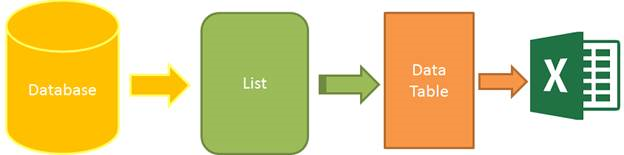
准备:
1.创建对象
namespace Models

{

    public class Student

    {

        public int ID { get; set; }

        public string Name { get; set; }

        public string Sex { get; set; }

        public int Age { get; set; }

        public string Email { get; set; }

    }

}
1.创建Excel帮助类
using OfficeOpenXml;

using OfficeOpenXml.Style;

using System;

using System.Collections.Generic;

using System.ComponentModel;

using System.Data;

using System.Linq;

namespace Common

{

    /// <summary>

    /// Excel导出帮助类

    /// </summary>

    public class ExcelExportHelper

    {

        public static string ExcelContentType => "application/vnd.openxmlformats-officedocument.spreadsheetml.sheet";

        /// <summary>

        /// List转DataTable

        /// </summary>

        /// <typeparam name="T"></typeparam>

        /// <param name="data"></param>

        /// <returns></returns>

        public static DataTable ListToDataTable<T>(List<T> data)

        {

            PropertyDescriptorCollection properties = TypeDescriptor.GetProperties(typeof(T));

            DataTable dataTable = new DataTable();

            for (int i = 0; i < properties.Count; i++)

            {

                PropertyDescriptor property = properties[i];

                dataTable.Columns.Add(property.Name, Nullable.GetUnderlyingType(property.PropertyType) ?? property.PropertyType);

            }

            object[] values = new object[properties.Count];

            foreach (T item in data)

            {

                for (int i = 0; i < values.Length; i++)

                {

                    values[i] = properties[i].GetValue(item);

                }

                dataTable.Rows.Add(values);

            }

            return dataTable;

        }

        /// <summary>

        /// 导出Excel

        /// </summary>

        /// <param name="dataTable">数据源</param>

        /// <param name="heading">工作簿Worksheet</param>

        /// <param name="showSrNo">//是否显示行编号</param>

        /// <param name="columnsToTake">要导出的列</param>

        /// <returns></returns>

        public static byte[] ExportExcel(DataTable dataTable, string heading = "", bool showSrNo = false, params string[] columnsToTake)

        {

            byte[] result;

            using (ExcelPackage package = new ExcelPackage())

            {

                ExcelWorksheet workSheet = package.Workbook.Worksheets.Add($"{heading}Data");

                int startRowFrom = string.IsNullOrEmpty(heading) ? 1 : 3;  //开始的行

                //是否显示行编号

                if (showSrNo)

                {

                    DataColumn dataColumn = dataTable.Columns.Add("#", typeof(int));

                    dataColumn.SetOrdinal(0);

                    int index = 1;

                    foreach (DataRow item in dataTable.Rows)

                    {

                        item[0] = index;

                        index++;

                    }

                }

                //Add Content Into the Excel File

                workSheet.Cells["A" + startRowFrom].LoadFromDataTable(dataTable, true);

                // autofit width of cells with small content

                int columnIndex = 1;

                foreach (DataColumn item in dataTable.Columns)

                {

                    ExcelRange columnCells = workSheet.Cells[workSheet.Dimension.Start.Row, columnIndex, workSheet.Dimension.End.Row, columnIndex];

                    int maxLength = columnCells.Max(cell => cell.Value.ToString().Count());

                    if (maxLength < 150)

                    {

                        workSheet.Column(columnIndex).AutoFit();

                    }

                    columnIndex++;

                }

                // format header - bold, yellow on black

                using (ExcelRange r = workSheet.Cells[startRowFrom, 1, startRowFrom, dataTable.Columns.Count])

                {

                    r.Style.Font.Color.SetColor(System.Drawing.Color.White);

                    r.Style.Font.Bold = true;

                    r.Style.Fill.PatternType = ExcelFillStyle.Solid;

                    r.Style.Fill.BackgroundColor.SetColor(System.Drawing.ColorTranslator.FromHtml("#1fb5ad"));

                }

                // format cells - add borders

                using (ExcelRange r = workSheet.Cells[startRowFrom + 1, 1, startRowFrom + dataTable.Rows.Count, dataTable.Columns.Count])

                {

                    r.Style.Border.Top.Style = ExcelBorderStyle.Thin;

                    r.Style.Border.Bottom.Style = ExcelBorderStyle.Thin;

                    r.Style.Border.Left.Style = ExcelBorderStyle.Thin;

                    r.Style.Border.Right.Style = ExcelBorderStyle.Thin;

                    r.Style.Border.Top.Color.SetColor(System.Drawing.Color.Black);

                    r.Style.Border.Bottom.Color.SetColor(System.Drawing.Color.Black);

                    r.Style.Border.Left.Color.SetColor(System.Drawing.Color.Black);

                    r.Style.Border.Right.Color.SetColor(System.Drawing.Color.Black);

                }

                // removed ignored columns

                for (int i = dataTable.Columns.Count - 1; i >= 0; i--)

                {

                    if (i == 0 && showSrNo)

                    {

                        continue;

                    }

                    if (!columnsToTake.Contains(dataTable.Columns[i].ColumnName))

                    {

                        workSheet.DeleteColumn(i + 1);

                    }

                }

                if (!string.IsNullOrEmpty(heading))

                {

                    workSheet.Cells["A1"].Value = heading;

                    workSheet.Cells["A1"].Style.Font.Size = 20;

                    workSheet.InsertColumn(1, 1);

                    workSheet.InsertRow(1, 1);

                    workSheet.Column(1).Width = 5;

                }

                result = package.GetAsByteArray();

            }

            return result;

        }

        /// <summary>

        /// 导出Excel

        /// </summary>

        /// <typeparam name="T"></typeparam>

        /// <param name="data"></param>

        /// <param name="heading"></param>

        /// <param name="isShowSlNo"></param>

        /// <param name="columnsToTake"></param>

        /// <returns></returns>

        public static byte[] ExportExcel<T>(List<T> data, string heading = "", bool isShowSlNo = false, params string[] columnsToTake)

        {

            return ExportExcel(ListToDataTable(data), heading, isShowSlNo, columnsToTake);

        }

    }

}
3.获取数据并显示
//数据类
using System.Collections.Generic;
{
//数据类
public class StaticDataOfStudent
{
public static List<Student> ListStudent => new List<Student>
{
new Student {ID = 1, Name = "曹操", Sex = "男", Email = "caocao@163.com", Age = 24},
new Student {ID = 2, Name = "李易峰", Sex = "女", Email = "lilingjie@sina.com.cn", Age = 24},
new Student {ID = 3, Name = "张三丰", Sex = "男", Email = "zhangsanfeng@qq.com", Age = 224},
new Student {ID = 4, Name = "孙权", Sex = "男", Email = "sunquan@163.com", Age = 1224},
};
}
}
//用于显示的数据类
using Models;
using System.Collections.Generic;
{
public class StudentViewModel
{
public List<Student> ListStudent => StaticDataOfStudent.ListStudent;
}
}
实现部分:
1.控制器
using Common;
using EPPlusMvcDemo2.Models;
using Models;
using System.Collections.Generic;
using System.Web.Mvc;
{
public class HomeController : Controller
{
// GET: Home
public ActionResult Index()
{
StudentViewModel model = new StudentViewModel();
return View(model);
}
//导出
public FileContentResult ExportToExcel()
{
List<Student> lstStudent = StaticDataOfStudent.ListStudent;
string[] columns = { "ID", "Name", "Age" };
byte[] filecontent = ExcelExportHelper.ExportExcel(lstStudent, "", false, columns);
return File(filecontent, ExcelExportHelper.ExcelContentType, "MyStudent.xlsx");
}
}
}
2.视图
@model EPPlusMvcDemo2.Models.StudentViewModel
@{
    ViewBag.Title = "Excel文件导出";
}
<div class="panel">
    <div class="panel-heading">
        <a href="@Url.Action("ExportToExcel")" class="btn btn-primary">Export</a>
    </div>
    <div class="panel-body">
        <table class="table table-striped table-bordered">
            <thead>
            <tr>
                <th>ID</th>
                <th>Name</th>
                <th>Sex</th>
                <th>Age</th>
                <th>Email</th>
            </tr>
            </thead>
            <tbody>
            @foreach (var item in Model.ListStudent)
            {
                <tr>
                    <td>@item.ID</td>
                    <td>@item.Name</td>
                    <td>@item.Sex</td>
                    <td>@item.Age</td>
                    <td>@item.Email</td>
                </tr>
            }
            </tbody>
        </table>
    </div>
</div>
原文:https://www.cnblogs.com/caofangsheng/p/6149843.html
C# 使用Epplus导出数据到Excel的更多相关文章
- 1.ASP.NET MVC使用EPPlus,导出数据到Excel中
好久没写博客了,今天特地来更新一下,今天我们要学习的是如何导出数据到Excel文件中,这里我使用的是免费开源的Epplus组件. 源代码下载:https://github.com/caofangshe ...
- 导出数据到Excel --使用ExcelReport有感
先看图,这是几个月前用NPOI写的导出数据到Excel,用了上百行代码,而且难控制,导出来也比较难看 excel打开的效果 下面是我用ExcelReport类库导出到Excel的操作 1.首先引用Ex ...
- 使用Open xml 操作Excel系列之二--从data table导出数据到Excel
由于Excel中提供了透视表PivotTable,许多项目都使用它来作为数据分析报表. 在有些情况下,我们需要在Excel中设计好模板,包括数据源表,透视表等, 当数据导入到数据源表时,自动更新透视表 ...
- Dynamics CRM导出数据到Excel
原创地址:http://www.cnblogs.com/jfzhu/p/4276212.html 转载请注明出处 Pivot Table是微软BI的一个重要工具,所以这里讲一下Dynamics CRM ...
- MVC导出数据到EXCEL新方法:将视图或分部视图转换为HTML后再直接返回FileResult
导出EXCEL方法总结 MVC导出数据到EXCEL的方法有很多种,常见的是: 1.采用EXCEL COM组件来动态生成XLS文件并保存到服务器上,然后转到该文件存放路径即可: 优点:可设置丰富的EXC ...
- php导出数据到excel,防止身份证等数字字符格式变成科学计数的方法
而关于php的也有,但是大多都是用phpExcel导出的方法或者spreadsheet等类或者控件之类的导出方法,而我所在维护的系统却用很简单的方法,如下,网上很少有讲如何设置要导出数据的EXcel格 ...
- NPOI导出数据到Excel
NPOI导出数据到Excel 前言 Asp.net操作Excel已经是老生长谈的事情了,可下面我说的这个NPOI操作Excel,应该是最好的方案了,没有之一,使用NPOI能够帮助开发者在没有安装微 ...
- ASP.NET导出数据到Excel 实例介绍
ASP.NET导出数据到Excel 该方法只是把asp.net页面保存成html页面只是把后缀改为xlc不过excel可以读取,接下连我看看还有别的方式能导出数据,并利用模版生成. 下面是代码 新建 ...
- C#导出数据到Excel通用的方法类
导出数据到Excel通用的方法类,请应对需求自行修改. 资源下载列表 using System.Data; using System.IO; namespace IM.Common.Tools { p ...
随机推荐
- 如何对Web服务器进行飓风级防御
万一你的网站被DDOS飓风式攻击,你会怎么办?笔者以经验告诉你,这里的每一层都起着保护网站的作用.如果您宁愿拥有如何在单台服务器上维持大量流量的版本,则可以: 专用硬件服务器,无共享主机 千兆上行链路 ...
- pspice建立仿真模型元件库
摘自:http://royroyyy.blog.163.com/blog/static/1376506172011026102216175/ PSpice9.2电子元器件模型--由网页下载的model ...
- Test 6.29 T4 简单数据结构练习
问题描述 费了一番功夫,神犇 CJK 终于完成了前三道题目."不错,不愧是新一代神犇啊!" JesseLiu 满意地说道,"不过,你在算法方面的功底固然不错.对于数据结构 ...
- go入门收集(转)
go mod 使用 原文地址: https://juejin.im/post/5c8e503a6fb9a070d878184a
- Django2 + ORM 做一个简单的登陆
. ├── db.sqlite3 ├── manage.py ├── myormLogin │ ├── __init__.py │ ├── __pycache__ │ │ ├── __ ...
- python_012
一.内置函数 1.sorted()排序函数 a:语法sorted(Iterable,key = None,reverse = False) Iterable:可迭代对象;key:排序规则(函数) ls ...
- (2)用C语言实现面向对象---封装、继承和多态
封装:struct中封装成员变量和函数指针. 继承:结构体中嵌套结构体. 多态:子类对象动态指向父类的现象叫多态. void pFunction2(void) { printf(“函数2”): } ...
- Crazy Binary String
Crazy Binary String 最长01个数相等的子串和子序列 字串用二分做的,有hack数据 :8 00111100 好像数据太水,直接放过去了 下面为二分代码 #include<bi ...
- Maven安装本地jar包至本地repository
1.安装jar包 Maven 安装 JAR 包的命令是: mvn install:install-file -Dfile=jar包的位置 -DgroupId=上面的groupId -Dartifa ...
- 在java中
// 进入prompt回调 public class JSBridgeWebChromeClient extends WebChromeClient { @Override public boolea ...