
[py]django上线部署-uwsgi+nginx+py3/django1.10
https://github.com/lannyMa/django-uwsgi-nginx.git
单机调试启动-确保项目代码没问题
- 克隆代码进入项目

git clone https://github.com/lannyMa/django-blog-tutorial.git

cd django-blog-tutorial

- 创建并进入虚拟环境

pip install virtualenv

virtualenv blogproject_env

- 如果需要mysql-devel

yum install -y python-devel mysql-devel

pip install MySQL-python

- 安装项目依赖

pip install -r requirements.txt

- 同步数据库,创建超级管理员

python manage.py migrate

python manage.py createsuperuser

- 运行

python manage.py runserver

- 访问

http://127.0.0.1:8000

http://127.0.0.1:8000/admin

代码没问题后,考虑部署到生产
生产部署-nginx+uwsgi+django10
部署详情说明
项目源代码: https://github.com/lannyMa/django-blog-tutorial-deploy.git
项目基于Django 1.10 和 Python 3.5
uwsgi+nginx,nginx反代static目录
自己打docker image,容器化部署
dockerfile有py3和py3的环境, supervisor启动nginx+uwsgi
docker镜像(baseimage+code)代码我放到镜像里了,直接run镜像就可以跑起来直接访问了. 先快速跑一下吧.
docekr pull lanny/blog-uwsgi-py3-django1.10

docker run -d -p 8080:80 lanny/blog-uwsgi-py3-django1.10

http://x:8080 来访问,已测过没问题
探究下怎么制作docker镜像
- 先搞清楚nginx+uwsgi+django物理机上是怎么配合工作的,确保手动一步步启动完成没问题,然后再做镜像
- nginx启动 /usr/sbin/nginx

看下nginx.conf配置

    # Django media

    location /media  {

        alias /home/docker/code/app/blog/media;  # your Django project's media files - amend as required

    }

    location /static {

        alias /home/docker/code/app/blog/static; # your Django project's static files - amend as required

    }

    # Finally, send all non-media requests to the Django server.

    location / {

        uwsgi_pass  django;

        include     /home/docker/code/uwsgi_params; # the uwsgi_params file you installed

    }

- 原来nginx把归py处理的uwsgi_pass发给了django的uwsgi,uwsgi用uwsgi_params解析

uwsgi.ini配置文件

[base]

chdir = %dapp/

module=blogproject.wsgi:application

chmod-socket=666

- uwsgi启动

/usr/local/bin/uwsgi --ini /home/docker/code/uwsgi.ini  #启动后会监听端口供与nginx通信

- 文末附录有nginx与wsgi通信原理介绍.
搞清楚了这些后,更近一步着手制作uwsgi+django的docker镜像.
定制属于自己项目的docker镜像
参考地址:这里有python2 和python3版本的环境.可以满足日常需求了.
https://hub.docker.com/r/dockerfiles/django-uwsgi-nginx/
https://github.com/dockerfiles/django-uwsgi-nginx
- 先下载dockerfile: 目录如下
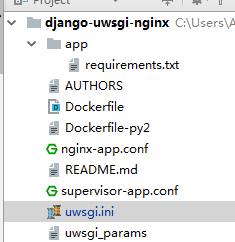
完整的dockerfile和相关配置的关键部分如下
- dockerfile

FROM ubuntu:16.04

MAINTAINER Dockerfiles

# Install required packages and remove the apt packages cache when done.

RUN apt-get update && \

    apt-get upgrade -y && \

    apt-get install -y \

    git \

    python3 \

    python3-dev \

    python3-setuptools \

    python3-pip \

    python3-dev \

    libmysqlclient-dev \

    nginx \

    supervisor \

    sqlite3 && \

    pip3 install -U pip setuptools && \

   rm -rf /var/lib/apt/lists/*

# install uwsgi now because it takes a little while

RUN pip3 install uwsgi

# setup all the configfiles

RUN echo "daemon off;" >> /etc/nginx/nginx.conf

COPY nginx-app.conf /etc/nginx/sites-available/default

COPY supervisor-app.conf /etc/supervisor/conf.d/

# COPY requirements.txt and RUN pip install BEFORE adding the rest of your code, this will cause Docker's caching mechanism

# to prevent re-installing (all your) dependencies when you made a change a line or two in your app.

COPY app/requirements.txt /home/docker/code/app/

RUN pip3 install -r /home/docker/code/app/requirements.txt

# add (the rest of) our code

COPY . /home/docker/code/

RUN git clone https://github.com/lannyMa/django-blog-tutorial-deploy.git tmp && \

    mv tmp/* /home/docker/code/app/ && \

    rm -rf tmp

# install django, normally you would remove this step because your project would already

# be installed in the code/app/ directory

#RUN django-admin.py startproject website /home/docker/code/app/

EXPOSE 80

CMD ["supervisord", "-n"]

- supervisor配置

[program:app-uwsgi]

command = /usr/local/bin/uwsgi --ini /home/docker/code/uwsgi.ini

[program:nginx-app]

command = /usr/sbin/nginx

uwsgi.ini配置文件

[base]

chdir = %dapp/

module=blogproject.wsgi:application

chmod-socket=666
- 修改上面docekrfile的这部分为自己的git项目地址
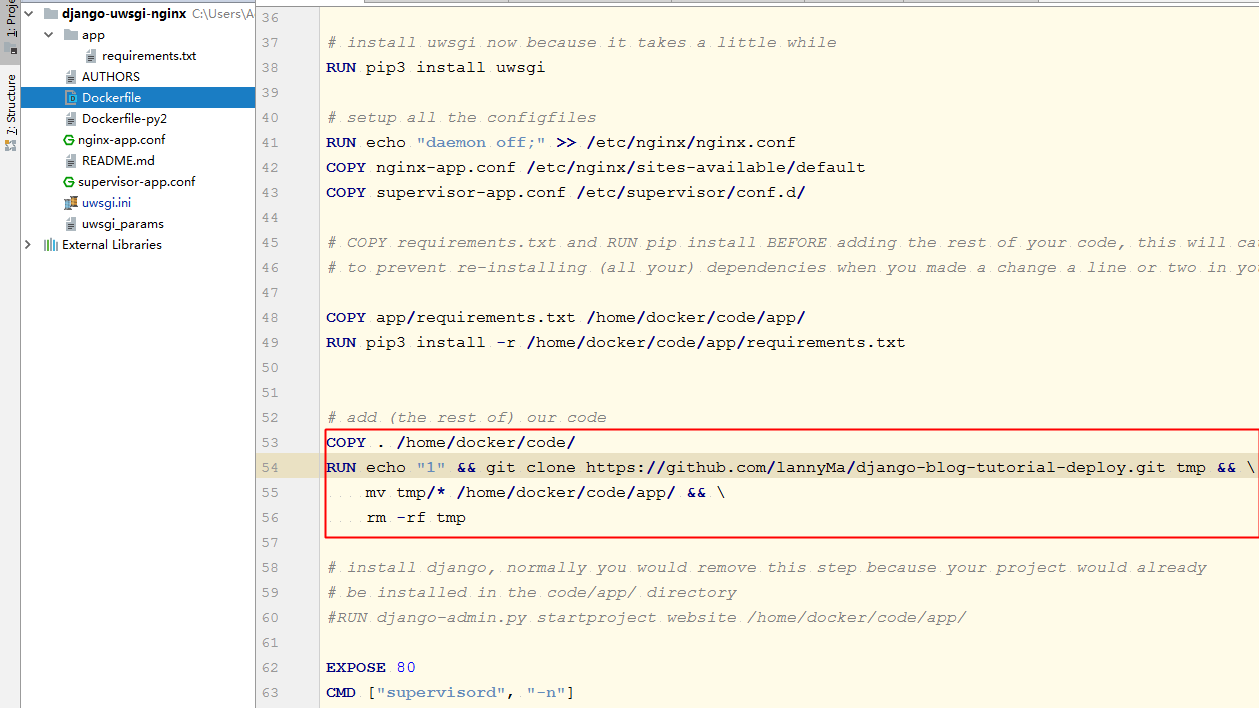
即可修改:
Dockerfile

RUN git clone https://github.com/lannyMa/django-blog-tutorial-deploy.git tmp && \

    mv tmp/* /home/docker/code/app/ && \

    rm -rf tmp
- 修改项目settings.py为

settings.py

ALLOWED_HOSTS = ['*']
- 修改nginx-app.conf的(django项目)static路径.
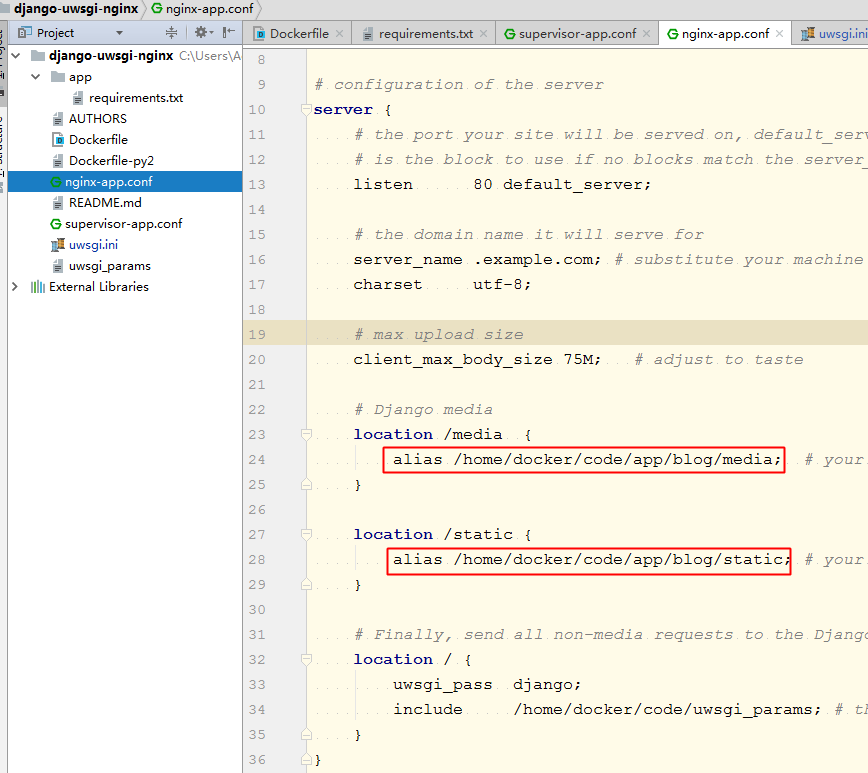
nginx.conf

    location /media  {

        alias /home/docker/persistent/media;  # your Django project's media files - amend as required

    }

    location /static {

        alias /home/docker/volatile/static; # your Django project's static files - amend as required

    }
等这一切修改完成后,开始构建镜像
- 构建docker镜像并运行
docker build -t webapp .

docker run -d -p 80:80 webapp

- 运行后访问即可

docker run -d -p 8080:80 webapp
遇到的问题
界面乱码,css未加载成功

解决: 修改nginx配置为自己项目static的地址
    location /media  {

        alias /home/docker/persistent/media;  # your Django project's media files - amend as required

    }

    location /static {

        alias /home/docker/volatile/static; # your Django project's static files - amend as required

    }
不允许访问,权限拒绝
解决: 修改settings.py
ALLOWED_HOSTS = ['写自己服务器的ip即可']
uwsgi启动失败,扫描不到项目
修改uwsgi.ini

修改为自己项目的地址,
module=blogproject.wsgi:application
这里uwsgi调用的是项目的这个

nginx调用uwsgi.ini

nginx-app.conf
# nginx-app.conf

# the upstream component nginx needs to connect to

upstream django {

    server unix:/home/docker/code/app.sock; # for a file socket

    # server 127.0.0.1:8001; # for a web port socket (we'll use this first)

}

# configuration of the server

server {

    # the port your site will be served on, default_server indicates that this server block

    # is the block to use if no blocks match the server_name

    listen      80 default_server;

    # the domain name it will serve for

    server_name .example.com; # substitute your machine's IP address or FQDN

    charset     utf-8;

    # max upload size

    client_max_body_size 75M;   # adjust to taste

    # Django media

    location /media  {

        alias /home/docker/code/app/blog/media;  # your Django project's media files - amend as required

    }

    location /static {

        alias /home/docker/code/app/blog/static; # your Django project's static files - amend as required

    }

    # Finally, send all non-media requests to the Django server.

    location / {

        uwsgi_pass  django;

        include     /home/docker/code/uwsgi_params; # the uwsgi_params file you installed

    }

}
uwsgi.ini
[uwsgi]

# this config will be loaded if nothing specific is specified

# load base config from below

ini = :base

# %d is the dir this configuration file is in

socket = %dapp.sock

master = true

processes = 4

[dev]

ini = :base

# socket (uwsgi) is not the same as http, nor http-socket

socket = :8001

[local]

ini = :base

http = :8000

# set the virtual env to use

home=/Users/you/envs/env

[base]

chdir = %dapp/

module=blogproject.wsgi:application

chmod-socket=666
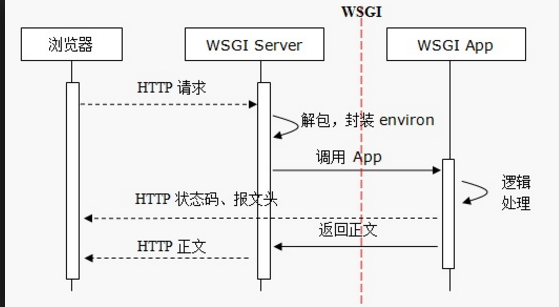
附: 什么是wsgi,和django/flask有什么关系
the web client <-> the web server(nginx) <-> the socket <-> uwsgi <-> Django

gunicorn vs uwsgi是两种不同的appserver

gunicorn vs uwsgi: http://fatelei.github.io/2015/07/05/Gunicorn-vs-uwsgi/

uwsgi在高并发下比gunicorn有更好的吞吐量和更少的错误数



[py]django上线部署-uwsgi+nginx+py3/django1.10的更多相关文章
- Django 部署 uwsgi + nginx + supervisor
Django 部署 uwsgi + nginx + supervisor https://hacpai.com/article/1460607620615?p=1&m=0 zonghua • ...
- django 本地项目部署uwsgi 以及云服务器部署 uwsgi+Nginx+Docker+MySQL主从
一 .django 本地项目部署uwsgi 1 本地部署项目 uwsgi安装测试 通过uwsgi 进行简单部署 安装uwsgi命令:pip install uwsgi -i http://pypi.d ...
- django项目在uwsgi+nginx上部署遇到的坑
本文来自网易云社区 作者:王超 问题背景 django框架提供了一个开发调试使用的WSGIServer, 使用这个服务器可以很方便的开发web应用.但是 正式环境下却不建议使用这个服务器, 其性能.安 ...
- django自带wsgi server vs 部署uwsgi+nginx后的性能对比
一.下面先交代一下测试云主机 cpu: root@alexknight:/tmp/webbench-1.5# cat /proc/cpuinfo |grep model model : model n ...
- Django应用部署:nginx+uwsgi方式
环境准备 nginx+uwsgi方式部署顾名思义,需要nginx和uwsgi两个软件包. nginx不用说,是必备的,关于nginx的安装本文不再赘述,详情可以自行搜索或者参考我以前的文章: Debi ...
- (转) 解决django项目部署到nginx+uwsgi服务器后 admin页面样式消失的问题
原贴地址:https://blog.csdn.net/qq_42571805/article/details/80862455 摘要 uwsgi为主要服务器,nginx为反向代理服务器部署完成之后发现 ...
- Django上线部署之uWSGI
环境: 1.CentOS 7.2 64位 2.SQL Server 2016 Enterprise 64位 3.Python 3.6.5 64位 4.root用户 要求: 按照顺序部署 1.Windo ...
- CentOS 傻瓜式部署uWSGI + nginx + flask
交代背景 这篇帖子是为了提供我自己的July Novel站点的小说数据支撑.解决分布式部署爬虫程序的繁琐过程,由于本人对shell编程并不熟悉,故而先逐步记录操作步骤,通过以下操作达到节省时间的方式. ...
- Django上线部署之IIS
环境: 1.Windows Server 2016 Datacenter 64位 2.SQL Server 2016 Enterprise 64位 3.Python 3.6.0 64位 4.admin ...
随机推荐
- /etc/profile /etc/profile .bash_profile .bashrc解释
1.用户登录系统时,bash首先执行/etc/profile配置文件和/etc/profile.d/目录下的配置文件,这些配置文件对系统的所有用户都有效,它们设置了普遍性的环境变量. 2.然后,Bas ...
- HTML-锚点-JS跳转锚点
window.location.hash使用说明,这篇写的挺详细的 http://www.cnblogs.com/nifengs/p/5104763.html a标签的话是 name,div呢是id, ...
- kafka---->kafka的使用(一)
今天我们来学习一下kafka的简单的使用与配置.世上有可以挽回的和不可挽回的事,而时间经过就是一种不可挽回的事. kafka的安装配置 一.kafka的使用场景 活动跟踪:网站用户与前端应用程序发生交 ...
- java基础---->java注解的使用(一)
注解是众多引入到Java SE5中的重要的语言变化之一.它为我们在代码中添加信息提供了一种形式化的方法,使我们可以在稍后某个时刻非常方便的使用这些数据.今天我们就开始学习一下java中注解的知识. j ...
- spring基础---->spring自定义初始化(一)
这里我们简单的实现一下spring中的初始化bean,以大概了解他的流程.受委屈几乎是一个人成长最快的途径,吃下去的是委屈,消化掉后得到的是格局. spring的自定义初始化 测试的项目结构如下: 一 ...
- 【linux系列】yum安装报错 no mirrors to try
执行以下命令去重新生成缓存 yum clean all yum makecache 更换源重新下载repo文件 重新生成缓存
- 【大数据系列】HDFS文件权限和安全模式、安装
HDFS文件权限 1.与linux文件权限类型 r:read w:write x:execute权限x对于文件忽略,对于文件夹表示是否允许访问其内容 2.如果linux系统用户sanglp使用hado ...
- 浏览器缓存机制介绍 + 常用 http 状态码
浏览器缓存分为两种, 强制缓存 与 协商缓存, https://www.pass4lead.com/300-209.htmlhttps://www.pass4lead.com/300-320.ht ...
- 关于ASP.NET和.NET的区别和联系
对于一个新手,往往会被这些名字给搞蒙了,对不起(笨小孩我也被搞蒙过,见笑啦),这归根结底还是怪自己对知识掌握和了解的不够,废话不多,直接到主题. ASP.NET和.NET的区别和联系 .NET 一般所 ...
- jQuery属性操作(四)
通过阅读jQuery为属性操作封装的基本方法和为处理兼容性问题提供的hooks,发现jQuery在属性操作方面并没有做过多的设计,只是处理一下兼容性问题,然后调用基础的DOM操作方法.以下是对JQue ...