
docker环境搭建
参考地址:https://www.imooc.com/article/details/id/25228
操作系统Centos7
1、替换yum源为阿里云yum源;
//备份yum源

mv /etc/yum.repos.d/CentOS-Base.repo /etc/yum.repos.d/CentOS-Base.repo.backup

//下载阿里yunyum源

wget -O /etc/yum.repos.d/CentOS-Base.repo http://mirrors.aliyun.com/repo/Centos-7.repo

//清除yum缓存

yum clean all

//生成yum缓存

yum makecache
2、安装docker
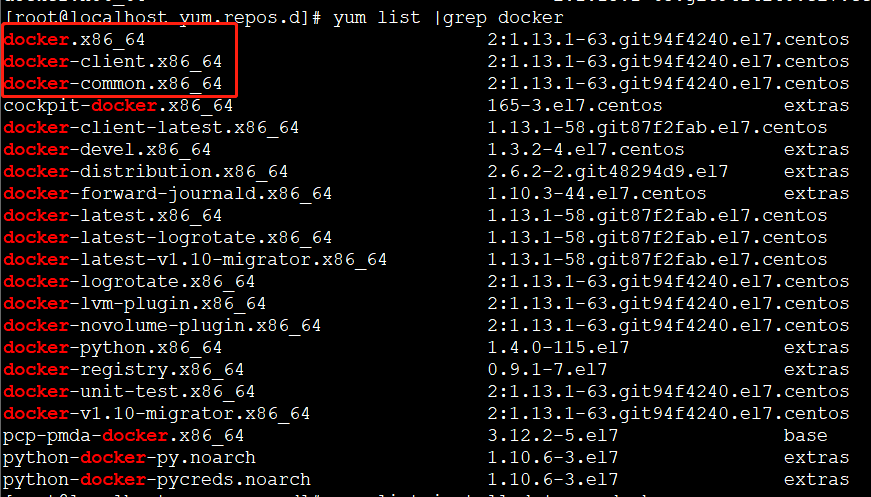
查看yum可以安装的docker,命令:yum list |grep docker
执行安装命令:yum install docker
安装完成之后,查看已经安装的docker,命令:yum list installed |grep docker

可以看出,安装docker需要三个包,见上图
3、添加开机启动
命令:systemctl enable docker.service
4、启动docker
命令:systemctl start docker.service
启动失败,报错信息,查看命令:journalctl -xe,具体错误信息见下图:

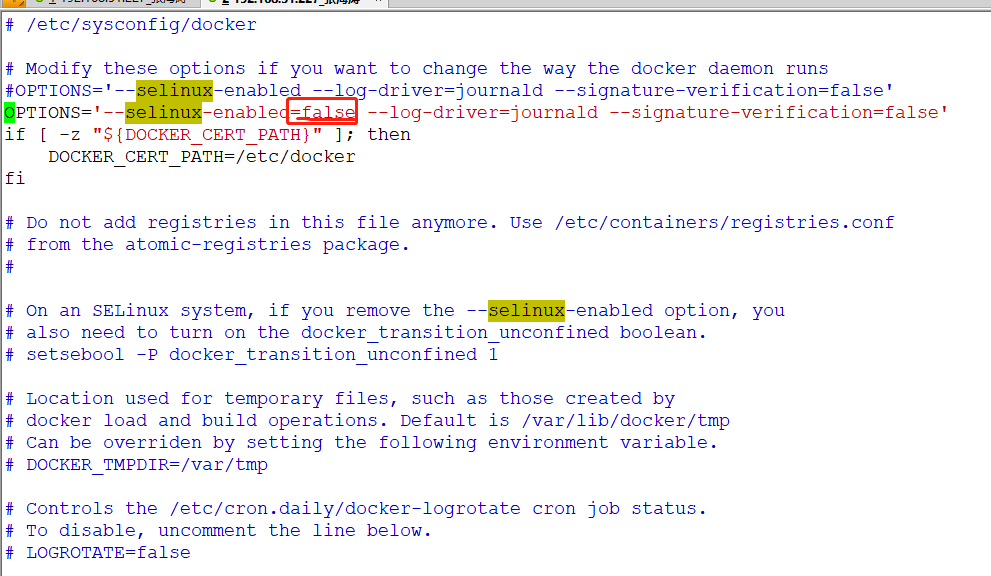
此linux的内核中的SELinux不支持 overlay2 graph driver ,解决方法有两个,要么启动一个新内核,要么就在docker里禁用selinux,--selinux-enabled=false
修改文件,/etc/sysconfig/docker,在--selinux-enabled后面添加=false即可!具体修改见下图
重启docker,命令:systemctl restart docker.service

查看docker信息,命令:docker info
[root@localhost ~]# docker info

Containers:

 Running:

 Paused:

 Stopped:

Images:

Server Version: 1.13.

Storage Driver: overlay2

 Backing Filesystem: xfs

 Supports d_type: true

 Native Overlay Diff: false

Logging Driver: journald

Cgroup Driver: systemd

Plugins:

 Volume: local

 Network: bridge host macvlan null overlay

Swarm: inactive

Runtimes: docker-runc runc

Default Runtime: docker-runc

Init Binary: /usr/libexec/docker/docker-init-current

containerd version:  (expected: aa8187dbd3b7ad67d8e5e3a15115d3eef43a7ed1)

runc version: e9c345b3f906d5dc5e8100b05ce37073a811c74a (expected: 9df8b306d01f59d3a8029be411de015b7304dd8f)

init version: 5b117de7f824f3d3825737cf09581645abbe35d4 (expected: 949e6facb77383876aeff8a6944dde66b3089574)

Security Options:

 seccomp

  WARNING: You're not using the default seccomp profile

  Profile: /etc/docker/seccomp.json

Kernel Version: 3.10.-.el7.x86_64

Operating System: CentOS Linux  (Core)

OSType: linux

Architecture: x86_64

Number of Docker Hooks:

CPUs:

Total Memory: 2.731 GiB

Name: localhost.localdomain

ID: NDA4:FMH4:OVC2:HARD:3Q4V:ZWIE:UTJU:YVR3:AFEE:FOBN:54NL:GXGU

Docker Root Dir: /var/lib/docker

Debug Mode (client): false

Debug Mode (server): false

Registry: https://index.docker.io/v1/

Experimental: false

Insecure Registries:

 127.0.0.0/

Live Restore Enabled: false

Registries: docker.io (secure)
Hello World
下面,我们通过最简单的 image 文件"hello world",感受一下 Docker。
因为国内连接 Docker 的官方仓库很慢,因此我们在日常使用中会使用Docker 中国加速器。通过 Docker 官方镜像加速,中国区用户能够快速访问最流行的 Docker 镜像。该镜像托管于中国大陆,本地用户现在将会享受到更快的下载速度和更强的稳定性,从而能够更敏捷地开发和交付 Docker 化应用。
Docker 中国官方镜像加速可通过registry.docker-cn.com访问。该镜像库只包含流行的公有镜像,私有镜像仍需要从美国镜像库中拉取。
修改系统中docker对应的配置文件即可,如下:
vi  /etc/docker/daemon.json

#添加后

{    "registry-mirrors": ["https://registry.docker-cn.com"],    "live-restore": true}
也可以替换成网易的镜像地址
{

  "registry-mirrors": ["http://hub-mirror.c.163.com"]

}
我们选择用网易的镜像地址。
运行下面的命令,将 image 文件从仓库抓取到本地。
docker pull library/hello-world
上面代码中,docker image pull是抓取 image 文件的命令。library/hello-world是 image 文件在仓库里面的位置,其中library是 image 文件所在的组,hello-world是 image 文件的名字。
抓取成功以后,就可以在本机看到这个 image 文件了。
查看下载的镜像,命令:docker images
[root@localhost docker]# docker images

REPOSITORY              TAG                 IMAGE ID            CREATED             SIZE

docker.io/hello-world   latest              e38bc07ac18e         weeks ago         1.85 kB
运行hello-world镜像,命令:docker run hello-world
[root@localhost docker]# docker run hello-world

Hello from Docker!

This message shows that your installation appears to be working correctly.

To generate this message, Docker took the following steps:

 . The Docker client contacted the Docker daemon.

 . The Docker daemon pulled the "hello-world" image from the Docker Hub.

    (amd64)

 . The Docker daemon created a new container from that image which runs the

    executable that produces the output you are currently reading.

 . The Docker daemon streamed that output to the Docker client, which sent it

    to your terminal.

To try something more ambitious, you can run an Ubuntu container with:

 $ docker run -it ubuntu bash

Share images, automate workflows, and more with a free Docker ID:

 https://hub.docker.com/

For more examples and ideas, visit:

 https://docs.docker.com/engine/userguide/
常用命令
除过以上我们使用的Docker命令外,Docker还有一些其它常用的命令
拉取docker镜像
docker pull image_name
查看宿主机上的镜像,Docker镜像保存在/var/lib/docker目录下:
docker images
删除镜像
docker rmi docker.io/tomcat:7.0.77-jre7 或者 docker rmi b39c68b7af30
查看当前有哪些容器正在运行
docker ps
查看所有容器
docker ps -a
启动、停止、重启容器命令:
docker start container_name/container_iddocker stop container_name/container_iddocker restart container_name/container_id
后台启动一个容器后,如果想进入到这个容器,可以使用attach命令:
docker attach container_name/container_id
删除容器的命令:
docker rm container_name/container_id
查看当前系统Docker信息
docker info
从Docker hub上下载某个镜像:
docker pull centos:latestdocker pull centos:latest
执行docker pull centos会将Centos这个仓库下面的所有镜像下载到本地repository。
docker环境搭建的更多相关文章
- centos7系统下 docker 环境搭建
运行环境: VMware Workstation Pro 在虚拟机中安装centos7系统, 选择最小安装, 网络连接方式选择的桥接(与宿主机在同一IP段)centos7一定要安装64位, docke ...
- win7下docker环境搭建nginx+php-fpm+easyswoole+lavarel+mysql开发环境
win7环境基础在上一篇win7下docker环境搭建nginx+php-fpm+easyswoole开发环境中已经详细叙述搭建完成 本篇文章将叙述如何在上述基础上搭建laravel开发环境,这个其实 ...
- Docker环境搭建以及基本操作
Docker环境搭建以及基本操作 Docker环境基本搭建: 基础环境:Centos 7.4 IP:192.168.30.117 [root@docker ~]# cat /etc/re ...
- Docker 环境搭建(RedHat 7)
Docker 环境搭建(RedHat 7): CentOS7 下载 http://mirrors.sohu.com/centos/7/isos/x86_64/ 装载镜像文件 安装Linux 7, 参考 ...
- 【架构】docker环境搭建mysql主从
序 本文主要研究怎么在docker上搭建mysql的主从.因为在单机搭建mysql多实例然后再配主从,感觉太痛苦了,环境各有不同,配置各不大相 同,从网上找搭建方法,试了半天也没成功,最后也没耐心调试 ...
- ClusterControl docker 环境搭建
ClusterControl 是一款比较强大的数据库管理平台,包含了丰富的数据库管理功能. 我们可以用来方便的进行数据管理 测试使用docker-compose 管理 环境准备 docker-comp ...
- docker环境搭建centos+jdk+tomcat_CENTOS篇
前言 (1)写在前面的话,鉴于在linux或类unix系统中安装jdk+tomcat等环境,没有什么经验,所以选择在docker容器中安装之,以防止安装失败无法恢复系统 (2)需要下载对应的系统的do ...
- win7下docker环境搭建nginx+php-fpm+easyswoole开发环境
基础的环境已在文章nginx.php-fpm.swoole HTTP/TCP压测对比中搭建了,现在是在这个基础上在搭建easyswoole开发环境 主要要修改的地方是dnmp包里面的docker-co ...
- Mesos+Zookeeper+Marathon+Docker环境搭建
相关理论请参考:https://www.cnblogs.com/Bourbon-tian/p/7155054.html,本文基于https://www.cnblogs.com/Bourbon-tian ...
- 【Docker】Windows下docker环境搭建及解决使用非官方终端时的连接问题
背景 时常有容器方面的需求,经常构建调试导致测试环境有些混乱,所以想在本地构建一套环境,镜像调试稳定后再放到测试环境中. Windows Docker 安装 安装docker toolbox 博主的电 ...
随机推荐
- [转载]Windows 2003 R2 SP2 VOL 企业版(简体中文)
Windows 2003 R2 SP2 VOL 企业版(简体中文) 要是这个的话,分享个电驴的下载连接吧(可以复制后用快车和迅雷直接下)32位版CD1:SHA1值:d0dd2782e9387328eb ...
- iis 限制动态IP地址访问次数
An IP Address Blocking HttpModule for ASP.NET in 9 minutes namespace YourModuleNameHere 10 { 11 publ ...
- python 中文报错
解决的办法为:在程序的开头写入如下代码,这就是中文注释 #coding=utf-8
- Android中使用ViewGroup.removeViews()时出现NullPointException解决方案
在ViewGroup的内部写一个动画效果,在效果结束之后会调用onAnimationEnd(Animation arg0),在此方法中如果直接使用removeViews()时,可能会出现NullPoi ...
- Window快捷键
1.带windows 键 Win + E 打开文件夹 Win + R 调出运行命令 Win + T 显示任务栏,并在在其中切换 Win +Pause 显示系统属性 Win + Home 最小化 / 还 ...
- June 17. 2018, Week 25th. Sunday
Dad is and always will be my living, breathing superhero. 在我眼里,爸爸是现实版的超级英雄,现在.将来,永远都是. From Bindi Ir ...
- leetcode刷题--两数之和(简单)
一.序言 第一次刷leetcode的题,之前从来没有刷题然后去面试的概念,直到临近秋招,或许是秋招结束的时候才有这个意识,原来面试是需要刷题的,面试问的问题都是千篇一律的,只要刷够了题就差不多了,当然 ...
- spring简述
1. 什么是Spring Spring:SE/EE开发的一站式框架.(有EE开发每一层的解决方案) WEB层:SpringMVC Service层:Spring的Bean管理,Spring的声明式事务 ...
- Shell and DOS
long long ago 自己便想总结下shell命令以及dos常用的命令,毕竟实际实践中会经常用到,用的好的批处理或者shell脚本会事半功倍,好了,废话不多说,开始. shell echo [字 ...
- Linux之权限详解
如何知道你有什么权限 我能干什么?这是我最关心的问题! 切换到普通用户 [root@luffy-01 ~]# su - pizza [pizza@luffy-01 ~]$ ls /root ls: c ...